To configure Windows LAPS in Active Directory, run Update-LapsADSchema, grant the computers' OU self-permission, and enable a LAPS Group Policy that sets the backup directory to Active Directory.
This guide covers the requirements, the schema and permission commands, every key GPO setting, password retrieval and rotation, the event IDs that prove it works, and fixes for common failures.
How to configure Windows LAPS in Active Directory
Run the PowerShell commands from an elevated PowerShell session on a domain controller or any server that has the Windows LAPS module. Replace NewLAPS with the name of the OU that holds your computers.
- Run
Update-LapsADSchemaonce for the forest to add the Windows LAPS attributes. - Run
Set-LapsADComputerSelfPermission -Identity NewLAPSso the computers in that OU can write their own passwords. - Open Group Policy Management, create a GPO and link it to the same OU.
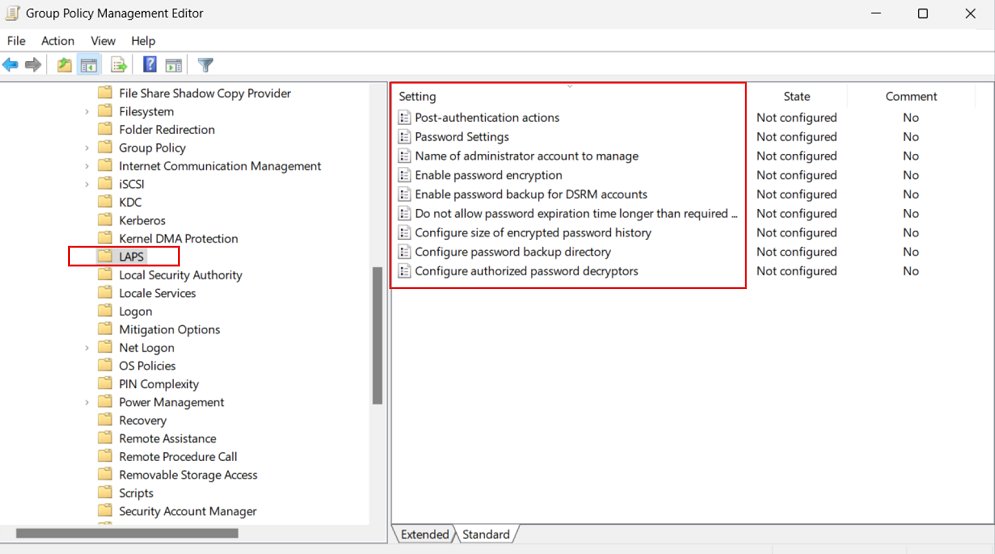
- In the editor, go to Computer Configuration > Policies > Administrative Templates > System > LAPS.
- Configure the backup directory setting with Active Directory as the target (BackupDirectory value 2).
- On a client, run
Invoke-LapsPolicyProcessingto apply the policy without waiting for the hourly cycle. - Run
Get-LapsADPassword -Identity <computer name> -AsPlainTextto read the stored password.
New built-in Windows LAPS overview
Windows LAPS is a feature built into Windows that rotates the password of one local administrator account on each device and backs it up to Active Directory or Microsoft Entra ID. It can also manage the Directory Services Restore Mode (DSRM) password on domain controllers.
Shared local admin passwords let an attacker move from one machine to the next. A unique, rotated password per device closes that path.
| Feature | Windows LAPS | Legacy Microsoft LAPS |
|---|---|---|
| Installation | Built into Windows, nothing to install | Separate MSI, blocked on Windows 11 23H2 and later |
| Back up to Microsoft Entra ID | Yes | No |
| Password encryption in AD | Yes, at domain functional level 2016 or later | No |
| Encrypted password history | Up to 12 previous passwords | No |
| DSRM password management | Yes, on Windows Server 2019 and later DCs | No |
| PowerShell module | LAPS module with Get-LapsADPassword and others | AdmPwd.PS |
| Status | Current | Deprecated |
Windows LAPS also offers a legacy Microsoft LAPS emulation mode that honours existing legacy LAPS Group Policy settings during migration, so you can refresh Group Policy on clients once the new GPO is linked.
Windows LAPS requirements and supported Windows versions
| Requirement | Detail |
|---|---|
| Windows client | Windows 11 23H2 and later, or Windows 11 22H2/21H2 and Windows 10 with the April 11, 2023 update or later |
| Windows Server | Windows Server 2025, or Windows Server 2022 and 2019 with the April 11, 2023 update or later |
| Clear-text password storage | Any domain functional level, protected by AD access control lists |
| Encrypted password storage | Domain functional level 2016 or later |
| DSRM account management | Domain functional level 2016 and Windows Server 2019 or later domain controllers |
| Schema update | One-time Update-LapsADSchema run with schema-modify rights |
| Passphrases and automatic account management | Windows 11 24H2 or Windows Server 2025 and later |
Windows 10 reached end of support on October 14, 2025, so Windows LAPS keeps working there only on devices still receiving updates, such as through Extended Security Updates.
Deploying Local Administrator Password Solution in Active Directory domain
These steps prepare the forest and the OU. Domain Admins already have read and expire rights, so the permission steps matter for delegated help desk groups.
- Open Windows PowerShell as administrator on a Windows Server 2019 or later machine with Windows LAPS.
- Run
Update-LapsADSchema -Verboseto extend the schema for the whole forest. - Run
Set-LapsADComputerSelfPermission -Identity NewLAPSto let devices in the OU update their password. - Run
Set-LapsADReadPasswordPermission -Identity NewLAPS -AllowedPrincipals @("laps\LapsPasswordReadersGroup")to delegate password reads. - Run
Set-LapsADResetPasswordPermission -Identity NewLAPS -AllowedPrincipals @("laps\LapsPasswordExpirersGroup")to delegate password expiry. - Run
Find-LapsADExtendedRights -Identity NewLAPSand confirm only trusted accounts such as SYSTEM and Domain Admins hold extended rights. - If you use a Group Policy Central Store, copy
%windir%\PolicyDefinitions\LAPS.admxand its language file into it manually.
To apply the self-permission to the whole domain instead of one OU, pass the domain root as a distinguished name, for example -Identity "DC=laps,DC=com".
Configure GPO to change local administrator passwords
The Windows LAPS policy lives at Computer Configuration > Policies > Administrative Templates > System > LAPS in Group Policy Management Editor. Only the backup directory is mandatory; every unset setting uses its default.
Leave the administrator account name unset to manage the built-in Administrator account, which Windows LAPS finds by its well-known RID. A custom account name must already exist, because Windows LAPS does not create it.
| Setting | Values | Default |
|---|---|---|
| BackupDirectory | 0 disabled, 1 Microsoft Entra ID, 2 Active Directory | 0 (disabled) |
| AdministratorAccountName | Name of a custom local admin account | Built-in Administrator |
| PasswordAgeDays | 1 to 365 days | 30 |
| PasswordLength | 8 to 64 characters | 14 |
| PasswordComplexity | 1 to 4 for passwords, 5 to 8 on Windows 11 24H2 and Server 2025 | 4 (upper, lower, numbers, specials) |
| PasswordExpirationProtectionEnabled | 1 or 0 | 1 |
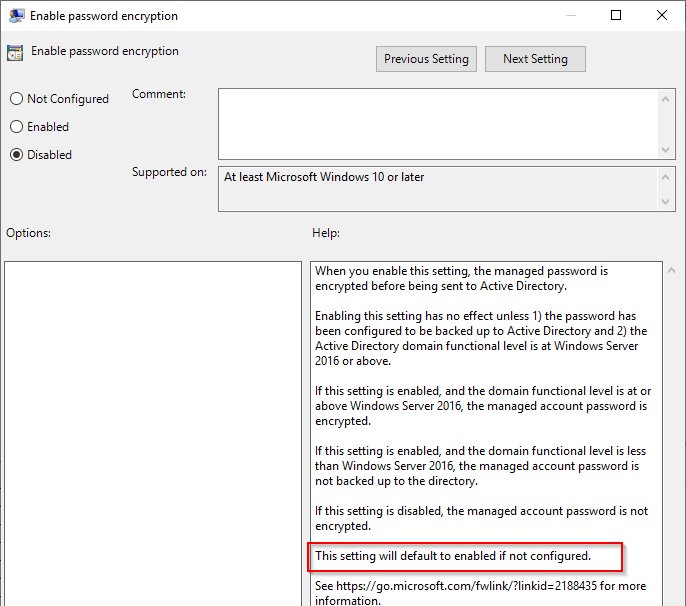
| ADPasswordEncryptionEnabled | 1 or 0, needs DFL 2016 | Set 1 to encrypt |
| ADPasswordEncryptionPrincipal | Group name or SID that can decrypt | Domain Admins |
| ADEncryptedPasswordHistorySize | 0 to 12 passwords | 0 |
| ADBackupDSRMPassword | 1 or 0, domain controllers only | 0 |
| PostAuthenticationResetDelay | 0 to 24 hours | 24 |
| PostAuthenticationActions | 1 reset, 3 reset and sign out, 5 reset and reboot, 11 reset, sign out and end processes | 3 |
Changing PasswordAgeDays does not alter the current password's expiry; the new age applies from the next rotation. Keep length and complexity compatible with the local password policy, or rotation fails with event 10027.
LAPS: Get a local administrator password on Windows
Read the password with PowerShell or in the Active Directory Users and Computers console. Reading needs query permission, and an encrypted password also needs membership of the decryption principal.
- Open Windows PowerShell on a machine with the Windows LAPS module.
- Run
Get-LapsADPassword -Identity lapsAD2 -AsPlainText, replacinglapsAD2with the computer name. - Read the Password and ExpirationTimestamp lines in the output.
- Check Source:
EncryptedPasswordmeans encryption is on, and DecryptionStatus should say Success. - Alternatively, open Active Directory Users and Computers, open the computer's Properties to view the LAPS password details.
The LAPS-enabled Active Directory Users and Computers snap-in ships only with the in-box RSAT on supported Windows LAPS platforms; copying it to an older OS is not supported.
Force Windows LAPS password rotation with PowerShell
Rotate early after a security incident or once a help desk session ends. Setting the expiry in AD works remotely; Reset-LapsPassword runs on the device itself.
Set-LapsADPasswordExpirationTime -Identity lapsAD2Marks the stored password as expired now, so the device generates and backs up a new one at its next processing cycle. Run Invoke-LapsPolicyProcessing on the device to skip the wait, or run Reset-LapsPassword locally to rotate immediately.
You should see: The output lists the computer's distinguished name with the status PasswordReset.
Windows LAPS event IDs to confirm password backup
- On the managed device, open Event Viewer.
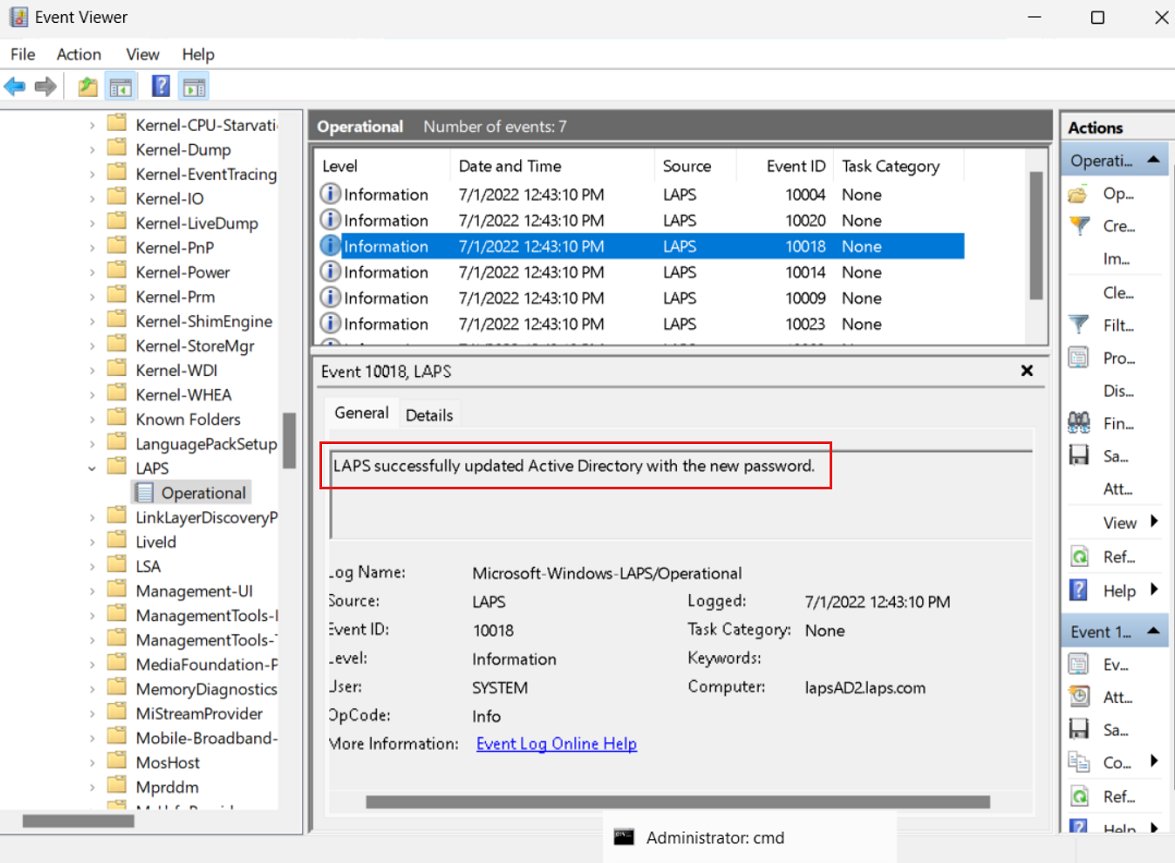
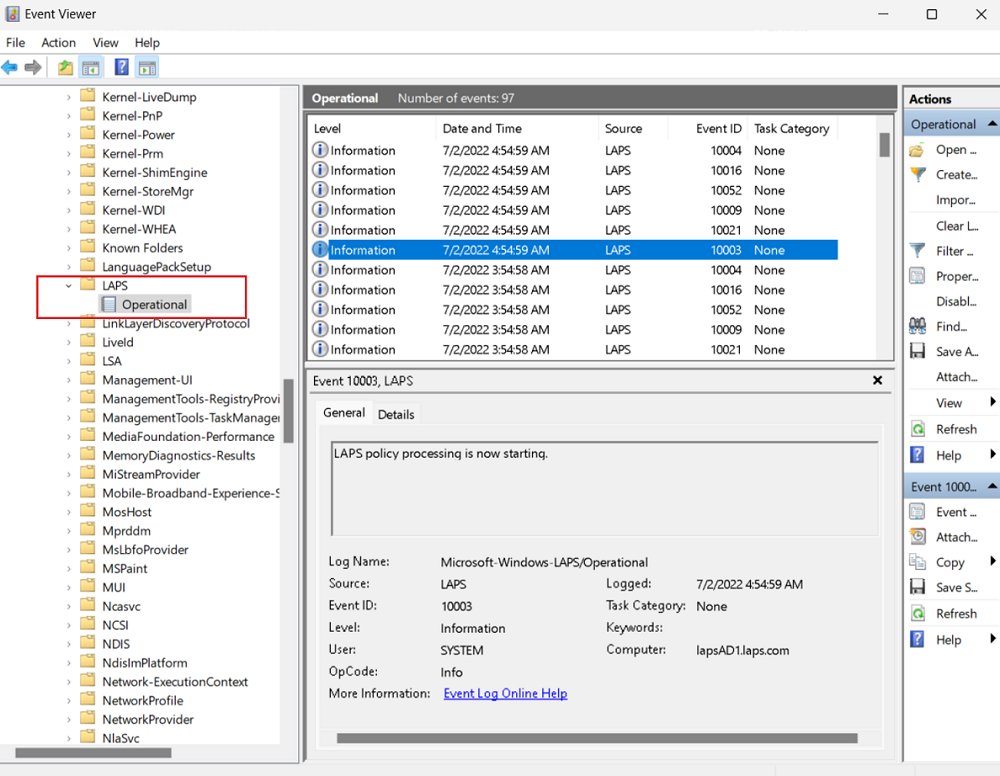
- Go to Applications and Services Logs > Microsoft > Windows > LAPS > Operational.
- Find event 10021, which lists the active policy with Policy source: GPO and Backup directory: Active Directory.
- Find event 10018, "LAPS successfully updated Active Directory with the new password".
- Find event 10020, which confirms the local account itself got the new password.
- Confirm the cycle ended with 10004 (succeeded) rather than 10005 (failed).
Windows LAPS not working in Active Directory: fixes
The LAPS policy folder is missing in Group Policy Management Editor
The LAPS.admx template is not copied to the GPO Central Store automatically.
- Copy
%windir%\PolicyDefinitions\LAPS.admxand its .adml language file from an updated machine into the Central Store. - Close and reopen the GPO editor.
Get-LapsADPassword returns access denied
Your account has no read permission on the computer's OU.
- Run
Set-LapsADReadPasswordPermissionfor your group on that OU. - Sign out and back in so the new group membership applies, then retry.
The password reads but will not decrypt
Read permission does not grant decryption; only the ADPasswordEncryptionPrincipal can decrypt.
- Set ADPasswordEncryptionPrincipal in the GPO to your group's name or SID.
- Rotate the password so it is re-encrypted for the new principal.
Event 10027 and no new password
PasswordLength or PasswordComplexity conflicts with the device's local password policy.
- Raise the length or complexity to meet the local policy.
- Run
Invoke-LapsPolicyProcessingand check for event 10018.
Event 10005 with an error code
A processing cycle failed; the events between 10003 and 10005 name the step that broke.
- Read the events logged after the 10003 start event.
- Confirm the schema update and self-permission ran for this computer's OU.
Windows LAPS in Active Directory FAQ
Do I need to install anything to use Windows LAPS?
No. Windows LAPS is built into supported Windows 11, Windows 10 and Windows Server 2019 and later releases that have the April 11, 2023 update. You only extend the AD schema and deploy a policy; the legacy LAPS MSI is not required.
Do I need a Windows Server 2019 or 2022 domain controller to extend the schema?
No. You can run Update-LapsADSchema from any operating system updated with Windows LAPS. The only requirement is that your credentials are allowed to modify the Active Directory schema.
Can I use Windows LAPS if my domain functional level is below 2016?
Yes, with limits. Below functional level 2016, passwords are stored in clear text protected by AD access control lists, password encryption is unavailable, and domain controllers cannot manage their DSRM account.
How often does Windows LAPS change the password?
By default every 30 days, set by PasswordAgeDays with a range of 1 to 365 days. Windows LAPS checks its policy every hour and rotates the password when the stored expiry time has passed.
Can legacy Microsoft LAPS and Windows LAPS run side by side?
Yes, as long as a new Windows LAPS policy is configured and each product manages a different local account. Legacy Microsoft LAPS is deprecated and cannot be installed on Windows 11 23H2 and later.
Can a hybrid-joined device back up its password to both AD and Microsoft Entra ID?
No. A hybrid-joined device can back up to either Active Directory or Microsoft Entra ID, but only one directory at a time.
Does Windows LAPS create the local administrator account?
Not with the AdministratorAccountName setting; that account must already exist. On Windows 11 24H2 and Windows Server 2025, automatic account management can create and manage a custom account, named WLapsAdmin by default.
Can I recover LAPS passwords if every domain controller is down?
Yes, if you keep domain controller backups. Mount the backup with dsamain.exe and run Get-LapsADPassword with the -Port parameter against the mounted database to read the stored passwords.