To install Windows Admin Center, download the installer from the Windows Admin Center Evaluation Center, run it as an administrator, choose Express setup or Custom setup, pick a TLS certificate and select Install.
This guide covers where to install it, the desktop and Server Core routes, the first sign-in, adding servers, and the errors that stop a connection.
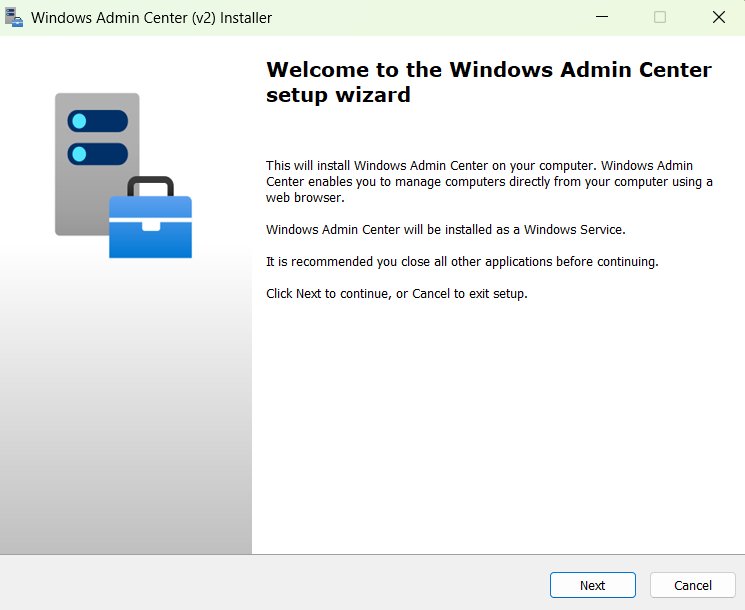
Install and configure Windows Admin Center
These steps work on Windows 11 and on Windows Server with the desktop experience. You need admin rights on the machine.
- Download the installer from the Windows Admin Center Evaluation Center on microsoft.com and save it on the machine that will host the gateway.
- Sign in to that machine with an administrator account and run the installer.
- On Welcome to the Windows Admin Center setup wizard, select Next.
- On License Terms and Privacy Statement, select I accept these terms and understand the privacy statement, then select Next.
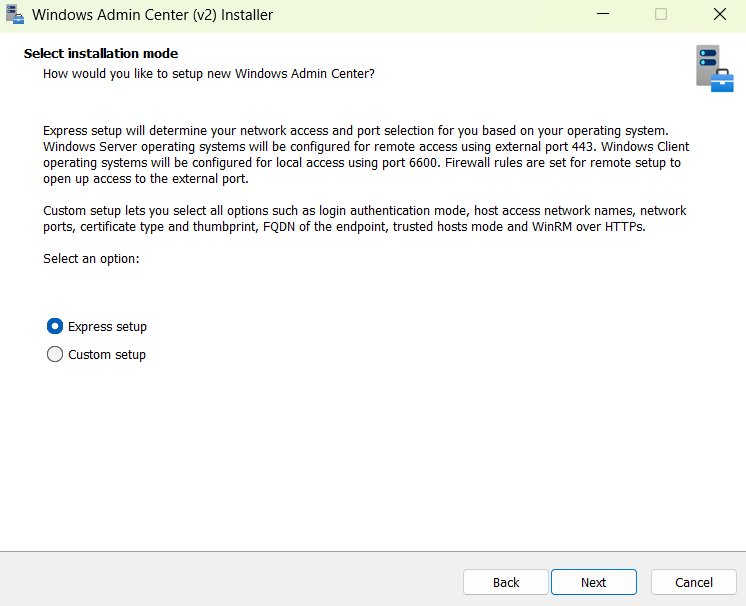
- On Select installation mode, choose Express setup for defaults or Custom setup to set ports and certificates, then select Next.
- On Select TLS certificate, pick your certificate or let the installer generate a self-signed one, then select Next.
- Choose an option on Automatic updates and Send diagnostic data to Microsoft, selecting Next on each.
- Review Ready to install and select Install.
- Tick Start Windows Admin Center, select Finish, and sign in with your administrator credentials.
Windows Admin Center is a browser-based gateway for Windows Server, clusters and Windows PCs. It is a different product from the Microsoft 365 admin center, which manages cloud subscriptions.
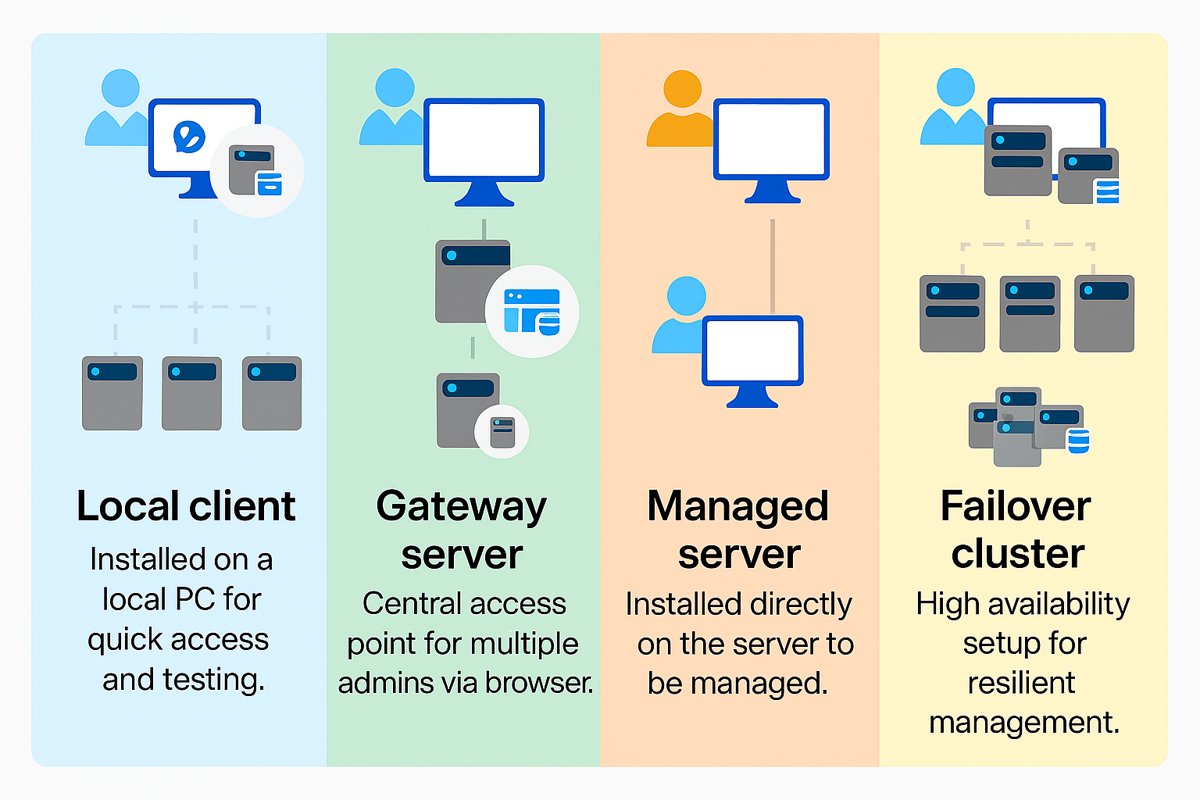
Where to install Windows Admin Center: local client or gateway server
Microsoft supports four installation types. The one you pick decides who can reach the gateway and on which port.
| Your situation | Installation type | Supported on |
|---|---|---|
| One admin, testing or a small network | Local client | Windows 11, Windows 11 ARM64 |
| Several admins reaching it from any browser | Gateway server | Windows Server 2016, 2019, 2022, 2025, Semi-Annual Channel |
| Managing a server or the cluster it belongs to | Managed server | Windows Server 2016 and later |
| Production service that must survive a node failure | Failover cluster | Windows Server 2016 and later |
Never install it on a domain controller; Microsoft does not support that. Microsoft also advises against managing the same server the gateway runs on, so connect to servers remotely instead.
Windows Admin Center requirements
| Requirement | Detail |
|---|---|
| Account | Admin rights on the install machine; members of the local Administrators group can use the tool |
| Certificate | Optional Server Authentication certificate (1.3.6.1.5.5.7.3.1) in the LocalMachine\My store; the self-signed one lasts 60 days |
| Browser | Microsoft Edge or Google Chrome; Firefox is not officially supported |
| Outbound network | TCP 443 to aka.ms, download.microsoft.com, pkgs.dev.azure.com and *.vsblob.visualstudio.com |
| Older managed servers | Windows Server 2012 and 2012 R2 need Windows Management Framework 5.1 or later |
Run $PSVersionTable in PowerShell on an older server to confirm WMF is 5.1 or higher before adding it.
Install Windows Admin Center on Server Core with PowerShell
On Server Core, open the SConfig menu, enter option 15 to start PowerShell, then run these commands in order.
$parameters = @{ Source = "https://aka.ms/WACdownload"; Destination = ".\WindowsAdminCenter.exe" }
Start-BitsTransfer @parameters
Start-Process -FilePath '.\WindowsAdminCenter.exe' -ArgumentList '/VERYSILENT' -Wait
Start-Service -Name WindowsAdminCenter
Start-BitsTransfer fetches the installer, /VERYSILENT installs it with no prompts, and Start-Service starts the gateway if it did not start on its own. Other switches are /Silent, /HTTPSPortNumber and /CertificateThumbprint.
You should see: The commands return without errors and the WindowsAdminCenter service is running.
Configure Windows Admin Center with Custom setup
Express setup picks network access and the port from your operating system. Choose Custom setup when you need control.
| Custom setup option | What it controls |
|---|---|
| Network access | Whether the gateway accepts only local or remote connections |
| Port number | The HTTPS port browsers use; Windows clients default to 6600 and Windows Server to 443 |
| TLS certificate type and thumbprint | Which certificate secures the site |
| Fully qualified domain name | The endpoint name users type, such as servername.contoso.com |
| Trusted hosts mode | How the gateway handles WinRM trusted hosts |
| WinRM over HTTPS | Encrypts management traffic to nodes over HTTPS |
Use a certificate from a trusted certificate authority in production. The self-signed certificate is for testing only.
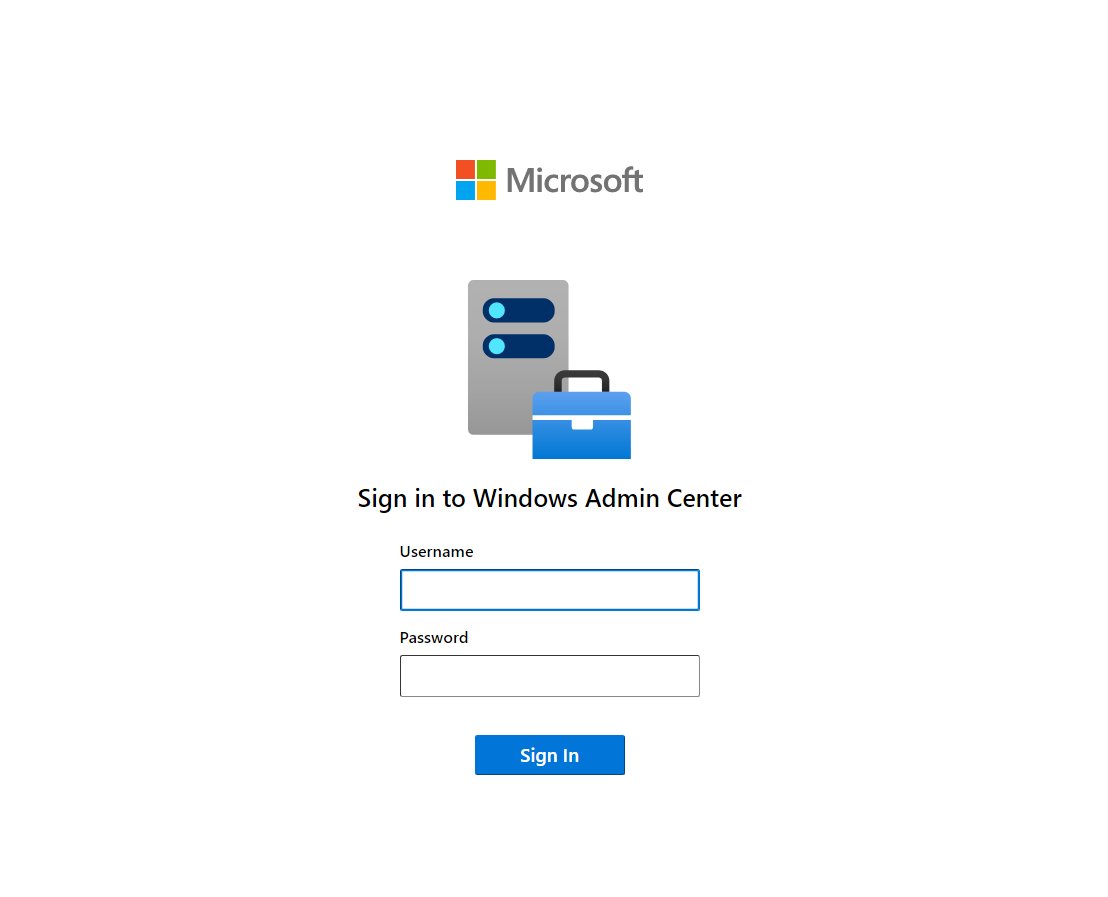
How do I start Windows Admin Center?
- Open Start and select Windows Admin Center (v2), or search for it.
- Wait for your default browser to open the sign-in page.
- On a gateway server, browse to its address instead, for example
https://servername.contoso.com. - Sign in with your administrator credentials and choose a certificate if prompted.
- Close the first-run window that lists what is new.
You can run apps as administrator in Windows 11 if your account is a standard user that needs elevation.
Add servers and PCs to Windows Admin Center
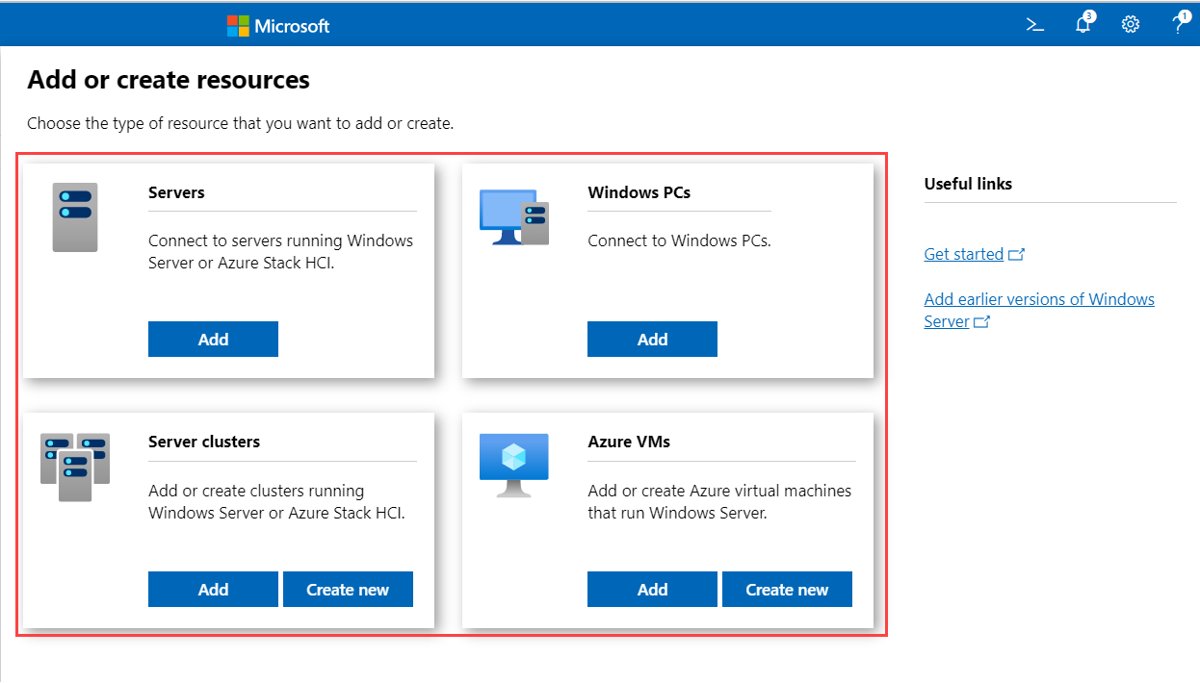
- On All connections, select + Add.
- Select Add under the resource type: servers, Windows PCs, clusters or Azure VMs.
- Use the Add one tab and type the name in Server name, or use Import a list or Search Active Directory.
- Optionally select Add tags to group related machines.
- Select Add to put the machine in the connection list.
- Select the machine; if single sign-on fails, select Manage as and enter credentials.
On a Windows Server gateway, single sign-on needs Kerberos delegation. Without it, you re-enter credentials through Manage as for each browser session.
Check Windows Admin Center is working
- Open the gateway address and confirm the sign-in page loads without a certificate warning.
- Confirm All connections lists your computer name.
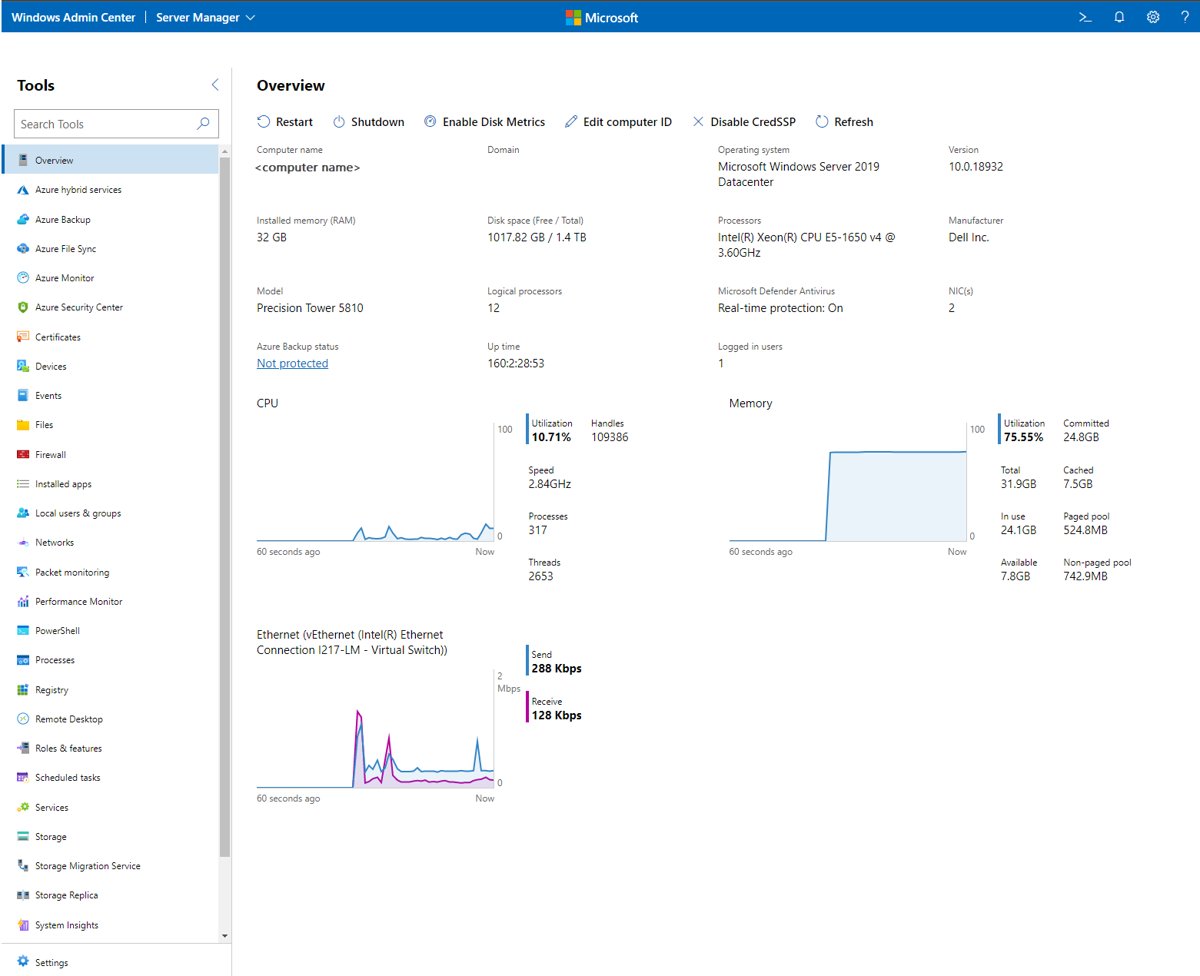
- Select a managed server and confirm Overview shows live CPU, memory and network graphs.
- Open the Updates or Services tool to confirm the connection can read data.
Windows Admin Center connection errors and fixes
Windows is unable to find a default server with Active Directory Web Services running
The Active Directory tools need Active Directory Web Services (ADWS) on a reachable domain controller, which listens on TCP 9389.
- Confirm the managed machine is joined to the domain and can resolve a domain controller.
- On the domain controller, open Services and confirm Active Directory Web Services is running.
- Open TCP 9389 between the gateway, the managed node and the domain controller.
- Reconnect and open the Active Directory tool again.
The browser shows a certificate warning or the site will not load
The self-signed certificate has expired after 60 days or is not trusted.
- Install a Server Authentication certificate in the LocalMachine\My store.
- Rerun the installer, choose Custom setup and select that certificate.
- Reload the gateway address in Edge or Chrome.
A Windows Server 2012 R2 node will not connect
The node lacks the PowerShell features Windows Admin Center needs.
- Run
$PSVersionTableon the node. - Install Windows Management Framework 5.1 if the version is lower.
- Restart the node and add it again.
Extensions will not install or update
A firewall or proxy blocks the extension feed.
- Allow pkgs.dev.azure.com and *.vsblob.visualstudio.com from the gateway.
- Allow winadmincenterassets.blob.core.windows.net and nuget.org from the browser machine.
- Retry the extension from Settings.
Windows Admin Center installation FAQ
Is Windows Admin Center free?
Yes. Windows Admin Center is a free download from the Windows Admin Center Evaluation Center. You need a licensed Windows 11 or Windows Server machine to install it on.
Can I install Windows Admin Center on Windows 10?
Microsoft's current supported list for the local client install names Windows 11 and Windows 11 ARM64. Windows Server 2016 through 2025 host the gateway, managed server and cluster types.
Can Windows Admin Center be installed on a domain controller?
No. Microsoft does not support installing Windows Admin Center on a domain controller. Install it on a Windows 11 PC or a member server, then manage the domain controller remotely.
What port does Windows Admin Center use?
Windows client installs listen locally on port 6600, and Windows Server installs listen for remote access on port 443. Custom setup or the /HTTPSPortNumber switch sets a different port.
How long does the self-signed certificate last?
The self-signed certificate the installer generates is valid for 60 days. Replace it with a certificate from a trusted certificate authority before using the gateway in production.
Which browsers support Windows Admin Center?
Microsoft Edge and Google Chrome are tested and supported. Firefox is not officially supported and needs the Windows Admin Center client certificate imported into its own certificate store.
How do I install and configure Windows Server to be managed?
Install Windows Server 2016 or later, join it to your network, and add it under All connections with + Add. Windows Server 2012 R2 also needs Windows Management Framework 5.1.