There is no switch that turns DisplayPort on: plug the cable into the graphics card's DisplayPort output, set the monitor's input to DisplayPort, and let Windows detect the screen.
This guide covers where to plug in, the monitor input, Windows display settings, graphics drivers, DisplayPort audio, how to confirm it works, and fixes when the screen stays black.
The fastest way to get DisplayPort working on a graphics card
A DisplayPort output is live whenever the graphics card and its driver are working. The steps below cover the three things that actually stop a picture: the wrong port, the wrong monitor input and an undetected display.
- Shut down the PC and plug the DisplayPort cable into a DisplayPort output on the graphics card, not into a port on the motherboard's rear panel.
- Plug the other end into the monitor's DisplayPort input and turn the monitor on.
- Press the monitor's input or source button and choose DisplayPort (some monitors label it DP).
- Start the PC and sign in to Windows.
- If the screen is not shown, open Start > Settings > System > Display > Multiple displays and select Detect.
- Press Windows logo key + P and choose Extend or Second screen only if you use more than one screen.
If the monitor still shows “no signal”, jump to the troubleshooting section below. The same logic applies to enabling the HDMI port on Windows 10.
Where to connect DisplayPort on your PC
Most "DisplayPort not working" cases are a cable in the wrong socket. Match your PC to a row.
| Your PC | Plug the DisplayPort cable into | Why |
|---|---|---|
| Desktop with a separate graphics card | A DisplayPort output on the card's bracket, the row of ports lower on the back of the case | The card does the rendering; the motherboard's video ports belong to the processor's integrated graphics |
| Desktop with no graphics card | The DisplayPort on the motherboard's rear panel | Only works when the processor has integrated graphics |
| Desktop whose processor has no integrated graphics (for example Intel's Core i9-13900KF) | The graphics card only | With no integrated graphics, there is nothing to drive the motherboard's video ports |
| Laptop or PC with USB-C and no full-size DisplayPort | A USB-C port that supports DisplayPort Alt Mode, with a USB-C to DisplayPort cable | DisplayPort features work over USB-C Alt Mode |
| Gaming PC with both HDMI and DisplayPort on the card | DisplayPort | Intel lists DisplayPort as the preferred output for gaming on its Arc cards |
Understanding DisplayPort
DisplayPort is a video interface standard administered by VESA, the Video Electronics Standards Association. It carries video and audio over one cable.
| Feature | What it means for you |
|---|---|
| Video and audio | Supports multi-channel audio, so monitor speakers can play sound over the same cable |
| Current version | DisplayPort 2.1b, announced in January 2025, backward compatible with earlier DisplayPort versions |
| High resolutions | The standard supports 8K (7680 x 4320) at 60 Hz with full 4:4:4 color and can go beyond 8K |
| Multi-stream Transport (MST) | One DisplayPort output can feed more than one display where the hardware supports it |
| USB-C | All DisplayPort features work over DisplayPort Alt Mode on USB Type-C |
| Adapters | Adapters exist from DisplayPort to VGA, DVI and HDMI displays |
| Licensing | VESA charges no royalties for using the standard |
Backward compatibility means an older DisplayPort monitor still works on a newer graphics card, and the reverse.
Step 1: Check Your Hardware Compatibility
| Check | How to check | What you need |
|---|---|---|
| The graphics card has DisplayPort | Look at the card's bracket for DisplayPort sockets, or read the card's spec page | At least one DisplayPort output |
| The monitor has DisplayPort input | Look at the monitor's input panel, or its manual | A DisplayPort or USB-C input with DisplayPort support |
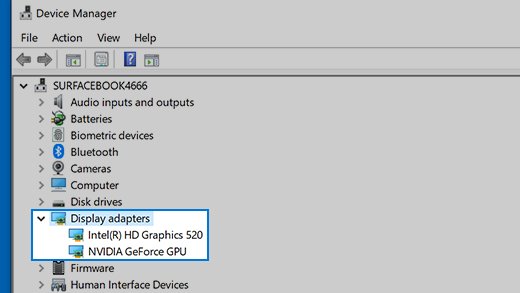
| Windows sees the card | Press Windows + X, select Device Manager and expand Display adapters | Your NVIDIA, AMD or Intel card listed by name |
| A real driver is installed | Read the name under Display adapters | Not Microsoft Basic Display Adapter or Standard VGA adapter, which mean a generic driver |
| The cable matches | Check both plug ends | DisplayPort to DisplayPort, or USB-C to DisplayPort for a USB-C source |
Step-by-Step Guide to Enable DisplayPort on Your Graphics Card
Follow these in order. Each one removes a cause, and most setups work after step 4.
- Step 2: Connecting the DisplayPort cable. Shut down the PC, then push the cable fully into the card's DisplayPort output until it seats.
- Connect the other end to the monitor's DisplayPort input and power the monitor on.
- Step 3: Change input source on your monitor. Use the monitor's source or input button to select DisplayPort.
- Step 4: Configure display settings in the operating system. In Windows, go to Settings > System > Display > Multiple displays and select Detect if the monitor is missing.
- Step 5: Update graphics drivers. Install the current driver from Windows Update or from NVIDIA, AMD or Intel.
- Step 6: Adjust DisplayPort settings in the GPU control panel. Open the card maker's app and confirm the monitor appears with the right resolution and refresh rate.
- Step 7: Troubleshooting common issues. If the screen stays blank, work through the symptom list further down this page.
- Step 8: Advanced configuration (optional). Set the refresh rate and sound output, covered in the next sections.
How to switch to DisplayPort on the monitor
Monitors do not always switch inputs by themselves. If the monitor was used with HDMI before, it may keep looking at HDMI and report no signal.
- Find the monitor's menu or input button, usually on the bottom edge, the side or the back.
- Press it to open the input or source list.
- Select DisplayPort or DP. On monitors with two DisplayPort inputs, pick the numbered one your cable is in.
- Wait a few seconds for the picture to appear.
Menu names differ between monitor brands. The monitor's manual lists the exact button and menu labels.
Enable the DisplayPort monitor in Windows 11 and Windows 10
Windows turns a connected monitor on by itself. When it does not, these settings force detection and choose how the screen is used.
| Task | Windows 11 | Windows 10 |
|---|---|---|
| Detect the DisplayPort monitor | Start > Settings > System > Display > Multiple displays > Detect | Start > Settings > System > Display > Multiple displays, then Detect |
| Choose how screens are used | Press Windows logo key + P: PC screen only, Duplicate, Extend, Second screen only | Same shortcut and options |
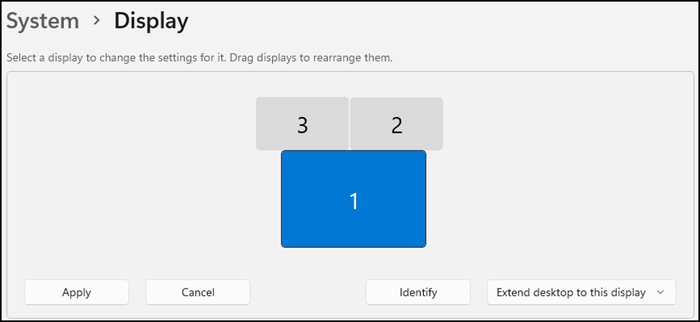
| Find which screen is which | Settings > System > Display > Identify | Settings > System > Display > Identify |
| Change resolution | Settings > System > Display > Display resolution | Settings > System > Display > Scale and layout > Display resolution |
| Change refresh rate | Settings > System > Display > Advanced display > Choose a refresh rate | Settings > System > Display > Advanced display settings, pick the display under Choose Display, then Refresh rate |
Use Second screen only when the DisplayPort monitor should be the only screen, such as a laptop with its lid open next to a desktop monitor.
Update graphics drivers for DisplayPort
Microsoft recommends Windows Update as the best route for driver updates. Download drivers only from the manufacturer's official site.
- Open Settings > Windows Update and install any available updates.
- For the newest driver, use the card maker's own tool: the NVIDIA app or the manual search at nvidia.com/drivers, AMD's driver page on amd.com, or Intel Driver & Support Assistant for Intel graphics.
- To update from Windows instead, right-click Start and select Device Manager.
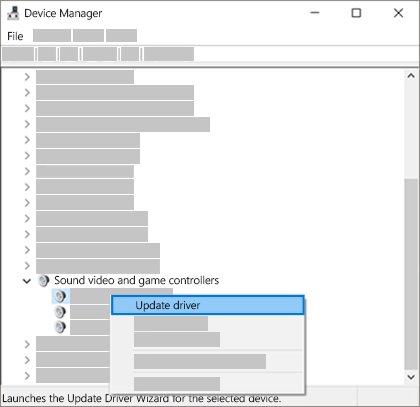
- Expand Display adapters, right-click your graphics card and select Update driver.
- Select Search automatically for updated driver software, or Browse my computer for drivers if you downloaded one from the manufacturer.
- Restart the PC.
On a laptop or a prebuilt PC, the computer manufacturer's driver is also a supported source; Intel lists it as one of its three recommended options.
Adjust DisplayPort settings in the GPU control panel
The card maker's app shows the connected monitor and holds settings Windows does not, such as color output and card-specific display features. Menu layouts change between versions, so use the app's display section.
| Graphics card | App to use | Where to get it |
|---|---|---|
| NVIDIA GeForce | The NVIDIA app, whose GPU Control Center holds graphics settings, or NVIDIA Control Panel | nvidia.com/drivers, installed alongside the driver |
| AMD Radeon | AMD's graphics software, installed with the AMD driver package | The drivers and support page on amd.com |
| Intel Arc or Intel integrated graphics | Intel Graphics Command Center, or Intel Arc Control on Arc cards | The Microsoft Store: select Get, then Install |
Intel Graphics Command Center needs Windows 10 version 1709 or later, or Windows 11 version 21H2 or later, and a recent Intel graphics driver.

How to enable DisplayPort audio
DisplayPort carries audio, but Windows does not always switch sound to the monitor. Pick the monitor as the output device.
- Make sure the monitor has built-in speakers or a headphone jack, and that its volume is not muted in the monitor menu.
- Select the Speakers icon on the taskbar.
- Select the arrow next to the volume slider to list the audio devices.
- Choose the entry named after your monitor or your graphics card's audio output.
- For a permanent choice, open Start > Settings > System > Sound and select the monitor under Output.
If the monitor is not listed, update the graphics driver, restart, and check the list again.
How to know if DisplayPort is working
- Check the monitor's on-screen input label or info menu. It should read DisplayPort or DP, not HDMI.
- Open Settings > System > Display and select Identify. A number appears on each working screen.
- Open Display resolution and confirm the monitor's native resolution is offered and selected.
- Open Advanced display (Windows 11) or Advanced display settings (Windows 10) and check that the monitor's full refresh rate is available.
- Play a video and confirm sound comes from the monitor if you set it as the output.
Fix DisplayPort not working on a graphics card
Graphics card DisplayPort not working, monitor says no signal
The monitor is on the wrong input, the cable is loose or faulty, or the cable is in the motherboard instead of the card.
- Confirm the cable is in a port on the graphics card, not the motherboard's rear panel.
- Set the monitor input to DisplayPort.
- Reseat both ends of the cable firmly.
- Try another DisplayPort output on the card, then a different cable.
- Disconnect docks, dongles and adapters and connect directly.
- Test the monitor on another PC to rule out the monitor.
DisplayPort not working on Windows 11 or Windows 10 after sign-in
Windows has not detected the display or is using the wrong projection mode, or the graphics driver has stalled.
- Open Settings > System > Display > Multiple displays and select Detect.
- Press Windows logo key + P and select Extend.
- Press Windows logo key + Ctrl + Shift + B to reset the graphics driver.
- Restart from Start > Power > Restart.
- Install pending updates from Windows Update.
DisplayPort stopped working after a driver update
The new graphics driver has a problem with your setup.
- Open Device Manager and expand Display adapters.
- Right-click the card, select Properties, open the Driver tab and select Roll Back Driver.
- If rollback is not available, right-click the card, select Uninstall device, tick the option to attempt to remove the driver and restart.
- Back in Device Manager, right-click the adapter, select Update driver and choose Search automatically for updated driver software.
Motherboard DisplayPort shows nothing
The motherboard's video ports need the processor's integrated graphics, which may be missing or unused while a graphics card is installed.
- Check the processor's spec page to confirm it has integrated graphics.
- If a graphics card is installed, move the cable to the card's DisplayPort output.
- If you need both the card and the motherboard ports, check the motherboard manual for its integrated graphics setting.
- For a system with more than one display adapter, contact the PC or motherboard maker about switching the default display adapter, as Microsoft advises.
No sound over DisplayPort
Windows is still sending audio to another device, or the monitor has no speakers.
- Select the Speakers icon on the taskbar, open the device list and choose the monitor.
- Check the monitor's own volume and mute settings.
- Confirm in the monitor manual that it has speakers or an audio output.
- Update the graphics driver and restart the PC.
Frequently Asked Questions
How do I get DisplayPort to work?
Plug the cable into the graphics card's DisplayPort output, set the monitor's input to DisplayPort, and select Detect in Settings > System > Display > Multiple displays if Windows misses it. Update the graphics driver if the screen stays blank.
How do I use DisplayPort?
Connect a DisplayPort cable from the PC's DisplayPort output to the monitor's DisplayPort input and choose DisplayPort as the monitor's input. Windows then treats it like any other screen, so use Windows logo key + P to duplicate or extend.
How do I enable DisplayPort on Windows 11?
Windows 11 has no separate DisplayPort switch. Connect the monitor, then open Settings > System > Display > Multiple displays and select Detect. Press Windows logo key + P to pick Extend or Second screen only.
How do I switch to DisplayPort?
Use the monitor's input or source button to select DisplayPort or DP. If the PC is connected by both HDMI and DisplayPort, the monitor shows whichever input is selected, so switching inputs is done on the monitor, not in Windows.
Where do I connect DisplayPort on a PC?
On a desktop with a graphics card, use the DisplayPort outputs on the card, lower on the back of the case. Use the motherboard's DisplayPort only when there is no graphics card and the processor has integrated graphics.
How do I enable motherboard DisplayPort?
The motherboard's DisplayPort works only when the processor has integrated graphics. With no graphics card installed it should work straight away. With a card installed, the integrated graphics may be unused, so check the motherboard manual for its integrated graphics setting.
How do I enable DisplayPort audio?
Select the Speakers icon on the taskbar, open the device list and choose your monitor. To make it stick, pick the monitor under Output in Settings > System > Sound. The monitor needs built-in speakers or an audio jack.
How do I know if DisplayPort is working?
The monitor's input label shows DisplayPort, and Identify in Settings > System > Display shows a number on the screen. The monitor's native resolution and full refresh rate should also be available in Display settings.
Does this computer support DisplayPort?
Look for DisplayPort sockets on the graphics card or motherboard, or a USB-C port that supports DisplayPort Alt Mode. The PC or graphics card spec page lists its video outputs. In Device Manager, Display adapters shows which graphics hardware you have.
How do I add DisplayPort to a PC?
Install a graphics card that has DisplayPort outputs, or use a USB-C port that supports DisplayPort Alt Mode with a USB-C to DisplayPort cable. Then install the card maker's driver so Windows can use the new outputs.
How do I connect DisplayPort?
Shut down the PC, push one end of the DisplayPort cable into the graphics card and the other into the monitor until it seats, then power both on.

NVIDIA GTX graphics card list - Techdows
[…] 1650 (G5) has HDMI 2.0b and DL-DVI-D but no DisplayPort, so check the outputs before you plan to use DisplayPort on the card. Partner cards can differ from these reference […]
What is VGA? VGA cables, ports, resolution, audio, and adapters explained - Techdows
[…] the graphics card has a free DisplayPort, enable DisplayPort on the graphics card and use a digital cable instead of an adapter chain to […]