Clear the Change brightness automatically when lighting changes check box in Settings > System > Display to disable adaptive brightness in Windows 10, and select it again to enable it.
This guide covers the ambient light sensor check, content adaptive brightness control, the power plan route, and what to do when the option is missing.
The fastest way to switch adaptive brightness on or off
The check box appears only on PCs that carry an ambient light sensor.
- Select Start, then Settings.
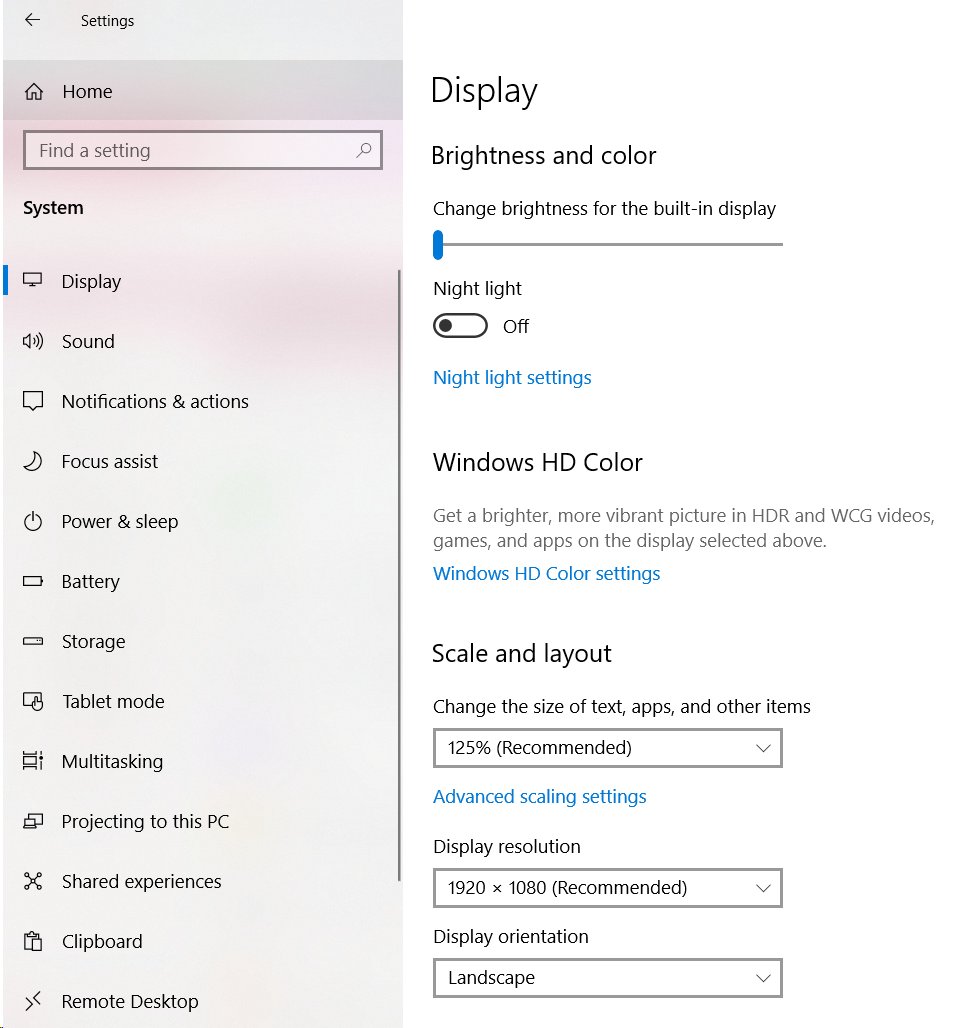
- Select System, then Display.
- Look under Brightness and color for Change brightness automatically when lighting changes.
- Clear the check box to disable adaptive brightness.
- Select the check box to enable it again.
- Move the Change brightness slider to the level you want to keep.
Which route should you use?
| Your situation | Use this | Why |
|---|---|---|
| Laptop or tablet with a light sensor | The Settings > System > Display check box | The one switch Microsoft documents for ambient light brightness |
| Brightness drops on dark content, not on room light | Change brightness based on content on Windows 11 | That behaviour is content adaptive brightness control, a separate setting |
| A Surface that is changing brightness right now | Connect the power supply | Microsoft: connecting to power temporarily disables the content feature |
| Intel graphics and brightness still shifts | Display Power Savings in Intel Graphics Command Center | The graphics utility drives its own power saving on top of Windows |
| No adaptive brightness entry anywhere in Settings | Check for a sensor first | Windows hides the option on hardware with no ambient light sensor |
| Comfortable at a command line | powercfg /query |
Prints the display power settings held in the active power plan |
Check Whether Your Device Supports Adaptive Brightness
Microsoft states that some PCs can let Windows adjust screen brightness to the current lighting conditions. The Settings page is the support test.
- Select Start > Settings > System > Display.
- Look under Brightness and color for Change brightness automatically when lighting changes.
- Treat a visible check box as confirmation that the hardware reports an ambient light sensor.
- Right-click Start and select Device Manager when the check box is absent.
- Look for a Sensors category, the device category Windows uses for sensor devices.
- Read the PC's own manual when no Sensors category is listed.
Desktops rarely carry a sensor, and Microsoft says the Brightness slider may be absent on devices that have an external monitor. Change the level with the buttons on the monitor instead.
Enable or Disable Adaptive Brightness in Windows Settings
Windows 10 shows the setting as a check box. Windows 11 shows the same setting as a toggle under Brightness.
- Select Start, then Settings.
- Select System, then Display.
- Windows 10: under Brightness and color, clear Change brightness automatically when lighting changes to switch the feature off.
- Select the same check box again to switch it back on.
- Windows 11: select Brightness, then turn the Change brightness automatically when lighting changes toggle off or on.
- Set the level you want with the Change brightness slider before you leave the page.
Automatic brightness has been enabled by default since Windows 10 version 1903, so a new laptop usually arrives with the box selected.
Stop the screen dimming on dark content
Content adaptive brightness control reads what is on screen, not the room. It changes brightness and contrast together.
- Select Start > Settings > System > Display.
- Select Brightness on Windows 11.
- Set Change brightness based on content to Off to stop the adjustment entirely.
- Choose On Battery Only to keep the power saving and lose the dimming on mains power.
- Choose Always to run it on battery and plugged in.
- Connect the power supply on a Surface to disable the feature temporarily.
- On Intel graphics, open Intel Graphics Command Center, select System > Power, and set Display Power Savings to Off.
Microsoft documents Change brightness based on content for Windows 11, so on Windows 10 the graphics utility is the route to it.
Microsoft also warns that a device will not run as long on battery power once the content feature is off.
Change Adaptive Brightness Through Power Options
Windows keeps display power management in a subgroup that Microsoft marks as a hidden setting, so Control Panel does not always list everything it holds.
Reading the active plan directly shows what the hardware actually exposes.
powercfg /queryDisplays the contents of the current active power scheme. The display entries sit in the Display settings subgroup, GUID 7516b95f-f776-4464-8c53-06167f40cc99, PowerCfg alias SUB_VIDEO.
You should see: The output lists the Display settings subgroup with each setting's current AC Power Setting Index and DC Power Setting Index.
Run powercfg /aliases to map the GUIDs in that output to readable names; aliases work in place of a GUID in any powercfg command.
Run powercfg /getactivescheme first if more than one power plan exists on the PC.
How to check it worked
- Return to Settings > System > Display and confirm the check box state.
- Cover the ambient light sensor near the webcam with a finger for several seconds.
- Watch the Change brightness slider: Windows animates the slider when adaptive brightness moves the level.
- Bring a lamp close to the sensor and watch the slider travel the other way.
- Open a full-screen white page, then a full-screen black page, to test content adaptive brightness on its own.
- A slider that stays put through both tests means both automatic features are off.
What Adaptive Brightness Does in Windows 10
| Point | What Microsoft documents |
|---|---|
| Trigger | Screen brightness set automatically by the system in response to the ambient light sensor reading |
| Purpose | Brightness adapts automatically to the environment the device is used in |
| Default state | Automatic brightness is enabled by default from Windows 10 version 1903 |
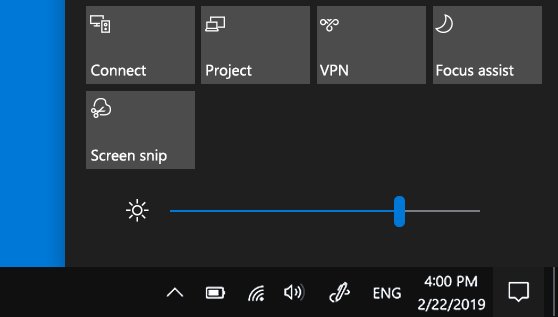
| Manual override | The action center brightness slider still sets the level by hand |
| Hardware needed | An ambient light sensor; the option is shown only on PCs that support it |
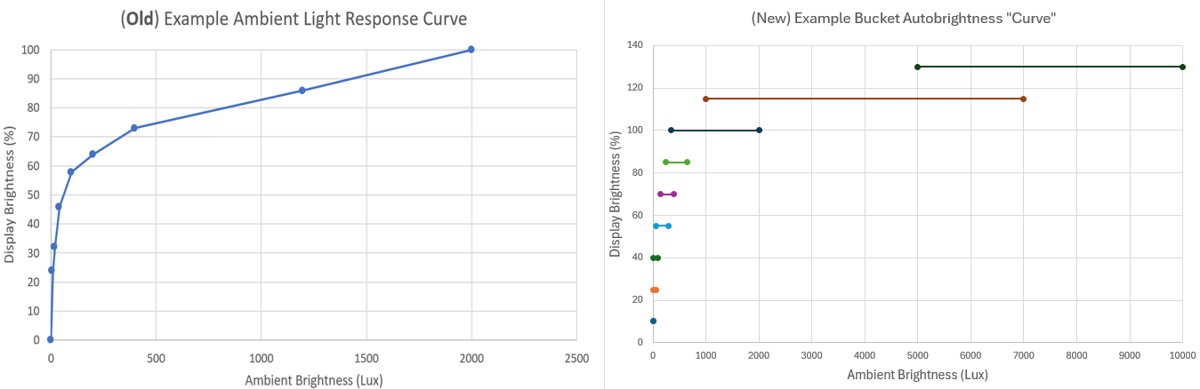
| Windows 11 change | A bucketized ambient light response curve replaced the OEM-configurable lux-to-brightness curve |
| Why it feels steadier | Lux readings map to overlapping buckets, so small light changes leave the brightness alone |
| Upgrade behaviour | Windows 10 systems that support adaptive brightness get the bucketized curve after a Windows 11 upgrade |
Adaptive brightness and content adaptive brightness are not the same setting
| Behaviour | Adaptive brightness | Content adaptive brightness control |
|---|---|---|
| What it reads | The ambient light sensor's lux reading | The content displayed on screen |
| What it changes | The backlight level | Brightness and contrast together |
| Windows 10 switch | Change brightness automatically when lighting changes | No documented Settings switch |
| Windows 11 switch | Change brightness automatically when lighting changes | Change brightness based on content |
| Choices | On or off | Off, Always, On Battery Only |
| Typical complaint | Brightness follows the room | Brightness drops when a dark page opens |
| Cost of turning it off | Setting the level by hand | Microsoft: the device will not run as long on battery power |
Adjust Display and Battery Settings That Affect Brightness
| Setting | Where it lives | Effect on brightness |
|---|---|---|
| Change brightness slider | Windows 10: Settings > System > Display, under Brightness and color | Sets the level by hand for the built-in display |
| Action center slider | Windows 10 version 1903 and later: action center | Same manual level, two clicks from the taskbar |
| External monitor controls | The buttons on the monitor | Microsoft: the Brightness slider may be absent on devices that have an external monitor |
| Battery saver | Settings > System > Battery, Turn battery saver on automatically if my battery falls below: | Starts the saver at the battery level you pick |
| Energy saver brightness value | Power setting alias ESBRIGHTNESS, GUID 13d09884-f74e-474a-a852-b6bde8ad03a8 | The percentage value brightness is scaled to while Energy Saver runs |
| Display driver | Device Manager > Display adapters | Microsoft: update it on a laptop when the slider does not appear or work |
| Plugged in versus on battery | Change brightness based on content set to On Battery Only (Windows 11) | Runs the content feature on battery and leaves mains power alone |
Keyboard keys, monitor menus and other manual routes to the same level are covered in 9 Ways to Adjust Screen Brightness on Your Windows 10 or 11 PC.
Fix Missing or Unresponsive Adaptive Brightness Options
Device Manager handles built-in hardware the same way it handles the touchpad, so the sensor checks below follow a familiar pattern.
The adaptive brightness option is missing from Settings
Windows shows the option only on PCs that report an ambient light sensor, and most desktops have none.
- Right-click Start and select Device Manager.
- Look for a Sensors category, the system-defined device category for sensor devices.
- Expand it and confirm a light sensor entry is present without a warning icon.
- Read the PC's manual when no Sensors category appears; hardware with no sensor cannot show the option.
- Set the level with the Change brightness slider instead on those PCs.
Adaptive brightness is on but the screen brightness does not change
The sensor driver has stopped, or a graphics utility is managing brightness instead of Windows.
- Open Device Manager, right-click the sensor under Sensors and select Properties.
- Open the Driver tab and note the driver date and version.
- Close the dialog, right-click the sensor and select Update driver.
- Select Search automatically for updated driver software, then select Close.
- Open Intel Graphics Command Center, select System > Power, and set Display Power Savings to Off.
- Restart the PC and test the slider again.
The screen keeps dimming with adaptive brightness switched off
Content adaptive brightness control or a battery rule is still running underneath.
- Set Change brightness based on content to Off on Windows 11.
- Connect the power supply on a Surface to stop the content feature at once.
- Open Settings > System > Battery and change Turn battery saver on automatically if my battery falls below:.
- Set Display Power Savings to Off in Intel Graphics Command Center under System > Power.
- Watch the screen through one dark page and one white page to confirm the dimming has stopped.
The brightness slider itself is missing or does nothing
An external monitor is attached, or the display driver is out of date.
- Use the buttons on the external monitor; Microsoft says the slider may be absent on devices that have one.
- On a laptop, right-click Start and select Device Manager.
- Expand Display adapters, right-click the adapter and select Update driver.
- Select Search automatically for updated driver software, then select Close.
- Restart the PC and check the slider again.
- Open the adapter's Properties > Driver tab and select Roll Back Driver if the slider stopped working after an update.
Brightness behaviour changed after a power plan edit
A modified plan is still active and its display values no longer match the defaults.
- Open Command Prompt.
- Run
powercfg /getactiveschemeto read the active plan and its GUID. - Run
powercfg /listto see every plan on the PC. - Run
powercfg /queryto print the display settings held in the active plan. - Run
powercfg /setactivewith the GUID of a stock plan to return to it.
Frequently Asked Questions
Why don't I see an adaptive brightness option in Windows 10?
Windows shows the option only on PCs that report an ambient light sensor. Microsoft states that some PCs can let Windows adjust brightness to lighting conditions, which means the rest cannot. Check Device Manager for a Sensors category, then the PC's manual.
Where is the main setting to turn adaptive brightness on or off?
Settings > System > Display. On Windows 10 it is the Change brightness automatically when lighting changes check box under Brightness and color. On Windows 11 it is the same setting shown as a toggle under Brightness.
Is adaptive brightness the same as automatic brightness based on battery level?
No. Adaptive brightness follows the ambient light sensor reading. Battery saver scales brightness to a set percentage once the battery drops below the level chosen in Settings > System > Battery. They are separate features with separate switches.
Can I set adaptive brightness differently when plugged in and on battery?
The ambient light setting is a single on or off choice. Content adaptive brightness control is the one that splits: Change brightness based on content on Windows 11 offers Off, Always and On Battery Only.
What should I do if adaptive brightness is on but the screen brightness does not change?
Update the sensor driver in Device Manager under Sensors, then set Display Power Savings to Off in Intel Graphics Command Center under System > Power. Restart and cover the sensor to test the slider again.
How do I enable a light sensor device that has been disabled?
Open Device Manager, expand Sensors and right-click the light sensor. Select Uninstall device, confirm with Uninstall, then restart the PC so Windows sets the device up again. The Settings check box returns once the sensor reports in.
How is adaptive sync different from adaptive brightness?
Adaptive sync matches the monitor's refresh rate to the frame rate a game produces. Adaptive brightness sets the backlight level from an ambient light sensor reading. Adaptive sync lives in the graphics driver or monitor menu, not on the Display page.
Does turning adaptive brightness off drain the battery faster?
A screen left bright uses more power than one that dims in a dark room. Microsoft states plainly that turning off content adaptive brightness control means the device will not run as long on battery power.
Why does the brightness jump in steps rather than glide?
Windows 11 maps ambient light readings into overlapping lux buckets, each with one target brightness percentage. Small changes in room light stay inside a bucket and move nothing, which is why the level holds and then steps.
Bottom Line
Leave Change brightness automatically when lighting changes on if the laptop has a sensor, and switch off content adaptive brightness control instead when the dimming irritates you. The ambient light setting tracks the room and costs nothing in comfort, while the content feature changes brightness and contrast with what is on screen and is the one Microsoft warns will shorten battery life when disabled.