To change text size in Windows 11, open Start > Settings > Accessibility > Text size, drag the Text size slider and select Apply; on Windows 10 the same slider is under Ease of Access > Display > Make text bigger.
This guide covers the text-only slider, display Scale for text plus apps, Magnifier, text size inside browsers and Office, how to reset everything, and fixes when a change does not stick.
The fastest way to change text size in Windows
The Text size slider enlarges text in menus, title bars and app labels without making images or windows bigger. Press Windows key + U to jump straight to the accessibility settings that hold it.
- Press Windows key + U to open accessibility settings.
- On Windows 11, select Text size. On Windows 10, stay on the Display page and find Make text bigger.
- Drag the slider to the right until the sample text above it is comfortable to read.
- Select Apply and wait a few seconds while Windows redraws the screen.
Drag the slider back to the far left and select Apply to return to the default size.
Text size, Scale or Magnifier: which one should you use?
Windows has three separate controls that make text bigger, and they change different things. Microsoft describes the split plainly: the Text size slider makes only the text larger, while Scale makes everything larger, including images and apps.
| Your situation | Use this | What it changes |
|---|---|---|
| Text is hard to read but icons and windows look fine | Accessibility > Text size (Windows 11) or Make text bigger (Windows 10) | Text only, everywhere in Windows |
| Everything looks tiny, often on a high-resolution laptop or 4K monitor | System > Display > Scale | Text, apps, icons and other items together |
| You need a closer look for a moment | Magnifier: Windows key + Plus (+) | A temporary enlarged view; Windows key + Esc ends it |
| Only websites are too small | Browser page zoom or font size | That browser only |
| Only a Word, Excel or Outlook view is too small | The zoom slider on the app's status bar | That document view only, not the file |
| The mouse pointer or text cursor is hard to find | Accessibility > Mouse pointer and touch or Text cursor | Pointer or cursor size, not text |
For a bigger pointer or a thicker text cursor, change the cursor size and color in Windows 10/11.
Change Text Size in Windows 11
The Windows 11 setting changes the base text size across the system: title bars, menus, File Explorer labels, Settings and most apps. Pictures, icons and window sizes stay the same.
- Select Start > Settings, or press Windows key + I.
- Select Accessibility in the left pane.
- Select Text size.
- Drag the Text size slider to the right to make text bigger, or to the left to make it smaller.
- Watch the sample text above the slider until it reads comfortably.
- Select Apply and wait a few seconds while Windows redraws the screen.
To make text smaller than the Windows default, lower Scale instead, as shown further down.
Change Text Size in Windows 10
Windows 10 keeps the same text-only slider under Ease of Access, labelled Make text bigger. Next to it, Make everything bigger is a shortcut to display scaling.
- Select Start > Settings, or press Windows key + I.
- Select Ease of Access.
- Select Display in the left pane.
- Under Make text bigger, drag the slider until the sample text is easy to read.
- Select Apply.
- If you also want apps and icons larger, choose a percentage from the drop-down under Make everything bigger on the same page.
Press Windows key + U to open this Display page directly from anywhere in Windows 10.
Adjust Display Scaling for Larger Text and UI Elements
Scale enlarges text together with buttons, icons, menus and app windows, so layouts keep their proportions. It is the better choice when a sharp, high-resolution screen makes everything small.
If more than one monitor is connected, select the monitor at the top of the Display page first. Each display keeps its own scale.
- Press Windows key + I and select System > Display.
- Select the monitor you want to change in the diagram at the top, if you have more than one.
- Scroll to Scale & layout on Windows 11, or Scale and layout on Windows 10.
- Open the Scale drop-down (Windows 10: Change the size of text, apps, and other items) and choose a higher percentage to make everything bigger.
- Leave Display resolution on the value marked (Recommended).
- Sign out and back in if some apps still show the old size.
Microsoft recommends the scale marked (Recommended) as the starting point. Lowering the resolution to make text bigger is a poor substitute, because text looks less sharp and the picture can be stretched or edged with black. More display options are covered in changing display settings in Windows 10.
Open the display settings page from Run
Windows Settings pages have their own addresses. Typing one into the Run box opens the page without clicking through menus.
ms-settings:displayPress Windows key + R, type the address and press Enter. It opens System > Display, where the Scale drop-down lives. ms-settings:easeofaccess-magnifier opens the Magnifier settings page the same way.
You should see: The Settings app opens on the Display page with Scale visible under Scale & layout.
Use Magnifier to enlarge text for a moment
Magnifier enlarges whatever is on screen without changing any setting, which suits reading small print in one dialog or image.
- Press Windows key + Plus (+) to turn on Magnifier.
- Press Windows key + Plus (+) again to zoom in further.
- Press Windows key + Minus (-) to zoom out.
- Press Windows key + Esc to turn Magnifier off.
You can also zoom in and out on the desktop screen using views, lens size and the mouse wheel.
Where text size and scale live in Windows 11 and Windows 10
| Setting | Windows 11 | Windows 10 |
|---|---|---|
| Text size only | Settings > Accessibility > Text size, then Apply | Settings > Ease of Access > Display > Make text bigger, then Apply |
| Text, apps and other items | Settings > System > Display > Scale & layout > Scale | Settings > System > Display > Scale and layout > Change the size of text, apps, and other items |
| Scale from accessibility settings | Not on the Text size page; use System > Display | Settings > Ease of Access > Display > Make everything bigger |
| Magnifier | Settings > Accessibility > Magnifier | Settings > Ease of Access > Magnifier |
| Keyboard shortcut to the page | Windows key + U opens Accessibility | Windows key + U opens Ease of Access > Display |
Change Text Size in Specific Apps and Browsers
Browsers and Office apps keep their own zoom, separate from Windows. Change text there when only one program is hard to read, and leave the system size alone.
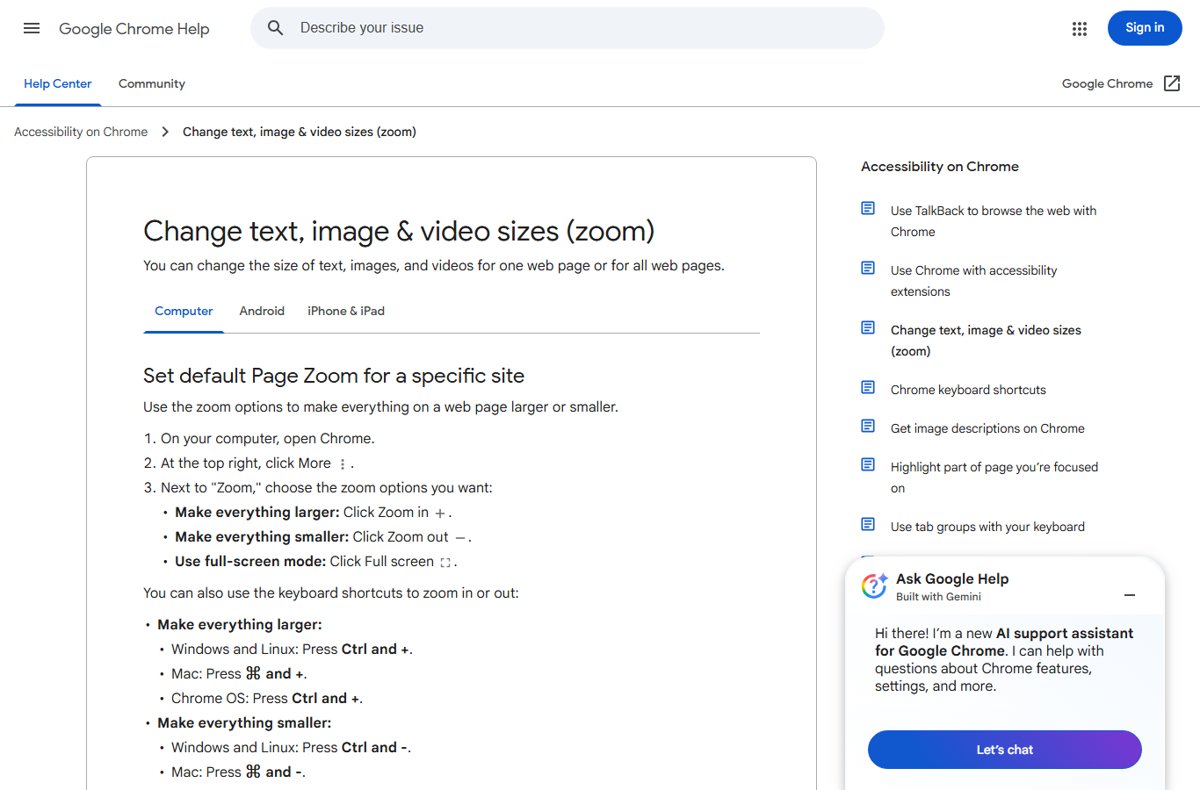
- In Chrome or Microsoft Edge, press Ctrl + Plus (+) to enlarge the current site, Ctrl + Minus (-) to shrink it, and Ctrl + 0 to reset it. Edge moves 25% per press.
- To enlarge every site in Microsoft Edge, select Settings and more > Settings > Accessibility and choose a level from Page zoom under Visibility.
- To enlarge every site in Chrome, select More > Settings > Appearance and choose a level from Page zoom, or pick a larger Font size to enlarge text without zooming images.
- In Word, Excel or PowerPoint, drag the zoom slider at the bottom right of the window, or select View > Zoom 100% to return to normal.
- In Outlook, drag the status bar zoom slider to enlarge the Reading Pane. It does not change the message list or folder pane.
Office zoom changes only the view. A zoomed-in document prints and shares at its normal size.
How to check the new text size is working
- Open File Explorer and look at the folder names in the navigation pane. They should be larger than before.
- Open Settings and check that the page titles and menu entries have grown too.
- Right-click the desktop. The context menu text should match the new size.
- If you changed Scale, confirm that icons and buttons also grew, not only the text.
- Open an app you used before the change. If it still looks the old size, sign out and back in.
Text that looks bigger only in one browser tab means the browser zoom changed, not the Windows setting.
Reset Text Size and Display Settings to Default
Each size control resets in its own place, so work through the ones you touched.
- On Windows 11, open Settings > Accessibility > Text size, drag the slider fully to the left and select Apply.
- On Windows 10, open Settings > Ease of Access > Display, drag the Make text bigger slider fully to the left and select Apply.
- Open Settings > System > Display and set Scale to the value marked (Recommended).
- On the same page, set Display resolution to the value marked (Recommended).
- Press Windows key + Esc to close Magnifier if it is running.
- Press Ctrl + 0 in Chrome or Edge, and select View > Zoom 100% in Word or Excel.
- Sign out and back in so every app redraws at the default size.
Fix Text Size Changes Not Applying
Some apps still show small or blurry text after the change
Older desktop apps read the size when they start, and some only pick up a new scale after a new sign-in.
- Close the affected app completely and open it again.
- If it still looks the old size, sign out of Windows and sign back in.
- Restart the PC if a sign-out does not help.
Text size changed on one monitor but not the other
Scale is set per display, and the change went to the monitor that was selected on the Display page.
- Press Windows key + I and select System > Display.
- Select the other monitor in the diagram at the top of the page.
- Choose a Scale value for that monitor.
The slider moved but nothing changed
The change was not confirmed, or the wrong control was used.
- Return to Text size (Windows 11) or Make text bigger (Windows 10) and select Apply after moving the slider.
- Wait a few seconds for Windows to redraw the screen.
- If you expected icons and windows to grow too, use Scale under System > Display instead.
Everything is too big, cut off or blurry after changing scale or resolution
Scale was raised too far, or the resolution was set below the monitor's native value.
- Open Settings > System > Display.
- Set Display resolution to the value marked (Recommended).
- Set Scale to the value marked (Recommended), then raise it one step at a time.
- Sign out and back in.
Resolution or size keeps changing by itself
Microsoft points to an out-of-date graphics driver when the screen resolution changes unexpectedly.
- Select Start > Settings > Windows Update.
- Select Check for updates and install what is offered.
- Restart the PC and set Scale again.
Frequently Asked Questions
How do I change text size in Windows 11?
Open Start > Settings > Accessibility > Text size, drag the Text size slider until the sample reads comfortably, and select Apply. This enlarges text only. To make apps and icons bigger too, change Scale under System > Display.
How do I change text size in Windows 10?
Open Start > Settings > Ease of Access > Display, drag the Make text bigger slider and select Apply. To enlarge apps and icons as well, pick a percentage under Make everything bigger on the same page.
How do I increase text size on a Windows computer quickly?
Press Windows key + U, then use the Text size slider on Windows 11 or Make text bigger on Windows 10 and select Apply. For a temporary boost, press Windows key + Plus (+) to start Magnifier and Windows key + Esc to close it.
How do I make text smaller in Windows?
Move the Text size slider (Windows 11) or Make text bigger slider (Windows 10) back to the left and select Apply. To make everything smaller, open Settings > System > Display and choose a lower Scale percentage.
Does changing text size in Windows also make buttons, menus, and icons bigger?
No. The Text size slider changes text only, so buttons, icons and images keep their size. Scale under System > Display enlarges text, apps and other items together, which keeps layouts in proportion.
What is the best text size or scaling setting for a high-resolution monitor?
Start with the Scale value marked (Recommended) in Settings > System > Display, and keep the resolution marked (Recommended). If text is still small, raise Scale one step or add a little Text size, rather than lowering the resolution.
Can I change text size for only one app instead of all of Windows?
Yes, when the app has its own zoom. Browsers use Ctrl + Plus (+) and Ctrl + Minus (-), and Word, Excel and PowerPoint have a zoom slider on the status bar. The Windows text size and scale settings always apply to every app.
How do I change text size on a PC without changing icon size?
Use the Text size slider on Windows 11 or Make text bigger on Windows 10. Both change text only. Desktop icons stay the same size, and you can resize them separately by right-clicking the desktop and choosing View.
Bottom Line
Use the Text size slider when only words are hard to read, and use Scale when the whole screen looks small on a sharp display. Text size leaves layouts untouched and resets in one step, while Scale keeps buttons and text in proportion. Keep resolution at its recommended value either way, because lowering it makes text blurry.

![Speakers stuck on mute in Windows 11 [Fix]](https://techdows.com/wp-content/uploads/2026/10/Speakers-stuck-on-mute-in-Windows-11-Fix-3-600x338.jpg)

![Beginner’s guide to Windows 11 [2026 updated]](https://techdows.com/wp-content/uploads/2026/10/Beginners-guide-to-Windows-11-2026-updated-1-600x338.jpg)
How to Change Mouse DPI in Windows 11/10: Full Guide - Techdows
[…] is a separate idea that also uses the letters DPI; see how to change text size in Windows 11/10 for […]
How to change the default font and size in Outlook - Techdows
[…] all text on the PC is too small, not just Outlook, change the text size in Windows […]