The fastest way to open Display settings in Windows 11 is to right-click an empty area of the desktop and select Display settings. You can also press Windows + R, enter ms-settings:display, and press Enter to open the same page directly.
Display settings lets you change the screen resolution, scaling, orientation, brightness, night light, HDR, refresh rate, graphics preferences, and multiple-monitor arrangement. The methods below all open the built-in Windows Settings page, so you can use whichever one is most convenient.
How to open Display Settings in Windows 11
| Method | Steps or command | Best used when |
|---|---|---|
| Desktop context menu | Right-click desktop > Display settings | You are already on the desktop |
| Windows Search | Press Windows + S and search for Display settings | You prefer searching by name |
| Run | ms-settings:display |
You want the quickest keyboard method |
| Settings | Windows + I > System > Display | You are already changing Windows settings |
| Command Prompt | start ms-settings:display |
You are working in Command Prompt |
| PowerShell | Start-Process "ms-settings:display" |
You are working in PowerShell |
| Desktop shortcut | Create a shortcut to explorer.exe ms-settings:display |
You open Display settings regularly |
| File Explorer | Enter ms-settings:display in the address bar |
File Explorer is already open |
| Windows Terminal | Run start ms-settings:display or the PowerShell command |
You use Terminal as your command-line app |
| Task Manager | Run new task > ms-settings:display |
The desktop or Start menu is not responding properly |
Basic Ways to Open Display Settings in Windows 10
These three methods require no command-line app and cover most situations.
Right-click the desktop
- Minimize or close any windows covering the desktop.
- Right-click an empty area of the desktop.
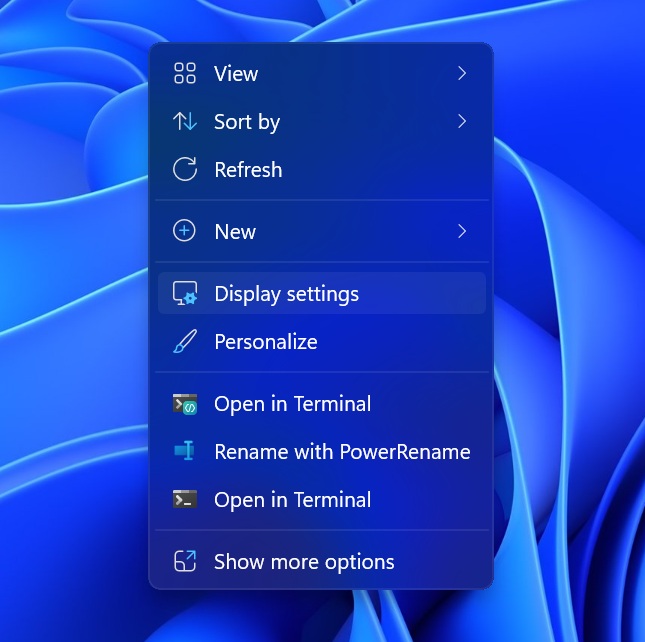
- Select Display settings.
Windows opens Settings > System > Display. Make sure you right-click an empty area rather than a file, folder, or desktop icon, as those items show a different context menu.
Use Windows Search
- Press Windows + S or select Search on the taskbar.
- Enter Display settings.
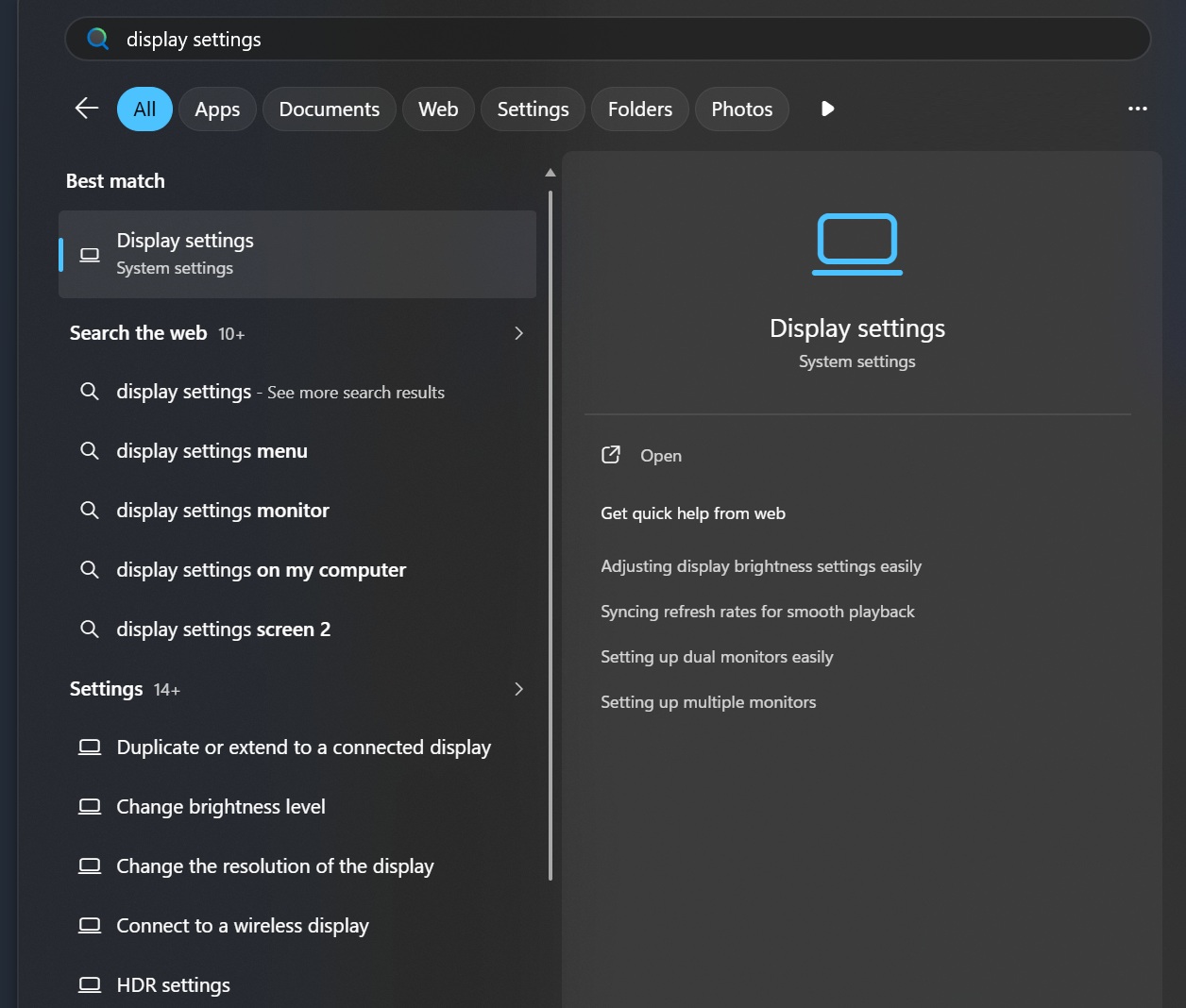
- Select the matching system setting from the results.
Searching for a specific option can also take you closer to the required setting. For example, searches such as change resolution, night light, graphics settings, or advanced display may show a direct Settings result.
Use the Run command
- Press Windows + R.
- Enter
ms-settings:display.

- Press Enter or select OK.
This command uses Microsoft’s official ms-settings: URI scheme to open the Display page directly. It does not require administrator permission.
1. Open Display Settings in Windows 11 Using the Settings Menu
The Settings app is the standard route and makes it easy to move between Display and related System pages.
- Press Windows + I to open Settings.
- Select System from the left sidebar.
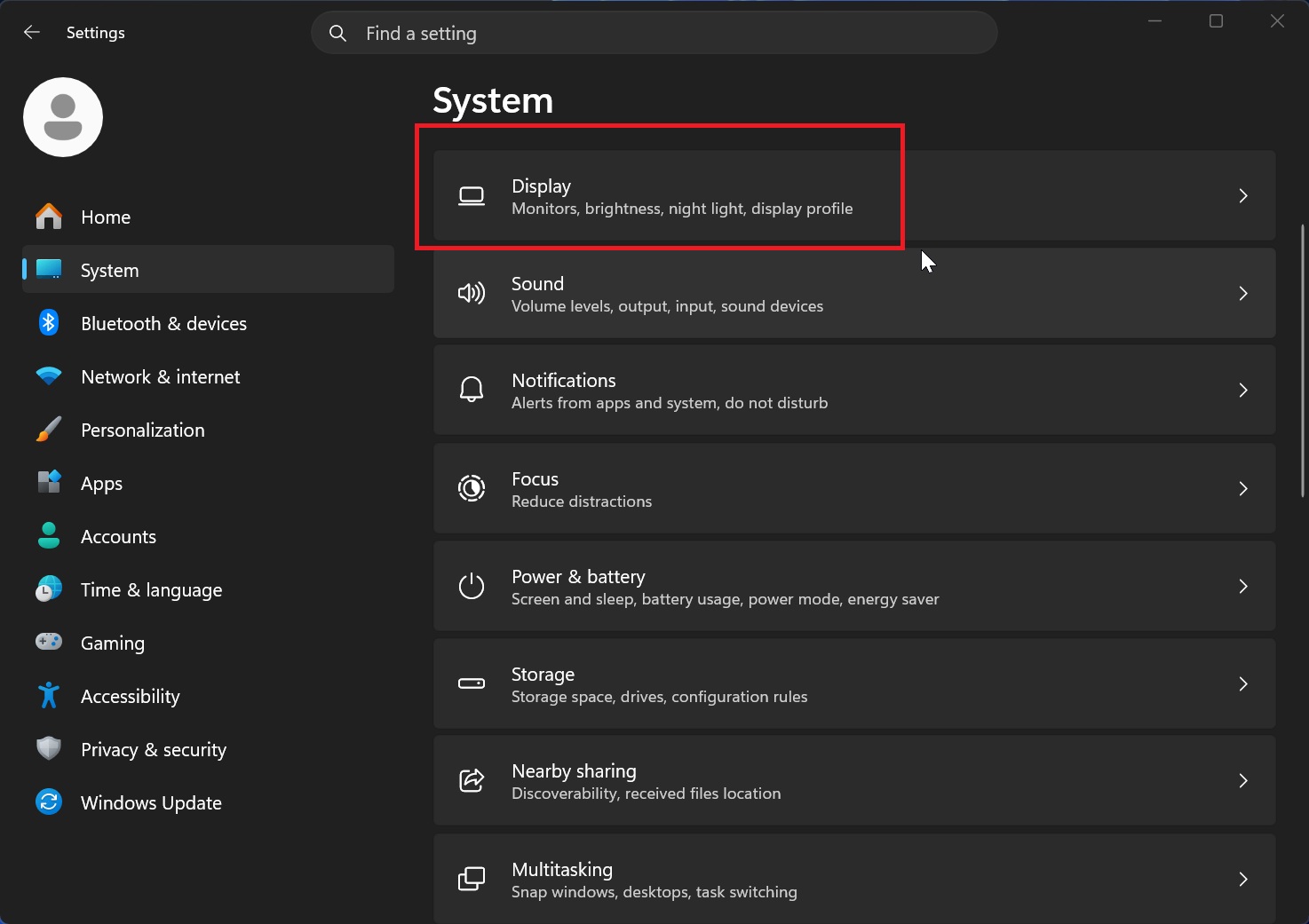
- Select Display.
You can also right-click the Start button and select Settings, then open System > Display. Microsoft documents Windows + I as the keyboard shortcut for opening Settings.
If more than one monitor is connected, select the numbered display at the top before changing resolution, scale, orientation, HDR, or refresh-rate settings. Use Identify when you are unsure which number belongs to each physical monitor.
2. Open Display Settings in Windows 11 Using Command Prompt
Command Prompt can launch the Display page with the same Settings URI used by the Run dialog.
- Open Start and search for Command Prompt.
- Open the app. Administrator permission is not required.
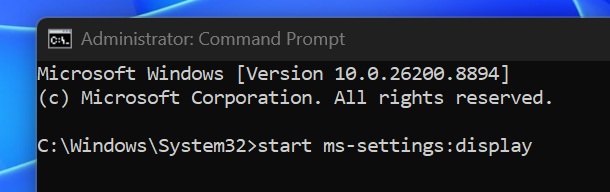
- Enter the following command:
start ms-settings:display- Press Enter.
The start command passes the URI to Windows, which opens the Settings app at the Display page. This is useful in troubleshooting instructions, batch files, and scripts that need to direct someone to the correct setting.
You can also run the URI through Explorer:
explorer.exe ms-settings:displayBoth commands open the same page.
3. Open Display Settings in Windows 11 Using Windows PowerShell
PowerShell users can launch Display settings with Start-Process.
- Open Start and search for PowerShell.
- Open Windows PowerShell or a PowerShell tab in Windows Terminal.
- Run:
Start-Process "ms-settings:display"PowerShell opens the URI with its registered Windows handler. No elevated window is needed.
The shorter command below also works in many PowerShell sessions because start is an alias for Start-Process:
start "ms-settings:display"Using the complete Start-Process form is clearer in saved scripts and avoids confusion with the separate Command Prompt start command.
4. Create a Desktop Shortcut to Open Display Settings in Windows 11
A desktop shortcut is useful when you frequently switch resolutions, rearrange monitors, change scaling, or manage HDR and refresh rates.
- Right-click an empty area of the desktop.
- Select New > Shortcut.
- In the location box, enter:
explorer.exe ms-settings:display- Select Next.
- Enter a name such as Display Settings.
- Select Finish.
- Double-click the new shortcut to test it.
Using explorer.exe makes the shortcut behave like a normal Windows shell shortcut. To change its icon, right-click it, select Properties, choose Change Icon, and browse to %SystemRoot%\System32\imageres.dll or another Windows icon library.
Windows may also offer Pin to Start in the shortcut’s context menu. The available pinning choices can vary by Windows build and shortcut type, but the desktop shortcut itself continues to work without pinning.
5. Open Display Settings in Windows 11 Using File Explorer
File Explorer’s address bar can launch the Settings URI.
- Press Windows + E to open File Explorer.
- Select the address bar or press Ctrl + L.
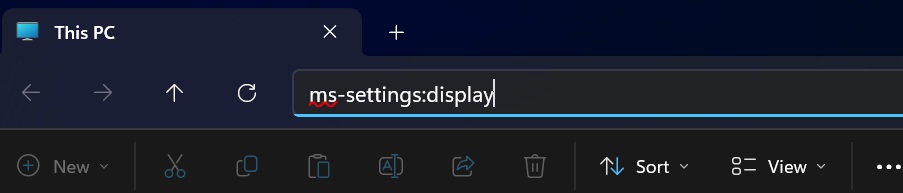
- Enter
ms-settings:display. - Press Enter.
This method is convenient when File Explorer is already open. It does not navigate to a folder; Windows recognises the URI and hands it to the Settings app.
6. Open Display Settings in Windows 11 Using Windows Terminal
Windows Terminal can host Command Prompt, PowerShell, and other command-line profiles. Use the command that matches the active shell.
In a Command Prompt tab, run:
start ms-settings:displayIn a PowerShell tab, run:
Start-Process "ms-settings:display"To identify the active profile, check the tab title or open the arrow menu beside the new-tab button. The result is the same regardless of the shell: Windows opens System > Display.
7. Open Display Settings in Windows 11 Using Task Manager
Task Manager provides a useful fallback when the Start menu, Windows Search, or desktop shell is not behaving normally.
- Press Ctrl + Shift + Esc to open Task Manager.
- Select Run new task near the top of the window. On older layouts, open File > Run new task.
- Enter
ms-settings:display.
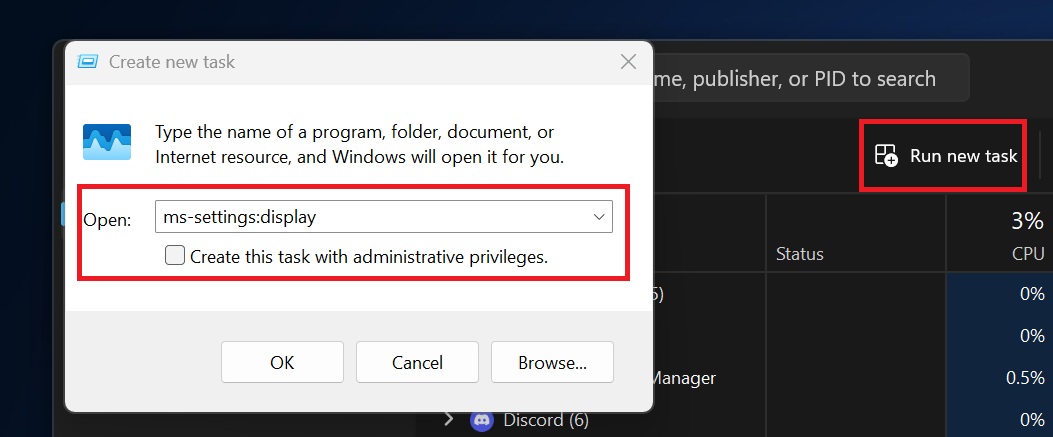
- Select OK.
Leave Create this task with administrative privileges cleared. Display settings does not need elevation, and opening it as an administrator provides no benefit for normal display changes.
Display Settings Shortcuts for Specific Pages
Windows includes additional Settings URIs for related pages. Enter any of these commands in Run, File Explorer, Command Prompt, PowerShell, or a shortcut.
| Settings page | URI | Useful for |
|---|---|---|
| Main Display page | ms-settings:display |
Brightness, scale, resolution, orientation, HDR, and multiple displays |
| Advanced display | ms-settings:display-advanced |
Refresh rate, display information, bit depth, colour format, and adapter properties |
| Graphics | ms-settings:display-advancedgraphics |
Per-app GPU preference, windowed-game optimisations, and supported graphics options |
| Default graphics settings | ms-settings:display-advancedgraphics-default |
Hardware-accelerated GPU scheduling and other supported default graphics features |
| Night light | ms-settings:nightlight |
Night light strength and schedule |
| Screen rotation | ms-settings:screenrotation |
Orientation controls on supported devices |
| Accessibility display | ms-settings:easeofaccess-display |
Text size and related visual accessibility options |
Microsoft notes that some Settings pages appear only on Windows versions, editions, or devices that support the related feature. For example, advanced graphics controls vary by GPU and driver, while rotation options depend on the display and device type.
FAQ
What is the keyboard shortcut for Display settings in Windows 11?
Windows does not provide a single dedicated shortcut that opens the Display page directly. Press Windows + R, enter ms-settings:display, and press Enter. You can also press Windows + I and open System > Display.
Does Windows + P open Display settings?
No. Windows + P opens the projection menu for choosing PC screen only, Duplicate, Extend, or Second screen only. Use ms-settings:display for the full Display page.
How do I open Advanced display settings directly?
Press Windows + R, enter ms-settings:display-advanced, and press Enter. The page shows supported details and controls such as resolution, active signal mode, bit depth, colour format, and refresh rate.
Why is the brightness slider missing from Display settings?
Windows normally shows the slider for supported built-in laptop and tablet displays. Many external monitors require the physical controls on the monitor or the manufacturer’s display utility. A missing laptop brightness control can also indicate a graphics or monitor driver problem.
How do I open Graphics settings directly?
Use ms-settings:display-advancedgraphics. This opens the Graphics page, where supported PCs can assign a power-saving or high-performance GPU preference to individual apps.
How do I change which monitor is the main display?
Open Display settings, select the monitor at the top, expand Multiple displays, and enable Make this my main display. The option is unavailable when the selected monitor is already the main display.
Why does ms-settings:display do nothing?
Restart Windows and test whether Windows + I opens Settings. If the Settings URI handler or Windows components are damaged, run DISM followed by sfc /scannow from an administrator Command Prompt or Terminal window.
Can Display settings be opened as an administrator?
Normal display controls do not require an elevated Settings window. Use the page from a standard account session and approve a separate administrator prompt only when Windows requests one for a protected action.

![How to Get Help in Windows 11 [Fast]](https://techdows.com/wp-content/uploads/2026/07/How-to-Get-Help-in-Windows-11-600x338.jpg)


How to Download Anime Wallpapers for Your Desktop - Techdows
[…] If you cannot find the page, there are several other ways to open Display settings in Windows 11. […]
How to Enable and Use Wireless Display in Windows 11 - Techdows
[…] Several ways to open Display settings reach the same page used in the third row. […]
How to Open Phone Settings: A Step-by-Step Guide - Techdows
[…] Press the Windows logo key + I to open Settings on Windows 11. For a specific page, such as screen resolution, see these 10 ways to open Display Settings in Windows 11. […]
How to adjust display appearance settings easily in Windows 11/10 - Techdows
[…] you prefer other routes into the same page, there are several other ways to open Display settings in Windows […]
How to adjust display scale settings on Windows 11 - Techdows
[…] settings has other entry points too, so use whichever of the ways to open Display settings in Windows 11 suits […]
How to open Settings on Windows 11: a step-by-step guide - Techdows
[…] ms-settings:display is one of several ways to open Display settings, and ms-settings:windowsupdate lands directly on the Windows Update […]