To adjust screen brightness on a Windows 11 or Windows 10 laptop, press Win + A and drag the Brightness slider, or press the sun-icon keys on the keyboard. On a desktop PC, use the buttons on the monitor itself, because Windows usually shows no brightness slider for an external screen.
Below are all nine ways to change brightness, from Quick Settings and the Settings app to adaptive brightness, energy saver and a PowerShell command, plus fixes for a missing slider and dead brightness keys.
Why brightness controls may look different
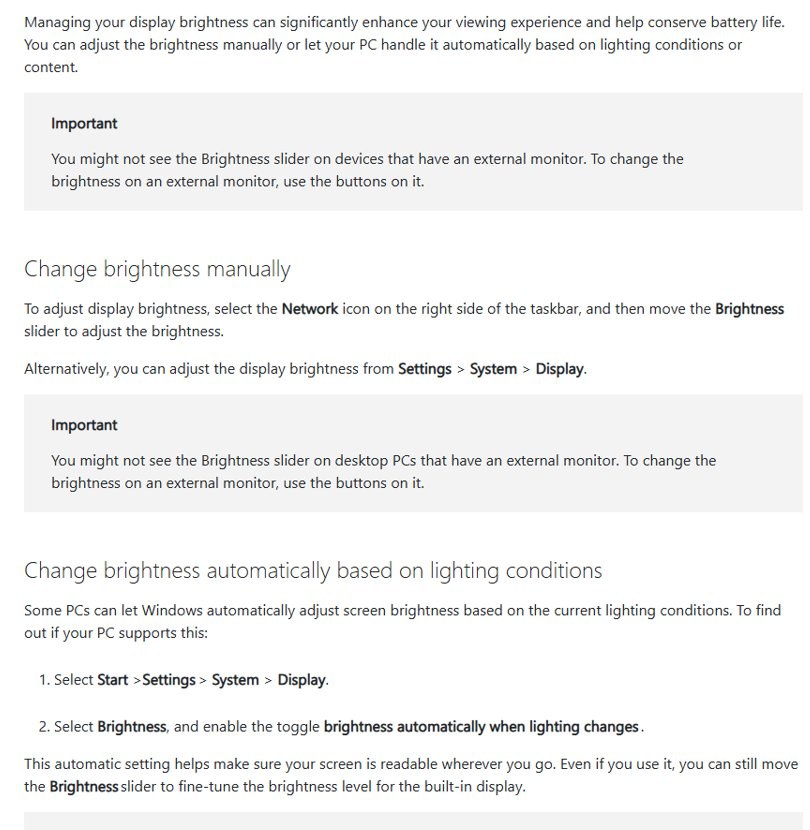
Windows can only drive the backlight of a screen that reports brightness to it, which in practice means the built-in panel of a laptop, tablet or all-in-one. Microsoft says the Brightness slider might not appear on desktop PCs with an external monitor, and that the monitor's own buttons change brightness there. Brightness also affects battery life, which is why Windows' power-saving features dim the screen.
| Way | Works on | Use it when |
|---|---|---|
| 1. Quick Settings slider (Windows 11) | Built-in screens | You want a quick change with the mouse |
| 2. Action Center slider (Windows 10) | Built-in screens | Same, on Windows 10 |
| 3. Settings > System > Display | Built-in screens | You want the slider next to the automatic options |
| 4. Laptop brightness keys | Laptops with sun-icon keys | Your hands are on the keyboard |
| 5. Adaptive brightness | PCs with a light sensor | Room lighting changes through the day |
| 6. Content adaptive brightness | Supported Windows 11 devices | You want longer battery life from content-based dimming |
| 7. Energy saver or Battery saver dimming | Battery-powered PCs | You want the screen dimmed when the battery runs low |
| 8. Monitor buttons or PowerToys | External monitors | You use a desktop PC or a second screen |
9. PowerShell WmiSetBrightness |
Screens that expose WMI brightness | You need an exact percentage from a script |
1. Use Quick Settings in Windows 11
Quick Settings is the fastest route on a Windows 11 laptop.
- Press Win + A, or select the Network icon on the right side of the taskbar.
- Find the Brightness slider, marked with a sun icon.
- Drag it right to brighten the screen or left to dim it.
- Click outside the panel to close it. The new level applies immediately.
No slider in the panel means Windows is not controlling the screen's backlight, which is normal on a desktop with an external monitor.
2. Use Action Center in Windows 10
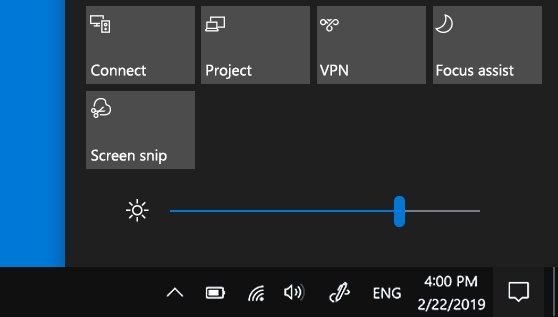
On Windows 10 the same slider sits at the bottom of Action Center. The same panel holds your notifications and quick action tiles, and you can customize Action Center in Windows 10 from Settings.
- Press Win + A, or select the action center icon at the far right of the taskbar.
- If you only see one row of quick actions, select Expand.
- Drag the Brightness slider to the level you want.
3. Change brightness in the Windows Settings app
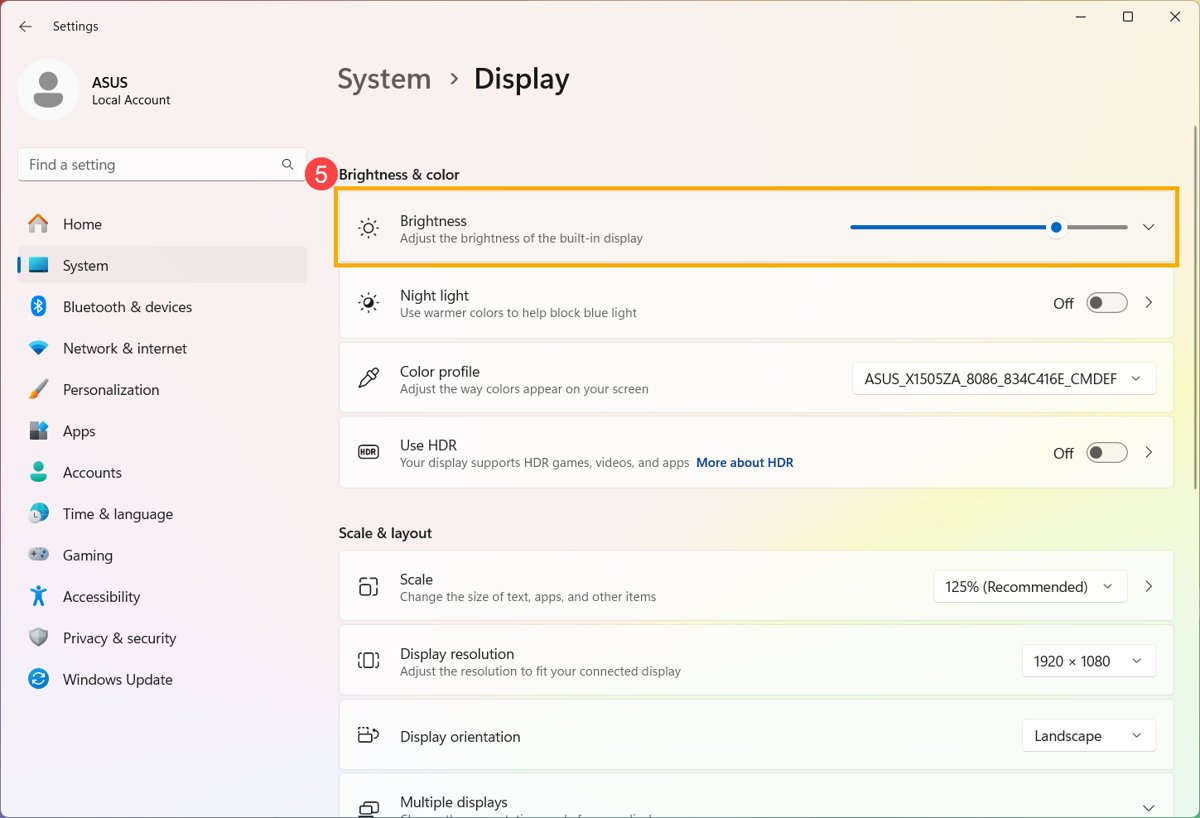
The Settings app holds the manual slider and the automatic options on one page, so check it when brightness seems to change on its own.
- Press Win + I to open Settings.
- Select System, then Display.
- On Windows 11, select Brightness to expand it, then drag the Brightness slider.
- On Windows 10, drag Change brightness for the built-in display under Brightness and color.
- Check the automatic options on the same page so your level is not overridden later.
4. Use your keyboard brightness keys
Most laptops put brightness on two function keys marked with a small and a large sun icon. Whether you also hold Fn depends on the maker and on the Fn Lock state.
The combinations below come from each manufacturer's own support pages. For any other model, check the sun icons on the top row or the user guide for your laptop.
| Laptop | Dim / brighten | If the keys type F-keys instead |
|---|---|---|
| Dell Latitude 5000 and 7000 series released after March 2019 | F6 / F7 on their own | Fn Lock is on: press Fn + F6 / Fn + F7, or press Fn + Esc to switch Fn Lock off |
| ASUS notebooks covered by the ASUS hotkey guide | Fn + F4 / Fn + F5 | Press Fn + Esc on models with an LED on the Fn key, or pick Hotkeys mode in MyASUS |
| Any other laptop | The two keys with sun icons, alone or with Fn | Try the other way round: if the key alone fails, hold Fn and press it |
Brightness keys change only the built-in screen. They do nothing to an external monitor plugged into the laptop.
5. Adjust brightness automatically with adaptive brightness
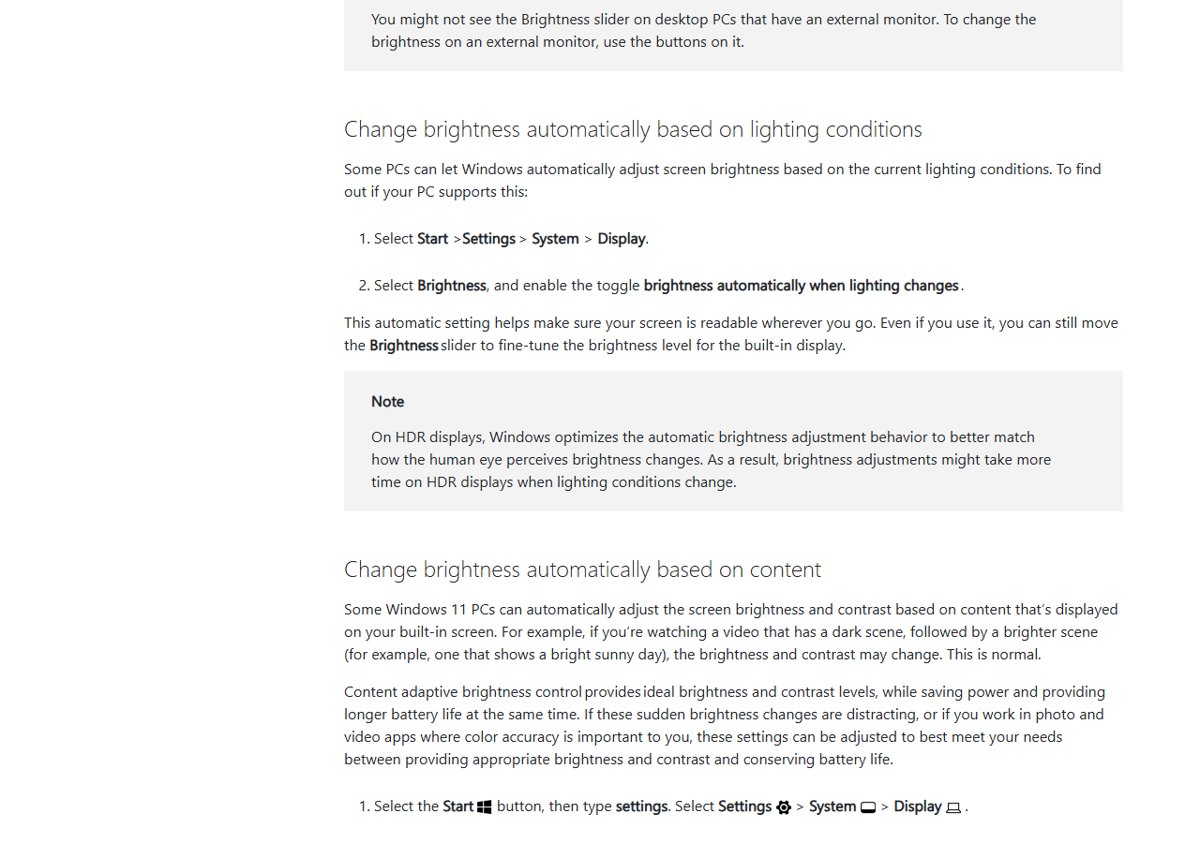
On PCs with an ambient light sensor, Windows can raise brightness in daylight and lower it in a dark room. You can still fine-tune the slider while it is on.
- Open Start > Settings > System > Display.
- On Windows 11, expand Brightness and turn on Change brightness automatically when lighting changes.
- On Windows 10, check Change brightness automatically when lighting changes.
No option here usually means the PC has no light sensor. Microsoft notes that on HDR displays the automatic adjustment can take longer, because Windows matches how the eye perceives brightness changes. There is more on turning adaptive brightness off in Windows 10 if the toggle keeps coming back.
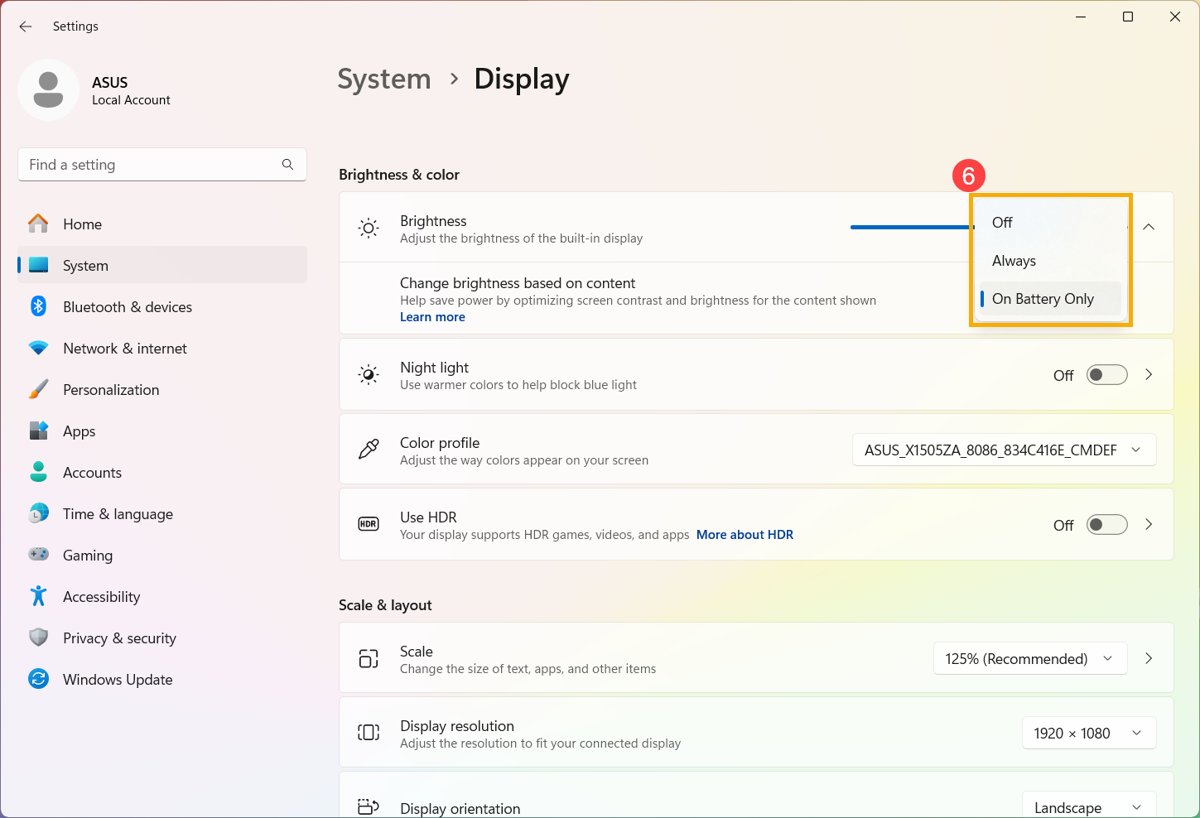
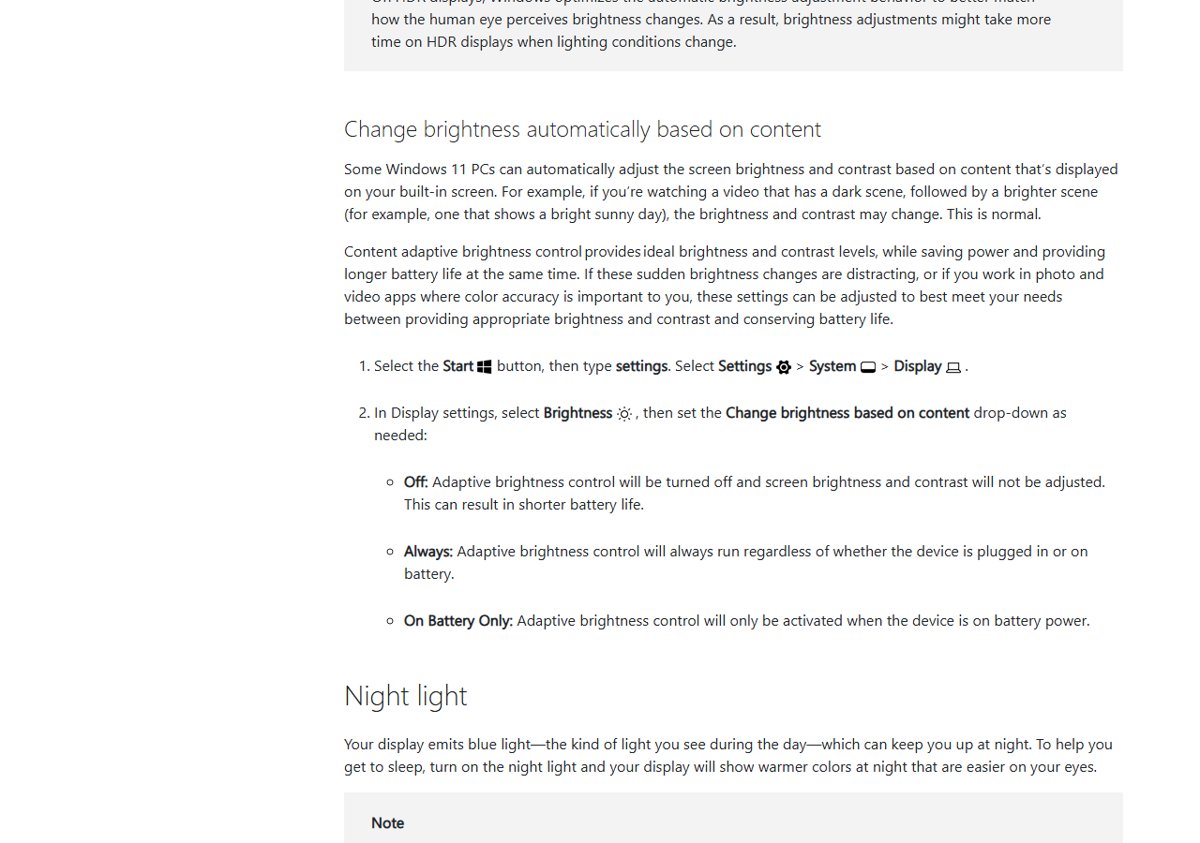
6. Change content adaptive brightness control
Some Windows 11 PCs adjust brightness and contrast to what is on screen, for example a dark video scene followed by a bright one. It saves power, but photo and video editors usually want it off.
- Open Settings > System > Display and expand Brightness.
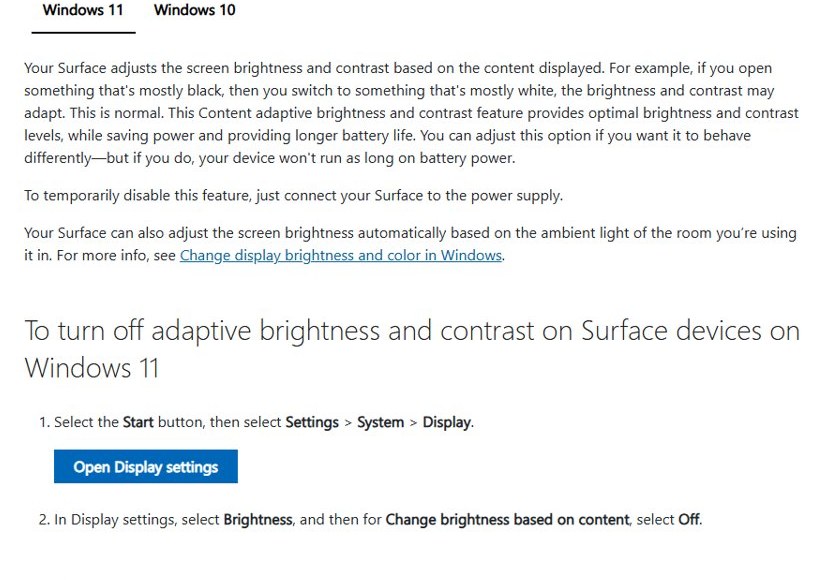
- Set Change brightness based on content to Off, Always or On battery only.
Off stops the adjustments but can shorten battery life. On Surface devices, connecting the charger temporarily turns the feature off.
7. Use battery saver or energy saver to lower brightness automatically
The power-saving mode can dim the screen when the battery runs low. The labels differ between versions.
| Feature | What it does | Windows 11 path and label | Windows 10 path and label |
|---|---|---|---|
| Adaptive brightness | Follows room lighting through the ambient light sensor | Settings > System > Display > Brightness, toggle Change brightness automatically when lighting changes | Settings > System > Display, check box Change brightness automatically when lighting changes |
| Content adaptive brightness | Adjusts brightness and contrast to what is on screen, for example a dark page followed by a white one | Settings > System > Display > Brightness, drop-down Change brightness based on content: Off, Always or On battery only | No documented Settings control |
| Energy saver dimming (Windows 11 24H2 and later) | Cuts brightness by 30% while energy saver is on | Settings > System > Power & battery > Energy saver, toggle Lower screen brightness when using energy saver | Not applicable |
| Battery saver dimming | Dims the screen while battery saver is on | Earlier Windows 11 builds use battery saver, which energy saver replaced in 24H2 | Settings > System > Battery, check box Lower screen brightness while in battery saver |
| When the saver starts | Sets the battery level that triggers dimming | Energy saver > Turn energy saver on when battery level is at | Turn battery saver on automatically if my battery falls below: |
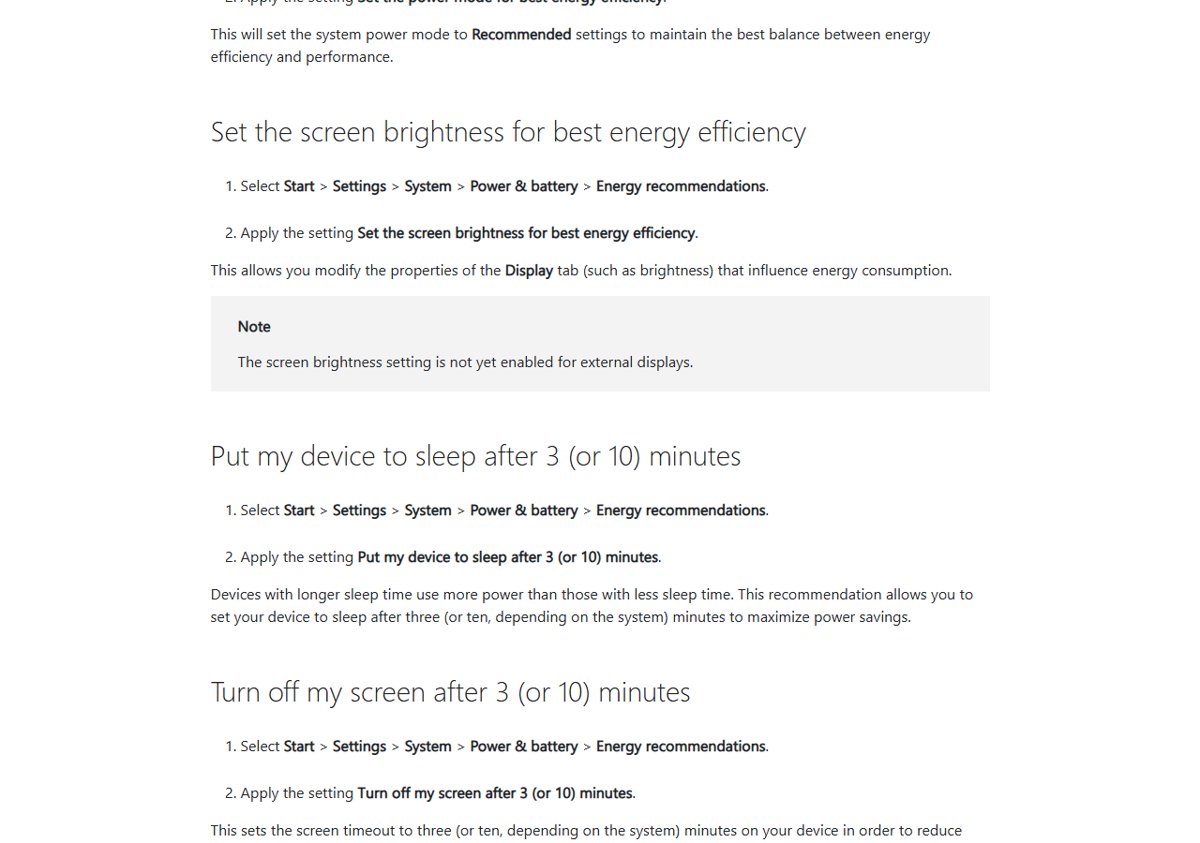
On Windows 11, Settings > System > Power & battery > Energy recommendations also offers Set the screen brightness for best energy efficiency; Microsoft notes that recommendation does not yet apply to external displays.
8. Adjust brightness on an external monitor
A desktop monitor keeps its brightness setting inside the monitor, so Windows usually shows no slider for it. Use the monitor's on-screen menu, or install Microsoft's PowerToys if the monitor supports DDC/CI.
- Press the menu button or joystick on the monitor's bezel or rear to open its on-screen menu. The monitor needs a live video signal for the menu to change settings.
- Open the picture section and select Brightness. On ASUS monitors this sits under Image on PG, XG and VG models and under Color on most VA, VP, VZ and MB models.
- Set a value between 0 and 100, then exit the menu.
- For a software slider instead, install Microsoft PowerToys, open the Power Display page in PowerToys Settings and turn on Enable Power Display.
- Read the confirmation dialog, which warns that a few monitors with malformed DDC/CI data can crash Windows, and accept it.
- Select Open Power Display or press the activation shortcut shown on that page, then drag the Brightness slider for each monitor.
Power Display offers only the controls a monitor reports over DDC/CI. With two or more supported monitors, the Link brightness levels toggle moves them together from one All displays slider.
9. Adjust brightness through graphics control panels and display modes
Intel, AMD and NVIDIA control panels do not replace the Windows slider, but some of their power features change brightness on their own. On Intel graphics, Display Power Savings in Intel Graphics Command Center dims the panel to save battery; set it to Off if brightness drifts. If you cannot find the app, here is how to open the Intel graphics control panel. HDR mode also changes how bright normal content looks, as the next sections explain.
Change screen brightness with a PowerShell command
Windows exposes built-in panel brightness through the WmiMonitorBrightnessMethods WMI class. It suits scripts and shortcuts, and works only where the screen reports brightness to Windows, which rules out most desktop monitors.
(Get-WmiObject -Namespace root\wmi -Class WmiMonitorBrightnessMethods).WmiSetBrightness(5, 50)
(Get-WmiObject -Namespace root\wmi -Class WmiMonitorBrightness).CurrentBrightness
Run both lines in Windows PowerShell. WmiSetBrightness takes a timeout in seconds first and the brightness in percent second, so (5, 50) sets the screen to 50%. The second line reads the current level back from the WmiMonitorBrightness class.
You should see: The method's return value is 0 on success, the screen changes to 50%, and the second line prints 50. If the commands fail, the screen does not expose WMI brightness and needs one of the other ways.
How to check the screen brightness level on Windows
A level that looks right now can change again within minutes if an automatic feature is still on. These checks prove the setting is yours.
- Open Settings > System > Display and confirm the slider shows the level you chose.
- Unplug the charger, or plug it in. A jump in brightness points to energy saver dimming or content adaptive brightness set to On battery only.
- Move to a darker or brighter room. A change points to adaptive brightness from the light sensor.
- Open a mostly white page, then a mostly black one. A shift in brightness between them points to Change brightness based on content.
- On an external monitor, reopen its on-screen menu and confirm Brightness shows the saved value.
Brightness, Night light and HDR are different settings
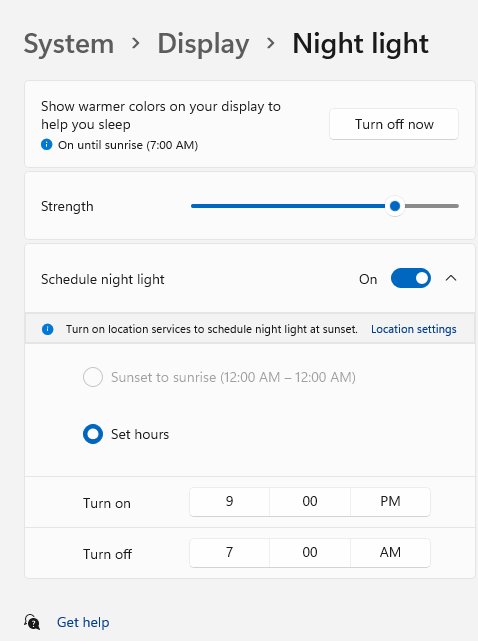
Night light and the HDR sliders sit on the same Display page as brightness, so they are easy to mistake for it. None of them sets the backlight level.
| Setting | What it changes | Where it is | Use it for |
|---|---|---|---|
| Brightness | How bright the built-in screen's backlight is | Quick Settings or Action Center, and Settings > System > Display | Making the whole screen lighter or darker |
| Night light | Colour: it reduces blue light and warms the picture, without lowering brightness | Quick Settings on Windows 11; Settings > System > Display > Night light settings on Windows 10 | Evening use, with a schedule if you want one |
| SDR content brightness | How bright normal non-HDR content looks while HDR mode is on | Settings > System > Display > HDR on Windows 11 | Balancing desktop apps against HDR video |
| HDR/SDR brightness balance | The same balance on Windows 10 | Settings > System > Display > Windows HD Color settings | Balancing desktop apps against HDR video on Windows 10 |
If HDR video looks dull on battery, turn off Lower screen brightness when using energy saver, because Windows needs to push the display to maximum brightness for HDR.
Tips for choosing a comfortable brightness level
There is no single correct percentage. Pick the settings that match where and how you use the PC.
| Your situation | Set this | Why |
|---|---|---|
| Working near a window as the light changes | Turn on Change brightness automatically when lighting changes | The sensor raises brightness in daylight and lowers it at dusk |
| Editing photos or comparing colours | Set Change brightness based on content to Off | Content-based dimming alters brightness and contrast as the image changes |
| Working late in the evening | Lower the slider and turn on Night light | Brightness sets how much light the screen gives off; Night light warms its colour |
| Travelling on battery | Leave energy saver dimming on and set a trigger level | Less display brightness means longer battery life |
| Watching HDR video unplugged | Turn off energy saver dimming | HDR needs the display at full brightness |
| Two monitors that never match | Use Link brightness levels in Power Display, or match the values in each monitor's menu | Both screens then move by the same amount |
What to do if the brightness slider is missing
Find your symptom, then work through only the steps under it.
The brightness slider is missing on Windows 11 or Windows 10
The screen is an external monitor, or the display driver is not passing brightness control to Windows.
- Confirm whether the screen is external. On a desktop monitor, change brightness from the monitor's buttons or PowerToys Power Display instead.
- On a laptop, right-click Start and select Device Manager.
- Expand Display adapters, right-click the adapter and select Update driver, then Search automatically for updated driver software.
- If that finds nothing, right-click the adapter, select Uninstall device, confirm with Uninstall, then restart so Windows reinstalls it.
- Open Settings > System > Display and check for the slider again.
The slider moves but the screen does not change
Duplicate monitor entries in Device Manager can block brightness control. Dell documents this on XPS laptops and states it is not a hardware fault.
- Open Device Manager from the Start menu search.
- Expand Monitors.
- Right-click each entry, select Uninstall device, and confirm.
- Restart the laptop.
- Check that Monitors now lists one entry, then try the slider again.
Brightness keys do nothing
The top-row keys are in F1-F12 mode, or the maker's hotkey software is missing.
- Hold Fn and press the sun-icon key. If that works, the keys are in function-key mode.
- Press Fn + Esc to switch Fn Lock, which Dell and ASUS both document for their laptops.
- On ASUS laptops, open MyASUS and choose Hotkeys mode for the function keys.
- Change brightness with Win + A in the meantime to confirm Windows itself still controls the screen.
- If the slider also fails, follow the missing-slider fixes above.
Why is my screen changing brightness on its own?
Adaptive brightness, content adaptive brightness, energy saver or a graphics driver power-saving option is on.
- Open Settings > System > Display > Brightness and turn off Change brightness automatically when lighting changes.
- On Windows 11, set Change brightness based on content to Off.
- Open Settings > System > Power & battery > Energy saver and turn off Lower screen brightness when using energy saver. On Windows 10, clear Lower screen brightness while in battery saver under Settings > System > Battery.
- On a PC with Intel graphics, open the Intel Graphics Command Center app and set Display Power Savings to Off.
- Use the PC for a few minutes on battery and on mains power to confirm the level holds.
Night light or brightness options greyed out with Microsoft Basic Display Adapter
Windows is running a generic driver instead of the graphics maker's driver. Microsoft notes Night light is not available with drivers such as Basic Display or DisplayLink.
- Open Device Manager and expand Display adapters.
- If it lists Microsoft Basic Display Adapter, run Windows Update and install any optional driver updates.
- If nothing is offered, get the graphics driver from your laptop maker's support page, then restart.
Brightness stopped working after a driver update
The new display driver does not handle backlight control on your model.
- Right-click Start and select Device Manager.
- Expand Display adapters, right-click the adapter and select Properties.
- Open the Driver tab and select Roll Back Driver.
- Choose a reason, select Yes, and restart if prompted.
- Test the brightness slider and keys, then get the next driver from your laptop maker's support site rather than a third-party updater.
Brightness controls still fail after driver fixes
Damaged system files can break Settings pages.
- Open Command Prompt as administrator.
- Run
DISM.exe /Online /Cleanup-image /Restorehealth, thensfc /scannow. - Restart and test the slider and keys again.
Screen brightness on Windows 10 and 11 FAQ
How do I adjust screen brightness on a Windows PC?
On a laptop, press Win + A and drag the Brightness slider, or use the sun-icon keys on the keyboard. On a desktop PC, use the buttons or joystick on the monitor, because Windows usually shows no slider for an external screen.
How do I change screen brightness on Windows 11?
Select the Network icon on the taskbar and move the Brightness slider in Quick Settings. For more control, open Settings > System > Display > Brightness, where the slider sits beside the automatic brightness and content-based options.
How do I adjust screen brightness on Windows 10?
Select the action center icon on the right of the taskbar and move the Brightness slider. You can also open Settings > System > Display and drag Change brightness for the built-in display under Brightness and color.
Why can't I adjust the screen brightness on Windows 11?
Most often the screen is an external monitor, which Windows cannot dim, so the slider is hidden. On a laptop the usual cause is the display driver. Update it in Device Manager, reinstall it, or roll it back if the problem began after an update.
Why does my screen change brightness by itself?
An automatic feature is on. Check Change brightness automatically when lighting changes, Change brightness based on content, and Lower screen brightness when using energy saver. On Intel graphics, Display Power Savings in Intel Graphics Command Center can also shift brightness.
How do I adjust brightness on a Windows 11 desktop?
Use the monitor's own on-screen menu, opened with the buttons or joystick on the monitor. For a slider in Windows, install Microsoft PowerToys and turn on Power Display, which changes brightness on monitors that support DDC/CI.
How do I increase screen brightness beyond the current level?
Drag the Brightness slider to the far right first. If the screen is still dim on battery, turn off Lower screen brightness when using energy saver, which cuts brightness by 30%, and set Change brightness based on content to Off.
Does Night light lower screen brightness?
No. Night light changes colour, reducing blue light so the screen looks warmer, but it leaves brightness where it is. Lower the Brightness slider separately if the screen is still too bright at night, and schedule Night light in Display settings.
Can I change screen brightness with a command?
Yes, on screens that expose WMI brightness. In Windows PowerShell, run (Get-WmiObject -Namespace root\wmi -Class WmiMonitorBrightnessMethods).WmiSetBrightness(5, 50) to set 50%. Most desktop monitors do not support it, so the command returns an error there.
Does lowering brightness save battery on a laptop?
Yes. Microsoft says managing display brightness helps conserve battery life, and energy saver and Energy recommendations both lower it to save power.
Best way to adjust screen brightness on Windows
Use Win + A and the Brightness slider, or the sun-icon keys, on a laptop, and the monitor's own menu on a desktop. If brightness keeps changing, turn off adaptive brightness, content-based brightness and energy saver dimming in Settings before you look at drivers. When the slider is missing on a laptop, update the graphics driver first.







How To Change Display Settings In Windows 10 - Techdows
[…] scale, and refresh rate. Windows may hide the brightness slider for external monitors, so change brightness and contrast with the buttons on the monitor […]
How to Enable or Disable Adaptive Brightness in Windows 10 - Techdows
[…] Keyboard keys, monitor menus and other manual routes to the same level are covered in 9 Ways to Adjust Screen Brightness on Your Windows 10 or 11 PC. […]