To adjust screen timeout in Windows 11, open Settings > System > Power & battery, expand Screen, sleep, & hibernate timeouts, and pick a time in Turn my screen off after.
This guide also covers Control Panel, powercfg commands, Group Policy, the separate lock screen timeout, and what to do when the screen refuses to turn off.
Changing screen timeout via Windows 11 Settings
The Settings app is the quickest route and works on every Windows 11 edition. Here is the step-by-step version for adjusting screen timeout in Settings.
- Select Start > Settings.
- Select System > Power & battery.
- Expand Screen, sleep, & hibernate timeouts (called Screen and sleep on some builds).
- Open the Turn my screen off after dropdown and choose a time.
- Open Make my device sleep after and pick a time that is equal to or longer than the screen timeout.
- Close Settings. The change applies immediately, with no restart.
Microsoft's guidance is to keep both values short to cut idle power use. Its energy recommendations suggest turning the screen off after 3 minutes, or 10 minutes on some systems.
Alternative methods for power users: which one to use
| Your situation | Use this method | Why |
|---|---|---|
| You want a different time and nothing else | Settings app | Two clicks, applies at once |
| You want separate battery and plugged-in values per power plan | Control Panel Power Options | Shows On battery and Plugged in columns for each plan |
| You script setups or manage several PCs | powercfg in Command Prompt or PowerShell | One line per value, easy to repeat |
| The display turns off after a minute on the lock screen | powercfg with VIDEOCONLOCK | The lock screen uses its own timeout that Settings does not show |
| You need to enforce one value on Pro, Enterprise or Education | Group Policy | Locks the value so users cannot change it |
| Your laptop has a presence sensor | Presence sensing | Turns the screen off when you walk away, not after a fixed idle time |
Why screen timeout matters for power management
The display is one of the biggest power draws on a laptop, so the time it stays lit while idle shows up directly in battery life. A short timeout also hides your screen sooner when you step away.
| Device type | Screen off on battery (old to new default) | Screen off plugged in (old to new default) | Sleep plugged in (old to new default) |
|---|---|---|---|
| Modern standby PCs (most recent laptops) | 4 to 3 minutes | 10 to 5 minutes | 10 to 5 minutes |
| S3 sleep PCs (many desktops and older laptops) | 5 to 3 minutes | 10 to 5 minutes | 30 to 15 minutes |
Microsoft lowered these defaults to reduce idle energy use. If a timeout feels too aggressive, raise it rather than choosing a value that keeps the display on all day. Pair it with lower screen brightness for the largest saving.
How to change screen timeout using Control Panel
Digging deeper into Control Panel gives you per-plan control, with separate values for battery and mains power.
- Select Search on the taskbar, type control panel and open it.
- Select System and Security > Power Options.
- Select Change plan settings next to the plan that is marked as active.
- Set Turn off the display in the On battery and Plugged in columns.
- Select Save changes.
The Choose when to turn off the display link in the left pane of Power Options opens the same page. For hidden options, select Change advanced power settings on that page. The wider power management settings in Windows 11 live on the same screens.
Change screen timeout via command line (CMD or PowerShell)
The powercfg tool changes the current power plan. Values passed to /change are in minutes.
- Right-click Start and select Terminal, or open Command Prompt.
- Type
powercfg /change monitor-timeout-ac 10and press Enter to turn the screen off after 10 minutes when plugged in. - Type
powercfg /change monitor-timeout-dc 5and press Enter to turn it off after 5 minutes on battery. - Reopen Settings > System > Power & battery to see the new values.
The same /change switch accepts standby-timeout-ac and standby-timeout-dc for the sleep timer. Both commands run the same way in PowerShell.
Change the lock screen display timeout with powercfg
When the PC is locked, Windows turns the display off after 60 seconds of inactivity by default. The Settings timeout does not change this, but powercfg can. These values are in seconds.
powercfg.exe /setacvalueindex SCHEME_CURRENT SUB_VIDEO VIDEOCONLOCK 300Run it in an administrator Command Prompt, then run powercfg.exe /setactive SCHEME_CURRENT to apply it. VIDEOCONLOCK sets the locked-screen timeout (300 seconds here) while plugged in; use /setdcvalueindex for battery. VIDEOIDLE is the matching value for the unlocked desktop.
You should see: Lock the PC with Windows + L and leave it: the display stays on for five minutes instead of one.
To show this as a Console lock display off timeout entry in advanced power settings instead, run powercfg.exe -attributes SUB_VIDEO 8EC4B3A5-6868-48c2-BE75-4F3044BE88A7 -ATTRIB_HIDE as administrator. Replace -ATTRIB_HIDE with +ATTRIB_HIDE to hide it again.
Adjusting screen timeout via Group Policy (Pro/Education editions)
Local Group Policy Editor is available on Windows 11 Pro, Enterprise and Education. A configured policy overrides the user's own choice and greys it out in Settings.
- Press Windows + R, type
gpedit.mscand press Enter. - Go to Computer Configuration > Administrative Templates > System > Power Management > Video and Display Settings.
- Double-click Turn off the display (plugged in).
- Select Enabled and enter the idle time in seconds, for example 600 for 10 minutes.
- Select OK, then repeat for Turn off the display (on battery).
- Restart the PC, or run
gpupdate /force, to apply the policy.
Set either policy back to Not Configured to return control to the Settings app.
Turn off the screen automatically when you leave (presence sensing)
PCs with a built-in presence sensor can switch the screen off as soon as you walk away. If the options below are missing, your PC has no supported sensor.
- Open Settings > System > Power & battery.
- Expand Screen and sleep and select Presence Sensing settings.
- Turn on Automatically turn off my screen when I leave.
- Optionally turn on Automatically wake up my device when I approach.
Where screen timeout lives in Windows 11 and Windows 10
| Windows version | Settings path | Control Panel path |
|---|---|---|
| Windows 11, current builds | System > Power & battery > Screen, sleep, & hibernate timeouts | System and Security > Power Options > Change plan settings |
| Windows 11, earlier builds | System > Power & battery > Screen and sleep | System and Security > Power Options > Change plan settings |
| Windows 10 | System > Power & sleep | Power & sleep > Additional power settings > Change plan settings |
How to check the new screen timeout is working
- Reopen Settings > System > Power & battery and confirm Turn my screen off after shows your value.
- Type
powercfg /queryin Terminal and press Enter to list the active plan, then find the display-off entry under the display subgroup. - Leave the keyboard and mouse untouched with no video playing and time how long the screen stays on.
- On a laptop, unplug it and repeat the test to check the battery value.
How do I keep my PC awake during specific tasks?
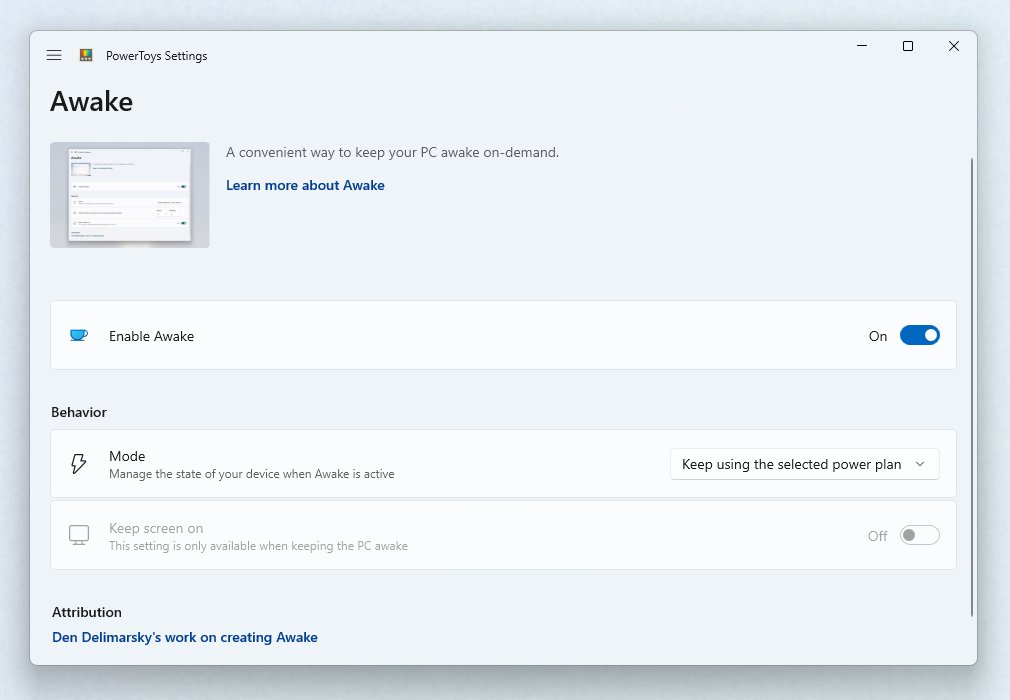
Rather than raising the timeout for good, use Microsoft PowerToys Awake for a long download or presentation. It does not change your power plan, and normal behaviour returns when it stops.
- Install Microsoft PowerToys and open PowerToys Settings.
- Select Awake and turn on Enable Awake.
- Choose Keep awake indefinitely, Keep awake for a time interval or Keep awake until expiration.
- Turn on Keep screen on if the display must stay lit as well.
- Switch back to Keep using the selected power plan when the task finishes.
Awake does not work while the lock screen is showing, and by default the display still turns off unless Keep screen on is on.
Troubleshooting: when screen timeout doesn't stick
The screen never turns off, no matter what you set
An app or driver holds a power request, or a lock screen slide show keeps the display on.
- Open Command Prompt as administrator.
- Run
powercfg /requestsand look in the display section for the app, service or driver holding a request. - Close that app, such as a video player or browser tab with media.
- If the caller must keep running, override it, for example
powercfg /requestsoverride process wmplayer.exe displaywith your process name. - Turn off the lock screen slide show if you use one.
The screen timeout setting is greyed out or reverts
A Group Policy or MDM power policy is enforcing the value.
- Open
gpedit.mscand go to System > Power Management > Video and Display Settings. - Set Turn off the display (plugged in) and Turn off the display (on battery) to Not Configured.
- Restart the PC.
- On a work or school PC, ask your IT administrator, because the device policy wins.
The display turns off after one minute on the lock screen
Windows uses a separate 60-second locked-console timeout by design.
- Open Command Prompt as administrator.
- Run
powercfg.exe /setacvalueindex SCHEME_CURRENT SUB_VIDEO VIDEOCONLOCK 300with the seconds you want. - Run
powercfg.exe /setactive SCHEME_CURRENT. - Lock the PC and confirm the display stays on for the new time.
Critical analysis: security, usability and power considerations
| Consideration | Notable strengths | Potential risks | Recommendations |
|---|---|---|---|
| Security | A short timeout hides the screen quickly when you walk away | A long or Never setting leaves an unlocked desktop visible | Press Windows + L when leaving and keep the timeout under 10 minutes |
| Usability | Settings, Control Panel and powercfg all edit the same plan | Too short a timeout blanks the screen while you read | Use PowerToys Awake for one-off long tasks instead of raising the default |
| Power | Shorter timeouts cut idle drain on battery | Apps holding power requests silently defeat any value | Follow Energy recommendations: 3 minutes, or 10 on some systems |
| Managed PCs | Group Policy enforces one value across devices | Users cannot change a policy-set timeout | Leave the policy Not Configured on personal PCs |
Windows 11 screen timeout frequently asked questions
Can I set different timeouts for different users?
Not with the built-in tools. Windows display-off timeouts belong to the power plan, and the Group Policy and MDM settings for them apply to the whole device rather than to individual user accounts. Every account on the PC gets the same screen timeout.
Why does my computer screen never turn off, no matter what I set?
Usually an app or driver is holding a display power request. Run powercfg /requests in an administrator Command Prompt to name it, then close it or override it. A lock screen slide show can also stop the display from turning off.
How do I keep my PC awake during specific tasks?
Use Microsoft PowerToys Awake. It keeps the PC awake indefinitely, for a set interval or until a set time, and its Keep screen on switch keeps the display lit, without changing your power plan settings.
What is the difference between screen timeout and sleep in Windows 11?
Screen timeout only turns the display off, while apps and downloads keep running. Sleep puts the whole PC into a low-power state. Set the sleep timer equal to or longer than the screen timeout.
What is the best screen timeout for battery life in Windows 11?
Microsoft's Energy recommendations suggest turning the screen off after 3 minutes, or 10 minutes on some systems. Shorter values save more power, so choose the shortest time that does not interrupt your reading.
Why does my screen turn off after one minute when the PC is locked?
Windows applies a separate 60-second timeout on the lock screen by design. Change it with powercfg using the VIDEOCONLOCK setting, then run powercfg /setactive SCHEME_CURRENT to apply it.
Can I change the screen timeout from the command line?
Yes. Run powercfg /change monitor-timeout-ac followed by minutes for plugged-in use, and monitor-timeout-dc for battery. The command works in Command Prompt and PowerShell and edits the current power plan.
Balancing convenience, security, and efficiency
Set the screen to turn off after 3 to 5 minutes on battery and 5 to 10 minutes plugged in, lock the PC with Windows + L when you leave, and use PowerToys Awake for the occasional long task. Short timeouts save the most power and hide your screen sooner, while a temporary keep-awake tool covers the exceptions without leaving the display on for hours.