To change the monitor refresh rate in Windows 11, open Settings > System > Display > Advanced display and pick a new value next to Choose a refresh rate; Windows 10 uses Advanced display settings and a Refresh rate list.
This guide covers both versions, multiple monitors, the NVIDIA and Intel apps, custom refresh rates, dynamic refresh rate on laptops, and fixes when the rate you want is missing.
How to change refresh rate in Windows 11
The list only shows rates your display and graphics driver report as supported, so a 144 Hz monitor on a working connection shows 144 Hz here.
- Select Start > Settings > System > Display.
- If more than one monitor is connected, select the display you want to change at the top of the page.
- Scroll down and select Advanced display.
- Check the Display information panel for the current resolution, refresh rate and whether the display supports variable refresh rate (VRR).
- Open the list next to Choose a refresh rate and select the rate you want.
- If the rate you picked has an asterisk (*), expect the resolution to change as well, because that rate does not support your current resolution.
Rates that appear depend on the display; select laptops and external monitors offer higher rates than a standard 60 Hz panel.
Best way to change monitor refresh rate: Settings, adapter properties or GPU app
| Your situation | Use this | Why |
|---|---|---|
| Windows 11, any graphics card | Settings > System > Display > Advanced display | Microsoft's supported route; shows only valid rates |
| Windows 10 | Settings > System > Display > Advanced display settings | Same list, with a Choose display dropdown for multiple monitors |
| You want a specific resolution and rate pair | Display adapter properties > List All Modes | Each mode lists resolution and Hertz together |
| NVIDIA GeForce or RTX card | NVIDIA Control Panel > Display > Change resolution | Same rates, plus the custom resolution tool |
| Intel graphics | Windows Settings | Current Intel Graphics Command Center uses the Windows display settings |
| The rate your monitor is rated for is not listed at all | Fix the connection or driver first, then a custom rate | A missing rate is usually a cable, port or driver limit |
Before you change the refresh rate: monitor, cable and driver checks
Windows can only offer rates that the monitor, the cable and the graphics driver all agree on. Three quick checks save most failed attempts.
| Check | What to look for | How to do it |
|---|---|---|
| Monitor's rated refresh rate | The maximum refresh rate and the resolution it applies to | Read the specifications on the monitor maker's website or in its manual |
| Right cable and port | A direct connection to the graphics card output, not a splitter | Try another video output (HDMI, DisplayPort, DVI) and another cable; remove docks and dongles to test |
| Current graphics drivers | A driver from Windows Update or the PC or GPU maker | Select Start > Settings > Windows Update > Check for updates |
| Which display is which | The number Windows assigned each screen | Select Settings > System > Display > Identify |
How to change refresh rate in Windows 10
Windows 10 reached end of support on October 14, 2025, but the refresh rate setting still works the same way. Windows 10 has no dynamic refresh rate feature.
- Select the Start button, then select Settings > System > Display.
- Select Advanced display settings.
- If you use more than one monitor, select your display from the dropdown under Choose display.
- Under Refresh rate, select the rate you want.
How to change refresh rate for multiple monitors
Refresh rate is a per-display setting. The Advanced display page shows the resolution and refresh rate for the selected display only, so a 144 Hz main screen and a 60 Hz second screen can each keep their own rate.
- Select Start > Settings > System > Display.
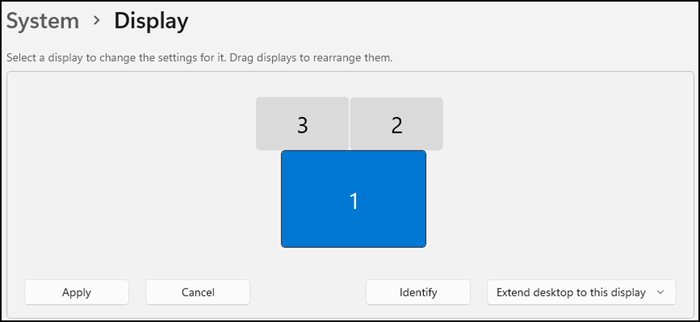
- Select Identify to see which number belongs to which screen.
- Select the display you want to change in the layout at the top of the page.
- Select Advanced display (Windows 11) or Advanced display settings (Windows 10).
- Confirm the display name in the panel, then pick the new rate under Choose a refresh rate or Refresh rate.
- Go back to Display, select the next monitor, and repeat.
If a new monitor does not appear, select Multiple displays > Detect on the Display page. A display splitter duplicates one signal, so both screens behind it get the same mode.
Change refresh rate from display adapter properties in Windows
This older dialog lists every resolution and refresh rate pair the driver supports. It is useful when you want a fixed combination, such as 1920 by 1080 at 60 Hertz.
- Open Settings and select System > Display > Advanced display.
- Select Display adapter properties.
- On the Adapter tab, select List All Modes.
- Select the mode with the resolution and Hertz value you want.
- Select OK to apply the mode.
How to change refresh rate in NVIDIA, AMD, and Intel apps
Graphics apps write the same setting Windows does, so use them only when you already work in that app or need its extra tools.
| Graphics app | Where the refresh rate lives | Worth knowing |
|---|---|---|
| NVIDIA Control Panel | Under Display, select Change resolution, select the display, then pick from the Refresh rate list | With VRR turned on, NVIDIA sets VRR-capable displays to their highest refresh rate automatically |
| AMD Software: Adrenalin Edition | Use Windows Settings for a listed rate | AMD documents a separate Custom Resolutions feature in Adrenalin for modes the display does not list |
| Intel Graphics Command Center | Select Display in the left menu; the General tab holds the Resolution list | Intel says the latest version uses the Windows display settings, so change the rate in Settings |
How to create a custom refresh rate
A custom rate is for a mode the monitor supports but does not advertise to Windows. Never set a rate above the monitor's rated maximum; the panel can go blank or report an unsupported signal. To look up that maximum, first check what monitor you have and find its model’s specifications.
The steps below are NVIDIA's. On Intel graphics, custom resolutions need the Intel Graphics Command Center Beta from the Microsoft Store, where you select the plus sign next to the Resolution dropdown; Intel states its Custom Scaling option cannot change the refresh rate.
- Open NVIDIA Control Panel.
- Under Display, select Change resolution.
- Select the image of the display you want to change.
- Select Customize, then select Create Custom Resolution.
- Enter the resolution and refresh rate you want in the dialog.
- Select Test.
- If the test passes and the picture is stable, select Save.
After saving, the new mode appears in the Windows refresh rate list like any other rate.
How to confirm your monitor is actually running at the new refresh rate
- Select Start > Settings > System > Display and select the monitor you changed.
- Select Advanced display.
- Read the Display information panel: it shows the current refresh rate for that display, which should match the value you picked.
- Check the same panel for the resolution; if you picked a rate marked with an asterisk, the resolution will have changed too.
- On an NVIDIA card, open Change resolution in NVIDIA Control Panel and confirm the Refresh rate list shows the same value.
- If the panel shows the new rate but motion still looks the same, open the monitor's on-screen menu and check its input information, as described in the monitor's manual.
What monitor refresh rate means
Refresh rate is the number of times per second the image on the screen refreshes. A 60 Hz display updates the screen 60 times per second.
| Term | What it means in Windows | Why it matters |
|---|---|---|
| Hertz (Hz) | Refreshes per second, shown in the refresh rate list | Higher values make motion and scrolling look smoother |
| Higher rate | Reduces motion blur and screen tearing in games | Makes scrolling and pen input more fluid |
| Lower rate | The display draws less power | Extends battery life on laptops and tablets |
| Variable refresh rate (VRR) | The display adapts its rate to the frames a game delivers | Many games use it automatically, so manual changes may be unnecessary |
| Dynamic refresh rate (DRR) | Windows 11 raises or lowers the rate based on what you are doing | Smooth when needed, longer battery life the rest of the time |
Refresh rate, HDR, color depth, and resolution
These settings share one signal between the PC and the monitor, so raising one can force another down.
| Setting | How it interacts with refresh rate | What to do |
|---|---|---|
| Resolution | Rates marked with an asterisk do not work at your current resolution; picking one changes the resolution | Keep the (Recommended) resolution and choose a rate without an asterisk |
| HDR | An HDR display needs HDR10 and a DisplayPort 1.4, HDMI 2.0 or newer, USB-C or Thunderbolt connection | Turn on HDR in Settings > System > Display after setting the rate |
| HDR over HDMI | Colour fringes around text can appear when HDMI cannot carry the full HDR signal | Switch to DisplayPort if the display supports HDR over it; otherwise lower the refresh rate or the resolution |
| Color depth | HDR video needs 10-bit video decoding on the PC | Use a current graphics driver from Windows Update or the PC maker |
| Duplicate mode | HDR is not supported when a laptop duplicates its desktop to an external display | Select Extend these displays in Display settings |
Best refresh rate settings for gaming
| Setting | Recommended choice | Reason |
|---|---|---|
| Desktop refresh rate | The highest rate listed for the native resolution | Less motion blur and tearing, quicker response |
| Variable refresh rate | Leave it on if the Display information panel says the display supports it | Many games use VRR automatically |
| Optimizations for windowed games (Windows 11) | On, under Settings > System > Display > Graphics > Default settings | Moves older windowed games to the flip model, enabling VRR and Auto HDR |
| Dynamic refresh rate | Off if a game that does not use VRR runs at a lower rate | Microsoft notes DRR can cap the maximum rate of other games |
| Minimum on NVIDIA | At least 75 Hz on a digital display, 80 Hz on an analog one | NVIDIA's suggested minimums in its Control Panel help |
Changing refresh rate on gaming laptops
Laptops add power-saving features that change the rate for you, which is why the number in Settings can move on its own.
| Feature | What it does | Where to control it |
|---|---|---|
| Dynamic refresh rate (Windows 11) | Raises the rate for gaming, browsing and inking, lowers it otherwise | Dynamic refresh rate toggle on the Advanced display page; needs a VRR display of at least 120 Hz |
| Intel Dynamic Refresh Rate Switching | Drops the built-in panel to lower rates to save battery | Intel Graphics Command Center > System > Power tab; 10th Gen Intel processors and newer on embedded DisplayPort |
| HDR on battery | Many laptops turn HDR off when unplugged | Settings > System > Display > HDR, then the battery checkbox |
| Custom resolutions on the built-in screen | Intel graphics cannot add custom resolutions to internal displays | Use the rates Windows lists for the built-in panel |
How to turn on dynamic refresh rate in Windows 11
Turn DRR on only if your hardware supports it; the toggle does nothing on displays below 120 Hz or without VRR.
- Select Start > Settings > System > Display.
- Select Advanced display.
- Set the Dynamic refresh rate toggle to On.
- Set it to Off if a favourite game that does not use VRR starts running at a lower refresh rate.
Recommended refresh rate settings
| How you use the PC | Refresh rate setting | Extra setting |
|---|---|---|
| Competitive or fast games | Highest listed rate at native resolution | VRR on; DRR off if a non-VRR game is capped |
| Office work and browsing | Highest listed rate, or DRR on a supported laptop | None needed |
| Pen and inking | Highest listed rate, or DRR | DRR raises the rate while you ink |
| Laptop on battery | A lower listed rate, or DRR | Intel Dynamic Refresh Rate Switching on supported Intel laptops |
| HDR over HDMI with colour problems | A lower rate, such as 30 Hz if listed | Prefer DisplayPort where the display supports it |
Why the refresh rate you want is missing in Windows
If you can't change the monitor refresh rate, or only 60 Hz shows, one link in the chain is limiting the signal.
You are using the wrong port
The cable is in an output that cannot carry the higher mode, or in the motherboard instead of the graphics card.
- Shut down the PC.
- Move the cable to another video output on the graphics card, such as DisplayPort instead of HDMI.
- Start the PC and check Choose a refresh rate again.
The cable does not have enough bandwidth
An older or faulty cable limits the modes the monitor can receive.
- Make sure both ends of the cable are firmly seated.
- Swap in a different cable of the type the monitor's specifications list for its top refresh rate.
- If the new cable shows the higher rate, the old one was the limit.
You selected the wrong resolution
Many monitors reach their top rate only at the native resolution.
- In Settings > System > Display, set Display resolution to the option marked (Recommended).
- Open Advanced display and check the refresh rate list again.
- Avoid rates marked with an asterisk unless you accept the resolution change.
Your dock, adapter, or hub is limiting the signal
Docks, dongles and adapters can cap the mode or cause conflicts.
- Disconnect all docks, dongles and adapters.
- Connect the monitor directly to the PC.
- If the rate appears, check the dock or adapter maker's specifications for supported modes.
The monitor is set to the wrong mode or your graphics card is too old
The monitor's own menu or an older graphics adapter limits the modes it reports.
- Check the monitor's on-screen menu settings in its manual.
- Test the monitor on a different PC to see whether the problem follows the monitor.
- Check the graphics card maker's specifications for the maximum supported modes.
Drivers or Windows need updating
A generic or outdated driver reports only basic modes.
- Select Start > Settings > Windows Update > Check for updates and install updates.
- Type device manager in the taskbar search box and open it.
- Expand Display adapters, right-click the adapter, and select Update driver.
- Restart the PC and check the refresh rate list.
Troubleshooting common refresh rate problems in Windows 11 and 10
Why did my monitor refresh rate change on its own?
Dynamic refresh rate, Intel Dynamic Refresh Rate Switching, or a driver update changed it.
- Open Advanced display and check whether Dynamic refresh rate is on.
- On Intel laptops, open Intel Graphics Command Center > System > Power and check Dynamic Refresh Rate Switching.
- Pick your rate again under Choose a refresh rate.
Can't change monitor refresh rate in Windows 11
The list shows a single rate because the driver, the connection or the selected display is limiting it.
- Confirm the right monitor is selected at the top of Settings > System > Display before opening Advanced display.
- Press Windows logo key + P and make sure Extend is selected, so each display gets its own mode.
- Open Device Manager, expand Display adapters, right-click the adapter and select Update driver.
- Restart and check Advanced display again.
A game runs at a lower refresh rate than the desktop
Dynamic refresh rate can limit games that are not designed for VRR.
- Open Advanced display.
- Turn the Dynamic refresh rate toggle off.
- Restart the game.
Screen flickers or goes black after changing the refresh rate
The new mode or a recent driver update does not work with the display.
- Press Windows logo key + Ctrl + Shift + B to reset the graphics driver.
- If that fails, restart the PC.
- Pick a lower rate under Choose a refresh rate, or delete the custom resolution in your graphics app.
- If problems began after a driver update, open Device Manager, right-click the adapter, select Properties > Driver > Roll Back Driver.
Monitor refresh rate in Windows FAQ
How do I change my monitor refresh rate?
Open Settings > System > Display > Advanced display in Windows 11 and pick a value next to Choose a refresh rate. In Windows 10, open Advanced display settings and use the Refresh rate list. Rates marked with an asterisk also change the resolution.
How do I change monitor refresh rate on Windows 10?
Select Start > Settings > System > Display > Advanced display settings. If you have several monitors, pick one under Choose display, then select the rate you want under Refresh rate. Windows 10 does not support dynamic refresh rate.
How do I change monitor refresh rate with AMD graphics?
Use Windows Settings. On an AMD card, the rates in Advanced display come from the AMD driver, so selecting one there sets it. AMD Software: Adrenalin Edition adds a Custom Resolutions feature for modes your display does not list.
Why can't I change my monitor refresh rate?
Windows lists only rates the monitor, cable, port and driver all support. A splitter, dock or old cable, the wrong port, a non-native resolution, or an outdated graphics driver can hide higher rates. Connect directly and update the driver.
Why did my monitor refresh rate change?
On Windows 11 laptops, dynamic refresh rate raises and lowers the rate automatically. Intel Dynamic Refresh Rate Switching does the same on supported Intel laptops. Picking a rate marked with an asterisk also changes the resolution, and driver updates can reset the mode.
How do I increase the refresh rate on my monitor?
Set the native resolution, connect the monitor directly to the graphics card with a cable that supports its top mode, update the graphics driver, then choose the highest value under Choose a refresh rate. A rate above the monitor's rating is not supported.
Do Alienware, MSI or Sceptre monitors need a different method?
No. Windows sets the refresh rate the same way for every brand through Advanced display. If the monitor's rated rate is missing, check its on-screen menu settings in the maker's manual and confirm the cable and port it requires.
Does a higher refresh rate use more battery?
Yes. Microsoft notes that lowering the refresh rate reduces the power the display uses, which extends battery life on laptops and tablets. Dynamic refresh rate in Windows 11 balances the two by raising the rate only when needed.
Bottom line: which monitor refresh rate should you set in Windows?
Set the highest refresh rate Windows lists at your monitor's native resolution, and leave VRR on if the display supports it. Windows only lists modes your hardware supports, so the top value is safe; if the rated rate is missing, fix the cable, port or driver before trying a custom rate.



30 ways to boost your PC's performance for gaming - Techdows
[…] performance for gaming, update the graphics driver, set Windows to its best performance power mode, run your monitor at its highest refresh rate, and match in-game settings to your […]