VGA (Video Graphics Array) is a legacy display connection that sends an analog video signal, with no audio, from a computer to a monitor, TV or projector through a 15-pin port.
This guide explains what the VGA port and cable look like, how much resolution VGA can carry, why it has no sound, which adapter fits each pairing of ports, and how to fix the common VGA picture problems.
VGA at a glance
Use this table if you only need the short answers. Each row is expanded further down the page.
| Question | Answer |
|---|---|
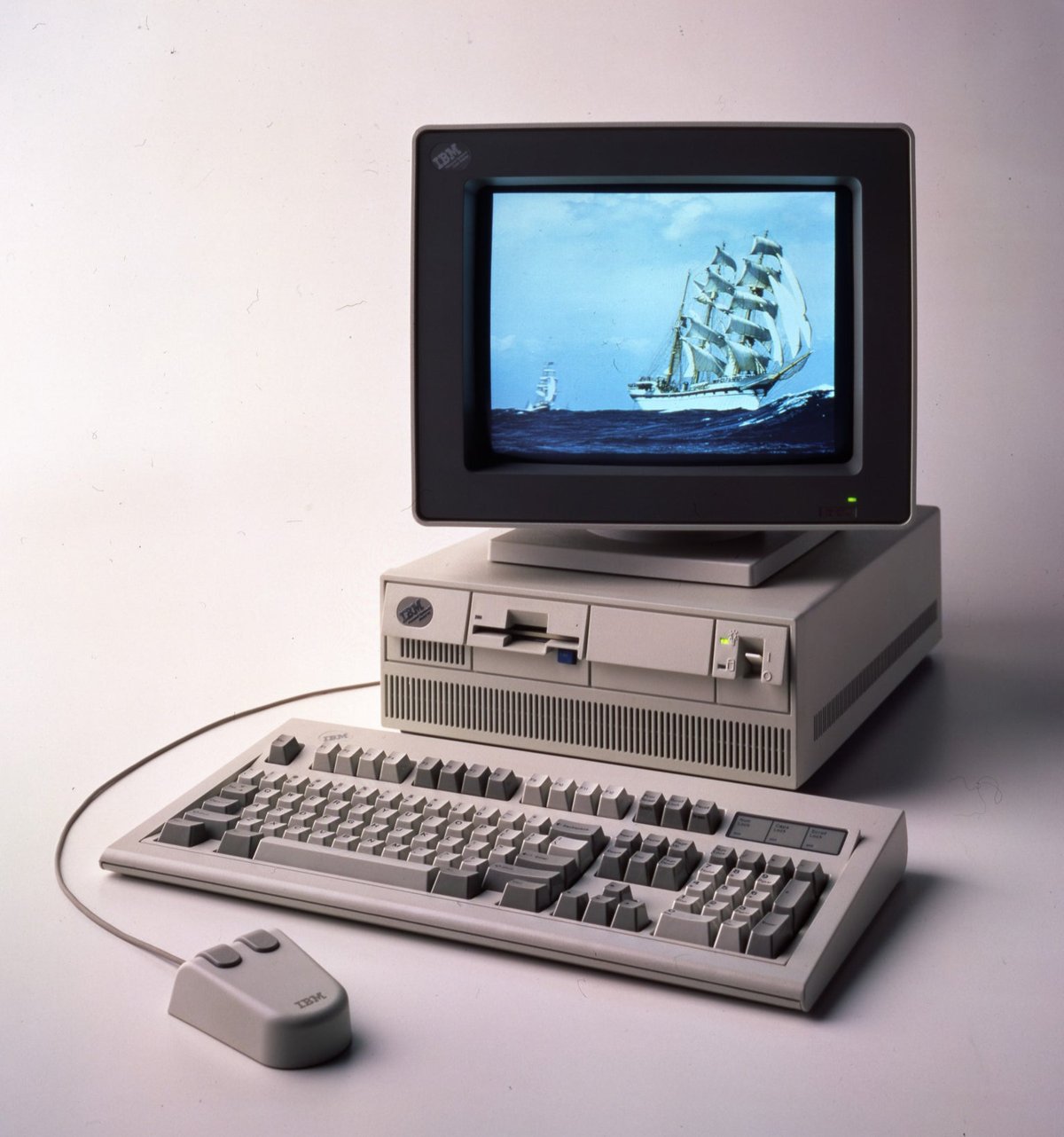
| What does VGA stand for? | Video Graphics Array, the display standard IBM introduced with its Personal System/2 computers in 1987 |
| What is a VGA port? | A 15-pin video output or input, listed by Windows as the HD15 connector, found on older PCs, monitors and projectors |
| Is the signal analog or digital? | Analog only; HDMI, DisplayPort and USB-C send digital signals |
| Does VGA carry sound? | No. VGA is video only, so audio needs a separate cable or the computer's own speakers |
| Is VGA limited to 640 x 480? | No. 640 x 480 is the original VGA mode, but the connector carries 1920 x 1080 and higher through current adapters |
| Can a new laptop connect to a VGA monitor? | Yes, through an active USB-C, HDMI or DisplayPort to VGA adapter |
| Should you choose VGA for a new setup? | Only when the display has no digital input; Microsoft ranks VGA last among connection types for picture results |
What does VGA mean?
VGA began as a graphics controller, not just a plug. IBM built it into the Personal System/2 line in 1987, and the name later stuck to the connector and the 640 x 480 resolution it introduced.
| Where you see "VGA" | What it means there |
|---|---|
| Video Graphics Array | The full name of the IBM video display controller launched with the PS/2 |
| Original VGA graphics modes | 640 x 480 pixels in 16 colours, and 320 x 200 pixels in 256 colours, while staying compatible with earlier IBM graphics adapters |
| VGA port or VGA cable | The 15-pin analog video connector that the standard made common on PCs, monitors and projectors |
| VGA resolution on a camera or phone spec sheet | A 640 x 480 picture size, with no connector involved |
| VGA in Windows device information | One of the video architecture types Windows can report, alongside CGA, EGA, SVGA and XGA |
What does a VGA cable and port look like?
A VGA port is a socket with 15 holes arranged in three rows. The cable ends in a matching 15-pin plug, and most VGA cables have the same plug on both ends.
Microsoft's display APIs name this connector HD15 and describe it as "also known as a VGA connector".
| Part | How to recognise it | Where you find it |
|---|---|---|
| VGA port (female) | Socket with 15 holes in three rows | Older desktop PCs, graphics cards, laptops, monitors and projectors |
| VGA cable (male to male) | 15-pin plug on each end; a VGA to VGA cable joins a VGA output to a VGA input | Monitor and projector boxes, meeting rooms, classrooms |
| Mini-VGA | A smaller 15-pin connector arranged in two rows | Some older laptops, used with a short adapter to full-size VGA |
| USB-C to VGA adapter | USB-C plug on one end, full-size VGA socket on the other | Current laptops, Surface devices and Macs that need to reach a VGA display |
VGA sits next to HDMI, DVI and DisplayPort on many monitors, so check the label printed beside each socket before you buy a cable.
How VGA works
The graphics adapter turns each frame into analog voltage levels and sends them down the cable. The monitor reads those voltages and rebuilds the picture, one line at a time.
| Stage | What happens over VGA |
|---|---|
| Detection | The computer reads the monitor's EDID data over the Display Data Channel (DDC), a two-wire I2C bus inside the cable |
| Mode choice | Windows picks a resolution and refresh rate the monitor reports it supports, marked (Recommended) in Display settings |
| Output | The graphics adapter converts the digital image into analog colour signals plus timing information |
| Transmission | The analog signal travels down the cable; longer and lower-quality cables lose more of it |
| Display | A flat-panel monitor converts the analog signal back into digital pixels for its own panel |
Is VGA analog or digital?
VGA is analog. Microsoft's Surface connector guide describes VGA as a "legacy connector only able to transmit analog video signals". That single fact explains most of VGA's limits: no audio, more noise over distance, and a picture that depends on cable quality.
| Connector | Signal type | Carries audio? |
|---|---|---|
| VGA | Analog video only | No |
| DVI-A | Analog only | No |
| DVI-I | Digital and analog in one connector | Check the device specifications |
| DVI-D | Digital only | Check the device specifications |
| HDMI | Digital | Yes, compressed or uncompressed digital audio |
| DisplayPort and Mini DisplayPort | Digital | Yes, audio and video together |
| USB-C with video output | Digital (DisplayPort Alt Mode or Thunderbolt) | Yes on HDMI and DisplayPort displays, not through a VGA adapter |
Is VGA the same as 640×480?
Only as a picture-size label. "VGA resolution" on a webcam or phone spec means 640 x 480, the mode the original VGA standard introduced. The VGA connector itself is not capped there.
VGA does support 1080p. Apple's USB-C VGA Multiport Adapter outputs up to 1920 x 1080 at 60Hz, and Microsoft's Surface USB-C to VGA adapter reaches 1920 x 1200 at 60Hz. Whether a 1080p picture over VGA looks sharp is a separate question; the 1080p Full HD resolution itself is the same 1920 x 1080 grid on any cable.
| Label or device | Resolution | Source of the limit |
|---|---|---|
| Original VGA mode | 640 x 480, 16 colours | IBM PS/2 VGA controller, 1987 |
| VGA 256-colour mode | 320 x 200, 256 colours | IBM PS/2 VGA controller, 1987 |
| SVGA | 800 x 600 or higher | Later standard that kept the same VGA connector |
| Apple USB-C VGA Multiport Adapter | Up to 1920 x 1080 at 60Hz | Adapter maximum |
| Surface USB-C to VGA adapter | Up to 1920 x 1200 at 60Hz | Adapter maximum |
The real ceiling on a VGA link is the weakest part: the graphics adapter, the converter, the cable or the monitor's VGA input. Check the specification of each before you count on a high resolution.
Does VGA carry audio?
No. VGA carries video only, so a VGA monitor or projector receives no sound from the computer through that cable. Microsoft's own Surface USB-C to VGA adapter lists audio support as "No", while its HDMI and DisplayPort adapters list "Yes".
| Your setup | Where the sound comes from |
|---|---|
| Laptop to VGA projector or monitor | The laptop's own speakers, or headphones or speakers plugged into the laptop |
| VGA monitor with built-in speakers | A separate audio cable from the computer's audio output to the monitor's audio input, if the monitor has one |
| Computer with HDMI or DisplayPort to a VGA display through an adapter | Still the computer's speakers; the VGA side drops the audio |
| VGA computer to an HDMI TV through a converter | Only a converter with its own audio input can add sound; plain VGA supplies none |
| You need picture and sound on one cable | Use HDMI or DisplayPort instead of VGA |
VGA, HDMI, DisplayPort, DVI, and USB-C compared
When a computer and display share more than one port type, Microsoft recommends this order for best results: USB-C, DisplayPort (Mini DisplayPort), HDMI, DVI, VGA. VGA is last because it is the only one that is analog-only.
| Connection | Signal | Audio | Best use today |
|---|---|---|---|
| USB-C | Digital, through DisplayPort Alt Mode or Thunderbolt | Yes, with HDMI or DisplayPort displays | Laptops; one port can reach HDMI, DisplayPort or VGA with an adapter |
| DisplayPort | Digital | Yes | Desktop monitors, high resolutions and daisy-chained displays |
| HDMI | Digital | Yes | TVs, monitors and most projectors |
| DVI | Digital (DVI-D), analog (DVI-A) or both (DVI-I) | Check the device specifications | Older monitors and graphics cards |
| VGA | Analog only | No | Older projectors and monitors that have no digital input |
If the graphics card has a free DisplayPort, enable DisplayPort on the graphics card and use a digital cable instead of an adapter chain to VGA.
Choosing the right VGA adapter
VGA is analog and every modern port is digital, so most VGA adapters must convert the signal. Microsoft recommends active video adapters when converting from one connection type to another. Buy by direction: the source is the computer's port, the display is the monitor's or projector's port.
| Your situation | Use this | Why |
|---|---|---|
| HDMI source to VGA display | An active HDMI to VGA adapter | It converts digital HDMI video to analog VGA; the HDMI audio is not carried over |
| VGA source to HDMI display | A VGA to HDMI converter, with a separate audio input if you need sound | An HDMI display needs a digital signal, and VGA supplies no audio |
| DisplayPort source to VGA display | A DisplayPort to VGA adapter (Mini DisplayPort to VGA for smaller ports) | Converts the digital DisplayPort signal to analog |
| USB-C source to VGA display | A USB-C to VGA adapter, such as the Apple USB-C VGA Multiport Adapter or Surface USB-C to VGA | The USB-C port must support DisplayPort Alt Mode or Thunderbolt video |
| DVI to VGA | A DVI to VGA adapter, only on a DVI-I or DVI-A port | Those DVI types carry analog signals; DVI-D carries digital only |
| Long run to a projector | An active extender instead of a longer cable | Microsoft recommends active extenders over long distances |
The adapter's own maximum resolution is the ceiling for the whole link, so read it before you buy. Apple notes that USB-C display adapters must comply with DisplayPort Alt Mode, Thunderbolt 3 or Thunderbolt 4.
Why VGA can look blurry or unstable
An analog signal degrades along the way, and the monitor has to sample it back into pixels. Any weak link shows up as softness, shadows or a wobbling picture.
| Cause | What you see | What to change |
|---|---|---|
| Resolution below the monitor's native resolution | Soft text; a small, centred, black-edged or stretched picture | Pick the (Recommended) option under Display resolution |
| Long cable | Blur, ghosting, or loss of picture | Use the shortest cable that reaches; Microsoft warns long cables cause image loss |
| Low-quality cable or passive adapter | Shadows, noise or an unstable image | Swap the cable; use an active adapter when converting |
| Loose connector | Flicker, colour shifts or a picture that drops out | Reseat both plugs firmly so they are secure |
| Monitor input settings | Picture slightly off-centre or soft | Use the monitor's on-screen menu to adjust the VGA input; option names vary by model |
| Extension cables or adapter chains | Intermittent picture | Remove extenders and adapters one at a time to find the faulty part |
To set the right mode on Windows 10, change the resolution to 1920 x 1080 when that is the monitor's native size.
DDC and EDID: how the computer detects a VGA monitor
Every monitor stores its identity and capabilities in Extended Display Identification Data (EDID). Windows reads that EDID using the Display Data Channel (DDC) protocol over the I2C bus, a two-wire bus built into standard monitor cables, VGA included.
| Term | What it is | Why it matters on VGA |
|---|---|---|
| EDID | The monitor's identification and capability data, defined by VESA (Enhanced EDID standard) | It tells Windows which resolutions and refresh rates to offer |
| DDC | The protocol used to read EDID from the monitor, defined by VESA (E-DDC standard) | It runs over dedicated wires inside the VGA cable |
| I2C bus | A simple two-wire clock and data bus | A cable or adapter that does not pass these wires breaks detection |
| Missing EDID | Windows cannot read the monitor's capabilities | Windows offers only a short, low list of resolutions |
If Windows shows only low resolutions on a VGA display, the EDID read is the first suspect: try another cable or adapter before blaming the monitor.
How to connect a VGA cable to a laptop or PC
- Turn on the monitor or projector and connect its power cable.
- Plug one end of the VGA cable into the display's VGA input, and make sure the connector is secure.
- Plug the other end into the computer's VGA port, or into a USB-C, HDMI or DisplayPort to VGA adapter connected to the computer.
- Open the display's input menu and select VGA (some displays label it Input or Source).
- On Windows, press Windows logo key + P and choose Duplicate or Extend.
- Open Settings > System > Display and choose the (Recommended) entry under Display resolution.
With two or more screens, set up multiple monitors on Windows 11 to arrange them after the VGA display appears.
How to check a VGA monitor is detected in Windows
- Select Start > Settings > System > Display.
- Select Identify; a number appears on each screen Windows recognises.
- If the VGA display is missing, expand Multiple displays and select Detect.
- Select Advanced display and read the Display information panel for the current resolution and refresh rate.
- Confirm the resolution matches the monitor's native size; a short list of low resolutions only points to a failed EDID read.
VGA troubleshooting by symptom
No signal or black screen
The display is on the wrong input, the cable or adapter is loose, or the projection mode is wrong.
- Set the display's input to VGA using its input or source button.
- Reseat the VGA cable at both ends and any adapter on the computer.
- Press Windows logo key + P and select Extend or Duplicate.
- Unplug the monitor from power, then plug it back in.
- Press Windows logo key + Ctrl + Shift + B to reset the graphics driver.
One color is missing
One of the analog colour signals is not getting through the cable or connector.
- Unplug the cable and check both plugs for damaged pins.
- Reconnect the cable firmly so both ends are secure.
- Swap in a different VGA cable; if the colour returns, the old cable was faulty.
- Test the monitor on another computer to rule out the display itself.
The image is blurry, ghosted, or has shadows
A non-native resolution, a long or poor cable, or a chain of adapters is degrading the analog signal.
- Select the (Recommended) entry under Display resolution in Settings > System > Display.
- Replace a long cable with the shortest one that reaches.
- Remove extension cables and extra adapters from the chain.
- Use an active adapter when converting from HDMI, DisplayPort or USB-C.
The picture flickers or intermittently disappears
A loose connection, a worn cable, or a dock or adapter conflict.
- Disconnect docks, dongles and adapters, then connect the monitor directly if possible.
- Make sure the VGA connector is secure at both ends.
- Swap the cable to test it.
- Restart the computer from Start > Power > Restart.
The display says out of range or unsupported mode
The computer is sending a resolution or refresh rate the VGA input does not accept.
- Connect the computer to its own screen or another display so you can see Settings.
- Select the (Recommended) entry under Display resolution for the VGA display.
- Open Advanced display and choose a lower rate next to Choose a refresh rate.
- Reconnect the VGA display and check the picture.
The computer detects only a low resolution
Windows cannot read the monitor's EDID, or the display driver is missing or damaged.
- Swap the VGA cable or adapter, since the EDID travels on wires inside it.
- Select Start > Settings > Windows Update > Check for updates.
- Open Device Manager, expand Display adapters, right-click the adapter and select Update driver.
- If the problem began after an update, select Properties > Driver > Roll Back Driver instead.
There is no sound
VGA does not carry audio, so the display cannot play the computer's sound over that cable.
- Play sound through the computer's speakers or headphones.
- Run a separate audio cable to the display, if it has an audio input.
- Switch to HDMI or DisplayPort when the display needs sound and picture on one cable.
When Windows still does not list the display, work through the steps to fix a second monitor not detected before replacing hardware. If Device Manager shows Microsoft Basic Display Adapter, update the Microsoft Basic Display Adapter driver with the graphics maker's driver.
VGA versus SVGA and MCGA
SVGA and MCGA are other PC video standards, not different plugs you will find on a modern monitor. Windows still lists CGA, EGA, VGA, SVGA, MCGA and XGA as separate video architecture types in its device information.
| Standard | Name | What sets it apart |
|---|---|---|
| VGA | Video Graphics Array | IBM, 1987; 640 x 480 in 16 colours and 320 x 200 in 256 colours |
| SVGA | Super Video Graphics Array | Higher resolutions, typically 800 x 600 or more, over the same VGA connector |
| MCGA | Listed by Windows as its own video architecture | A separate PC graphics standard from VGA; it is not a connector or a monitor input you will find today |
| XGA | Extended Graphics Array | A higher-resolution step above SVGA |
On a spec sheet, SVGA usually means 800 x 600, and SVGA monitors use the standard VGA connector. None of these labels changes the cable you need.
Should you still use VGA?
Use VGA only when the display has no HDMI, DisplayPort, DVI or USB-C input, such as an older projector or monitor. VGA is analog and video-only, it ranks last in Microsoft's list of connection types for best results, and its sharpness depends on cable length and adapter quality. For an existing VGA-only display, a good active adapter and a short cable still give a usable picture up to about 1920 x 1080.
A simple VGA buying and setup checklist
- Check the computer's video outputs and the display's inputs; pick a digital match if one exists.
- If only VGA works, note the display's native resolution from its specifications.
- Buy an adapter whose maximum resolution covers that native resolution, such as 1920 x 1080 at 60Hz.
- For USB-C, confirm the port supports DisplayPort Alt Mode or Thunderbolt video.
- Buy the shortest VGA cable that reaches, or an active extender for long runs.
- Plan audio separately: speakers, headphones or an audio cable to the display.
- After connecting, set the (Recommended) resolution and confirm the display appears under Settings > System > Display.
VGA cable and port FAQ
What is a VGA port?
A VGA port is a 15-pin video connector that sends or receives an analog picture signal. It appears on older PCs, laptops, monitors and projectors. Windows identifies it as the HD15 connector, and it carries video only, with no audio.
What is a VGA cable?
A VGA cable is a video cable with a 15-pin VGA plug on each end. It joins a computer's VGA output to a monitor or projector's VGA input and carries an analog picture plus the DDC wires used to read the monitor's capabilities. It carries no sound.
What is a VGA port in a computer used for?
A VGA port in a computer connects an external monitor, TV or projector using an analog signal. It is common on older desktops, laptops and graphics cards. Newer computers replace it with HDMI, DisplayPort or USB-C and reach VGA displays through an adapter.
What connector does a VGA cable have?
A VGA cable has a 15-pin connector arranged in three rows, which Windows calls the HD15 connector. Some older laptops used a smaller Mini-VGA connector with 15 pins in two rows, paired with an adapter to full-size VGA.
Is a VGA port on a laptop still useful?
Yes, for older projectors and monitors that accept only VGA. It sends video but no sound, so audio stays on the laptop's speakers. When the display also has HDMI or DisplayPort, use that digital port for a sharper picture and sound on one cable.
Can a VGA cable carry 1080p?
Yes. VGA can carry 1920 x 1080 at 60Hz; Apple's USB-C VGA Multiport Adapter supports that, and Microsoft's Surface USB-C to VGA adapter reaches 1920 x 1200. Picture sharpness still depends on the cable, the adapter and the monitor's VGA input.
Can I connect a VGA monitor to an HDMI port?
Yes, with an active HDMI to VGA adapter that converts the digital HDMI signal to analog. The adapter does not pass audio to the VGA monitor, so sound stays on the computer or needs a separate cable.
Does a VGA to HDMI cable carry sound?
No, not from the VGA side. VGA supplies no audio, so an HDMI TV gets sound only if the converter has its own audio input connected to the computer's audio output.
The bottom line on VGA cables and ports
Treat VGA as a fallback: use it for displays that have nothing else, with a short cable and an active adapter rated for the display's native resolution. VGA is a 15-pin, analog, video-only connection from 1987 that still works with modern laptops through USB-C, HDMI or DisplayPort adapters, up to about 1920 x 1080 or 1920 x 1200. Digital connections give a sharper picture and carry sound, so choose them whenever both ends have one.