GPU scaling makes your graphics card, instead of your monitor or TV, resize a lower-resolution image to fit the screen, and you turn it on in NVIDIA Control Panel, AMD Software: Adrenalin Edition or Intel Graphics Command Center.
You only need it when a game or app runs below your display's native resolution and the picture comes out stretched, cropped or boxed in. This guide covers what each scaling mode does, the steps for all three brands, the Windows settings that interfere, and fixes when it does not work.
How to enable GPU scaling on NVIDIA, AMD and Intel
Every brand keeps the setting in its own graphics app, not in Windows Settings. Find your brand in the table and go to the matching section below for the full steps.
| Your graphics | Where GPU scaling lives | What to pick |
|---|---|---|
| NVIDIA GeForce or RTX | NVIDIA Control Panel > Display > Adjust desktop size and position > Scaling tab | A scaling mode, then GPU under Perform scaling on |
| NVIDIA with the NVIDIA app | System > Displays in the NVIDIA app | The display scaling options, including integer scaling |
| AMD Radeon or Ryzen graphics | AMD Software: Adrenalin Edition | The GPU Scaling setting for your display |
| Intel integrated or Arc graphics | Intel Graphics Command Center > Display > General | A non-recommended resolution, then a Scale option |
After you change it, run your game or app at a lower resolution. The scaling mode only shows its effect below the display's native resolution.
What GPU scaling means (and what it doesn't)
A monitor has a fixed number of pixels, its native resolution. When Windows or a game sends a smaller image, something has to fill the gap. With GPU scaling on, the graphics card resizes the image before it leaves the PC. With it off, the display's own scaler does the job.
NVIDIA describes the GPU option as scaling "the desktop from the set resolution up to the native resolution timing." Several similar-sounding features do something else, and mixing them up is the most common source of confusion.
| Feature | What it does | Is it GPU scaling? |
|---|---|---|
| GPU scaling | The graphics card fits a lower-resolution image to the panel's native resolution | Yes |
| Display (monitor or TV) scaling | The screen's built-in scaler resizes the incoming image | No, it is the alternative |
| Windows Scale in Display settings | Makes text, apps and other items bigger at the same resolution | No |
| NVIDIA Image Scaling | Renders a game at a lower resolution, upscales it and sharpens it to raise frame rates | Related: turning it on also sets GPU scaling |
| Hardware-accelerated GPU scheduling | Changes how Windows schedules work on the graphics card | No |
If you were looking for the scheduling setting instead, you can turn on hardware-accelerated GPU scheduling from Windows graphics settings.
Why GPU scaling matters: overscan, underscan, and aspect ratio
Three problems send people looking for this setting. Aspect ratio mismatch happens when a 4:3 game runs on a 16:9 screen and gets stretched. Overscan is when a TV pushes the edges of the picture past the visible screen, which NVIDIA says is meant to hide broadcast data but also hides parts of the Windows desktop. Underscan is the opposite: the image sits inside a black border.
The scaling mode decides which of these you get. Each brand names the same modes differently.
| Result on screen | NVIDIA name | Intel name | Trade-off |
|---|---|---|---|
| Fills as much as possible, keeps proportions | Aspect ratio | Maintain Aspect Ratio | Black bars on the sides or top and bottom, no distortion |
| Fills the whole screen | Full-screen | Stretched | No bars, but a 4:3 image looks wide and squashed |
| Original size, centred | No scaling | Centered | A small but crisp image with a black border |
| Pixel-perfect enlargement | Integer scaling | Not listed in the Command Center scale options | Sharp pixel art, but borders remain when the factor does not divide evenly |
| Default behaviour | Set by the display or Automatic | Maintain Display Scaling | Leaves the choice to the default path |
| Fix overscan on a TV | Size tab, Enable desktop resizing | Custom | Use the TV's own picture size controls first |
NVIDIA's integer scaling duplicates pixels "at the maximum possible integer factor in both horizontal and vertical directions." It works only when scaling runs on the GPU, and only on Turing or later GPUs: GeForce RTX and GTX 16 series cards.
When you need GPU scaling (and when you don't)
Most people running everything at the display's native resolution never see GPU scaling do anything. It matters only for lower resolutions.
| Your situation | GPU scaling? | Mode to use |
|---|---|---|
| Desktop and games always at native resolution | Not needed | Leave the default |
| Older 4:3 game stretches on a widescreen monitor | Yes | Aspect ratio or Maintain Aspect Ratio |
| Competitive player who wants a stretched 4:3 view | Yes | Full-screen or Stretched |
| Retro or pixel-art game looks soft when enlarged | Yes | Integer scaling on NVIDIA Turing or later, or AMD integer scaling |
| Monitor's own scaler already keeps proportions correctly | Optional | Compare both and keep the sharper result |
| TV cuts off the taskbar or desktop edges | Not the main fix | Change the TV's picture size or overscan setting first |
| Laptop built-in screen | Sometimes | NVIDIA lists scaling for notebook panels; Intel blocks Custom on built-in screens |
GPU scaling requirements: native resolution, digital cable and driver
Check these before you open any graphics app. A missing requirement is the usual reason the scaling options are absent.
| Requirement | Why it matters | Where to check |
|---|---|---|
| Windows set to the (Recommended) resolution | The recommended value is the panel's native resolution, the target GPU scaling fills | Settings > System > Display > Display resolution |
| A digital connection: HDMI, DisplayPort or DVI | NVIDIA lists scaling for digital displays; VGA without EDID gets no scaling tab | The cable between the PC and the screen |
| The monitor plugged into the graphics card you are configuring | Each graphics app controls only displays attached to its own GPU | The port on the back of the PC |
| A current graphics driver | Microsoft notes unexpected resolution changes can mean the driver needs an update | Settings > Windows Update, or the vendor's app |
| Integer scaling hardware | NVIDIA needs a Turing or later GPU; AMD lists GCN or newer GPUs and Ryzen 2000 or newer APUs | Your GPU model in Device Manager |
Enable GPU scaling on NVIDIA (Control Panel)
NVIDIA Control Panel holds the full set of options. The page appears for displays that support scaling, which includes HDMI, DisplayPort and DVI monitors, HDTVs, and notebook panels.
- Right-click an empty area of the desktop and select NVIDIA Control Panel, or search for it from Start.
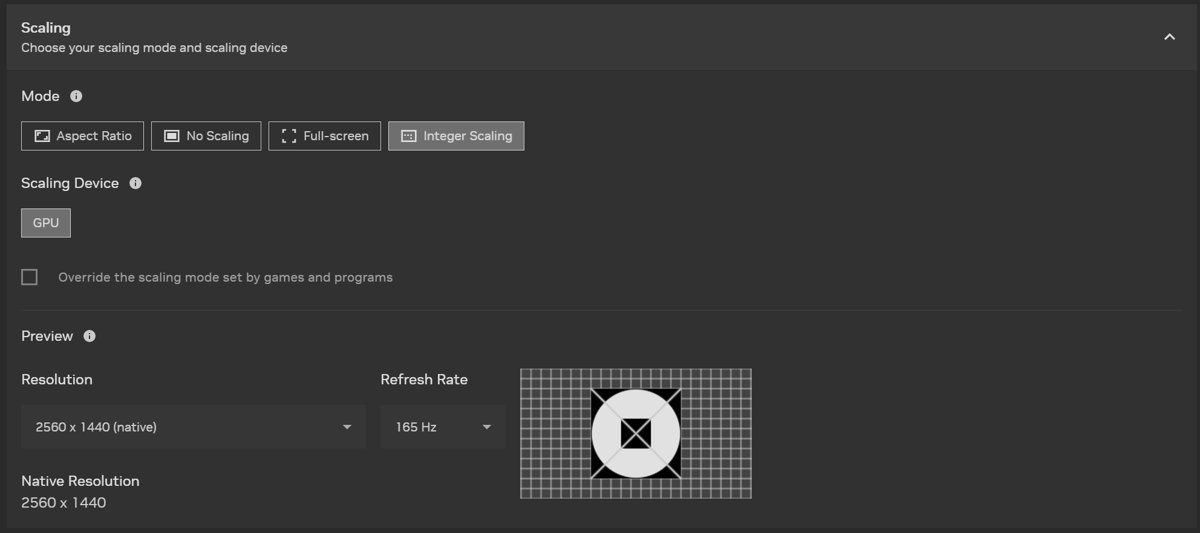
- In the navigation pane, under Display, select Adjust desktop size and position.
- Select the display you want to change, then select the Scaling tab.
- Choose a scaling mode: Aspect ratio, Full-screen, No scaling or Integer scaling.
- Open the Perform scaling on list and select GPU.
- Tick Override the scaling mode set by games and programs if a game keeps replacing your choice.
- In the Preview section, pick a lower resolution and refresh rate to see how full-screen apps will look.
- Select Apply.
Recommended settings for TVs and monitors: on a monitor, use Aspect ratio with GPU for older games, or Integer scaling for pixel art. On a TV, fix overscan with the TV's own controls first, then use the Size tab and Enable desktop resizing only if edges are still cut off.
The NVIDIA app now carries the same display scaling controls under System > Displays. NVIDIA says they let you modify and override display scaling of games and apps, and use the GPU for integer scaling instead of linear interpolation.
Enable GPU scaling on AMD (Adrenalin Software)
AMD keeps GPU scaling in AMD Software: Adrenalin Edition, and its menus have moved between releases. Keep AMD's own GPU scaling support article open while you work, since it follows the current layout.
- Set Windows to the (Recommended) resolution in Settings > System > Display.
- Select Start, type
AMD Software, and open AMD Software: Adrenalin Edition. - Open the display settings for the monitor connected to your Radeon card.
- Turn on GPU Scaling.
- Pick a scaling mode, using AMD's article to match each one to your goal.
- For pixel-art games, turn on integer scaling as described in AMD's integer scaling article.
- Start a game at a lower resolution to see the result.
Recommended settings for TVs and monitors: keep proportions for older 4:3 games on a monitor, and use integer scaling for retro titles. AMD describes integer display scaling as enlarging each pixel to four or more for a crisp pixel-art look without a performance penalty.
Enable GPU scaling on Intel (Graphics Command Center / Intel Control Panel)
Intel documents its scale options for Intel Graphics Command Center. Since build 1.100.2765.0, the Scale list shows only Maintain Display Scaling and Custom at the recommended resolution. Centered, Stretched and Maintain Aspect Ratio appear once you pick a lower resolution.
- Open Intel Graphics Command Center from Start.
- Go to Display, then the General tab.
- Under Resolution, select a resolution other than the Recommended one.
- Open Scale and choose Maintain Aspect Ratio, Stretched or Centered.
- To get the same scaling in a game, launch it and set the matching aspect ratio and resolution in its video settings.
- Switch the Command Center back to the Recommended resolution when you finish. Intel says the game should keep its scaling next time.
Recommended settings for TVs and monitors: use Custom to correct overscan on an external TV, and Maintain Aspect Ratio for older games on a monitor. Intel notes that Custom scaling is not available for built-in laptop screens, and that display capabilities and PC maker customizations can limit the options.
Windows display settings that can fight GPU scaling
Windows has two settings with similar names, and both affect what GPU scaling does. Getting them wrong causes double scaling: the desktop runs below native resolution, so the GPU or monitor enlarges it, and Windows Scale enlarges text again on top.
| Windows setting | Windows 11 path | Windows 10 path | What to set |
|---|---|---|---|
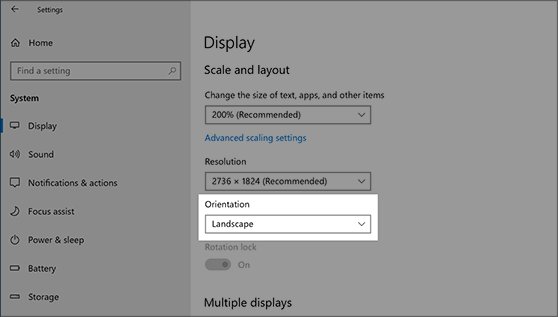
| Display resolution | Settings > System > Display > Display resolution | Settings > System > Display > Scale and layout > Display resolution | The value marked (Recommended), so the desktop is not scaled at all |
| Scale | Settings > System > Display > Scale & layout > Scale | Settings > System > Display > Change the size of text, apps, and other items | The value marked (Recommended); raise it to make text bigger instead of lowering resolution |
| Graphics driver | Settings > Windows Update | Settings > Update & Security > Windows Update | Install pending driver updates if resolution changes on its own |
Microsoft notes that monitors can run below their native resolution, but text will not look as sharp. Use Scale, not a lower resolution, when you only want larger text.
How to check GPU scaling is working
- Set a game or the Windows desktop to a resolution below native, for example a 4:3 resolution on a 16:9 monitor.
- With Aspect ratio or Maintain Aspect Ratio, look for black bars on the left and right and round objects that stay round.
- With Full-screen or Stretched, check that the image fills the panel edge to edge.
- With No scaling or Centered, check for a small image surrounded by a black border.
- If your monitor's on-screen menu reports the input resolution, check it while the game runs. GPU scaling sends the native resolution, so the menu should show that value.
- On NVIDIA, use the Preview section of Adjust desktop size and position to compare modes before you apply them.
A normal screenshot cannot prove the difference. NVIDIA points out that the display scaler and GPU scaler cannot be compared with traditional screenshots, so judge on the screen itself or with a photo.
Common GPU scaling pitfalls and how to spot them
| Pitfall | How it shows up | Fix |
|---|---|---|
| Changing the mode at native resolution | Nothing changes on screen | Test at a lower resolution; scaling only applies below native |
| Game overrides the setting | The game stretches even with Aspect ratio selected | Tick Override the scaling mode set by games and programs on NVIDIA |
| NVIDIA Image Scaling left on | Extra resolutions appear and GPU scaling is forced on | Turn off Image Scaling in Manage 3D settings if you did not mean to use it |
| Low desktop resolution used for bigger text | Blurry text across all apps | Return to the (Recommended) resolution and raise Scale instead |
| Wrong GPU configured | The scaling page is missing in the app | Plug the monitor into the graphics card you are configuring |
| Integer scaling on an uneven factor | Black borders remain around the image | Expected: pick a game resolution that divides evenly into the native one |
How to turn off GPU scaling and go back to display scaling
- On NVIDIA, open Adjust desktop size and position, select the Scaling tab, and set Perform scaling on to Automatic (Display), which combines display and GPU scaling.
- To stop an NVIDIA flat panel from scaling entirely, select No scaling and select Apply.
- On AMD, turn GPU Scaling off in AMD Software: Adrenalin Edition.
- On Intel, set Resolution back to Recommended in Intel Graphics Command Center; Scale returns to Maintain Display Scaling.
- In Windows, set Display resolution back to the (Recommended) value.
GPU scaling not working: troubleshooting
If you still have black bars or cropped edges
The display's scaler or overscan is acting after the GPU, or the game sets its own scaling.
- Confirm Perform scaling on is set to GPU on NVIDIA, or GPU Scaling is on in AMD Software.
- Choose Full-screen or Stretched if you want no bars at all.
- On NVIDIA, tick Override the scaling mode set by games and programs.
- For cropped edges on a TV, use the TV's picture size controls first.
- If edges are still cut off, use NVIDIA's Size tab with Enable desktop resizing, or Intel's Custom scale.
If the option is missing or grayed out
The display type does not support scaling, the app is at the recommended resolution, or another feature controls scaling.
- Use an HDMI, DisplayPort or DVI connection; NVIDIA hides scaling for VGA displays without EDID.
- On Intel, select a resolution other than Recommended to reveal Centered, Stretched and Maintain Aspect Ratio.
- On NVIDIA, check Manage 3D settings > Image Scaling. When it is on, NVIDIA sets GPU scaling on the Adjust desktop size and position page.
- Make sure the monitor is connected to the GPU whose app you have open.
- Update the graphics driver and restart.
If text looks blurry or sizes change
Windows is running below native resolution, so every frame is scaled, sometimes twice.
- Open Settings > System > Display.
- Set Display resolution to the value marked (Recommended).
- Set Scale to (Recommended), then raise it only if text is too small.
- Keep lower resolutions for individual games, not the desktop.
Stretched resolution not working in games
On Intel, the stretch options are hidden at the recommended resolution, so the game falls back to bars.
- In Intel Graphics Command Center, go to Display > General > Resolution.
- Select a resolution other than Recommended.
- Set Scale to Stretched.
- In the game, set the desired aspect ratio and resolution, then apply and save.
- On NVIDIA, select Full-screen with GPU and the override box ticked.
GPU scaling vs TV/monitor scaling: which should you use?
Both do the same job, so the right choice is whichever produces the better picture on your screen. GPU scaling gives you the same modes on every display, plus integer scaling. Display scaling depends entirely on the quality and options of the monitor or TV.
| Factor | GPU scaling | TV or monitor scaling |
|---|---|---|
| Consistency | Same modes on every screen you connect | Varies by model and menu |
| Aspect ratio control | Aspect ratio, Full-screen, No scaling always available | Depends on the display's picture size options |
| Pixel-art games | Integer scaling on NVIDIA Turing or later and supported AMD GPUs | Usually smooth (blurred) resizing |
| Overscan on TVs | Resize controls exist, but NVIDIA calls them a fallback | Best fixed in the TV's own settings |
| Monitor input reading | Monitor always receives native resolution | Monitor receives the lower resolution |
| Refresh rates | NVIDIA notes available refresh rates depend on the scaling method | Depends on what the display accepts at each resolution |
GPU scaling FAQ
Is GPU scaling good?
Yes, when you run games below your display's native resolution and want control over how they fill the screen. It adds aspect-ratio and integer scaling options your monitor may lack. At native resolution it changes nothing, so it is neither good nor bad there.
Should I turn on GPU scaling?
Turn it on if older games stretch, sit in an oddly sized box, or look soft on your screen. Leave it off if you always run at the recommended resolution, or if your monitor's own scaler already gives the result you want.
Should I have GPU scaling on or off?
Keep it on for lower-resolution gaming where you want a fixed result, such as bars for 4:3 games or a stretched competitive view. Keep it off when everything runs at native resolution. Switching back is one setting, so test both on your screen.
Does GPU scaling affect performance?
Scaling mode does not change the resolution a game renders at, which is what drives frame rate. AMD says its integer display scaling has no performance penalty. NVIDIA notes the refresh rates on offer depend on the scaling method, so recheck your refresh rate after switching.
Is GPU scaling better than display scaling?
Often, but not always. GPU scaling is consistent on every screen and adds integer scaling for pixel art. A good monitor or TV scaler can match it. Compare both at the same lower resolution and keep whichever looks sharper and keeps the right proportions.
Should I perform scaling on GPU or display?
Choose GPU on NVIDIA's Perform scaling on list when you want your selected mode applied everywhere, or need integer scaling. Choose Automatic (Display) when your monitor's scaler already gives a clean picture. NVIDIA says setting the scaling mode alone is enough for most cases.
What does GPU scaling do on AMD?
On AMD, GPU Scaling makes the Radeon graphics card fit lower-resolution images to your display's native resolution instead of the monitor. You set it in AMD Software: Adrenalin Edition. AMD's integer display scaling, for pixel-art games, works on GCN or newer GPUs and Ryzen 2000 or newer APUs.
What does GPU scaling do on NVIDIA?
With Perform scaling on set to GPU, NVIDIA's graphics card scales the image from the set resolution up to the panel's native resolution. You choose Aspect ratio, Full-screen, No scaling or Integer scaling on the Adjust desktop size and position page.
Is GPU scaling the same as Windows display scale?
No. The Windows Scale setting enlarges text, apps and other items while keeping the same resolution. GPU scaling resizes a whole lower-resolution image to fit the panel. Keep Windows resolution at the recommended value and use Scale for bigger text.
Bottom line: should you enable GPU scaling?
Enable GPU scaling with Aspect ratio (or integer scaling for pixel art) if you play games below your display's native resolution; leave it at the default if you always run at the recommended resolution. GPU scaling only acts on lower resolutions, where it gives you the same predictable modes on every screen. At native resolution it has nothing to scale, so the setting makes no difference.