Windows 11 screen flickering is almost always caused by the display driver or an incompatible app, and a quick Task Manager test tells you which one to fix.
Reset the graphics driver with Windows logo key + Ctrl + Shift + B first, then use the Task Manager test before you change settings, cables or startup apps that were never the problem. This guide covers the graphics driver reset shortcut, driver rollback and reinstall, refresh rate and HDR settings, startup apps, clean boot, cables and laptop-specific causes.
How to fix screen flickering in Windows 11 fast
Start with the graphics driver reset, then use Task Manager to see where the fault sits. These three steps settle most cases in under two minutes.
Reset your graphics driver
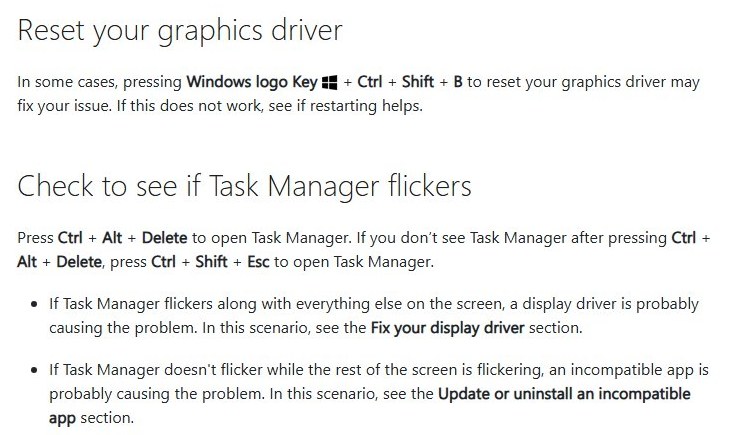
- Press Windows logo key + Ctrl + Shift + B to reset the graphics driver. A beep or a brief screen flicker confirms the reset worked.
- If the flicker returns, restart the PC from Start > Power > Restart.
- If it still flickers, press Ctrl + Shift + Esc to open Task Manager and watch the window.
- If Task Manager flickers along with everything else, fix the display driver.
- If Task Manager stays steady while the rest of the screen flickers, update or uninstall the app that is causing it.
The same reset shortcut and driver checks also apply on Windows 10, where the older Windows 10 screen flashing fix adds a few notes for that version.
Why is my screen flickering in Windows 11? Causes and fixes
Match what you see to a row, then go straight to that fix.
| What you see | Likely cause | Fix to try first |
|---|---|---|
| Everything flickers, Task Manager included | Display driver | Roll back, update or reinstall the graphics driver |
| Everything flickers except Task Manager | An incompatible app | Update the app, then uninstall it if the flicker stays |
| Flicker started right after Windows Update | A new driver or quality update | Roll back the display driver, then uninstall the update |
| Only the taskbar or desktop flashes | Windows Explorer stuck in a redraw loop | Restart Windows Explorer from Task Manager |
| Only the external monitor flickers | Cable, port, adapter or dock | Reseat or swap the cable, try another port |
| Laptop screen flashes black when you plug in or unplug the charger | HDR switching off on battery | Change the HDR battery setting |
| Flicker or odd colours with HDR on over HDMI | HDMI bandwidth for HDR | Use DisplayPort, or lower the refresh rate or resolution |
| Flicker began at sign-in and something runs in the background | A startup app or third-party service | Disable startup apps, then run a clean boot |
Identify whether the flickering is caused by Windows or an app
Microsoft's own triage for a flickering screen is a single test: does Task Manager flicker too? Task Manager is drawn by Windows itself, so it shows whether the problem is system-wide or tied to one app.
- Press Ctrl + Alt + Delete and select Task Manager. Any of the shortcuts that open Task Manager works. If it does not appear, press Ctrl + Shift + Esc instead.
- Leave Task Manager open on top of your other windows for 30 seconds.
- Watch the Task Manager window, not the background.
- If Task Manager flickers along with the rest of the screen, treat it as a display driver problem.
- If Task Manager stays steady while the background flickers, treat it as an app problem.
- Note which apps were open when the flicker started; the culprit is usually one of them or a recently installed one.
If the flicker makes the screen too hard to read, start the PC in Safe Mode first and do the driver steps from there.
Restart Windows Explorer and check Task Manager behavior
Windows Explorer draws the taskbar, Start and the desktop. When only those parts flash, restarting Explorer clears the loop without a reboot.
- Press Ctrl + Shift + Esc to open Task Manager.
- On the Processes tab, find Windows Explorer.
- Right-click Windows Explorer and select Restart.
- If Windows Explorer is not listed, select File > Run new task, type
explorer.exeand press Enter. - While Task Manager is open, review the Processes and Performance tabs for an app using unusually high resources when the flicker happens.
- Right-click any app you are not using and close it, then check whether the flicker stops.
Update, roll back, or reinstall your graphics driver
Pick the driver action by what changed. If Windows Update recently installed anything, roll back first; otherwise update, and reinstall only if both fail.
Rolling back or uninstalling a driver in Device Manager needs administrator rights.
| Situation | Driver action | Where to do it |
|---|---|---|
| Flicker started after a Windows update | Roll back the display driver | Device Manager > Display adapters > right-click the adapter > Properties > Driver > Roll Back Driver > Yes, then restart |
| No recent update, driver may be old | Update the display driver | Device Manager > Display adapters > right-click the adapter > Update driver |
| Windows Update has nothing newer | Install the driver from the GPU or PC manufacturer | The support site of your graphics card maker or PC maker |
| Optional driver offered by Windows | Install it from Windows Update | Settings > Windows Update > Advanced options > Optional updates |
| Roll Back Driver is greyed out | No previous driver is stored | Reinstall the driver instead |
| Update and rollback both failed | Reinstall the driver cleanly | Uninstall the device with Attempt to remove the driver for this device, then restart |
To find who makes your graphics hardware, open Device Manager and expand Display adapters; the adapter names show the manufacturer. For Intel graphics, the Intel graphics driver download notes cover the official package, and the graphics driver update guide covers NVIDIA and AMD as well.
Roll back your display driver
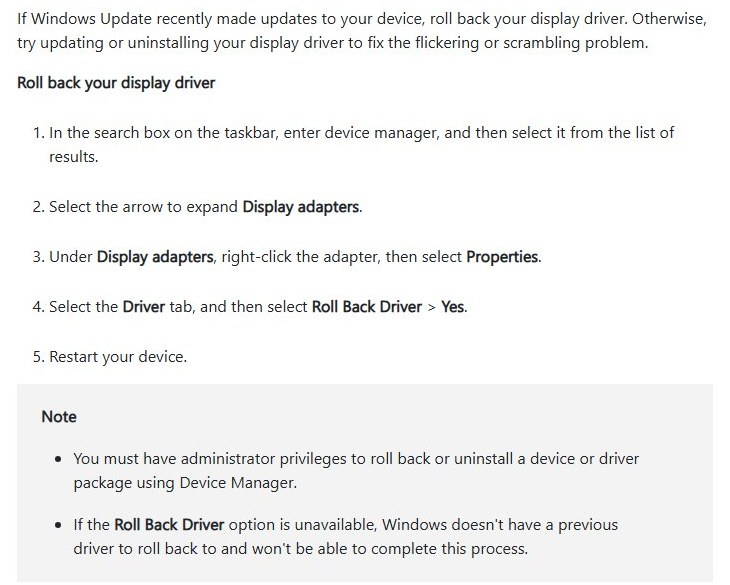
- In the search box on the taskbar, type device manager and select it from the results.
- Select the arrow to expand Display adapters.
- Right-click the adapter and select Properties.
- On the Driver tab, select Roll Back Driver > Yes.
- Restart the PC.
If Roll Back Driver is unavailable, Windows has no previous driver to return to, so update or reinstall instead.
Update your display driver
- Open Device Manager and expand Display adapters.
- Right-click the adapter and select Update driver.
- Select Search automatically for drivers and let Windows install anything newer.
- If Windows finds nothing, get the latest driver from your PC or display adapter manufacturer.
Uninstall your display driver
A clean reinstall removes a corrupted driver package and lets Windows install a fresh copy on the next start. If the Attempt to remove the driver for this device checkbox is missing, start the PC in Safe Mode and repeat these steps.
- Select the search box on the taskbar, type device manager and open Device Manager.
- Select the arrow next to Display adapters to expand it.
- Right-click your display adapter and select Properties.
- On the Driver tab, select Uninstall Device.
- Select the Attempt to remove the driver for this device checkbox, then select OK.
- Restart the PC; Windows attempts to reinstall the driver automatically.
- If the adapter still shows a basic driver, open Device Manager again, right-click the adapter, select Update driver and then Search automatically for updated driver software.
How to uninstall a Windows 11 update that causes screen flickering
If rolling back the display driver does not stop flicker that began with an update, remove the update itself. Microsoft advises understanding the risk before removing a security update, and some updates cannot be uninstalled.
- Select Start > Settings > Windows Update.
- Under More options, select Update history.
- Under Related settings, select Uninstall updates.
- Select the update installed just before the flicker started, then select Uninstall.
- Restart the PC and check the screen.
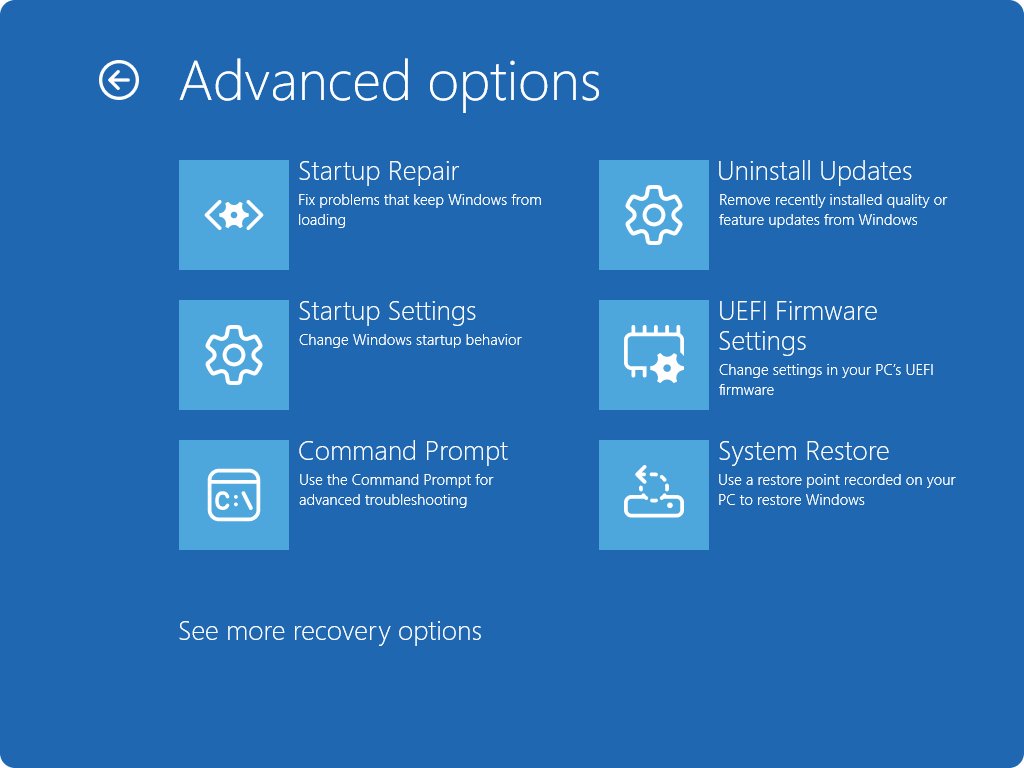
- If Windows will not start normally, open the Windows Recovery Environment and select Troubleshoot > Advanced options > Uninstall Updates instead.
Adjust display refresh rate, resolution, and HDR settings
A refresh rate or resolution the panel handles badly, or HDR running over a cable that cannot carry it, shows up as flicker. Set each display back to what Windows recommends and test HDR separately.
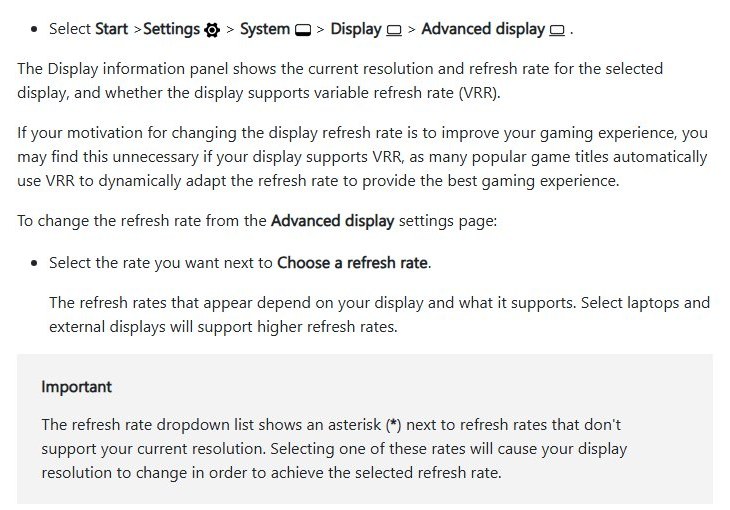
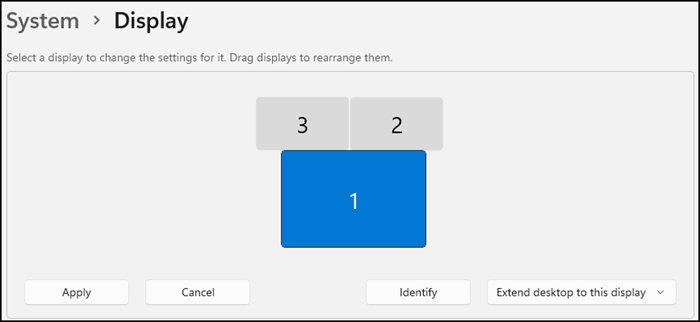
- Select Start > Settings > System > Display, and select the flickering display at the top if you have more than one.
- In the Display resolution list, choose the option marked (Recommended).
- Select Advanced display. Under Display information, check the current resolution and refresh rate.
- Next to Choose a refresh rate, pick a different rate, such as the standard 60 Hz, and avoid rates marked with an asterisk (*), which change your resolution.
- If the Dynamic refresh rate toggle is shown, turn it off and test again.
- Go back to Display, turn HDR off for that display and watch the screen for a few minutes.
- If HDR was the trigger on an HDMI connection, switch to DisplayPort, or keep HDMI and set Choose a refresh rate to 30 Hz where available.
Dynamic refresh rate only appears on hardware that supports variable refresh rate and at least 120 Hz, so many PCs will not show the toggle. The Display information panel in Advanced display also shows whether the display supports variable refresh rate (VRR).
Disable problematic startup apps and visual effects
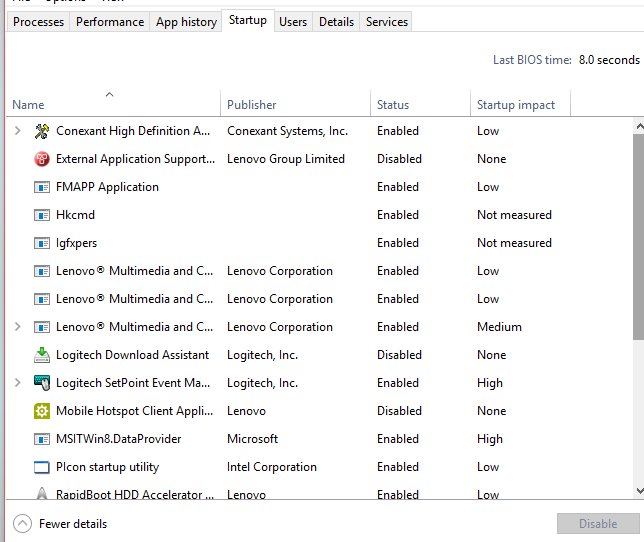
Overlay tools, screen recorders and monitoring utilities that launch at sign-in draw on top of everything and can make the screen flash. Turning startup apps off one at a time shows which one is responsible.
- Select Start > Settings > Apps > Startup.
- Set the toggle to Off for each app you do not need at sign-in, starting with anything marked high impact in Task Manager's Startup apps tab.
- Restart the PC and check whether the flicker is gone.
- Turn the apps back on one at a time, restarting after each, until the flicker returns; the last app turned on is the cause.
- To reduce visual effects, select Start, type Adjust the appearance and performance of Windows and open it.
- On the Visual Effects tab, select Adjust for best performance, then select OK.
Clean boot Windows 11 to find the app causing flicker
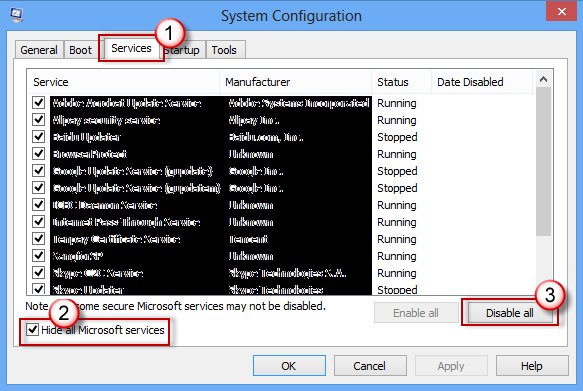
A clean boot starts Windows with only essential drivers and startup programs, which isolates third-party services that the Startup list does not show. Sign in with an administrator account first.
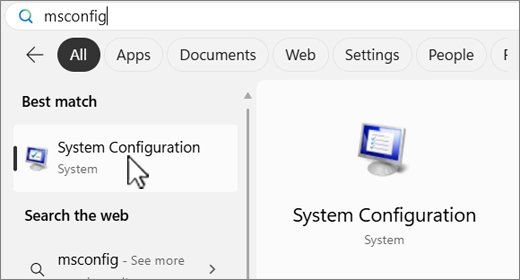
- Select Search, type msconfig and select System Configuration.
- On the Services tab, select Hide all Microsoft services, then select Disable all and Apply.
- On the Startup tab, select Open Task Manager.
- On the Startup apps tab, select each enabled item and select Disable, keeping a list of what you turned off.
- Close Task Manager, select OK in System Configuration and restart.
- If the flicker stops, re-enable half of the services and startup items at a time and restart until the flicker returns, which narrows it to one item.
- To return to normal, open System Configuration, select Normal Startup on the General tab, clear Hide all Microsoft services, select Enable all and re-enable your startup apps.
Before you disable anything, take a screenshot in Windows 11 of the Startup apps list so you can switch the same items back on later.
Update or uninstall an incompatible app
When the Task Manager test or a clean boot points at an app, update it first. Some apps are not compatible with Windows 11 and keep flickering until they are removed.
- For a Microsoft Store app, open Microsoft Store and check for updates to your apps.
- For other apps, get the latest version from the developer's own website.
- If updating does not help, select Start > Settings > Apps > Installed apps.
- Find the app, select More options (…) and select Uninstall, then confirm.
- Restart the PC and check the screen.
- If the flicker remains, uninstall the next suspect app the same way, one at a time.
- To reinstall a Store app later, open Microsoft Store > Library, select the app and select Install.
How to start Windows 11 in Safe Mode with a flickering screen
Safe Mode loads a basic set of drivers, so the screen is usually readable enough to roll back or uninstall the display driver. If your drive is encrypted with BitLocker, have the recovery key ready. Other ways to enter Windows 11 Safe Mode work too if you can still see the desktop.
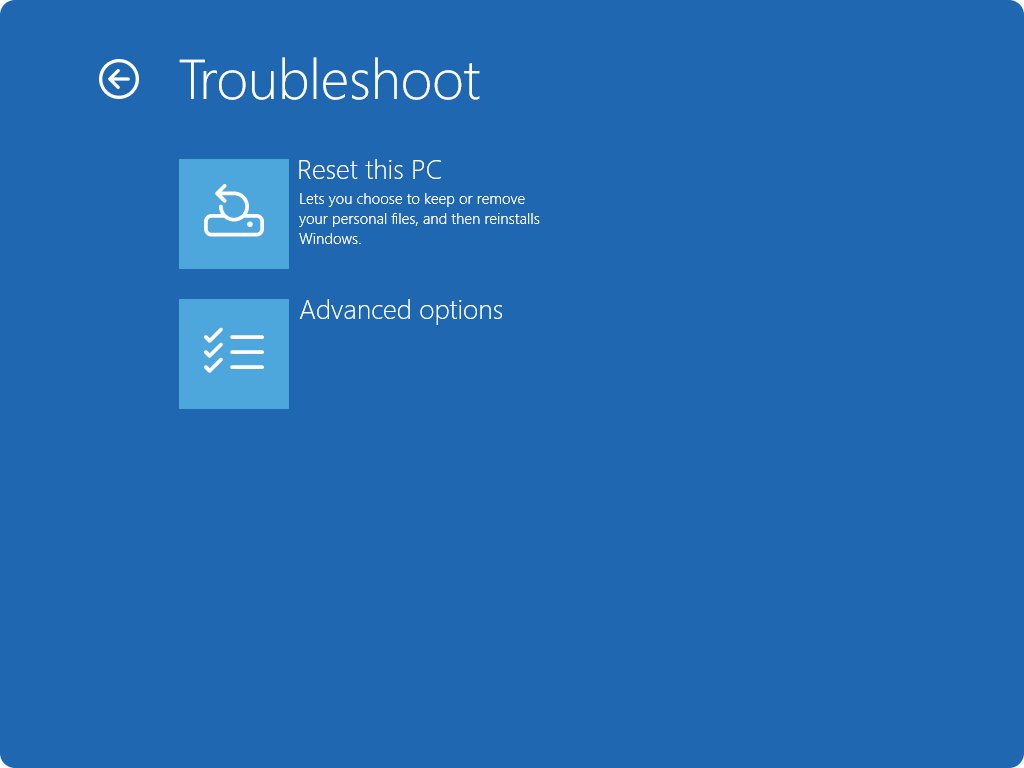
- Open the Windows Recovery Environment; if Windows cannot start, hold the power button for 10 seconds to force a shutdown and repeat this 2 to 3 times.
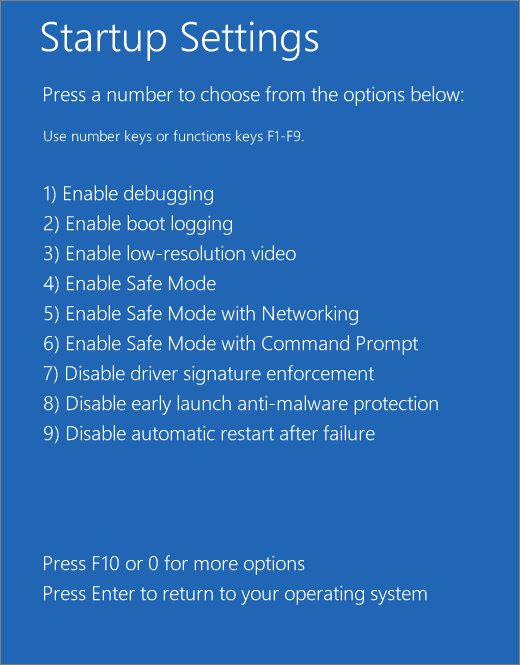
- Select Troubleshoot > Advanced options > Startup Settings > Restart.
- On the Startup Settings screen, press F5 for Safe Mode with Networking, or F3 for Enable low-resolution video.
- In Safe Mode, open Device Manager and roll back or uninstall the display driver.
- Restart normally; if the PC keeps booting into Safe Mode, press Windows logo key + R, type
msconfig, select the Boot tab and clear Safe boot.
Check cables, external monitors, and hardware issues
If the flicker affects one monitor only, or appears before Windows loads, the signal path is the suspect. Test each piece in isolation.
- Disconnect docks, dongles, adapters and other accessories, then test with the monitor connected directly.
- Make sure the cable is secure at both ends.
- Swap the cable for another one; if the new cable works, the old one was faulty.
- Plug the monitor into a different video output on the PC, such as HDMI or DisplayPort.
- Connect the monitor to a different computer to see whether the monitor or the PC is at fault.
- Press Windows logo key + P and confirm the display mode you expect, such as Extend.
- If you use a display splitter for two monitors, replace it with a dock or second port; a splitter duplicates one signal rather than creating two.
If a laptop's built-in panel flickers even before Windows starts, no Windows setting is involved; contact the manufacturer for a hardware check. Surface owners have a dedicated Microsoft support page for flickering, distorted and scrambled Surface screens.
Once the screen is steady, confirm the fix holds:
- Restart the PC twice and watch the screen from sign-in to the desktop.
- Open the apps you were using when the flicker started and use them for at least 10 minutes.
- Open Device Manager > Display adapters > your adapter > Properties > Driver and note the driver version and date, so you know which version is stable.
- Check Settings > System > Display > Advanced display to confirm the resolution and refresh rate you chose stuck.
- On a laptop, unplug and reconnect the charger once to confirm the screen does not flash on the power change.
Windows 11 screen flickering issue on laptops, monitors and after updates
Windows 11 laptop screen flickering when the charger is plugged in or removed
On HDR-capable laptops, HDR turns off on battery by default, and the display can go black briefly as it switches.
- Select Start > Settings > System > Display and select HDR.
- Expand the HDR or HDR video streaming section.
- Clear Turn off HDR when my PC is running on battery to stop the switching, accepting shorter battery life.
- Or turn HDR off entirely if you do not use HDR content.
Screen flickering after Windows 11 update
Windows Update replaced the display driver or installed a quality update that clashes with it.
- Roll back the driver in Device Manager > Display adapters > Properties > Driver > Roll Back Driver.
- Restart and test.
- If it still flickers, uninstall the update from Settings > Windows Update > Update history > Uninstall updates.
Monitor flickering in Windows 11 on an external display only
The cable, port, adapter or dock between the PC and the monitor is unreliable, or HDR is pushing an HDMI link past what it carries.
- Connect the monitor directly with a different cable.
- Try a different video port on the PC.
- Turn HDR off for that display, or move it to DisplayPort.
- Press Windows logo key + Ctrl + Shift + B to reset the graphics driver.
Windows 11 display keeps flickering in one app only
The app is incompatible with Windows 11 or with the current graphics driver.
- Confirm with the Task Manager test that Task Manager itself stays steady.
- Update the app from Microsoft Store or the developer's site.
- Uninstall it from Settings > Apps > Installed apps if the flicker continues, and restart.
Windows 11 keeps flickering and the screen is unreadable
A broken display driver stops you reaching Device Manager normally.
- Force the Windows Recovery Environment by holding the power button for 10 seconds two or three times in a row.
- Select Troubleshoot > Advanced options > Startup Settings > Restart, then press F5.
- In Safe Mode, uninstall the display driver with Attempt to remove the driver for this device selected, then restart.
Windows 11 screen flickering FAQ
How do I fix screen flickering in Windows 11?
Press Windows logo key + Ctrl + Shift + B to reset the graphics driver, then restart. If the flicker returns, open Task Manager: if it flickers too, roll back, update or reinstall the display driver; if it stays steady, update or uninstall the app causing it. The same shortcut clears most cases of a grey screen on Windows 10 as well.
Why is my screen flickering in Windows 11?
Screen flickering in Windows 11 is usually caused by a display driver problem or an incompatible app. Less often the cause is a refresh rate or HDR setting the display handles badly, or a loose or faulty cable between the PC and the monitor.
Why is my monitor flickering in Windows 11?
An external monitor that flickers on its own usually has a cable, port, adapter or dock problem. Connect it directly with another cable, try another port, and turn HDR off for that display. If it still flickers on a second computer, the monitor itself is at fault.
Why is my laptop screen flickering in Windows 11?
On HDR-capable laptops, HDR turns off on battery by default and the screen can flash black when you plug in or unplug the charger. Otherwise, laptop flicker follows the same pattern as a desktop: a display driver or incompatible app, found with the Task Manager test.
Why does my screen flicker after a Windows 11 update?
An update can replace a working display driver or add a change that clashes with it. Roll back the driver in Device Manager first. If the flicker continues, uninstall the update from Settings > Windows Update > Update history > Uninstall updates.
Can a bad graphics driver cause screen flickering in Windows 11?
Yes. A faulty or mismatched display driver is the most common cause. The sign is that Task Manager flickers along with everything else. Roll back the driver after an update, update it otherwise, and reinstall it cleanly if both fail.
Which display settings should I change to stop flickering?
Set the resolution to the option marked Recommended, pick a standard refresh rate in Advanced display, turn off Dynamic refresh rate if the toggle exists, and test with HDR turned off. Over HDMI, a lower refresh rate or DisplayPort can fix HDR-related problems.
Could my monitor cable or external display setup be the problem?
Yes. Docks, adapters, splitters and worn cables all cause flicker on external displays. Remove accessories, connect the monitor directly, swap the cable and try another port. A splitter cannot extend a desktop to two monitors because it duplicates one signal.
What is the shortcut to reset the graphics driver in Windows 11?
Press Windows logo key + Ctrl + Shift + B. Microsoft lists it as the first fix for a flickering screen. A beep or a brief flicker shows the reset ran; if the flicker comes back, restart the PC and run the Task Manager test.
Is screen flickering in Windows 11 a hardware problem?
Usually not. Microsoft names the display driver and incompatible apps as the usual causes. Flicker that appears before Windows loads, or that follows the monitor to a second computer, points to hardware, so contact the PC or monitor maker.