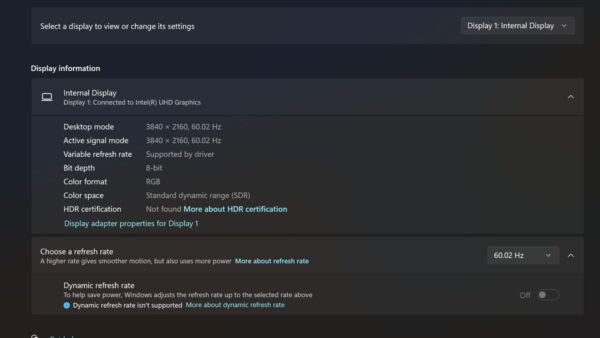
To set a different display scaling level for each monitor in Windows 11, open Settings > System > Display, select one monitor at the top, choose its Scale, then repeat for the next monitor.
This guide covers choosing a scale per monitor, custom scaling, fixing blurry apps on mixed-scale setups, and the resolution, full-screen and blackout problems that often come with a second display.
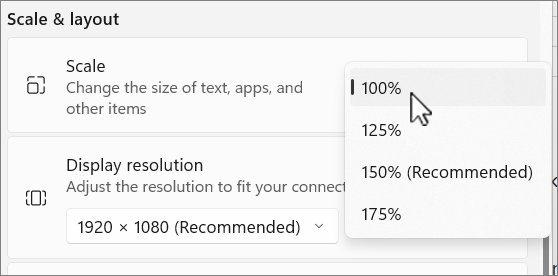
Set different Display Scaling level for the second monitor
Windows 11 stores a scale value for every connected display, so changing the scale on one monitor leaves the others alone. Your monitors must be in Extend mode for each one to appear separately.
- Press Windows key + I to open Settings.
- Select System > Display.
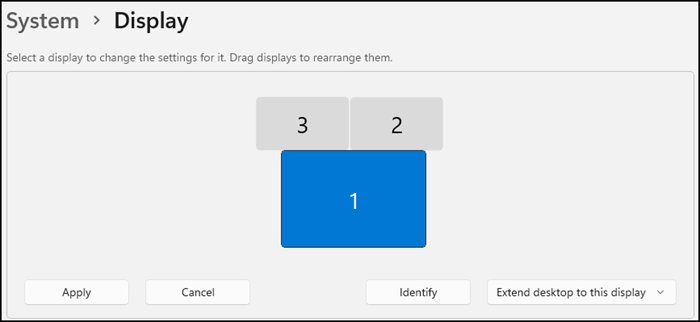
- At the top, select the numbered box for the monitor you want to change; select Identify if you are unsure which is which.
- Scroll to Scale & layout.
- Open the Scale list and select a percentage; the value marked (Recommended) is usually best for that screen.
- Select the other monitor's box at the top and choose its own Scale value.
- Sign out and back in if some apps still show the old size.
What is display scaling in Windows 11?
Display scaling sets how large text, apps and other items look on a screen, separately from its resolution. A high-resolution laptop panel usually needs a higher scale than a large desktop monitor to keep text readable.
| Setting | Where it is | What it changes |
|---|---|---|
| Scale | Settings > System > Display > Scale & layout > Scale | Size of text, apps and other items on the selected display |
| Display resolution | Display resolution row on the same page | Number of pixels the display shows; (Recommended) is the native value |
| Custom scaling | Expand the Scale settings | A custom size between 100% and 500%; Microsoft does not recommend it |
| Text size | Settings > Accessibility > Text size | Only text in title bars, menus and icon labels, on every display |
Which scaling level to choose for each monitor
| Your situation | What to set | Why |
|---|---|---|
| Monitors of different sizes or resolutions look mismatched | Each monitor's own (Recommended) scale | Windows suggests a value that suits each screen |
| Older apps blur when moved between monitors | The same scale on every monitor, for example 125% on both | Apps that scale only for the primary display get stretched on a screen with a different scale |
| Only text is too small, not icons or windows | Text size in Accessibility | Enlarges text without changing app layout |
| No listed percentage looks right | Custom scaling between 100% and 500% | Last resort; Microsoft does not recommend it |
| Everything is too small on a 4K monitor | A higher listed scale such as the recommended value | Higher scale keeps the native resolution and sharp text |
Microsoft's own example for blurry Office apps is a 150% laptop panel paired with a 100% monitor: setting both to 125%, then signing out and back in, gives the best results.
Identify and extend your monitors before changing the scale
Per-monitor scaling only shows when Windows treats each display separately. In Duplicate mode, both screens show the same desktop and cannot get separate settings.
- Press Windows key + P and select Extend.
- Open Settings > System > Display.
- Select Identify to show each display's number on its screen.
- If a connected monitor is missing, expand Multiple displays and select Detect.
- Drag the numbered boxes to match where the monitors sit on your desk, then select Apply.
If the screens are new, connect and arrange multiple monitors before you change the scale.
How to set custom scaling for one monitor in Windows 11
Custom scaling accepts any value from 100% to 500%. Use it only when none of the listed percentages work, because Microsoft does not recommend custom scale.
- Open Settings > System > Display.
- Select the monitor you want to change at the top of the page.
- Under Scale & layout, select the arrow next to Scale to expand its settings.
- Enter a custom scaling size between 100 and 500.
- Confirm the value, then sign out and back in so every app picks it up.
If text or windows look wrong afterwards, go back to the same page and pick a listed percentage again.
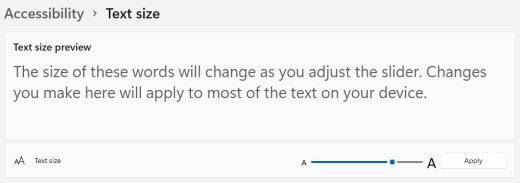
Adjust display scaling for text only on all monitors
Text size is a single setting for every display, so changing the text size affects all screens. Combine it with per-monitor scale when one screen's text is still small after you choose its recommended scale.
- Press Windows key + U to open Accessibility settings.
- Select Text size.
- Drag the Text size slider to the right until the sample text is comfortable.
- Select Apply.
How to check each monitor's scaling level
- Open Settings > System > Display.
- Select the first monitor's box and read the value in Scale.
- Select the second monitor's box; its Scale should show the different value you chose.
- Look at the taskbar and Settings text on each screen; items should appear at the size you chose for that display.
- Check a few apps on each screen for blurry text, which points to the app rather than the setting.
Reset display scaling to the recommended level
- Open Settings > System > Display and select the monitor.
- In Scale, select the value marked (Recommended).
- If you set custom scaling, expand the Scale settings and remove the custom value.
- Repeat for each monitor, then sign out and back in.
Why apps look blurry on monitors with different scaling
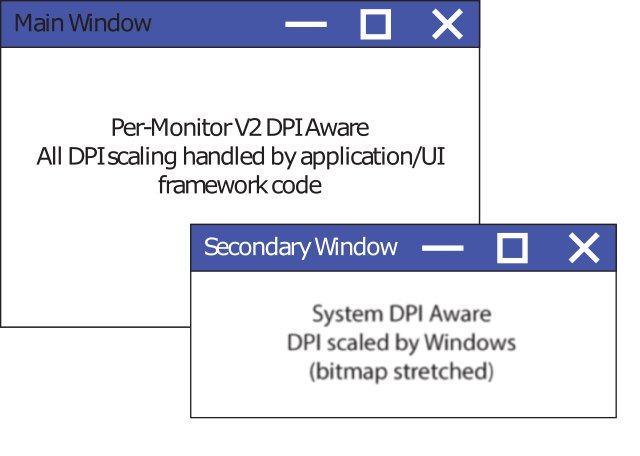
The cause is how each desktop app handles DPI. Windows bitmap-stretches apps that cannot redraw themselves for a new scale, and stretched pixels look soft.
| App type | How it scales | What you see on a second monitor |
|---|---|---|
| DPI unaware | Always draws at 100% (96 DPI) | Blurry on any display above 100% |
| System DPI aware | Draws for the primary display's scale at sign-in | Sharp on the primary display, blurry on a display with a different scale |
| Per-monitor DPI aware | Redraws itself for each display's scale | Sharp on every monitor |
| Store (UWP) apps | Redraw for the new scale automatically | Sharp on every monitor |
That is why signing out fixes some blur: system-aware apps pick up the primary display's scale again at the next sign-in.
Fix Screen Resolution problems in Windows 11
Apps look blurry after you change display scaling
The app scaled itself for the old value and Windows is stretching it.
- Close and reopen the app.
- Sign out of Windows and sign back in.
- If one app still blurs on the second monitor, set both monitors to the same scale.
Screen resolution changes on its own
The graphics driver may need an update.
- Open Settings > Windows Update and select Check for updates.
- Install any display driver update, then restart.
- Set Display resolution back to the value marked (Recommended).
No separate scale option for the second monitor
The monitors are duplicated, or Windows has not detected the second display.
- Press Windows key + P and select Extend.
- In Display settings, expand Multiple displays and select Detect.
- Select the second monitor's box before you change Scale.
How to fix Windows display scaling that looks wrong after docking
Apps keep the scale from when they started after you dock or undock.
- Sign out and back in after connecting or disconnecting the dock.
- Check both monitors' Scale values, which Windows remembers per display.
Monitor not displaying full screen in Windows 11
The picture is small, centered or edged with black bars
The display is running below its native resolution.
- Open Settings > System > Display and select that monitor.
- In Display resolution, select the value marked (Recommended).
- Use Scale, not a lower resolution, to make items bigger.
The image looks stretched
A non-native resolution is being stretched to fill the panel.
- Set the recommended resolution for that display.
- Update the graphics driver through Windows Update.
The wrong display shows the desktop
The projection mode is set to one screen only.
- Press Windows key + P.
- Select Extend or the mode you need.
Monitor turns off while playing games while the system remains on
The screen goes black mid-game but the PC keeps running
The graphics driver stopped responding or the display link dropped.
- Press Windows key + Ctrl + Shift + B to reset the graphics driver.
- If the picture does not return, restart the PC from Start > Power > Restart.
Blackouts started after a driver update
The new display driver may be faulty on your hardware.
- Type device manager in the taskbar search box and open Device Manager.
- Expand Display adapters, right-click your adapter and select Properties.
- On the Driver tab, select Roll Back Driver.
- If that option is unavailable, uninstall the device, restart, and select Update driver > Search automatically for updated driver software.
Only the external monitor turns off
A loose or faulty cable, adapter or dock.
- Disconnect docks, dongles and adapters, then connect the monitor directly.
- Reseat the cable at both ends, or try a different cable.
- Try another video port, such as HDMI or DisplayPort.
Per-monitor display scaling FAQ
How do I set different scaling for different monitors?
Open Settings > System > Display, select one monitor's numbered box at the top, and choose a value in Scale. Then select the next monitor and choose its own value. The monitors must be in Extend mode.
How do I scale two monitors with different resolutions?
Keep each monitor at its recommended resolution and give each one its own Scale value, usually the one marked Recommended. If older apps look blurry when moved between them, set both monitors to the same scale.
What is display scaling?
Display scaling is the Windows setting that makes text, apps and other items larger or smaller on a screen without changing its resolution. It is shown as a percentage, and Windows marks the best value for each display as Recommended.
How do I adjust display scaling in Windows 11?
Press Windows key + I, select System > Display, and under Scale & layout open the Scale list. Choose a percentage; most changes apply immediately, but some apps need you to sign out and back in.
How do I set scaling on a monitor to a custom value?
In Settings > System > Display, select the monitor, expand the Scale settings and enter a custom size between 100% and 500%. Microsoft does not recommend custom scaling, so use it only when no listed value works.
How do I turn on display scaling?
Display scaling is always on in Windows 11; there is no separate switch. Each display has a Scale value, and choosing anything above 100% enlarges items on that screen.
How do I fix display scaling that makes apps blurry?
Sign out and sign back in first, because many desktop apps only read the scale at startup. If an app stays blurry on the second monitor, set both monitors to the same scale or keep that app on the primary display.
Does display scaling change the screen resolution?
No. Scale and Display resolution are separate settings. Keep the resolution at its Recommended value for sharp text, and use Scale to change how big things look.
Bottom line: best scaling setup for multiple monitors
Start with each monitor's Recommended scale, and switch to one shared scale only if older apps blur when you move them between screens. Windows 11 handles a different scale on every display natively, and modern apps redraw sharply on each one. The one weak spot is desktop apps that scale only for the primary display, and a matching scale or a quick sign-out fixes those.