To zoom in on the whole desktop screen in Windows, press Windows key + Plus (+) to start Magnifier, press Windows key + Minus (-) to zoom out, and press Windows key + Esc to turn it off.
This guide covers Magnifier on Windows 11 and Windows 10, mouse and touchpad zoom, display scale and text size, browser and Office zoom, desktop icon size, and how to reset a screen that is stuck zoomed in.
The fastest way to zoom in and out on the whole screen
Magnifier is built into Windows 11 and Windows 10. It enlarges everything on the screen, including the desktop, taskbar and every open app, and it does not change any display setting.
- Press Windows key + Plus (+) to turn on Magnifier.
- Keep pressing Windows key + Plus (+) to zoom in further.
- Press Windows key + Minus (-) to zoom back out.
- Move the mouse pointer toward any edge to move the enlarged view around the screen.
- Press Windows key + Esc to turn Magnifier off and return the screen to normal size.
The same shortcuts work on desktops and laptops. To reach Magnifier settings directly, press Windows key + Ctrl + M.
Which zoom method should you use?
Windows has several kinds of zoom, and they solve different problems. Magnifier is temporary, display scale is permanent, and app zoom affects only one window.
| Your situation | Use this | Why |
|---|---|---|
| You need a closer look at part of the screen for a moment | Magnifier: Windows key + Plus (+) and Minus (-) | Enlarges the whole screen and turns off with Windows key + Esc |
| A web page is too small or too large | Ctrl + Plus (+) or Ctrl + Minus (-) in Chrome or Edge | Changes only that browser's page zoom, not Windows |
| You use a mouse with a scroll wheel | Hold Ctrl and scroll in a browser, or Ctrl + Alt + scroll with Magnifier on | No keyboard combination to remember beyond one modifier |
| You use a laptop touchpad or a touchscreen | Pinch in or stretch out with two fingers | Zooms in apps that support the gesture |
| Everything in Windows always looks too small or too big | Settings > Display > Scale | A permanent change to text, apps and other items |
| Only text is hard to read | Accessibility > Text size (Windows 11) or Make text bigger (Windows 10) | Makes text larger without enlarging images and apps |
| Desktop icons are too big or too small | Ctrl + mouse scroll on the desktop, or View > icon size | Resizes icons only |
| A Word, Excel or Outlook view is too small | The zoom slider on the status bar | Changes the document view without changing the file |
Use keyboard shortcuts to zoom in and out
Keyboard zoom comes in two families. Windows key shortcuts control Magnifier across the whole screen, while Ctrl shortcuts zoom inside the app you are using.
| What you want | Shortcut | Where it works |
|---|---|---|
| Turn on Magnifier or zoom in | Windows key + Plus (+) | Whole screen, Windows 11 and 10 |
| Zoom out in Magnifier | Windows key + Minus (-) | Whole screen, while Magnifier is on |
| Turn off Magnifier | Windows key + Esc | Whole screen |
| Switch between the set zoom level and 1x | Ctrl + Alt + Minus (-) | Magnifier |
| Zoom in on a page | Ctrl + Plus (+) | Chrome and Microsoft Edge |
| Zoom out on a page | Ctrl + Minus (-) | Chrome and Microsoft Edge |
| Reset page zoom to default | Ctrl + 0 | Chrome, Microsoft Edge and Microsoft Teams |
| Zoom in or out in Teams | Ctrl + = or Ctrl + – | Microsoft Teams desktop app |
| Zoom in, zoom out or reset in VS Code | Ctrl + =, Ctrl + – or Ctrl + Numpad 0 | Visual Studio Code on Windows |
| Open Magnifier settings | Windows key + Ctrl + M | Windows 11 and 10 |
Microsoft Edge changes the zoom by 25% with each press of Ctrl + Plus or Ctrl + Minus.
Use Windows Magnifier views and settings for screen-wide zoom
Magnifier has three views. Full screen enlarges the entire display, Lens follows the pointer like a magnifying glass, and Docked shows an enlarged strip while the rest of the screen stays normal.
- Press Windows key + Plus (+) to start Magnifier.
- Press Ctrl + Alt + F for Full screen view, Ctrl + Alt + L for Lens view, or Ctrl + Alt + D for Docked view.
- Press Ctrl + Alt + M to cycle through the views instead.
- Hold Ctrl + Alt and turn the mouse scroll wheel to zoom in or out.
- Press Ctrl + Alt + arrow keys to pan the enlarged view, or Ctrl + Alt + Spacebar to see the entire desktop for a moment.
- In Lens view, press Ctrl + Alt + R to resize the lens with the mouse, or Shift + Alt + arrow keys to resize it with the keyboard.
- Press Windows key + Ctrl + M to open Magnifier settings and adjust Zoom level, Zoom increments, the View and Smooth edges of images and text.
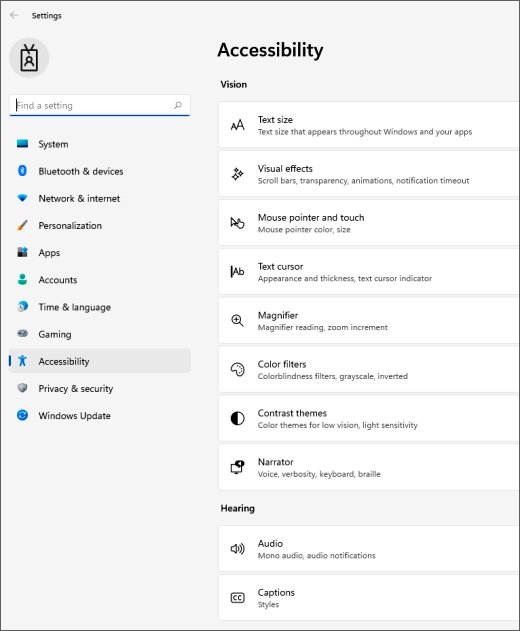
On Windows 11, the settings page is Start > Settings > Accessibility > Magnifier. On Windows 10, it is Start > Settings > Ease of Access > Magnifier. Both pages also offer Start Magnifier after sign in and options for following the mouse pointer, keyboard focus or text cursor.
Press Ctrl + Alt + I to invert colors while Magnifier is on. On a touchscreen, tap the plus (+) and minus (-) symbols in the screen corners to change the zoom.
Zoom with a mouse or touchpad
A scroll wheel or a two-finger gesture handles most everyday zooming. The modifier key decides what gets zoomed.
- In Chrome, Edge or Teams, hold Ctrl and scroll the mouse wheel up to zoom in or down to zoom out.
- For the whole screen, turn on Magnifier, then hold Ctrl + Alt and scroll the wheel.
- On a laptop touchpad, place two fingers on the touchpad and pinch in or stretch out.
- On a touchscreen, place two fingers on the screen and pinch in or stretch out.
- If the touchpad gesture does nothing, open Settings > Bluetooth & devices > Touchpad on Windows 11, or Settings > Devices > Touchpad on Windows 10, and review the gesture options.
Pinch zoom works inside apps that support the gesture. To enlarge the desktop and taskbar as well, use Magnifier or display scale.
Change display scaling and resolution to make everything bigger or smaller
Scale is the permanent way to zoom Windows. It changes the size of text, apps and other items on every screen you open, and it stays after a restart.
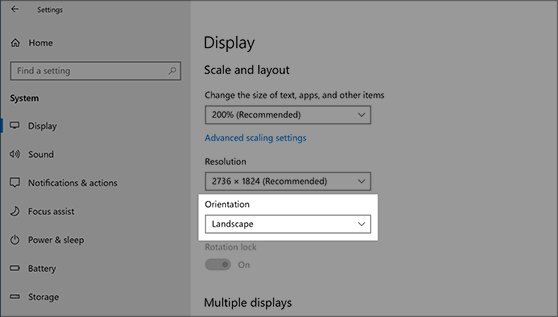
Choose scaling before changing resolution. Microsoft recommends keeping the resolution marked (Recommended), because a lower resolution makes text less sharp and can leave the picture stretched or edged with black.
- Press Windows key + I to open Settings.
- Select System > Display.
- Under Scale & layout, open the Scale drop-down and choose a larger percentage to zoom in or a smaller one to zoom out.
- Leave Display resolution on the value marked (Recommended) unless you have a specific reason to change it.
- Sign out and back in if some apps still look the old size.
Microsoft notes that some apps only pick up a new scale after you sign out and back in.
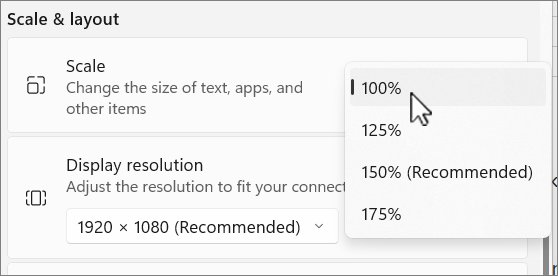
Where scale, text size and Magnifier live in Windows 11 and Windows 10
| Setting | Windows 11 | Windows 10 |
|---|---|---|
| Scale (text, apps and other items) | Settings > System > Display > Scale & layout > Scale | Settings > System > Display > Scale and layout > Change the size of text, apps, and other items |
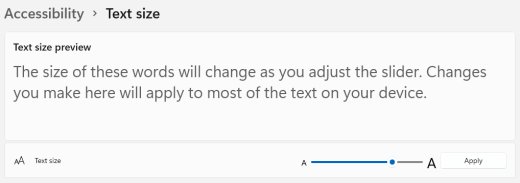
| Text size only | Settings > Accessibility > Text size, then drag the slider and select Apply | Settings > Ease of Access > Display > Make text bigger, then select Apply |
| Make everything bigger from accessibility settings | Settings > System > Display > Scale | Settings > Ease of Access > Display > Make everything bigger |
| Display resolution | Settings > System > Display > Display resolution | Settings > System > Display > Display resolution |
| Magnifier | Settings > Accessibility > Magnifier | Settings > Ease of Access > Magnifier |
| Touchpad gestures | Settings > Bluetooth & devices > Touchpad | Settings > Devices > Touchpad |
Windows key + U opens Accessibility settings on Windows 11 and Ease of Access settings on Windows 10, which is the quickest way to reach Text size or Make text bigger.
Zoom in and out in web browsers
Browser zoom changes only the web page, and Chrome and Edge remember a custom zoom level for each site. That is why one site can look huge while the rest of Windows looks normal.
- Press Ctrl + Plus (+) to zoom in on the current page, or Ctrl + Minus (-) to zoom out.
- Press Ctrl + 0 to return the page to its default size.
- In Microsoft Edge, select Settings and more (the three dots), then select Zoom in or Zoom out.
- To set a default zoom for every site in Edge, select Settings and more > Settings > Accessibility, and choose a level from Page zoom under Visibility.
- To set a default zoom for every site in Chrome, select More > Settings > Appearance, and choose a level from Page zoom.
- To remove a saved zoom for one site in Chrome, go to Settings > Privacy and security > Site settings > Additional content settings > Zoom levels, and select the X next to the site.
Edge lists saved per-site zoom levels under Zoom levels on the same Accessibility page. Chrome's Appearance page also has a Font size option if you want larger text without zooming images.
Zoom in Word, Excel, Outlook and Teams
Office apps zoom the document view, not the file. A zoomed-in worksheet prints and shares at its normal size.
- In Word, Excel or PowerPoint, drag the zoom slider on the status bar at the bottom right, or select its – and + buttons.
- To return to normal size, select the View tab and, in the Zoom group, select Zoom 100% in Word or Excel.
- In Excel, select a range and choose Zoom to Selection in the same group to fill the window with those cells.
- In Outlook, use the status bar zoom slider to enlarge the Reading Pane, or in an open message select Message > Zoom.
- In the Teams desktop app, press Ctrl + = to zoom in, Ctrl + – to zoom out and Ctrl + 0 to reset.
The Outlook zoom slider changes only the Reading Pane. The message list and folder pane keep their size, so change their font size separately if they are hard to read.
How to make desktop icons bigger or smaller
Icon size is separate from screen zoom. Resizing icons changes nothing else on the desktop.
- Minimize open windows so you can see the desktop.
- Right-click an empty area of the desktop.
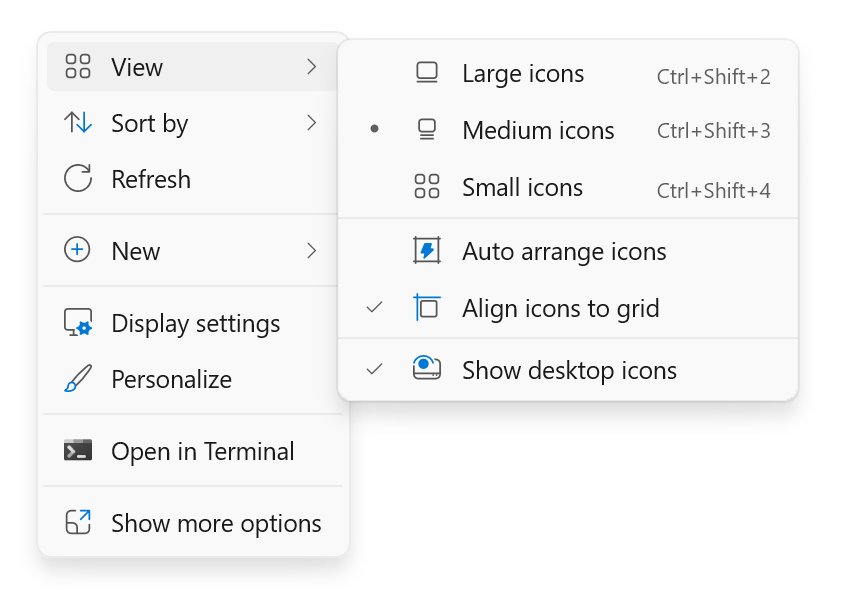
- Select View, then choose Large icons, Medium icons or Small icons.
- For finer steps, hold Ctrl on the desktop and turn the mouse scroll wheel to make icons larger or smaller.
Both methods work on Windows 11 and Windows 10. If icons suddenly became huge, an accidental Ctrl + scroll on the desktop is the usual reason.
How to check the zoom is back to normal
- Press Windows key + Esc. If the screen shrinks, Magnifier was on and is now off.
- Press Windows key + I, select System > Display, and confirm Scale shows the value marked (Recommended).
- Confirm Display resolution on the same page also shows (Recommended).
- Open a web page and press Ctrl + 0. If the page does not change size, it was already at default zoom.
- Right-click the desktop, select View, and confirm the icon size you expect has a check mark.
A normal screen shows the whole taskbar, has no Magnifier toolbar or lens, and does not move when you push the pointer to an edge.
Reset zoom settings back to normal
Each kind of zoom resets in its own place. Work through the list until the screen looks right.
- Press Windows key + Esc to turn off Magnifier.
- To stop Magnifier starting by itself, open Settings > Accessibility > Magnifier (Windows 10: Ease of Access > Magnifier) and clear Start Magnifier after sign in.
- Open Settings > System > Display and set Scale and Display resolution back to (Recommended).
- On Windows 11, open Settings > Accessibility > Text size, drag the Text size slider back to the left and select Apply.
- Press Ctrl + 0 in Chrome, Edge or Teams to reset page zoom.
- In Word or Excel, select View > Zoom 100%.
Fix a screen that is stuck zoomed in or out
The whole screen is zoomed in and moves when you move the mouse
Magnifier is on, often after an accidental press of Windows key + Plus.
- Press Windows key + Minus (-) until the zoom reaches its lowest level.
- Press Windows key + Esc to close Magnifier.
- If it returns after every restart, open Magnifier settings with Windows key + Ctrl + M and clear Start Magnifier after sign in.
Only one app or website is zoomed in while the rest of Windows looks normal
That app has its own zoom level, which a Ctrl + scroll or Ctrl + Plus changed. Chrome and Edge remember it per site.
- Click inside the zoomed app or page.
- Press Ctrl + 0 to reset the zoom in Chrome, Edge or Teams.
- In Word or Excel, select View > Zoom 100%.
- In Chrome, remove any leftover entry under Settings > Privacy and security > Site settings > Additional content settings > Zoom levels.
Everything is too big, cut off or blurry after changing display settings
Scale was raised too far, or the resolution was set below the monitor's native value.
- Press Windows key + I and select System > Display.
- Set Display resolution to the value marked (Recommended).
- Set Scale to the value marked (Recommended).
- Sign out and back in so every app picks up the change.
- If the resolution keeps changing by itself, select Start > Settings > Windows Update > Check for updates to get current display drivers.
Desktop icons are suddenly huge or tiny
Holding Ctrl while scrolling on the desktop resizes the icons.
- Right-click an empty area of the desktop.
- Select View, then choose Large icons, Medium icons or Small icons.
- Hold Ctrl and scroll the wheel to fine-tune the size if needed.
Frequently asked questions
What is the fastest way to zoom in and out on a Windows PC?
Press Windows key + Plus (+) to zoom in on the whole screen with Magnifier and Windows key + Minus (-) to zoom out. Press Windows key + Esc to turn Magnifier off. The shortcuts work on Windows 11 and Windows 10.
How do I zoom in and out on a laptop?
Press Windows key + Plus (+) or Windows key + Minus (-) for the whole screen. Inside a browser, place two fingers on the touchpad and pinch in or stretch out, or press Ctrl + Plus and Ctrl + Minus.
How do I zoom in and out with the keyboard?
Use Ctrl + Plus (+) and Ctrl + Minus (-) inside browsers and many apps, and Ctrl + 0 to reset. For the whole screen, use Windows key + Plus (+) and Windows key + Minus (-), which control Magnifier.
How do I zoom in and out with a mouse?
Hold Ctrl and scroll the wheel up to zoom in or down to zoom out in Chrome, Edge and Teams. With Magnifier on, hold Ctrl + Alt and scroll to zoom the whole screen. On the desktop, Ctrl + scroll resizes icons.
How do I zoom out when my screen is zoomed in?
Press Windows key + Esc first, because a fully zoomed screen is usually Magnifier. If only a web page is large, press Ctrl + 0. If everything is large even after a restart, set Scale in Settings > System > Display back to (Recommended).
What is the difference between Magnifier and display scaling?
Magnifier enlarges a view of the screen temporarily and turns off with Windows key + Esc. Display scaling permanently changes the size of text, apps and other items, and it stays until you change Scale again in Settings > System > Display.
How do I zoom in and out in Outlook?
Drag the zoom slider on the Outlook status bar to enlarge the Reading Pane, or open a message and select Message > Zoom. The slider changes only the Reading Pane, not the message list or the folder pane.
How do I zoom in and out in Excel?
Drag the zoom slider at the bottom right of the Excel window, or select its – and + buttons. Select View > Zoom 100% to return to normal size, or Zoom to Selection to fit selected cells to the window.
How do I zoom in and out on Teams?
In the Teams desktop app, press Ctrl + = to zoom in and Ctrl + – to zoom out, or hold Ctrl and turn the mouse wheel. Press Ctrl + 0 to reset Teams to its normal size.
How do I zoom in and out in VS Code?
Press Ctrl + = to zoom in and Ctrl + – to zoom out in Visual Studio Code on Windows. Press Ctrl + Numpad 0 to reset. VS Code saves the level in the window.zoomLevel setting, where each step is 20%.
Why is only one app zoomed in while the rest of Windows looks normal?
That app has its own zoom level, separate from Windows. A stray Ctrl + scroll or Ctrl + Plus changed it. Press Ctrl + 0 in a browser or Teams, or select View > Zoom 100% in Word or Excel.


![Speakers stuck on mute in Windows 11 [Fix]](https://techdows.com/wp-content/uploads/2026/10/Speakers-stuck-on-mute-in-Windows-11-Fix-3-600x338.jpg)

How to Change Text Size in Windows 11/10 - Techdows
[…] can also zoom in and out on the desktop screen using views, lens size and the mouse […]