When you are unable to change display brightness on Windows 10, the usual cause is a missing or wrong display driver on a laptop, or an external monitor that Windows cannot dim from its own slider.
This guide covers the driver fix, automatic brightness, external monitors, Windows 10 on a Mac with Boot Camp, and how to confirm the brightness control works again.
Fix display brightness that won't change on Windows 10
Windows can only dim a screen when the display driver or the PC's firmware tells it how. On a laptop, updating the graphics driver fixes most stuck or missing brightness sliders.
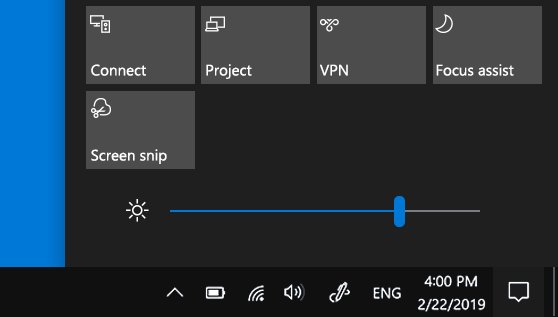
- Select the Action center icon on the taskbar and try the Brightness slider (Windows 10 version 1903 and later), or open Settings > System > Display and use Change brightness for the built-in display.
- If you are on a desktop PC with an external monitor, use the buttons on the monitor instead, because the Windows slider may not appear.
- If the slider is missing or does nothing on a laptop, right-click Start and open Device Manager.
- Expand Display adapters, right-click your graphics adapter and select Update driver.
- Select Search automatically for updated driver software and restart the PC when it finishes.
- Try the brightness slider again.
On a Mac running Windows 10 through Boot Camp, skip to the Boot Camp section: Apple lists brightness that cannot be adjusted as a reason to reinstall its Windows support software.
Why can't I adjust display brightness on Windows 10?
Match your setup to a row. The fix depends on whether the screen is built in, external, or a Mac running Boot Camp.
| Your situation | Likely cause | What to do |
|---|---|---|
| Desktop PC with an external monitor, no slider | Windows' slider controls built-in panels; external monitors use their own controls | Use the monitor's buttons or PowerToys Power Display |
| Laptop, slider missing or not working | The display driver does not expose brightness control | Update or reinstall the display adapter driver |
| Device Manager shows Microsoft Basic Display Adapter | Windows is running a generic driver instead of the graphics maker's driver | Install the driver from your PC or graphics card maker |
| Brightness changes back on its own | Automatic brightness reacts to room light | Turn off Change brightness automatically when lighting changes |
| Windows 10 on a Mac with Boot Camp | Apple's Windows support software (drivers) is missing or out of date | Download and repair the Windows support software |
| Started after a driver update | The new display driver lacks or breaks brightness support | Roll back the display driver |
Update or reinstall the display driver in Windows 10
The Windows brightness slider talks to the screen through the display driver or the laptop's firmware. If neither supports brightness control, Windows cannot change the level and the brightness keys stop working too.
- Right-click Start and select Device Manager.
- Expand Display adapters and note the adapter name.
- Right-click the adapter, select Update driver, then Search automatically for updated driver software.
- If Windows finds nothing new, download the latest graphics driver for your exact model from your PC maker's support site and install it.
- If brightness stopped working after a recent update, right-click the adapter, select Properties, open the Driver tab and select Roll Back Driver.
- Restart the PC and test the brightness slider.
A laptop with both integrated and dedicated graphics lists two adapters. The integrated one usually drives the built-in screen, so update both; on many laptops that means the Intel graphics driver as well as the dedicated card's.
Turn off automatic brightness in Windows 10
On PCs with a light sensor, Windows can change brightness as room lighting changes. That can look like the slider is being ignored, because the level moves back after you set it.
- Open Start > Settings > System > Display.
- Under Brightness and color, clear the Change brightness automatically when lighting changes check box.
- Move the Change brightness for the built-in display slider to the level you want.
- Wait a few minutes in changing light to confirm the level stays put.
If the check box is not there, your PC has no supported light sensor, and adaptive brightness in Windows 10 is not available on it.
Change external monitor brightness when Windows has no slider
Microsoft notes the brightness slider may not appear on desktop PCs with an external monitor. The monitor's own on-screen menu is always the reliable route.
- Press the menu button on the monitor's front, side or underside.
- Open the brightness or picture setting and set the level.
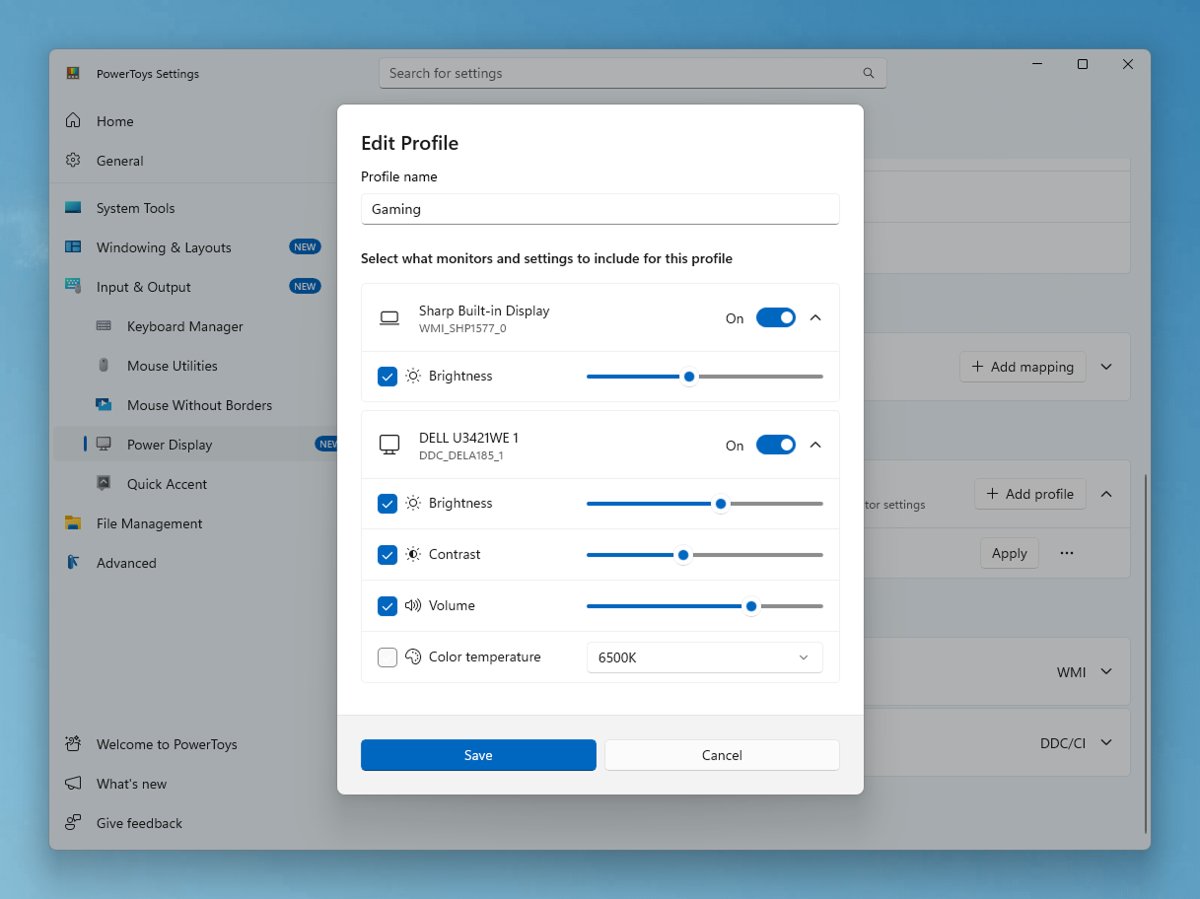
- For a software slider, install Microsoft PowerToys (it needs Windows 10 version 2004 or later on a 64-bit PC) from the Microsoft Store.
- Open PowerToys Settings, select Power Display and turn on Enable Power Display, confirming the prompt.
- Press the activation shortcut or select Open Power Display, then move the Brightness slider for your monitor.
Power Display controls external monitors over DDC/CI, so a monitor that does not support DDC/CI will not respond. Microsoft warns that a few monitors with faulty DDC/CI data can crash Windows during detection; Power Display then turns itself off and excludes that monitor.
Fix brightness in Windows 10 on a Mac with Boot Camp
Apple lists "You can't adjust the brightness of your built-in display in Windows" as a sign that its Windows support software is missing. Generic graphics drivers do not replace it.
- Start your Mac in macOS and install the latest macOS updates, which can include Boot Camp updates.
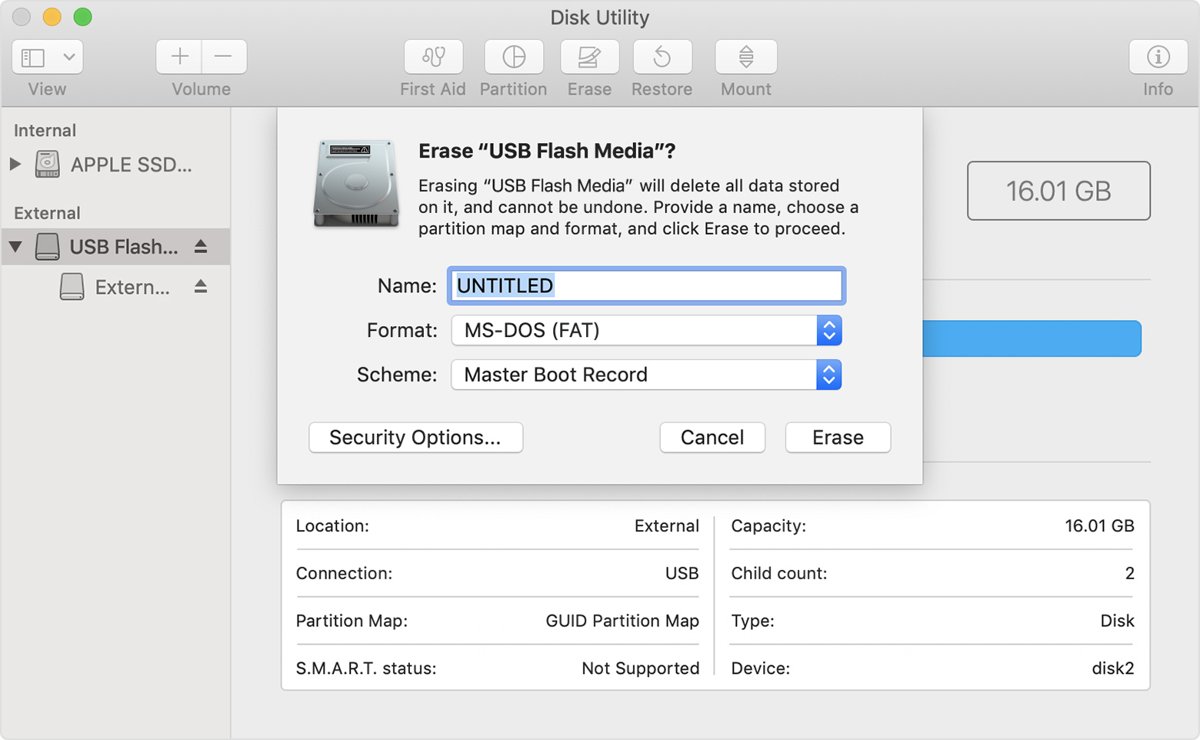
- Format a 16GB or larger USB flash drive in Disk Utility as MS-DOS (FAT) with the Master Boot Record scheme.
- Open Boot Camp Assistant, choose Action > Download Windows Support Software and save it to the flash drive.
- Restart the Mac in Windows and open Setup in the WindowsSupport or BootCamp folder on the drive.
- Select Repair, then Finish, and select Yes to restart.
If your Mac has an AMD graphics card and still has display problems in Windows, Apple says you might need to update the AMD graphics drivers instead.
Where brightness settings are in Windows 10 and Windows 11
| Setting | Windows 10 | Windows 11 |
|---|---|---|
| Quick brightness slider | Action center > Brightness (version 1903 and later) | Network icon on the taskbar > Brightness |
| Brightness in Settings | Settings > System > Display > Change brightness for the built-in display | Settings > System > Display > Brightness |
| Automatic brightness | Settings > System > Display > Change brightness automatically when lighting changes | Settings > System > Display > Brightness > automatic toggle |
| Content adaptive brightness | Not available | Settings > System > Display > Brightness > Change brightness based on content |
| Display driver | Device Manager > Display adapters | Device Manager > Display adapters |
Windows 10 support ended on October 14, 2025, so new display drivers increasingly target Windows 11. Once the driver works, the usual screen brightness controls such as keys and sliders respond again.
Check that Windows 10 brightness control works again
- Open Settings > System > Display and confirm Change brightness for the built-in display is present.
- Drag the slider to the lowest and highest positions and watch the screen dim and brighten.
- Press your laptop's brightness keys and check that the level changes and the slider moves with it.
- Restart the PC and check that the level you set is kept.
- Open Device Manager > Display adapters and confirm the adapter shows your graphics maker's name with no warning icon.
Windows screen brightness not changing: fixes by symptom
No display brightness setting in Windows 10 Settings
The PC uses an external monitor, or the display driver does not expose brightness.
- On a desktop with an external monitor, use the monitor's buttons or PowerToys Power Display.
- On a laptop, update the adapter under Device Manager > Display adapters.
- If the adapter shows Microsoft Basic Display Adapter, install the graphics driver from your PC maker.
The slider moves but display brightness doesn't change
The driver accepts the setting but cannot pass it to the panel.
- Roll back the display driver from the adapter's Driver tab if this began after an update.
- Otherwise install the newest driver for your exact model from the PC maker.
- Restart and test again.
Brightness keys do nothing on a Windows 10 laptop
Windows only receives brightness key presses when the display driver or firmware supports brightness control.
- Check whether the slider in Settings > System > Display works.
- If the slider also fails, fix the display driver first.
- If only the keys fail, check your PC maker's support site for a keyboard or hotkey driver for your model.
Brightness won't change in Windows 10 on a Mac
Apple's Windows support software is missing or outdated.
- Download the Windows support software with Boot Camp Assistant in macOS.
- Run Setup from the flash drive in Windows and select Repair.
Brightness keeps changing after you set it
Automatic brightness reacts to the light sensor.
- Clear Change brightness automatically when lighting changes in Settings > System > Display.
- Set the level again with the slider.
Windows 10 brightness not changing FAQ
Why can't I adjust display brightness on Windows 10?
Windows needs the display driver or the laptop's firmware to support brightness control. If the driver is missing, generic or faulty, the slider disappears or does nothing. On a desktop with an external monitor, Windows usually cannot dim the screen and you use the monitor's buttons.
Why is there no brightness slider in Windows 10?
The slider does not appear for most external monitors on desktop PCs, and it can vanish on laptops when the display driver does not report brightness support. Update the adapter under Device Manager > Display adapters to bring it back on a laptop.
Why doesn't my display brightness change when I move the slider?
The display driver is passing the setting on incorrectly or not at all. Roll back the driver if the problem began after an update, or install the latest graphics driver for your model from your PC maker's support site.
How do I change brightness on an external monitor in Windows 10?
Use the monitor's own buttons and on-screen menu. For a software slider, Microsoft PowerToys Power Display can change brightness on monitors that support DDC/CI, and it runs on Windows 10 version 2004 or later.
Why can't I change brightness in Windows 10 on a Mac?
Apple's Windows support software is missing or out of date. Download it with Boot Camp Assistant in macOS, then run Setup from the flash drive in Windows and select Repair. Apple lists brightness that cannot be adjusted as one reason to do this.
Can a display driver update stop brightness from working?
Yes. If brightness stopped changing right after a driver update, open Device Manager, expand Display adapters, open the adapter's Properties, select the Driver tab and choose Roll Back Driver, then restart.
Why do the brightness keys not work in Windows 10?
Windows only receives brightness key presses when the display driver or firmware supports brightness control. If the Settings slider also fails, fix the display driver first. If only the keys fail, look for a hotkey driver for your model on the PC maker's site.
Bottom line: fixing Windows 10 brightness that won't change
Update or reinstall the display driver first on a laptop, use the monitor's buttons or Power Display on an external screen, and repair the Boot Camp support software on a Mac. Windows can only dim a screen through the display driver or firmware, so almost every case of brightness that will not change comes back to the driver, the type of screen, or Apple's missing drivers.