To open graphics settings in Windows 11, select Start > Settings > System > Display > Graphics, or press Win + R and run ms-settings:display-advancedgraphics.
This guide covers every route to the page, what each option on it does, per-app GPU choices for laptops and multiple displays, and where your GPU maker's own settings live.
![How to open graphics settings Windows 11 [2026]](https://techdows.com/wp-content/uploads/2026/10/How-to-open-graphics-settings-Windows-11-2026.jpg)
Method 1: Open graphics settings through Windows 11 Settings
- Select the Start button, then select Settings.
- Select System.
- Select Display.
- Scroll down and select Graphics.
- Use Default settings for system-wide switches, or pick an app under Custom options for apps and select Options to change its graphics preference.
Press Win + I to jump straight to Settings and save the first step.
Which way to open graphics settings should you use?
| What you want to change | Open this | Route |
|---|---|---|
| Which GPU an app or game uses | Windows Graphics page | Settings > System > Display > Graphics |
| Resolution, scale or refresh rate | Windows Display page | Right-click the desktop > Display settings |
| 3D, anti-aliasing and per-game driver profiles | GPU maker's software | NVIDIA app or Control Panel, AMD Software, Intel Graphics Command Center |
| Open the page from a shortcut or script | Settings URI | ms-settings:display-advancedgraphics in Run or Command Prompt |
Method 2: Open graphics settings using right-click on desktop
The desktop menu opens Display settings, and Graphics sits at the bottom of that page.
- Right-click an empty area of the desktop.
- Select Display settings.
- Scroll to the bottom of the Display page.
- Select Graphics.
The Display page has more shortcuts of its own, and there are several other ways to open display settings if the desktop menu is not handy.
Method 3: Using GPU manufacturer software
Windows settings choose which GPU an app runs on. Driver-level options such as 3D settings and per-game profiles live in the software from your graphics card maker.
| GPU maker | Software to open | How to open it |
|---|---|---|
| NVIDIA GeForce | NVIDIA app (GPU control center) or NVIDIA Control Panel | Select Start, type NVIDIA app or NVIDIA Control Panel, and open it |
| AMD Radeon | AMD Software: Adrenalin Edition | Select Start, type AMD Software, and open it |
| Intel integrated or Arc | Intel Graphics Command Center | Select Start, type Intel Graphics Command Center, and open it |
Intel Graphics Command Center normally installs with the Intel graphics driver. If it is missing, install it from the Microsoft Store; it needs a 6th Generation Intel Core processor or newer and Windows 11 version 21H2 or later. Older Intel systems may use the Intel graphics control panel instead.
Using Command Prompt or Run to access graphics settings
Windows Settings pages have their own ms-settings: addresses. Press Win + R and type the address, or run it with start in Command Prompt or PowerShell.
start ms-settings:display-advancedgraphicsms-settings:display-advancedgraphics opens the Graphics page. Use ms-settings:display-advancedgraphics-default to open its default graphics settings, or ms-settings:display for the main Display page. The Graphics address works only on devices that support advanced graphics options.
You should see: Settings opens directly on the Graphics page with Default settings and Custom options for apps.
What are graphics settings?
Graphics settings control how Windows and your GPU render apps and games. Windows 11 splits them between the Display page, the Graphics page and the GPU maker's software.
From the Windows Graphics page you can pick the GPU each app uses, turn Auto HDR and optimizations for windowed games on or off system-wide or per app, and reach advanced options such as hardware-accelerated GPU scheduling and variable refresh rate.
| Where | What it controls |
|---|---|
| Settings > System > Display | Resolution, scale, HDR, refresh rate and which monitor you are changing |
| Settings > System > Display > Graphics | Default switches such as optimizations for windowed games, plus a GPU choice for each app |
| GPU maker's software | Driver-level 3D options, per-game profiles and driver updates |
| In-game options menu | Texture quality, shadows and other settings stored by the game itself |
PCs can have an integrated GPU built into the main board, a discrete GPU, or both. Laptops with both switch between them by task, and the Graphics page lets you override that per app.
Understanding graphics settings options
| Option | Where it is | What it does |
|---|---|---|
| Let Windows decide (Power saving) | Graphics > app > Options | Windows picks the GPU for the app |
| Power saving | Graphics > app > Options | Runs the app on the lower-power GPU, usually the integrated one |
| High performance | Graphics > app > Options | Runs the app on the most powerful GPU, usually the discrete one |
| Optimizations for windowed games | Graphics > Default settings | Moves DirectX 10 and 11 games in windowed or borderless mode to the flip model, cutting frame latency and enabling Auto HDR and variable refresh rate |
| Hardware-accelerated GPU scheduling | Graphics > default or advanced graphics settings | Lets a supported GPU take over most GPU scheduling work; off by default and shown only with a supported GPU and WDDM 2.7 or later driver |
| Auto HDR | Display > HDR | Raises the colour range and brightness of SDR games on an HDR-capable display |
| Dynamic refresh rate | Display > Advanced display | Raises the refresh rate for smooth motion and lowers it to save battery |
GPU choices appear only when the PC has more than one graphics processor. On a desktop with one card, every app already uses it.
How to change default graphics settings in Windows 11
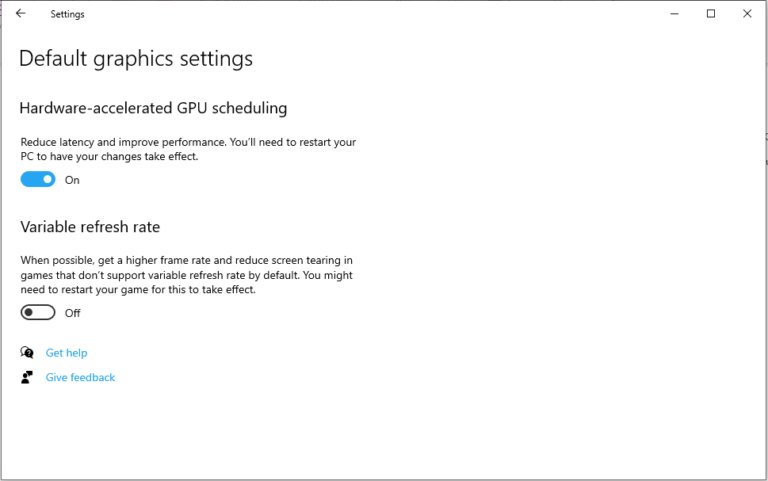
Default settings apply to every app that has no custom preference of its own. Open them from the Graphics page, or press Win + R and run ms-settings:display-advancedgraphics-default.
- Go to Settings > System > Display > Graphics.
- Under Default settings, turn Optimizations for windowed games and Auto HDR on or off for all apps.
- Select Advanced graphics settings for the system-wide options aimed at experienced users.
- Under Default high performance GPU, pick the GPU that apps asking for high performance should use. The choice appears when the PC has more than one discrete or external GPU.
- Turn on Hardware-accelerated GPU scheduling or Variable refresh rate if they are listed, then restart the PC.
Variable refresh rate appears only with a VRR-capable monitor (FreeSync, G-SYNC or DisplayPort Adaptive-Sync) and a supporting driver. It adds VRR to DirectX 11 full-screen games that lack it natively.
Optimizing graphics settings in Windows 11
These steps adjust graphics settings for gaming: they put the game on the fastest GPU, cut latency in windowed modes and match the monitor's refresh rate.
- Go to Settings > System > Display > Graphics.
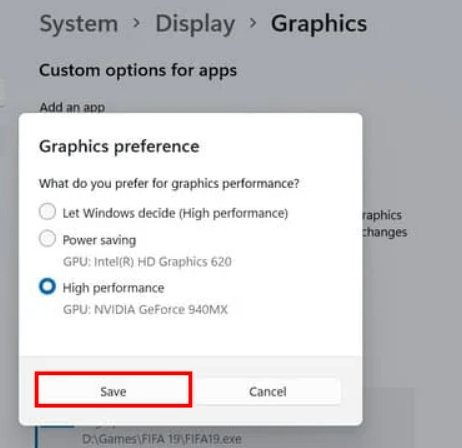
- Under Custom options for apps, select the game and choose Options.
- Select High performance, then select Save.
- Under Default settings, turn on Optimizations for windowed games if you play in windowed or borderless mode.
- Turn on Hardware-accelerated GPU scheduling in the advanced graphics settings if it is offered, then restart the PC.
- Go to Display > Advanced display and pick the highest rate next to Choose a refresh rate.
- Update the GPU driver through the NVIDIA app, AMD Software or Intel's driver tools, then restart the game.
Once you enable hardware-accelerated GPU scheduling, restart before you judge the difference in games. Turning on Auto HDR also turns on optimizations for windowed games, and you must turn Auto HDR off before you can turn those optimizations off.
Add app(s) to graphics settings list
An app must be on the list under Custom options for apps before you can change its graphics settings. Add it yourself if Windows has not listed it.
- Go to Settings > System > Display > Graphics.
- Under Custom options for apps, select Add desktop app for a classic program, or Add Microsoft Store app for an app installed through the Microsoft Store.
- For a desktop app, browse to the program's .exe file in the file picker and select Add.
- For a Microsoft Store app, pick it from the drop-down list that appears.
- Check that the app now shows in the list, then set its options.
Change graphics performance preference for apps
- Go to Settings > System > Display > Graphics.
- Under Custom options for apps, select the app, then select Options (or expand its drop-down on newer builds).
- Under Graphics preference, choose Let Windows decide (Power saving), Power saving or High performance.
- Optionally turn off Optimizations for windowed games or select Don't use Auto HDR for this app only.
- Select Save, then restart the app or game.
High performance is the accelerated choice: it runs the app on the most powerful GPU. A per-app preference overrides the system-wide setting, so an app can keep a feature you have turned off for everything else. Select Reset to return the app to the defaults.
Remove app(s) from graphics settings list
- Go to Settings > System > Display > Graphics.
- Under Custom options for apps, select or expand the app you added.
- If Remove is greyed out, select Reset first to clear its custom settings.
- Select Remove.
Remove only takes the entry off the graphics list; it does not uninstall the app. Only apps you added yourself can be removed.
How to reset graphics settings in Windows 11
Windows has no single button that resets the whole Graphics page. Reset each app you changed, then put the default switches back.
- Go to Settings > System > Display > Graphics.
- Under Custom options for apps, select or expand an app you changed and select Reset to return it to the default settings.
- Repeat for every app with a custom preference, and select Remove for any you no longer want listed.
- Under Default settings, return Optimizations for windowed games and Auto HDR to the state you want.
- In Advanced graphics settings, turn Hardware-accelerated GPU scheduling off if you enabled it and things got worse, then restart the PC.
Settings changed in the GPU maker's software or inside a game are stored there, so reset those in the same app.
Adjusting graphics settings for heavy use, like editing
Video editors, 3D tools and other heavy apps benefit from the discrete GPU just as games do, but they don't need the gaming toggles.
| Setting | Recommended for editing apps | Why |
|---|---|---|
| Graphics preference | High performance | Rendering, effects and previews run on the most powerful GPU |
| Default high performance GPU | Your strongest card, if the PC has more than one discrete or external GPU | Sets which GPU apps that ask for high performance get |
| Laptop power | Plug in while you edit | The discrete GPU drains the battery quickly |
Add the editor with Add desktop app first if it is not listed, and turn on any GPU or hardware acceleration option inside the editor's own preferences.
What is hardware-accelerated GPU scheduling (HAGS)?
Hardware-accelerated GPU scheduling lets Windows hand most GPU scheduling work to a dedicated scheduling processor on the graphics card, instead of a high-priority thread on the CPU. Windows still decides which apps get priority.
| Question | Answer |
|---|---|
| What it changes | Lower GPU scheduling overhead and less CPU load |
| Default state | Off; you opt in |
| What you need to make it work | A recent GPU with the required hardware and a WDDM 2.7 or newer display driver |
| Where it appears | Graphics > Advanced graphics settings, only when both GPU and driver support it |
| Expected difference | Usually not noticeable, because most apps already hide scheduling costs through buffering |
Enable hardware-accelerated GPU scheduling in Windows 11
Should you enable hardware-accelerated GPU scheduling? Turn it on if the switch is offered and you want lower CPU load in games; turn it back off if a game or app runs worse afterwards.
- Go to Settings > System > Display > Graphics.
- Select Advanced graphics settings (on older builds, Change default graphics settings).
- Turn on Hardware-accelerated GPU scheduling.
- Restart the PC.
If the switch is missing, update the GPU driver and check again; no switch after that means the GPU or driver does not support it.
Accessing graphics settings for multiple displays
Resolution, refresh rate and HDR are set per monitor, so choose the right display before you change anything. The per-app GPU choice on the Graphics page applies to the app on every screen.
- Go to Start > Settings > System > Display.
- In the display area at the top, select the monitor you want to change.
- Under Scale & layout, choose a Display resolution, ideally the one marked (Recommended).
- To set HDR, keep the HDR-capable monitor selected, turn on HDR, expand it and turn on Auto HDR.
- To set the refresh rate, select Advanced display, pick the monitor, and choose a rate next to Choose a refresh rate.
A rate marked with an asterisk (*) is not supported at the current resolution, and selecting it changes the resolution as well.
Tips for laptops using Windows 11
| Goal | Setting | Trade-off |
|---|---|---|
| Longer battery life | Set everyday apps to Power saving on the Graphics page | Heavy apps run slower on the integrated GPU |
| Faster games | Set each game to High performance | The discrete GPU drains the battery faster |
| Smooth scrolling without a battery hit | Turn on Dynamic refresh rate in Advanced display | Needs Windows 11, a VRR display of at least 120 Hz, and can cap some games' maximum refresh rate |
| Game runs at a lower rate than expected | Turn Dynamic refresh rate off | Higher constant refresh uses more power |
Dynamic refresh rate does not exist on Windows 10, and the switch appears only when the laptop's hardware supports it.
Troubleshooting graphics settings in Windows 11
The Graphics option or GPU choice is missing
The page and its options depend on the device and driver; GPU choices need more than one graphics processor.
- Confirm the PC has two GPUs; check which graphics card you have before looking for the setting.
- Install the latest driver from your GPU maker's software or Windows Update.
- Restart the PC and open
ms-settings:display-advancedgraphicsagain.
Hardware-accelerated GPU scheduling is not listed
The switch appears only when both the GPU and its driver (WDDM 2.7 or later) support the feature.
- Update the GPU driver to the newest version from NVIDIA, AMD or Intel.
- Restart and check the advanced graphics settings again.
- If it is still missing, the GPU does not support it.
A game ignores the High performance choice or runs slowly
The game was not selected correctly, or another setting caps it.
- Under Custom options for apps, confirm the game's own executable is listed with High performance.
- Restart the game after selecting Save.
- Turn off Dynamic refresh rate if the game runs below your monitor's maximum rate.
- Check the GPU maker's software for a per-game profile that overrides Windows.
Graphics settings keep resetting
A driver reinstall or a game update can replace stored driver profiles or game settings.
- Check the per-app choice on the Windows Graphics page and re-apply it if it changed.
- Check the GPU maker's software after each driver update and save your game profile again.
- Set in-game options last, after Windows and driver settings are in place.
FAQs about graphics settings in Windows 11
How do I go to graphics settings in Windows 11?
Select Start > Settings > System > Display, then scroll down and select Graphics. You can also press Win + R, type ms-settings:display-advancedgraphics and press Enter to open the page directly.
How do I change graphics settings in Windows 11?
Open Settings > System > Display > Graphics, select an app under Custom options for apps and choose Options. Pick Let Windows decide, Power saving or High performance, then select Save and restart the app.
How do I open graphics card settings?
Open your GPU maker's software from the Start menu: the NVIDIA app or NVIDIA Control Panel for GeForce cards, AMD Software: Adrenalin Edition for Radeon, or Intel Graphics Command Center for Intel graphics.
Can I force an app to use the dedicated GPU?
Yes, on a PC with more than one GPU. In Settings > System > Display > Graphics, select the app, choose Options, select High performance and save. The app uses the most powerful GPU the next time it starts.
Does changing graphics settings affect battery life?
Yes. High performance runs an app on the discrete GPU, which uses more power. Power saving keeps it on the integrated GPU, and Dynamic refresh rate lowers the refresh rate when motion is not needed, which saves battery.
What is hardware-accelerated GPU scheduling?
It is a Windows feature that lets a supported GPU handle most of its own scheduling work instead of the CPU. It is off by default and appears only with recent GPUs that have a WDDM 2.7 or newer driver.
What graphics settings should I use?
Leave everyday apps on Let Windows decide, set games to High performance, turn on optimizations for windowed games, and choose your monitor's highest refresh rate. Then tune quality inside each game until it runs smoothly.
How do I access graphics settings for a second monitor?
Open Settings > System > Display and select the second monitor in the display area at the top. Its resolution, HDR and refresh rate settings then apply only to that screen.