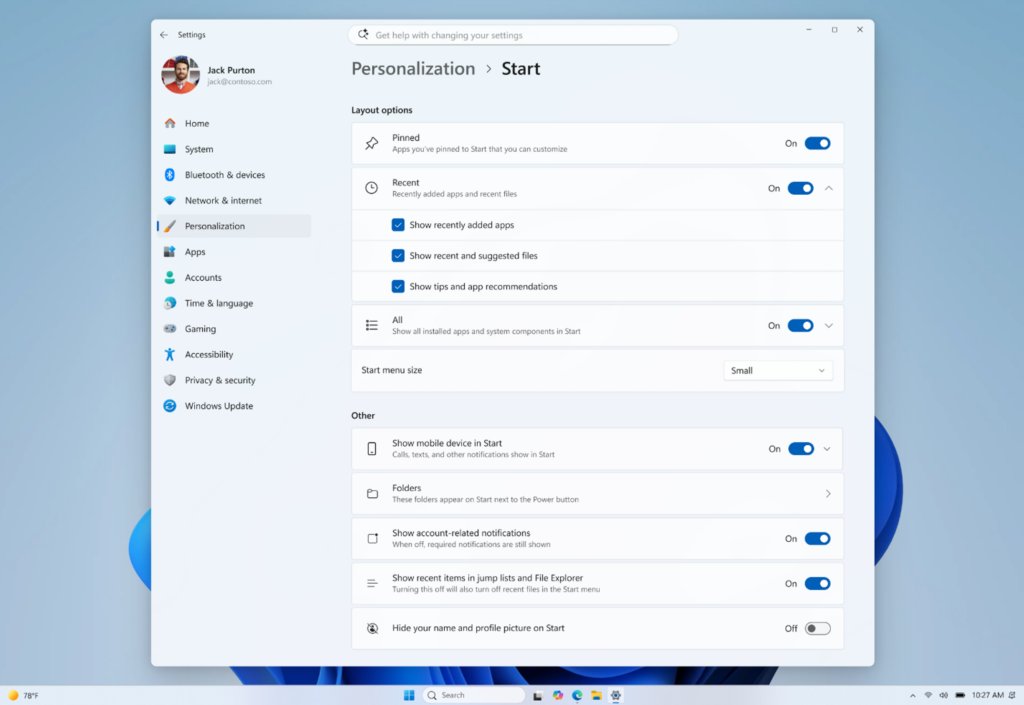
The new Start menu in Windows 11 26H2 has no separate on switch: it turns on once your PC has the latest update and Microsoft's gradual rollout reaches it, and you then shape it in Settings > Personalization > Start.
This guide covers how to get the update that carries it, every new Start setting, how to confirm you have the new layout, and what to do when Start still looks the same after Windows 11 26H2 is installed.
The fastest way to get the new Start menu
Microsoft ships the redesigned Start through Windows Update and rolls it out in phases, so the quickest route is to put your PC first in line and install everything on offer.
- Open Settings > Windows Update.
- Turn on Get the latest updates as soon as they're available.
- Select Check for updates.
- If Windows 11, version 26H2 is available appears, select Download & install.
- Restart when asked, then open Start and look for the All section with category and grid views.
- Right-click the bottom of Start, select Start settings and set Start menu size.
Most PCs are not offered 26H2 on day one. If the update is not listed yet, the steps to fix 26H2 not showing in Windows Update cover safeguard holds and the other usual causes.
What’s new with the Start menu on Windows 11 26H2
The redesigned Start is one of the features Microsoft lists for 26H2. Some parts reached 24H2 and 25H2 earlier through monthly updates, which 26H2 now consolidates.
| Change | What it does | Where to set it |
|---|---|---|
| Scrollable All section | Installed apps appear in a scrollable section on the main Start page | On by default; toggle All in Start settings |
| Category, grid and list views | Groups apps by category, or lists them alphabetically as a grid or list | View switcher in the All section; Start remembers your choice |
| Start menu size | Choose Small or Large instead of Automatic (the default), so Start looks the same on every display | Settings > Personalization > Start > Start menu size |
| Section-level toggles | Show or hide Pinned, Recent and All independently | Settings > Personalization > Start |
| Recommended renamed Recent | Shows recently installed apps and recently used files | Settings > Personalization > Start |
| Hide name and profile picture | Removes your name and picture from Start when you share or present | Hide your name and profile picture on Start |
| Responsive layout | Start adapts to the size of the display when set to Automatic | Automatic |
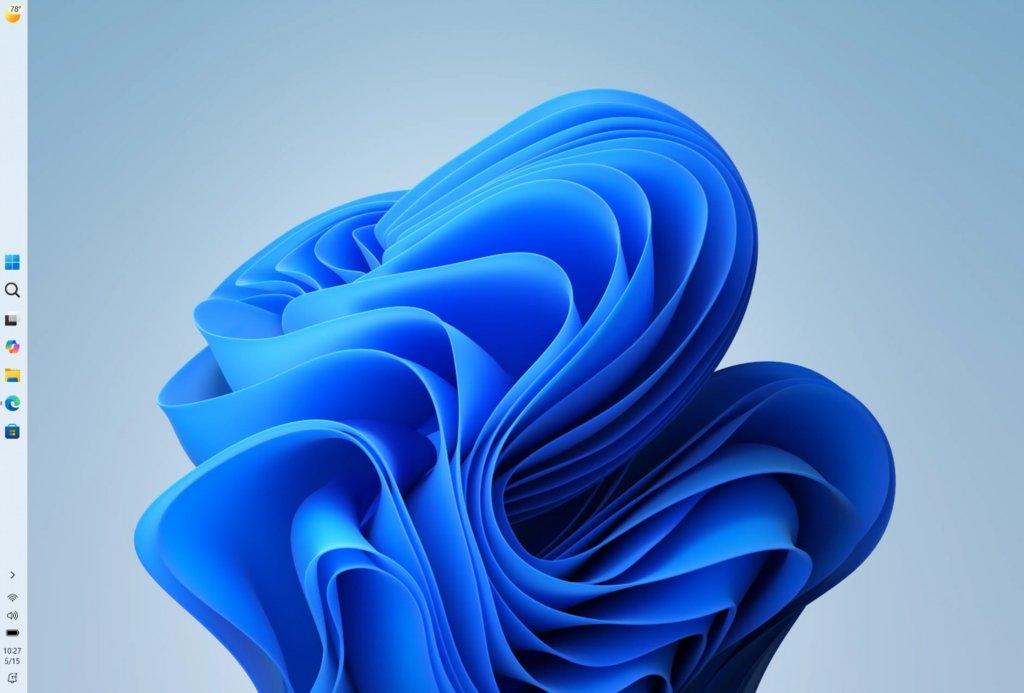
| Start follows the taskbar | When the taskbar sits on the top or a side, Start opens from there | Taskbar behaviors > Taskbar position |
What you need before the new Start menu appears
| Requirement | Detail |
|---|---|
| Windows 11 version 24H2, 25H2 or 26H2 | 26H2 arrives as the KB5121794 enablement package on 24H2 and 25H2 |
| September 22, 2026 update (KB5124010) or later | Microsoft lists it as the prerequisite for the 26H2 enablement package |
| The gradual rollout reaching your PC | Microsoft releases Start and taskbar changes in phases, so availability varies by device |
| No Start policies from your organisation | Managed PCs can have Start sections hidden or settings locked by Group Policy or Intune |
| An eligible PC | The PC must meet the 26H2 system requirements to receive the update |
Instructions to Enable the New Start Menu
Use this route when the fast route installed 26H2 but Start still looks unchanged. The Start customisations first shipped in the August 2026 optional update for 24H2 and 25H2, so installing optional updates can bring them sooner.
- Open Start > Settings > Windows Update and select Check for updates.
- Install every cumulative update offered, and restart when asked.
- Select Advanced options > Optional updates.
- Under Optional updates available, select the latest Windows update and install it.
- Restart the PC once more, even if Windows does not ask.
- Open Settings > Personalization > Start and check for Start menu size and the Pinned, Recent and All toggles.
If the settings are there, the new Start is enabled. If they are not, your PC is still waiting for the rollout; there is no Microsoft-supported switch to force it.
How to set up the new Start menu layout
- Select Start, right-click the bottom of the menu and select Start settings, or open Settings > Personalization > Start.
- Under Start menu size, pick Small, Large or Automatic.
- Turn the Pinned, Recent and All toggles on or off to choose which sections Start shows.
- Turn on Hide your name and profile picture on Start if you share your screen or present.
- Select Folders and turn on the folders you want next to the Power button, such as Documents and Downloads.
- Open Start to see the result; changes apply straight away.
For a Start with only pinned apps, turn off Recent and All. To clear the Recent list without turning it off, you can also disable the Recommended section providers that feed it.
Switch the All section between category, grid and list
- Open Start and scroll down to the All section.
- Use the view switcher at the top of the section to choose Category, Grid or List.
- In Pinned, select Show all if you want every pinned app expanded by default.
- Close and reopen Start; it remembers the last view you picked.
Move the Start menu to the side or top
Start opens from wherever the taskbar sits, so moving Start means moving the taskbar or its icons. The movable taskbar in 26H2 has its own limits in side positions.
- Right-click the taskbar and select Taskbar settings.
- Expand Taskbar behaviors.
- To keep the taskbar at the bottom but put Start in the corner, change Taskbar alignment from center to left.
- To move the whole taskbar, set Taskbar position to Top, Left or Right.
- Open Start to confirm it now opens from the new position.
How to check the new Start menu is on
- Press Win + R, type
winverand press Enter; version 26H2 shows OS build 26300. - Open Start and scroll: the new layout shows an All section on the same page, below Pinned.
- Check that the old Recommended heading now reads Recent.
- Open Settings > Personalization > Start and confirm Start menu size is listed.
- Change Start menu size to Large and reopen Start to see the size change.
Not sure which version you have? The steps to check if 26H2 is installed cover About and the other version checks.
Release date for version 26H2
| Milestone | Date | What it means for Start |
|---|---|---|
| August optional update (KB5120998) for 24H2 and 25H2 | August 27, 2026 | Start size, section toggles, Recent and hide-name options begin a gradual rollout |
| 26H2 in the Release Preview Channel (build 26300.9278) | August 27, 2026 | Insiders could install 26H2 ahead of release |
| September optional update (KB5124010) | September 22, 2026 | Prerequisite for the 26H2 enablement package |
| 26H2 general availability | September 29, 2026 | Controlled rollout through Windows Update begins |
| Broad availability | Over the coming months | Microsoft expands the rollout in phases and may apply safeguard holds |
Individual PCs are offered the update at different points in the 26H2 rollout.
Windows 11 26H2 new features
Start is one of several 26H2 new features. The ones that sit next to Start in daily use are below.
| Feature | What changes |
|---|---|
| Taskbar position | Put the taskbar on the bottom, top, left or right of the screen |
| Smaller taskbar | Smaller icons and a shorter taskbar through Taskbar size |
| Windows Search | Result previews, better handling of typos and clearer result types |
| File Explorer | Faster Home, more archive formats, AI actions for supported files |
| Administrator protection | Just-in-time admin rights, off by default |
| Point-in-time restore | Rolls a PC back to a recent automatic restore point |
Fix the new Start menu when it does not appear
Start looks the same after installing 26H2
The Start changes roll out in phases, so a PC can be on 26H2 before they reach it.
- Confirm Get the latest updates as soon as they're available is on in Settings > Windows Update.
- Install all cumulative and optional updates, then restart.
- Check Settings > Personalization > Start for Start menu size after each update.
- Wait for the rollout if the settings are still missing; Microsoft offers no manual switch.
Start settings are greyed out or sections are missing
An organisation policy controls Start on work or school PCs.
- Ask your IT admin whether Prevent changes to Taskbar and Start Menu Settings or Remove Recommended section from Start Menu is set.
- If the Category view is missing, check whether Hide Category view in the Start menu is enabled; the grid view then becomes the default.
- On your own Pro PC, open
gpedit.mscand review Administrative Templates > Start Menu and Taskbar under both Computer and User Configuration.
26H2 is not offered, so the new Start never arrives
Staged rollout or a safeguard hold keeps the update back from some PCs.
- Check the Microsoft release health page for 26H2 known issues and safeguard holds.
- Make sure the September 22, 2026 update (KB5124010) or later is installed.
- If you do not want to wait, download and install 26H2 with an official method such as the Installation Assistant.
Start opens slowly or looks broken after the update
A known issue or a stuck Explorer process after the upgrade.
- Restart the PC once to reload Explorer and the Start experience.
- Install any update offered since 26H2, as Microsoft fixes Start issues in monthly updates.
- Check the 26H2 known issues for a matching problem and its workaround.
How to make the new Start menu look closer to the old one
Microsoft documents no switch that restores the previous Start design. You can trim the new one back to a pinned grid with a Recent list, which is close to the earlier layout; the full options are in how to get the old Start menu back.
- Open Settings > Personalization > Start.
- Turn off the All toggle so Start shows only Pinned and Recent.
- Set Start menu size to Small for a compact menu.
- Right-click the taskbar, select Taskbar settings, and change Taskbar alignment under Taskbar behaviors from center to left.
Frequently asked questions
How do I enable the new Start menu in Windows 11 26H2?
Install 26H2 and all offered updates from Settings > Windows Update, with Get the latest updates as soon as they're available turned on. The new Start then appears once the gradual rollout reaches your PC. There is no separate switch to turn it on.
Is the new Start menu on by default in 26H2?
Yes, once it reaches your PC. Microsoft lists the redesigned Start among 26H2 features, but releases the Start changes through a gradual rollout, so availability varies by device even after 26H2 is installed.
Where are the new Start menu settings?
Open Settings > Personalization > Start, or right-click the bottom of the Start menu and select Start settings. The page holds Start menu size, the Pinned, Recent and All toggles, and the option to hide your name and profile picture.
Can I change the size of the Start menu in 26H2?
Yes. Go to Settings > Personalization > Start > Start menu size and choose Small or Large. Automatic is the default and adapts Start to your display, while Small and Large keep the same size across displays whenever possible.
What happened to the Recommended section in Start?
Microsoft renamed it Recent. It still shows recently installed apps and recently used files, and you can hide it with the Recent toggle in Settings > Personalization > Start.
Do I need 26H2 to get the new Start menu?
Not always. The Start size, section toggles and Recent changes first rolled out to 24H2 and 25H2 through the August 2026 optional update, because those versions share their code with 26H2. Installing 26H2 keeps you on the newest release.
Can I use ViVeTool to force the new Start menu?
Microsoft does not document or support ViVeTool feature IDs, so there is no official way to force the new Start early. Keeping Windows Update current and turning on the early-updates toggle is the supported route.
Why can't I change Start settings on my work PC?
Your organisation manages them. Group Policy settings such as Prevent changes to Taskbar and Start Menu Settings lock the page, and Hide Category view removes the category option. Ask your IT admin to change the policy.
Bottom line
Install 26H2 with the early-updates toggle on, then set Start menu size and the three section toggles to suit how you work. The new Start is on by default once the rollout reaches your PC, and its settings page is where the real change lies: a pins-only Start is two toggles away. If it has not arrived yet, waiting for the rollout is safer than third-party tools.