To change the taskbar color in Windows 11, open Settings > Personalization > Colors, set the mode to Dark or Custom, pick an accent color, and turn on Show accent color on Start and taskbar.
This guide covers black, white and custom colors, exact color matching, transparency, contrast themes, the Registry question, and fixes for a greyed-out toggle.
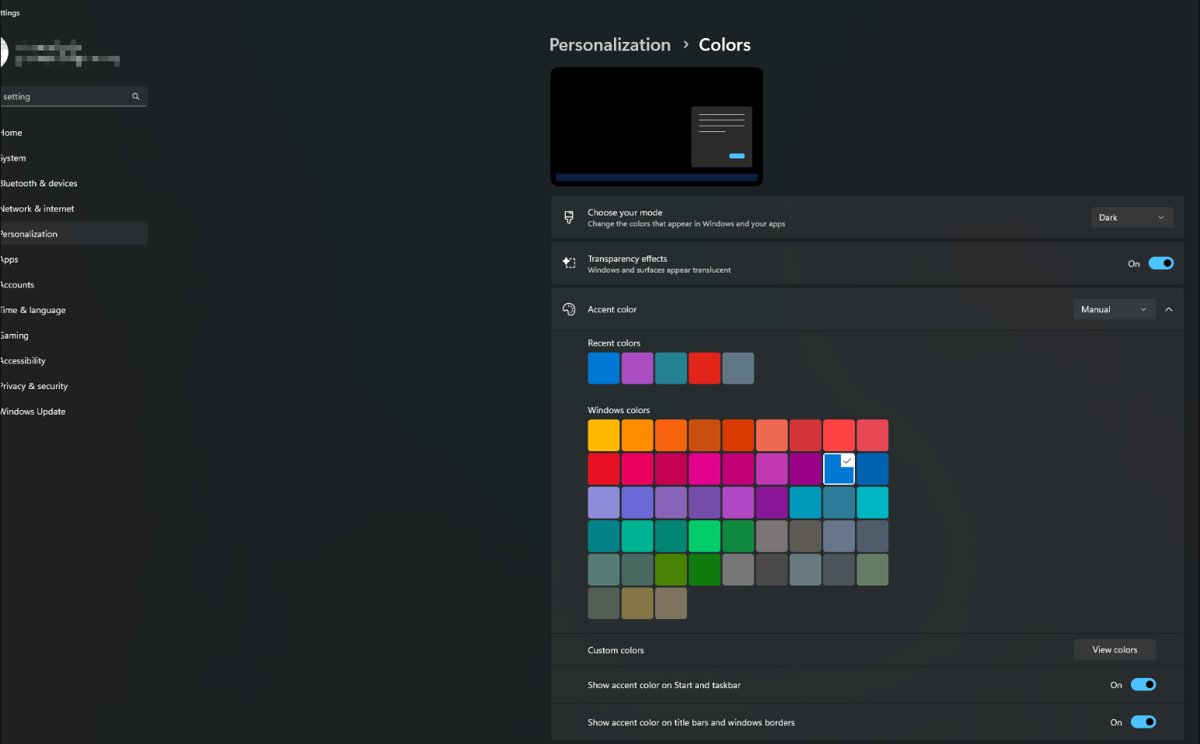
How to change taskbar color to any other color in Windows 11
Windows 11 colors the taskbar with your accent color, and the accent color can be any shade you choose. The taskbar only takes that color in Dark or Custom mode, so the mode comes first.
- Press Windows + I to open Settings.
- Select Personalization, then Colors.
- Under Choose your mode, select Dark (or Custom if you want apps to stay light).
- Under Accent color, select Manual.
- Pick a swatch from Windows colors or Recent colors, or select View colors to choose any other shade.
- Turn on Show accent color on Start and taskbar.
The taskbar, Start menu and action center switch to the new color straight away. No restart or sign-out is needed.
Which Windows 11 taskbar color method should you use?
| Your situation | Use this | Why |
|---|---|---|
| You want a blue, green, red or any other colored taskbar | Method 1: using Windows Settings, the easiest way (Personalization > Colors) | The only supported way to put a full color on the taskbar |
| You want a plain black or white taskbar | Dark mode or Light mode in Settings, accent toggle off | No accent color involved at all |
| You need a dark taskbar but light apps | Custom mode | Sets Windows and apps separately |
| You need maximum contrast for low vision | Method 2: high contrast themes (Accessibility > Contrast themes) | Recolors the whole interface, not only the taskbar |
| You want to script the change or edit it by hand | Method 3: Registry Editor, advanced users only | Microsoft recommends the Settings interface over manual registry edits |
| You want a see-through taskbar | Transparency effects in Settings | Adds a light blur, not full transparency |
How to change taskbar color to black or white in Windows 11
Black and white do not need an accent color. Windows 11 dark mode paints the taskbar dark, and Light mode leaves it light. The accent toggle must be off, or the accent color replaces the black.
- Open Settings > Personalization > Colors.
- For a black taskbar, set Choose your mode to Dark.
- For a white taskbar, set Choose your mode to Light.
- Turn off Show accent color on Start and taskbar if it is on.
- Look at the taskbar: it now shows the dark or light system color.
In Light mode the accent toggle stays unavailable, because Windows only colors the Start menu, taskbar and action center in Dark or Custom mode.
Keep apps light while giving the taskbar a color
Custom mode splits the setting in two: one choice for Windows itself (taskbar, Start, action center) and one for apps. A dark Windows choice unlocks the accent toggle while apps such as File Explorer and Settings stay light.
- Open Settings > Personalization > Colors.
- Set Choose your mode to Custom.
- Set the Windows mode to Dark.
- Set the app mode to Light.
- Choose your accent color under Accent color.
- Turn on Show accent color on Start and taskbar.
Some apps keep their own light or dark setting, and not every app supports dark mode, so a few windows may not follow the app choice.
Use an exact taskbar color
The preset swatches cover common colors. To match a brand color or a color from your wallpaper exactly, read its value first, then set it in the custom color picker behind View colors.
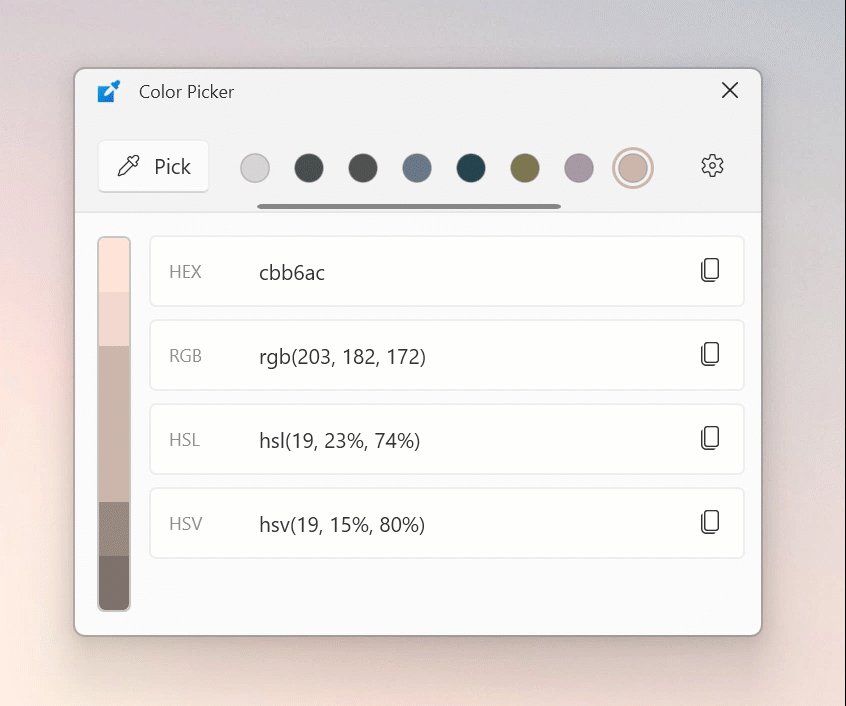
Microsoft PowerToys includes a Color Picker that reads any pixel on screen and copies its value. Its default shortcut is Windows + Shift + C, and its default copy format is HEX.
- Install Microsoft PowerToys and turn on Color Picker in PowerToys Settings.
- Press Windows + Shift + C and click the color you want to copy.
- In the Color Picker editor, note the HEX or RGB value of the picked color.
- Open Settings > Personalization > Colors, and set Accent color to Manual.
- Select View colors and set the picker to the value you noted.
- Confirm the color, then make sure Show accent color on Start and taskbar is on.
The taskbar may look slightly different from the source pixel when Transparency effects is on, because the blur mixes in what is behind it. Turn transparency off for a flat, exact match.
How to make taskbar transparent in Windows 11
Windows 11 has one built-in transparency control. When it is on, the taskbar and some window backgrounds turn slightly see-through with a blur.
- Open Settings > Personalization > Colors.
- Turn on Transparency effects.
- Optionally keep Show accent color on Start and taskbar on for a tinted, translucent taskbar.
- Drag a window behind the taskbar to see the blur.
The setting is a simple on or off switch. There is no slider for the level of transparency and no option for a fully clear taskbar.
Change taskbar color using high contrast themes
Windows 11 calls these Contrast themes. They replace the colors of the whole interface, including the taskbar, with a high contrast palette. Use them for readability, not decoration.
- Open Settings > Accessibility > Contrast themes.
- Choose a theme from the Contrast themes drop-down and select Apply.
- Wait while Windows shows Please wait, then check the new colors.
- To change a theme's colors, select Edit under the drop-down.
- Select an element such as Background or Text, pick a color, adjust brightness with the slider, and select Done.
- Select Save as, enter a name, then select Save and apply.
Press left Alt + left Shift + Print Screen to switch high contrast on or off. To leave it, choose None in the drop-down and select Apply.
Enable color on taskbar using Registry Editor (advanced users)
Microsoft does not publish a registry value for the taskbar accent color in its Windows 11 documentation. The Show accent color on Start and taskbar toggle already does the job and applies instantly.
Microsoft's own registry guidance recommends the Windows interface over manual registry edits, and warns that incorrect edits can cause serious problems. If you edit the registry anyway, export the key you plan to change first so you can double-click the .reg file to restore it.
Use the Settings toggle instead of Registry Editor to color the taskbar in Windows 11. The toggle is the supported route and it can be turned off in one click, while a registry edit from an undocumented value has no official reference to check against.
How to check the taskbar color applied in Windows 11
- Look at the taskbar background: it should show your accent color, not plain black or white.
- Press the Windows key: the Start menu should use the same color.
- Open Settings > Personalization > Colors and confirm Show accent color on Start and taskbar is on.
- Confirm Choose your mode reads Dark or Custom, and Accent color reads Manual with your color selected.
How to reset taskbar color to the Windows 11 default
- Open Settings > Personalization > Colors.
- Turn off Show accent color on Start and taskbar.
- Set Choose your mode back to Light or Dark, whichever you used before.
- Set Accent color to Automatic if you want Windows to pick the color from your background again.
- If a contrast theme is on, open Settings > Accessibility > Contrast themes, choose None and select Apply.
Fix a missing or ineffective taskbar color setting
"Show accent color on Start and taskbar" greyed out
The mode is set to Light, and Windows only colors the taskbar in Dark or Custom mode.
- Open Settings > Personalization > Colors.
- Set Choose your mode to Dark, or to Custom with the Windows mode set to Dark.
- Turn on Show accent color on Start and taskbar.
The taskbar stays black or white after picking a color
Picking an accent color alone only changes buttons and links; the taskbar toggle is separate.
- Open Settings > Personalization > Colors.
- Turn on Show accent color on Start and taskbar.
- Check that the taskbar changes without a restart.
The taskbar color changes when the wallpaper changes
Accent color is set to Automatic, which takes the color from your background.
- Open Settings > Personalization > Colors.
- Set Accent color to Manual.
- Pick the color you want to keep.
Color settings have no effect or the whole screen looks black and white
A contrast theme is active and overrides the normal color settings.
- Open Settings > Accessibility > Contrast themes.
- Choose None in the drop-down.
- Select Apply, then set the taskbar color again under Personalization > Colors.
The taskbar looks a different shade than the color you picked
Transparency effects blends the background into the taskbar color.
- Open Settings > Personalization > Colors.
- Turn off Transparency effects.
- Compare the taskbar with the swatch again.
What Windows 11 does not support
| What you might want | Built into Windows 11? | Closest supported option |
|---|---|---|
| A taskbar color different from the Start menu color | No. One toggle colors Start, taskbar and action center together | Accept the shared accent color |
| An accent-colored taskbar in Light mode | No. The toggle needs Dark or Custom mode | Custom mode with Windows dark and apps light |
| A fully clear taskbar | No. Transparency effects is a light blur | Turn on Transparency effects |
| A transparency level slider | No. The setting is on or off | Turn transparency on or off |
| A documented registry value for taskbar color | Not in Microsoft's Windows 11 documentation | The Settings toggle |
Windows 11 taskbar color FAQ
Why can't I change my taskbar color in Windows 11?
The usual cause is Light mode. Windows 11 only applies the accent color to the taskbar in Dark or Custom mode. Open Settings > Personalization > Colors, switch the mode to Dark or Custom, then turn on Show accent color on Start and taskbar.
Can the Windows 11 taskbar be any color?
Yes. Set Accent color to Manual and select View colors to choose any shade, not only the preset swatches. Then turn on Show accent color on Start and taskbar while Windows is in Dark or Custom mode.
How do I make the Windows 11 taskbar black?
Open Settings > Personalization > Colors, set Choose your mode to Dark, and turn off Show accent color on Start and taskbar. The taskbar then uses the dark system color instead of an accent color.
How do I make the Windows 11 taskbar white?
Set Choose your mode to Light in Settings > Personalization > Colors. Light mode does not color the taskbar, so it stays light, and the accent color toggle for Start and taskbar becomes unavailable.
Can I change only the taskbar color without changing the Start menu?
No. The Show accent color on Start and taskbar setting colors the Start menu, the taskbar and the action center together. Windows 11 has no separate taskbar-only color option.
Can I make the Windows 11 taskbar fully transparent?
Not with built-in settings. Transparency effects in Settings > Personalization > Colors makes the taskbar slightly see-through with a blur, but it is an on or off switch with no fully clear option.
Does the taskbar color change with my wallpaper?
Only when Accent color is set to Automatic, because Windows then takes the accent from your background. Set Accent color to Manual to keep a fixed taskbar color.
Do I need to restart after changing the taskbar color?
No. The taskbar, Start menu and action center change as soon as you turn on Show accent color on Start and taskbar or pick a new accent color.
The bottom line on Windows 11 taskbar color
Every taskbar color in Windows 11 comes from the same page. If you also want to change the cursor color to match, or move the taskbar to the left, both are separate settings.
Use Dark or Custom mode, a Manual accent color and the Show accent color on Start and taskbar toggle for any taskbar color. It is the supported route, it accepts any shade through View colors, it applies instantly, and turning one toggle off restores the default.






