Windows 11 and Windows 10 have no single shortcut key that hides the taskbar, but you can reach the Automatically hide the taskbar setting without a mouse: press Win + T, then Win + Alt + Enter.
Microsoft's official keyboard shortcut list includes no key that hides or shows the taskbar. The sections below cover the keyboard route, the Settings path on each version, full-screen keys for presentations and browsers, and fixes when the taskbar will not hide.
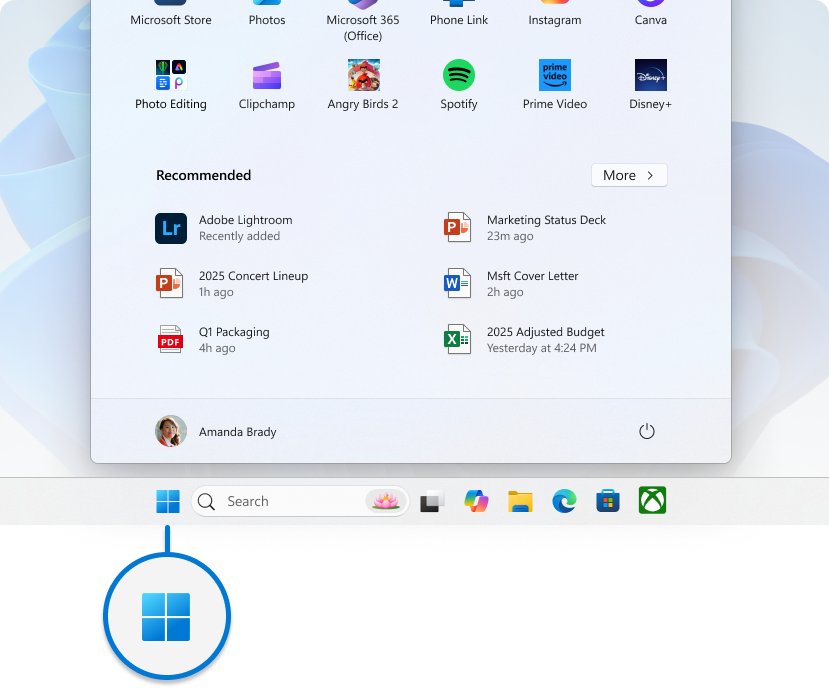
The fastest way to hide the taskbar from the keyboard
Microsoft lists Win + Alt + Enter as the shortcut that opens taskbar settings, but only while a taskbar item has keyboard focus. Win + T gives it that focus.
- Press Win + T to move keyboard focus to the apps on the taskbar.
- Press Win + Alt + Enter. Settings opens on the Taskbar page.
- On Windows 11, press Tab until Taskbar behaviors is highlighted, then press Enter to expand it.
- Press Tab until Automatically hide the taskbar is highlighted, then press Space to tick it.
- On Windows 10, press Tab until Automatically hide the taskbar in desktop mode is highlighted, then press Space to turn it on.
- Press Alt + F4 to close Settings. The taskbar slides off the bottom of the screen.
Auto-hide is a setting, not a toggle key. It stays on until you clear the same box, and the taskbar returns whenever you point at the bottom edge of the screen.
Pick the right way to hide the taskbar for what you are doing
Hiding the taskbar means different things in different moments. Match your goal to a row.
| What you actually want | Best option | Why |
|---|---|---|
| More screen space every day | Turn on Automatically hide the taskbar | The taskbar stays out of the way and reappears when you point at the bottom edge |
| Hide it while presenting slides | Press F5 in PowerPoint | Slide Show fills the screen; Ctrl + T shows the taskbar if you need it mid-show |
| Hide it while reading or watching video in a browser | Press F11 in Microsoft Edge or Google Chrome | Full-screen mode covers the taskbar; press F11 again to leave |
| Hide it while playing a game | Use the game's own full-screen display mode | Windows moves the taskbar below a window the shell treats as full screen |
| Keep it off a second monitor only | Clear Show my taskbar on all displays | The main display keeps its taskbar; extra displays lose theirs |
| Hide it permanently | Turn on Automatically hide the taskbar | Windows has no setting that removes the taskbar entirely; auto-hide is the closest built-in option |
| Stop it popping up while it is set to hide | See the troubleshooting section below | A flashing app or leftover focus usually keeps it on screen |
Turn on auto-hide for the taskbar in Windows 11
This is the built-in method with the mouse. On Windows 11 one checkbox covers both desktop use and tablet use.
- Right-click an empty area of the taskbar, or press and hold it on a touch screen.
- Select Taskbar settings. You can also open Start > Settings > Personalization > Taskbar.
- Select Taskbar behaviors to expand the list.
- Tick Automatically hide the taskbar.
- Close Settings and move the pointer away from the bottom edge to see the taskbar slide away.
Turn on auto-hide for the taskbar in Windows 10
Windows 10 splits the setting in two, one for desktop mode and one for tablet mode. Turn on the one that matches how you use the PC, or both.
- Right-click an empty area of the taskbar.
- Select Taskbar settings, or open Settings > Personalization > Taskbar.
- Turn on Automatically hide the taskbar in desktop mode.
- Turn on Automatically hide the taskbar in tablet mode if you also use tablet mode.
- Close Settings. The taskbar hides as soon as the pointer leaves it.
Open taskbar settings with a Run command
Microsoft publishes a Settings address for the Taskbar page. It is a quicker keyboard route when you do not want to focus the taskbar first.
ms-settings:taskbarPress Win + R, type the address in the Open box, and press Enter. The same ms-settings:taskbar address is listed for both the Personalization and System groups in Microsoft's Settings URI reference, and it works on Windows 11 and Windows 10.
You should see: Settings opens directly on the Taskbar page, where Automatically hide the taskbar sits under Taskbar behaviors on Windows 11, or on the page itself on Windows 10.
What the built-in Windows shortcut keys do to the taskbar
Understanding this list saves time: the built-in keyboard shortcuts are limited. Several focus the taskbar or clear the desktop, and none of them turns auto-hide on or off.
Every row below comes from Microsoft's keyboard shortcuts page or the app vendor's own shortcut list.
| Shortcut | What it does | Hides the taskbar? | Applies to |
|---|---|---|---|
| Win + T | Cycles through apps on the taskbar | No, it moves focus to the taskbar | Windows 11 and 10 |
| Win + Alt + Enter (taskbar item focused) | Opens taskbar settings | No, it opens the page where auto-hide lives | Windows 11 and 10 |
| Win + B | Sets focus in the notification area | No | Windows 11 and 10 |
| Win + D | Displays and hides the desktop | No, windows minimize but the taskbar stays | Windows 11 and 10 |
| Win + M | Minimizes all windows | No | Windows 11 and 10 |
| Win + comma (,) | Temporarily peeks at the desktop | No | Windows 11 and 10 |
| Win + Shift + Enter | Makes the active Universal Windows Platform (UWP) app full screen | Yes, for that app while it is active | Windows 11 |
| F11 | Toggles full screen in Microsoft Edge and Google Chrome | Yes, while the browser is full screen | Edge and Chrome on Windows |
| F5 / Shift + F5 | Starts a PowerPoint slide show from the beginning or the current slide | Yes, during the show; Ctrl + T shows it | PowerPoint for Windows |

How to check the taskbar is hiding
- Click on the desktop or inside an open app so the taskbar no longer has focus.
- Move the pointer to the middle of the screen. The taskbar should slide out of view within a moment.
- Maximize a window. Its bottom edge should now reach the bottom of the screen.
- Point at the bottom edge of the screen, or swipe up from it on a touch screen. The taskbar should slide back.
- Open Taskbar settings once more and confirm the auto-hide box is still ticked after a restart.
Additional tips for managing the taskbar and freeing screen space
Auto-hide is not the only way to reclaim room. These settings sit on the same Taskbar page.
| Goal | Setting | Where | Version |
|---|---|---|---|
| Remove the taskbar from extra monitors | Clear Show my taskbar on all displays | Taskbar behaviors | Windows 11 |
| Stop taskbar buttons flashing for attention | Clear Show flashing on taskbar apps | Taskbar behaviors | Windows 11 |
| Hide unread-count badges | Clear Show badges on taskbar apps | Taskbar behaviors | Windows 11 |
| Declutter the taskbar | Turn off Search, Task view, or Widgets | Taskbar items | Windows 11 |
| Make the taskbar thinner | Turn on small taskbar buttons (badges are not shown on small buttons) | Taskbar page | Windows 10 |
| Move the taskbar to a side or the top | Choose Left, Top, Right, or Bottom for the taskbar location | Taskbar page | Windows 10 |
| Prevent accidental moves or resizing | Turn on Lock the taskbar | Taskbar page | Windows 10 |
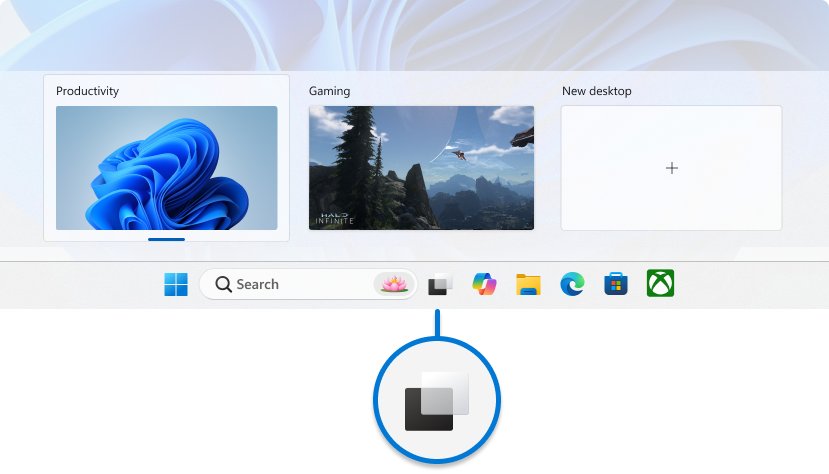
How to show the taskbar all the time again
- Point at the bottom edge of the screen so the hidden taskbar appears.
- Right-click an empty area of it and select Taskbar settings.
- On Windows 11, expand Taskbar behaviors and clear Automatically hide the taskbar.
- On Windows 10, turn off Automatically hide the taskbar in desktop mode and, if used, in tablet mode.
- Close Settings. The taskbar stays visible and maximized windows stop above it.
Fix the taskbar when it will not hide on Windows 11 or Windows 10
Match what you see, then run only the fix under it.
The taskbar will not auto-hide even though the setting is on
An app is flashing its taskbar button for attention, or the taskbar still has focus from a click or Win + T.
- Look along the taskbar for a highlighted or flashing button and select it to open that app.
- Deal with whatever the app is asking for, such as a message or a dialog.
- Click on the desktop or inside another window to move focus off the taskbar.
- On Windows 11, clear Show flashing on taskbar apps under Taskbar behaviors if an app keeps doing it.
- Sign out and back in, or restart the PC, if the taskbar still stays up.
You cannot find the option to hide the taskbar in Windows 11
On Windows 11 the checkbox is inside the collapsed Taskbar behaviors group, not at the top of the page.
- Open Settings > Personalization > Taskbar.
- Scroll down and select Taskbar behaviors.
- Tick Automatically hide the taskbar.
The taskbar reappears whenever the pointer reaches the bottom of the screen
This is how auto-hide is designed: pointing at or touching the bottom edge brings the taskbar back.
- Keep the pointer away from the bottom edge while you work.
- For a video, page, or slide deck, use full screen instead: F11 in Edge or Chrome, F5 in PowerPoint.
- On a second monitor, clear Show my taskbar on all displays so that screen has no taskbar to reveal.
The taskbar stays visible over a full-screen app or game
Windows only drops the taskbar below a window the shell recognizes as full screen, and a borderless or windowed mode may not qualify.
- Switch the game or app to its full-screen display mode in its own settings.
- In a browser, press F11 rather than only maximizing the window.
- For a Microsoft Store (UWP) app on Windows 11, press Win + Shift + Enter.
- Click inside the full-screen app so it is the active window.
- Turn on Automatically hide the taskbar if the app has no true full-screen mode.
Should you use a third-party tool or AutoHotkey to toggle the taskbar
Third-party taskbar hiders and AutoHotkey scripts promise a quick toggle key to hide and show the taskbar. Microsoft does not document or support either, and the internal taskbar details such scripts rely on can change with Windows updates.
Stick with the built-in auto-hide setting and the Win + T, Win + Alt + Enter route. It takes a few keystrokes, survives feature updates, and needs no extra software running in the background. Installing an unsupported utility just to save two keys adds a program you have to trust and keep updated.
Frequently asked questions
Is there a keyboard shortcut to hide the taskbar?
No. Microsoft's Windows keyboard shortcut list has no key that hides or shows the taskbar. The closest route is Win + T to focus the taskbar, then Win + Alt + Enter to open taskbar settings, where you turn on Automatically hide the taskbar.
Can I hide the Windows taskbar?
Yes. Turn on auto-hide in taskbar settings and the taskbar slides off screen until you point at the bottom edge. Windows has no built-in option to remove the taskbar completely, so auto-hide is the closest you can get without full-screen apps.
How do I hide the taskbar in Windows 11?
Right-click an empty area of the taskbar and select Taskbar settings. Expand Taskbar behaviors and tick Automatically hide the taskbar. The same page is at Settings > Personalization > Taskbar, and the one checkbox covers desktop and tablet use.
How do I hide the taskbar in Windows 10?
Right-click the taskbar and select Taskbar settings, or open Settings > Personalization > Taskbar. Turn on Automatically hide the taskbar in desktop mode. A separate switch, Automatically hide the taskbar in tablet mode, controls hiding when tablet mode is on.
How do I auto-hide the taskbar in Windows 11 without a mouse?
Press Win + T, then Win + Alt + Enter to open taskbar settings. Press Tab to reach Taskbar behaviors, press Enter to expand it, then tab to Automatically hide the taskbar and press Space. Press Win + R and run ms-settings:taskbar as an alternative.
Why won't my taskbar hide in Windows 11?
Usually an app is flashing its taskbar button for attention, or the taskbar still has focus. Open the flashing app, then click elsewhere on the screen. If it keeps happening, clear Show flashing on taskbar apps under Taskbar behaviors and confirm Automatically hide the taskbar is ticked.
Why won't my taskbar hide in Windows 10?
Check that Automatically hide the taskbar in desktop mode is on, not only the tablet mode switch. Then open any app with a flashing taskbar button and click on the desktop to move focus away. Sign out and back in if the taskbar still stays visible.
How do I hide the taskbar on a second monitor in Windows 11?
Open Settings > Personalization > Taskbar, expand Taskbar behaviors, and clear Show my taskbar on all displays. Your main display keeps its taskbar and the extra monitors lose theirs. Auto-hide still applies to the main display if you turn it on.
How do I hide the taskbar during a presentation?
Start the slide show with F5, or Shift + F5 from the current slide. PowerPoint fills the screen and covers the taskbar. Press Ctrl + T during the show to view the taskbar, and Esc to end the presentation.
Does Win + D hide the taskbar?
No. Win + D displays and hides the desktop by minimizing and restoring your open windows. The taskbar stays on screen throughout. To hide the taskbar itself, turn on auto-hide or use an app's full-screen mode, such as F11 in a browser.


How to change home screen on Windows 11 - Techdows
[…] If the taskbar itself is missing, clear Automatically hide the taskbar. […]