To show desktop icons on Windows 11, right-click an empty part of the desktop, select View, and check Show desktop icons.
This guide also covers adding This PC, Recycle Bin and other system icons, shortcuts for apps and websites, OneDrive desktops, icon size, multiple monitors, Group Policy, and fixes when icons still do not appear.
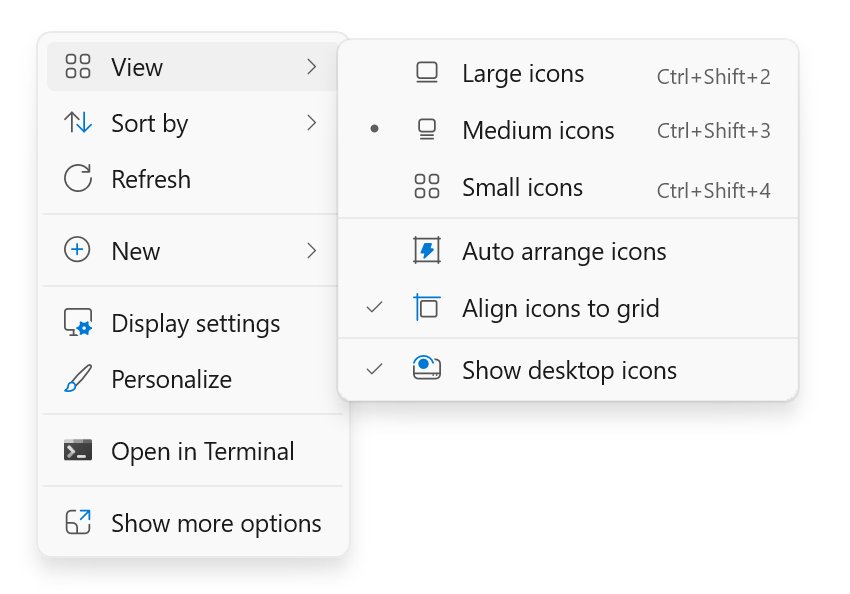
Show or Hide All Desktop Icons in Windows 11
One checkbox controls every icon on the desktop at once. When it is cleared, the desktop looks empty, but your files are still there.
The same steps work on Windows 11 Home, Windows 11 Pro and Windows 10.
- Minimize or close open windows so you can see an empty part of the desktop.
- Right-click the empty area. On a touch screen, press and hold instead.
- Select View.
- Select Show desktop icons so a check mark appears next to it.
- To hide the icons again, repeat the steps and clear Show desktop icons.
Hiding icons is handy before a presentation or screen share. While they are hidden, open File Explorer and select Desktop in the navigation pane to reach the same files.
Which fix matches what is missing from your desktop?
Missing icons have different causes. Match what you see to a row and go straight to that section.
| What you see | Do this | Why |
|---|---|---|
| The whole desktop is empty | Turn on View > Show desktop icons | All icons are hidden by one checkbox |
| Other icons show, but Recycle Bin is gone | Tick Recycle Bin in Desktop icon settings | System icons are switched on and off separately |
| You want This PC, Network or your user folder on the desktop | Tick them in Desktop icon settings | Windows only shows Recycle Bin by default |
| Your files and shortcuts vanished after setting up OneDrive | Point the OneDrive Desktop folder at the right location | The desktop shows whichever Desktop folder Windows is set to use |
| Icons appear as blank white squares | Clear the icon cache | The shortcut still works; only the cached image is broken |
| A work or school PC, and the View option has no effect | Ask your IT admin about the desktop policies | A policy can hide and disable every desktop item |
| A 2-in-1 with the keyboard detached | Press and hold the desktop, then use View > Show desktop icons | Windows 11 switches to tablet mode on its own, and there is no manual tablet mode switch |
Add Standard Windows Icons: This PC, Recycle Bin, Network, Control Panel, and User Files
By default, Windows 11 puts only the Recycle Bin on the desktop. The other system icons are switched on in a separate dialog.
This PC is the modern name for My Computer, and finding it in Windows 11 has its own guide.
- Right-click the desktop and select Personalize, or open Settings from Start.
- Select Personalization > Themes.
- Scroll to Related settings and select Desktop icon settings.
- Tick the icons you want: Computer (This PC), User's Files, Network, Recycle Bin or Control Panel.
- Select Apply, then OK.
This PC opens your drives and connected devices. User's Files opens your personal folders, and Network lists shared computers and devices on your network.
Restore the Recycle Bin Icon on Windows 11
If other icons are visible but the Recycle Bin is not, its checkbox has been cleared. Deleted files are safe; only the icon is hidden.
- Open Settings > Personalization > Themes.
- Select Desktop icon settings.
- Tick Recycle Bin.
- Select OK. The Recycle Bin icon appears on the desktop.
If the box is ticked and the icon still does not show, check the Group Policy section below. The Remove Recycle Bin icon from desktop policy overrides this dialog.
Add App Shortcuts to the Desktop
A shortcut is a small pointer to an app, file or folder that lives somewhere else on the PC.
Pick whichever start point is closest: the Start menu for apps, File Explorer for files and folders, or the desktop itself.
- From Start: select Start > All, find the app in the list, and drag it onto the desktop.
- From File Explorer: right-click a file or folder and select Show more options > Send to > Desktop (create shortcut). Some Windows 11 installs show Send to directly.
- From the desktop: right-click an empty area and select New > Shortcut.
- In the wizard, browse to or type the location of the item, then follow the prompts to name the shortcut and finish.
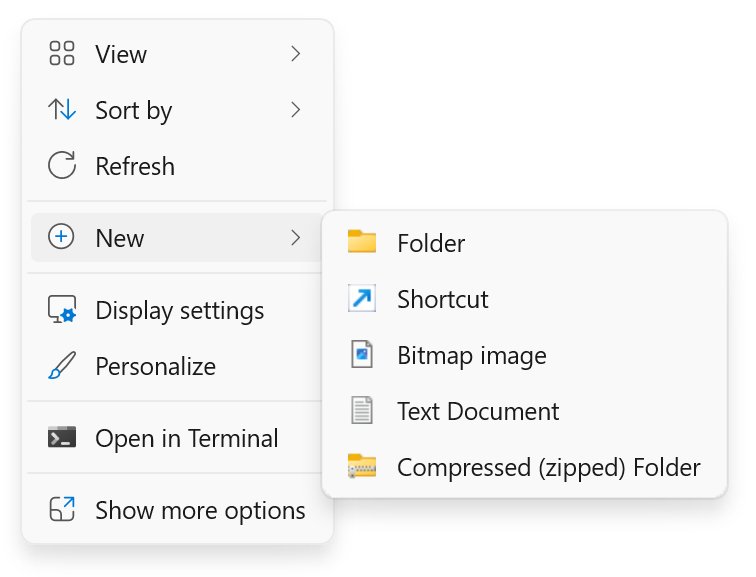
Add Website Icons to the Windows 11 Desktop
A website shortcut is a desktop icon that opens one page. Microsoft's method uses the site information icon in the browser's address bar.
- Open the website in your browser.
- Resize the browser window so part of the desktop is visible.
- Find the View site information icon, the padlock or sliders at the left end of the address bar.
- Drag that icon onto the desktop and release it.
- Double-click the new shortcut to check that it opens the page.
You can also build a website shortcut with New > Shortcut and paste the full web address as the location.
Show Desktop Icons Stored in OneDrive
OneDrive can back up your Desktop folder so the same icons appear on every PC you sign in to. If the backup location breaks, Windows can show an empty or wrong desktop.
Microsoft's fix is to point the Desktop folder back at the folder that holds your icons.
- Open File Explorer and expand your OneDrive folder.
- Right-click the Desktop folder and select Properties.
- Select the Location tab. If there is no Location tab, you opened the wrong Desktop folder, such as a work account copy.
- Select Move.
- Go to the folder that contains the desktop icons you want, choose Select Folder, then select Apply.
- When Windows asks whether to move files from the old location to the new one, select Yes.
To see or change which folders OneDrive backs up, open OneDrive settings, select the Backup tab, and select Manage backup. If a PC is moved to a different organization's OneDrive, a new Desktop folder is created and the desktop starts out empty until files are moved across.
Change the Size of Desktop Icons
Large icons help on high-resolution screens, where the default size can look tiny. Small icons fit more on a crowded desktop.
| Method | How to do it | Best for |
|---|---|---|
| View menu | Right-click the desktop > View > Large icons, Medium icons or Small icons | Three fixed sizes, one click each |
| Mouse wheel | Click the desktop, hold Ctrl and roll the scroll wheel up or down | Fine control between the fixed sizes |
| Display scale | Settings > System > Display > Scale & layout > Scale | Makes icons, text and apps larger together |
| Display resolution | Settings > System > Display > Display resolution, choose the (Recommended) value | Fixing icons that look stretched or blurry |
The View menu and Ctrl + scroll change only desktop icons. Scale changes everything on that display.
Arrange and Sort Desktop Icons
The desktop is a view of your Desktop folder. You can position icons by hand on the desktop, or open the folder in File Explorer to sort and search them as a list.
- Drag an icon to the spot where you want it, and release it.
- To move several icons at once, drag a selection box around them, then drag any one of the selected icons.
- Switch to View > Small icons if the icons no longer fit in the space you want.
- To sort desktop items by name or date, press Windows logo key + E and select Desktop in the navigation pane.
- Use File Explorer's sort and view options there to order the list, then open or tidy items from that window.
Delete or move files you no longer need out of the Desktop folder. Fewer items make the remaining icons easier to find.
Change Desktop Icon Images
Themes can swap the pictures used for This PC, User's Files, Network and Recycle Bin. Windows allows this by default.
Use the theme to change the icon set, or lock your current icons so a new theme leaves them alone.
- Open Settings > Personalization > Themes.
- Select a theme to apply it, along with any icon set it includes.
- Select Desktop icon settings to see which system icons are on.
- Clear Allow themes to change desktop icons to keep the current icons when you switch themes, or tick it to accept each theme's icons.
- Select Apply, then OK.
The same dialog controls which system icons appear, so check the boxes you want while it is open.
Show Desktop Icons on Multiple Monitors
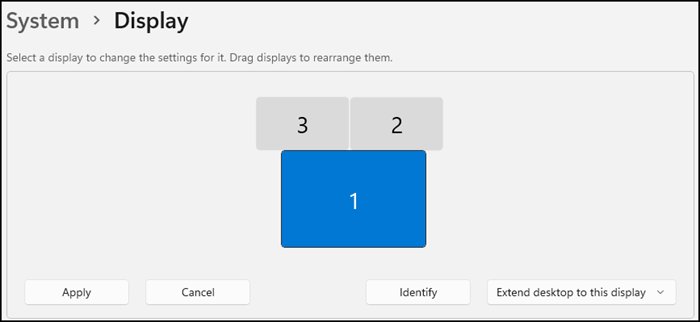
When a second monitor extends the desktop, icons can sit on either screen. Each display has its own scale and resolution, so icons can look different sizes.
- Select Start > Settings > System > Display.
- In the section that shows your displays, select the monitor whose icons look wrong.
- Under Scale & layout, set Scale to the option marked (Recommended).
- Set Display resolution to the (Recommended) value for that monitor.
- Drag icons across the edge of one screen onto the other to place them where you work.
If resolution changes on its own after you connect a monitor, Microsoft suggests checking Settings > Windows Update > Check for updates for a newer graphics driver.
Show Desktop Icons Using Group Policy or Registry Settings
On work and school PCs, policies can hide desktop icons regardless of what you tick. The Local Group Policy Editor (gpedit.msc) is part of Windows 11 Pro, Enterprise and Education.
All of these live under User Configuration > Administrative Templates > Desktop. Set a policy to Not Configured or Disabled to let the icon show again.
| Policy | What it hides | Registry location (HKCU) | Value name |
|---|---|---|---|
| Hide and disable all items on the desktop | Every icon and shortcut, including Recycle Bin, Computer and Network | Software\Microsoft\Windows\CurrentVersion\Policies\Explorer | NoDesktop |
| Remove Recycle Bin icon from desktop | Recycle Bin on the desktop, in File Explorer and in Open dialogs | Software\Microsoft\Windows\CurrentVersion\Policies\NonEnum | {645FF040-5081-101B-9F08-00AA002F954E} |
| Remove Computer icon on the desktop | This PC on the desktop and in the File Explorer folder pane | Software\Microsoft\Windows\CurrentVersion\Policies\NonEnum | {20D04FE0-3AEA-1069-A2D8-08002B30309D} |
| Remove My Documents icon on the desktop | The Documents icon on the desktop and in File Explorer | Software\Microsoft\Windows\CurrentVersion\Policies\NonEnum | {450D8FBA-AD25-11D0-98A8-0800361B1103} |
| Hide Network Locations icon on desktop | The Network icon on the desktop only | Software\Microsoft\Windows\CurrentVersion\Policies\Explorer | NoNetHood |
Sign out and back in after changing the Recycle Bin policy. On a managed PC, your administrator's policy wins, so ask them rather than editing the registry.
How to check your desktop icons are back
- Right-click the desktop and select View. A check mark sits next to Show desktop icons.
- Look for Recycle Bin and any system icons you ticked in Desktop icon settings.
- Double-click This PC if you added it. It opens File Explorer on your drives.
- Press Windows logo key + E and select Desktop. Every file listed there also appears on the desktop.
Fix Desktop Icons Missing or Not Showing
Windows 11 does not show any desktop icons
The Show desktop icons option is turned off.
- Right-click an empty part of the desktop, or press and hold on a touch screen.
- Select View.
- Select Show desktop icons so it is checked.
Some icons show, but This PC, Recycle Bin or Network is missing
Those system icons are switched off in Desktop icon settings.
- Open Settings > Personalization > Themes > Desktop icon settings.
- Tick the missing icons.
- Select Apply and OK.
Personal files and shortcuts disappeared from the desktop
The OneDrive Desktop backup is pointing at the wrong folder.
- In File Explorer, right-click the OneDrive Desktop folder and select Properties.
- On the Location tab, select Move and choose the folder that holds your icons.
- Select Apply, then Yes to move the files across.
Desktop icons show as blank white squares
The icon cache is damaged. Double-clicking the icon still opens the app.
- Save your work, then press Ctrl + Shift + Esc to open Task Manager.
- On the Processes tab, right-click Windows Explorer and select End task.
- Select File > Run new task, type
cmd.exe, tick the option to create it with administrative privileges, and select OK. - Run
CD /d %userprofile%\AppData\Localand thenDEL IconCache.db /a. - Select File > Run new task again, type
explorer.exeand press Enter.
Icons stay hidden and the desktop cannot be used at all
The Hide and disable all items on the desktop policy is on.
- Select Start, type
gpedit.mscand press Enter (Pro, Enterprise and Education). - Go to User Configuration > Administrative Templates > Desktop.
- Open Hide and disable all items on the desktop and set it to Not Configured.
- Sign out and sign back in. On a work PC, contact your IT admin instead.
Best Desktop Icon Setup for Windows 11
Keep Show desktop icons on, add This PC and Recycle Bin from Desktop icon settings, and put only the handful of apps and folders you open daily on the desktop as shortcuts. System icons give one-click access to drives and deleted files, while a short list of shortcuts stays readable at medium size and is quick to hide before a screen share.
Frequently Asked Questions
How do I show desktop icons in Windows 11?
Right-click an empty part of the desktop, select View, and check Show desktop icons. To add This PC, Network or other system icons, open Settings > Personalization > Themes > Desktop icon settings, tick the icons, and select OK.
How do I show desktop icons in Windows 10?
Windows 10 uses the same steps: right-click the desktop, select View, then Show desktop icons. System icons are in Settings > Personalization > Themes > Desktop icon settings. An older guide covers This PC and Control Panel icons on the Windows 10 desktop.
How do I show desktop icons in Windows 11 Pro?
Windows 11 Pro uses the same View > Show desktop icons option as Home. If the option does nothing, check the Group Policy setting Hide and disable all items on the desktop under User Configuration > Administrative Templates > Desktop, which Pro can edit with gpedit.msc.
How do I show desktop items in Windows 11?
Desktop items are the files and shortcuts in your Desktop folder. Show them on screen with right-click > View > Show desktop icons, or open File Explorer with Windows logo key + E and select Desktop in the navigation pane to see them as a list.
How do I see desktop icons when windows cover the screen?
Press Windows logo key + D to show the desktop, and press it again to bring your windows back. This minimizes windows rather than changing icon settings, so icons appear only if Show desktop icons is already checked.
Is there a keyboard shortcut to show desktop icons in Windows 11?
Windows has no single key combination that toggles icon visibility. Windows logo key + D reveals the desktop, and then right-click > View > Show desktop icons turns the icons on or off.
How do I show My Computer on the desktop in Windows 11?
My Computer is called This PC in Windows 11. Open Settings > Personalization > Themes > Desktop icon settings, tick Computer, and select OK. Other ways to reach This PC are covered separately.
Why do icons appear on my desktop that I did not put there?
Everything saved to the Desktop folder shows as an icon. If OneDrive backs up your Desktop, items saved on your other PCs appear too, because the backup keeps the same Desktop folder on every device signed in to that account.
How do I stop showing desktop icons in Windows 11?
Right-click the desktop, select View, and clear Show desktop icons. The icons disappear but the files stay in your Desktop folder, which you can still open from File Explorer. Check the option again to bring them back.




How To Show Network Icon on Desktop on Windows 11 & 10 - Techdows
[…] the rest of the system icons back as well? The full walk-through for showing desktop icons on Windows 11 covers every checkbox, and Windows 10 users can follow showing This PC and Control Panel on the […]
How to resize desktop icons (increase/decrease icon size) in Windows 11 & 10 - Techdows
[…] icons are missing rather than too small, see how to show desktop icons on Windows 11, and add the Network icon to the desktop from the same […]
Can’t find Recycle Bin! Where is the Recycle Bin in Windows 11? - Techdows
[…] lists two causes for a missing Recycle Bin: all desktop icons are hidden, or only the Recycle Bin icon is turned […]