To put a power button on the Windows 11 taskbar, create a desktop shortcut that runs shutdown /s /t 0, give it a power icon, then right-click it and pin it to the taskbar.
This guide covers shut down, restart, sign out and hibernate buttons, how to stop accidental clicks, how to remove the button, and faster built-in alternatives.
Method 1: Add a Shut Down Button to the Windows 11 Taskbar
The button is an ordinary shortcut that runs the built-in shutdown command. Create it on the desktop first, then pin it.
- Right-click an empty area of the desktop and select New > Shortcut.
- In Type the location of the item, enter
shutdown /s /t 0and select Next. - Name it Shut down and select Finish.
- Right-click the new shortcut, select Properties, then Change Icon.
- Pick the power icon from the list Windows offers and select OK, then OK again.
- Right-click the shortcut, select Show more options, then Pin to taskbar.
/s shuts the computer down and /t 0 removes the default 30-second countdown. Clicking the taskbar icon now turns the PC off straight away, so save your work first.
Can You Put the Real Windows 11 Power Button on the Taskbar?
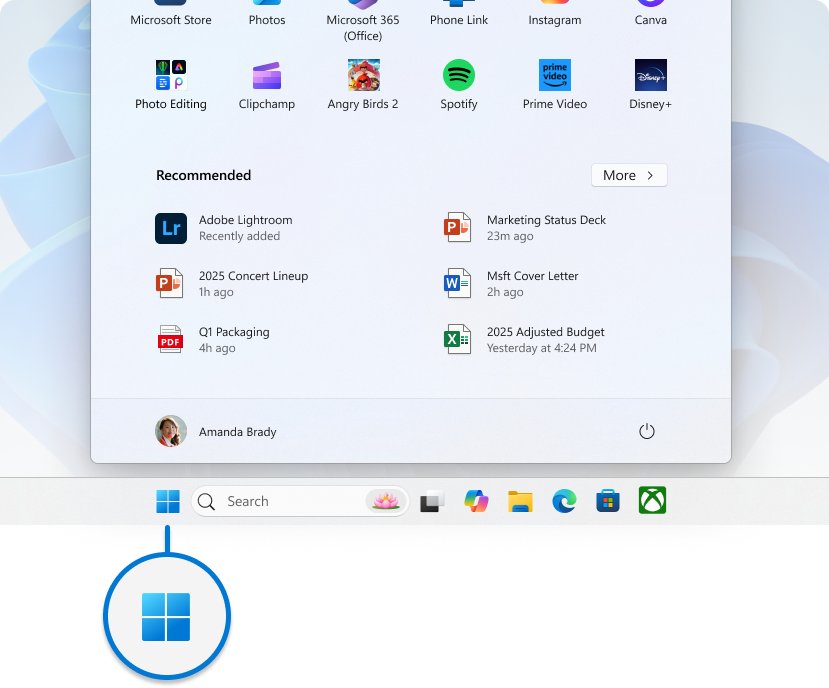
No. Windows 11 has no setting that moves the Power button from the Start menu onto the taskbar. A pinned shortcut is the closest built-in option, and it performs one action instead of opening a menu.
| What you want | Built-in option | One click from the taskbar? |
|---|---|---|
| The full Power menu | Start > Power | No, two clicks |
| A single shut down or restart action | Pinned shutdown shortcut |
Yes |
| Hibernate | Pinned shutdown /h shortcut |
Yes, once hibernate is turned on |
| Sign out | Pinned shutdown /l shortcut |
Yes |
| Lock | Windows logo key + L | No shortcut needed |
| Sleep | Start > Power > Sleep | No documented command for a shortcut |
If you only need to find the existing control, see where the Windows 11 power button is.
Before You Start: Choose the Power Action You Want
Each shortcut runs one command. Pick the row that matches what you do most.
| If you usually want to | Shortcut location to type | What happens |
|---|---|---|
| Turn the PC off at the end of the day | shutdown /s /t 0 |
Shuts down immediately |
| Shut down but keep fast startup | shutdown /s /hybrid /t 0 |
Shuts down and prepares the PC for fast startup |
| Restart after updates or a hang | shutdown /r /t 0 |
Restarts immediately |
| Leave the PC for someone else | shutdown /l |
Signs you out at once |
| Keep open apps but use no power | shutdown /h |
Hibernates, if hibernation is enabled |
| Have time to cancel | shutdown /s /t 30 |
Shuts down after 30 seconds unless you cancel |
Method 2: Add a Restart Button to the Taskbar
- Right-click the desktop and select New > Shortcut.
- Enter
shutdown /r /t 0and select Next. - Name it Restart and select Finish.
- Open Properties > Change Icon and pick an icon that differs from your shut down button.
- Right-click the shortcut, select Show more options > Pin to taskbar.
To add a delay that prevents accidental restarts, use shutdown /r /t 60 instead. Any timeout above 0 also forces open apps to close when it runs out, so save work during the countdown.
Method 3: Add Lock, Sign Out, or Hibernate Buttons
Sign out and hibernate have their own shutdown switches. Lock has no shutdown switch, so use the keyboard shortcut instead.
| Button | How to set it up |
|---|---|
| Sign out | Create a shortcut to shutdown /l, name it Sign out, change the icon, and pin it. /l cannot be combined with a timeout |
| Hibernate | Turn hibernate on first (steps below), then create a shortcut to shutdown /h, name it Hibernate, and pin it |
| Lock | Press Windows logo key + L; it locks the PC from anywhere without a taskbar icon |
To turn hibernate on, open Control Panel > System and Security > Power Options > Choose what the power buttons do, select Change settings that are currently unavailable, check Hibernate, and select Save changes. If the checkbox is missing, run powercfg /hibernate on in an administrator terminal.
What About a Sleep Button?
Windows has no documented command that only puts the PC to sleep, so there is no reliable sleep shortcut to pin. Use one of these routes instead.
| Route | Steps |
|---|---|
| Start menu | Select Start > Power > Sleep |
| Quick Link menu | Press Windows logo key + X, then Shut down or sign out > Sleep |
| Physical power button | Set When I press the power button to Sleep in Choose what the power buttons do |
| Laptop lid | Set When I close the lid to Sleep in the same window |
To make the physical button do something else, see how to customise Windows 11 power button settings.
How to Make the Taskbar Power Button Safer
A one-click shutdown icon sits next to apps you click all day. These changes stop a stray click from costing you unsaved work.
| Safeguard | How to apply it |
|---|---|
| Use a countdown timer | Change the shortcut target to shutdown /s /t 60; run shutdown /a to abort during the countdown |
| Add a warning message | Add /c "Shutting down - save your work" to the target, for example shutdown /s /t 60 /c "Shutting down - save your work" |
| Move the icon away from busy apps | Drag it to the far end of your pinned icons |
| Use a distinctive icon | Give shut down and restart clearly different icons in Change Icon |
| Add a cancel button | Pin a second shortcut to shutdown /a named Cancel shutdown |
Know the trade-off: any timeout above 0 implies /f, which closes running apps without asking when the countdown ends.
How to Create a Power Button Folder or Mini Power Menu
Keep all your power shortcuts in one place and reach them from the taskbar without pinning each one.
- Create a folder, for example Power in your Documents folder.
- Move your Shut down, Restart, Sign out and Hibernate shortcuts into it.
- Pin File Explorer to the taskbar if it is not already there.
- Open the Power folder in File Explorer, right-click it and select Pin to Quick access.
- Right-click the File Explorer taskbar icon to open the folder from the jump list, then double-click the action you want.
How to Pin a Power Shortcut If “Pin to Taskbar” Is Missing
Windows 11's short right-click menu does not always show Pin to taskbar for desktop shortcuts. Use the full menu or the Start menu.
- Right-click the shortcut and select Show more options to open the full menu.
- Select Pin to taskbar if it appears there.
- If it still does not, right-click the shortcut and select Pin to Start.
- Open Start, right-click the new pinned item, and select Pin to taskbar.
- Or search for the shortcut's name from Search, right-click the result, and select Pin to taskbar.
How to Remove the Power Button from the Taskbar
- Right-click the power icon on the taskbar.
- Select Unpin from taskbar.
- Delete the desktop shortcut too if you no longer need it.
How to test the button safely
- Save and close your open files.
- Temporarily change the shortcut target to
shutdown /s /t 120in Properties. - Click the taskbar icon and confirm Windows shows a sign-out warning with the countdown.
- Press Windows logo key + R, type
shutdown /aand press Enter to cancel. - Change the target back to
/t 0or keep the delay if you prefer it.
Troubleshooting Common Problems
Clicking the hibernate button does nothing
shutdown /h only works when hibernation is enabled.
- Open an administrator terminal.
- Run
powercfg /hibernate on. - Click the hibernate button again.
The power button on the taskbar opens a window and closes
The shortcut target has a typo, so the command shows its help text instead of running.
- Right-click the desktop shortcut and select Properties.
- Check that Target reads exactly
C:\Windows\System32\shutdown.exe /s /t 0, with a space before each switch. - Select OK, unpin the old taskbar icon, and pin the corrected shortcut.
Shutdown is blocked with an access message
Your account lacks the Shut down the system user right, often on work-managed PCs.
- Use Start > Power > Shut down instead.
- Ask your IT admin whether shutdown is restricted by policy.
The taskbar icon shows a blank or generic image
The icon was changed after pinning, or the icon cache did not refresh.
- Unpin the icon from the taskbar.
- Set the icon on the desktop shortcut with Change Icon.
- Pin the shortcut again.
Alternative Ways to Access Power Options Faster
These built-in routes reach power actions in two or three keys, with no shortcut to maintain.
| Route | What it opens |
|---|---|
| Start > Power | Sleep, Shut down, Restart, and Hibernate when enabled |
| Windows logo key + X > Shut down or sign out | Sign out, Sleep, Shut down, Restart, Hibernate |
| Windows logo key + D, then Alt + F4 | The Shut Down Windows prompt on the desktop |
| Ctrl + Alt + Delete | The security screen: lock, switch user, sign out, change a password, Task Manager |
| Windows logo key + L | Locks the PC instantly |
| Physical power button | Whatever you set under Choose what the power buttons do |
Frequently asked questions
How do I put a power button on the desktop in Windows 11?
Right-click the desktop, select New > Shortcut, enter shutdown /s /t 0, name it and select Finish. The shortcut on the desktop is your power button; pin it to the taskbar too if you want it there.
How do I put a power button on the taskbar in Windows 10?
The same shortcut works on Windows 10. Create it with shutdown /s /t 0, then right-click it and select Pin to taskbar directly, since Windows 10 shows that option in the first menu.
What does my power button do in Windows 11?
The physical button runs whichever action Windows is set to use: do nothing, sleep, hibernate, shut down or turn off the display. Check or change it in Control Panel > Power Options > Choose what the power buttons do, under When I press the power button.
What does holding the power button do?
Holding the physical power button for several seconds forces the PC off without closing Windows properly. Use it only when Windows is frozen, because unsaved work is lost.
How do I get the power button back in the Start menu?
The Power icon sits at the bottom right of the Windows 11 Start menu. If Hibernate is missing from it, enable it in Choose what the power buttons do under Change settings that are currently unavailable.
How do I power off without the power button?
Press Windows logo key + X, select Shut down or sign out > Shut down. You can also press Windows logo key + D and then Alt + F4 to open the shutdown prompt.
Can I cancel a shutdown started from the taskbar button?
Only if the shortcut uses a delay. Run shutdown /a from Run during the countdown. With /t 0, the shutdown starts at once and cannot be cancelled.
Best Setup for Most Windows 11 Users
Pin one shut down shortcut with a 30-second delay and a warning message, place it at the far end of the taskbar, and keep a pinned shutdown /a cancel button beside it. A delay and a cancel button remove the main risk of a one-click shutdown, while still saving the trip into the Start menu. Use Windows logo key + L for locking and the Start menu for sleep, since neither needs a shortcut.