Press the Windows key or select the Start button (the Windows logo) on the taskbar to open the Start menu in Windows 11.
This guide covers every documented way in, including Ctrl + Esc, touch and voice access, plus what to do when Start will not open or the button has disappeared.
The fastest way to open the Start menu
One key press does it on any Windows 11 PC with a standard keyboard, and the same key closes the menu again.
- Press the Windows key, the key with the Windows logo on it.
- Start opens with the search box at the top and your pinned apps below it.
- Type the name of an app, setting or file, or select a pinned app to open it.
- Press the Windows key again to close Start without opening anything.
No Windows key on your keyboard? Press Ctrl + Esc instead. Microsoft lists it as a second shortcut that opens Start.
What the Windows 11 Start menu is
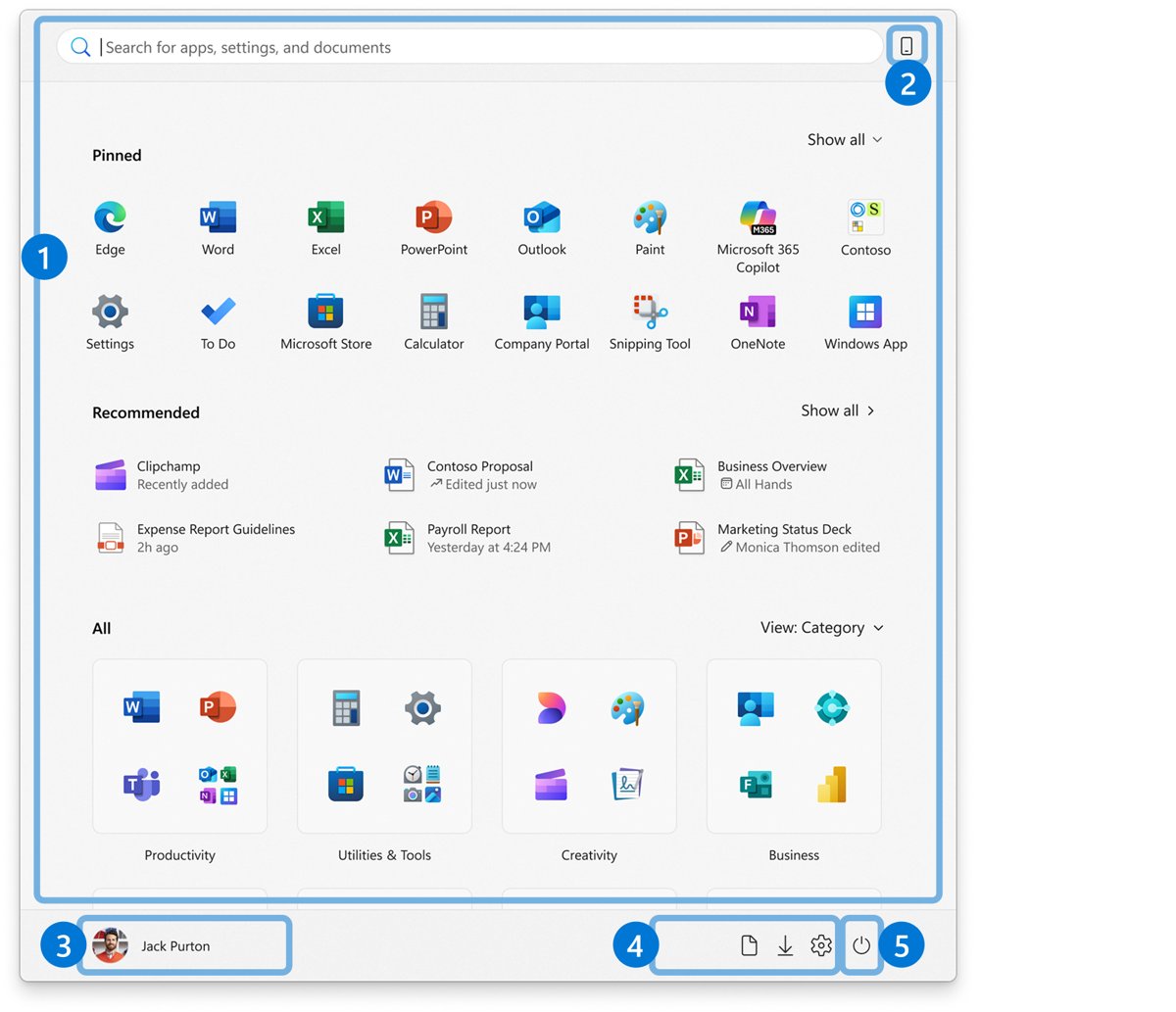
The Start menu is the launcher for your apps, settings and files. Microsoft splits it into six areas, and knowing their names makes every later step easier to follow.
| Area of Start | What it holds | What you do there |
|---|---|---|
| Search | A search box at the top | Type to find apps, files and settings |
| Pinned | Apps, files, folders and websites you pinned, in a grid | Open favourites in one click; select Show all to expand the grid |
| Recommended | Recently added apps, frequently used apps and recently opened files | Reopen recent work, or hide the section in Settings |
| All | Every installed app | Switch between Category, Grid and List views |
| Account and power | Your profile icon, optional folder shortcuts and the power button | Sign out, switch accounts, lock, sleep, restart or shut down |
| Mobile device companion | Phone content through Phone Link | See messages, calls and notifications from a linked phone |
Which way to open Start fits your situation?
| Your situation | Use this | Why |
|---|---|---|
| Keyboard with a Windows key | Press the Windows key | One key, opens and closes Start |
| Keyboard without a Windows key, or the key is broken | Press Ctrl + Esc | Opens Start without the Windows key |
| Mouse or touchpad | Select the Start button on the taskbar | Always visible unless the taskbar is hidden |
| Touchscreen or tablet | Swipe up from the bottom of the screen | No keyboard needed |
| You want an admin tool, not an app | Press Windows key + X or right-click Start | Opens the Quick Link menu of system tools |
| You only want to search | Press Windows key + S | Opens search directly |
| Hands-free with voice access | Say "Click Start" | Voice access clicks any on-screen item by name |
Open the Start menu with the taskbar button
The Start button is the Windows logo on the taskbar. In Windows 11 it sits in the centre group of icons by default, or in the far-left corner if you changed the alignment.
- With a mouse or touchpad, move the pointer to the taskbar at the bottom of the screen.
- Select the Start button, the Windows logo at the start of the taskbar icons.
- On a touchscreen, tap the Start button, or swipe up from the bottom edge of the screen.
- Select the Start button again, or click anywhere outside the menu, to close it.
Right-clicking the same button opens a different menu, the Quick Link menu, covered further down.
Open the Start menu with the keyboard
Microsoft's keyboard shortcut list gives two keys that open Start and several that jump straight to one of its jobs.
| Press | What happens |
|---|---|
| Windows key | Opens or closes the Start menu |
| Ctrl + Esc | Opens the Start menu; useful when the keyboard has no Windows key |
| Windows key + S | Opens search without the rest of Start |
| Windows key + X | Opens the Quick Link menu, the same as right-clicking Start |
| Windows key + I | Opens Settings directly |
| Windows key + R | Opens the Run dialog box |
Search from the Start menu
Start has search built in, so there is no need to click into the box first. Typing as soon as Start opens sends the text to search.
- Press the Windows key to open Start.
- Type the name of an app, such as
notepad, to find it. - Type a setting's name, such as
displayorbluetooth, to find a Settings page. - Type part of a file name to find documents and pictures.
- Press Enter to open the top result, or select a different result from the list.
- Right-click an app in the results for extra options such as Pin to Start.
Access the full app list
Windows 11 shows every installed app in the All section of Start. It offers three views, and Start remembers the last one you picked.
- Open Start with the Windows key or the Start button.
- Scroll down past Pinned and Recommended to the All section.
- Choose a view: Category groups apps automatically, while Grid and List sort them alphabetically.
- Select an app to open it, or right-click it for Pin to Start and other options.
- To find one app fast in a long list, type its name instead; search jumps straight to it.
If the All section is missing entirely on a work PC, an administrator has turned on the policy that removes the program list. The troubleshooting section below covers that case.
Open Start menu folders and quick links
Start can show shortcuts to common folders next to the power button. They are off by default, and turning them on gives one-click access to places such as Downloads.
- Open Start, right-click an empty area at the bottom of the menu and select Start settings. Or go to Settings > Personalization > Start.
- Select Folders.
- Turn on the switch for each folder you want: Documents, Downloads, Music, Pictures, Videos, Network or Personal folder.
- Open Start again. The folder icons now sit next to the power button.
- Select an icon to open that folder in File Explorer.
Use the Quick Link menu as a Start menu alternative
The Quick Link menu is a text menu of system tools that opens from the Start button. It reaches admin tools such as Task Manager faster than searching Start.
- Right-click the Start button on the taskbar, or press Windows key + X.
- Pick a tool from the list, for example Task Manager or Run.
- To shut down, restart or sign out from here, point to Shut down or sign out and choose an option.
- Press Esc or click elsewhere to close the menu without choosing anything.
Microsoft lists Windows key + X and right-clicking Start as the same action, so use whichever is closer to hand.
Move the Start menu to the left
Windows 11 centres the Start button by default. One setting moves it to the bottom-left corner, where Windows 10 kept it. The full set of classic-style changes is in getting the Windows 11 classic Start menu back.
- Right-click an empty part of the taskbar and select Taskbar settings.
- Expand Taskbar behaviors.
- Set Taskbar alignment to Left.
- Select the Start button in the corner to confirm Start now opens from the left.
Alignment is the only position option. Microsoft states there is no setting to move the taskbar to the top or side of the screen.
Pin apps to the Start menu
Pinned items appear at the top of Start, so pinning is the quickest way to reach an app you use daily. Apps, folders and websites can all be pinned.
- To pin from search: open Start, type the app's name, right-click it in the results and select Pin to Start.
- To pin from the app list: open the All section, right-click the app and select Pin to Start.
- To pin a folder: right-click it in File Explorer and select Pin to Start.
- To pin a website: open it in Microsoft Edge, open the … menu and select More tools > Pin to Start.
- To rearrange pins, drag a pin to a new position in the grid.
- To remove a pin, right-click it and select Unpin from Start.
Create folders in the Windows 11 Start menu
Folders group related pins into one tile, which keeps the Pinned grid short.
- Open Start and find two pinned apps you want to group.
- Drag one pin on top of the other. Windows creates a folder containing both.
- Open the new folder to rename it.
- Drag more pins onto the folder to add them.
- To remove a pin from the folder, open the folder and drag the pin out. Once only one pin is left, the folder disappears.
With the keyboard, move focus to a pin and press Ctrl + Shift + arrow key to move it into the neighbouring pin and form a folder.
Change what appears in the Start menu
Start's contents are controlled from one Settings page. Turning off every Recommended source collapses that section completely.
- Go to Settings > Personalization > Start.
- Turn Show recently added apps on or off.
- Turn Show most used apps on or off.
- Turn Show recently opened items in Start, Jump Lists, and File Explorer on or off.
- Select Folders to choose which folder shortcuts appear next to the power button.
- Open Start to see the result. The Pinned and All sections keep the last view you chose.
On work PCs, some of these switches are greyed out because a policy controls them. Trimming the Recommended area is covered in more depth elsewhere.
Access power options from the Start menu
The power button sits at the bottom-right corner of Start. Where the power button is on Windows 11 covers every other place to find it and how to add Hibernate.
- Open Start with the Windows key or the Start button.
- Select the Power icon in the bottom-right corner of the menu.
- Choose Sleep, Shut down or Restart. Hibernate appears here only if it is turned on for your PC.
Access account options from the Start menu
Your profile icon sits at the bottom-left of Start. It holds the options for your Windows account rather than the whole PC.
- Open Start.
- Select your profile picture or name in the bottom-left corner of the menu.
- Select Sign out to close your apps and return to the sign-in screen.
- Select Lock to lock the PC while leaving your apps running. Windows key + L does the same.
- Select another account's name to switch users without signing out.
- Select the account settings link in the same menu to change your account settings.
Use Start menu keyboard navigation
Start works without a mouse. Open it, type to search, and use these documented keys to rearrange pins.
| Task | Keys |
|---|---|
| Open or close Start | Windows key, or Ctrl + Esc to open |
| Search for an app, setting or file | Open Start and start typing, then press Enter |
| Open the Quick Link menu | Windows key + X |
| Move a pinned item that has focus | Alt + Shift + arrow keys |
| Merge a focused pin into the next one to make a folder | Ctrl + Shift + arrow keys |
| Open an app pinned to the taskbar instead | Windows key + number (1–9) for the app at that taskbar position |
Use Start with voice access and accessibility tools
Voice access in Windows 11 controls the PC by speech, without an internet connection. Its standard commands reach Start and everything in it.
- With voice access running, say "Voice access wake up" or "Unmute" so it listens.
- Say "Click Start" to open the Start menu.
- If the name is not recognised, say "Show numbers on taskbar", then say "Click" followed by the number shown on the Start button.
- Say "Open" followed by an app's name, such as "Open Calculator", to launch an app without opening Start at all.
- Say "Search for" followed by a file or app name to search Windows.
- Say "What can I say" to see the full command list.
Open Start on multiple monitors
Start opens from whichever taskbar you use. To have a Start button on every screen, show the taskbar on all displays.
- Right-click an empty part of the taskbar and select Taskbar settings.
- Expand Taskbar behaviors.
- Check Show my taskbar on all displays.
- Select the Start button on the second monitor's taskbar to open Start on that screen.
How to check the Start menu is working
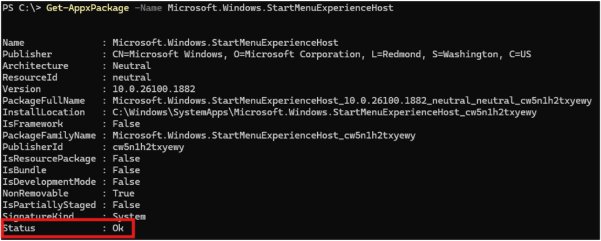
A working Start menu opens on the first key press and returns search results as you type. If it does not, this check shows whether the Start app is registered for your account at all.
Get-AppxPackage -Name Microsoft.Windows.StartMenuExperienceHostRun it in a normal, non-elevated Windows PowerShell window. It asks Windows whether the Start menu package is installed for the signed-in user.
You should see: Output listing the details of Microsoft.Windows.StartMenuExperienceHost means Start is installed for you. No output at all means the package is not registered for your account.
What to do if the Start menu will not open
Work through these in order. Each group starts with what you see on screen.
You can't access the Start menu at all: clicking Start and pressing the Windows key do nothing
The Windows Explorer process that runs the taskbar has stalled.
- Press Ctrl + Shift + Esc to open Task Manager.
- Find Windows Explorer in the list, right-click it and select Restart.
- If Windows Explorer is not listed, select Run new task, type
explorer.exeand press Enter. - Press the Windows key to test Start again.
- If it still fails, restart the PC from Ctrl + Alt + Del > Power > Restart.
The Start button works, but the Windows key does not
The fault is in the keyboard, not in Start.
- Press Ctrl + Esc. If Start opens, Start itself is fine.
- Test the keyboard on another PC, or connect a different keyboard.
- Use Ctrl + Esc or the Start button until the keyboard is replaced or repaired.
Start stopped opening after a Windows update
A known issue in a specific update, or an update that is only half installed.
- Press Windows key + I to open Settings.
- Go to Windows Update and select Check for updates.
- Install everything offered and restart the PC.
- Check the Windows release health dashboard for a known Start menu issue in your build. Past updates have broken Start, as with KB5028254 on Windows 11.
Start still will not open after a restart and updates
Damaged Windows system files.
- Press Windows key + X and select Windows Terminal (Admin), then select Yes.
- Run
DISM.exe /Online /Cleanup-image /Restorehealthand wait for it to finish. - Run
sfc /scannowand keep the window open until verification reaches 100%. - Restart the PC and test Start.
- If "Windows Resource Protection could not perform the requested operation" appears, run the scan again in safe mode.
Get-AppxPackage returns nothing for the Start menu package
Start is not registered for your user account.
- Open a normal, non-elevated PowerShell window.
- Run
Add-AppxPackage -Path "C:\Windows\SystemApps\Microsoft.Windows.StartMenuExperienceHost_cw5n1h2txyewy\AppxManifest.xml" -Register -DisableDevelopmentMode. - Sign out and back in, then test Start.
- If the package is missing for every user, Microsoft's fix is to roll back the update, reset the PC or restore from backup. There is no supported way to install the Start app files by hand.
Start opens, but the All apps list is missing
The policy "Remove All Programs list from the Start menu" is turned on.
- On a work or school PC, ask your IT administrator; the policy is set centrally.
- On a PC you manage, open the Local Group Policy Editor and check User Configuration > Administrative Templates > Start Menu and Taskbar, and the same folder under Computer Configuration.
- Set Remove All Programs list from the Start menu to Disabled or Not Configured in each place it is enabled.
- Sign out and back in, then open Start.
What to do if the Start button is missing
The whole taskbar, including Start, has disappeared
The taskbar is set to hide automatically.
- Move the pointer to the bottom edge of the screen, or touch the bottom edge. The taskbar slides back up.
- To keep it visible, right-click the taskbar and select Taskbar settings.
- Expand Taskbar behaviors and clear Automatically hide the taskbar.
Start is missing on your second monitor
The taskbar is shown only on the main display.
- Open Taskbar settings from the taskbar on your main display.
- Expand Taskbar behaviors.
- Check Show my taskbar on all displays.
The desktop is blank or black with no taskbar at all
Windows Explorer is not running.
- Press Ctrl + Shift + Esc to open Task Manager.
- Select Run new task, type
explorer.exeand press Enter. - If Task Manager does not open, press Ctrl + Alt + Del, select Task Manager, and repeat step 2.
The Start button itself cannot be removed from the taskbar. Microsoft's taskbar documentation states this directly, so a missing button always points to a hidden taskbar or a stopped Explorer process.
Frequently asked questions
How do I access the Start menu in Windows 11?
Press the Windows key, or select the Start button (the Windows logo) on the taskbar. Ctrl + Esc also opens Start, and on a touchscreen you can swipe up from the bottom of the screen. Press the Windows key again to close it.
How do I access the Start menu in Windows 10?
The same way as Windows 11: press the Windows key or Ctrl + Esc, or select the Start button. In Windows 10 the button sits on the left side of the taskbar, while Windows 11 centres it by default.
How do I access the startup menu in Windows 11?
"Startup menu" usually means Advanced startup, not Start. Go to Settings > System > Recovery and select Restart now next to Advanced startup. For apps that launch at sign-in, see Microsoft's page on configuring startup applications in Windows.
Why can't I access the Start menu in Windows 11?
Usually the Windows Explorer process has stalled. Open Task Manager with Ctrl + Shift + Esc, right-click Windows Explorer and select Restart. If Start still fails, install pending Windows updates, then run DISM and sfc /scannow from an admin terminal.
Why can't I access my Start menu in Windows 10?
Restart Windows Explorer from Task Manager first. Microsoft also documents a Windows 10 cause: the Background Tasks Infrastructure Service is not running. It must be set to start automatically in Services for Start to respond.
What is a Start menu in Windows?
The Start menu is the Windows launcher for apps, settings and files. In Windows 11 it has a search box, pinned apps, a Recommended list, an All apps list, your account icon and the power button.
How do I go to the Windows Start menu without a mouse?
Press the Windows key, or Ctrl + Esc if your keyboard has no Windows key. Type to search, then press Enter to open the top result. Windows key + X opens the Quick Link menu of system tools, and Windows key + S opens search on its own.
Can I remove or replace the Windows 11 Start button?
No. Microsoft states the Start menu cannot be removed from the taskbar. You can move it from the centre to the left with the Taskbar alignment setting, and change what appears inside it from Settings > Personalization > Start.