Open Start > Settings > Bluetooth & devices > Mouse to swap the primary button, change pointer speed and set scrolling on Windows 11.
Pointer size and color live under Accessibility > Mouse pointer and touch, the text cursor under Accessibility > Text cursor, and pointer schemes, double-click speed and ClickLock in the classic Mouse Properties dialog.
Customize basic mouse settings in Windows 11
The Mouse page in Settings holds the three changes most people want: which button is primary, how fast the pointer moves, and how the wheel scrolls.
- Select Start > Settings > Bluetooth & devices > Mouse.
- Open the drop-down next to Primary mouse button and choose Left or Right. Left-handed users usually pick Right.
- Drag the Mouse pointer speed slider until the pointer crosses the screen at a pace you can control.
- Under Scrolling, set Lines to scroll at a time with its slider.
- Close Settings. Every change applies the moment you make it, with no Save button.
To jump straight to this page, press Win + R, type ms-settings:mousetouchpad and press Enter.
Which Windows 11 page changes which mouse setting
Windows 11 splits mouse options across three Settings pages and one older dialog. Find the thing you want to change, then go to that page.
| You want to change | Go here | Direct link |
|---|---|---|
| Primary button, pointer speed, wheel scrolling | Settings > Bluetooth & devices > Mouse | ms-settings:mousetouchpad |
| Pointer size and color | Settings > Accessibility > Mouse pointer and touch | ms-settings:easeofaccess-mousepointer |
| Text cursor thickness and indicator | Settings > Accessibility > Text cursor | ms-settings:easeofaccess-cursor |
| Mouse keys (numeric keypad as a mouse) | Settings > Accessibility > Mouse | ms-settings:easeofaccess-mouse |
| Double-click speed, ClickLock, pointer schemes, trails, Snap To, precision | Mouse > Additional mouse settings (Mouse Properties) | Open from the Mouse page |
| Side and thumb buttons | The mouse maker's own app | Not in Windows Settings |
Use classic Mouse Properties for advanced button and pointer options
Mouse Properties is the older dialog that still holds double-click speed, ClickLock and the pointer scheme list. It opens from the Mouse page in Settings.
- Select Start > Settings > Bluetooth & devices > Mouse.
- Under Related settings, select Additional mouse settings. The Mouse Properties dialog opens.
- Select the Buttons tab.
- Under Double-click speed, move the Speed slider left if double-clicks keep registering as two single clicks, or right if they fire too easily.
- Tick Turn on ClickLock to highlight or drag items without holding the mouse button down.
- Select Apply, then OK.
The same dialog has Pointers, Pointer Options and Wheel tabs, covered in the sections below.
Customize the mouse pointer appearance
Windows 11 gives you two layers. Settings changes pointer size and color in one move; the Pointers tab swaps the shapes themselves, one at a time or as a full scheme.
- Select Start > Settings > Accessibility > Mouse pointer and touch.
- Under Mouse pointer style, choose white, black, inverted or the colored style.
- With the colored style selected, pick one of the recommended colors, or select Choose another color for a custom shade.
- Drag the Size slider until the pointer is as large as you want.
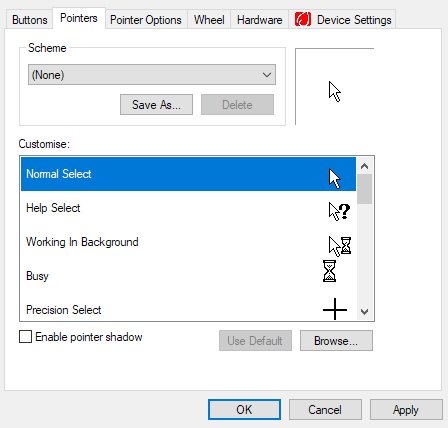
- For a different shape, open Bluetooth & devices > Mouse > Additional mouse settings and select the Pointers tab.
- Open the Scheme drop-down and pick a scheme to restyle every pointer at once.
- To replace a single pointer, select it in the Customize list, select Browse, pick a cursor file and select Open.
- Select Apply, then OK.
Custom pointer files must be in .cur (static) or .ani (animated) format. Only use cursor files from a source you trust.
Make the pointer easier to find
Four switches on the Pointer Options tab help when the pointer gets lost on a large or busy screen. Turn on only the ones you need.
| Problem | Option on the Pointer Options tab | What it does |
|---|---|---|
| You lose the pointer on a big or multi-monitor desktop | Show location of pointer when I press the CTRL key | Pressing Ctrl draws a circle around the pointer |
| You cannot follow the pointer while it moves | Display pointer trails, with its length slider | Leaves a short trail behind the moving pointer |
| The pointer covers the text you type | Hide pointer while typing | Hides the pointer until you move the mouse again |
| You travel far to reach OK in dialogs | Snap To: Automatically move pointer to the default button in a dialog box | Places the pointer on the default button when a dialog opens |
Open the tab from Settings > Bluetooth & devices > Mouse > Additional mouse settings > Pointer Options, tick the boxes and select OK. For a spotlight, click highlights or crosshairs, the free Microsoft PowerToys Find My Mouse utility adds more.

Customize the text cursor in Windows 11
The text cursor is the blinking bar where typed text appears. Windows 11 can make it thicker and add a colored indicator around it.
- Press Win + U to open Accessibility settings, or select Start > Settings > Accessibility.
- Select Text cursor.
- Turn on the Text cursor indicator switch.
- Drag the Size slider until the indicator looks right in the preview.
- Pick one of the recommended colors, or select Choose another color.
- Drag the Text cursor thickness slider until the bar in the preview is thick enough to spot.
Customize mouse wheel settings
Vertical scrolling is set in Settings. Sideways scrolling, for wheels that tilt, is still in Mouse Properties. If the wheel moves pages the opposite way you expect, change the scroll direction in the same Scrolling section.
- Select Start > Settings > Bluetooth & devices > Mouse and find Scrolling.
- In Roll the mouse wheel to scroll, choose Multiple lines at a time or One screen at a time.
- Set Lines to scroll at a time with the slider.
- Turn Scroll inactive windows when hovering over them on or off.
- In Scrolling direction, choose Down motion scrolls down or Down motion scrolls up.
- For tilt-wheel scrolling, select Additional mouse settings, open the Wheel tab and enter how many characters to scroll per tilt under Horizontal Scrolling. Select OK.
Customize extra mouse buttons
Windows Settings has no option to reassign side or thumb buttons. Its only button setting is Primary mouse button.
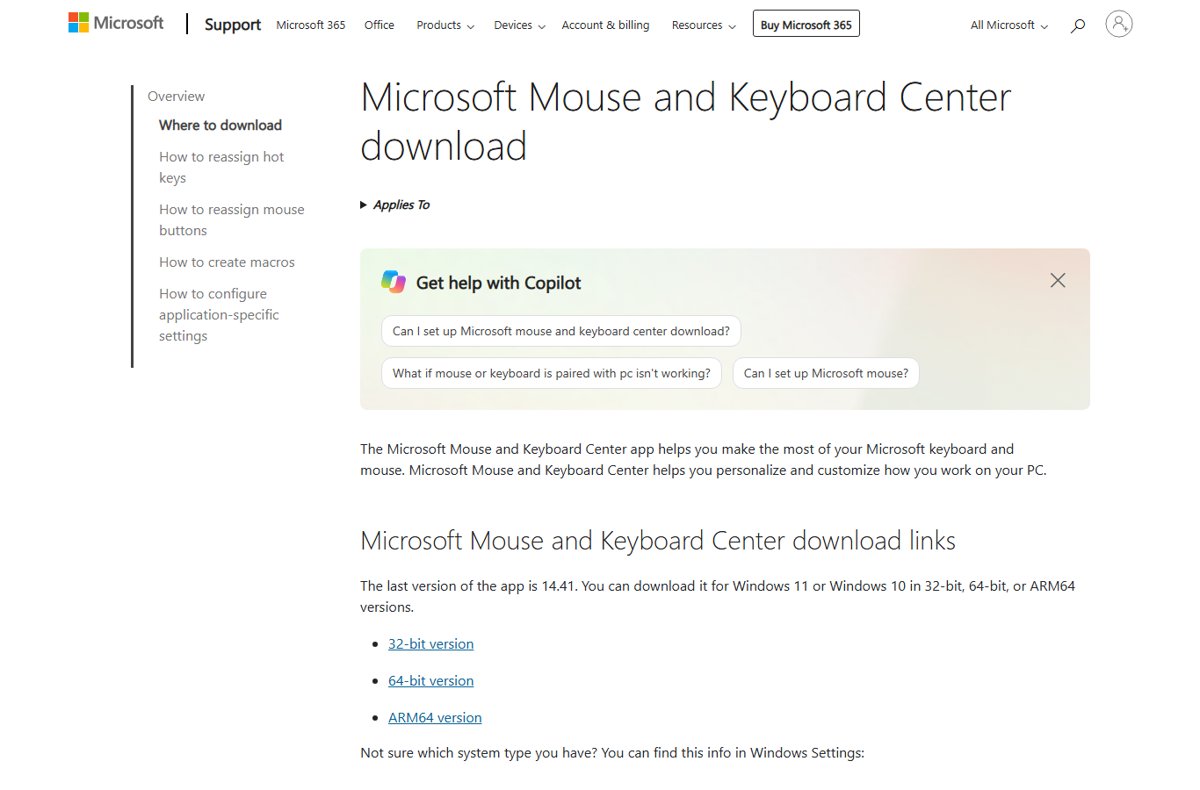
Extra buttons are programmed with the mouse maker's own software. For Microsoft mice, that is Microsoft Mouse and Keyboard Center, which reassigns buttons, records macros and sets per-app behavior.
| Your mouse | Use this | Where to get it |
|---|---|---|
| A supported Microsoft mouse (Arc, IntelliMouse, Sculpt and others) | Microsoft Mouse and Keyboard Center | The Microsoft Support download page, for Windows 11 or 10 in 32-bit, 64-bit or ARM64 |
| A mouse from another maker | That maker's configuration app | The manufacturer's own support site, never a download portal |
| Any mouse, left-handed use only | Primary mouse button set to Right | Built into Settings > Bluetooth & devices > Mouse |
After installing the maker's app, select the button you want to change and pick the new command from its list. Keep the app installed, since the assignments depend on it.
Customize mouse behavior for accessibility
Mouse keys turns the numeric keypad into a mouse. It helps when a mouse is hard to hold steady or when you need pixel-exact moves.
- Select Start > Settings > Accessibility.
- Under Interaction, select Mouse.
- Turn on the Mouse keys switch.
- Move the pointer with keypad 8 (up), 2 (down), 4 (left) and 6 (right); 7, 9, 1 and 3 move diagonally.
- Press / to select the left button, – for the right button, or \* for both.
- Press 5 to click, + to double-click, 0 to start a drag and . to drop.
Combine Mouse keys with a larger pointer and Snap To if reaching dialog buttons is the main difficulty.
Where the mouse settings live in Windows 11 and Windows 10
Older guides give Windows 10 paths. The classic dialog is the same on both versions; only the route to it changed.
| Setting | Windows 11 | Windows 10 |
|---|---|---|
| Mouse page | Settings > Bluetooth & devices > Mouse | Settings > Devices > Mouse |
| Link to Mouse Properties | Additional mouse settings | Additional mouse options |
| Pointer size and color | Accessibility > Mouse pointer and touch | Ease of Access > Mouse pointer |
| Pointer schemes | Additional mouse settings > Pointers tab | Additional mouse options > Pointers tab |
How to check your mouse changes worked
- Click a desktop icon once with your new primary button. It should highlight, and the other button should open a context menu.
- Double-click a folder. It should open on your normal rhythm; if not, adjust Double-click speed again.
- Open a long web page and roll the wheel one notch. The page should move the number of lines you set, in the direction you chose.
- Click into a text box in Notepad. The text cursor should show your thickness and indicator color.
- Press Ctrl if you turned on pointer location. A circle should appear around the pointer.
How to restore the default mouse pointer and buttons
- Open Settings > Bluetooth & devices > Mouse and set Primary mouse button back to Left.
- Open Settings > Accessibility > Mouse pointer and touch, choose the white style and drag Size back to its smallest step.
- Open Additional mouse settings > Pointers, open the Scheme drop-down and choose the Windows default scheme.
- Select Apply, then OK.
- In Settings > Accessibility > Text cursor, turn off Text cursor indicator and drag Text cursor thickness back to the left.
Troubleshoot mouse customization problems
Left click opens menus and right click selects
Primary mouse button is set to Right.
- Use the other button to open Start > Settings > Bluetooth & devices > Mouse.
- Set Primary mouse button to Left.
Double-click opens nothing or opens files by accident
The double-click speed does not match how fast you click.
- Open Additional mouse settings > Buttons.
- Move the Speed slider under Double-click speed one notch at a time.
- Double-click the folder icon in the test area after each change, then select OK.
Items stay stuck to the pointer after a click
ClickLock is on and treats a longer press as a locked drag.
- Open Additional mouse settings > Buttons.
- Clear Turn on ClickLock.
- Select OK.
The pointer disappears while you type
Hide pointer while typing is on.
- Move the mouse to bring the pointer back.
- Open Additional mouse settings > Pointer Options.
- Clear Hide pointer while typing and select OK.
The wheel scrolls a window you are not working in
Windows scrolls whatever window sits under the pointer.
- Open Settings > Bluetooth & devices > Mouse.
- Turn off Scroll inactive windows when hovering over them.
Side buttons do nothing after you set them
Button assignments come from the maker's app, and they stop when that app is removed.
- Reinstall the maker's app from the manufacturer's own site, or Microsoft Mouse and Keyboard Center for a Microsoft mouse.
- Check that the app lists your mouse model.
- Reassign the buttons inside the app.
Best settings to try first
Set Mouse pointer speed first, then raise the pointer Size one or two steps and turn on Show location of pointer when I press the CTRL key. Pointer speed decides how every other change feels, a slightly larger pointer is easier to track on high-resolution screens, and the Ctrl locator costs nothing until you need it.
Add a colored pointer or the text cursor indicator if you still lose track of either one. Change double-click speed only if double-clicks misfire.
Frequently Asked Questions
How do I customize my mouse pointer in Windows 11?
Open Settings > Accessibility > Mouse pointer and touch to change pointer size and color. For a different shape, open Bluetooth & devices > Mouse > Additional mouse settings, select the Pointers tab and pick a scheme or replace individual pointers.
How do I apply a custom mouse pointer?
Open Additional mouse settings > Pointers, select the pointer you want to replace in the Customize list, then select Browse. Choose your .cur or .ani file, select Open, then Apply. Repeat for each pointer role you want to change.
How do I get a custom mouse pointer?
Windows includes several pointer schemes in the Scheme list on the Pointers tab. Beyond those, a custom pointer is a .cur or .ani file. Get cursor files only from a source you trust, then load them with Browse on the Pointers tab. Some games ignore these files and draw their own pointer, so you install a custom osu! cursor through an osu! skin instead.
How do I create a custom mouse pointer?
Create the image in a cursor editor that saves in .cur format for a static pointer or .ani format for an animated one. Windows Settings only changes size and color. Load the finished file from the Pointers tab with Browse.
How do I change a custom mouse pointer back to the default?
Open Additional mouse settings > Pointers, choose the Windows default scheme in the Scheme drop-down, then select Apply and OK. In Accessibility > Mouse pointer and touch, pick the white style and the smallest size.
How do I personalize my mouse pointer color?
Open Settings > Accessibility > Mouse pointer and touch, select the colored style under Mouse pointer style, then choose a recommended color or select Choose another color. The pointer changes color immediately.
How do I customize the buttons on my mouse?
Windows 11 only lets you set the Primary mouse button to left or right, under Settings > Bluetooth & devices > Mouse. Side and thumb buttons are reassigned in the maker's software, such as Microsoft Mouse and Keyboard Center for Microsoft mice.
Can I use a custom mouse pointer for only one pointer state?
Yes. Each row in the Customize list on the Pointers tab is a separate state, such as normal select or busy. Replace only the rows you want and leave the rest on the current scheme.

![Speakers stuck on mute in Windows 11 [Fix]](https://techdows.com/wp-content/uploads/2026/10/Speakers-stuck-on-mute-in-Windows-11-Fix-3-600x338.jpg)
![Beginner’s guide to Windows 11 [2026 updated]](https://techdows.com/wp-content/uploads/2026/10/Beginners-guide-to-Windows-11-2026-updated-1-600x338.jpg)
How to Change Cursor Size and Color in Windows 10 & 11 - Techdows
[…] A scheme and the Settings color can clash. If the pointer ignores your Settings color after you apply a scheme, choose the color again in Mouse pointer and touch. For button, wheel and speed options in the same dialog, see how to customize mouse buttons, pointer and cursor on Windows 11. […]