To install a TrueType font on Windows 11, right-click the .ttf file and select Install, or select Install for all users to make it available to every account on the PC.
This guide covers the file method, the Font Previewer, Microsoft Store fonts, supplemental language fonts, how to remove a font, and fixes for fonts that do not show up in apps.
How to install TrueType fonts on Windows 11
Windows 11 installs TrueType (.ttf) and OpenType (.otf) files the same way. Fonts you download usually arrive in a .zip archive, and Windows cannot install a font while it is still inside the archive.
- Open File Explorer and go to the folder that holds the downloaded font, usually Downloads.
- If the font came as a .zip file, right-click the archive and select Extract All, then open the extracted folder.
- Right-click the .ttf file and select Install to add the font for your own account.
- To make the font available to every account on the PC, select Install for all users instead.
- If Windows asks to allow the app to make changes to your device, select Yes only when you trust the font's source.
- Close and reopen the app you want to use the font in, then pick it from the app's font list.
Install font for one user or all users in Windows 11
| Your situation | Use this | Why |
|---|---|---|
| You have a .ttf or .otf file and only you need it | Right-click > Install | Fastest route; the font is added for your account |
| Several people share the PC and all need the font | Right-click > Install for all users | Every account on the computer gets the font |
| You want to see the font before installing it | Double-click the file, then Install in Font Previewer | Shows sample text at several sizes first |
| You have many font files at once | Select them all, right-click > Install | Installs the whole selection in one step |
| You want a free font with no download site involved | Get more fonts in Microsoft Store | The Store installs the font automatically |
| You need fonts for another language or script | Download fonts for all languages or Optional features | Windows Update adds Microsoft's supplemental fonts |
Install TrueType font from Font Previewer
Double-clicking a font file opens it in the Font Previewer. This route suits anyone who has several candidate fonts and wants to check each one before adding it.
- Extract the font from its .zip archive if it is still compressed.
- Double-click the .ttf file to open it in the Font Previewer.
- Check the sample text and the character set at the different sizes shown.
- Select Install at the top of the preview window.
- Close the Font Previewer and open the app where you want the font.
Copy fonts into the Windows Fonts folder
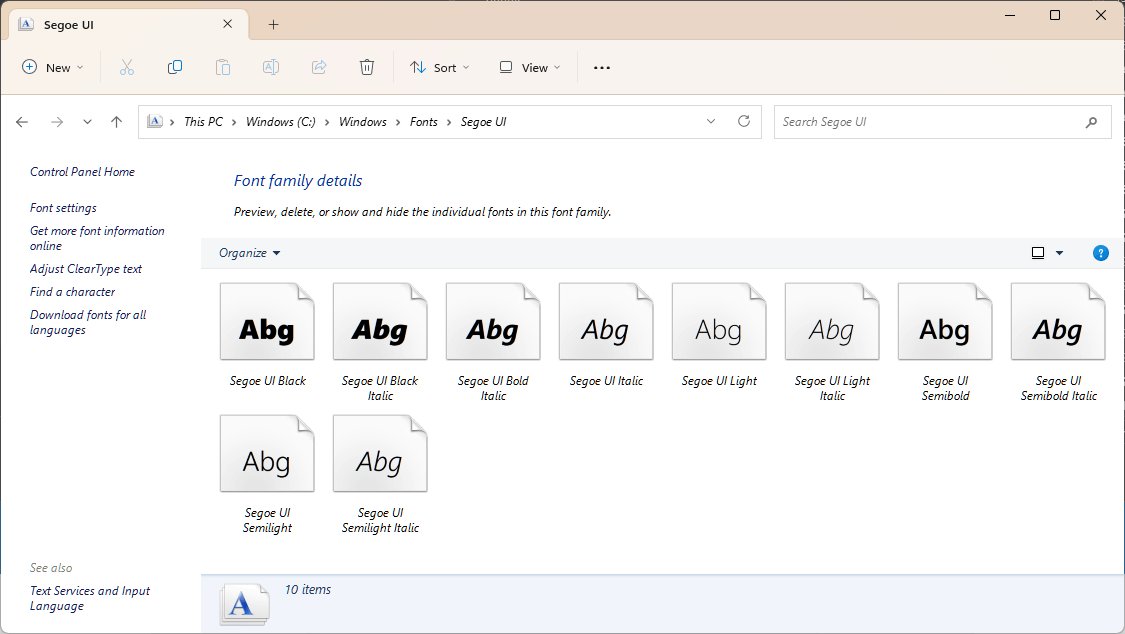
All fonts that ship with Windows are stored in the C:\Windows\Fonts folder. Dragging font files into that folder also adds them, which is handy for a large batch.
- Extract the downloaded fonts so the .ttf files sit in an ordinary folder.
- Press Win + R, type
C:\Windows\Fontsand press Enter. - Drag the .ttf files from the extracted folder into the Fonts window.
- Approve the permission prompt if one appears and you trust the source.
- Restart any app that was already open so it reloads its font list.
Get fonts from Microsoft Store in Windows 11
Microsoft Store offers free and paid font packs that install without a separate download. It is the same Store you use to install apps on a Windows PC.
- Open Settings and select Personalization > Fonts.
- Select Get more fonts in Microsoft Store.
- Choose the font you want from the Store's font list.
- Select Get for a free font or Buy for a paid one.
- Wait for the Store to download and install the font automatically.
Windows 11 fonts settings: install supplemental language fonts
Many fonts that older Windows versions shipped with, such as Meiryo, Batang, Gulim and Gautami, are now optional features. Windows Update downloads them, so the PC must be online.
- Open Settings > Personalization > Fonts.
- Under Related settings, select Download fonts for all languages, then select OK to add every supplemental font.
- To add only one script's fonts, open Settings > System > Optional features instead.
- Select View features next to Add an optional feature.
- Tick the supplemental font you need, for example Japanese Supplemental Fonts, and select Next.
- Review the list and select Add.
On some Windows 11 builds, Optional features sits under Settings > Apps rather than System.
Check installed fonts in Windows 11 settings
- Open Settings > Personalization > Fonts.
- Type the font's name in the search box above Available fonts.
- Select the font to open its preview page with sizes, styles and file details.
- Open Word or another editor and look for the font in the font drop-down list.
- Type a line of text in the font to confirm the characters render correctly.
The font's detail page also names its designer and manufacturer, which tells you whose license applies.
What is a TrueType font in Windows 11?
TrueType is an outline font format designed by Apple and used by Windows. A single outline per character scales to any size on screen or in print, and Windows includes the TrueType rasterizer that draws it.
| Point | TrueType (.ttf) | OpenType (.otf or .ttf) |
|---|---|---|
| Origin | Developed by Apple, adopted by Microsoft | Developed by Microsoft and Adobe as an extension of TrueType |
| Outlines | TrueType outlines | TrueType outlines, PostScript (CFF) outlines, or both |
| Glyph limit | Per the font file | Up to 64,000 glyphs |
| Advanced typography | Basic | Small caps, ligatures, alternate figures where the app supports them |
| Mac and Windows | Vendors may ship separate versions per platform | The same file works on both |
| How Windows installs it | Right-click > Install | Right-click > Install |
Every font Microsoft ships with Windows contains TrueType outlines, even when it is labelled OpenType.
Should I install TrueType or OpenType fonts?
Install the OpenType version when a font vendor offers both formats, and use TrueType when it is the only file provided. OpenType is a superset of TrueType, holds more characters and supports more typographic features, and one OpenType file works on Windows and Mac.
Where to download TrueType fonts safely
| Source | What you get | What to check |
|---|---|---|
| Microsoft Store | Free and paid font packs installed automatically | Price and the publisher listed on the Store page |
| Supplemental fonts in Windows | Microsoft's own fonts for Arabic, Japanese, Korean, Hebrew, Thai and other scripts | An internet connection, because Windows Update supplies them |
| Font foundry websites | Commercial fonts as .ttf or .otf files | The license terms for commercial use and embedding |
| Free font sites | Fonts released by their designers at no cost | The license file in the archive; some free fonts restrict commercial use or require attribution |
Microsoft's font FAQ notes that some free fonts carry limited licenses, and that foundries may sell the extended rights separately. Read the license that comes with the archive before using a font in commercial work.
Manage fonts in Windows 11: hide, preview and uninstall
The Fonts page in Settings lists every installed font, lets you search it, and removes fonts you no longer need. Hiding a font keeps it installed but takes it out of app font lists.
- Open Settings > Personalization > Fonts.
- Search for the font under Available fonts.
- Select the font to preview its sizes and styles.
- To remove it, select Options on the font, or open its page, and select Uninstall.
- Confirm the removal, then restart any app that was using the font.
Removing a font that a document uses makes the document fall back to a substitute font when you open it.
How to use TrueType font files in Word and other apps
| Task | What to do | Note |
|---|---|---|
| Use the font in Word, Excel or PowerPoint | Close and reopen the app, then pick the font from the font list on the Home tab | Office reads fonts installed in Windows; no separate install is needed |
| Share a document that uses a custom font | Embed the font in the file, or send the font to the recipient | Without it, the other PC shows a substitute font |
| Embed fonts in documents | Use an app that follows the TrueType and OpenType embedding rules, such as Word or PowerPoint | The font's own embedding flag decides whether the document stays editable |
| Use the font in a design app | Restart the app after installing | Feature support, such as ligatures, varies between apps |
| Open a .ttf file to look at it | Double-click it to open Font Previewer | Previewing does not install the font |
A font with the "print and preview" embedding flag locks the whole document for editing on a PC that does not have the font installed.
TrueType font not showing in Windows 11 apps: fixes
The installed font does not appear in an app's font list
The app loaded its font list before the install, or it does not support custom fonts.
- Close the app completely and open it again.
- Check Settings > Personalization > Fonts to confirm the font is listed.
- Open a different app, such as Word or Notepad, to see whether the font appears there.
- If it appears elsewhere, the first app does not support custom fonts.
There is no Install option when you right-click the font
The font file is still inside a .zip archive, or the file is not a .ttf or .otf font.
- Right-click the .zip file and select Extract All.
- Open the extracted folder and right-click the .ttf or .otf file there.
- Check the file extension; web font files such as .woff or .woff2 are not desktop fonts.
- Ask the font's publisher for a desktop .ttf or .otf version if only web fonts were supplied.
Another user on the PC cannot see the font
The font was installed with Install, which adds it for your account only.
- Right-click the original .ttf file again.
- Select Install for all users.
- Approve the administrator prompt.
- Ask the other user to restart the app they want the font in.
Fonts are missing after upgrading to Windows 11
Many older Windows fonts are now optional features that are not enabled by default.
- Open Settings > System > Optional features.
- Select View features next to Add an optional feature.
- Tick the supplemental font package for the missing font's script.
- Select Next, then Add, and keep the PC online while Windows Update installs it.
A document shows a different font on another computer
The custom font is installed on your PC but not on the other one.
- Install the same font on the other PC, if its license allows that.
- Or embed the font in the document from an app that supports font embedding.
- Save a PDF copy when the recipient only needs to read or print the file.
Install TrueType fonts in Windows 11 FAQ
How do I install TrueType fonts on Windows 11?
Right-click the .ttf file and select Install, or Install for all users to add it for every account. If the font is in a .zip archive, extract it first. Restart the app you want to use it in so the font appears in its list.
Should I install TrueType or OpenType fonts?
Choose OpenType when a vendor offers both. OpenType extends TrueType, supports more characters and typographic features, and one file works on Windows and Mac.
How do I use a TrueType font file?
Install it first by right-clicking the .ttf file and selecting Install. Then open Word, Photoshop or any other app and pick the font by name from the font list. Apps that were open during the install need a restart to see it.
How do I open a TrueType font file?
Double-click the .ttf file in File Explorer. Windows opens it in Font Previewer, which shows sample text at several sizes. Opening the file does not install it; select Install at the top of the window to add the font.
How do I install OpenType fonts on Windows 11?
OpenType fonts install exactly like TrueType fonts. Right-click the .otf file and select Install or Install for all users, or double-click it and select Install in Font Previewer. Settings > Personalization > Fonts then lists the font.
Where are TrueType fonts stored in Windows 11?
Fonts that ship with Windows are stored in the C:\Windows\Fonts folder. Settings > Personalization > Fonts lists every installed font, including ones added for your account only, with a preview and file details.
Can I install several fonts at once in Windows 11?
Yes. Select all the extracted .ttf files in File Explorer, right-click the selection and choose Install. You can also drag the whole selection into the C:\Windows\Fonts folder to add them in one step.
Do TrueType fonts from Windows 10 work on Windows 11?
Yes. Windows 11 uses the same TrueType and OpenType support as Windows 10, and the right-click Install method works the same way on both. A font file that installs on Windows 10 installs on Windows 11 without conversion.
Why is my installed font not showing in Word?
Word builds its font list when it starts, so close and reopen it after installing a font. If the font still does not appear, check Settings > Personalization > Fonts to confirm it installed, and test it in another app.
Best way to install TrueType fonts on Windows 11
Extract the font, right-click the .ttf file and select Install for your own use, or Install for all users on a shared PC. It is the shortest route, works for TrueType and OpenType alike, and the font shows up in Settings and in every app that supports custom fonts after a restart. Use Microsoft Store or Optional features when you want fonts that Windows installs and maintains for you.