Personalization settings in Windows 10 are in Settings > Personalization, which you can open by right-clicking the desktop and selecting Personalize.
This guide walks through each page (Background, Colors, Lock screen, Themes, Fonts, Start and Taskbar), plus desktop icons, mouse pointers, resetting the look and fixing Settings when it stops responding.
How to open personalization in Windows 10
Any of these routes lands on the same Personalization page in the Settings app.
- Right-click an empty area of the desktop.
- Select Personalize to open Settings on the Background page.
- Or press Windows key + I, then select Personalization.
- Or press Windows key + R, type
ms-settings:personalizationand press Enter. - Pick a page from the left pane: Background, Colors, Lock screen, Themes, Fonts, Start or Taskbar.
Personalization settings in Windows 10
Each page in the left pane controls one part of the desktop. Use this table to jump to the page that changes what you want.
| Personalization page | What it changes | Typical change |
|---|---|---|
| Background | The desktop wallpaper and how it fits the screen | A photo, a solid color, a slideshow or Windows spotlight |
| Colors | Light or dark mode, accent color and transparency | Dark mode with a custom accent on the taskbar |
| Lock screen | The lock screen picture and the app status it shows | Windows spotlight images and a calendar status |
| Themes | Background, color, sounds and mouse cursor as one bundle | Apply a Microsoft Store theme or save your own |
| Fonts | Installed fonts, previews and removal | Install a .ttf or .otf file for all users |
| Start | Start menu layout and the folders beside the power button | Full-screen Start or a Downloads shortcut |
| Taskbar | Taskbar lock, auto-hide, position, button size and tray icons | Auto-hide the taskbar or move it to the top |
Microsoft ended Windows 10 support on October 14, 2025. These settings keep working, but the PC no longer receives free security fixes.
Change the desktop background in Windows 10
- Open Settings > Personalization > Background.
- Open the Background drop-down and choose Picture, Solid color, Slideshow or Windows spotlight.
- For Picture, select a default image or click Browse to use one of your own.
- For Slideshow, choose a folder, set how often the picture changes, and turn shuffle on if you want a random order.
- Under Choose a fit, pick Fill, Fit, Stretch, Tile, Center or Span.
You can also right-click any image file in File Explorer and select Set as desktop background. With a slideshow running, right-click the desktop and select Next desktop background to skip ahead.
Choose a fit for the desktop background image
The fit decides how a picture that does not match your screen shape is drawn. It applies to both Picture and Slideshow.
| Fit | What it does | Best for |
|---|---|---|
| Fill | Enlarges the image to cover the screen and crops the edges | Most photos |
| Fit | Shows the whole image at its aspect ratio, with bars if needed | Pictures you do not want cropped |
| Stretch | Stretches the image to the screen, which can distort it | Images already at your screen ratio |
| Tile | Repeats the image across the screen | Small patterns |
| Center | Places the image in the middle without resizing | Logos or small artwork |
| Span | Spreads one image across several monitors | Multi-monitor setups |
On several displays, right-click a picture in the Background page to set it for all monitors or for one monitor. A slideshow shows a different picture on each screen.
Change colors, dark mode and accent color in Windows 10
- Open Settings > Personalization > Colors.
- Under the color mode list, choose Light, Dark or Custom; Custom lets you set Windows and apps separately.
- Turn Transparency effects on or off.
- Let Windows pick an accent from your background, or select a tile under Windows colors.
- Tick the accent surfaces you want: Start, taskbar and action center, and title bars and window borders.
The Start, taskbar and action center option only works with Dark mode or a Custom setup that uses dark for Windows.
Customize the lock screen in Windows 10
- Open Settings > Personalization > Lock screen.
- Under Background, choose Windows spotlight, Picture or Slideshow.
- Under Choose one app to show detailed status on the lock screen, pick an app such as Calendar, or None.
- Under Choose which apps show quick status on the lock screen, select a plus icon and add an app.
- Turn on Show the lock screen background picture on the sign-in screen to use the same image on both screens.
Apply, save, share or delete themes in Windows 10
- Open Settings > Personalization > Themes.
- Select one of the installed themes to apply it, or open the Microsoft Store from this page to get more.
- Adjust Background, Color, Sounds and Mouse cursor at the top of the page to make the theme your own.
- Select Save and type a name to keep your combination.
- Right-click a saved theme and select Save theme for sharing to create a
.deskthemepackfile. - Right-click a saved theme and select Delete to remove it.
The default Windows themes cannot be deleted. Contrast themes for low vision are managed separately from regular themes.
Install, preview and remove fonts in Windows 10
- Open Settings > Personalization > Fonts to see the installed fonts under Available fonts.
- Type a name in the search box to find and preview a font.
- To add a font, extract it if it came in a .zip file, then right-click the .ttf or .otf file and select Install, or Install for all users.
- To get a font from Microsoft, select Get more fonts in Microsoft Store on the Fonts page.
- To remove a font, select it on the Fonts page and choose Uninstall.
Install fonts only from sources you trust. Some apps ignore newly installed fonts, so test in a second app before assuming the install failed.
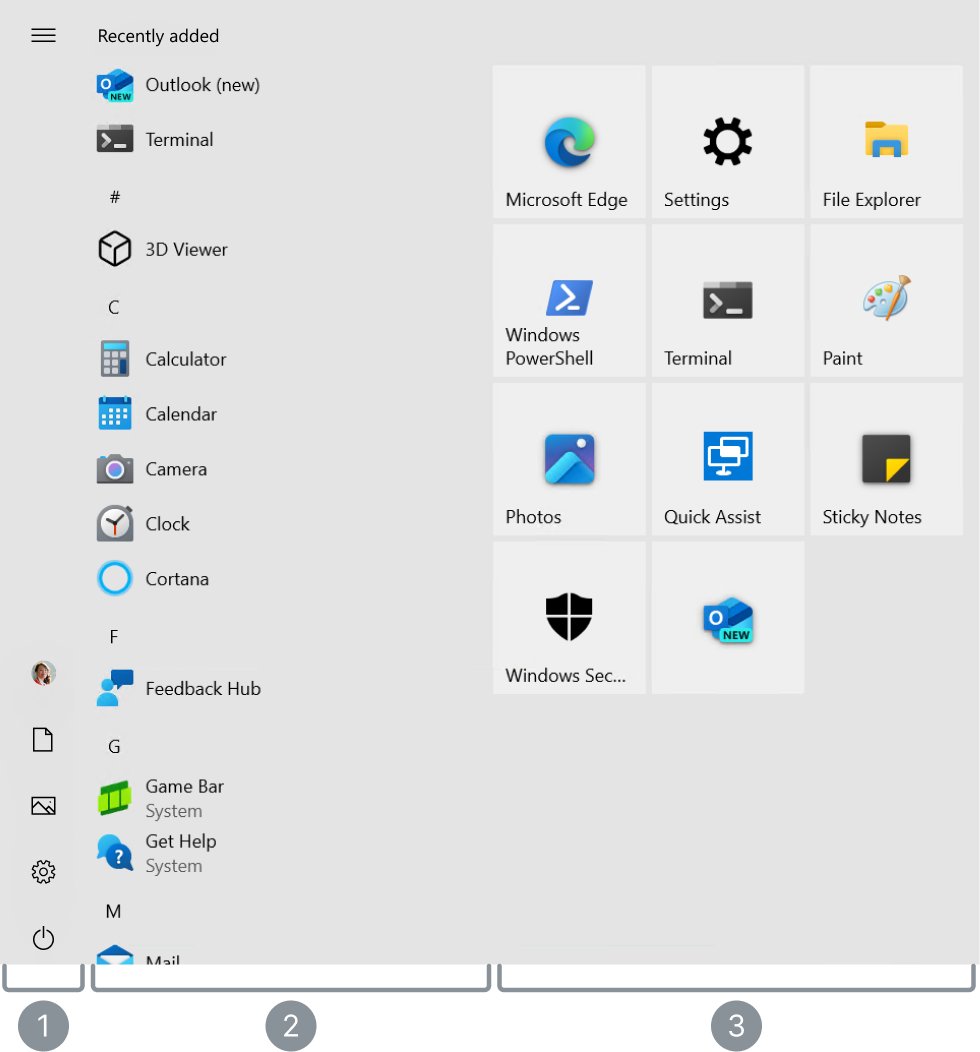
Change Start menu settings in Windows 10
- Open Settings > Personalization > Start.
- Turn on Use Start full screen if you want Start to cover the whole display.
- Toggle Show app list in Start menu to show or hide the alphabetical app list.
- Select Choose which folders appear on Start.
- Turn on the folders you want beside the power button, such as Downloads or Settings.
To pin an app, type its name in the taskbar search box, right-click the result and select Pin to Start. Right-click a tile and choose Unpin from Start to remove it.
Change taskbar settings in Windows 10
- Right-click an empty area of the taskbar and select Taskbar settings.
- Turn off Lock the taskbar if you plan to move it.
- Turn on Automatically hide the taskbar in desktop mode or Automatically hide the taskbar in tablet mode to hide it until you point at it.
- Turn on Use small taskbar buttons for a slimmer bar.
- Under Taskbar location on screen, choose Left, Top, Right or Bottom.
- Under Combine taskbar buttons, choose Always, hide labels, When taskbar is full or Never.
- Under Notification area, use Select which icons appear on the taskbar and Turn system icons on or off.
Show or hide desktop icons in Windows 10
- Open Settings > Personalization > Themes.
- Select Desktop icon settings under related settings.
- Tick the icons you want (This PC, Recycle Bin, Network or your user files), then select OK.
- To hide every icon, right-click the desktop, select View and clear Show desktop icons.
- To resize icons, right-click the desktop, select View and choose Large icons, Medium icons or Small icons.
Holding Ctrl while you turn the mouse wheel on the desktop also resizes the icons. Clear Allow themes to change desktop icons if a theme keeps swapping them.
How to customize mouse buttons, pointer, cursor on Windows 10
Mouse settings sit under Devices, while pointer size and color sit under Ease of Access. The pointer scheme also follows the active theme.
- Open Settings > Devices > Mouse.
- Use Select your primary button to swap the left and right buttons.
- Drag the Cursor speed slider to change how fast the pointer moves.
- Set Roll the mouse wheel to scroll and Choose how many lines to scroll each time.
- Select Additional mouse options, open the Pointers tab, choose a Scheme and select OK.
- For a bigger or colored pointer, open Settings > Ease of Access > Mouse pointer and use Change pointer size and color.
The Buttons tab in Additional mouse options holds the double-click speed slider, and the Pointer Options tab holds Enhance pointer precision.
Check that your Windows 10 personalization changes applied
- Minimize your open windows and confirm the new background and icons on the desktop.
- Lock the PC and check the lock screen picture and status apps.
- Sign back in and check that the sign-in screen shows the picture you chose.
- Open Start to confirm the color mode, accent color and folder shortcuts.
- Open Settings > Personalization > Themes and check that the theme you applied or saved is the current one.
Reset personalization settings in Windows 10 to default
There is no single reset button for personalization. Re-applying a built-in theme restores most of the look in one click.
- Open Settings > Personalization > Themes.
- Select one of the default Windows themes to restore the stock background, colors, sounds and mouse cursor.
- Open Colors and choose Light or Dark again, with the accent surfaces cleared.
- Open Taskbar and turn Lock the taskbar back on, with Taskbar location on screen set to Bottom.
- Open Lock screen and set Background back to Windows spotlight.
SystemSettings.exe suspended or stopped interacting in Windows 10
SystemSettings.exe is the Settings app itself. When it hangs, every Personalization page stops responding with it.
Settings freezes or shows "SystemSettings.exe has stopped interacting with Windows"
The Settings app process has hung, often after an interrupted update.
- Press Ctrl + Shift + Esc to open Task Manager.
- Select Settings in the list and click End task.
- Reopen Settings with Windows key + I.
- If it hangs again, restart the PC before trying another change.
Settings will not open or crashes on every launch
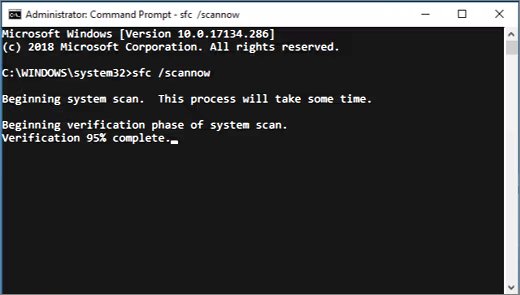
Damaged system files that the Settings app depends on.
- Type
cmdin the taskbar search box, right-click Command Prompt and select Run as administrator. - Run
DISM.exe /Online /Cleanup-image /Restorehealthand wait for it to finish. - Run
sfc /scannowand leave the window open until verification reaches 100%. - Restart the PC and open Settings again.
- If Settings still fails, reset Windows 10 as a last resort after backing up your files.
Personalized settings not working in Windows 10 after a change
A theme or a later setting overrides the change you made.
- Open Settings > Personalization > Themes and check which theme is active.
- Re-apply your background or colors after picking the theme, because a theme replaces them.
- Clear Allow themes to change desktop icons in Desktop icon settings if icons keep reverting.
- Sign out and back in so Explorer reloads the taskbar and Start menu.
Windows 10 personalization settings FAQ
How do I open personalization in Windows 10?
Right-click an empty area of the desktop and select Personalize. You can also press Windows key + I and select Personalization, or type ms-settings:personalization in the Run box. All three routes open the same Personalization page in Settings.
How do I personalize Windows 10?
Open Settings > Personalization and work through the pages in the left pane. Background sets the wallpaper, Colors sets dark mode and the accent, Lock screen sets the sign-in picture, and Themes bundles them. Start and Taskbar control the layout of those two areas.
How do I change personalization on Windows 10?
Change one page at a time in Settings > Personalization. Each change applies immediately with no Save button. Applying a theme afterwards replaces your background and colors, so pick the theme first and then fine-tune the individual pages.
How do I customize Windows 10 settings beyond the look?
Personalization covers appearance only. Mouse buttons and scrolling are under Settings > Devices > Mouse, pointer size and color are under Ease of Access > Mouse pointer, and activation status is under Update & Security > Activation.
How do I reset personalization settings in Windows 10?
Open Settings > Personalization > Themes and select one of the default Windows themes. That restores the stock background, colors, sounds and mouse cursor. Taskbar, Start and lock screen options keep their own values, so set those back individually.
Why are my personalized settings not working in Windows 10?
A theme applied after your change usually overwrites it, or the Settings app has hung. End the Settings task in Task Manager, reopen it and re-apply the change. If Settings keeps failing to open, run DISM and sfc /scannow from an elevated Command Prompt.
Are there personalization apps for Windows 10?
Yes. The Themes page links to free themes in the Microsoft Store, and the Fonts page links to Store fonts. Microsoft also publishes the Bing Wallpaper app, which changes the desktop background to the daily Bing image.
How are personalization settings in Windows 11 different?
Windows 11 keeps the same Personalization category but rearranges it. Start uses a pinned grid with folders instead of live tiles, and the color and accent options are laid out differently, so the Windows 10 steps here do not map one to one.