To turn on Windows 11 dark mode, open Settings > Personalization > Colors and set Choose your mode to Dark. The change applies instantly, with no restart, to Start, the taskbar, Settings, File Explorer and every app that follows the Windows theme.
If something stays light, you have three other tools: Custom mode for mixing light and dark, a contrast theme to force dark colors onto everything, and PowerToys Light Switch to switch automatically at night. Browsers and Office have their own switches, covered below.
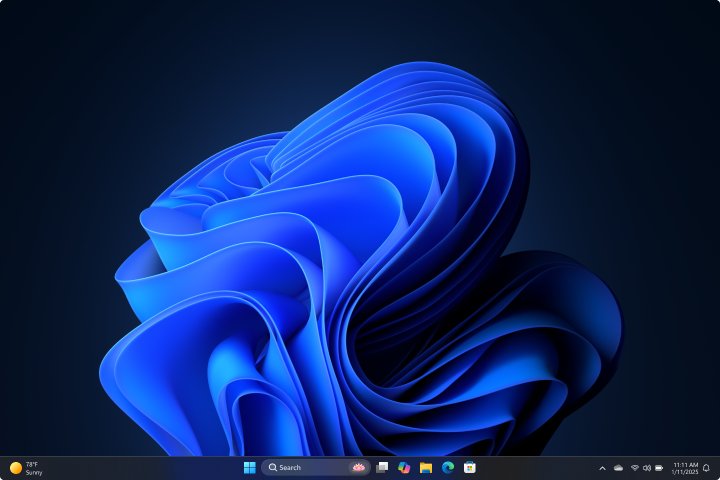
Turn on dark mode in Windows 11 via Settings
- Select Start, then open Settings.
- Select Personalization in the left pane.
- Select Colors.
- Open the Choose your mode list and select Dark.
- Close Settings. The change applies immediately.
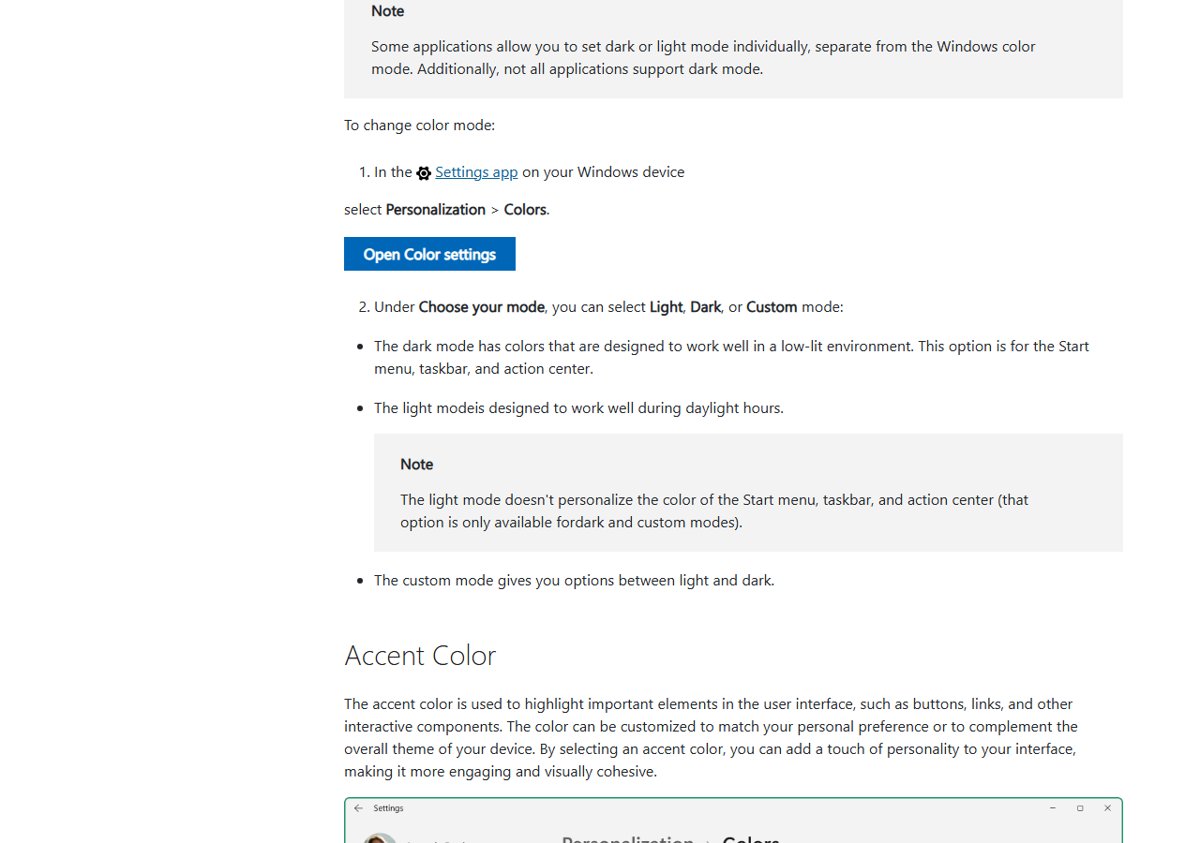
To jump straight to the page, press Windows + R, type ms-settings:colors and press Enter.
Choose Dark, Light or Custom mode
The Choose your mode list has three options, and the third is the one most guides skip.
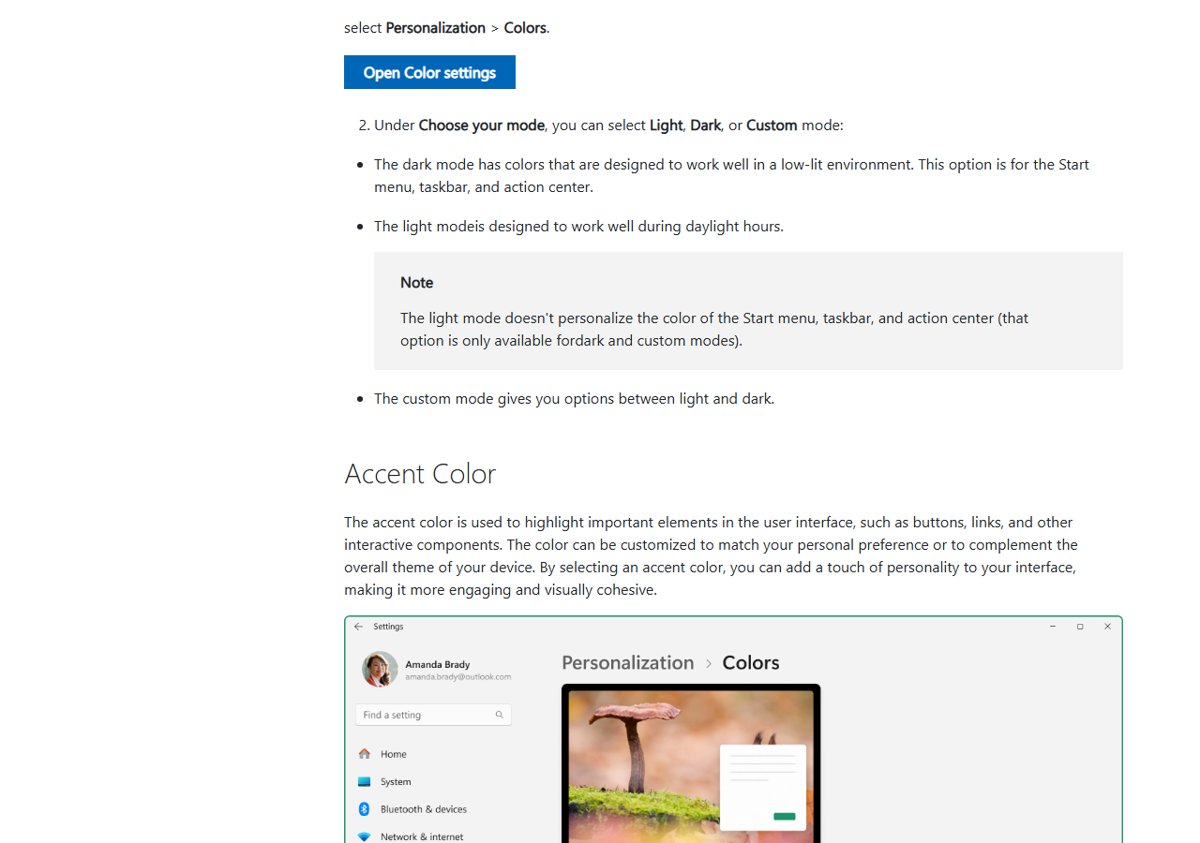
| Part of Windows | Dark | Light | Custom |
|---|---|---|---|
| Start menu, taskbar, action center | Dark | Light | Your choice for Windows mode |
| Settings, File Explorer and other Windows apps | Dark | Light | Your choice for app mode |
| Accent color on Start and taskbar | Available | Not available | Available when Windows mode is dark |
| Third-party apps and websites | Only if the app follows the system theme | Unchanged | Follow the app mode, if supported |
| Documents, photos and videos | Unchanged | Unchanged | Unchanged |
Pick Custom to make only apps dark while the taskbar stays light, or the reverse: Windows then shows two lists, one for the Windows mode and one for the default app mode.
Dark mode is a color mode, not a filter. Windows recolors its own surfaces and tells apps what you prefer; each app decides whether to follow. Microsoft lists dark mode among its power-saving settings because it cuts screen power use on OLED displays; on a standard LCD the saving is small.
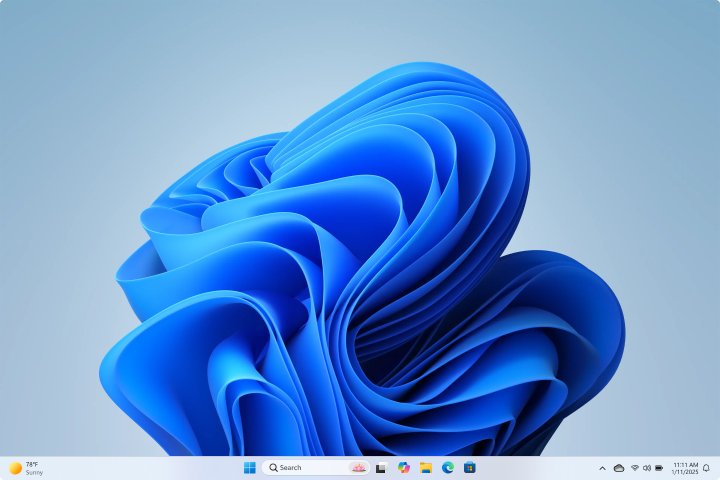
Enable dark mode on Windows 11 using Copilot
Two shortcuts skip the menu path.
- Search: select Start, type dark mode, and open the color settings result. It lands on the same Colors page.
- Copilot: on PCs where Copilot can change settings, ask it to “turn on dark mode” and confirm when it asks. “Turn off dark mode” reverses it the same way.
Copilot’s settings control depends on your Windows build and region. If it answers with instructions instead of a confirmation button, use the Settings route.
Enable dark mode from themes on Windows 11
A theme bundles a desktop background, window colors, sounds and a mouse cursor, so a dark theme sets the color mode and a matching wallpaper in one click.
- Open Settings and select Personalization > Themes.
- Pick a theme whose preview has a dark taskbar and window, such as Windows (dark).
- For more, select Browse themes to get free themes from the Microsoft Store.
- To keep your own combination, select Save and name the theme.
Right-click a saved theme and select Save theme for sharing to create a .deskthemepack file you can copy to another PC.
Dark taskbar and Start menu in Windows 11 with an accent color
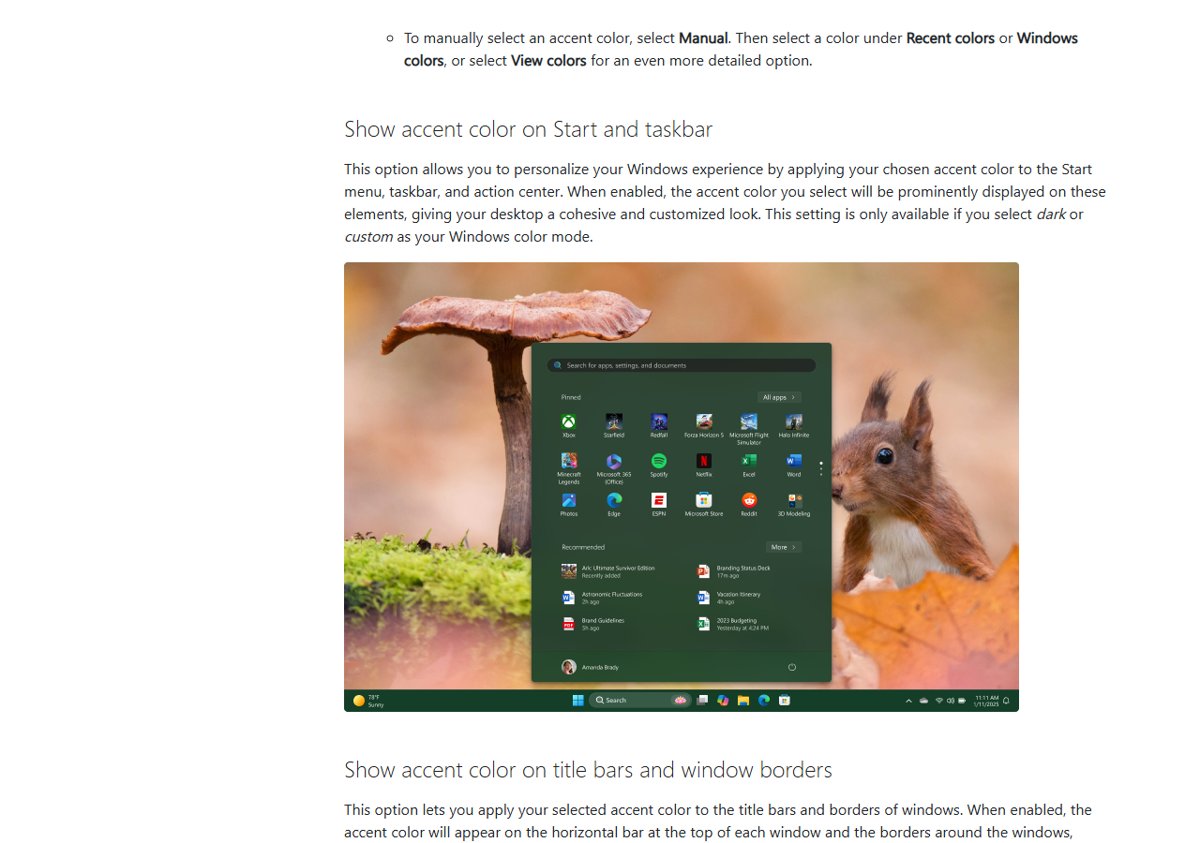
Dark mode alone leaves Start and the taskbar neutral dark gray. The accent options on the same Colors page tint them. Any accent color works, so you can change the taskbar color to a custom shade instead of neutral gray.
- Open Settings > Personalization > Colors and confirm the mode is Dark or Custom. The Start and taskbar accent option is not available in Light.
- Under Accent color, select Automatic to take a color from your wallpaper, or Manual to pick one.
- Turn on Show accent color on Start and taskbar.
- Optionally turn on Show accent color on title bars and window borders.
- Switch Transparency effects on for a slight acrylic blur, or off for solid surfaces.
Enable dark mode from contrast themes on Windows 11
Contrast themes are the only built-in way to force dark colors onto apps and web pages that ignore dark mode. They recolor the background and text of nearly everything.
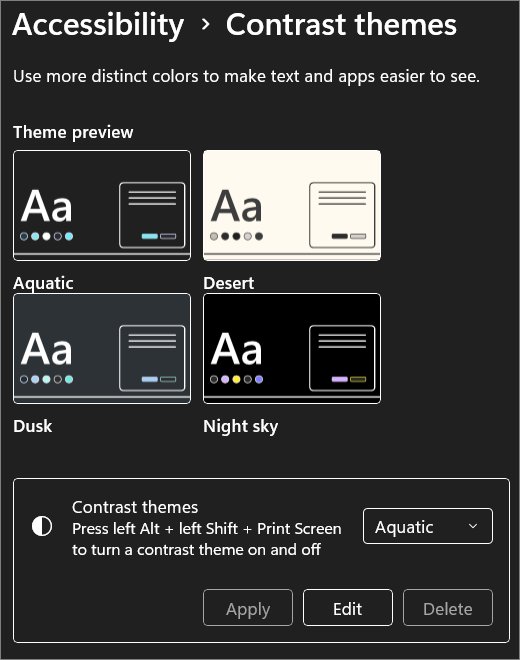
- Select Start > Settings > Accessibility > Contrast themes.
- Open the Contrast themes drop-down and pick a dark one, such as Night sky or Aquatic.
- Select Apply. Windows may show Please wait for a few seconds.
- To tune it, select Edit and change Background, Text, Hyperlinks, Inactive Text, Selected Text or Button Text, then Save as and Save and apply.
- To turn it off, pick None and select Apply.
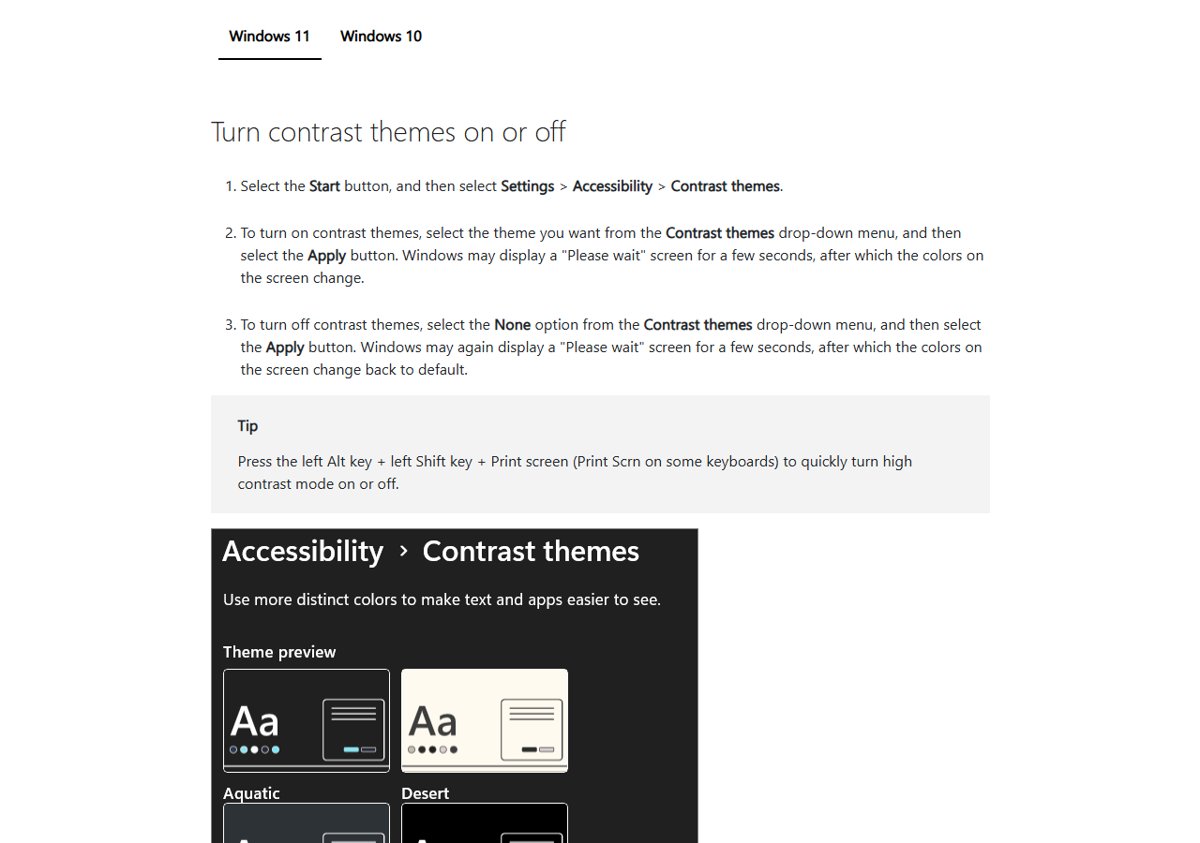
Press left Alt + left Shift + Print Screen to toggle high contrast on or off without opening Settings. Contrast themes change colors sharply and can make images and layouts look odd, so they suit accessibility needs more than taste.
Enable dark mode automatically on Windows 11
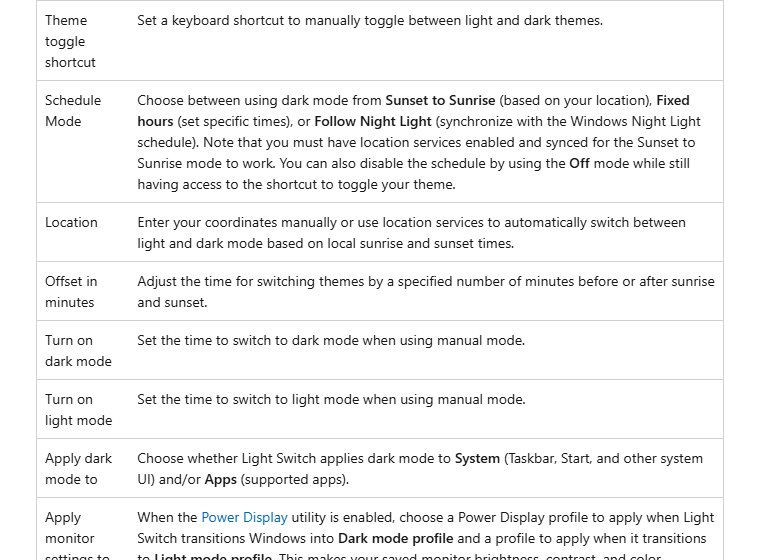
The Colors page has no schedule. Microsoft’s own tool for it is Light Switch, a free utility inside Microsoft PowerToys.
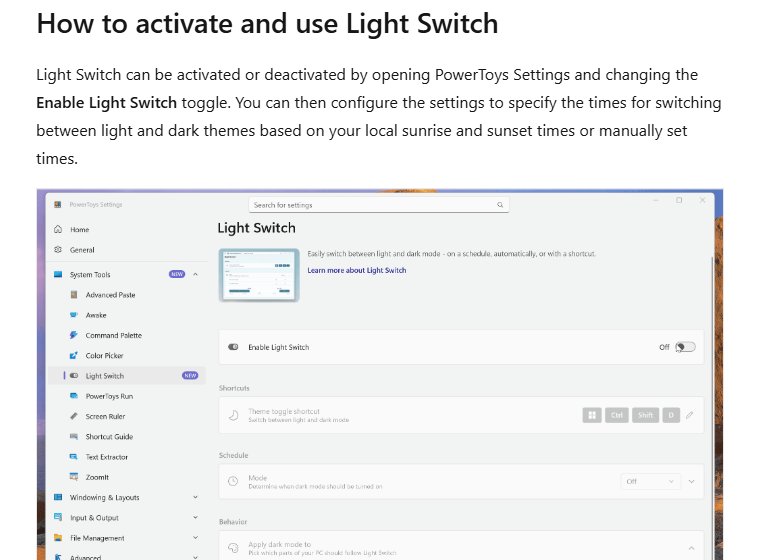
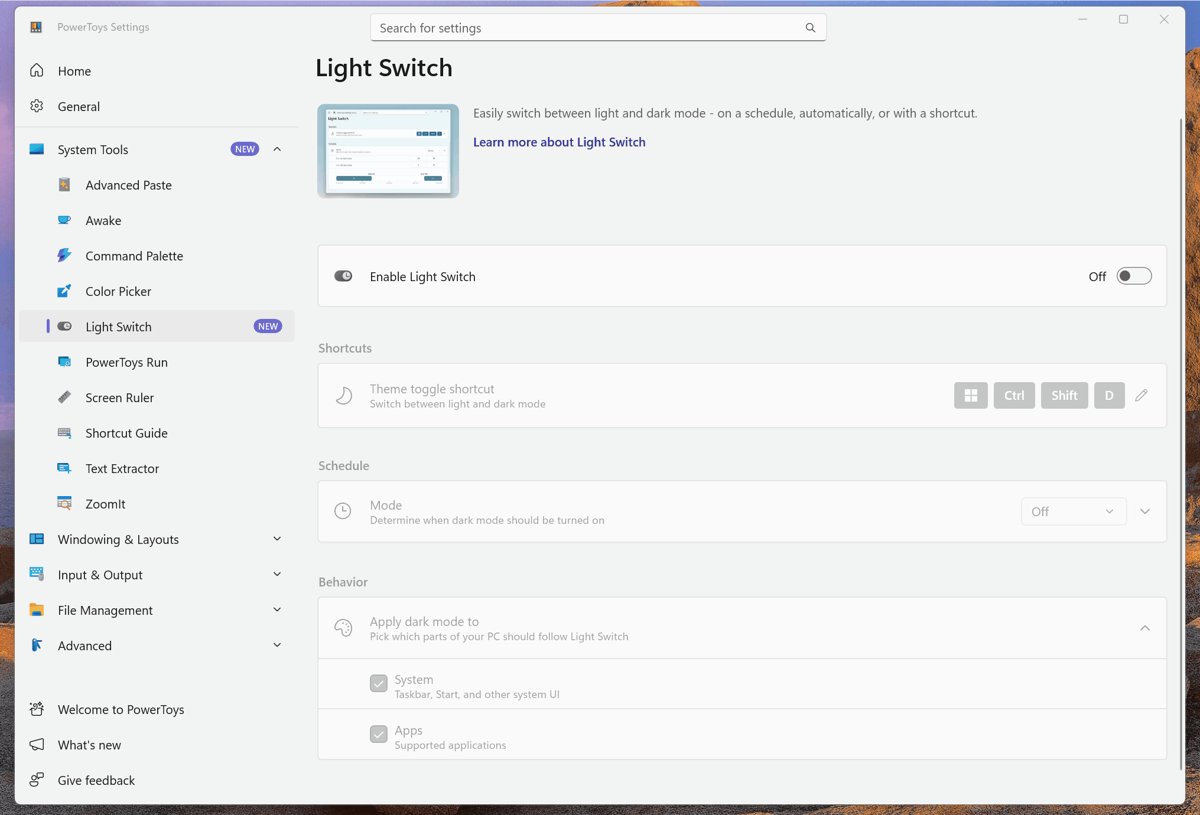
- Install Microsoft PowerToys, then open PowerToys Settings.
- Select Light Switch and turn on Enable Light Switch.
- Under Schedule Mode, choose Sunset to Sunrise, Fixed hours or Follow Night Light.
- For Sunset to Sunrise, turn on location services or enter coordinates under Location; Offset in minutes shifts the switch earlier or later.
- For Fixed hours, set the dark and light times.
- Under Apply dark mode to, choose System, Apps or both.
- Optionally set a Theme toggle shortcut, the closest thing Windows 11 has to a dark mode hotkey.
Pair it with Night light
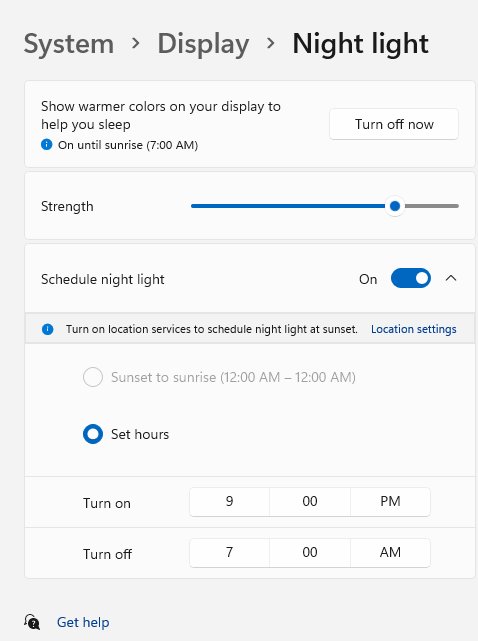
Dark mode changes colors; Night light warms the whole screen to cut blue light. Turn it on in Settings > System > Display > Night light, set Strength, and turn on Schedule night light with Sunset to sunrise or Set hours. Light Switch’s Follow Night Light mode keeps both on the same schedule. Night light is not available with DisplayLink or Basic Display drivers.
Enable dark mode for web browser on Windows 11
Browsers keep their own appearance setting, so they can stay light while Windows is dark. Their dark mode darkens the browser frame, not the websites.
Microsoft Edge
- Select Settings and more (the three dots) > Settings > Appearance.
- Under Overall appearance, select Dark, or System default to follow Windows.
Google Chrome
- Open a New Tab page and select Customize Chrome at the bottom right.
- Under Appearance, select Dark, or Device to follow Windows.
Incognito windows look dark even in Light mode; that is Incognito’s own styling. Background on Chrome’s change is in how Chrome on Windows picked up dark mode.
Websites
| What you want dark | Supported way | Limit |
|---|---|---|
| Sites with their own dark theme | Pick the dark or device-theme option on the site | Only where the site offers it |
| Sites that follow your system theme | Set Windows and the browser to dark | Sites without a dark design stay light |
| Every page, no exceptions | A contrast theme | Recolors everything, not just dark |
| Testing a page darkened | Chrome DevTools Rendering > Emulate auto dark mode | Developer tool, current tab only |
Neither Google nor Microsoft documents a force-dark flag for desktop browsers, so treat flags you see online as unsupported experiments. Earlier tests are covered in dark mode for all websites in Chrome Canary. Some sites have a dark theme of their own, such as Facebook dark mode under Display & Accessibility in the account menu.
YouTube
YouTube stores its theme per browser: click your profile picture, select Appearance, then Dark theme or Use device theme. Dark theme must be on before Ambient mode works. Phones and TVs are in our YouTube dark mode guide.
Enable dark mode for Office apps on Windows 11
Office uses one theme for Word, Excel, PowerPoint, Outlook and the other desktop apps, so setting it once covers them all. That shared theme is why choosing Black, or following a dark Windows theme, can turn a Word document black with white text.
- Open Word and go to File > Account.
- Open the Office Theme list.
- Select Black for permanent dark mode, or Use system setting to follow Windows.
- In a document, use View > Switch Modes to flip the page between dark and light.
- To keep the page white while menus stay dark, check File > Options > General > Never change the document page color.
Outlook adds its own message-pane switch, covered in dark mode in Outlook. Documents always print light, collaborators see their own theme, and the setting does not carry over between Word for Windows, Mac and the web.
Enable dark mode in File Explorer and other apps
File Explorer has no theme switch of its own; it follows the app mode on the Colors page. If it stays light, set the app mode to dark (in Custom, the app list), close every Explorer window and press Windows + E.
| App | Where to set dark mode | Follows Windows by default? |
|---|---|---|
| Settings, File Explorer, built-in apps | Settings > Personalization > Colors | Yes |
| Windows Terminal | Theme appearance setting, or "theme": "dark" in settings.json |
Yes, the default is system |
| Edge and Chrome | Browser appearance settings (above) | Only on System default / Device |
| Word, Excel, PowerPoint, Outlook | File > Account > Office Theme | Only with Use system setting |
| WhatsApp for Windows | See WhatsApp dark mode on Windows 11/10 | Depends on the version |
| Notepad++ | See Notepad++ dark mode on Windows 11 | Has its own setting |
For any other app, look for Theme or Appearance in its settings. Some older programs and system dialogs have no dark mode at all; a contrast theme is the only way to darken them.
Force dark mode with the registry or unattend settings
Microsoft does not document a registry value for users to switch dark mode. Tweaks passed around online are unofficial, and the Colors page does the same job safely.
For IT deployments, Microsoft documents the unattend setting Microsoft-Windows-Shell-Setup | Themes | UWPAppsUseLightTheme: false applies dark mode, true keeps the default. It is valid in the specialize, auditSystem, auditUser and oobeSystem passes and only sets the starting mode; users can change it later in Settings.
Windows 11 dark mode not working: fixes
Taskbar and Start stay light while apps go dark
Custom mode is on with the Windows mode set to light. On the Colors page, set the Windows mode to dark, or pick Dark to set both.
Dark mode is on but one app stays light
The app has its own theme setting or no dark mode. Restart it, look for Theme or Appearance in its settings and set it to dark or system; if there is none, use a contrast theme or leave it light.
Windows 11 keeps switching to dark mode on its own
A schedule or theme is doing it. Set Light Switch’s Schedule Mode to Off, check which theme is applied under Personalization > Themes, and check Accessibility > Contrast themes, since the left Alt + left Shift + Print Screen shortcut turns one on by accident.
Windows 11 is dark and you did not turn it on
The mode, a theme or a contrast theme was set during setup, by another user, or by your organization when Windows was deployed. Set Choose your mode to Light; if colors look harsh rather than dark gray, set the contrast theme to None.
Word’s page or charts stay white
Never change the document page color is checked, or the element is one Word does not map to dark, such as some charts and text boxes. Clear the option or use Switch Modes; the rest is a known Word limitation.
Turn off dark mode in Windows 11
- Open Settings > Personalization > Colors and set Choose your mode to Light.
- If a contrast theme is on, select None under Accessibility > Contrast themes and select Apply.
- If Light Switch is installed, set Schedule Mode to Off or turn off Enable Light Switch.
- Set Edge, Chrome, Office or YouTube back to Light if you changed them separately.
Windows 11 dark mode FAQ
How do I turn on dark mode in Windows 11?
Select Start > Settings > Personalization > Colors, then set Choose your mode to Dark. The change is instant and needs no restart. Pick Custom to make apps dark while keeping a light taskbar, or the other way round.
Can I make only apps dark in Windows 11?
Yes. Set Choose your mode to Custom, then choose dark for the default app mode and light for the Windows mode.
Is there a keyboard shortcut for Windows 11 dark mode?
Not built in. PowerToys Light Switch lets you set a Theme toggle shortcut. Left Alt + left Shift + Print Screen toggles high contrast, which is a different feature.
Can Windows 11 switch to dark mode automatically?
Not from Settings alone. PowerToys Light Switch schedules dark mode from sunset to sunrise, at fixed hours or with the Night light schedule, for the system, apps or both.
Does dark mode save battery on a laptop?
On OLED screens, yes, because dark pixels use less power; Microsoft lists dark mode among its power-saving settings. On LCD laptops the saving is small.
Why is Windows 11 in dark mode?
Choose your mode is set to Dark, a dark theme was applied, a schedule such as Light Switch switched it, or a contrast theme was turned on with the left Alt + left Shift + Print Screen shortcut.







How to Enable/Disable Dark Mode in Outlook: Explained Step-by-Step - Techdows
[…] To make new Outlook follow Windows, select Use system settings instead of Dark. Outlook then switches whenever Windows does; the Windows switch lives in Settings > Personalization > Colors, covered in Windows 11 dark mode: how to enable or force it. […]
How to enable YouTube dark mode: a step-by-step guide - Techdows
[…] device theme only turns dark when the operating system is dark, so on a PC you also need Windows 11 dark mode switched on for that option to look […]
How to enable Facebook dark mode for desktop version (officially) - Techdows
[…] Facebook is one of the services with its own switch. To darken the rest of your desktop as well, turn on Windows 11 dark mode […]
How to change taskbar color to any color in Windows 11 - Techdows
[…] and white do not need an accent color. Windows 11 dark mode paints the taskbar dark, and Light mode leaves it light. The accent toggle must be off, or the […]
How to make Google dark mode: A simple guide to enable night view - Techdows
[…] With Device selected on Windows 11, Chrome turns dark as soon as you turn on Windows 11 dark mode. […]