When desktop icons are not showing in Windows 11, right-click an empty part of the desktop, select View and make sure Show desktop icons is ticked; that single option hides every icon when it is cleared.
If the option is already on, this guide works through the remaining causes in order, from Windows Explorer and the icon cache to OneDrive, display scaling, drivers, system files and recovery.
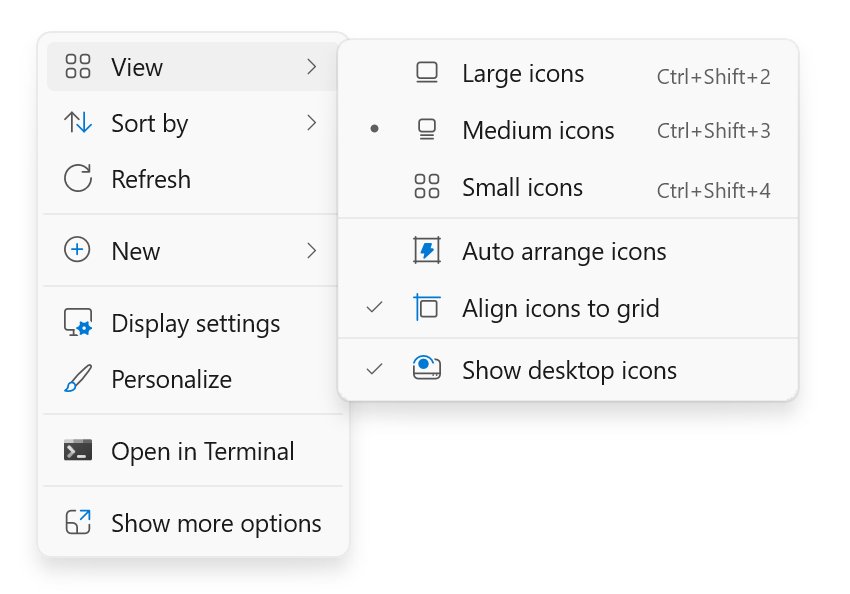
Desktop icons not showing in Windows 11: make sure desktop icons are enabled
One checkbox controls every icon on the desktop. When it is off, the desktop looks empty, but your files are still in the Desktop folder.
- Minimise open windows so you can see an empty part of the desktop.
- Right-click the empty area, or press and hold on a touch screen.
- Select View.
- Select Show desktop icons so a check mark appears next to it.
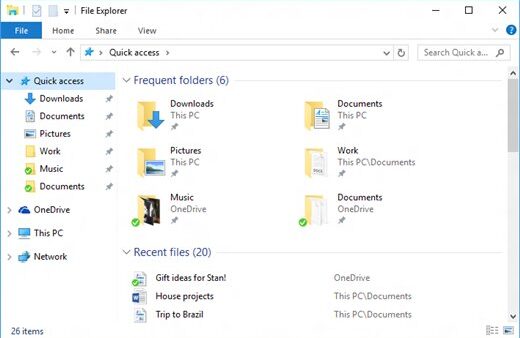
While icons are hidden, you can still reach the same files by opening File Explorer and selecting Desktop in the navigation pane.
First: identify what "not showing properly" means
Desktop icon problems look alike but have different causes. Match what you see to a row and start with that fix.
| What you see | Most likely cause | Start with |
|---|---|---|
| No icons at all, desktop otherwise normal | Show desktop icons is off | Make sure desktop icons are enabled |
| No icons and no taskbar | Windows Explorer stopped | Restart Windows Explorer |
| Icons show as blank white squares or not showing images | Damaged icon cache | Rebuild the Windows icon cache |
| Recycle Bin or This PC missing, other icons fine | System icon switched off | Restore missing system icons |
| Your own files and shortcuts vanished | OneDrive Desktop folder moved | Fix icons hidden by OneDrive |
| Icons huge, tiny, stretched or bunched together | Icon size, scale or resolution | Check view size, scaling and spacing |
| Shortcuts open the wrong app or show a generic icon | Broken shortcut or file association | Fix broken shortcut icons and file associations |
| Icons changed by themselves or look suspicious | Theme, customisation tool or malware | Theme settings, then a malware scan |
Restart Windows Explorer
Windows Explorer draws the desktop, taskbar and File Explorer windows. Restarting it clears a stuck desktop without restarting the PC. Save your work first.
- Press Ctrl + Shift + Esc to open Task Manager.
- On the Processes tab, right-click Windows Explorer and select End task.
- Select File > Run new task.
- Type
explorer.exeand press Enter. - Wait a few seconds for the taskbar and desktop icons to redraw.
Check desktop icon view size and layout
Icons set to an extreme size can look missing, especially on a high-resolution screen, so resize desktop icons back to a normal size.
- Right-click an empty area of the desktop.
- Select View.
- Choose Medium icons to return to the standard size, or Large icons or Small icons if you prefer.
- For finer control, click the desktop, hold Ctrl and roll the mouse wheel up or down.
Restore missing system icons like Recycle Bin or This PC
By default, Windows puts only the Recycle Bin on the desktop. This PC, Network and User's Files are switched on separately, and the full setup is explained when you show desktop icons on Windows 11.
- Open Settings and select Personalization > Themes.
- Select Desktop icon settings.
- Tick Recycle Bin, Computer (This PC), Network or User's Files.
- Select OK.
Rebuild the Windows icon cache
Blank icons on the desktop, Start menu and taskbar come from a damaged icon cache. Double-clicking a blank icon usually still opens the app. Save open work, because Windows Explorer has to close.
- Press Ctrl + Shift + Esc to open Task Manager.
- On the Processes tab, right-click Windows Explorer and select End task.
- Select File > Run new task, type
cmd.exe, tick the option to create the task with administrative privileges and select OK. - Type
CD /d %userprofile%\AppData\Localand press Enter. - Type
DEL IconCache.db /aand press Enter. - Select File > Run new task again, type
explorer.exeand press Enter.
Windows rebuilds the cache as icons are displayed again, so the first few seconds can look slow.
Check tablet mode and desktop mode
Windows 11 has no manual tablet mode switch. It switches automatically on touch-capable devices when you detach the keyboard or fold the device into tablet form, and switches back when the keyboard is reattached. Windows 10 still has a manual tile.
- On a Windows 11 2-in-1, reattach the keyboard or return the device to laptop form.
- On Windows 10, select the Action center icon on the taskbar.
- Select Expand if the tiles are collapsed.
- Select the Tablet mode tile so it reads Off.
- Check the desktop again.
Fix icons hidden by OneDrive Desktop sync
OneDrive can back up the Desktop folder. If that backup points at the wrong folder, Windows shows an empty or different desktop. Moving a PC to a different organisation's OneDrive also creates a new, empty Desktop folder.
- Open File Explorer and expand your OneDrive folder.
- Right-click the Desktop folder and select Properties.
- Select the Location tab. If there is no Location tab, you opened the wrong Desktop folder.
- Select Move, go to the folder that holds your icons and choose Select Folder.
- Select Apply, then select Yes when Windows asks to move the files.
Disable theme changes that replace desktop icons
Themes are allowed by default to change the icons for This PC, User's Files, Network and Recycle Bin. If a new theme swapped your custom icons, block it.
- Open Settings > Personalization > Themes.
- Select Desktop icon settings.
- Clear Allow themes to change desktop icons.
- Select OK, then apply your preferred theme again.
Check display scaling, resolution, and multiple monitors
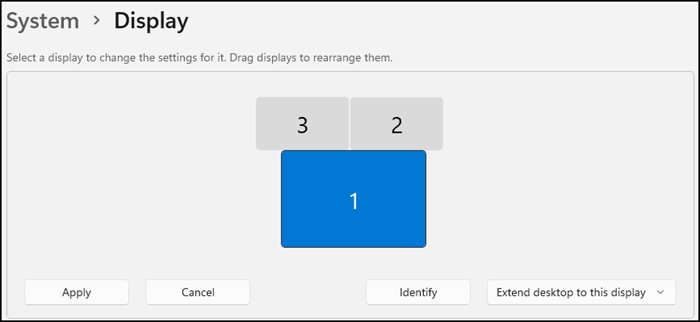
Each display has its own display scale settings and resolution. A wrong value makes icons look stretched or blurry, and with several monitors the icons can sit on a screen you are not looking at.
- Select Start > Settings > System > Display.
- Select the monitor whose icons look wrong.
- Under Scale & layout, set Scale to the value marked (Recommended).
- Set Display resolution to the (Recommended) value.
- Check every connected monitor for icons, then drag them to the screen you use.
If resolution changes on its own after you connect a monitor, check Settings > Windows Update > Check for updates for a newer driver.
Fix broken shortcut icons
A shortcut shows a generic or broken icon when the app or file it points to was moved, renamed or uninstalled. Replacing the shortcut is faster than repairing it.
- Delete the broken shortcut from the desktop.
- For an app, select Start > All and drag the app onto the desktop.
- For a file or folder, right-click it and select Show more options > Send to > Desktop (create shortcut).
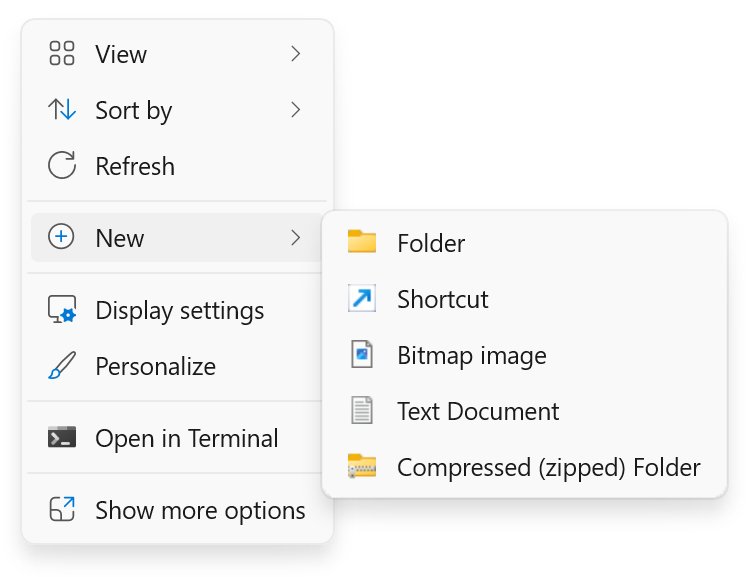
- For any other target, right-click the desktop, select New > Shortcut and follow the prompts.
Make sure file associations are correct
A file shows the icon of the app set to open it. If that app was removed, the icon turns generic until you pick a new default.
- Open Settings > Apps > Default apps.
- In the search box, type the file extension, such as
.pdf. - Select the matching result.
- Choose the app that should open that file type.
Update or reinstall graphics drivers
A faulty display driver can leave the desktop blank or redraw icons badly. Update it first, and reinstall it if updating finds nothing.
- Right-click Start and select Device Manager.
- Expand Display adapters, right-click your graphics adapter and select Update driver.
- Select Search automatically for updated driver software, then follow the prompts.
- To reinstall instead, right-click the adapter, select Uninstall device, then Uninstall.
- Restart the PC; Windows tries to reinstall the driver automatically.
Repair Windows system files
Damaged system files can break the desktop shell. Install pending updates and restart first, then open Command Prompt as administrator by searching for it, right-clicking the result and choosing to run it as administrator. Run DISM first, then run SFC /scannow once DISM reports success.
DISM.exe /Online /Cleanup-image /RestorehealthDISM repairs the Windows component store that System File Checker uses as its source. When it finishes, run sfc /scannow in the same window to scan and repair protected system files.
You should see: DISM reports "The operation completed successfully", and SFC finishes with "Verification 100% complete".
Check for corrupt user profile problems
If icons are missing only for your account, the user profile may be damaged. Comparing with another account tells you quickly.
- Sign out of your account.
- Sign in with another user account on the same PC.
- Check whether that account's desktop icons appear normally.
- If they do, the fault is in your profile; back up your Desktop folder and move your files to a fresh account.
- If the other account has the same problem, continue with the system-wide fixes below.
Remove problematic desktop customization tools
Desktop organisers, icon packs and shell replacement tools hook into Windows Explorer. A broken one can hide or redraw icons. Remove anything installed shortly before the problem began.
- Open Start and select Settings.
- Select Apps > Installed apps.
- Find the customisation tool and select More next to it.
- Select Uninstall and confirm.
- Restart the PC and check the desktop.
Some apps cannot be removed from Settings; uninstall those from Control Panel instead.
Fix desktop icon spacing problems
Icons that overlap or spread far apart usually follow the icon size or the display scale. Resetting both brings back the standard grid.
- Right-click the desktop, select View and choose Medium icons.
- Open Settings > System > Display.
- Set Scale to the (Recommended) value for each monitor.
- Drag any stray icons back into place.
Scan for malware if icons are replaced or shortcuts look suspicious
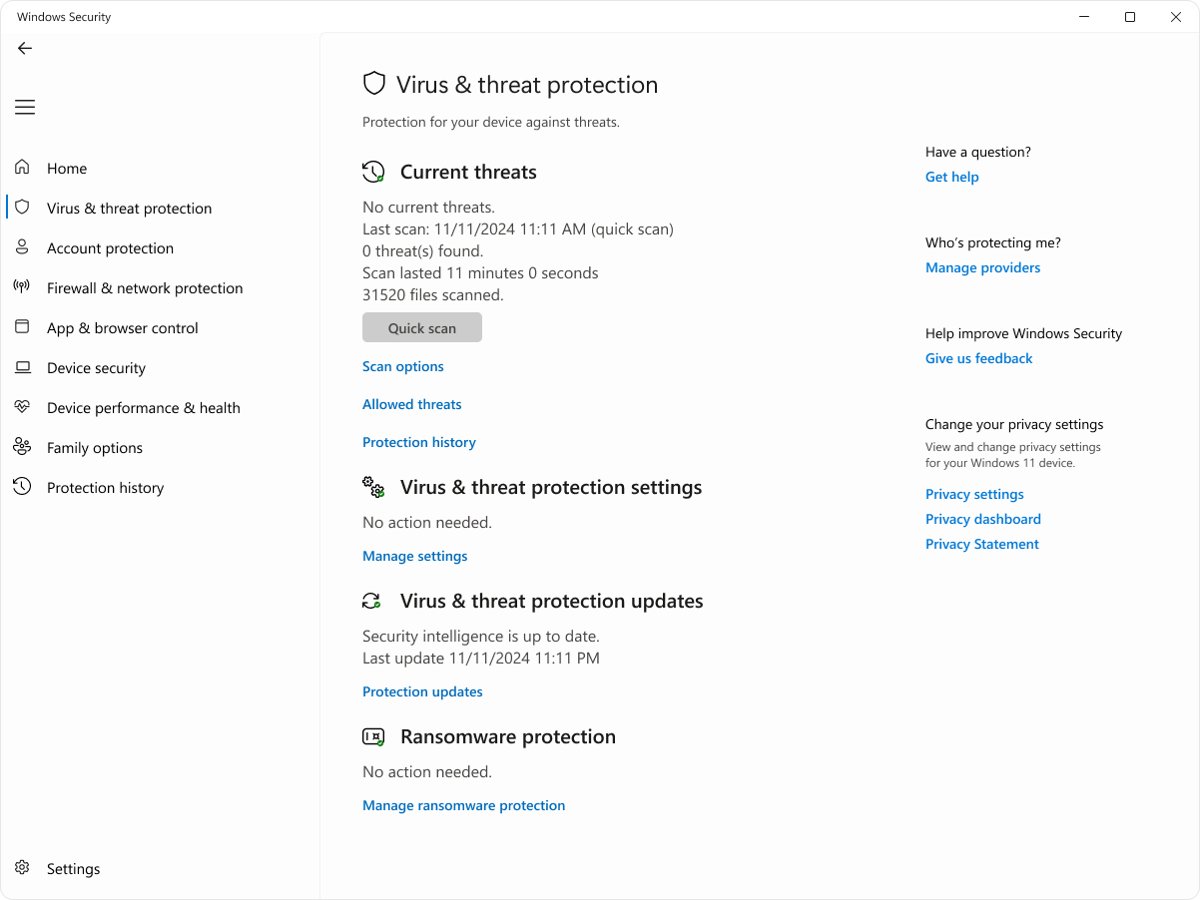
Shortcuts that suddenly point somewhere new, unknown icons and hidden files can be signs of malware. Run a full scan with Windows Security.
- Open Windows Security and select Virus & threat protection.
- Under Current threats, select Scan options.
- Select Full scan, then Start a full scan.
- If threats persist, return to Scan options, select Microsoft Defender Antivirus (offline scan) and then Start an offline scan.
- After the restart, check Protection history for results.
Install Windows updates
Installing pending Windows updates fixes shell bugs and can deliver newer display drivers.
- Select Start > Settings > Windows Update.
- Select Check for updates.
- Select Download & install if updates are listed.
- Restart when prompted.
Use System Restore if the problem started recently
System Restore returns system files, settings and installed programs to an earlier point without affecting your personal files. It works only if a restore point exists from before the icons disappeared.
- Press Win + R, type
rstrui.exeand press Enter. - Select Next in Restore system files and settings.
- Pick a restore point from before the problem; tick Show more restore points if you need older ones.
- Select Scan for affected programs to see what will change.
- Select Next, then Finish; Windows restarts to apply it.
Reset Windows as a last resort
Reset reinstalls Windows. With Keep my files, your documents and photos stay, but apps and settings are removed, so reinstall your apps afterwards.
- Open Settings > System > Recovery.
- Under Recovery options, select Reset PC.
- Select Keep my files.
- Choose Cloud download or Local reinstall.
- Follow the prompts to finish the reset.
How to check desktop icons are working again
- Press Win + D to show the desktop.
- Confirm your shortcuts and the Recycle Bin appear with their proper images.
- Double-click a shortcut to confirm it opens the right app.
- Restart the PC and check the icons are still there after sign-in.
Desktop icons still not showing on a work or school PC
Desktop icons stay hidden and right-click on the desktop does nothing useful
The Hide and disable all items on the desktop policy is turned on.
- Select Start, type
gpedit.mscand press Enter (Windows 11 Pro, Enterprise and Education). - Go to User Configuration > Administrative Templates > Desktop.
- Open Hide and disable all items on the desktop and set it to Not Configured.
- Sign out and sign back in. On a managed PC, ask your IT admin instead.
Recycle Bin will not appear even with its box ticked
The Remove Recycle Bin icon from desktop policy overrides Desktop icon settings.
- Open
gpedit.mscand go to User Configuration > Administrative Templates > Desktop. - Set Remove Recycle Bin icon from desktop to Not Configured.
- Sign out and back in for the change to apply.
Desktop icons not showing in Windows 11 FAQ
Why are desktop icons not showing in Windows 11?
The most common reason is that Show desktop icons is turned off. Right-click the desktop, select View and tick Show desktop icons. If it is already on, restart Windows Explorer, then check OneDrive Desktop sync and the icon cache.
Why are my desktop icons not showing images in Windows 11?
Icons that appear as blank white squares point to a damaged icon cache. End Windows Explorer in Task Manager, delete IconCache.db from %userprofile%\AppData\Local in an administrator Command Prompt, then run explorer.exe again.
Why are desktop icons not showing properly in Windows 11?
Icons that look stretched, blurry, oversized or bunched together usually follow the icon size or the display scale. Choose View > Medium icons on the desktop, then set Scale and Display resolution to their Recommended values in Settings > System > Display.
Why are my desktop icons not working in Windows 11?
When icons show but will not open, the shortcut target or file association is usually broken. Re-create the shortcut from Start > All, and set the right default app for that file type in Settings > Apps > Default apps.
Why am I not able to click on the desktop icons?
Unclickable icons usually mean Windows Explorer has stopped responding. Open Task Manager with Ctrl + Shift + Esc, end Windows Explorer, then select File > Run new task and run explorer.exe to bring the desktop back.
Where did my desktop files go after turning on OneDrive?
OneDrive backs up the Desktop folder, so the files move into your OneDrive Desktop folder. If the desktop looks empty, open that folder's Properties, use Move on the Location tab and point it at the folder that holds your files.
Does showing desktop icons work the same on Windows 10?
Yes. Right-click the desktop, select View and tick Show desktop icons on Windows 10 as well. Windows 10 also has a manual Tablet mode tile in Action center, which Windows 11 does not have.
Bottom line: fixing missing desktop icons in Windows 11
Tick Show desktop icons first, restart Windows Explorer second, and rebuild the icon cache if icons appear blank; move on to drivers, system repair and recovery only if those fail. Most missing-icon cases come from a cleared View option, a stuck Explorer process or a damaged icon cache, all of which take under a minute to fix without changing anything else on the PC.

![Adjusting volume balance settings in Windows 11 and 10 [Easy steps]](https://techdows.com/wp-content/uploads/2026/10/Adjusting-Volume-Balance-Settings-in-Windows-11-and-10-500x338.jpg)