To get Bing’s daily photos as your wallpaper on Windows 11, open Settings > Personalization > Background and choose Windows spotlight, which puts a new Microsoft photo on your desktop every day. If you want the exact image from the Bing.com homepage instead, install Microsoft’s free Bing Wallpaper app from bing.com/apps/wallpaper and pick its Bing theme.
Both options are free and both refresh on their own. This guide walks through each one step by step, then covers the lock screen, saving photos you like, fit and multi-monitor setups, blurry wallpapers, fixes for when the picture stops changing, and how to turn it all off again.
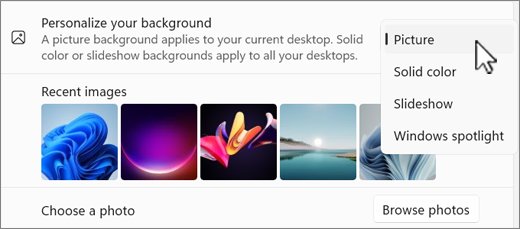
What you need to get Bing Wallpapers for your Windows 11 desktop
- Windows 11 for Windows spotlight on the desktop background. On Windows 10, Spotlight works on the lock screen only, so use the Bing Wallpaper app for the desktop.
- Windows 10 or later for the Bing Wallpaper app. Microsoft’s app page says it is compatible with Windows 10 and above only.
- An internet connection. Both Spotlight and the app download a new picture each day, so an offline PC keeps showing the last one it fetched.
- A personal PC, or permission from IT. On work and school devices, administrators can turn off Spotlight or replace its picture with a company image.
How to enable Windows Spotlight in Windows 11
Windows spotlight is built into Windows 11, so there is nothing to download. Microsoft’s documentation says Spotlight displays a new image on the lock screen and in the background every day, along with optional fun facts and tips.
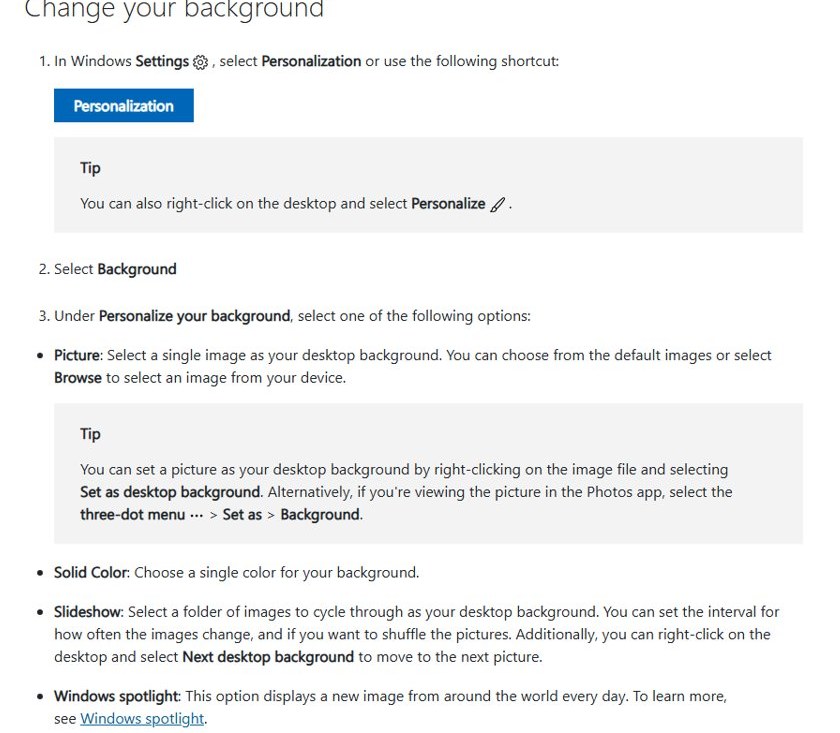
- Right-click an empty area of the desktop and select Personalize, or open Start > Settings > Personalization.
- Select Background.
- Open the Personalize your background drop-down menu.
- Select Windows spotlight.
- Go back to the desktop. The current Spotlight photo appears, and it changes to a new one each day.
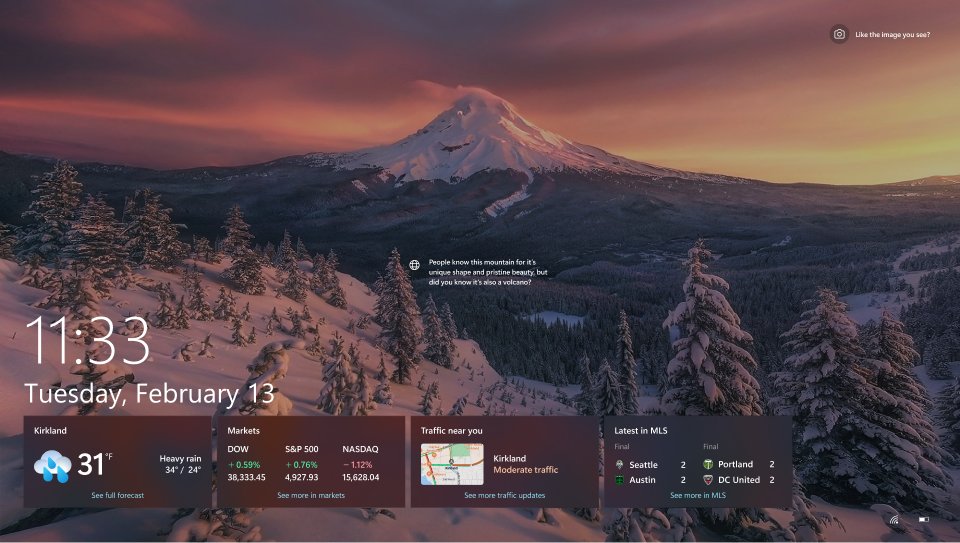
- To learn about the current picture, hover over it or click the Learn about this picture icon in the lower-right area of the desktop.
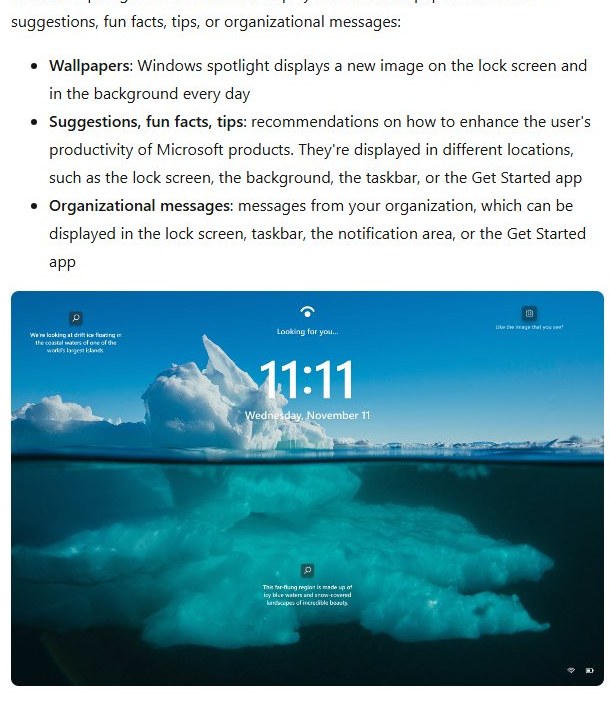
The hover and Learn about this picture icon behaviour arrived with the February 25, 2025 preview update (KB5052093) for Windows 11 version 24H2, so older builds may show a different icon.
After the October 2024 update KB5046633 for Windows 11 version 23H2, Windows spotlight became the default wallpaper, so many PCs already have it switched on. If your desktop already changes on its own every morning, Spotlight is probably what you are seeing. For a short history of the feature, our earlier write-up on Spotlight as a desktop wallpaper covers when Microsoft first brought it to the Windows 11 desktop.
How to install Bing Wallpaper on Windows
Spotlight uses its own pool of photos, which is not always the same picture shown on Bing.com. If you specifically want the Bing homepage image of the day on your desktop, use Microsoft’s Bing Wallpaper app. Microsoft describes it as a way to bring your desktop to life with themes and a new background every day.
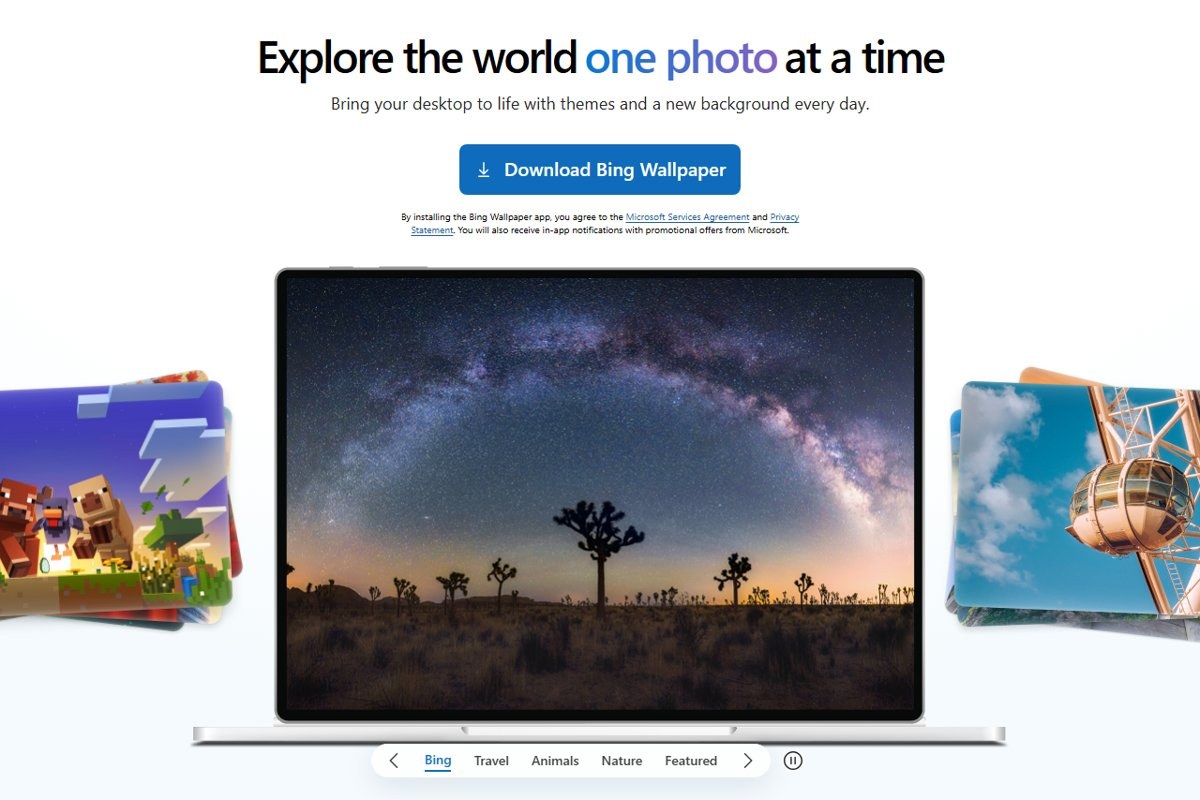
- Open your browser and go to
https://www.bing.com/apps/wallpaper. - Read the line under the download button first. By installing the app you agree to the Microsoft Services Agreement and Privacy Statement, and you will receive in-app notifications with promotional offers from Microsoft.
- Select Download Bing Wallpaper, then open the installer from your Downloads folder and follow the prompts.
- Read each installer screen before you continue. If it offers to change your browser’s homepage or default search engine and you don’t want that, clear those options.
- Open the app once it installs and choose the Bing theme to follow the daily homepage image.
- Open Start > Settings > Apps > Startup and make sure the Bing Wallpaper toggle is set to On, so the picture keeps refreshing after every restart.
Microsoft first released this app for Windows in 2020, and our report on the original Bing Wallpaper app release explains the catch that came with it back then.
Why use the Bing Wallpaper app?
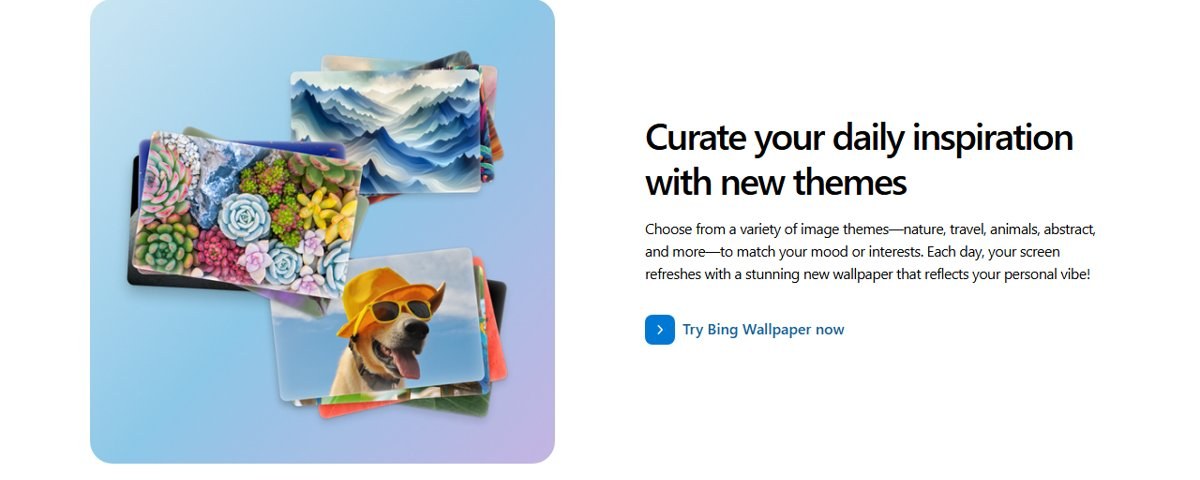
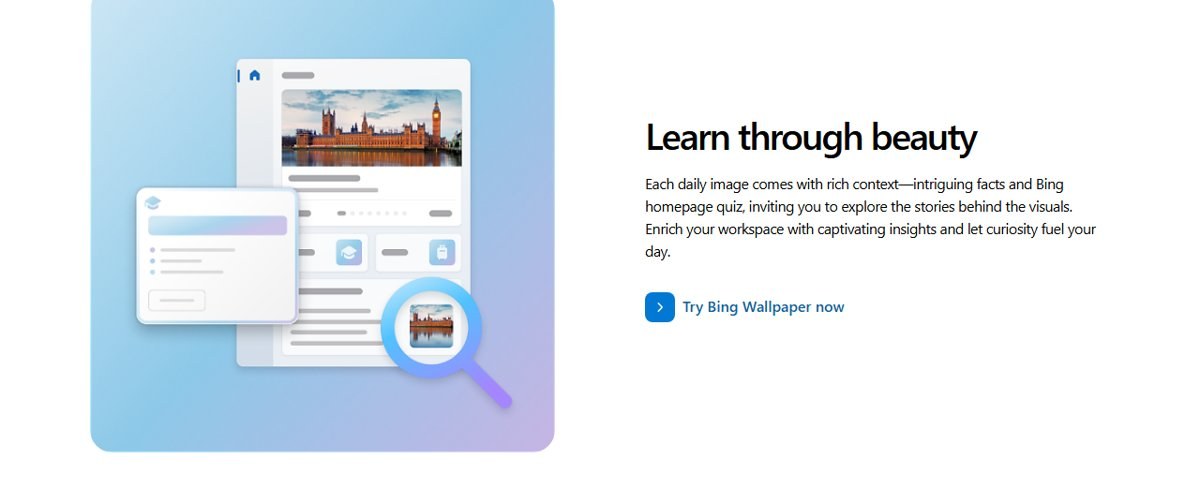
The app does more than copy the homepage picture. According to Microsoft’s app page, you can choose between image themes, and each daily image arrives with background information.
- Themes: Bing, Travel, Animals, Nature and Featured, with more in the full theme library. Pick Bing if you want the homepage photo; pick another theme if you want a mood instead.
- Featured themes: a curated mix of entertainment, cultural moments and seasonal highlights.
- Facts and quiz: each image comes with facts about the subject and the Bing homepage quiz. If you play it for points, see how the Bing homepage quiz works with Microsoft Rewards.
- AI wallpapers: Microsoft says the app includes AI-generated wallpapers and that designing your own is coming.
Windows Spotlight vs Bing Wallpaper app
| Your situation | Use this | Why |
|---|---|---|
| You want a new photo daily with nothing to install | Windows spotlight | Built into Settings, turns on in four clicks |
| You want the exact Bing.com homepage photo of the day | Bing Wallpaper app | The Bing theme follows the homepage image and its caption |
| You want themes such as travel, animals or nature | Bing Wallpaper app | The app offers theme categories; Spotlight has no theme picker |
| You want the same daily photo on the lock screen | Windows spotlight | It works on both the desktop and the lock screen |
| You use Windows 10 | Bing Wallpaper app | Spotlight on the desktop background is a Windows 11 feature |
| You want to pick the fit (Fill, Fit, Span) | Picture or Slideshow with saved Bing images | Microsoft lists fit options for Picture and Slideshow backgrounds |
| You want one favourite photo that never changes | Picture | Save the Bing image once and set it as a fixed background |
| Your PC is managed by work or school | Ask your IT admin first | Spotlight can be switched off or replaced by organization policy |
How to get Bing daily images on the lock screen
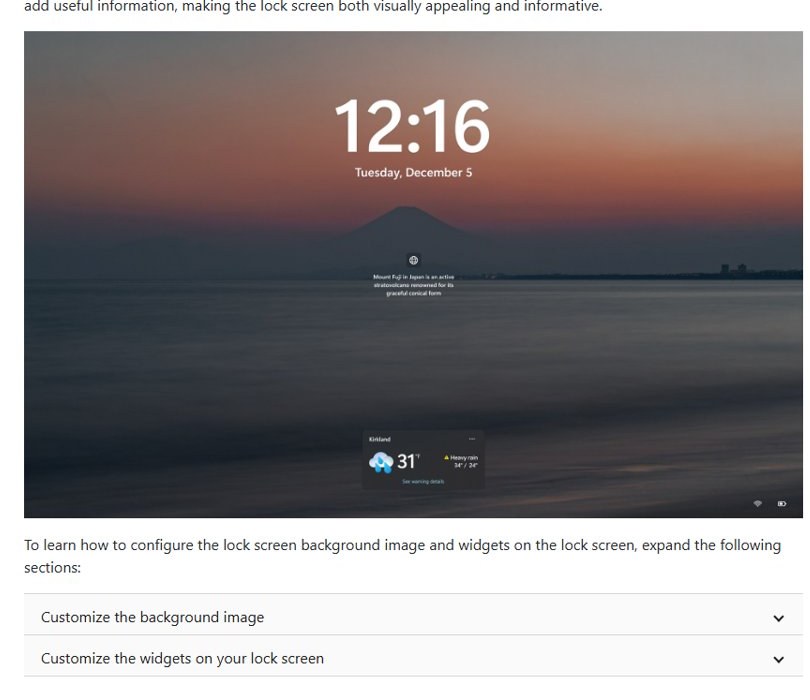
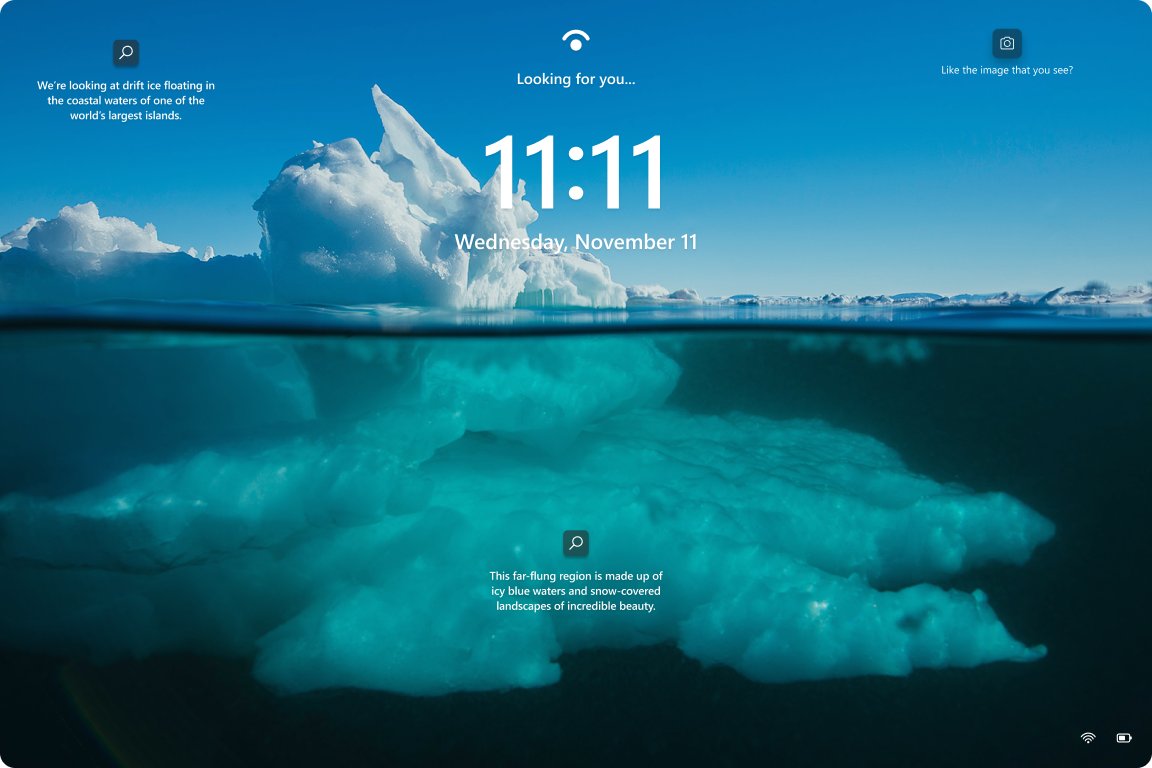
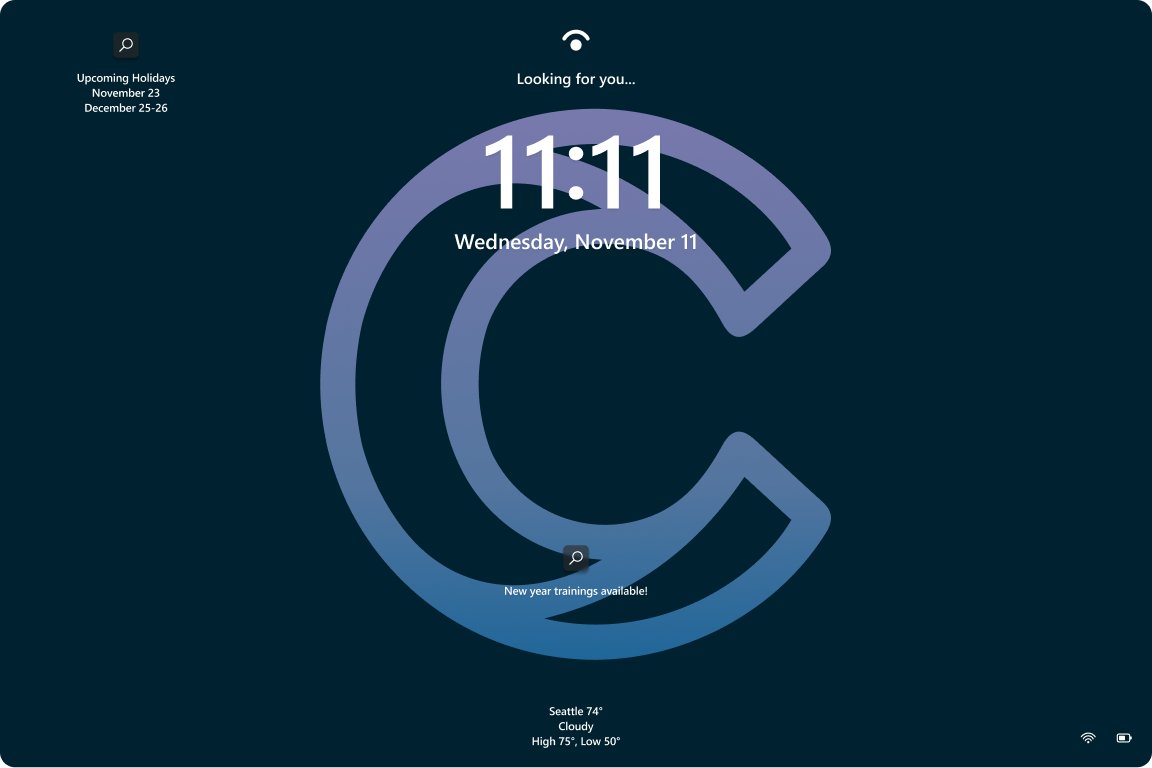
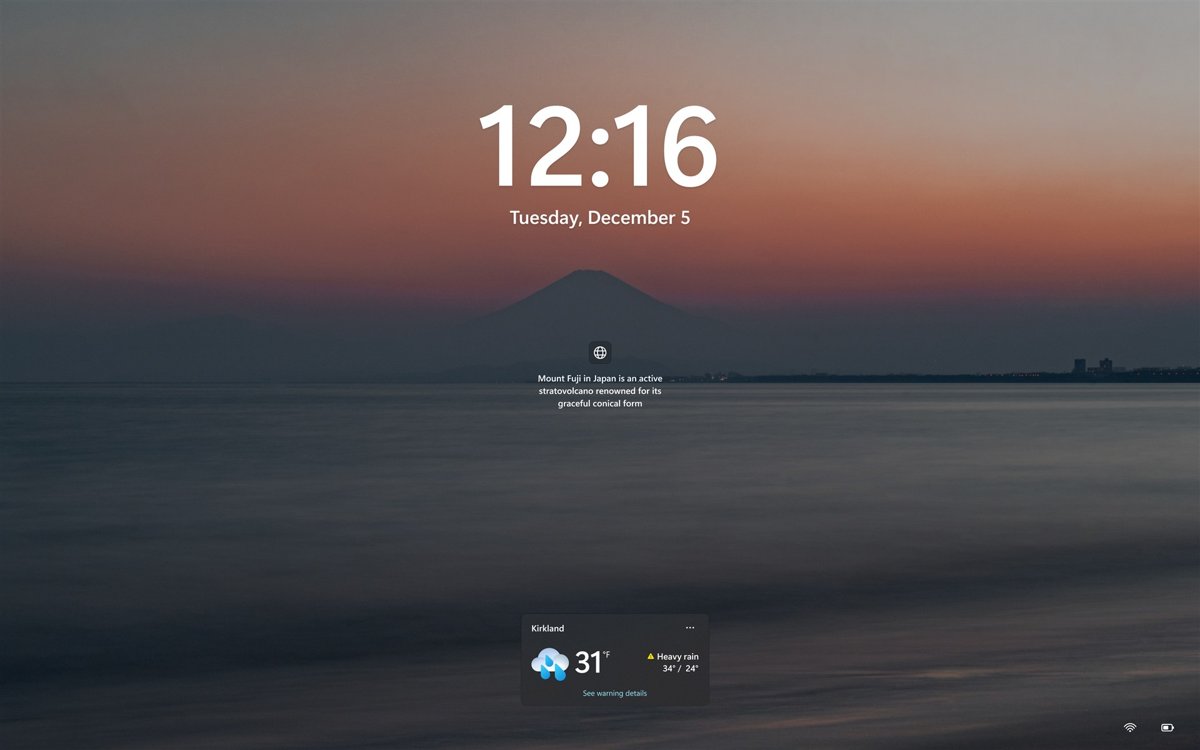
The lock screen has its own Spotlight setting, separate from the desktop one. Turn both on and you get a rotating set of Microsoft photos when you wake the PC and after you sign in.
- Select Start > Settings > Personalization > Lock screen.
- Open the Personalize your lock screen drop-down menu and select Windows spotlight.
- Turn on Get fun facts, tips, tricks, and more on your lock screen if you want details about the photo on the lock screen itself.
- Turn on Show the lock screen background picture on the sign-in screen so the same photo appears when you enter your PIN or password.
- Press Windows key + L to lock the PC and check the new image.
Bing wallpaper slideshow on Windows 11
Built-in Slideshow gives you control over the change interval and shuffle order, which Spotlight does not. Pair it with a folder of saved Bing images, or use a wallpaper app from the Microsoft Store if you want the downloads to happen automatically.
- Open Microsoft Store from the Start menu and search for Bing wallpaper if you want an app to download images for you.
- Open a listing and check the publisher name, rating and the permissions on the app page before you install it.
- Select Get or Install, then open the app and choose a download folder if it offers one.
- Open Settings > Personalization > Background and select Slideshow from Personalize your background.
- Select Browse, choose the folder that holds the Bing images, then set how often the picture changes and whether to shuffle.
- Right-click the desktop and select Next desktop background to jump to the next photo at any time.
Install wallpaper apps only from the Microsoft Store or from Microsoft’s own site, never from a download portal.
Manually saving wallpapers from Bing
The Bing homepage has a download button, which is the simplest way to keep a photo you like. Microsoft does not document a save button for Spotlight pictures, so look for the same subject on Bing when you want a copy.
- Go to
https://www.bing.comin your browser. - Hover over the image headline in the lower-right corner of the homepage.
- Select Download today’s image. If licensing does not allow a download, the page shows a link to the Bing Wallpaper app instead.
- Select < or > next to the headline to browse the last seven days of images and download an earlier one.
- Open File Explorer, right-click the saved picture and select Set as desktop background.
Most daily images can be downloaded, but not all of them. Images you save this way work with Picture and Slideshow, which also unlocks the fit options below.
Changing Windows wallpaper settings
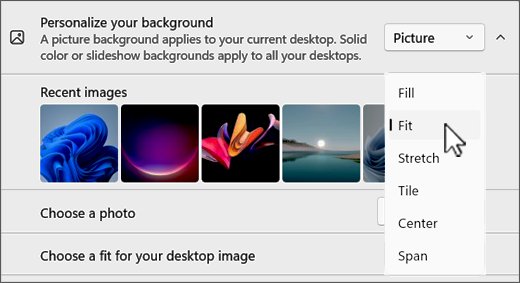
Microsoft lists fit options for Picture and Slideshow backgrounds. Open Settings > Personalization > Background, then change Choose a fit for your desktop image.
| Fit | What it does | Best for |
|---|---|---|
| Fill | Enlarges the image to cover the whole screen; edges may be cropped | Most Bing photos on a single monitor |
| Fit | Keeps the aspect ratio; bars may appear on the sides or top and bottom | Seeing the entire photo uncropped |
| Stretch | Covers the screen and may distort the image | Photos already at your screen’s aspect ratio |
| Tile | Repeats the image across the screen | Small images or patterns |
| Center | Places the image in the middle without resizing | Images smaller than the screen |
| Span | Spreads one image across multiple monitors | Panoramic Bing photos on two or more displays |
Blurry or pixelated wallpaper on Windows 11
A soft or blocky wallpaper usually means the image is being enlarged beyond its real size. Work through these checks in order:
- Open Settings > System > Display and note your Display resolution. A 4K or ultrawide monitor needs a larger image than a 1080p laptop screen.
- If you saved the picture from Bing.com, use the Download today’s image button rather than right-clicking a thumbnail or taking a screenshot, which gives a smaller file.
- Change the fit to Fill or Fit instead of Stretch, which distorts the photo when its shape doesn’t match the screen.
- On several monitors, avoid Span for ordinary photos. Spreading one image across two screens doubles how much it is enlarged.
- If Spotlight looks blurry after a display change, switch Personalize your background to Picture and back to Windows spotlight so Windows loads the image again.
Bing wallpaper on multiple monitors
With two or more displays, the background type decides what each screen shows. If you haven’t arranged your screens yet, start with how to set up multiple monitors on Windows 11.
| What you want | Background type | How to set it |
|---|---|---|
| One Bing photo across all screens | Picture | Pick the saved image, then choose Span as the fit |
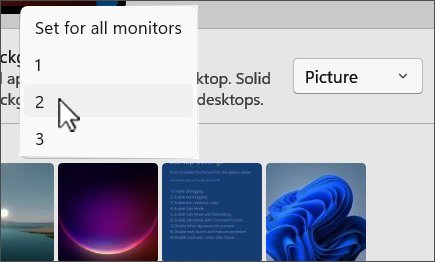
| The same Bing photo on every screen | Picture | Right-click the image under Recent images and choose to set it for all monitors |
| A different Bing photo on each screen | Picture | Right-click a different image for each monitor and pick that monitor |
| A rotating mix across screens | Slideshow | Each screen shows a different picture from the folder you select |
| Several virtual desktops | Picture | Right-click the preview and select Set for all desktops or a specific desktop; Microsoft’s support page says per-monitor pictures and Slideshow are not supported with multiple desktops |
Bing wallpaper for Android, iPhone and Mac
The Windows app and Spotlight only change a Windows PC. On other devices you have a few routes:
- Android: Microsoft has published a separate Bing Wallpapers app for Android phones. It was not offered in every country at launch; our post on the Bing Wallpapers Android app covers that.
- iPhone, iPad and other devices: download the image from Bing.com in the browser and set it as the wallpaper in the device’s own settings.
- Mac: save the image from Bing.com, then follow the usual steps to change the wallpaper on a Mac.
How to check if Bing wallpaper is changing daily
- Open Settings > Personalization > Background and confirm Personalize your background shows Windows spotlight, Slideshow or the picture the Bing Wallpaper app set.
- Look for the Learn about this picture icon in the lower-right area of the desktop when Spotlight is active.
- Compare today’s desktop photo with the image on
https://www.bing.comif you use the Bing Wallpaper app with the Bing theme. - Check the desktop again the next day. A new photo means the daily refresh is working.
- Lock the PC and confirm the lock screen shows a Spotlight photo too.
Troubleshooting and uninstallation
The Spotlight wallpaper does not change daily
Spotlight needs an internet connection to fetch new images, and a stuck setting can leave one photo in place.
- Check your internet connection by opening any website in your browser.
- Open Settings > Personalization > Background and switch Personalize your background to Picture.
- Wait a few seconds, then switch it back to Windows spotlight.
- Repeat the same switch under Settings > Personalization > Lock screen if the lock screen photo is also stuck.
- Restart the PC and check the desktop the following day.
The Windows spotlight option is missing or cannot be changed
Work and school PCs can have Spotlight turned off or replaced with a custom image by organization policy. Microsoft’s admin documentation notes that when an organization sets its own image, users can still see suggestions, fun facts and tips, but the background picture is replaced.
- Ask your IT admin whether a Windows spotlight policy or custom background is applied.
- Use the Bing homepage download and a Picture background as a workaround if the policy allows a personal background.
The Bing Wallpaper app stopped changing the wallpaper
The app is not running, did not start with Windows, or cannot reach Bing.
- Check your internet connection.
- Restart the Bing Wallpaper app from the Start menu.
- Open Settings > Apps > Startup and set the Bing Wallpaper toggle to On.
- Confirm the Bing theme is still selected in the app if you want the homepage photo.
- Uninstall the app, then reinstall it from
https://www.bing.com/apps/wallpaperif it still does not refresh.
A Microsoft Store wallpaper app only updates when it is open
Windows may be stopping the app from running in the background.
- Open Settings > Apps > Installed apps.
- Find the wallpaper app, select More options > Advanced options.
- Under Background app permissions, set Let this app run in background to Always or Power optimized (recommended) instead of Never.
How to turn off Bing Wallpaper or Windows Spotlight
- To turn off Spotlight on the desktop, open Settings > Personalization > Background and choose Picture, Solid color or Slideshow under Personalize your background.
- To turn off Spotlight on the lock screen, open Settings > Personalization > Lock screen and choose Picture or Slideshow under Personalize your lock screen.
- To remove the Bing Wallpaper app, select Start > Settings > Apps > Installed apps.
- Find Bing Wallpaper, select More > Uninstall, and confirm.
- Pick a new background in Settings > Personalization > Background if you want to replace the current Bing image.
Customization and privacy
| Feature | What it involves | What you can change |
|---|---|---|
| Windows spotlight | Downloads images from Microsoft and can show suggestions, fun facts and tips | Turn off Get fun facts, tips, tricks, and more on your lock screen, or switch to Picture |
| Bing Wallpaper app | Installing it means accepting the Microsoft Services Agreement and Privacy Statement; it shows in-app promotional notifications | Uninstall it from Settings > Apps > Installed apps |
| Third-party Store apps | Each publisher has its own privacy policy and permissions | Review the Store listing before installing and limit background activity in Advanced options |
| Lock screen widgets | Widgets on the lock screen may tailor content based on your estimated location | Remove widgets under Settings > Personalization > Lock screen |
Frequently asked questions
How do I get Bing daily pictures on my desktop?
Open Settings > Personalization > Background and choose Windows spotlight for a new Microsoft photo every day. For the exact Bing homepage picture, install the Bing Wallpaper app from bing.com/apps/wallpaper and select its Bing theme.
How do I get Bing daily images on the lock screen?
Open Settings > Personalization > Lock screen and select Windows spotlight under Personalize your lock screen. Turn on Show the lock screen background picture on the sign-in screen to see the same photo when you sign in.
How do I get Bing wallpaper to change daily?
Choose Windows spotlight as your background, or keep the Bing Wallpaper app set to start with Windows under Settings > Apps > Startup. If the photo stays the same, switch the background to Picture and back to Windows spotlight.
How do I get info on the Bing daily photo?
On the desktop, hover over the Spotlight image or click the Learn about this picture icon in the lower-right corner. On Bing.com, hover over the image headline for a caption, or click it for more detail.
How do I find a previous Bing daily image?
On the Bing homepage, select the < or > arrows next to the image headline to see the last seven days of images. Hover over the headline and select Download today’s image to save the one shown.
Does Bing have a daily quiz?
Yes. The Bing homepage has a daily quiz based on the day’s image, and the Bing Wallpaper app links each daily image to facts and the homepage quiz.
Is the Windows spotlight picture the same as the Bing homepage image?
Not necessarily. Spotlight shows its own rotating set of Microsoft photos, while the Bing Wallpaper app with the Bing theme follows the Bing.com image of the day. Use the app if matching the homepage matters to you.
Does the Bing Wallpaper app work on Windows 10?
Yes. Microsoft lists the Bing Wallpaper app as compatible with Windows 10 and above, so it runs on both Windows 10 and Windows 11. Windows spotlight on the desktop background is a Windows 11 feature.
Is the Bing Wallpaper app free?
Yes. Microsoft offers it free from bing.com/apps/wallpaper. In return you accept the Microsoft Services Agreement and get in-app promotional notifications from Microsoft.
Why is my Bing wallpaper blurry?
The image is usually being enlarged past its real size. Use the full-size download from Bing.com, choose Fill or Fit instead of Stretch, and avoid Span on multiple monitors.
Best way to get Bing daily wallpaper on Windows 11
Turn on Windows spotlight for both the desktop and the lock screen, and install the Bing Wallpaper app only if you want the exact Bing.com image of the day or its themes. Spotlight is built in, needs no extra software and refreshes daily. The app adds the homepage photo, captions, the quiz and theme choices, at the cost of another startup program and promotional notifications.



![How to Manage Power Management Settings in Windows 11/10 [Guide]](https://techdows.com/wp-content/uploads/2026/10/How-to-Manage-Power-Management-Settings-in-Windows-1110-Guide-600x338.jpg)