Windows 11 Personalization settings, found at Settings > Personalization, let you change the desktop background, colors, theme, lock screen, Start menu, taskbar and desktop icons.
This guide walks through each page, the shortcut that opens it, how to save your look as a theme, and fixes when a setting is greyed out or will not stick.
Open Personalization settings in Windows 11
- Right-click an empty area of the desktop and select Personalize.
- Or open Settings from the Start menu and select Personalization in the left pane.
- Or press Win + R, type
ms-settings:personalizationand select OK. - Select the page you want, such as Background, Colors, Themes or Lock screen.
Getting around in Settings is quicker with Win + I, which opens the app directly. Type a word such as "theme" or "background" into the search bar, or pick a category in the navigation panel on the left; on Copilot+ PCs you can also describe what you want, such as "change my theme".
Settings is the main configuration tool, but it is not the only one. Other configuration options, such as the System Configuration tools, cover settings the app does not.
Windows 11 Personalization settings
Each page under Personalization has its own ms-settings address, so you can jump straight to it from the Run box or a desktop shortcut.
| Page | What it controls | Direct link (Win + R) |
|---|---|---|
| Background | Desktop picture, solid color, slideshow or Windows spotlight, and how the image fits | ms-settings:personalization-background |
| Colors | Light, dark or custom mode, accent color, transparency effects | ms-settings:personalization-colors |
| Themes | Ready-made sets of background, color, sounds and mouse cursor; desktop icon settings | ms-settings:themes |
| Dynamic Lighting | Dynamic Lighting options for supported lighting devices | ms-settings:personalization-lighting |
| Lock screen | Lock screen picture, slideshow or spotlight, lock screen widgets | ms-settings:lockscreen |
| Text input | Text input options | ms-settings:personalization-textinput |
| Start | Start layout, Recommended section and folders next to the power button | ms-settings:personalization-start |
| Taskbar | Taskbar items, system tray icons and taskbar behaviors | ms-settings:taskbar |
| Fonts | Installed fonts and font settings | ms-settings:fonts |
| Device usage | How you plan to use the PC, which shapes tips, ads and recommendations | ms-settings:deviceusage |
Change the desktop background in Windows 11
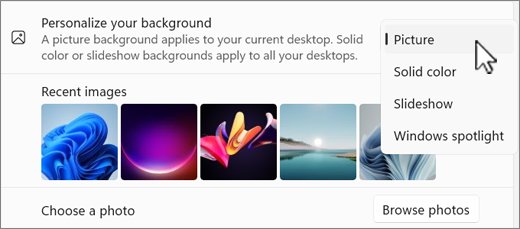
- Open Settings > Personalization > Background.
- Under Personalize your background, choose Picture, Solid color, Slideshow or Windows spotlight.
- For Picture, pick a default image or select Browse to use your own.
- For Slideshow, select a folder of images, then set how often the picture changes and whether to shuffle.
- For a picture or slideshow, open the fit list and pick Fill, Fit, Stretch, Tile, Center or Span.
- With several monitors and Picture selected, right-click a recent image to set it for all displays or a single display.
Fill may crop the edges, Fit keeps the aspect ratio but can leave bars, and Span stretches one image across multiple monitors. You can also right-click any image file and select Set as desktop background.
Change dark mode and accent color in Windows 11
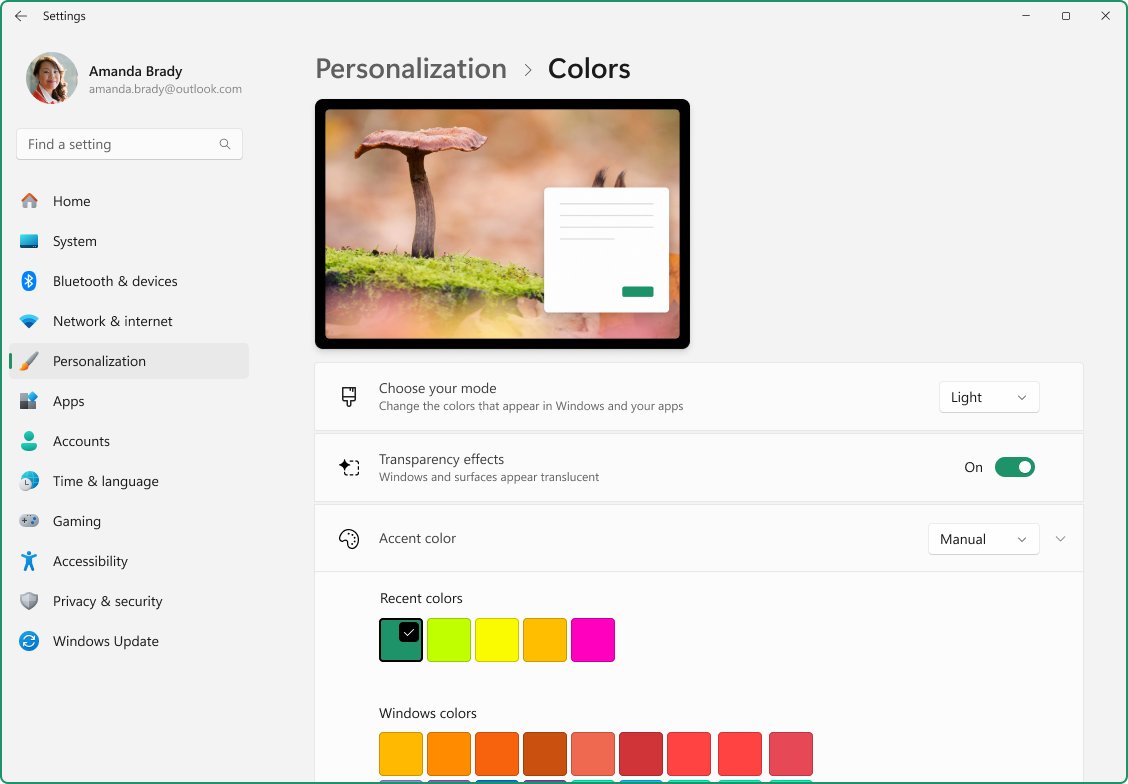
- Open Settings > Personalization > Colors.
- Under Choose your mode, select Light, Dark or Custom.
- Under Accent color, select Automatic to match your background, or Manual to pick a color.
- With Manual, choose from Recent colors or Windows colors, or select View colors for a custom shade.
- Turn on Show accent color on Start and taskbar if you use Dark or Custom mode.
- Turn on Show accent color on title bars and window borders to color window frames.
- Turn Transparency effects on or off to control the blurred, see-through surfaces.
Custom mode gives you options between light and dark. Some apps keep their own light or dark setting regardless of the Windows mode.
For colorblind users or anyone with low vision, Microsoft points to color filters and contrast themes, which sit under Accessibility rather than Personalization. Color filters change the screen's color palette so items that differ only by color are easier to tell apart; open the page directly with ms-settings:easeofaccess-colorfilter in the Run box.
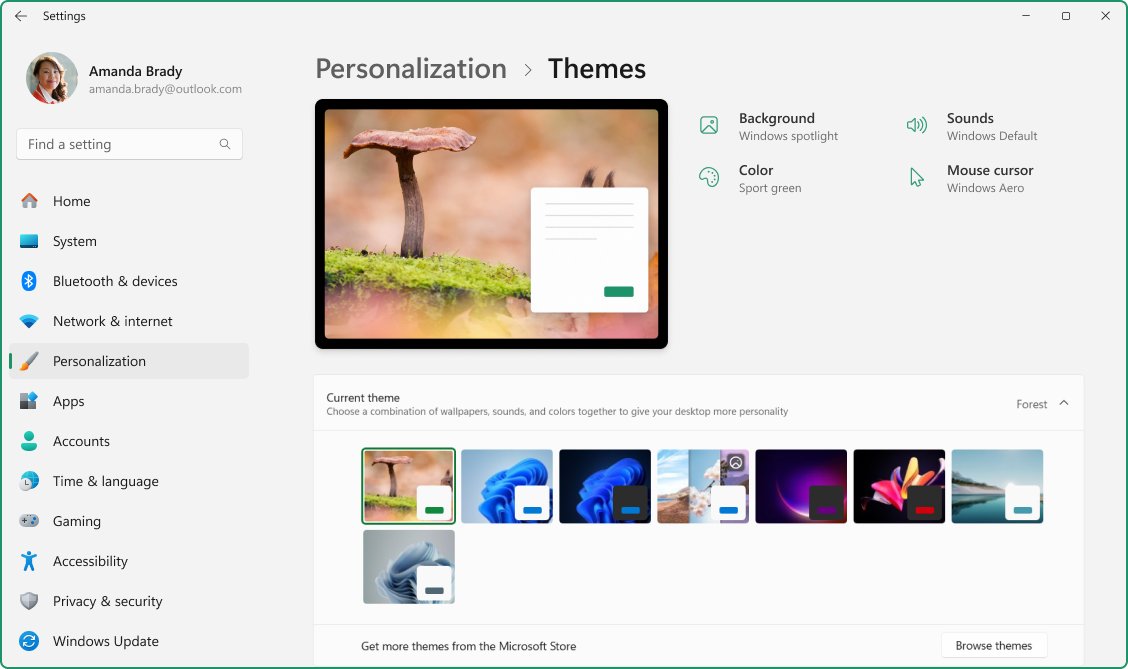
Change and save a theme in Windows 11
A theme bundles a desktop background, window color, sounds and mouse cursor. Saving one is the way to keep a full personalization setup and reapply it later.
- Open Settings > Personalization > Themes.
- Select one of the listed themes, or select Browse themes to get more from the Microsoft Store.
- Select the Background, Color, Sounds and Mouse cursor options to make it your own.
- Select Save and give the theme a name.
- To move it to another PC, right-click your saved theme and select Save theme for sharing. Windows creates a .deskthemepack file.
- To remove a theme you no longer want, right-click it and select Delete.
Default Windows themes cannot be deleted, so you can always return to one of them.
Customize the lock screen in Windows 11
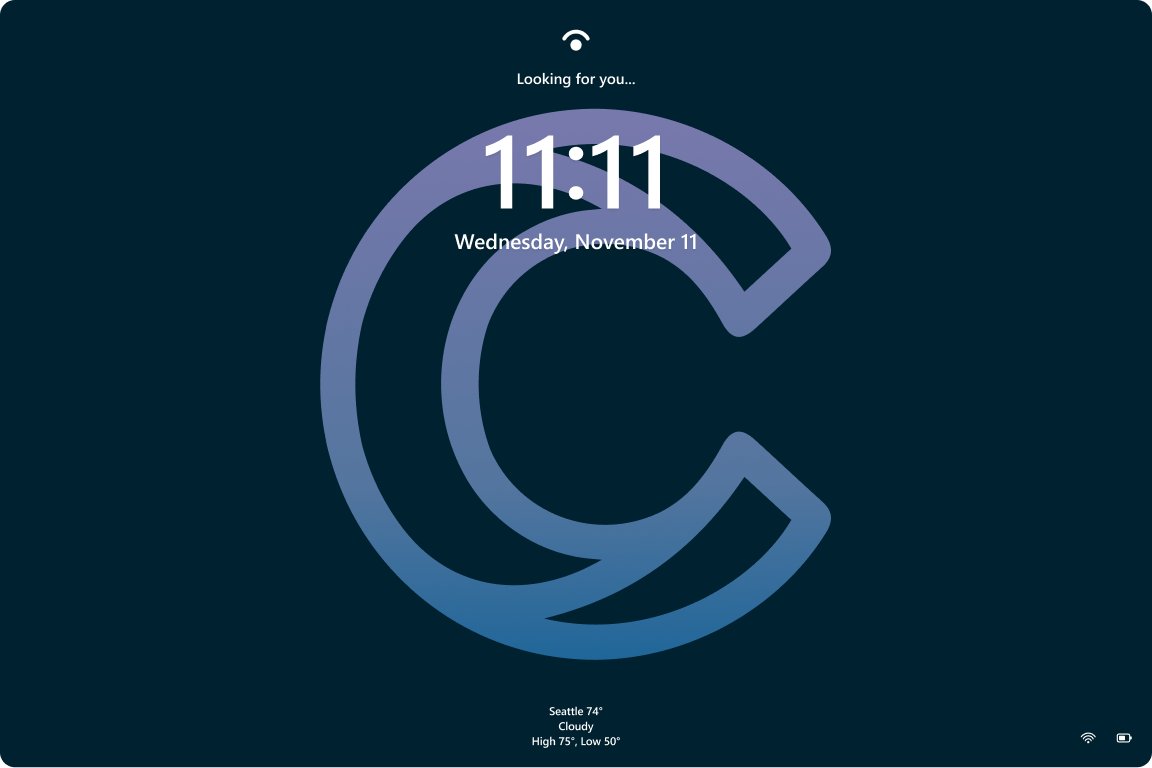
- Open Settings > Personalization > Lock screen.
- Next to Personalize your lock screen, choose Windows spotlight, Picture or Slideshow.
- Turn Get fun facts, tips, tricks, and more on your lock screen off if you want only the picture.
- Under Widgets, drag widgets into the order you want, or select Add widget to add a small widget.
- Turn Widgets off to hide all lock screen widgets.
- Turn Show the lock screen background picture on the sign-in screen on to use the same image at sign-in.
Customize the Start menu in Windows 11
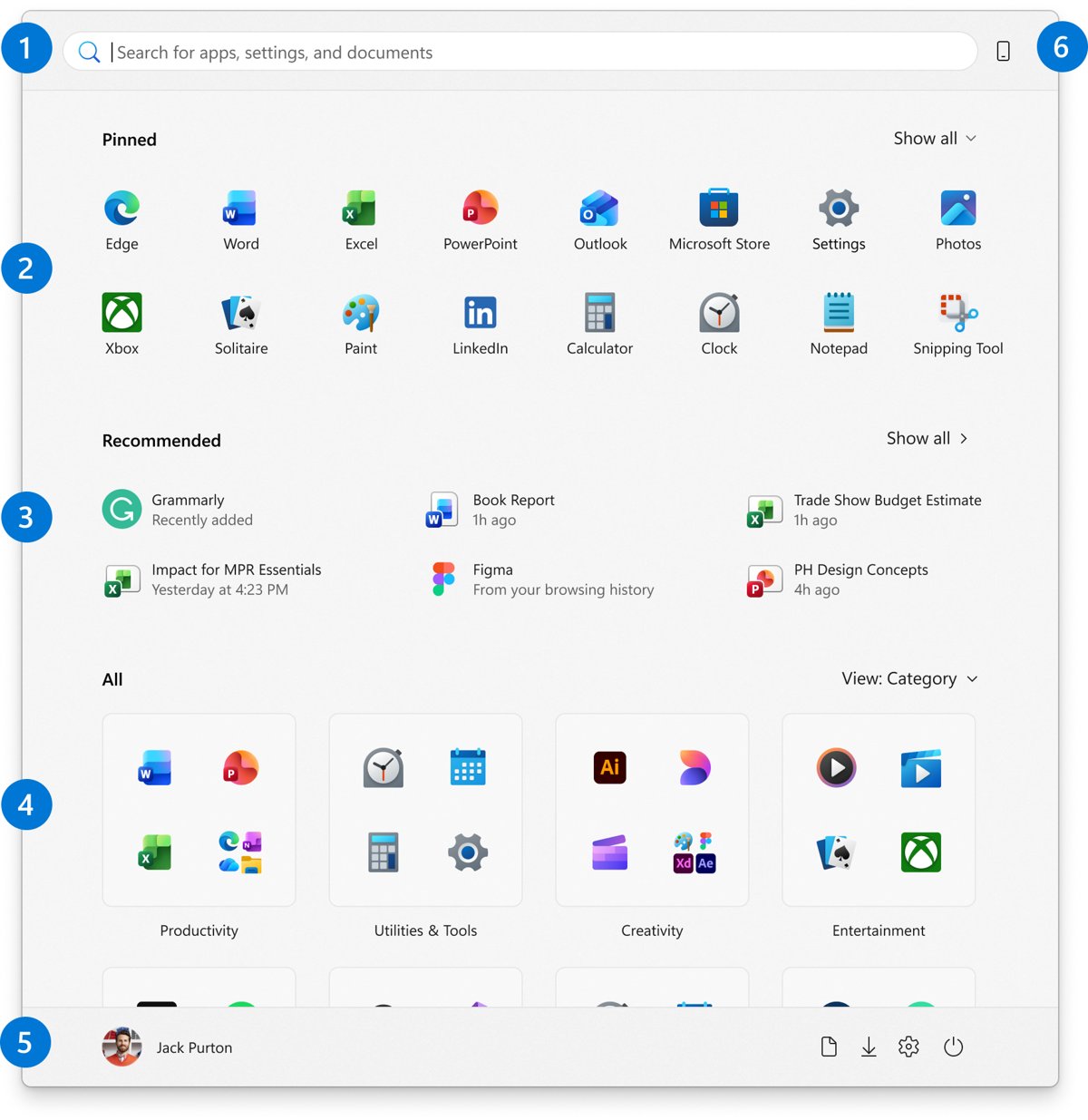
- To pin an app, type its name in the search box, right-click it and select Pin to Start.
- To pin a folder, right-click it in File Explorer and select Pin to Start.
- To unpin an item, right-click it in Start and select Unpin from Start.
- Drag pins to reorder them. Drag one pin onto another to create a folder, then rename it.
- Select Show all to keep the pinned section expanded, and pick Category, Grid or List view for the All section. Start remembers both choices.
- Open Settings > Personalization > Start to turn Recommended items and jump list options on or off.
The account area at the bottom also holds the power button for lock, sleep, shut down and restart. You can change what the power button does separately.
Choose and show select folders on Start menu in Windows 11
Folder shortcuts sit next to the power button at the bottom of Start, one click from any app.
- Select Start, right-click the bottom of the Start menu and select Start settings. You can also run
ms-settings:personalization-start-places. - Select Folders.
- Turn on the folders you want, such as Documents, Downloads, Music, Pictures, Videos, Network or Personal folder.
- Open Start to confirm the icons appear next to the power button.
Customize the taskbar in Windows 11
- Right-click the taskbar and select Taskbar settings.
- Under Taskbar items, choose a search style (Search box, Search icon and label, Search icon only or Hide) and toggle Task view and Widgets.
- Under System tray icons and Other system tray icons, choose which icons stay visible.
- Expand Taskbar behaviors and set Taskbar alignment to Center or Left.
- In the same section, tick Automatically hide the taskbar, Show badges on taskbar apps or Show my taskbar on all displays as needed.
- To pin an app, right-click its icon while it runs and select Pin to taskbar.
The Windows 11 taskbar always sits at the bottom of the screen; there is no setting to move it to the top or side. The volume, network and battery area can be rearranged when you customize the Quick Settings panel.
Show or hide desktop icons in Windows 11
- Open Settings > Personalization > Themes and select Desktop icon settings.
- Tick the icons you want on the desktop and select OK.
- Clear Allow themes to change desktop icons in the same window if a theme keeps swapping them.
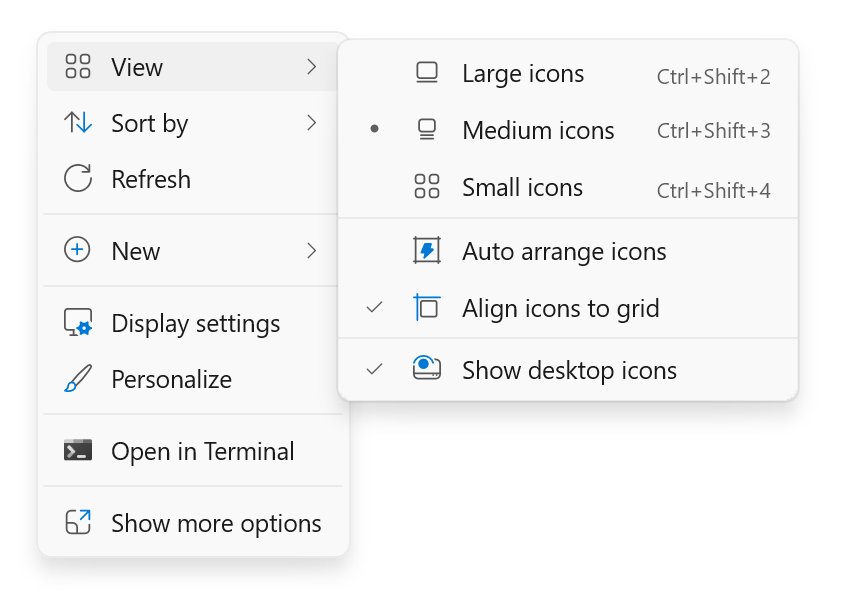
- To hide every icon, right-click the desktop, select View and clear Show desktop icons.
- To resize icons, right-click the desktop, select View and choose Large icons, Medium icons or Small icons, or hold Ctrl and scroll the mouse wheel.
How to customize mouse buttons, pointer and cursor on Windows 11
Mouse settings live under Bluetooth & devices, and the pointer's look lives under Accessibility, so they are easy to miss from the Personalization page. A theme can also change the mouse cursor.
- Open Settings > Bluetooth & devices > Mouse.
- Set Primary mouse button to Left or Right to swap the buttons.
- Drag the Mouse pointer speed slider, and leave Enhance pointer precision on for more accurate slow movements.
- Under Scrolling, set Roll the mouse wheel to scroll, Lines to scroll at a time and Scrolling direction.
- Open Settings > Accessibility > Mouse pointer and touch and pick a Mouse pointer style and Size.
- For a full cursor scheme, go back to Bluetooth & devices > Mouse, select Additional mouse settings, open the Pointers tab, choose a Scheme and select OK.
The same Mouse Properties window has the Buttons tab for double-click speed and ClickLock, and the Pointer Options tab for pointer trails, Hide pointer while typing and Show location of pointer when I press the CTRL key. For colored or larger cursors, see how to change cursor size and color.
Change the touch keyboard theme, emoji panel and voice typing in Windows 11
The Text input page under Personalization (ms-settings:personalization-textinput) holds the touch keyboard themes. Windows 11 shipped with 13 touch keyboard themes and a theme engine for building your own, including a background image, plus a setting to resize the keyboard.
- Open Settings > Personalization > Text input.
- Select one of the listed themes to apply it to the touch keyboard.
- Choose the custom theme option to create your own theme with a background image.
- Open the touch keyboard by tapping a text field or selecting the Touch keyboard icon in the system tray, then select the keyboard settings icon in its upper-left corner to switch layouts.
- Press Windows key + . (period) while typing to open the emoji panel, and select Symbols in it for characters that are not on the keyboard.
- Press Windows key + H to start voice typing in the selected text field.
The touch keyboard layouts are Default, Split, Small, Traditional and the Handwriting panel; Split and Small are not available in every language. The voice typing launcher is off by default and can be turned on from the voice typing settings.
How to reset personalization settings in Windows 11
Reset personalization when a theme, cursor or color experiment has left the PC looking wrong and you want the Windows defaults back. The Personalization pages do not share one reset option, so apply a default theme first and then fix the pages a theme does not cover.
- Open Settings > Personalization > Themes and select one of the default Windows themes. It resets the background, color, sounds and mouse cursor together.
- Open Colors, set Choose your mode to Light or Dark, and set Accent color to Automatic.
- Open Themes > Desktop icon settings and tick the icons you want back on the desktop.
- Open Taskbar > Taskbar behaviors and set Taskbar alignment back to Center.
- Open Start and Lock screen and turn the options you changed back on or off.
- Open Accessibility > Mouse pointer and touch and return Mouse pointer style and Size to their original values.
The pro tip to maintain a look you like: save it as a theme before experimenting, and turn on Personalization backup in Settings > Accounts > Windows backup. That backup covers wallpaper, color, theme and Start layout, and needs a OneDrive sign-in with free storage.
Change device usage settings in Windows 11
Device usage tells Windows how you use the PC so it can tailor tips, ads and app suggestions. Every option can be turned off.
| Device usage option | Example of what changes |
|---|---|
| Gaming | An Xbox Game Pass trial offer or game-related app suggestions |
| Family | A prompt to set up your Microsoft family group |
| Creativity | App and site suggestions for creative work |
| School | Suggestions to store school files in OneDrive |
| Entertainment | Pinned app suggestions for entertainment apps and sites |
| Business | A Microsoft 365 Business trial offer |
| Development | An offer to use Dev Home to set up the PC for development |
Open Settings > Personalization > Device usage and switch each toggle on or off. Turning them all off stops these tailored suggestions.
Windows 11 personalization settings not working or not saved
Settings freezes, shows SystemSettings.exe as suspended, or stopped interacting with Windows when you open Personalization
Missing or corrupted Windows system files can make Windows features stop working properly or freeze. SystemSettings.exe is the Settings app's process.
- Restart the PC and open Settings > Personalization again.
- Type cmd in the Search box, right-click Command Prompt and select Run as administrator.
- Run
DISM.exe /Online /Cleanup-image /Restorehealthand wait for it to finish. - Run
sfc /scannowand keep the window open until verification reaches 100%. - Restart and open Personalization again.
Personalization settings not saved after you pick another theme
Applying a theme replaces the background, color, sounds and cursor together, overwriting individual changes.
- Set your background, colors, sounds and cursor the way you want.
- Open Settings > Personalization > Themes and select Save.
- Name the theme so you can reapply it in one click.
- Use Save theme for sharing to keep a .deskthemepack copy for another PC.
Show accent color on Start and taskbar is greyed out
Light mode does not color the Start menu, taskbar and action center.
- Open Settings > Personalization > Colors.
- Set Choose your mode to Dark or Custom.
- Turn on Show accent color on Start and taskbar.
Desktop or lock screen picture keeps changing back on a work PC
Your organization sets the background or lock screen image through Intune or Group Policy, and the policy wins.
- Check whether the PC is managed by your workplace or school.
- Ask your IT administrator whether a desktop or lock screen image policy applies.
- Personalize the parts the policy leaves open, such as colors, Start and taskbar.
Background slideshow or per-monitor picture not working
Slideshow and per-monitor pictures are not supported when you use multiple desktops.
- Close extra desktops in Task view (Win + Tab) if you want a slideshow.
- Or keep multiple desktops and right-click an image under recent images to set a picture per desktop instead.
- Reopen Settings > Personalization > Background and select Slideshow again.
Personalization does not carry over after a reset or to a new PC
Windows Backup restores personalization only if it was backed up, and personalization backup needs a OneDrive sign-in and enough OneDrive storage. Work or school accounts are not supported.
- Open Settings > Accounts > Windows backup.
- Expand the preferences list and turn on Personalization, or confirm it shows Backed up.
- Sign in to OneDrive and free up storage if the backup reports an error.
- Sign in to the new PC with the same personal Microsoft account to restore wallpaper, color, theme and Start layout.
Desktop icons disappear or change after applying a theme
Themes may change desktop icons, or Show desktop icons was turned off.
- Right-click the desktop, select View and tick Show desktop icons.
- Open Themes > Desktop icon settings and clear Allow themes to change desktop icons.
- Tick the icons you want and select OK.
Windows 11 Personalization settings FAQ
How do I save personalization settings in Windows 11?
Open Settings > Personalization > Themes and select Save, then name the theme. It stores your background, color, sounds and mouse cursor together. Right-click the saved theme and choose Save theme for sharing to create a .deskthemepack file for another PC.
How do I change the theme in Windows 11?
Open Settings > Personalization > Themes and select one of the listed themes. Select Browse themes to download more from the Microsoft Store. The theme applies instantly to the background, colors, sounds and cursor.
How do I customize the Start menu in Windows 11?
Pin apps with right-click > Pin to Start, drag pins to reorder or group them into folders, and open Settings > Personalization > Start to control the Recommended section. Start > Folders adds shortcuts like Downloads next to the power button.
What is ms-settings:personalization in Windows 11?
ms-settings:personalization is the address that opens the Personalization page of Settings. Type it in the Run box (Win + R) and select OK. Sub-pages have their own addresses, such as ms-settings:themes and ms-settings:lockscreen.
What helps you to customize your computer in Windows 11?
The Personalization section of Settings is the main tool. It covers background, colors, themes, Dynamic Lighting, lock screen, text input, Start, taskbar, fonts and device usage, and right-clicking the desktop and selecting Personalize opens it.
What personalization settings should I disable in Windows 11?
Turn off Device usage toggles you do not want, since they drive tailored tips, ads and trial offers. On the lock screen, turn off Get fun facts, tips, tricks, and more if you want only your picture. Hide unused taskbar items like Widgets.
How do I restore the default personalization settings in Windows 11?
Open Settings > Personalization > Themes and select one of the default Windows themes. Default themes cannot be deleted, so they are always available. Then recheck Colors and Taskbar settings, which you may have changed separately.
Can I move the Windows 11 taskbar to the top of the screen?
No. Windows 11 taskbar settings only let you align the icons to the center or the left. There is no setting to move the taskbar to the top or side, so it stays at the bottom of the screen.
How do I align the Windows 11 taskbar to the left?
Right-click the taskbar, select Taskbar settings, expand Taskbar behaviors and set Taskbar alignment to Left. The Start button and pinned apps move to the left corner immediately.
How do I use the same picture on the lock screen and sign-in screen?
Open Settings > Personalization > Lock screen and turn on Show the lock screen background picture on the sign-in screen. The sign-in screen then shows the same picture, slideshow or spotlight image as the lock screen.

![8 best music players for Windows 11 [2026 updated]](https://techdows.com/wp-content/uploads/2026/10/8-best-music-players-for-Windows-11-2026-updated-600x338.jpg)