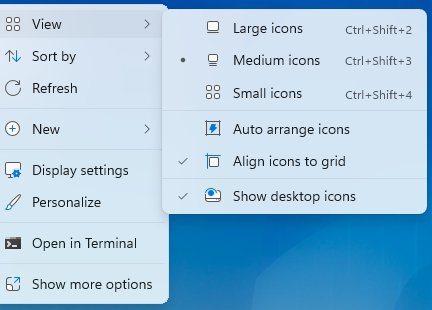
To resize desktop icons in Windows 11 or 10, right-click an empty area of the desktop, select View and pick Large icons, Medium icons or Small icons, or hold Ctrl while you scroll the mouse wheel for finer steps.
This guide covers both of those methods, display scaling for everything at once, icon sizes inside File Explorer, the registry question, and fixes when icons will not resize.
Method 1: Using the Context Menu (Right-Click Method)
Resize desktop icons from the right-click menu when you want one of the three standard sizes. It works the same way in Windows 11 and Windows 10.
- Minimize open windows so you can see an empty area of the desktop.
- Right-click the empty area, away from any icon.
- Point to View.
- Select Large icons to increase the size, or Small icons to decrease it.
- Select Medium icons for the middle size.
Method 2: Keyboard Shortcut (Using Ctrl + Mouse Scroll Wheel)
Use mouse scroll to resize desktop icons when the three menu sizes are too coarse. Microsoft documents holding Ctrl while scrolling the wheel to make icons larger or smaller.
- Click an empty area of the desktop so the desktop has focus.
- Press and hold Ctrl.
- Scroll the mouse wheel up to make icons larger.
- Scroll the wheel down to make icons smaller.
- Release Ctrl when the size looks right.
On a laptop touchpad without a wheel, use the right-click menu instead.
Method 3: Using Display Settings for Larger Adjustments
Scale makes icons, text, apps and other items bigger together. Use it when the icons are not the only thing that looks too small.
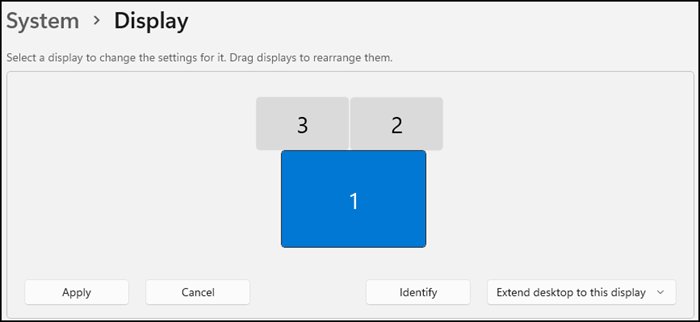
- Press Windows + I to open Settings, then select System > Display.
- In Windows 11, under Scale & layout, expand the Scale menu and choose a larger percentage.
- In Windows 10, under Scale and layout, use the list below Change the size of text, apps, and other items.
- Check that Display resolution is set to the value marked (Recommended); a lower resolution makes everything larger but blurrier.
Method 4: Using File Explorer to Set Icon Size
The desktop setting does not change icon size inside folders. File Explorer has its own view choice for each folder.
- Open File Explorer and go to the folder you want to change.
- In Windows 11, select View on the ribbon and choose one of the icon sizes.
- In Windows 10, open the View tab on the ribbon and pick an icon layout.
- In Windows 11, select View > Compact view if you also want less space between files.
Method 5: Customizing Icon Size with Registry Editor (Advanced)
Microsoft publishes no supported registry setting for desktop icon size, so this guide gives no registry edit. The View menu and Ctrl with the scroll wheel already store the size for you.
| What you want | Use this instead of the registry | Why |
|---|---|---|
| A size between the three menu options | Ctrl + mouse wheel on the desktop | Adjusts size gradually instead of in three fixed steps |
| Bigger icons and text together | Scale in Display settings | A supported setting you can undo in one click |
| Bigger labels only | Settings > Accessibility > Text size | Enlarges text without changing icon size |
Understanding Desktop Icon Sizes in Windows
| Setting | What it changes | Affects other items? |
|---|---|---|
| View > Large, Medium or Small icons | Desktop icons only, in three fixed sizes | No |
| Ctrl + mouse wheel | Desktop icons only, in finer steps | No |
| Scale (Display settings) | Icons, text, apps and windows | Yes, everything on that display |
| Text size (Accessibility) | Text, including icon labels | Yes, text across Windows |
| File Explorer View | Icons in the current folder | No, desktop stays the same |
On a high-resolution screen with high scaling, the same setting looks physically larger, which is why icons can look different on two PCs.
Best Practices & Tips for Resizing Desktop Icons
- Set the right Scale first, then fine-tune desktop icons with Ctrl and the mouse wheel.
- Use Text size if only the labels under the icons are hard to read.
- Show or hide system icons from Settings > Personalization > Themes > Desktop icon settings to reduce clutter before resizing.
- Right-click the desktop and use View > Show desktop icons to hide every icon at once when you share your screen.
If icons are missing rather than too small, see how to show desktop icons on Windows 11, and add the Network icon to the desktop from the same settings.
How to check the new size stuck
- Right-click the desktop and point to View; the size you picked should have a mark next to it.
- Restart the PC or sign out and back in, then confirm the icons keep their new size.
Troubleshooting Common Icon Resizing Issues
Desktop icons won't resize with Ctrl and the scroll wheel
The desktop does not have focus, or a window is in front of it.
- Minimize all windows.
- Click once on an empty part of the desktop.
- Hold Ctrl and scroll again, or use View in the right-click menu.
Icons are still huge after choosing Small icons
Display scale is set high, or resolution is lower than the screen's native value.
- Open Settings > System > Display.
- Set Display resolution to the (Recommended) value.
- Lower Scale one step and check the desktop again.
No icons are visible to resize
Show desktop icons is switched off.
- Right-click the desktop.
- Select View.
- Select Show desktop icons so it is checked.
Folder icons changed size but the desktop did not
File Explorer views and the desktop are set separately.
- Go back to the desktop.
- Right-click it and choose a size under View.
Frequently asked questions
How do I resize desktop icons in Windows 11?
Right-click an empty area of the desktop, point to View, and choose Large icons, Medium icons or Small icons. For more sizes, click the desktop, hold Ctrl and scroll the mouse wheel up to enlarge icons or down to shrink them.
How do I resize desktop icons in Windows 10?
The steps are the same as Windows 11. Right-click the desktop, select View and pick a size, or hold Ctrl while you scroll the mouse wheel. To make everything bigger, change Scale under Settings > System > Display.
How do I make desktop icons smaller?
Right-click the desktop, select View and choose Small icons. For something smaller still, click the desktop, hold Ctrl and scroll the mouse wheel down. If icons stay large, check that Scale and Display resolution are set to their Recommended values.
Why won't my desktop icons resize?
Usually the desktop does not have focus, so Ctrl and the scroll wheel zoom the window in front instead. Minimize windows, click an empty area of the desktop and try again. If icons look large at every size, lower the Scale percentage in Display settings.
Does resizing desktop icons change icon size in File Explorer?
No. The desktop and File Explorer are set separately. In File Explorer, select View on the ribbon and choose an icon size for that folder. Changing Scale in Display settings is the only option that enlarges both at once.
How do I make desktop icon text bigger without changing icon size?
Open Settings > Accessibility > Text size in Windows 11, or press Windows + U and use Make text bigger in Windows 10. Drag the slider to the right. Icon labels grow with the rest of the text while the icons keep their size.
Final Words
Use the right-click View menu for a quick change and Ctrl with the mouse wheel for an exact size. Both are built into Windows 11 and 10, take effect immediately and are undone just as easily. Change Scale only when text and apps are too small as well.