To turn off notifications in Windows 11, open Settings > System > Notifications and switch Notifications off; in Windows 10, the same switch is under System > Notifications & actions.
This guide also covers silencing alerts for a while, blocking one app, muting sounds, hiding lock screen content, stopping tips, and blocking website notifications in Edge and Chrome.
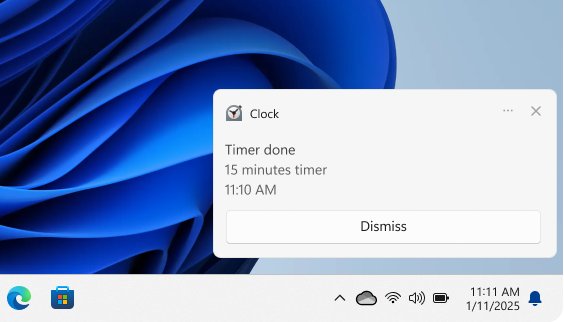
Turn off all notifications in Windows 11
This switch stops every app and sender from showing notification banners. It stays off until you turn it back on.
- Select Start > Settings.
- Select System > Notifications.
- Turn the Notifications switch to Off.
If you only want quiet for a meeting or an evening, use Do not disturb instead, so you do not have to remember to switch everything back on.
Choose the setting that matches the notifications you want gone
"Turn off notifications" covers several different jobs. Match your goal to a row, because each one lives in a different place.
| What you want | Use this | Windows version |
|---|---|---|
| No notifications from anything, permanently | The main Notifications switch | Windows 11 and Windows 10 |
| Silence alerts for a while, then get them back | Do not disturb (Windows 11) or Focus assist (Windows 10) | Each name applies to its own version |
| Quiet during set hours every day | Turn on do not disturb automatically > During these times (Windows 11) or Automatic rules in Focus assist (Windows 10) | Each name applies to its own version |
| Block one noisy app but keep the rest | The app's own switch in the notification settings list | Windows 11 and Windows 10 |
| Keep banners but stop the chime | Play a sound per app (Windows 11) or Allow notifications to play sounds (Windows 10) | Windows 11 and Windows 10 |
| Stop other people reading alerts on a locked PC | Hide content when notifications are on lock screen (Windows 11) or Show notifications on the lock screen (Windows 10) | Windows 11 and Windows 10 |
| Stop Microsoft tips and the post-update welcome screen | Additional settings on the Notifications page | Windows 11 |
| Pop-ups from a website you never meant to subscribe to | Block the site in Edge or Chrome | Any version; the setting is in the browser |
Turn off all notifications in Windows 10
Windows 10 calls the page Notifications & actions, and the main switch has a longer label than in Windows 11.
- Select Start > Settings.
- Select System > Notifications & actions.
- Set Get notifications from apps and other senders to Off.
Turn off notifications for one specific app
Blocking one app is the better choice when a single program is noisy and you still want alarms, reminders and messages from everything else.
- Windows 11: open Start > Settings > System > Notifications.
- Windows 11: under Notifications from apps and other senders, find the app and turn its switch off.
- Windows 11: to keep the app but tone it down, select its name and change Show notification banners, Show notifications in notification center or Priority of notifications instead.
- Windows 10: open Start > Settings > System > Notifications & actions.
- Windows 10: under Get notifications from these senders, set the app to Off.
- Shortcut on either version: when a notification from the app arrives, open the notification center, select the More button (Windows 11) or the settings button (Windows 10) on it, and choose Turn off all notifications.
Silence notifications for a while with Do not disturb in Windows 11
Windows 11 uses Do not disturb where Windows 10 uses Focus assist. While it is on, only alarms, reminders and apps you allow can notify you; everything else still collects in the notification center.
- Press Windows key + N, or select the clock on the taskbar, to open the notification center.
- Select the bell icon with zZ on it to turn Do not disturb on.
- To schedule quiet hours, open Start > Settings > System > Notifications.
- Expand Turn on do not disturb automatically and select During these times, then set the start and end times.
- Select Set priority notifications to choose what can still break through.
- Under Calls and reminders, select the checkboxes for incoming calls or reminders you want to allow.
- Under Apps, select Add apps and pick any app that must always reach you.
Windows 11 also has Focus under Settings > System > Focus. Selecting Start focus session runs a timer and turns on do not disturb for the length of the session, as long as Turn on do not disturb is selected in its options.
Silence notifications with Focus assist in Windows 10
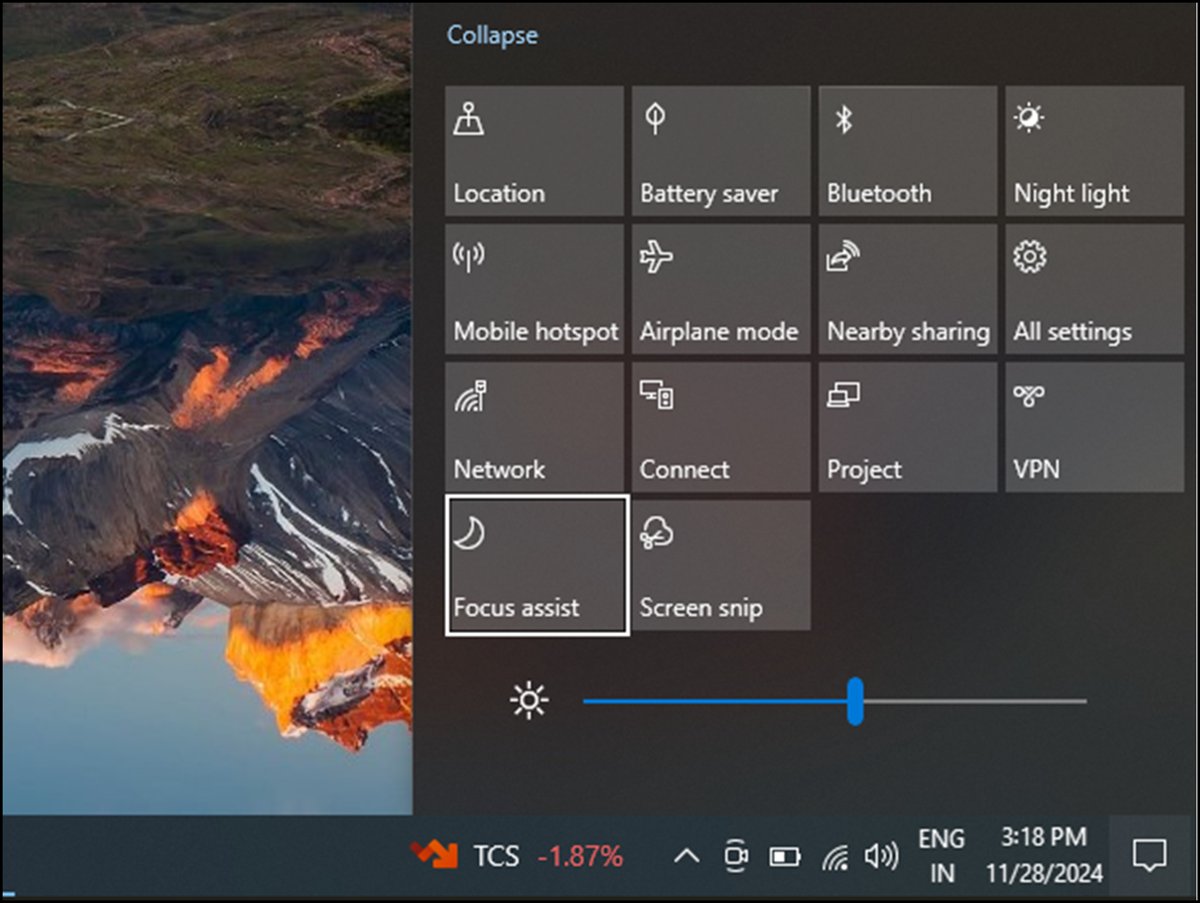
Focus assist is the Windows 10 feature, and earlier Windows 10 releases called it quiet hours. It is set by default to switch on when you duplicate your display, play a game, or use an app in full screen.
- For a quick change, select the Action Center icon on the taskbar, then select Focus assist to cycle between Priority only, Alarms only and Off.
- For full control, open Start > Settings > System > Focus assist.
- Select Priority only to receive notifications only from a list you customize, or Alarms only to hide everything except alarms.
- Under Automatic rules, turn each condition on or off, and set the times and level for scheduled quiet hours.
- Select Show me a summary of what I missed while focus assist was on if you want a recap when it ends.
Stop notification sounds but keep the banners
Windows 11 controls sound per app, while Windows 10 also has one switch for every app at once.
- Windows 11: open Start > Settings > System > Notifications.
- Windows 11: select the app under Notifications from apps and other senders and turn off Play a sound.
- Windows 11: repeat for each app whose chime you want gone.
- Windows 10: open Start > Settings > System > Notifications & actions.
- Windows 10: turn off Allow notifications to play sounds to mute every notification.
- Windows 10: to mute one app only, select it under Get notifications from these senders and turn off Play a sound when a notification arrives.
Hide notifications on the lock screen
Notification previews on a locked PC can show message text to anyone walking past. Hiding the content keeps the alert but removes what it says.
- Windows 11: open Start > Settings > System > Notifications and select the app, such as your email or chat app.
- Windows 11: turn on Hide content when notifications are on lock screen.
- Windows 10: open Start > Settings > System > Notifications & actions.
- Windows 10: turn off Show notifications on the lock screen, and turn off Show reminders and incoming VoIP calls on the lock screen if you want those hidden too.
- Both versions: to remove Microsoft content from the lock screen, open Settings > Personalization > Lock screen and turn off Get fun facts, tips, tricks, and more on your lock screen.
- Windows 10 only: on the same Lock screen page, set Choose one app to show detailed status on the lock screen to None.
Stop tips, suggestions and the welcome screen in Windows 11
These prompts come from Windows itself, so blocking individual apps does not remove them.
- Open Start > Settings > System > Notifications.
- Scroll to the bottom and expand Additional settings.
- Clear Get tips and suggestions when using Windows.
- Clear Show the Windows welcome experience after updates and when signed in.
Stop website notifications in Microsoft Edge and Google Chrome
Many "notifications I never asked for" come from a website that was once allowed to send them. They show in the lower-right corner and in the notification center, and Edge site notifications still appear when Edge is closed.
A website notification is a browser permission, not a Windows virus, even when its text claims your PC is infected. Blocking the site removes the permission. Unwanted pop-up windows inside a page are a separate browser setting.
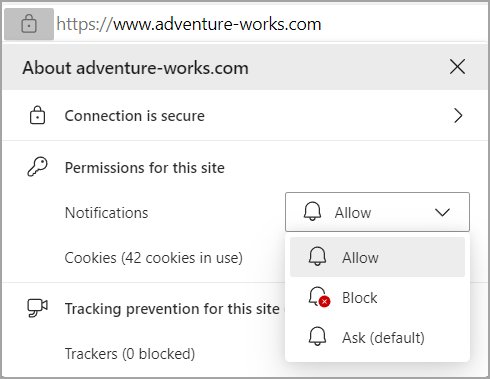
- Edge, one site from the page: select View site information to the left of the address bar, then under Permissions for this site > Notifications, choose Block.
- Edge, any site you have allowed: select Settings and more > Settings > Privacy, search, and services > Site permissions > All sites.
- Edge: select the website, find the Notifications setting and choose Block.
- Chrome: select More > Settings > Privacy and security > Site settings > Notifications.
- Chrome: under Allowed to send notifications, select More to the right of the site and choose Block.
- Chrome: on the same page, select the default option that stops sites from sending or asking to send notifications.
Chrome automatically blocks notifications from sites it identifies as intrusive or misleading, and it can remove notification permission from sites you have not visited in a while.
Where each notification setting lives in Windows 11 and Windows 10
Microsoft renamed several of these pages between versions, so a Windows 10 path will not match a Windows 11 PC.
| Setting | Windows 11 | Windows 10 |
|---|---|---|
| All notifications | Settings > System > Notifications > Notifications | Settings > System > Notifications & actions > Get notifications from apps and other senders |
| App list | Notifications from apps and other senders | Get notifications from these senders |
| Temporary silence | Do not disturb, from the notification center or the Notifications page | Focus assist, from Action Center or Settings > System > Focus assist |
| Scheduled quiet hours | Turn on do not disturb automatically > During these times | Focus assist > Automatic rules |
| Allowed while silenced | Set priority notifications | Priority only list in Focus assist |
| Notification center shortcut | Windows key + N | Windows key + A |
| Timed focus | Settings > System > Focus > Start focus session | Not available |
How to check notifications are really off
- Reopen the Notifications page and confirm the switch you changed still reads Off.
- Press Windows key + N on Windows 11, or Windows key + A on Windows 10, and check that no new items from the blocked app arrive.
- Lock the PC while a new message arrives and confirm its text no longer shows on the lock screen.
- In Edge or Chrome, reopen the site's notification permission and confirm it reads Block.
How to turn notifications back on
- Windows 11: open Settings > System > Notifications and turn Notifications back on, then turn on any app you switched off.
- Windows 11: open the notification center and select the bell icon with zZ again to end Do not disturb.
- Windows 10: open Settings > System > Notifications & actions and set Get notifications from apps and other senders to On.
- Windows 10: select Focus assist in Action Center until it reads Off.
- Edge: return to the site's Notifications setting and choose Allow to subscribe again.
Fix notifications that keep coming back
You can't turn off notifications in Windows 11: alerts still appear after switching them off
The alerts come from a browser site permission or from an app's own window, and neither is controlled by the Windows app list.
- Note which name appears on the alert, such as a website address or a program name.
- If it shows a website, block that site in Edge or Chrome using the steps above.
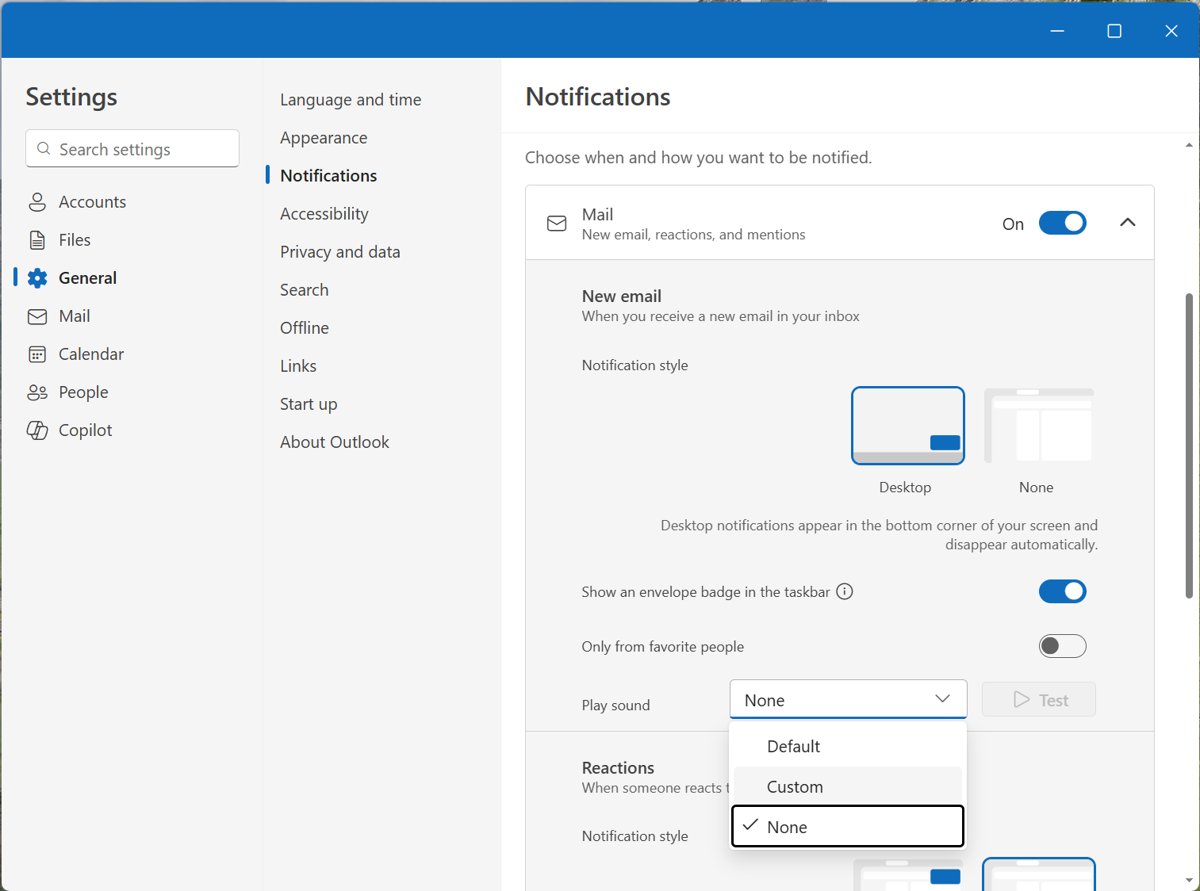
- If it is an Outlook message alert, turn it off inside Outlook: in new Outlook, select View > View Settings > General > Notifications; in classic Outlook, select File > Options > Mail and clear Display a Desktop Alert.
- If it is a pop-up window inside a web page rather than a notification, use the browser's pop-up blocker instead.
- For any other program, open that program's own settings and turn off its alerts there.
Do not disturb turns itself on
An automatic rule or a Focus session switched it on for you.
- Open Settings > System > Notifications and expand Turn on do not disturb automatically.
- Clear the rules you do not want: During these times, When duplicating the display, When playing a game, When using an app in full-screen mode and For the first hour after a Windows feature update.
- Open Settings > System > Focus and clear Turn on do not disturb if Focus sessions should not silence alerts.
- On Windows 10, open Settings > System > Focus assist and turn off the conditions under Automatic rules.
Notification banners do not appear at all
Notifications are silenced or banners are turned off for the app, so alerts go straight to the notification center.
- Open the notification center and check whether Do not disturb is on; turn it off.
- On Windows 10, select Focus assist in Action Center until it reads Off.
- Open the Notifications page and confirm the main switch is on.
- Select the app in the notification settings list and turn on Show notification banners; the label is the same on Windows 11 and Windows 10.
- Check whether you are gaming, duplicating your display or using a full-screen app, since those trigger automatic silencing by default.
Frequently asked questions
How do I turn off all notifications in Windows 11?
Select Start > Settings > System > Notifications and turn the Notifications switch off. This stops banners from every app and sender. Turn it back on from the same page, or use Do not disturb instead when you only want a short quiet period.
How do I turn off notifications in Windows 10?
Select Start > Settings > System > Notifications & actions and set Get notifications from apps and other senders to Off. To block only one app, leave that switch on and turn the app off under Get notifications from these senders.
How do I turn off Microsoft Edge notifications in Windows 11?
Block the website that sends them. In Edge, select Settings and more > Settings > Privacy, search, and services > Site permissions > All sites, select the site, and set Notifications to Block. Site notifications still arrive when Edge is closed, so blocking the site is the fix.
How do I stop Edge website notifications in Windows 10?
The steps are inside Edge, so they match Windows 11. Select View site information to the left of the address bar on the site, then under Permissions for this site > Notifications, choose Block. Choose Allow later if you want them back.
Are the steps different in Windows 11 Pro?
No. Microsoft publishes one set of notification steps for Windows 11 without edition differences, so Settings > System > Notifications works the same on Home and Pro. A work or school PC can still have settings managed by an organization.
Why can't I turn off notifications in Windows 11?
Alerts that continue after you switch notifications off usually come from a website allowed in your browser, or from an app's own pop-up window. Block the site in Edge or Chrome, or turn off the alert inside the program, such as Display a Desktop Alert in classic Outlook.
How do I turn off notification sounds in Windows 11?
Open Settings > System > Notifications, select an app under Notifications from apps and other senders, and turn off Play a sound. Repeat for each app. The banner still appears silently, and Do not disturb silences everything when you need quiet from all apps.
How do I turn off Outlook notifications in Windows 11?
In new Outlook, select View > View Settings > General > Notifications and turn off Mail, Calendar or Documents under Notify me about. In classic Outlook, select File > Options > Mail and clear Display a Desktop Alert under Message arrival, then select OK.
What is the difference between Focus assist and Do not disturb?
Focus assist is the Windows 10 feature with Off, Priority only and Alarms only levels. Windows 11 uses Do not disturb, which silences everything except alarms, reminders and apps you add as priority. Windows 11 Focus sessions are a separate timer that turns on do not disturb.





How to Turn On Camera on Windows 11: A Simple Step-by-Step Guide - Techdows
[…] camera message is a normal Windows notification. If you have turned off notifications in Windows, rely on the camera light or the recent-use list […]