Windows 11 has no setting that brings back the classic Start menu, but you can move Start to the left corner and strip it down until it behaves much like the old one.
This guide covers every built-in option Microsoft documents: left alignment, pins and folders, hiding Recommended, the list view of all apps, pinned folders and the Quick Link menu.
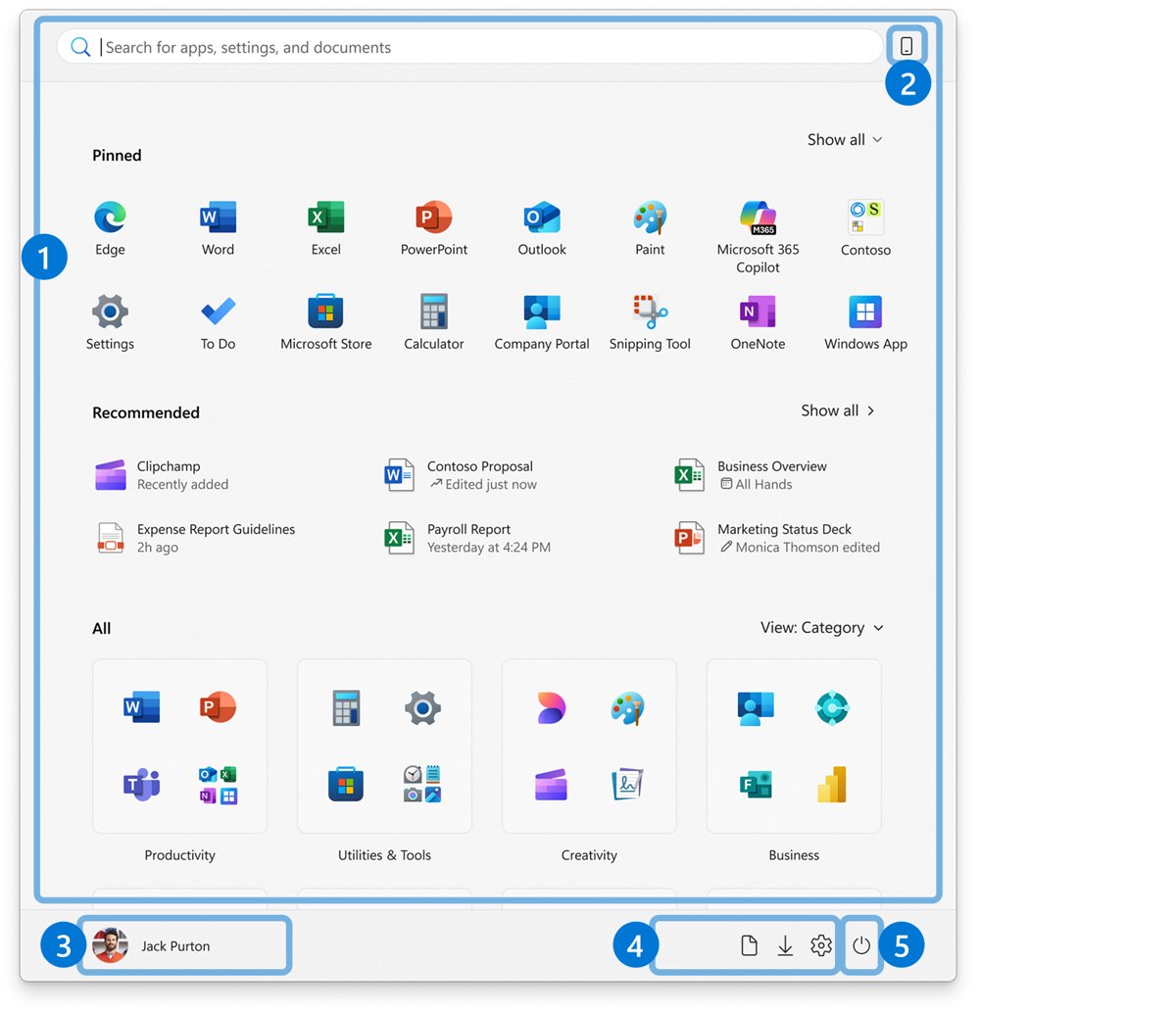
The fastest way to put Start back in the left corner
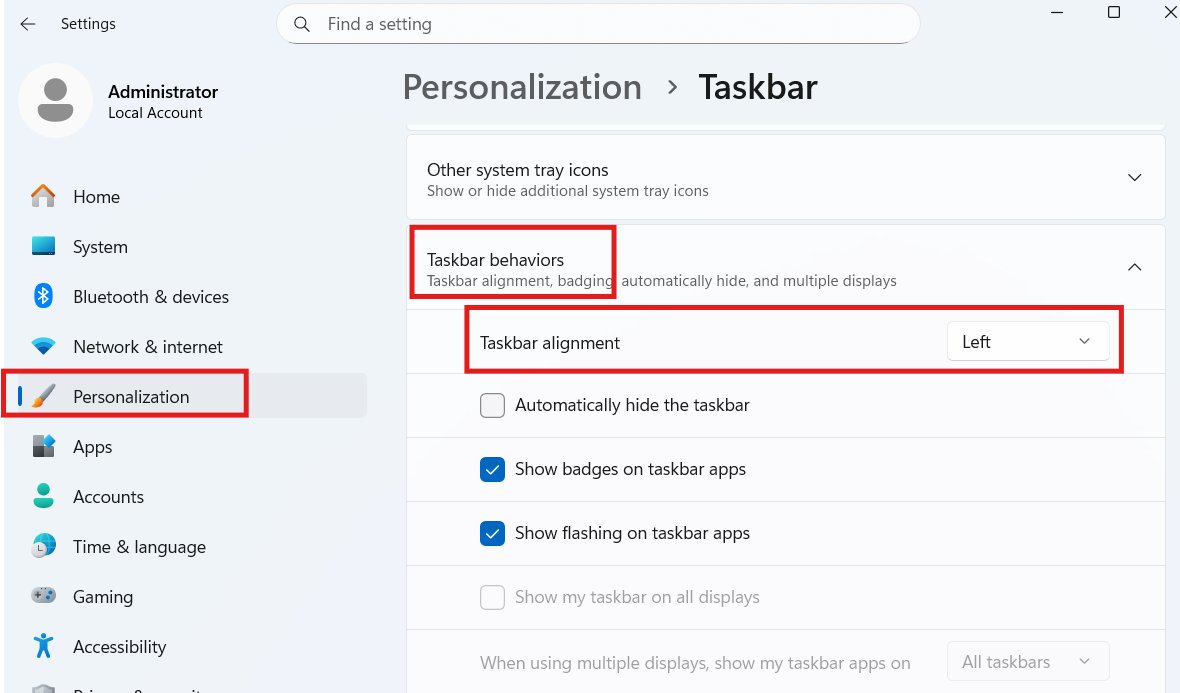
The single biggest difference from Windows 10 and earlier is position. Windows 11 centers the Start button and taskbar icons by default, and one setting moves them to the left.
- Right-click an empty part of the taskbar and select Taskbar settings.
- Scroll down and expand Taskbar behaviors.
- Open the Taskbar alignment drop-down menu.
- Select Left.
- Close Settings. The Start button now sits in the bottom-left corner and the Start menu opens from there.
Microsoft's taskbar page notes that alignment is the only position option: the taskbar itself stays at the bottom of the screen, with no setting to move it to the top or side.
Is it possible to get back the traditional Start menu in Windows 11?
No. Microsoft's Start menu documentation for Windows 11 describes one Start design with Pinned, Recommended and All sections, and it lists no classic mode, compatibility switch or older layout to fall back to.
What you can do is map each habit from the old menu to the closest Windows 11 feature.
| What you miss from the classic menu | Closest Windows 11 feature | Where to set it |
|---|---|---|
| Start button in the bottom-left corner | Left taskbar alignment | Settings > Personalization > Taskbar > Taskbar behaviors > Taskbar alignment |
| A plain alphabetical list of programs | The All section in List view | Open Start and switch the All section's view |
| Program groups and folders | Folders of pins, made by dragging one pin onto another | Inside the Pinned section of Start |
| Documents, Downloads and Pictures links | Folders next to the power button | Settings > Personalization > Start > Folders |
| No suggestions or ads mixed into the menu | Recommended toggles turned off | Settings > Personalization > Start |
| The power-user right-click menu | The Quick Link menu | Right-click Start or press Windows key + X |
Which change gets you closest to the classic Start menu?
| What bothers you most | Change this | Result |
|---|---|---|
| Start in the middle of the screen | Taskbar alignment to Left | Start opens from the corner, like Windows 10 |
| Too many tiles you never use | Unpin items and group the rest into folders | A short, organized Pinned section |
| Recent files and suggested apps | Turn off the Recommended toggles | The Recommended section collapses when every source is off |
| Hunting for an app by icon | Set the All section to List | An alphabetical list that Start remembers |
| Too many clicks to reach Settings or Device Manager | Use Windows key + X | The Quick Link menu opens straight away |
| You manage several PCs | Start policy settings (CSP or Group Policy) | The same layout and hidden sections on every device |
Customizing Windows 11’s Default Start Menu
The Pinned section replaces the old list of favorite programs. Trim it to what you use, then group the rest into folders so Start stays on one screen.
- Open Start, right-click any pin you never use and select Unpin from Start.
- To add an app, type its name in the Search box, right-click the result and select Pin to Start.
- To pin a folder, right-click it in File Explorer and select Pin to Start.
- Drag pins to change their order, with the ones you use most at the top.
- Drag one pin onto another to create a folder, then rename it, for example Office or Tools.
- Drag more pins into the folder to add them; drag a pin out to remove it.
- Select Show all in the Pinned section if you want every pin visible each time Start opens.
Start remembers the last view you used, so an expanded Pinned section stays expanded. A folder disappears on its own once only one pin is left inside it.
Turn off the Recommended section
The Recommended area is the part of Windows 11 Start with no classic equivalent. Microsoft states that if you turn off every recommended source in Settings, the section collapses and you no longer see it.
- Select Start > Settings > Personalization > Start.
- Turn off Show recently added apps.
- Turn off Show recently opened items in Start, Jump Lists, and File Explorer.
- Turn off any other recommendation toggle on the same page, such as most used apps or tips, if your build shows them.
- Open Start again and confirm the Recommended area is empty or gone.
Toggle names shift slightly between Windows 11 updates, so match the wording on your screen. An older walkthrough on how to disable the Recommended section covers the first Windows 11 builds.
On work or school PCs, an administrator can hide it with the Remove Recommended section from Start Menu policy under Administrative Templates > Start Menu and Taskbar.
Show all apps as an alphabetical list
The classic menu's All Programs list lives on as the All section. Microsoft documents three views for it: Category, Grid and List. Category groups apps automatically; Grid and List are alphabetical.
- Press the Windows key to open Start.
- Scroll to the All section, or select All if it is collapsed.
- Open the view options for that section and select List.
- Close Start and open it again. The All section keeps the List view until you change it.
Add Documents, Downloads and other folders next to the power button
Classic Start had links to your personal folders down its right side. Windows 11 puts the same links in a row beside the power button.
- Open Start, right-click the bottom area of the menu and select Start settings.
- Select Folders.
- Turn on the folders you want, from Documents, Downloads, Music, Pictures, Videos, Network and Personal folder.
- Open Start and check the new icons beside the power button.
Additional Tips and Tricks
Much of what people liked about the classic menu was speed. These shortcuts and desktop options, all documented by Microsoft, cover the same ground without opening Start at all.
| Shortcut or action | What it does | Classic habit it replaces |
|---|---|---|
| Windows key or Ctrl + Esc | Opens or closes Start | Opening Start from the keyboard |
| Windows key + X, or right-click Start | Opens the Quick Link menu | Right-click shortcuts to system tools |
| Windows key + S | Opens search | Typing in the old Start search box |
| Windows key + R | Opens the Run dialog box | The Run command on classic Start |
| Windows key + E | Opens File Explorer | Computer and Documents links |
| Windows key + I | Opens Settings | Control Panel link |
| Windows key + L | Locks the PC | Lock option on the power menu |
| Drag an app from All to the desktop | Creates a desktop shortcut to the app | Desktop icons for favorite programs |
| Settings > Personalization > Themes > Desktop icon settings | Shows This PC, Network, User's Files and Recycle Bin on the desktop | Classic desktop icons |
| Right-click an app on the taskbar | Opens its jump list of recent files | Recent items per program |
To shut down or restart, select the power button at the bottom right of Start, the same place the classic menu kept it. The older Windows 10 Start menu shutdown guide shows how that button worked before.
How to check the changes worked
- Look at the taskbar: the Start button should be the first icon on the left edge.
- Press the Windows key: Start should open from the bottom-left corner.
- Check the Pinned section shows only your pins and folders.
- Check the Recommended area is empty or no longer shown.
- Check the All section opens in List view.
- Check your chosen folder icons appear next to the power button.
How to return to the default Windows 11 Start menu
- Right-click the taskbar and select Taskbar settings.
- Expand Taskbar behaviors and set Taskbar alignment to Center.
- Go to Settings > Personalization > Start and turn the Recommended toggles back on.
- Switch the All section back to Category or Grid view.
- Drag pins out of your folders if you want them loose again.
Fix Start menu problems after customizing it
Start settings are greyed out or will not change
A Group Policy or MDM policy set by your organization controls that option, and Microsoft notes the matching Settings toggle is greyed out when it is enabled.
- Check whether the PC is a work or school device managed by an organization.
- Ask your IT administrator which Start policies apply, such as Remove "Recently added" list from Start Menu or Prevent changes to Taskbar and Start Menu Settings.
- On a PC you manage yourself, open the local policy editor and set those policies under Start Menu and Taskbar back to Not Configured.
Start button not working or Start menu does not open
Microsoft lists recent updates, recent registry or policy changes and untested Start customizations as the usual causes.
- Press Windows key + R, type
winverand press Enter to see your Windows build. - Go to Settings > Windows Update and install every available update.
- Check the Windows release health dashboard for a known Start menu issue on your build.
- Undo any recent Start policy or registry change, then restart the PC.
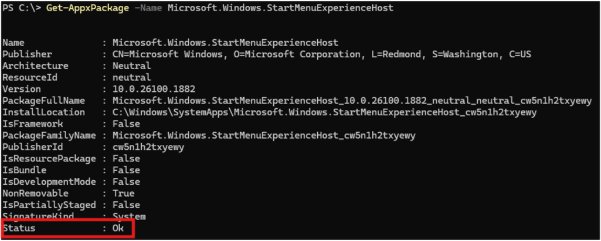
- Open PowerShell and run
Get-AppxPackage -Name Microsoft.Windows.StartMenuExperienceHostto confirm the Start package is installed for your account.
Start menu problems appeared after a Windows update
Some cumulative updates have shipped with known Start menu issues.
- Note the KB number of the most recent update listed in Settings > Windows Update.
- Search the Windows release health dashboard for that update and the words Start menu.
- Install the next cumulative update when Microsoft releases a fix.
- An earlier case, the Windows 11 KB5028254 update that could break the Start Menu, shows how this played out.
Before Using Third-Party Start Menu Applications
Search results for this topic are full of add-on programs that replace the Start menu. Microsoft does not document any of them, and none of them is part of the Start settings Windows 11 ships with.
Try the built-in changes in this guide first, and treat any Start replacement as software outside Microsoft's documented Start settings. Microsoft's own troubleshooting guidance names untested Start customizations and recent registry changes among the causes of Start menu problems, and a replacement changes exactly those parts of Windows.
If you still choose one, download it only from its developer's own site or the Microsoft Store, and uninstall it first if Start stops opening after an update.
Practical Considerations and Recommendations
Set the taskbar alignment to Left, turn off the Recommended toggles and switch All to List view. That combination gets closest to the classic Start menu using only settings Windows 11 includes. All three are documented by Microsoft, survive Windows updates, need no extra software and can be reversed in under a minute.
If you manage several PCs, Microsoft's Start policy settings let you apply a Start pin list and hide sections across all of them.
Frequently Asked Questions
How do I get the classic Start menu in Windows 11?
Windows 11 has no built-in classic Start menu. The closest you can get is to set Taskbar alignment to Left, turn off the Recommended toggles in Settings > Personalization > Start, and switch the All section to List view.
How do I set the Windows 11 Start menu to classic mode?
There is no classic mode. Microsoft's Windows 11 Start documentation lists one design with Pinned, Recommended and All sections. You can change its position, hide Recommended, group pins into folders and view all apps as a list.
How do I move the Windows 11 Start menu to the left?
Right-click the taskbar, select Taskbar settings, expand Taskbar behaviors and set Taskbar alignment to Left. The Start button moves to the bottom-left corner, and Start opens from there.
Where are the Start menu settings in Windows 11?
Open Settings > Personalization > Start, or right-click the bottom area of Start and select Start settings. Alignment is separate, under Settings > Personalization > Taskbar > Taskbar behaviors.
Does Windows 11 Pro have a classic Start menu?
No. Microsoft's Windows 11 Start documentation lists no classic option for any edition. The Group Policy settings it lists under Start Menu and Taskbar can hide sections such as Recommended, but none of them restores the classic design.
Can I download a classic Start menu for Windows 11 from Microsoft?
No. Microsoft offers no classic Start menu download or add-on for Windows 11. Downloads under that name come from other developers, and Microsoft's Start documentation does not cover them.
Is there a classic list view for the Windows 11 Start menu?
Yes, for installed apps. The All section offers Category, Grid and List views. List shows apps alphabetically, and Start remembers your choice the next time it opens.
How do I remove the Recommended section from Start in Windows 11?
Turn off every recommendation toggle in Settings > Personalization > Start, including Show recently added apps and Show recently opened items. With every source off, the section collapses. Administrators can also use the Remove Recommended section from Start Menu policy.
Can I bring back the old right-click Start menu with system tools?
Yes. Right-click the Start button or press Windows key + X to open the Quick Link menu. Microsoft documents both actions as opening the same menu of quick links to system tools, which works the same way whether Start is centered or aligned left.

How to access start menu Windows 11 - Techdows
[…] Windows 11 centres the Start button by default. One setting moves it to the bottom-left corner, where Windows 10 kept it. The full set of classic-style changes is in the guide to the Windows 11 classic Start menu. […]
How to get the old Start menu back in Windows 11 26H2 - Techdows
[…] long-standing ways to get a Windows 10-style classic Start menu rely on third-party shells, and that route has its […]