You do not download a separate Xbox One controller driver for Windows 10 or 11: plug the controller in or pair it, and Windows installs the driver itself through Windows Update.
This guide covers the automatic install, Device Manager updates, the Xbox Accessories app for firmware, USB, Bluetooth and Xbox Wireless Adapter setup, and fixes when Windows does not detect the controller.
Download and Install the Driver Automatically with Windows Update
Microsoft delivers drivers for most hardware through Windows Update, and the Xbox controller is no exception. Microsoft also advises against downloading drivers from any site other than the manufacturer's own.
- Connect the controller to a USB port on the PC with a data-capable USB cable.
- Wait a few seconds while Windows sets up the device; no installer or download page is involved.
- Select Start > Settings > Windows Update.
- Select Check for updates, then install anything listed.
- On Windows 11, open Advanced options and make sure Receive updates for other Microsoft products is On.
- Under Additional options, select Optional updates, tick any listed driver and select Download and install.
- Restart the PC when the updates finish, even if Windows did not ask.
Optional drivers are never installed on their own, so step 6 is the only way to pick them up. If nothing is listed there, the driver Windows already has is the current one.
Set Up Wired, Bluetooth, or Wireless Adapter Connections
Xbox Support lists three ways to connect an Xbox Wireless Controller to a Windows PC: a USB cable, the Xbox Wireless Adapter for Windows, or Bluetooth. Some PCs also have Xbox Wireless built in, so the controller connects without an adapter.
| Your situation | Connect with | Why |
|---|---|---|
| You want the fewest steps, or need to update firmware | USB cable | Windows sets it up on plug-in, and the Xbox Accessories app gets full access |
| Your controller has Bluetooth and your PC has Bluetooth | Bluetooth | No extra hardware, but most Accessories app features do not work over it |
| Older controller without Bluetooth, and you want wireless play | Xbox Wireless Adapter for Windows | Uses the controller's own Xbox Wireless radio |
| You want headset audio through the controller or several pads at once | Xbox Wireless Adapter or USB | Bluetooth limits audio and app features |
| Your PC has Xbox Wireless built in | Built-in Xbox Wireless | Same as the adapter, without the dongle |
The adapter is not sold in every market. Its own drivers also come through Windows Update, and the Xbox Wireless Adapter driver guide covers that dongle in detail.
Check Xbox One Controller Compatibility and Connection Type
Every Xbox One and Xbox Series X|S controller works on Windows 10 and 11 over USB. Bluetooth depends on which version of the controller you own.
| Controller | How to identify it | USB | Bluetooth | Xbox Wireless Adapter |
|---|---|---|---|---|
| Original Xbox One controller | Plastic around the Xbox button belongs to the top piece with the bumpers | Yes | No | Yes |
| Xbox One S-era controller | Plastic around the Xbox button is part of the front faceplate | Yes | Yes | Yes |
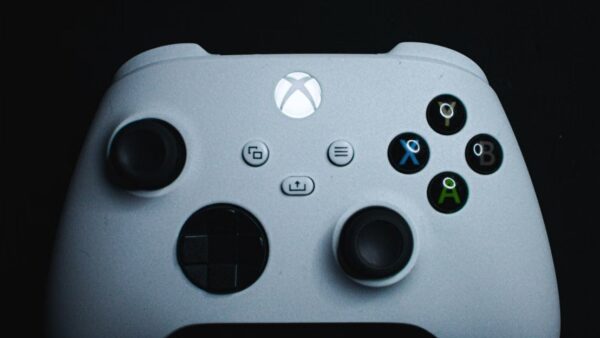
| Xbox Series X|S controller | Has a Share button and a USB-C port | Yes (USB-C) | Yes | Yes |
| Xbox Elite Series 2 and Xbox Adaptive Controller | Model name on the box or in the Accessories app | Yes | Yes | Yes |
| Xbox 360 controller | Previous-generation console design | Not covered here | No | Not supported by the Xbox Accessories app |
Xbox Support says to keep Windows and the Xbox Accessories app up to date so that every controller model is recognized.
Connect the controller with a USB cable
- Plug the cable into the controller's charging port.
- Plug the other end into a USB port on the PC, ideally one directly on the PC rather than a hub.
- Wait for the controller to power on and for Windows to finish installing it.
- Open a game or the Xbox Accessories app to confirm input works.
A charge-only cable powers the controller but carries no data, so Windows never sees it. Swap the cable first if nothing happens.
Connect the controller with Bluetooth
Bluetooth needs a Bluetooth-capable controller and a PC with Bluetooth. A PC without it can use a USB Bluetooth adapter.
- On Windows 11, select Start > Settings > Bluetooth & devices and switch Bluetooth to On.
- Turn on the controller with the Xbox button.
- Press and hold the controller's Pair button to put it in pairing mode.
- Select the Network, Sound or Battery icon next to the clock, then the Manage Bluetooth devices arrow on the Bluetooth tile.
- Select Xbox Wireless Controller under New devices.
- Follow any prompts, then select Done.
- On Windows 10, go to Settings > Devices, turn on Bluetooth, select the controller in the list and select Pair.
Once paired, the controller reconnects automatically whenever Bluetooth is on and it is in range.
Connect the controller with the Xbox Wireless Adapter
- Plug the Xbox Wireless Adapter for Windows into a USB port.
- Wait for Windows to install the adapter driver automatically.
- Turn on the controller with the Xbox button.
- Bind the controller to the adapter: press the adapter's pair button, then press and hold the Pair button on the controller until it connects.
Update the Xbox One Controller Driver Using Device Manager
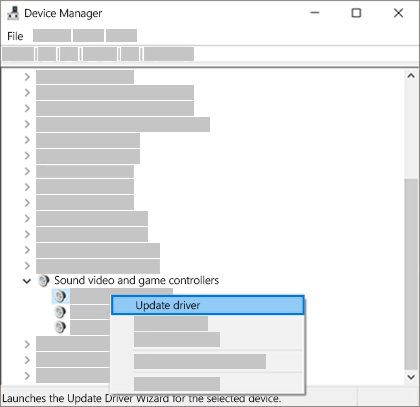
Use Device Manager when the controller shows a warning icon or stops responding after a Windows update. Connect it over USB first so the device is listed.
- Select Start, type Device Manager, and open it.
- Find the Xbox controller entry and right-click it.
- Select Update driver > Search automatically for drivers.
- If Windows says the best driver is installed, right-click the entry again and select Uninstall device.
- Unplug the controller, restart the PC, and plug it back in so Windows reinstalls the driver.
- If the problem began after a recent update, open the entry's Properties, select the Driver tab and choose Roll Back Driver if it is available.
- Use Browse my computer for drivers > Let me pick from a list of available drivers on my computer only when Windows assigned the wrong driver.
On current Windows versions, the automatic search in Device Manager checks drivers already on the PC. Windows Update is what fetches new ones from Microsoft.
Install and Configure the Xbox Accessories App
The Xbox Accessories app is where controller firmware updates and button remapping live on Windows. It does not support Xbox 360 controllers or non-Xbox devices.
- Open the Microsoft Store, search for Xbox Accessories and select Get or Install.
- Connect the controller with a USB cable or the Xbox Wireless Adapter, since most app features do not work over Bluetooth.
- Select Start, type Xbox Accessories, open the app and sign in.
- Select Configure under the controller to remap buttons and create profiles.
- Select More options (…) to check for a controller update or assign it to a profile.
- Install any update shown and keep the cable connected until it finishes.
Button mapping on the Xbox Series X|S controller needs a USB-C cable on Windows, according to Xbox's product page.
Verify the Controller Is Working on Windows 10 or 11
- Open Device Manager and confirm the controller entry has no yellow warning icon.
- For Bluetooth, open Settings > Bluetooth & devices and check that the controller shows as Connected.
- Open the Xbox Accessories app and confirm the controller appears with a Configure button.
- Press buttons and move the sticks in a game that supports controllers and check every input responds.
- Confirm the controller vibrates in a game that uses rumble.
Troubleshoot Driver Detection and Connection Problems
Pick the symptom that matches what you see. Each fix uses only built-in Windows tools and Xbox's own app.
Fix USB wired connection issues: the controller charges but Windows does not see it
A charge-only cable, a faulty port or hub, or a stalled driver install.
- Try a different USB cable that you know carries data.
- Plug into a different USB port directly on the PC.
- Run Check for updates in Settings > Windows Update and install everything listed.
- Uninstall the controller in Device Manager, restart, and plug it in again.
Fix Bluetooth pairing and detection issues: the controller is not in the list
The controller has no Bluetooth, is not in pairing mode, or the PC's Bluetooth driver is outdated.
- Check the faceplate around the Xbox button to confirm your model has Bluetooth.
- Hold the Pair button again, then refresh the device list.
- Set Bluetooth device discovery to Advanced in Bluetooth settings on Windows 11.
- Update the Bluetooth adapter in Device Manager under Bluetooth with Update driver > Search automatically for drivers.
- Remove the old pairing from Bluetooth & devices and pair again.
Windows asks for a PIN or passcode when pairing over Bluetooth
Xbox Support lists this as a known Windows Bluetooth issue, usually tied to outdated controller firmware or Bluetooth drivers.
- Connect the controller over USB and update it in the Xbox Accessories app.
- Update Windows and the Bluetooth driver.
- Remove the controller from Bluetooth settings and pair again.
Fix Xbox Wireless Adapter problems: the controller will not link
The adapter driver did not install, or the controller is still paired to a console.
- Check Device Manager for the adapter and run Check for updates in Windows Update.
- Move the adapter to a USB port with a clear line of sight to the controller.
- Press the pair button on the adapter, then hold Pair on the controller.
- Uninstall the adapter in Device Manager and restart if the adapter itself is not detected.
Buttons are not recognized, or there is no vibration over Bluetooth
Old controller firmware, or a game that expects a wired or adapter connection.
- Update the controller firmware through the Xbox Accessories app over USB.
- Test the same game over USB to see whether the problem is Bluetooth only.
- Switch to USB or the Xbox Wireless Adapter for that game if it is.
Frequently Asked Questions
Where do I download the Xbox controller driver?
There is no separate download. Windows 10 and 11 install the Xbox controller driver through Windows Update when you connect the controller. Microsoft advises against driver downloads from sites other than the manufacturer.
Will an Xbox One controller work on PC?
Yes. Every Xbox One controller works on Windows 10 and 11 with a USB cable or the Xbox Wireless Adapter. Controllers from the Xbox One S era onward also connect over Bluetooth.
How do I install an Xbox controller on PC?
Plug the controller into a USB port and wait a few seconds. Windows installs the driver automatically. For wireless play, pair it over Bluetooth or with the Xbox Wireless Adapter for Windows.
How do I get my Xbox controller to work on PC?
Connect it with a data USB cable, run Check for updates in Windows Update, and test it in a game that supports controllers. If Windows still ignores it, reinstall the controller in Device Manager.
How do I use a controller on Xbox PC games?
Connect the controller by USB, Bluetooth or the Xbox Wireless Adapter, then launch the game. Games with controller support detect it automatically, and the Xbox Accessories app lets you remap buttons.
Do I need to manually download an Xbox One controller driver for Windows 10 or Windows 11?
No. The driver is delivered by Windows Update. Only check Optional updates in Windows Update settings if the controller is not set up after plugging it in.
Where can I update the Xbox One controller firmware on PC?
Use the Xbox Accessories app from the Microsoft Store. Connect the controller with USB or the adapter, open the app, select More options (…) under the controller and install the update.
Why is my Xbox One controller not showing up in Device Manager?
Usually the USB cable is charge-only or the port is faulty. Try a data cable and another port, then install pending Windows updates and restart the PC.
Bottom Line
Plug the Xbox One controller in with a data USB cable, let Windows Update install the driver, and use the Xbox Accessories app for firmware updates. Microsoft ships the controller driver through Windows Update, so third-party driver downloads add risk without adding anything Windows does not already provide.

![How to turn on/off ad blocker in Microsoft Edge? [step-by-step]](https://techdows.com/wp-content/uploads/2026/10/How-to-turn-onoff-ad-blocker-in-Microsoft-Edge-step-by-step-1-600x338.jpg)