Steam usually downloads slowly because of a busy or distant download region, a bandwidth limit set in Steam, a weak Wi-Fi link, other apps sharing the connection, or a drive that cannot write the files fast enough.
This guide shows how to find which of those is slowing you down, the exact Steam and Windows settings to change, and what to do when a download keeps stopping or crawls on a fast SSD.
Why is Steam downloading so slow on my PC? The quick fix
Start with the two Steam settings that cause most slow downloads. Both live on one page, and changing them takes under a minute.
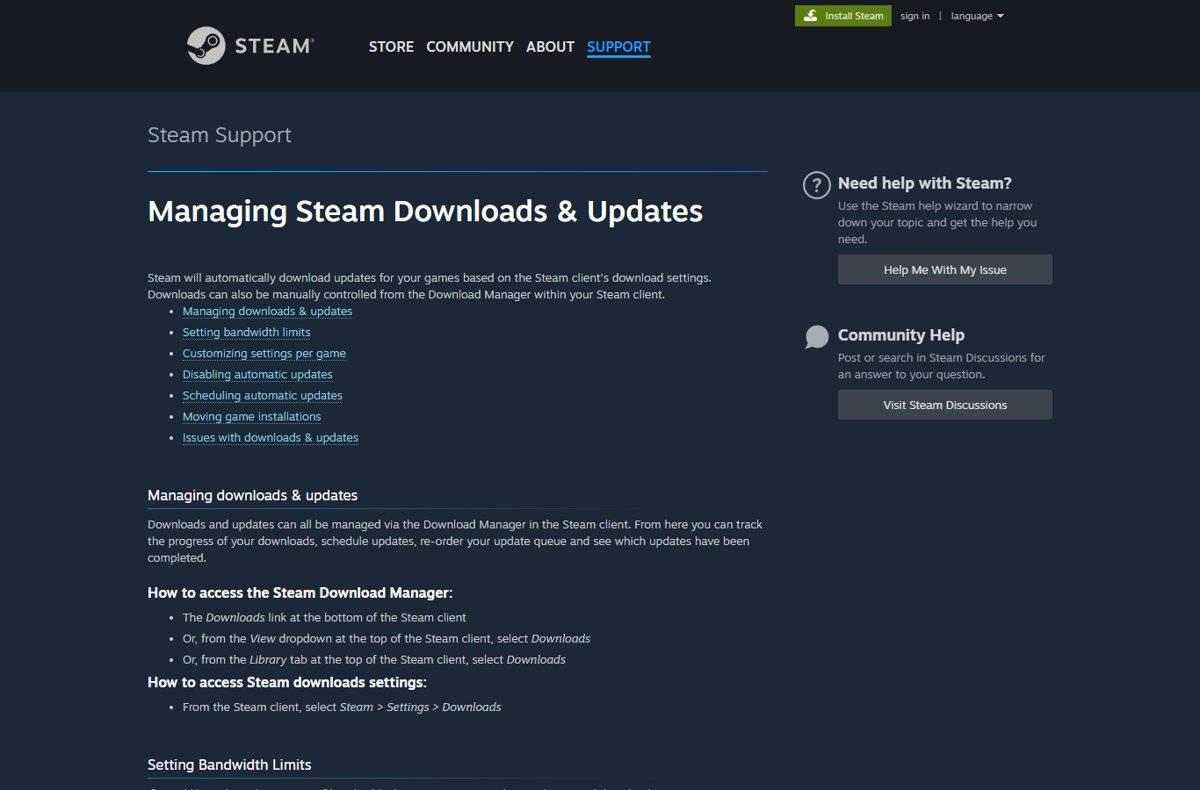
- Open Steam and select Steam > Settings.
- Select Downloads in the left pane.
- Open the Download Region list and pick the region nearest to you, or a nearby alternative if the closest one is slow.
- Check the bandwidth limit on the same page and set it to no limit.
- Open the Download Manager with the Downloads link at the bottom of the Steam window.
- Watch the download rate for a minute to see whether it climbs.
Since the February 2023 client update, a new download region takes effect without restarting Steam. If the speed is still low, the cause is outside these two settings, and the table below points to the right fix.
Steam slow download causes and fixes
Match what you see in the Download Manager and on your PC to a row, then jump to that fix.
| What you notice | Likely cause | Fix to try first |
|---|---|---|
| Slow on every game, other sites download fast | Busy or distant download region | Change the download region |
| Speed stops at the same round number | A bandwidth limit in Steam | Remove the bandwidth limit |
| Slow on Wi-Fi, fine on Ethernet | Wi-Fi signal, band or interference | Rule out network and Wi-Fi problems |
| Slow only while other things run | Background apps, Windows Update or a VPN | Pause background apps and VPNs |
| Download stuck or failing on one game | Bad cached manifest data | Clear Steam's caches |
| Network speed drops to zero, disk stays busy | Steam writing or patching files | Check disk usage and storage |
| Every device on the network is slow | Router, ISP or a data cap | Advanced fixes |
Check Steam’s download server region
Steam sends game files from content servers grouped by region. Valve's own troubleshooting advice is to make sure the download region matches your location.
If a server near you is overloaded or serving bad data, a different region can be faster. Valve suggests trying a region farther away in that case.
- Select Steam > Settings > Downloads.
- Open the Download Region list and note the region currently selected.
- Select the region that matches where you live.
- Let the download run for a few minutes and note the speed.
- If the speed does not improve, select a neighbouring region and compare again.
- Keep whichever region gives the steadiest speed, not just the highest first reading.
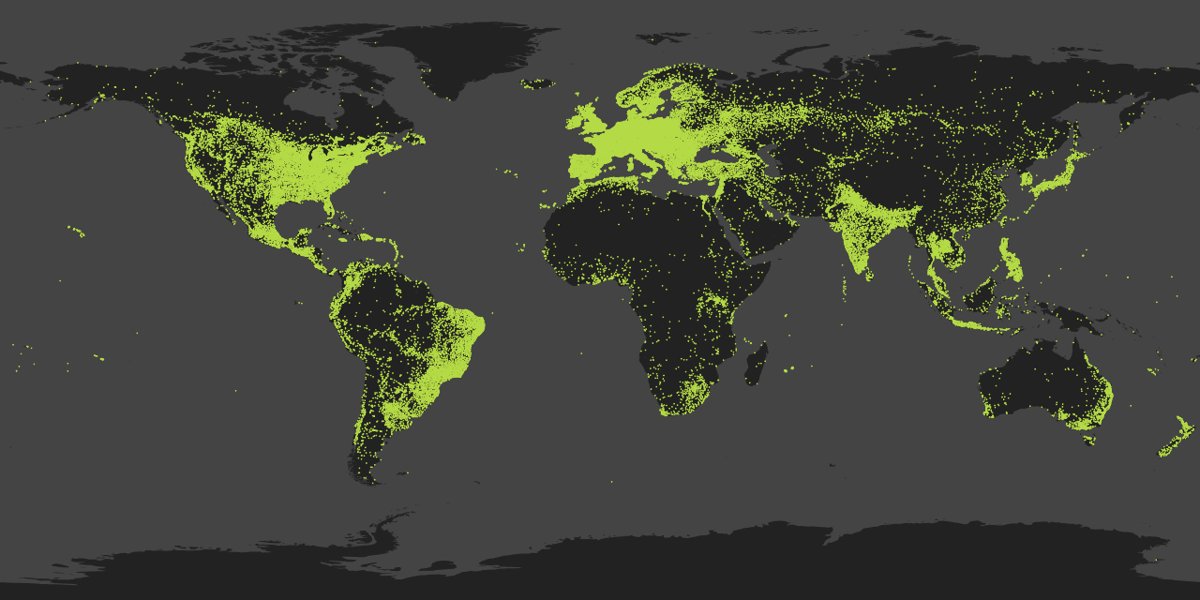
To choose a better region, open the Steam Download Stats page. It shows the average download rate per region and how much bandwidth Steam is using right now, which reveals regional peaks.
Remove Steam bandwidth limits and throttling
Steam can cap its own download speed. The cap shows in the upper right corner of the Download Manager, and it is easy to forget after setting it once.
The limit follows your display units. If Steam shows bits per second, the values in the list are bits, not bytes.
- Select Steam > Settings > Downloads.
- Find the bandwidth limit setting and set it to no limit.
- Check whether Only auto-update games between is ticked with a time window.
- Untick it, or widen the window, if you want updates to run now.
- Open the Download Manager and check that no limit appears in the upper right corner.
- Select the game in the queue and start it immediately if it is waiting for its scheduled time.
Per-game settings matter too. On a game's library page, select Manage > Properties > Updates, and set it to High Priority to download it before other updates.
Rule out network and Wi-Fi problems slowing Steam downloads
Steam can only download as fast as the link between your PC and the router. Distance, walls and 2.4 GHz devices such as cordless phones and microwave ovens all cut Wi-Fi speed.
If other downloads are slow too, fix the slow download speed on the whole connection first.
- Unplug the router and the modem, wait at least 30 seconds, then plug in the modem first and the router second.
- Connect the PC to the router with an Ethernet cable if you can, and compare Steam's speed.
- On Wi-Fi, move closer to the router and remove obstructions between them.
- If your router broadcasts both 2.4 GHz and 5 GHz networks, connect to the other one and compare.
- In Device Manager, open your Wi-Fi adapter's Properties > Power Management and untick Allow the computer to turn off this device to save power.
- Restart the Steam download and check the rate in the Download Manager.
Pause background apps, updates, and VPNs during Steam downloads
Everything else that uses the connection takes a share of it. Windows Update, cloud sync, browser downloads, streaming on other devices and a VPN all compete with Steam.
- Press Ctrl + Shift + Esc to open Task Manager.
- On the Processes tab, sort by the Network column and close apps using bandwidth that you do not need.
- Open Settings > Windows Update > Advanced options > Delivery Optimization and limit the bandwidth used for downloads.
- Disconnect your VPN, then compare Steam's download speed without it.
- Pause other Steam downloads in the Download Manager so one game gets the full connection.
- Ask others on the network to pause large downloads or 4K streams while Steam finishes.
A VPN routes traffic through its own server, so Steam may pick content servers far from you. If the speed is normal without the VPN, leave it off for game downloads.
Clear Steam’s download cache
Steam keeps cached app and download manifest data in its install folder. When that data is stale, a download can stall, restart or crawl on one game while others are fine.
Valve's download troubleshooting for this case is to exit Steam and delete the two cache folders. This fix is most likely to help when a single game misbehaves.
- Pause the stuck download in the Download Manager.
- Select Steam > Exit so Steam closes completely, not just to the tray.
- Open File Explorer and go to the Steam install folder, by default
C:\Program Files (x86)\Steam. - Delete the
appcacheanddepotcachefolders. - Start Steam again and sign in.
- Resume the download from the Download Manager.
Installed games sit in your Steam Library folders under steamapps, so deleting these two cache folders does not remove them. If one game still will not download, uninstall and reinstall it, which also clears its manifest cache.
Check disk usage and storage performance for Steam downloads
Steam downloads game data and then writes or patches files on your drive. Updates send only the changed parts of files, so Steam spends extra time rewriting existing data on disk.
When the drive cannot keep up, the network rate drops to zero while the disk stays busy. A nearly full drive, a slow hard disk or a scan running at the same time all cause this.
- Press Ctrl + Shift + Esc, select the Performance tab, and watch the disk Steam installs to during the download.
- If the disk sits near 100% active time, close apps that read or write heavily, such as backups and virus scans.
- Open Settings > System > Storage and free space with Storage Sense if the drive is nearly full.
- Search for Defragment and Optimize Drives, select the drive, and select Optimize.
- Move the game to a faster drive: in its Properties > Installed Files, select Move Install Folder and choose the new location.
- Restart the download and compare the rate.
Windows defragments hard disks and trims SSDs on a weekly schedule by default, so Optimize matters most on a hard drive that has missed runs.
Try advanced fixes if Steam downloads are still slow
These fixes reset the Windows network stack, test your router, and check whether the problem sits with your ISP. Run them after the Steam settings and disk checks.
- Reset your network stack: open Command Prompt as administrator and run
netsh winsock reset,netsh int ip reset,ipconfig /release,ipconfig /renewandipconfig /flushdnsin that order, then restart. - Try a different DNS provider by changing the DNS server in your adapter's TCP/IP settings, then flush the DNS cache again.
- Test another connection or bypass the router: connect the PC to the modem by Ethernet, or use another network, and compare Steam's speed.
- Check for ISP throttling or routing problems: if every device is slow at the same hours, or your plan has a data cap, contact your ISP.
- Repair or reinstall Steam carefully: verify one game at a time with Properties > Installed Files > Verify integrity of game files, and reinstall Steam itself only after that.
- As a last step, use Settings > Network & internet > Advanced network settings > Network reset on Windows 11, or Status > Network reset on Windows 10.
Network reset removes and reinstalls every network adapter, so you may need to reinstall VPN software afterwards. If you have a second PC with the game, Steam's Local Network Game Transfers feature can copy it over your home network instead of the internet.
How to check Steam download speed after the fix
- Open the Download Manager from the Downloads link at the bottom of the Steam window.
- Check that no bandwidth limit appears in the upper right corner.
- Watch the download rate graph for two or three minutes rather than one reading.
- Convert your plan speed: divide the megabits per second from your ISP by 8 to get megabytes per second.
- Compare the two: a 100 Mbps plan tops out near 12.5 MB/s, so a steady figure close to that means the fix worked.
Short dips to zero during a download are normal when Steam pauses to write files. A rate that stays near your plan speed, apart from those dips, is a healthy download.
Steam download slow on SSD, today or with a fast speed test
Steam is downloading slowly when the internet speed test looks fine
Speed tests report bits per second, while Steam usually shows bytes, or the chosen download region is busy.
- Divide the speed test result by 8 and compare it to Steam's MB/s figure.
- If Steam is still well below that, change the download region in Steam > Settings > Downloads.
- Check the Download Manager for a bandwidth limit and remove it.
Steam is downloading slowly on an SSD
The SSD is nearly full, busy with other writes, or the game is installing to a different, slower drive.
- Open the game's Properties > Installed Files to confirm which drive it is installing to.
- Free space on the SSD with Storage Sense in Settings > System > Storage.
- Close backup, sync and antivirus scans while the download runs, then check the disk in Task Manager.
Steam is downloading slowly today only
A big release or sale is loading Steam's servers in your region, or your ISP is congested at peak hours.
- Open the Steam Download Stats page to see current bandwidth use by region.
- Switch to a neighbouring download region for this session.
- Use Only auto-update games between to schedule large updates overnight.
The Steam download keeps stopping and starting
Steam pauses network transfer while it writes and patches files, or the cached manifest data is stale.
- Watch the disk in Task Manager; if it is busy while the network rate drops, wait for the write to finish.
- Exit Steam and delete the
appcacheanddepotcachefolders, then resume. - Verify the game's files once the download completes.
Steam is downloading slowly on a Mac
The same Steam settings apply, and Wi-Fi distance or a VPN is the usual cause.
- Open Steam > Settings > Downloads in the Steam client on the Mac.
- Change the download region and remove any bandwidth limit.
- Move closer to the router or connect by Ethernet, and turn off a VPN while downloading.
Why is Steam downloading so slow FAQ
Why is Steam downloading so slow?
Steam downloads slowly most often because the download region is busy or far away, a bandwidth limit is set, Wi-Fi is weak, or another app is using the connection. Change the region in Steam > Settings > Downloads, remove any limit, and test on Ethernet.
Why are my Steam games downloading so slowly when other downloads are fast?
When only Steam is slow, the cause is usually inside Steam: a congested download region, a bandwidth limit, or stale cache data. Change the download region first, then remove the limit, and clear the appcache and depotcache folders if one game stalls.
Why is Steam downloading so slow on my PC but fast on another device?
If another device downloads quickly on the same network, the problem is on your PC. Check for background apps in Task Manager, a weak Wi-Fi adapter connection, a VPN, or a busy, nearly full drive. Run the Windows network reset only after those checks.
Why is Steam downloading so slow on an SSD?
A fast SSD can still bottleneck Steam when it is nearly full, busy with backups or scans, or when the game is actually installing to a different drive. Confirm the install drive in the game's Properties, free space, and watch disk activity in Task Manager.
Why is Steam downloading so slow today?
A sudden slowdown on one day usually comes from heavy load on Steam's servers in your region, such as a major release, or from ISP congestion at peak hours. Try a neighbouring download region or schedule the update overnight.
Which Steam download region should I choose for the fastest speeds?
Start with the region that matches your location, as Valve recommends. If that region is slow, try a neighbouring one and compare the steady speed over a few minutes. Valve notes that a region farther away can help when a nearby server is having problems.
Can a VPN make Steam downloads slower?
Yes. A VPN adds an extra hop through its server and can make Steam choose content servers near the VPN instead of near you. Disconnect the VPN and compare the download rate; if it is faster, keep the VPN off while downloading games.
Will clearing Steam's download cache delete my games?
No. The appcache and depotcache folders hold cached app and manifest data, while installed games live in your Steam Library folders under steamapps. Deleting the cache folders with Steam closed leaves your games and save files in place.
Why does my Steam download keep stopping and starting?
Steam stops pulling data while it writes and patches files on your drive, so the network rate drops to zero and then resumes. Short pauses are normal. Long or repeated stalls point to a slow or busy disk or stale cache folders.
Why is Steam so slow at downloading updates compared with new games?
Updates send only the changed parts of game files, and Steam then rewrites those parts inside existing files. That patching work happens on your drive, so a large update can take longer than its download size suggests, especially on a hard disk.
Bottom line: how to fix slow Steam downloads
Change the download region and remove the bandwidth limit in Steam > Settings > Downloads first, then test on Ethernet with background apps and the VPN paused. Those settings and the connection itself cause most slow Steam downloads, and each check takes a minute. Cache clearing, disk checks and network resets are for the cases those first steps do not explain.
If you are setting Steam up on a new PC, download the Steam client from Valve and pick your download region before installing the first game.