To enable Xbox mode in Windows 11, open Settings > Gaming > Xbox mode and turn on Enable Xbox mode; turn the same switch off to disable it.
This guide covers the desktop and handheld settings, every way to enter and exit Xbox mode, how to start it at sign-in, and what to check when the option is missing.
Enable Xbox mode in Windows 11 Settings
These steps are for desktops and laptops. Gaming handhelds use a home app picker instead, covered further down.
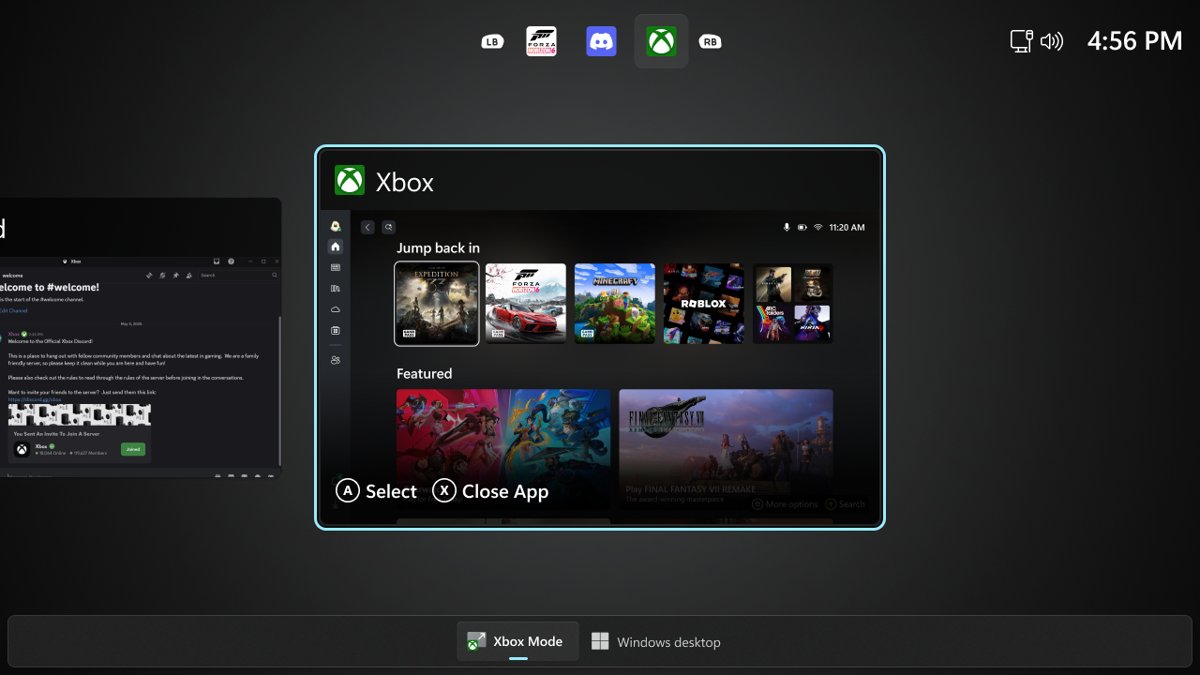
- Select Start > Settings.
- Select Gaming in the left pane.
- Select Xbox mode.
- Turn on Enable Xbox mode.
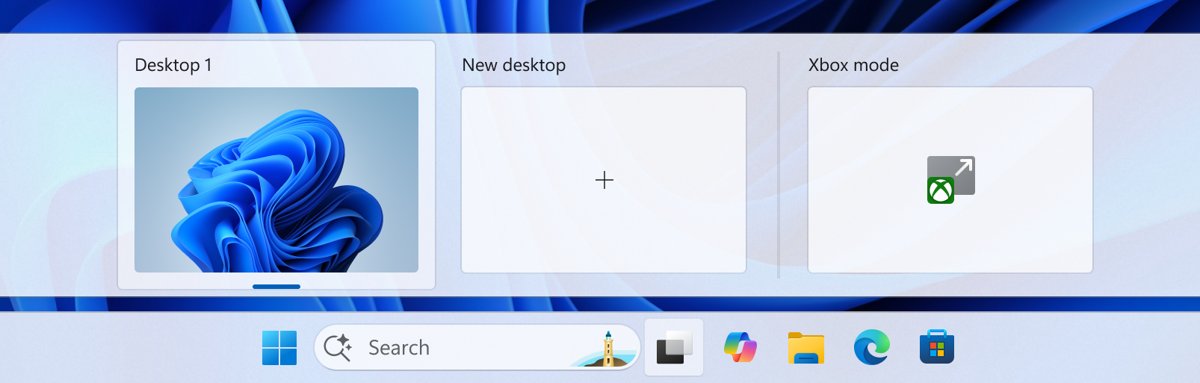
- Optionally, turn on Show Xbox mode in Task View to add an entry point to Task View.
- Press Win + F11 to enter Xbox mode right away.
To disable Xbox mode on the same PC, return to Settings > Gaming > Xbox mode and turn off Enable Xbox mode.
Xbox mode requirements on Windows 11
| Requirement | Detail |
|---|---|
| Windows version | Windows 11, version 24H2 or later (24H2 and 25H2, all editions) |
| Region | Only in supported markets; Microsoft does not list them on the support page |
| Device type | Gaming handhelds and other PC form factors, including desktops and laptops |
| Home app (handhelds) | A supported gaming home app, selected under Choose home app |
| Xbox app (optional) | Adds an Xbox mode toggle near the top of the app, in the title bar |
Check your version under Settings > System > About. If it shows 23H2 or earlier, the Xbox mode page will not appear.
What is Xbox mode in Windows 11?
Xbox mode is a controller-friendly, console-style gaming experience in Windows. It opens your gaming home app as a full screen launcher, and games run full screen.
| Behavior in Xbox mode | What it means for you |
|---|---|
| One window at a time | Apps with several windows may show only the most recent one |
| Full screen apps | Apps that do not support full screen sit on a black background |
| Minimize and maximize | These buttons do not change the window state |
| Keyboard shortcuts | Some desktop shortcuts are disabled |
| Controller navigation | Press and hold the Xbox button, or swipe up from the bottom, to switch apps |
| Startup option (handhelds) | With Enter Xbox mode on startup on, Windows limits background processes to improve performance |
Xbox mode settings on handhelds vs desktop PCs
The Xbox mode settings page differs by device type, so the switch you look for depends on your hardware.
| Your device | Setting to turn Xbox mode on | Setting to turn it off |
|---|---|---|
| Desktop or laptop PC | Turn on Enable Xbox mode | Turn off Enable Xbox mode |
| Gaming handheld | Pick an app under Choose home app | Set Choose home app to None |
| Gaming handheld, start at sign-in | Turn on Enter Xbox mode on startup | Turn off Enter Xbox mode on startup |
| Any PC, Task View entry | Turn on Show Xbox mode in Task View | Turn off Show Xbox mode in Task View |
Turn on Xbox mode on a gaming handheld
- Select Start > Settings > Gaming > Xbox mode.
- Under Choose home app, select a supported gaming home app.
- To launch Xbox mode every time you sign in, turn on Enter Xbox mode on startup.
- Restart or sign out and back in to confirm Xbox mode opens after sign-in.
- If Windows asks you to restart for performance optimizations after you return from the desktop, select restart or continue without restarting.
How to enter Xbox mode on a Windows 11 PC
Once Xbox mode is enabled, you can switch into it from four places.
- Press Win + F11 from the desktop.
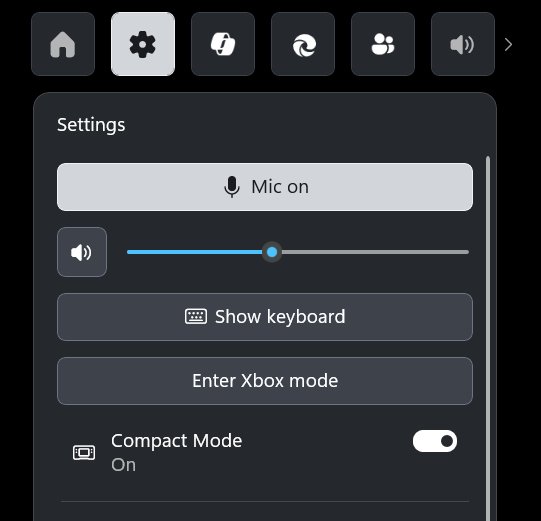
- Or press Win + G or the Xbox button on your controller, then select Settings in Game Bar to reach the Xbox mode entry.
- Or press Win + Tab or select the Task View taskbar icon, then select Xbox mode (needs Show Xbox mode in Task View on).
- Or open the Xbox app and select the Xbox mode toggle near the top of the app, in the title bar.
If Game Bar itself does not open with Win + G, turn on Xbox Game Bar first.
How to exit Xbox mode in Windows 11
- Press Win + F11 to return to the desktop.
- Or open Game Bar settings and choose the option to go back to the desktop.
- Or open Task View and select the desktop. On a touch device, swipe up from the bottom of the screen to open Task View.
- Or open the Xbox app and select the Xbox mode toggle in the title bar.
Exiting only leaves Xbox mode for now. To stop it coming back, disable it as shown in the next section.
Disable Xbox mode in Windows 11
- Select Start > Settings > Gaming > Xbox mode.
- On a desktop or laptop, turn off Enable Xbox mode. This removes the Xbox mode entry points.
- On a handheld, set Choose home app to None.
- On a handheld, also turn off Enter Xbox mode on startup so the PC boots to the desktop.
- To keep Xbox mode but hide its Task View entry, turn off Show Xbox mode in Task View only.
Check that Xbox mode is on or off
- Press Win + F11. If Xbox mode is enabled, your gaming home app opens full screen.
- Press Win + F11 again to return to the desktop.
- Press Win + Tab and look for the Xbox mode entry if you turned on Show Xbox mode in Task View.
- After disabling, press Win + F11 again; the desktop should stay in place.
Xbox mode not showing up in Windows 11 and other fixes
Why doesn't my PC have Xbox mode?
Xbox mode needs Windows 11 version 24H2 or later and is offered only in supported markets.
- Open Settings > System > About and check the Version line.
- If it is older than 24H2, open Settings > Windows Update and install the available feature update.
- Select Check for updates and install pending updates, then restart.
- Open Settings > Gaming again and look for Xbox mode.
- If the page is still missing on 24H2 or later, your market may not be supported yet.
An app does not start as expected in Xbox mode on a handheld
The app's startup setting controls when it launches around Xbox mode.
- Open Settings > Apps > Startup.
- Find the app in the list.
- Set it to Start at log in, Start when exiting to desktop, or Off.
An app opens on a black background or only one window shows
Xbox mode shows one full screen window at a time by design.
- Press and hold the Xbox button, or swipe up from the bottom, to switch to the other window.
- Press Win + F11 to return to the desktop when you need several windows side by side.
Windows 11 Xbox mode FAQ
How do I get Xbox mode on Windows 11?
Update to Windows 11 version 24H2 or later, then open Settings > Gaming > Xbox mode and turn on Enable Xbox mode. On a handheld, pick an app under Choose home app. The option appears only in supported markets.
What is Xbox mode on PC?
Xbox mode is a controller-friendly, console-style gaming experience built into Windows 11. It opens your gaming home app as a full screen launcher and runs games full screen, so you can navigate with a gamepad.
How do I exit Xbox mode on a Windows PC?
Press Win + F11 to return to the desktop. You can also leave through Game Bar settings, through Task View, or with the toggle in the Xbox app's title bar. On touch devices, swipe up from the bottom to open Task View.
Is Xbox mode available on Windows 10?
Microsoft documents Xbox mode for Windows 11 version 24H2 and later only. Windows 10 is not listed, so the Xbox mode page does not appear in Windows 10 Settings.
Where is Xbox mode in Settings?
Xbox mode is under Start > Settings > Gaming > Xbox mode. Desktop PCs show Enable Xbox mode and Show Xbox mode in Task View; handhelds show Choose home app and Enter Xbox mode on startup.
Does Xbox mode improve performance?
On handhelds, turning on Enter Xbox mode on startup makes Windows limit background processes to improve performance. Microsoft does not promise frame-rate gains on desktops; Game Mode is the separate Windows setting aimed at game performance.
Why can't I find Xbox mode on my PC?
Your PC is probably on Windows 11 23H2 or earlier, or you are outside a supported market. Install the latest feature update from Windows Update, restart, and check Settings > Gaming again.
How do I start Xbox mode automatically?
On a gaming handheld, open Settings > Gaming > Xbox mode and turn on Enter Xbox mode on startup. Xbox mode then opens after you sign in. Microsoft documents this option for handhelds.
If frame rates are your goal, Windows 11 Game Mode is the separate setting to look at.