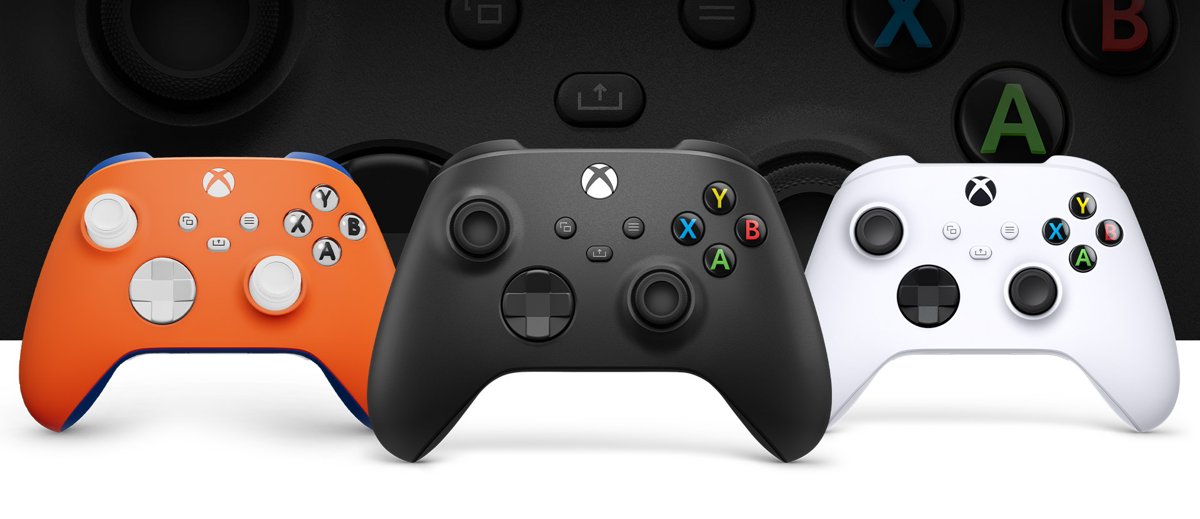
Plug an Xbox controller into your PC with a USB cable and Windows 10 or 11 sets it up on its own; for wireless play, pair it over Bluetooth or through the Xbox Wireless Adapter for Windows.
This guide covers all three connection types, which controllers support each, firmware updates in the Xbox Accessories app, and fixes for detection, lag and headset problems.
Quick reference: How to connect in 60 seconds
Pick the route that matches what you have on hand. Each one takes under a minute once the hardware is ready.
| Connection | What you need | Steps |
|---|---|---|
| Wired USB | A data-capable USB cable that fits the controller | Plug the cable into the controller and the PC, then wait for the Xbox button to light up |
| Bluetooth | A Bluetooth-capable controller and a PC with Bluetooth | Hold Pair for three seconds, then open Settings > Bluetooth & devices > Add device > Bluetooth |
| Xbox Wireless | Xbox Wireless Adapter for Windows, or a PC with Xbox Wireless built in | Plug in the adapter, press its pair button, then hold Pair on the controller |
Background / overview
Many PC games accept an Xbox Wireless Controller in place of a keyboard and mouse, and Windows supports it without extra software.
Microsoft lists three ways to connect: a USB cable, the Xbox Wireless Adapter for Windows, or Bluetooth. Some PCs include Xbox Wireless built in, so they connect a controller directly without an adapter.
| Method | Strength | Tradeoff |
|---|---|---|
| USB cable | No pairing, powers and charges a rechargeable pack, works with the Xbox Accessories app | You are tethered to the PC |
| Bluetooth | No extra hardware on most laptops | Headset audio and most Accessories app features are not available |
| Xbox Wireless Adapter | Up to eight controllers and headset support | Separate purchase; not sold in every market |
Which Xbox controller do you have? Cable types and capabilities
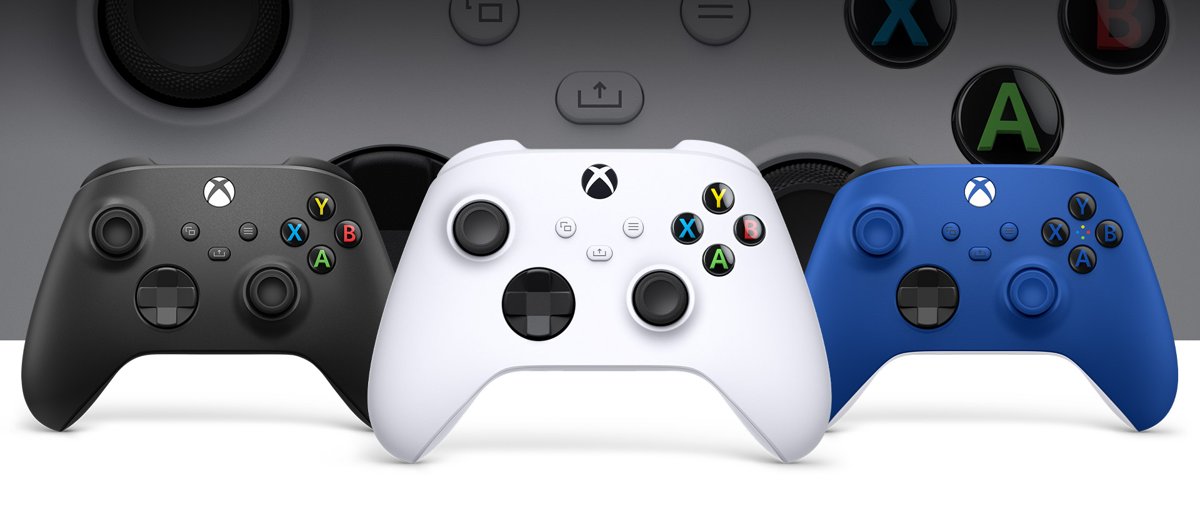
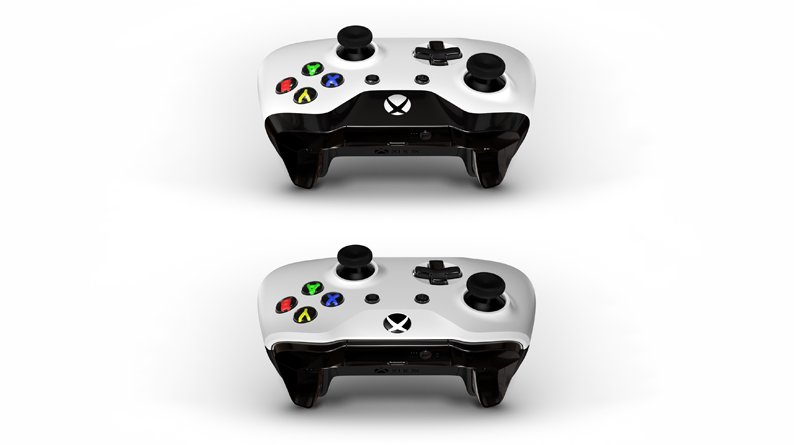
Bluetooth support depends on the model. On Xbox One controllers, the Bluetooth version has the plastic around the Xbox button molded into the faceplate; older units have that plastic as part of the top bumper strip.
| Controller | Bluetooth | Xbox Wireless | Cable |
|---|---|---|---|
| Xbox Wireless Controller (Series X|S) | Yes | Yes | USB-C |
| Xbox One controller sold with or after Xbox One S | Yes | Yes | Micro-USB |
| Original Xbox One controller | No | Yes | Micro-USB |
| Xbox Elite Wireless Controller Series 2 | Yes | Yes | USB-C (included) |
The cable must carry data, not just charge. A charge-only cable lights the controller but Windows never sees it.
Wired connection: The fastest, most reliable way
A cable is the route with nothing to pair and nothing to drop. It is also required for the Xbox Accessories app on Windows, so keep one around even if you play wireless.
| What you need | Details |
|---|---|
| Controller | Any Xbox One, Xbox Series X|S or Elite Series 2 controller |
| Cable | USB-C for Series X|S and Elite Series 2; micro-USB for Xbox One models |
| PC | Windows 10 or Windows 11 with a free USB port |
Step-by-step: Plug in and play
- Connect the small end of the cable to the port on the top of the controller.
- Plug the other end into a USB port on the PC, ideally one directly on the computer rather than a hub.
- Wait for the Xbox button to light up. Windows installs the driver automatically.
- Open a game that supports controllers and press a button to confirm input.
If Windows does not pick it up, reinstall the Xbox One controller driver before you swap cables.
Bluetooth pairing: convenient but with tradeoffs
Bluetooth uses the radio already in most laptops, so there is nothing to buy. The cost is features: headset audio through the controller jack and most Xbox Accessories app options do not work over Bluetooth.
| Situation | Use Bluetooth? | Why |
|---|---|---|
| Laptop with built-in Bluetooth, single player | Yes | No extra hardware |
| You plug a headset into the controller | No | Headset audio needs USB or Xbox Wireless |
| Several controllers on one PC | No | The Xbox Wireless Adapter handles up to eight |
| Original Xbox One controller | Not possible | That model has no Bluetooth radio |
When to use Bluetooth
Use Bluetooth for couch or travel play on a laptop when you do not need a headset on the controller. It needs no cable and no adapter, and the controller remembers one Bluetooth host alongside one Xbox Wireless host after a firmware update.
How to pair an Xbox controller over Bluetooth (Windows 10 and 11)
- Press the Xbox button to turn the controller on.
- Hold the Pair button on the top edge for three seconds until the Xbox button starts flashing.
- On Windows 11, open Start > Settings > Bluetooth & devices and switch Bluetooth on. On Windows 10, open Settings > Devices > Bluetooth & other devices.
- Select Add device (Windows 11) or Add Bluetooth or other device (Windows 10), then choose Bluetooth.
- Select Xbox Wireless Controller from the list.
- Select Done when the Xbox button stays lit.
The controller reconnects automatically whenever Bluetooth is turned on and it is in range.
Xbox Wireless radio and the Xbox Wireless Adapter: the best for low latency
Xbox Wireless is the same proprietary radio the console uses. The Xbox Wireless Adapter for Windows adds it to any PC through a USB 2.0 or 3.0 port; some PCs have it built in.
| Feature | Xbox Wireless Adapter |
|---|---|
| Controllers at once | Up to eight |
| Headsets | Up to four chat headsets or two stereo headsets |
| Controller support | All Xbox One and Series X|S controllers, including the original Bluetooth-less model |
| Availability | Not sold in every market |
How to use the Xbox Wireless Adapter
- Plug the adapter into a USB port on the PC and let Windows finish setting it up.
- Press the pair button on the adapter.
- Press the Xbox button to turn the controller on.
- Hold the Pair button on the controller until the Xbox button flashes.
- Wait for the Xbox button on the controller to stay lit, which means it is connected.
If the adapter is not recognized, get the Xbox Wireless Adapter drivers through Windows Update.
Xbox Game Bar and what the controller unlocks in Windows
Once connected, pressing the Xbox button on the controller opens the Controller bar, which lists recently played games so you can jump back into one.
| Controller action | Result in Windows |
|---|---|
| Press the Xbox button | Opens the Controller bar in Xbox Game Bar |
| Press Share (Series X|S controller) | Captures screenshots and clips |
| Play a game from Steam, the Xbox app or another store | Controller input works in titles that support a gamepad |
Xbox Accessories app, firmware and custom mapping
The Xbox Accessories app from the Microsoft Store remaps buttons, swaps triggers, turns off vibration and updates firmware. It does not detect a controller connected over Bluetooth, so plug in a USB cable first.
- Install Xbox Accessories from the Microsoft Store.
- Connect the controller to the PC with a USB cable.
- Open the app from Start and sign in if asked.
- Create and customize a new profile, or select the default.
- Select More options (…) to see the firmware version, then select Update now if one is offered.
Run the Xbox controller firmware update whenever the app offers one.
Advanced: Elite Series 2 and pro features
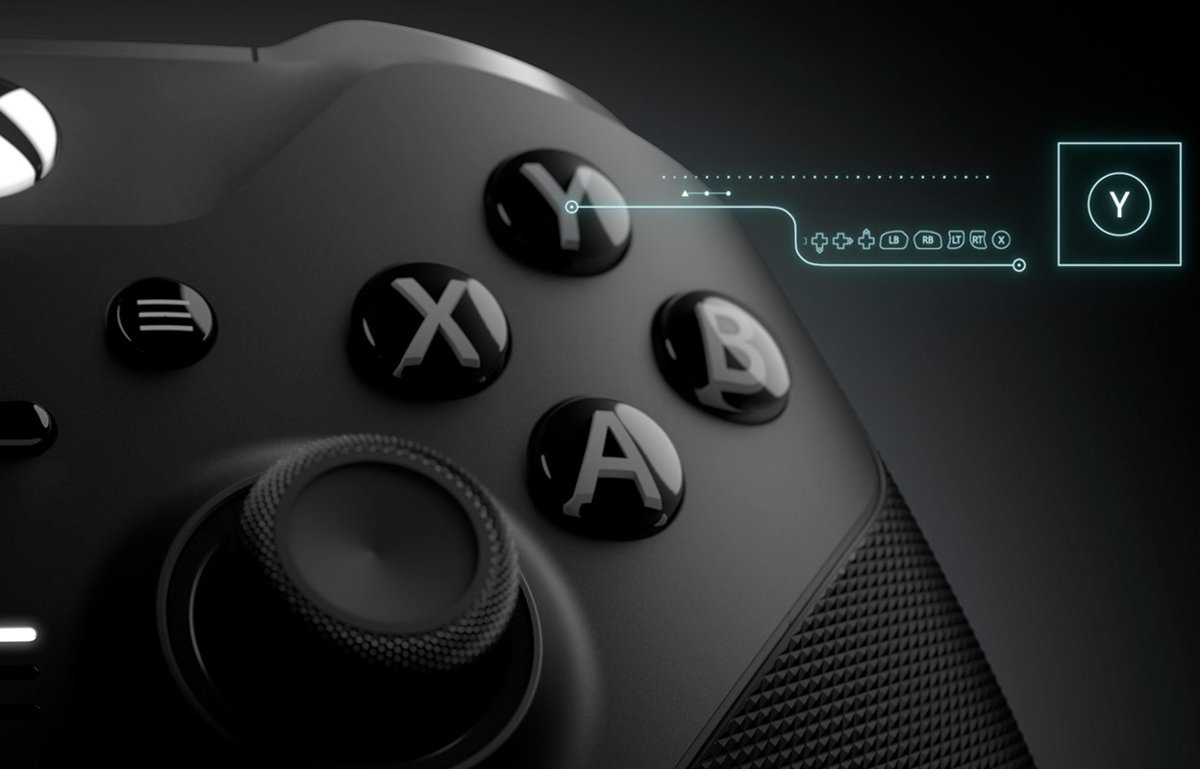
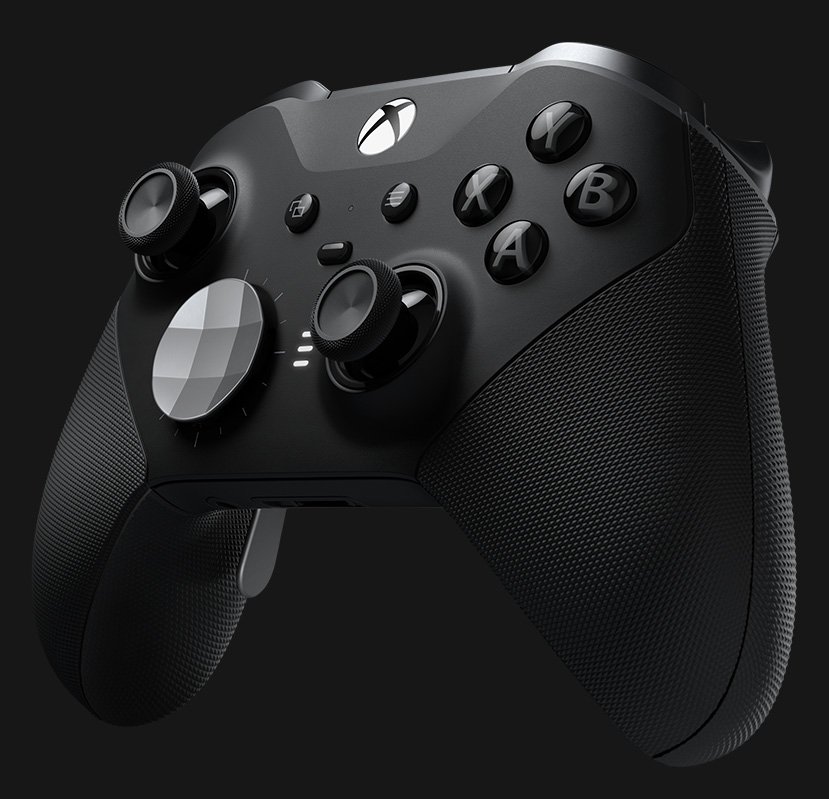
The Elite Wireless Controller Series 2 connects the same three ways, and its included USB-C cable doubles as the Accessories app link.
| Feature | Details |
|---|---|
| Profiles | Three custom profiles and one default stored on the controller, switched with the Profile button |
| Hardware | Adjustable-tension thumbsticks, shorter hair trigger locks, interchangeable paddles and D-pads |
| Battery | Up to 40 hours rechargeable |
| Connections | Xbox Wireless and Bluetooth for console, Windows PC and mobile |
Security, privacy and practical rules
| Rule | Why |
|---|---|
| Get drivers from Windows Update and apps from the Microsoft Store | Third-party driver packs are unnecessary for Xbox controllers |
| Remove the controller from Bluetooth & devices before you give it away | It otherwise keeps trying to reconnect to your PC |
| Charge or replace batteries before long sessions | Low batteries cause connection drops |
| Update controller firmware after a big Windows update | Firmware adds compatibility fixes |
How to test an Xbox controller in Windows
- Look at the Xbox button: steady light means connected, flashing means still searching.
- Open Settings > Bluetooth & devices and confirm Xbox Wireless Controller shows Connected (Bluetooth only).
- Press the Xbox button and check that the Controller bar opens.
- Launch a controller-ready game and move a thumbstick in its menu.
Troubleshooting: the most common issues and fixes
1. Controller not detected via USB
A charge-only cable, a hub port or outdated firmware.
- Swap to a cable you know carries data.
- Plug straight into a port on the PC instead of a hub.
- Hold the Xbox button for 5-10 seconds to power the controller off, then turn it on again.
- Run Windows Update to pull the latest controller driver.
2. Bluetooth pairing stalls or fails
The controller has no Bluetooth, is not in pairing mode, or the PC radio is off.
- Check the faceplate: an original Xbox One controller cannot pair over Bluetooth.
- Confirm Bluetooth is on under Settings > Bluetooth & devices.
- Remove any old Xbox Wireless Controller entry, then hold Pair for three seconds and add it again.
- Update the controller firmware over USB in the Xbox Accessories app.
3. Controller connects but shows lag or dropouts
Low batteries, distance, or interference on the Bluetooth link.
- Replace the AA batteries or charge the rechargeable pack.
- Move closer to the PC and clear metal objects from the line of sight.
- Switch to the Xbox Wireless Adapter or a USB cable for competitive play.
- Update the controller firmware.
4. Game Bar or other overlays block controller input
The Xbox button opens the Controller bar on top of the game.
- Press the Xbox button again or B to close the bar.
- Close other overlays, such as Steam's, one at a time to find the conflict.
- In Steam, check Settings > Controller so only one configuration layer is active.
5. Headset audio problems or headset disconnections
Bluetooth does not carry headset audio from the controller jack.
- Connect the controller by USB cable or the Xbox Wireless Adapter.
- Reseat the headset plug in the 3.5 mm jack.
- Update the controller firmware in the Xbox Accessories app.
- Pick the controller headset as the output device in Windows sound settings.
Xbox controller on PC FAQ
Do I need a driver to connect an Xbox controller to Windows 11?
No. Windows 10 and Windows 11 install the Xbox controller driver automatically when you connect by USB, Bluetooth or the Xbox Wireless Adapter. Windows Update supplies newer versions when they are released.
Why won't my Xbox controller show up in Bluetooth settings?
Either the controller has no Bluetooth radio or it is not in pairing mode. Original Xbox One controllers lack Bluetooth; others need the Pair button held for three seconds until the Xbox button flashes.
Can I use an Xbox 360 controller with these steps?
No. Xbox 360 controllers do not use Bluetooth or Xbox Wireless and are not supported by the Xbox Accessories app. Use a current Xbox Wireless Controller for all three methods.
How many Xbox controllers can connect to one PC?
The Xbox Wireless Adapter for Windows supports up to eight controllers at once. Bluetooth limits depend on the PC's radio, and wired connections are limited by free USB ports.
Can the controller stay paired to my Xbox and my PC?
Yes, after a firmware update. The controller remembers one Xbox Wireless host and one Bluetooth host, and you switch between them by double-tapping the Pair button.
Does the headset jack work over Bluetooth?
No. Headset audio through the controller's 3.5 mm jack needs a USB cable or Xbox Wireless connection. Over Bluetooth, use a headset connected to the PC itself.
Final verdict and recommendations
Use a USB cable for setup and firmware updates, Bluetooth for casual laptop play, and the Xbox Wireless Adapter for headsets or several controllers. Each route trades convenience against features, and only USB and Xbox Wireless give you full headset and Accessories app support.