When Steam will not open, end every Steam process in Task Manager and launch it again, because a hidden copy that is still running blocks a new window from appearing.
If that fails, the 18 solutions below move from quick restarts to network, security software, Windows and driver checks, and finish with a reinstall that keeps your installed games.
1. End all Steam processes from Task Manager
Steam often looks dead because an earlier copy is still running in the background with no window. A second launch then does nothing, so clicking the icon appears to fail.
- Press Ctrl + Shift + Esc to open Task Manager.
- Select More details if the window opens in compact view.
- On the Processes tab, find Steam, Steam Client WebHelper and Steam Client Service.
- Right-click each one and select End task.
- Close Task Manager and open Steam again from the Start menu or desktop shortcut.
If the Steam window now appears, the problem was a stuck process. There are other ways to open Task Manager if the shortcut does nothing.
How do I fix Steam not opening on my PC?
Find which symptom you have in the first column and start with that solution. The 18 fixes are numbered in the order to run them, from quick restarts to a reinstall, so work down the list if nothing changes.
| What happens | Start with | Why |
|---|---|---|
| Nothing happens when you click Steam | Solutions 1, 2 and 3 | A hidden Steam process or a stale system state blocks the launch |
| Steam opens, then closes immediately | Solutions 10, 11, 13 and 18 | Conflicting software, device drivers or damaged client files |
| Steam hangs on updating or signing in | Solutions 4, 5, 6 and 7 | The client cannot reach the Steam network |
| Problem started after a Windows update | Solution 14 | Removing the update shows whether it caused the fault |
| Problem started after installing another program | Solutions 9, 10 and 15 | Security tools, VPNs and system utilities can block Steam |
| Steam stopped working on a nearly full drive | Solution 16 | The client needs free space to update itself |
| Other apps also crash or freeze | Solution 17 | Drive, memory or system file errors affect more than Steam |
Why isn't Steam opening?
Steam usually fails to open for one of a handful of reasons. Most of them sit outside the client itself, which is why restarts and network checks come before a reinstall.
| Cause | How it stops Steam | Solutions |
|---|---|---|
| A Steam process is still running | A hidden copy of Steam or Steam Client WebHelper keeps a new window from opening | 1 and 2 |
| Missing permissions | The client cannot write its update or configuration files | 3 |
| Steam servers or your connection are down | The client waits on an update or sign-in it cannot complete | 4, 5 and 6 |
| Firewall, antivirus, VPN or P2P software | Valve lists these program types as ones that interfere with Steam | 7, 8 and 9 |
| Conflicting software or devices | Background programs, drivers or external devices crash the client | 10, 11, 13 and 15 |
| A Windows update or an unsupported Windows version | The client depends on features only current Windows versions provide | 12 and 14 |
| Low disk space or damaged files | Steam cannot update itself, or its client and service files are broken | 16, 17 and 18 |
Windows versions Steam no longer supports
If Steam stopped opening on an older PC, check the Windows version before trying anything else. Valve has dropped several versions, and no fix in this list makes the current client run on them.
| Windows version | Steam support status | What to do |
|---|---|---|
| Windows 7, Windows 8 and Windows 8.1 | Support ended on January 1, 2024; Valve said the client would no longer run on them | Upgrade to a current version of Windows to keep using Steam and your games |
| Windows 10 32-bit | Support ended on January 1, 2026; the 32-bit client stopped receiving updates | Move to 64-bit Windows 10 or Windows 11 |
| Windows 10 64-bit | Supported; the Steam client is now 64-bit | Install pending Windows updates (Solution 12) |
| Windows 11 | Supported; the Steam client is now 64-bit | Install pending Windows updates (Solution 12) |
Valve gave the reason as Steam's core features relying on an embedded version of Google Chrome that no longer works on older Windows. To see whether your PC runs 32-bit or 64-bit Windows, open Settings > System > About and read System type under Device specifications. 32-bit games keep working on supported 64-bit Windows.
2. Reboot your computer
Valve lists a full restart as the first troubleshooting step. Restarting clears system states and caches and releases locks that other programs hold on files Steam needs.
- Save your work and close open programs.
- Select Start > Power > Restart.
- Sign back in and wait a minute for startup apps to finish loading.
- Open Steam before you start any other program.
Choose Restart rather than Shut down. With Fast Startup turned on, Shut down can preserve part of the previous session instead of starting completely fresh.
3. Run Steam as administrator
Running Steam with administrator rights rules out a permissions problem in the Steam folder, for example after files were copied from another PC or drive.
- Select Start and type Steam.
- Right-click Steam in the results.
- Select Run as administrator.
- Select Yes at the User Account Control prompt.
If Steam opens this way but not normally, test once more after Solution 18, which repairs the client files. Running it elevated every time should not be necessary.
4. Check whether the Steam servers are down
Valve says that timeout errors on its own websites usually mean a system-wide outage, and Steam will not work until it is resolved. Valve also notes that scheduled maintenance can stop the client from connecting.
- Open a web browser and go to store.steampowered.com.
- Then open help.steampowered.com.
- If either page times out while other sites load, the problem is on Valve's side.
- Wait a few hours and try Steam again, as Valve recommends during maintenance.
If both sites load normally, the Steam network is up and the cause is on your PC or network.
5. Restart your modem and router or try another network
Valve notes that routers and modems can drift into a slow or broken state after running for a long time, which makes Steam's update and login step fail silently or crash.
- Unplug the modem and router from power.
- Wait 30 seconds, then plug the modem back in and wait for its lights to settle.
- Plug the router back in and wait for it to finish starting.
- If you use Wi-Fi or powerline adapters, connect the PC with an Ethernet cable to test.
- If Steam still hangs, connect to a different network, such as a phone hotspot, and open Steam.
Valve suggests testing on a network from a different internet provider, because some providers cache or compress traffic in ways that break Steam. If Steam fails only at certain hours, contact your provider.
6. Reset your Internet connection with netsh winsock reset
Microsoft documents netsh winsock reset as resetting the Winsock catalog to a clean state, which removes custom layered service providers that can break network connections for apps such as Steam.
netsh winsock resetSelect Start, type cmd, right-click Command Prompt and select Run as administrator. Type the command, press Enter, then restart the PC so the reset takes effect.
You should see: Command Prompt reports that the Winsock catalog was reset and asks you to restart the computer.
VPN clients and some security suites install their own network components. Reinstall or reconfigure them after the reset if they stop connecting.
7. Add an exception for Steam in your firewall
Valve warns that a firewall can stop Steam reaching its servers, especially right after Steam installs or updates, even if it worked before. Allowing Steam through the firewall keeps your protection on.
- Select Start, type Windows Security and open it.
- Select Firewall & network protection.
- Select Allow an app through firewall.
- Select Change settings, then find Steam in the list.
- Tick Private and Public for Steam and select OK.
- If Steam is missing, select Allow another app > Browse and pick
steam.exein the Steam installation folder.
The default installation folder is C:\Program Files (x86)\Steam. If you use a third-party firewall, add the same exception in its own settings.
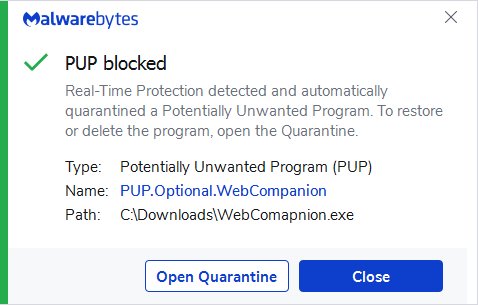
8. Add Steam as an exception in your antivirus
Valve explains that antivirus software hooks deep into Windows and can interfere with Steam's disk and network activity. Some game copy protection also triggers false positives.
- Open your antivirus program and check its quarantine or history for Steam files.
- Restore any Steam file it quarantined.
- Find the exclusions, exceptions or allowed apps setting.
- Add the Steam installation folder as an exception.
- Restart the PC and open Steam.
Keep your antivirus running. An exception for the Steam folder fixes the conflict without leaving the PC unprotected.
9. Close VPN, P2P and download manager programs
Valve names several program types that can stop the client connecting or crash it. Close them and test Steam before changing anything else.
| If this is running | Do this before opening Steam | Why, per Valve |
|---|---|---|
| VPN software | Disconnect it and exit the app | Can prevent the client reaching the Steam network |
| Anti-spyware and web security tools | Exit it or allow Steam in its settings | Can block client updates or connections to content servers |
| Peer-to-peer and file-sharing clients | Close the client | Consume bandwidth and resources Steam depends on |
| FTP, web and database servers | Stop the server software | Bandwidth-heavy and known to cause Steam issues |
| IP filtering and blocking programs | Exit it or allow Steam traffic | Restrict traffic that Steam and games need |
| Download accelerators and managers | Exit it from the tray | Interfere with Steam traffic; Valve says to disable them |
Exit the program from its tray icon, then restart Steam. Valve notes that some programs need a reboot after you close or disable them.
10. Perform a clean boot to find conflicting software
A clean boot starts Windows with only Microsoft services. Microsoft recommends it to find a third-party service causing a problem, and it catches background programs that do not show on the taskbar.
- Press Windows key + R, type
msconfigand press Enter. - On the Services tab, tick Hide all Microsoft services.
- Select Disable all, then Apply.
- Open Task Manager, select Startup apps (Windows 11) or the Startup tab (Windows 10), and disable each startup item.
- Restart the PC and open Steam.
- If Steam works, re-enable services in small groups and restart each time until Steam fails again.
When you find the culprit, update, reconfigure or remove it. Then return to msconfig, select Normal startup on the General tab and restart.
11. Unplug all extra external devices
Valve states that external input devices need their own drivers, which can interfere with Steam. Controllers, wheels, flight sticks, macro keypads and USB hubs are the usual suspects.
- Close Steam and confirm no Steam process is left in Task Manager.
- Unplug every non-essential USB device, leaving only the keyboard and mouse.
- Open Steam.
- If it opens, reconnect devices one at a time and relaunch Steam after each.
- Update or reinstall the driver or companion software for the device that breaks it.
12. Get the latest Windows updates
Valve asks users to keep the operating system up to date. Steam client updates assume a current, supported Windows build.
- Select Start and type update.
- Open Check for updates.
- Select Check for updates and install everything offered.
- Restart when Windows asks, even if Steam is the only reason you updated.
- Open Steam after the restart.
13. Update your device drivers
Valve lists outdated hardware drivers as a cause of client crashes. The graphics driver matters most, because the Steam window is drawn with web and GPU components.
- Select Start > Settings > Windows Update > Advanced options > Optional updates, and install any driver updates listed.
- Download the current graphics driver from NVIDIA, AMD or Intel, whichever makes your GPU.
- Install it and restart the PC.
- Right-click Start, select Device Manager and look for devices marked with a yellow warning sign.
- Right-click any flagged device and select Update driver.
Windows Update cannot always supply the newest GPU driver, so get it from the chip maker when you update drivers on Windows 11. Avoid third-party driver updater tools.
14. Remove recent Windows updates
If Steam stopped opening the day an update installed, removing that update tests whether it is the cause. Windows reinstalls it later unless you pause updates.
- Select Start > Settings > Windows Update.
- Select Update history.
- Scroll down and select Uninstall updates.
- Select Uninstall next to the most recent update and confirm.
- Restart the PC and open Steam.
If Steam works again, select Pause updates on the Windows Update page while you wait for a fixed update or a Steam client update.
15. Uninstall recent software
Valve warns that any software that monitors or modifies system, disk or network activity can stop Steam launching. That includes ad-blockers, web optimizers, system cleaners, recording tools, proxies and performance boosters.
- Select Start > Settings > Apps > Installed apps.
- Set Sort by to Date installed so the newest programs appear first.
- Select the … button next to a program installed around the time Steam broke.
- Select Uninstall and confirm.
- Restart the PC and open Steam.
On Windows 10 the same list is under Settings > Apps > Apps & features.
16. Free up disk space
Steam checks for and installs a client update each time it starts. A nearly full system drive can leave that update unable to finish, so the client never reaches its window.
- Select Start > Settings > System > Storage.
- Check how much free space the drive holding Steam has.
- Select Temporary files, tick the categories you do not need and select Remove files.
- Uninstall programs or games you no longer use.
- Open Steam once several gigabytes are free.
The Storage page also shows what is using the space; more ways to check disk space on Windows 11 help you find large folders.
17. Check your drive, memory and system files for errors
Valve lists drive corruption and memory errors as causes of crashes during Steam installation and launch. If other programs also freeze or crash, run these checks before reinstalling anything.
- Open File Explorer, select This PC, right-click the drive with Steam and select Properties.
- On the Tools tab, select Check under Error checking and follow the prompts.
- Select Start, type
mdschedand open Windows Memory Diagnostic. - Select Restart now and check for problems and let the test finish.
- Open Command Prompt as administrator, run
sfc /scannowand wait for it to complete.
sfc /scannow scans protected Windows files and repairs damaged ones where it can, and each System File Checker result message tells you whether a repair was made. Valve also recommends turning off any CPU, GPU or memory overclock, since running outside manufacturer settings can corrupt files.
18. Reinstall the Steam client without losing games
Valve recommends reinstalling Steam over the existing copy, in the same location. This replaces damaged client and service files while keeping every installed game.
- End all Steam processes in Task Manager, as in Solution 1.
- Download the official installer from store.steampowered.com/about using Install Steam.
- Run the installer.
- Choose the same installation folder Steam already uses, by default
C:\Program Files (x86)\Steam. - Finish the installation and open Steam, then sign in.
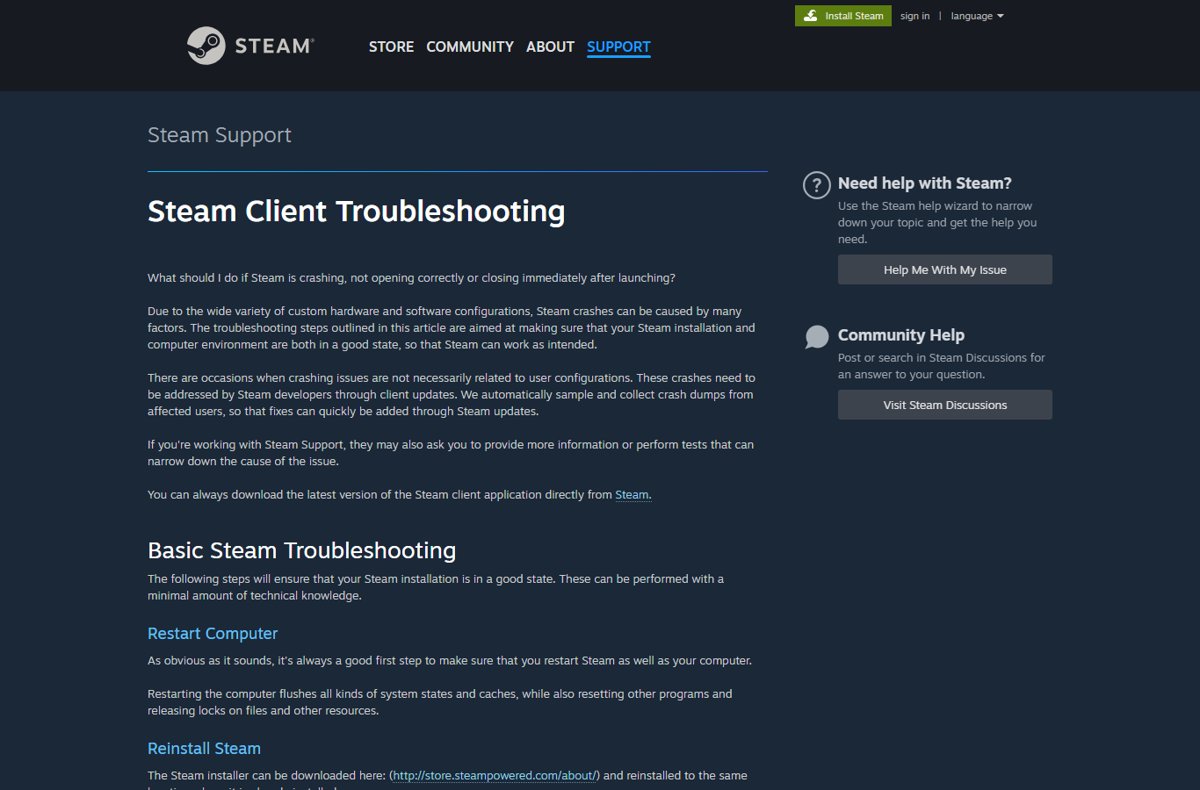
Valve warns that uninstalling Steam through other methods deletes all game and user data content, so install over the top instead of uninstalling first. A full uninstall is the nuclear option, and what it costs is real: you lose all game and user data content, so every installed game has to download again. You can also download Steam for Windows with version notes. On a Mac, Valve has separate instructions for removing and reinstalling Steam.
How to check Steam is opening and working again
- Close Steam fully from its tray icon with Exit Steam.
- Open Steam again and confirm the window appears within a minute.
- Check that your account name shows at the top right and the Store page loads.
- Select Library and confirm your installed games are listed as installed.
- Launch one game to confirm it starts.
- Restart the PC and open Steam once more to confirm the fix survives a reboot.
Steam not opening when clicked, after installing or on Windows 11
Steam is not opening when clicked
A Steam process is already running without a window, or the launch is blocked by another program.
- End Steam, Steam Client WebHelper and Steam Client Service in Task Manager.
- Restart the PC and open Steam before anything else.
- If it still does nothing, perform a clean boot (Solution 10).
Steam is not opening after installing
The first-run update cannot download, often because a firewall or security tool blocks it.
- Allow Steam through Windows Defender Firewall (Solution 7).
- Add the Steam folder as an antivirus exception (Solution 8).
- Close any VPN and open Steam again.
- Run the installer again into the same folder (Solution 18).
Steam opens, then closes immediately
Valve attributes most client crashes to conflicting software, drivers or damaged client files.
- Unplug non-essential external devices (Solution 11).
- Update the graphics driver (Solution 13).
- Reinstall Steam over the existing installation (Solution 18).
Steam is not opening on Windows 11 after an update
A Windows or driver change conflicts with the current client.
- Install all pending updates, including optional driver updates (Solutions 12 and 13).
- If Steam still fails, uninstall the most recent update (Solution 14).
- Restart and open Steam.
Steam opens but a Steam game is not opening
The client is fine; the fault is in the game files, its anti-cheat or its launch settings.
- In Library, right-click the game and select Properties.
- Select Installed Files > Verify integrity of game files.
- If the game uses Easy Anti-Cheat, repair Easy Anti-Cheat on Steam.
- Clear any custom launch options in the game's Properties > General tab and launch it again.
Steam not opening FAQ
Why is my Steam not opening on my PC?
Steam usually fails to open because a hidden Steam process is still running, a firewall or security program blocks it, or its client files are damaged. End all Steam processes in Task Manager, restart the PC, then work through network, security software and reinstall fixes.
How do I fix Steam not opening on Windows 11?
On Windows 11, end Steam processes in Task Manager and restart the PC first. Then install Windows and driver updates, allow Steam through Windows Defender Firewall, and reinstall Steam into its existing folder if it still will not open.
Why can't I get Steam to open after clicking it?
Clicking Steam does nothing when a copy is already running in the background without a window. Open Task Manager with Ctrl + Shift + Esc, end Steam, Steam Client WebHelper and Steam Client Service, then launch Steam again.
Why is my Steam app not opening after an update?
After a Steam update, a firewall may block the new client from connecting even if the old one worked, which Valve specifically warns about. Allow Steam through the firewall, add an antivirus exception for its folder, and restart the PC.
Why is my Steam game not opening when Steam works?
If Steam opens but a game does not, the problem is in that game's files, anti-cheat or launch settings. Verify the game files from its Properties > Installed Files page, repair its anti-cheat, and remove any custom launch options.
Will reinstalling Steam delete my games?
No, if you run the Steam installer into the same folder Steam already uses. Valve says this preserves installed games. Valve also warns that uninstalling Steam through other methods deletes all game and user data, so reinstall over the top.
Can antivirus stop Steam from opening?
Yes. Valve says antivirus software hooks deep into Windows and can disrupt Steam's disk and network operations, and some games trigger false positives. Restore any quarantined Steam files and add the Steam folder as an exception instead of turning protection off.
Why doesn't Steam want to open when the servers are down?
Steam needs to reach Valve's servers to update and sign in, so an outage or maintenance can stop it loading. If store.steampowered.com times out while other sites work, wait a few hours and try again.
Bottom line: the fix that solves most Steam launch failures
End every Steam process in Task Manager and restart the PC first; if Steam still will not open, reinstall it over the existing installation rather than uninstalling. Stuck background processes explain most click-and-nothing-happens cases, and an in-place reinstall repairs the client and service files while keeping every installed game, which Valve itself recommends.