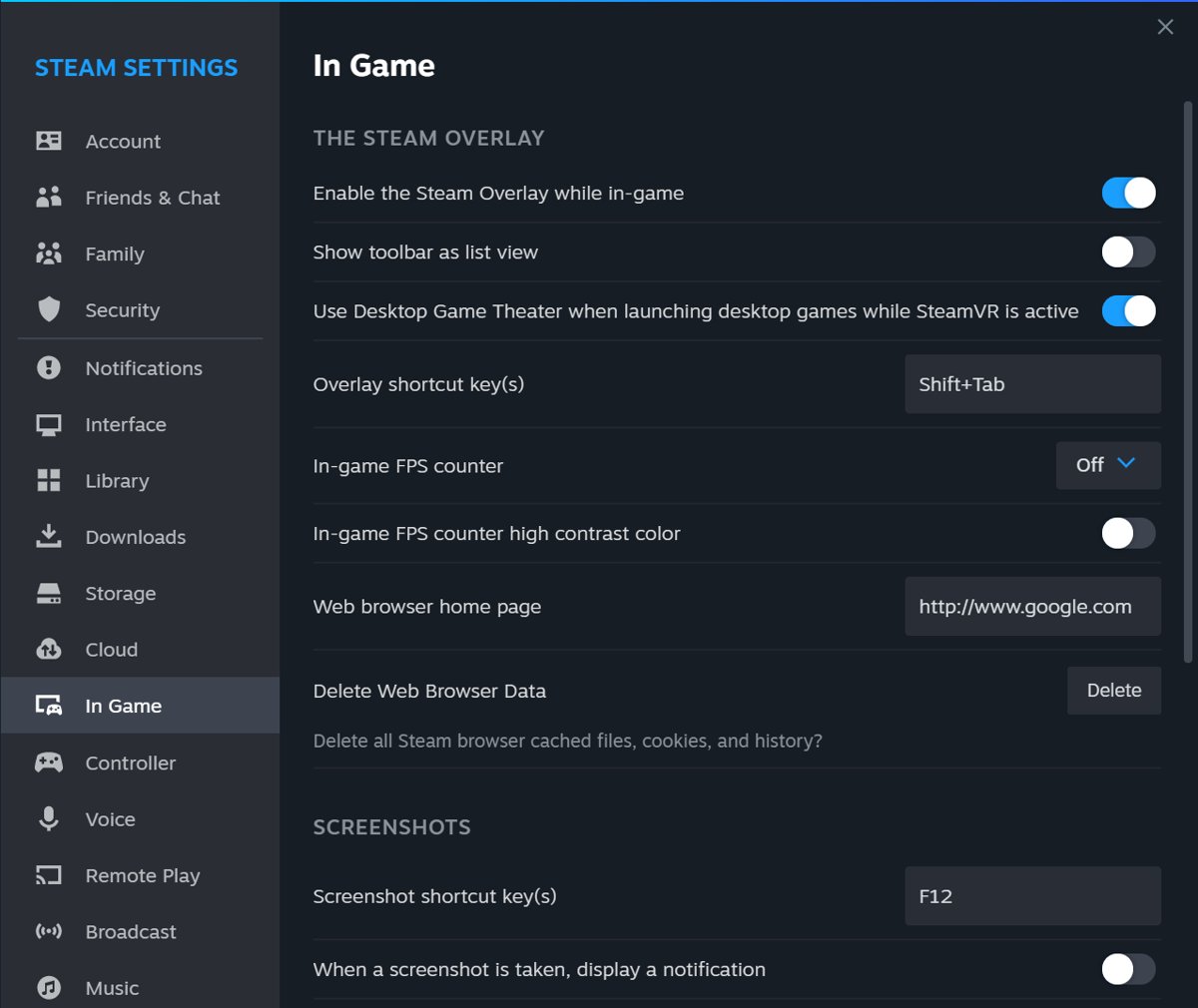
To enable or disable Steam overlay on a Windows PC, open Steam, go to Steam > Settings > In-game, and switch Enable the Steam Overlay while in-game on or off.
This guide also covers turning the overlay off for a single game, changing its Shift+Tab shortcut, taking screenshots with it, and fixing an overlay that will not open.
Enable or disable Steam overlay on Windows PC
This is the global switch. It applies to every game you launch through Steam unless a game has its own setting turned off.
Before you start, open the Steam desktop client and sign in, because the overlay settings live in the client rather than on the Steam website.
- Open the Steam client.
- Select Steam in the top-left menu, then Settings.
- Select the In-game tab.
- Turn on Enable the Steam Overlay while in-game to enable the overlay, or turn it off to disable it.
- Close Settings and restart any game that is already running so the change takes effect.
Turn Steam overlay on or off for a single game
Use the per-game setting when one game has trouble with the overlay but you want to keep it everywhere else.
- Open your Steam Library.
- Right-click the game, or select the gear icon on its Library page, and choose Properties.
- Stay on the General tab.
- Check or clear Enable the Steam Overlay while in-game.
- Close the window and launch the game from Steam.
Use the global switch in Settings > In-game when you want the overlay gone from every game at once.
What is Steam overlay and what does it do?
Steam overlay is the part of the Steam interface that opens on top of a game launched through Steam. Many games also use it in the background for features that need Steam, so you may rely on it without opening it.
| Overlay feature | What it does | What breaks if the overlay is off |
|---|---|---|
| In-game purchasing | Lets the game send micro-transactions and item purchases through Steam | In-game purchases fail |
| Friends, chat and invites | Opens your friends list, Steam chat and group or game invites | Party, matchmaking and game invites can stop working |
| Screenshots | Captures screenshots with F12 and shows them in-game | Steam screenshots are not captured |
| Trading and Market | Gives in-game access to inventory, trading and Market purchases | In-game trading and Market features fail |
| Web browser and community | Built-in browser plus most features of the Steam website | No in-game access to guides or the store |
The overlay works with games that use DirectX 7 to 12, OpenGL, Metal and Vulkan. It does not run in software-rendered games.
Should I disable Steam overlay?
| Your situation | Overlay setting | Why |
|---|---|---|
| You buy items, trade or join friends inside games | Keep it on globally | Purchases, trading and invites depend on the overlay |
| You take screenshots with F12 | Keep it on | Steam screenshots need the overlay |
| One game crashes, stutters or clashes with another overlay | Turn it off for that game only | Keeps every other game's features working |
| You play single-player games and never open it | Turn it off globally if you prefer | Nothing you use depends on it |
| You are troubleshooting a game problem | Turn it off for that game to test | Shows quickly whether the overlay is involved |
How do I change Steam overlay shortcut?
The default overlay shortcut is Shift + Tab. Change it when a game already uses that combination.
- Open Steam and select Steam > Settings.
- Select the In-game tab.
- Find the overlay shortcut keys field and select it.
- Press the new key combination you want to use.
- Close Settings and restart the game, then press the new shortcut to test it.
How to open Steam overlay in game
- Launch the game from your Steam Library, not from a desktop shortcut that bypasses Steam.
- Wait a few seconds after the game loads; the overlay takes a moment to start and attach to the game.
- Press Shift + Tab, or the shortcut you set.
- Select a feature such as friends, chat, screenshots or the web browser.
- Press the shortcut again to close the overlay and return to the game.
Some games pause single-player play while the overlay is open, and resume when you close it.
How to show FPS overlay in-game using Steam
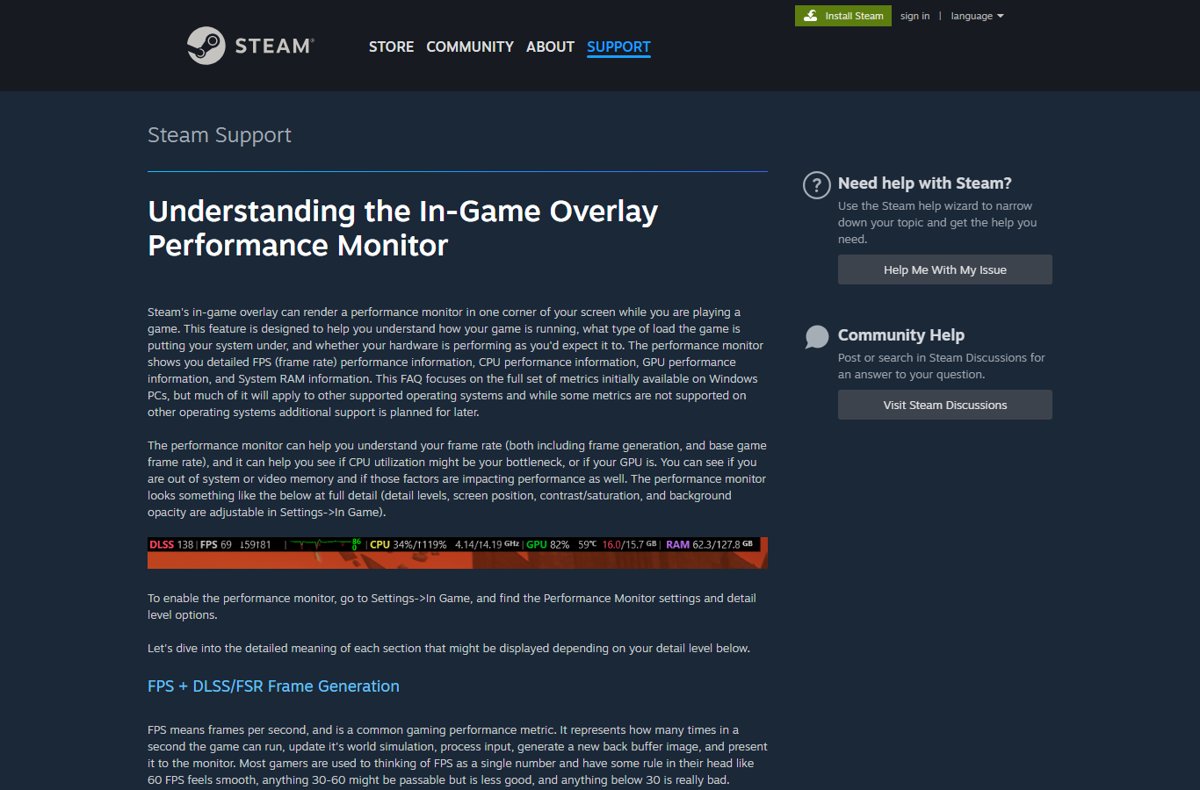
Steam's in-game overlay includes a Performance Monitor that replaced the old FPS counter. At its lowest detail it shows a single FPS value in a corner of the screen.
- Open Steam and select Steam > Settings.
- Select the In-game tab and scroll to the Performance Monitor settings.
- Pick a detail level: Single FPS value, FPS details, FPS details, CPU & GPU utilization, or FPS, CPU, GPU & RAM full details.
- Set the screen position and a hot-key, and adjust text size, color saturation and background opacity if you want it less prominent.
- Launch a game from your Steam Library; the FPS readout appears in the corner you chose, and you can change the detail level live in-game.
The full CPU, GPU and RAM data is aimed at Windows and common graphics cards. On other platforms or older GPUs some values may be missing.
How to take screenshots on Steam in Windows, macOS, and Linux
Steam screenshots work the same way in the Steam client on Windows, macOS and Linux, because the overlay handles them. The overlay must be enabled for the game.
- Launch the game through Steam.
- Press F12 to take a screenshot.
- To change the screenshot key, open Steam > Settings > In-game and set a new screenshot shortcut.
- Quit the game; the Screenshot Uploader opens with the screenshots from that session.
- Open your screenshots at any time from View > Screenshots in Steam, or from Screenshots in the overlay.
To stop the uploader opening after every session, go to Settings > Cloud and clear Open the screenshot uploader after closing game if screenshots were taken. Screenshots you upload appear on your community profile and the game's community hub.
Use Steam overlay on non-Steam games
The overlay attaches to games launched through Steam, so a game from another store needs a Steam library entry first.
- In the Steam client, add the game to your library as a non-Steam game.
- Launch the game from that Steam library entry.
- Press Shift + Tab once the game has loaded.
Games that run in a web browser cannot use the overlay, and software-rendered games do not support it either.
How to check Steam overlay is enabled and working
- Open Steam > Settings > In-game and confirm Enable the Steam Overlay while in-game is on.
- Open the game's Properties > General and confirm the same checkbox is checked.
- Launch the game from Steam and press Shift + Tab; the overlay should cover the game.
- Press F12 and check that a screenshot appears in the Screenshot Uploader after you quit.
To disable it instead, the proof is the reverse: Shift + Tab does nothing in the game and F12 captures no Steam screenshot.
Steam overlay not working: how to fix it
Steam overlay does not open with Shift + Tab
The overlay is off globally or for this game, the shortcut changed, or the game was not launched through Steam.
- Check the global switch in Steam > Settings > In-game.
- Check the game's own checkbox under Properties > General.
- Confirm the overlay shortcut keys in Settings > In-game match what you press.
- Launch the game from your Steam Library instead of a shortcut or another launcher.
- Restart Steam and the PC, then try again.
Can't enable Steam overlay for a game
Some titles do not support the overlay at all, such as browser-based or software-rendered games, and some software titles ship with it disabled by the developer.
- Check whether the title is a game or a software app in the Steam store.
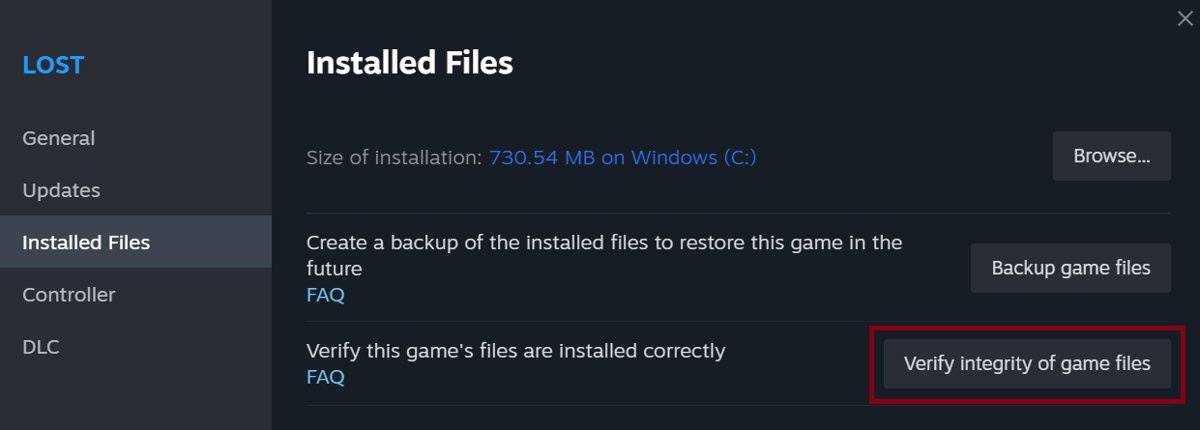
- Verify the game's files: right-click it in your Library, select Properties > Installed Files > Verify integrity of game files.
- Ask the game's developer whether the overlay is supported if it still will not open.
Steam overlay is laggy, freezes or closes
Steam closes the overlay automatically when system resources are under heavy load.
- Update your graphics driver and other major drivers.
- Close programs you do not need while you play, including other overlays and recording tools.
- Install the latest Windows updates from Settings > Windows Update.
- Compare your PC with the game's required specifications; at or below them, the overlay can struggle.
Steam overlay still not working after the basic fixes
Corrupt Steam files, or a firewall, antivirus or monitoring tool interfering with Steam.
- Reinstall Steam to the same folder it is installed in now; this leaves installed games in place.
- Do not uninstall Steam first, because uninstalling deletes all game content.
- Add Steam and your Steam Library folders as exceptions in your firewall and antivirus rather than turning protection off.
- Close ad-blockers, proxies, system cleaners, performance boosters and recording software, then test again.
Steam overlay FAQ
Where is the Steam overlay setting?
The global setting is in Steam > Settings > In-game, labelled Enable the Steam Overlay while in-game. Each game also has its own checkbox with the same label under Properties > General in your Steam Library.
What does Steam overlay do?
Steam overlay opens Steam features on top of a running game: friends and chat, invites, the web browser, screenshots, in-game purchases and trading. Many games also use it in the background for purchases and matchmaking invites, so those features fail when it is off.
How do I open Steam overlay in game?
Launch the game from your Steam Library and press Shift + Tab, the default shortcut. If you changed the shortcut in Steam > Settings > In-game, press that combination instead. The overlay only opens in games launched through Steam.
Can I use Steam overlay on non-Steam games?
Yes, in many cases. Add the game to your Steam library as a non-Steam game and launch it from Steam, so the overlay can attach to it. Browser games and software-rendered games cannot use the overlay.
Does Steam overlay work in all games?
No. It works in most games launched through Steam that use DirectX 7 to 12, OpenGL, Metal or Vulkan. Browser-based games and software-rendered games cannot use it, and Steam turns it off automatically for software apps.
Is Steam overlay good to keep on?
Yes, for most players. In-game purchases, trading, invites and Steam screenshots depend on it. Turn it off for a single game only when that game crashes, stutters or clashes with another overlay.
Does Steam overlay affect FPS?
Valve does not publish a frame rate cost for the overlay. To test it in a game, measure with an FPS counter for PC games, turn the overlay off for that game in Properties > General, and compare the same scene.
Why is Steam overlay so laggy?
The overlay is a supplement to the game, and Steam closes or slows it when system resources are under heavy load. Update your graphics driver, close programs running alongside the game, and install the latest Windows updates.
Why can't I enable Steam overlay?
The game may not support it, such as a browser-based or software-rendered title, or the developer disabled it for a software app. If the setting is on and the overlay still fails, verify the game files and launch the game from the Steam Library.