You can download Steam for free from the official Steam website. On Windows 11 or Windows 10, download SteamSetup.exe and run the installer. On a Mac, download steam.dmg, open it, and move Steam to the Applications folder.
Official Steam download: Download Steam for Windows or Mac
The Steam desktop app is free to install and use. Some games are free, while others require a separate purchase. The client provides access to the Steam Store, game library, automatic updates, cloud saves, friends, chat, achievements, Workshop content, and supported controller settings.
Download safely: Get the Steam installer from steampowered.com. Avoid websites offering modified installers, portable Steam packages, cracked clients, or third-party download managers.
| Platform | Supported system | Installer |
|---|---|---|
| Windows PC | 64-bit Windows 11 or Windows 10 | SteamSetup.exe |
| Mac | macOS 12 or newer | steam.dmg |
| Windows 7, 8 and 8.1 | Unsupported | Upgrade Windows before installing |
| 32-bit Windows | Unsupported since January 1, 2026 | Install a 64-bit version of Windows |
How to Download Steam on PC
The official Steam download page automatically offers the correct installer for the operating system you are using. You do not need a Microsoft Store account or a paid Steam membership.
- Open a current browser such as Chrome, Edge, Firefox, or Safari.
- Go to the official Steam download page.
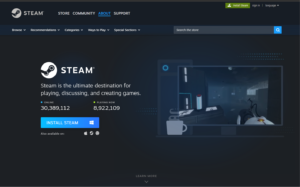
- Select Install Steam.
- Save the installer to your Downloads folder.
- Open the downloaded file and complete the installation steps.
- Launch Steam and sign in or create a free Steam account.
Valve recommends downloading and running the installer from its official Steam About page. You should install the app while signed in to an administrator account on the computer.
Download Steam for Windows 11
Steam runs on 64-bit editions of Windows 11. The installation normally takes only a few minutes, although Steam downloads additional client updates when it opens for the first time.
How to Install Steam on Windows 11
- Visit the official Steam download page.
- Click the blue Install Steam button.
- Save SteamSetup.exe when your browser asks what to do with the file.
- Open the Downloads folder and double-click SteamSetup.exe.
- Select Yes when User Account Control asks for permission.
- Choose the installation language and select Next.
- Keep the default installation folder or choose another location.
- Select Install.
- Leave Run Steam selected and click Finish.
Steam will connect to its servers and download the latest client files. After the update finishes, enter your account name and password or select Create a Free Account.
Where Does Steam Install on Windows 11?
The default Steam installation folder is:
C:\Program Files (x86)\SteamThe use of the Program Files (x86) folder does not mean that Windows or the current Steam client is running as a 32-bit application. Steam continues to use this long-established default folder for compatibility with existing installations and libraries.
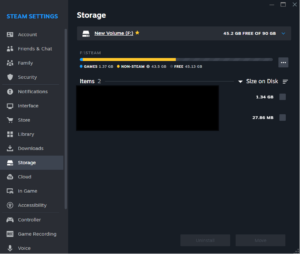
You can install games on another drive without moving the Steam client. In Steam, open Steam > Settings > Storage, select the drive menu, and add a new library location.
Download Steam for Windows 10
Steam still supports 64-bit Windows 10. The installation process is the same as it is on Windows 11.
How to Install Steam on Windows 10
- Open the official Steam website.
- Select Install Steam.
- Download and run SteamSetup.exe.
- Approve the Windows security prompt.
- Select your language and installation folder.
- Click Install and then Finish.
- Allow Steam to download its client update.
- Sign in with your Steam account.
Steam ended support for all 32-bit Windows installations on January 1, 2026. A computer running 32-bit Windows 10 needs a 64-bit Windows installation to keep receiving Steam client and security updates. Games built as 32-bit applications can still run on supported 64-bit Windows systems.
Download Steam for Mac
The official Steam website provides a DMG installer for Mac computers. Steam currently requires macOS 12 or newer because support for macOS 11 Big Sur ended on October 15, 2025.
How to Install Steam on Mac
- Open Safari, Chrome, Firefox, or another browser.
- Visit the official Steam download page.
- Select Install Steam.
- Download the steam.dmg file.
- Open the downloaded DMG file.
- Drag the Steam icon into the Applications folder.
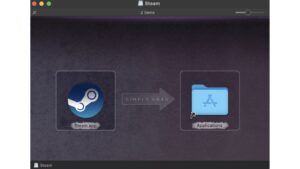
- Open Applications and double-click Steam.
- Select Open if macOS asks you to confirm the app.
- Wait while Steam downloads its latest updates.
- Sign in or create a Steam account.
Keep Steam inside the Applications folder instead of running it directly from the mounted DMG window. You can eject the Steam disk image after copying the app.
Does Steam Work on Apple Silicon Macs?
Steam can run on supported Apple silicon Macs, including systems using M-series processors. Game compatibility varies because every developer chooses which operating systems and processor types to support.
Before purchasing a game, open its Steam Store page and check the System Requirements section. A Mac icon on the store listing indicates that the developer offers a macOS version, but you should still confirm the required macOS version, processor, memory, graphics, and storage. Steam advises users to check each game’s listed operating system and hardware requirements.
Can Steam Run Windows Games on a Mac?
Installing Steam for Mac does not make every Windows game compatible with macOS. A game needs a Mac version unless you use a separate Windows installation, a supported compatibility layer, cloud gaming, or another method provided by the game developer.
Steam displays games purchased for your account regardless of platform, but the Install button is available only when the title supports the current operating system. Check the platform icons and system requirements before buying a game.
Steam System Requirements for Windows and Mac
The Steam client has modest hardware needs, but individual games can require much faster processors, dedicated graphics cards, more memory, and large amounts of storage.
| Requirement | Windows PC | Mac |
|---|---|---|
| Operating system | 64-bit Windows 10 or Windows 11 | macOS 12 or newer |
| Internet | Required for installation, updates, purchases, and online features | Required for installation, updates, purchases, and online features |
| Storage | Space for the Steam client plus each installed game | Space for the Steam client plus each installed game |
| Account | Free Steam account | Free Steam account |
| Architecture | 64-bit Windows installation | Supported Intel or Apple silicon Mac |
Always use the requirements shown on the page of the game you plan to install. Meeting the Steam client requirements does not guarantee that the computer can run every game.
How to Create a Steam Account
You can create an account from the Steam client or through the Steam website.
- Open Steam after installing it.
- Select Create a Free Account.
- Enter your email address and country.
- Complete the security check and accept the agreement.
- Open the verification email sent by Steam.
- Verify the email address.
- Create an account name and a strong password.
- Return to Steam and sign in.
Your account name is used for signing in and cannot be changed later. Your public profile name can be changed whenever needed.
Steam may ask you to verify a new computer through Steam Guard. The verification code arrives by email or through the Steam mobile authenticator, depending on your account settings.
How to Download and Install Games from Steam
- Open Steam and sign in.
- Select the Store tab.
- Search for the game you want.
- Check its operating system and hardware requirements.
- Purchase the game or select Play Game for a free title.
- Open the Library tab.
- Select the game and click Install.
- Choose an installation drive and confirm the required storage.
- Wait for the download to finish.
- Select Play.
Steam normally downloads game updates automatically. You can view progress by selecting Downloads at the bottom of the client.
Can You Download Steam from Microsoft Store?
The standard Steam desktop client is downloaded directly from Valve’s official website. You do not need Microsoft Store to install Steam on Windows 11 or Windows 10.
Search results and store listings can include unofficial guides or unrelated apps that use the Steam name. Use SteamSetup.exe from the official Steam domain.
Fix Steam Not Downloading or Installing
SteamSetup.exe Will Not Open
- Right-click the installer and select Run as administrator.
- Check whether Windows Security quarantined the file.
- Delete the installer and download a fresh copy from Steam.
- Install pending Windows updates and restart the PC.
- Temporarily close software that blocks application installers.
Do not disable antivirus protection permanently. Confirm that the installer came from Steam before allowing it through a security warning.
Steam Is Stuck on Updating
- Close Steam completely from Task Manager or Activity Monitor.
- Restart the computer.
- Check the internet connection.
- Disable any active VPN or proxy temporarily.
- Run the official installer again over the existing installation.
Valve states that running the Steam installer again automatically reinstalls the client, which can repair an existing installation without requiring you to remove it first.
Steam Download Is Slow
- Open Steam > Settings > Downloads.
- Confirm that no bandwidth limit is enabled.
- Select a nearby location under Download Region.
- Pause other large downloads and streaming services.
- Restart Steam and your router.
A heavily used or poorly connected download region can reduce download speed. Steam Support recommends switching to another nearby region when server availability or download problems occur.
Steam Shows “Disk Write Error”
Check that the selected drive has enough free space and is not write-protected. Restart Steam as an administrator, repair the library folder from Settings > Storage, and scan the drive for file-system errors.
Security software can also block Steam from writing files. Add the official Steam folder as an allowed location only after confirming that the installation is genuine.
Steam Will Not Open on Mac
- Confirm that the Mac runs macOS 12 or newer.
- Move Steam into the Applications folder.
- Restart the Mac.
- Open Steam by Control-clicking it and selecting Open.
- Check System Settings > Privacy & Security for a blocked-app message.
- Download a fresh Steam DMG if the app remains damaged.
How to Reinstall Steam Without Deleting Games
Before uninstalling Steam on Windows, copy or move the following folder to a safe location:
C:\Program Files (x86)\Steam\steamappsThe steamapps folder contains installed game files. After reinstalling Steam, move the folder back to the Steam directory and ask Steam to detect or verify the installed games.
Valve warns that uninstalling Steam normally removes the client and installed game content. Back up or move the steamapps folder first when you want to preserve downloaded games.
FAQs
Is Steam free to download for PC?
Yes. The Steam client and Steam account are free. Individual games can be free, paid, subscription-based, or sold with optional downloadable content.
What is the official Steam download website?
The official installer is available from the Steam About page on store.steampowered.com. The Windows download provides SteamSetup.exe, while the Mac download provides a DMG file.
Can I download Steam on Windows 11?
Yes. Steam supports 64-bit Windows 11. Download SteamSetup.exe from the official website and run the installer.
Can I download Steam on Windows 10?
Yes. Steam supports 64-bit Windows 10. Steam no longer supports 32-bit Windows installations.
Does Steam still support Windows 7 or Windows 8?
No. Steam ended support for Windows 7, Windows 8, and Windows 8.1 on January 1, 2024. These systems no longer receive Steam client or security updates.
Does Steam support 32-bit Windows?
No. Support for 32-bit Windows ended on January 1, 2026. You need a 64-bit edition of Windows 10 or Windows 11 for current Steam updates.
What macOS version does Steam require?
Steam requires macOS 12 or newer. Support for macOS 11 Big Sur ended on October 15, 2025.
Is Steam available for MacBook Air and MacBook Pro?
Yes, provided the Mac runs a supported macOS version. Check each game separately because some Steam games support Windows only.
Can I install Steam on an external drive?
You can keep the Steam client on the main system drive and create a game library on an external drive through Steam > Settings > Storage. The drive must remain connected when you install, update, or play those games.
How much storage does Steam need?
The Steam client uses relatively little space compared with modern games. Required storage depends mainly on the games you install, and some titles need more than 100 GB.
Do I need an account to download Steam?
You can download and install the client without an account, but you need a free Steam account to access the Store, maintain a library, purchase games, and use account-based features.
Is Steam safe for Windows and Mac?
The official Steam client from Valve is safe to install. Download it from the Steam website, keep Steam Guard enabled, use a unique password, and avoid unofficial installers or websites offering free account items.
Can Steam games be played offline?
Many single-player games work through Steam Offline Mode after they have been installed, updated, and launched online at least once. Games that require their own launcher, account, server connection, or online authentication may not work offline.
Why does a game say it is unavailable on my platform?
The developer has not released that game for your current operating system, or your system does not meet its platform requirements. Check the Windows and macOS icons and the System Requirements section on the game’s store page.
Can I reinstall Steam without buying my games again?
Yes. Purchased games remain attached to your Steam account. Sign in with the same account after reinstalling Steam and download them again from the Library.





Download Origin for PC and Mac: Now the EA app (Free) - Techdows
[…] the EA game in Steam or the Epic Games Store as […]
Download SteamVR for PC, Windows 11 and Windows 10 (Free) - Techdows
[…] can download SteamVR free on a Windows 11 or Windows 10 PC straight from Valve’s Steam store. It installs inside the Steam desktop app and runs PC VR games on the Valve Index, HTC Vive, […]
Download Counter-Strike 2 (CS:GO) for PC, Windows 11/10 (Free) - Techdows
[…] can download Counter-Strike 2 free for Windows 11 and Windows 10 from Valve’s Steam store, and app 730 is the same page that once served the CS:GO […]
Download Sea of Thieves for PC, Windows 11/10 (Latest Version) - Techdows
[…] can get the Sea of Thieves download for Windows 11 and Windows 10 from Steam, the Microsoft Store or the Xbox app with PC Game Pass. Buy the game once, or play it through a […]
Download Steam Link for PC, Windows 11/10 & Mac (Free) - Techdows
[…] Steam Link download for Windows 11 and Windows 10 is a free 24.7 MB zip from Valve, and Mac users get the […]
Why is Steam downloading so slow? Here's how to fix it - Techdows
[…] Steam usually downloads slowly because of a busy or distant download region, a bandwidth limit set in Steam, a weak Wi-Fi link, other apps sharing the connection, or a drive that cannot write the files fast enough. […]
How to add launch options in Steam - Techdows
[…] add launch options in Steam, right-click the game in your Library, select Properties, and type your options into the Launch […]
How to appear offline on Steam [easy & quick guide] - Techdows
[…] appear offline on Steam, open the Friends List, click your name at the top and set your status to […]
Steam screenshot folder – where are Steam screenshots saved? - Techdows
[…] Steam saves every screenshot you take with F12 to its local screenshot library, which you open in the Steam client from View > Recordings & Screenshots. […]