To add a new Steam library folder, open Steam's Settings, select the Storage tab and select the + button at the top to create a library on another drive or folder.
This guide covers why a second library helps, how to install and move games into it, the Steam Deck microSD version, moving the whole Steam installation, and fixes when games will not launch after a move.
How to Add a New Steam Library Folder: Step-by-Step Guide
This is the route Valve documents in Steam Support. It works on any drive the computer can see, and it does not touch the games you already have installed.
- Open the Steam client and sign in.
- Select Steam in the top-left menu, then select Settings.
- Select the Storage tab.
- Check the drive shown there; it is your current default installation drive.
- Select the + button at the top of the storage view to create a new library path.
- Pick the drive or folder you want Steam to use for games, then confirm.
- Check that the new drive now appears in the Storage tab alongside the original one.
From now on, Steam offers the new location when you install a game. Games already installed stay where they are until you move them, which the moving section below covers.
Understanding Steam Library Folders
A Steam library folder is a location on a drive where Steam keeps game files. One is created with Steam itself, and you can add more on other drives, then choose between them for each install.
| Fact | Detail |
|---|---|
| Default game location on Windows | C:\Program Files (x86)\Steam\steamapps\common\ |
| Where library folders are managed | Steam > Settings > Storage |
| How many you can use | Valve's help says you can create an alternate location on any drive |
| What happens to existing games | Nothing; they stay in the original library until you move them |
| Moving games between libraries | Steam's Move feature relocates installed games without a new download |
| Choosing a library for a new game | Steam lets you pick from all existing library folders when you download a game |
| Steam Deck | Built-in storage is used by default; a formatted microSD card appears in Steam > Settings > Storage |
Why Create Additional Library Folders?
A second library solves a space or speed problem without reinstalling Steam. Match your situation to a row to see which part of this guide you need.
| Your situation | What to do | Why |
|---|---|---|
| The C: drive is running out of space | Add a library on a second internal drive, then move your largest games there | Moving keeps games installed and avoids a fresh download |
| You bought a faster SSD for games | Add a library on the SSD and install new games to it | Load times depend on the drive a game lives on |
| You want future games on another drive by default | Add the library, then pick it in the install dialog for each new game | Existing installs are unaffected |
| Your Steam Deck is full | Format a microSD card and install games to it | The card becomes a storage location in Settings > Storage |
| You are replacing the drive Steam itself is on | Move the whole Steam installation instead | A library folder moves games, not the Steam client |
Installing Games to the New Library Folder
Once the new path exists, Valve's help states that all future installations can be installed there. You choose the location at install time.
- Open your Library in the Steam client.
- Select a game you own that is not installed yet.
- Select Install.
- In the install dialog, open the install location list.
- Choose the new library folder you created.
- Confirm the install and watch the progress in the Download Manager, reached from the Downloads link at the bottom of the Steam client.
If the install location list shows only one drive, the new library was not created. Go back to Settings > Storage and check that the drive is listed.
Managing Your Library Folders: Moving Games Between Folders
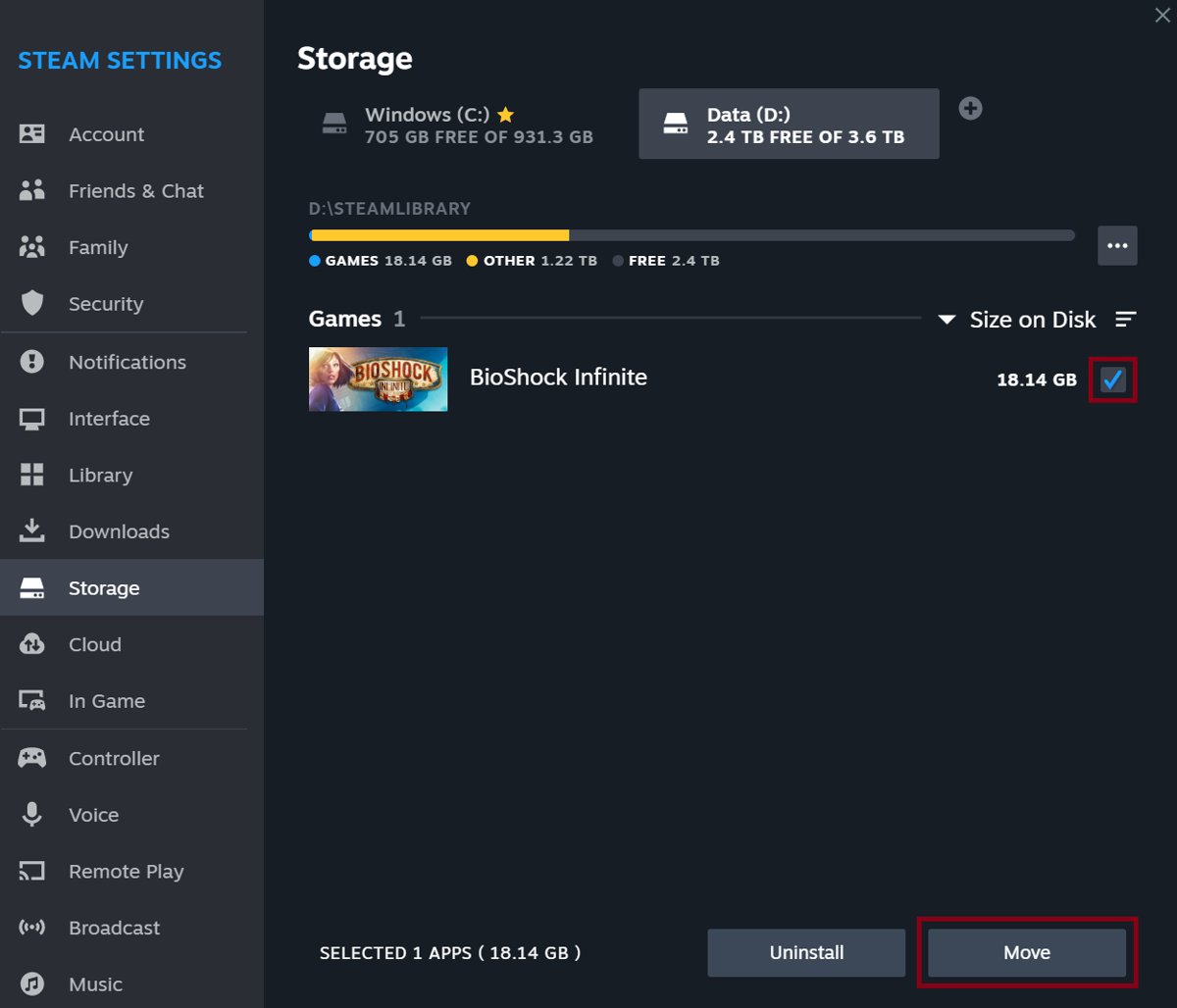
Steam's Move feature relocates an installed game to another library on the same computer, so you do not download it again. You need at least two library folders first.
- Open Steam > Settings and select the Storage tab.
- Select the drive where the games you want to move are installed.
- Tick the games you want to move.
- Select Move.
- Choose the destination library and confirm.
- Wait for the move to finish before launching the game.
To move a single game from its own page instead, right-click it in your Library, select Properties, open the Installed Files tab and select Move Install Folder, then pick the new location.
Add a microSD card as game storage on Steam Deck
On Steam Deck, the extra library is a microSD card. Valve supports any UHS-I card rated class 3 or better; UHS-II and UHS-III cards work, but their higher speeds are not used.
- Insert the microSD card into the slot on the bottom edge of the Steam Deck.
- Press the Steam button and open Settings.
- Select System, then select Format SD card.
- Wait a few minutes while the card is formatted.
- Open Steam > Settings > Storage and check that the card is listed next to the built-in storage.
Formatting erases everything on the card, so copy off any photos or files first.
Move the whole Steam installation to a new drive
Use this only when the drive Steam itself lives on is being replaced. Have your Steam login name and password ready, and back up the steamapps folder, because a failed move means reinstalling games one by one. Valve does not recommend installing Steam itself on an external hard drive.
- Exit the Steam client completely.
- Open the Steam installation folder, by default
C:\Program Files (x86)\Steam\. - Delete every file and folder except the
steamappsanduserdatafolders andsteam.exe. - Cut and paste the whole Steam folder to the new location, for example
D:\Games\Steam\. - Launch Steam from the new location and sign in.
- Let Steam update, then verify the integrity of game files for each installed game.
Future downloads go to the new folder, for example D:\Games\Steam\steamapps\. Saves for games that do not use Steam Cloud often sit in C:\Users\[Windows user name]\Documents\My Games\; copy that folder to the new drive too.
How to check the new library folder works
The library is working when Steam lists it, can install to it, and the moved games launch from it.
- Open Steam > Settings > Storage and confirm both drives are listed.
- Select the new drive and check that the games you moved appear under it.
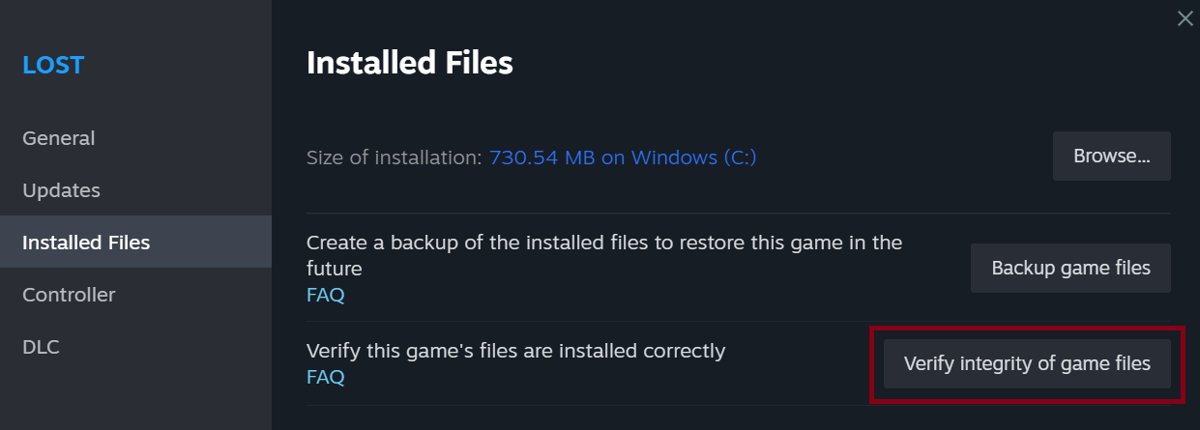
- Right-click a moved game, select Properties and open Installed Files.
- Select Verify integrity of game files and let it finish.
- Launch the game and play past the main menu.
One or more files failing to verify is normal for most Steam games. Those are local configuration files that Steam deliberately leaves alone.
Troubleshooting Common Issues
Steam shows errors after moving the Steam installation
Old installation settings remain in the Windows Registry and point Steam at the previous location.
- Exit Steam and move the
steamappsfolder from the new Steam folder to your desktop. - Uninstall Steam to clear the old settings from the Windows Registry.
- Reinstall Steam to the location you want.
- Move the
steamappsfolder back into the new Steam installation folder. - Start Steam, sign in and verify the integrity of each installed game.
A moved game crashes or has missing textures
Some game files did not copy correctly during the move.
- Restart the computer and launch Steam.
- Right-click the game in your Library and select Properties.
- Open the Installed Files tab and select Verify integrity of game files.
- Do not run the check for several games at once or during a virus scan or defragmentation.
The microSD card does not appear as storage on Steam Deck
The card has not been formatted for Steam Deck.
- Go to Steam > Settings > System > Format SD card.
- Wait for formatting to finish.
- Reopen Settings > Storage and check for the card.
Saves are missing after moving to a new drive
Games that do not use Steam Cloud keep saves outside the Steam folder, and each developer chooses where.
- Copy
C:\Users\[Windows user name]\Documents\My Games\from the old drive to the same location on the new one. - If the game's saves are not there, contact the game's developer or publisher for the save location.
Conclusion
Add a library folder with the + button under Settings > Storage and move games with Steam's Move feature rather than copying folders yourself. The Move feature keeps each game registered with Steam, so nothing downloads again, while moving the whole Steam installation is only worth the risk when the drive Steam lives on is being replaced.
Frequently Asked Questions
How do I add a new Steam library folder?
Open Steam, go to Steam > Settings and select the Storage tab. Select the + button at the top, choose the drive or folder, and confirm. The new location then appears in Storage and in the install dialog for new games.
How do I add new storage or a new drive to Steam?
A new drive is added the same way as a library folder: Steam > Settings > Storage, then the + button. Steam Deck owners format a microSD card from Settings > System > Format SD card, after which it shows under Storage.
How do I change the default installation path for Steam games?
Create a new library path under Steam > Settings > Storage with the + button. Valve's help says all future installations can then be installed there, and you choose it in the install dialog when downloading a game.
Where are Steam games installed by default?
On Windows, Steam installs games to C:\Program Files (x86)\Steam\steamapps\common\ unless you choose another library folder. The Storage tab in Steam's Settings shows which drive is the default installation drive.
Can I move Steam games to another drive without downloading them again?
Yes. Add a library on the other drive, then open Settings > Storage, select the games and select Move. You can also use Properties > Installed Files > Move Install Folder for a single game. Neither route needs a new download.
Can I install Steam on an external hard drive?
Valve does not recommend installing the Steam client itself on an external hard drive because of potential performance issues. Adding a library folder for games is a separate step documented in Steam's Storage settings.
How do I add a game to Steam that I did not buy on Steam?
Open Steam, click the Games menu and choose Add a Non-Steam Game to My Library. Tick the programs or browse for them, then click Add Selected Programs. This adds a shortcut only; Steam will not update the game or treat it as owned.
How do I get to Steam Help?
Go to help.steampowered.com and sign in to your Steam account for personalized help. The Help Me With My Issue wizard narrows down your topic, and Steam Client covers storage, downloads and library questions.

![Find passwords stored on this computer [3 ways]](https://techdows.com/wp-content/uploads/2026/10/Find-passwords-stored-on-this-computer-3-ways.jpg)