To cloud play Xbox on PC, open xbox.com/play in Microsoft Edge or Google Chrome, sign in with your Microsoft account, connect a controller, and start any cloud-playable game.
This covers the browser and Xbox app routes, which Game Pass plans include cloud hours, the controller and network Xbox asks for, and fixes when a stream will not start.
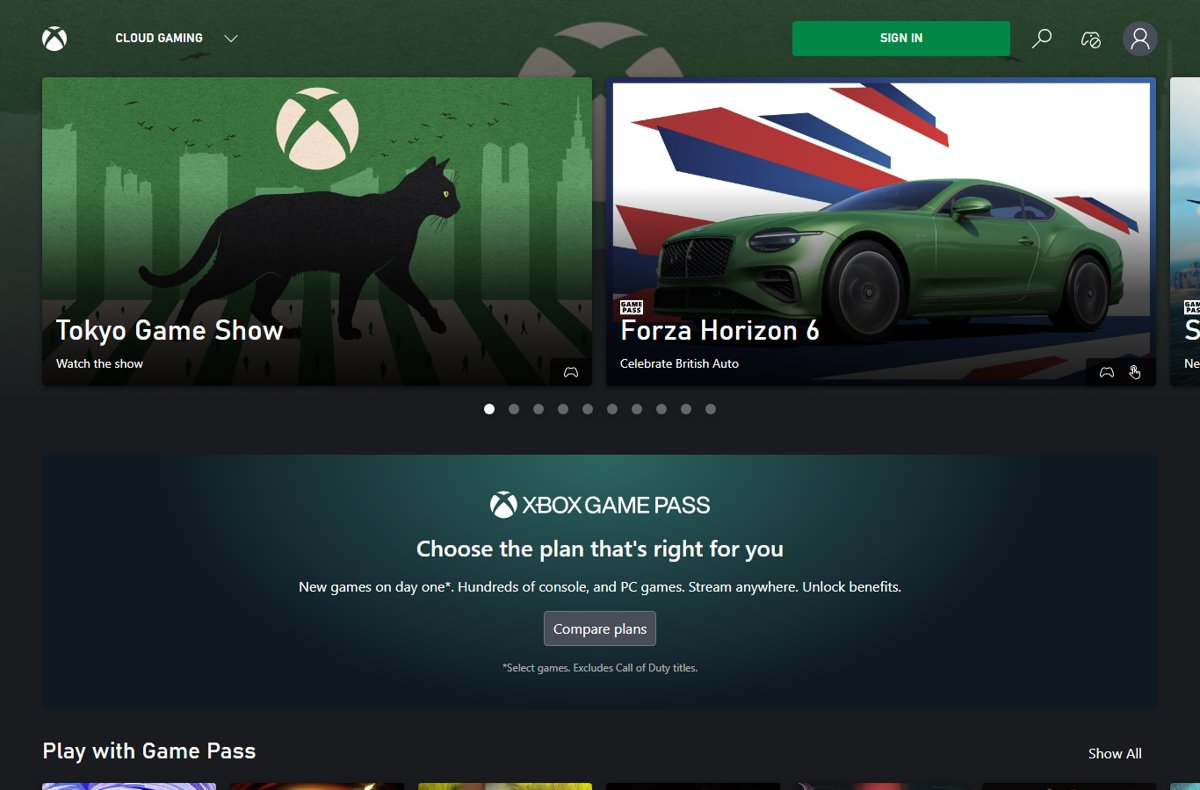
The fastest way to cloud play Xbox on PC
Nothing needs installing for this route. The game runs on Xbox servers and streams into a browser tab.
- Connect an Xbox Wireless Controller to your PC with a USB cable or Bluetooth.
- Open Microsoft Edge or Google Chrome and go to xbox.com/play.
- Select Sign In and use the Microsoft account that holds your Game Pass plan.
- Browse the Play with Game Pass row, or search for a free-to-play game such as Fortnite.
- Open the game's page and start it with the play button.
- Wait for the stream to load, then press a button on the controller to take control.
Free-to-play games such as Fortnite only need a free Microsoft account. Everything else needs a Game Pass plan that includes cloud playtime, or a game you own that supports streaming.
Browser or Xbox app: which one to use
Xbox states that cloud games stream either at xbox.com/play on a supported device or through the Xbox app. Both use the same account, library and cloud hours.
| Your situation | Use this | Why |
|---|---|---|
| You want to play in the next two minutes | xbox.com/play in Edge or Chrome | No install, works on any Windows PC with a supported browser |
| You already use the Xbox app for PC Game Pass | Xbox app | Cloud and installed games sit in one library |
| Your PC runs Windows 10 older than version 22H2 | xbox.com/play | The Xbox app requires Windows 10 or 11, version 22H2 or higher |
| A work or school PC where you cannot install apps | xbox.com/play | Only a browser tab is needed |
| The game is too large to download or your PC is too slow for it | Either route | The game runs on Xbox servers, so PC specs matter far less than the network |
Prerequisites
Xbox lists five things you need before a cloud game will start. Missing any one of them is the usual reason a stream refuses to launch.
| Requirement | What Xbox asks for | Notes |
|---|---|---|
| Account and plan | Game Pass Essential, Premium or Ultimate, or a free Microsoft account for select free-to-play games | PC Game Pass and Game Pass for Console do not include cloud gaming |
| Device | A supported device; Windows devices are on Xbox's compatible list | No gaming GPU is needed because the game runs in the cloud |
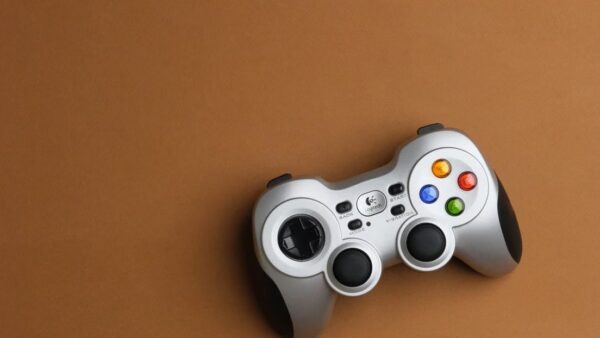
| Controller | An Xbox Wireless Controller over Bluetooth or USB is recommended | Sony DualShock 4 and many other wired and Bluetooth controllers also work |
| Internet | 10 Mbps download minimum; 20 Mbps for best performance on PCs | Use a 5 GHz Wi-Fi band or a wired connection |
| Browser | A supported browser such as Microsoft Edge or Google Chrome | Only needed for the xbox.com/play route |
| Region | A country or region where Xbox Cloud Gaming is supported | Check the Cloud gaming entries at xbox.com/regions |
Which Game Pass plans include cloud gaming
Since the Game Pass change to monthly cloud hours, every plan that streams has a cap. Hours from two eligible subscriptions do not stack, so buying a second plan does not add time.
| Plan | Price (US) | Cloud playtime | Library size Xbox states |
|---|---|---|---|
| Game Pass Essential | $9.99/month | 5 hours per month | 50+ games |
| Game Pass Premium | $14.99/month | 10 hours per month | 200+ games |
| Game Pass Ultimate | $22.99/month | 15 hours per month | 500+ games, plus EA Play, Fortnite Crew and Ubisoft+ Classics |
| PC Game Pass | Separate plan | Not included | Download-only on PC |
| Game Pass for Console | Separate plan | Not included | Console downloads only |
| No subscription | Free Microsoft account | Select free-to-play games such as Fortnite | Plus select games you own that support streaming |
Xbox also says resolution and queue times vary by plan, so the same game can look sharper or start faster on a higher tier.
Setting Up Xbox Cloud Gaming on PC
Do these once, before the first session, so the stream starts cleanly. The network check matters most, because a slow line shows up as blur and input lag rather than an error.
- Verify your internet connection: run a speed test and confirm at least 20 Mbps download, the rate Xbox names for best performance on PCs.
- Plug the PC into the router with Ethernet, or join the router's 5 GHz Wi-Fi band instead of 2.4 GHz.
- Connect your controller by USB cable, the Xbox Wireless Adapter for Windows, or Bluetooth.
- Update Microsoft Edge or Google Chrome to the latest version.
- Sign in at xbox.com/play with the Microsoft account that has your Game Pass plan.
- Confirm your plan is Essential, Premium or Ultimate, not PC Game Pass, at account.microsoft.com/services.
- Pick a game from Play with Game Pass or Stream your own game and start it.
The controller article on support.xbox.com, How do I connect my Xbox controller to PC?, walks through each connection type.
Using the Xbox App to stream games on Windows
The Xbox app runs on Windows 10 and Windows 11, version 22H2 or higher. It lists cloud games alongside the PC games you can install.
- Get the Xbox app from xbox.com/xbox-on-pc if it is not already on your PC.
- Open the app and sign in with the same Microsoft account as your Game Pass plan.
- Connect your controller before you open a game.
- Search for the game or browse the cloud gaming section of the app.
- On the game's page, choose to stream it from the cloud instead of installing it.
- Wait for the session to load, then play with the controller.
If the app will not install or update, Xbox links a help page from the Xbox on PC page. The browser route still works in the meantime.
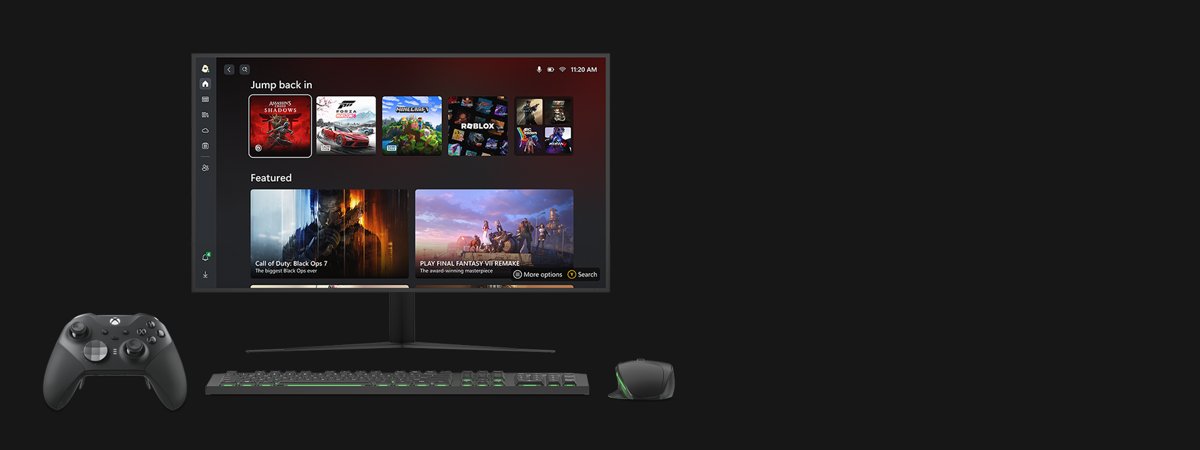
How to check cloud play is working
- Check that Sign In on xbox.com/play has been replaced by your profile, which confirms an account is signed in.
- Start a game and confirm it opens inside the browser tab or app window with no download progress bar.
- Press a face button and move a stick; the game should respond within a moment.
- Play for a few minutes and watch for blur or stutter, which points to the network rather than the PC.
- Quit and reopen the game; your progress and saves should still be there because they sync to your Xbox account.
Optimizing Your Cloud Gaming Experience
Cloud quality depends on the connection far more than the PC. Match your symptom to a row and change that one thing first.
| What you notice | Change this | Why |
|---|---|---|
| Picture turns blocky during fast scenes | Use a wired connection when possible | Ethernet avoids Wi-Fi drops and interference |
| Lag spikes when others are home | Minimize network traffic: pause large downloads, video streams and cloud backups | Xbox asks for 20 Mbps free for the stream on a PC |
| Stutter on wireless only | Move to the 5 GHz band or closer to the router | Xbox names 5 GHz Wi-Fi for best performance |
| Controller feels unresponsive | Choose a suitable display and controller: an Xbox Wireless Controller over USB or Bluetooth | Xbox recommends it for cloud gaming |
| Picture looks soft on a large monitor | Adjust streaming quality expectations by plan | Xbox says resolution varies with factors that include your Game Pass plan |
| Browser tab stalls or audio drops | Keep software and drivers updated: browser, Windows and network drivers | Xbox lists supported browsers, and current versions rule out known playback bugs |
Troubleshooting Common Issues
Most failures come from the plan, the region or the network, not the PC. Check the Cloud gaming & remote play entry at support.xbox.com/en-US/xbox-live-status first; if it is not up and running, wait it out.
Why can't I play Xbox Cloud Gaming on PC?
The account has PC Game Pass or Game Pass for Console, neither of which includes cloud gaming.
- Open account.microsoft.com/services and note the exact plan name.
- If it reads PC Game Pass or Game Pass for Console, switch to Essential, Premium or Ultimate.
- Sign out of xbox.com/play, sign back in, and start the game again.
Cloud gaming worked earlier in the month and now will not start
The plan's monthly cloud playtime (5, 10 or 15 hours) is used up.
- Check which plan you have and its monthly hours in the table above.
- Wait for the next monthly period, or move to a plan with more hours.
- Remember that a second subscription does not add hours; they do not stack.
Why can't I play Fortnite on Xbox Cloud?
Fortnite streams free, but only when signed in and in a region where cloud gaming for Fortnite is supported. Where cloud play is not available, download Fortnite on your PC through the Epic Games Launcher and play it locally instead.
- Go to xbox.com/play and select Sign In with a Microsoft account.
- Open xbox.com/regions, choose your country and look for Cloud gaming (Fortnite).
- Use a supported browser such as Microsoft Edge or Google Chrome and try again.
The game is missing or cannot be streamed
Not every Game Pass or owned game is cloud-playable, and games rotate out of the library.
- Search for it on xbox.com/play; if it is not listed there, it cannot be streamed.
- Check the Leaving soon row for games about to leave Game Pass.
- For a game you own, look in Stream your own game; only select titles support it.
Controller not detected in the stream
The controller connected after the tab opened, or it is paired to a console instead of the PC.
- Close the game tab.
- Reconnect the controller with a USB cable to rule out Bluetooth pairing.
- Reopen xbox.com/play and press a button on the controller before starting the game.
- Try an Xbox Wireless Controller if another brand still does nothing; Xbox's tested list is not exhaustive.
Crashes, no sound, or screen glitches
An outdated browser or driver, or a network that cannot hold the stream steady.
- Update the browser, then restart the PC.
- Install pending updates in Windows Update, including driver updates.
- Switch to the other supported browser, Edge or Chrome, to rule out the browser.
- Move to a wired connection or the 5 GHz Wi-Fi band and close other downloads.
Additional Tips for Enhancing Cloud Gaming
These are the limits and extras Xbox documents that most first-time players only find by accident.
| Tip | What it means on PC |
|---|---|
| Play with mouse and keyboard | xbox.com/play has a Play with mouse and keyboard row; other games need a controller |
| One player only | Cloud gaming does not support local multiplayer; it runs one player and one account at a time |
| Stream games you own | Select games you buy outside Game Pass, including most Xbox Play Anywhere titles, can be streamed |
| Ubisoft+ Premium | Subscribers can stream supported cloud-playable games from that catalog |
| Progress follows you | Saves and add-ons sync to your Xbox account, so a console save carries over |
| Chat while you stream | Press Win + G to open Game Bar and chat with friends across Xbox console, PC and mobile |
| Watch the Leaving soon row | Games marked with a leave date stop streaming with Game Pass after that date unless you buy them |
Frequently Asked Questions
Can I play Xbox cloud on PC?
Yes. Windows PCs are on Xbox's list of supported cloud gaming devices. Play at xbox.com/play in Microsoft Edge or Google Chrome, or through the Xbox app, with a Game Pass plan that includes cloud playtime or a free Microsoft account for select free-to-play games.
What is Xbox Cloud Gaming?
Xbox Cloud Gaming streams console games from Xbox servers to devices you already own, including PCs, phones, tablets and some smart TVs. Nothing is downloaded, and progress syncs to your Xbox account. It comes with Game Pass Essential, Premium and Ultimate, each with a monthly hour cap. To stream games from a console you own instead, use Xbox remote play on PC, which needs no Game Pass plan.
How does cloud gaming work on Xbox?
The game runs on Xbox servers, and video streams to your device while your controller input goes back up. That is why the network matters more than your PC's hardware. Xbox asks for at least 10 Mbps and recommends 20 Mbps on PCs.
How do I cloud game on the Xbox app on PC?
Open the Xbox app on Windows 10 or 11 version 22H2 or later, sign in with your Game Pass account, and connect a controller. Find a cloud-playable game and choose to stream it rather than install it. The session then opens inside the app.
How do I access Xbox Cloud Gaming?
Go to xbox.com/play in a supported browser, or open the Xbox app, and sign in with your Microsoft account. Cloud-playable games in your plan appear under Play with Game Pass. Free-to-play games such as Fortnite need only a signed-in Microsoft account.
Does PC Game Pass include cloud gaming?
No. Xbox states that PC Game Pass and Game Pass for Console do not support cloud gaming. Cloud playtime comes with Game Pass Essential at 5 hours, Premium at 10 hours and Ultimate at 15 hours per month.
Can I play Xbox cloud games without a controller?
Only some of them. On PC, xbox.com/play lists a Play with mouse and keyboard row for games that support it. Most other titles need a controller, and Xbox recommends an Xbox Wireless Controller over Bluetooth or USB.
Can I play Fortnite on Xbox Cloud Gaming for free?
Yes, in supported regions. Sign in at xbox.com/play with a free Microsoft account and start Fortnite; no Game Pass plan is needed. Xbox lists Cloud gaming (Fortnite) separately on its regions page, so check your country there if it will not start.
How do I cloud play Xbox on iPhone or phone?
Open xbox.com/play in a supported mobile browser such as Safari on iPhone, sign in, and pick a game. Select games offer touch controls, and others need a Bluetooth controller. Xbox recommends at least 10 Mbps on mobile devices.
How do I cloud game on Xbox One?
Xbox One and Xbox Series X|S consoles can stream games from the cloud without installing them, using the same Game Pass plan and cloud hours. Pick a cloud-playable game on the console and choose to stream it rather than download it.
What internet speed do I need for Xbox cloud play?
Xbox names 10 Mbps as the minimum download speed and 20 Mbps for best performance on PCs, consoles and tablets. A 5 GHz Wi-Fi band or a wired Ethernet connection gives the steadiest stream.

Download Xbox Game Bar for PC, Windows 11 and Windows 10 (Free) - Techdows
[…] No. Microsoft does not publish it for macOS and the Store package targets Windows only. Use Shift + Command + 5 to record a Mac screen, and play Xbox titles through Xbox Cloud Gaming in a browser. […]