The PlayStation Plus download for PC is Sony’s Windows app, and it streams PlayStation Plus games to your computer over the internet. The app itself costs nothing to install; streaming games through it is a Premium benefit.
This guide covers the official download link, installation on Windows, the three membership plans and their prices, what Mac owners can do instead, the requirements, streaming fixes and a clean uninstall.
Which PlayStation Plus route works on your computer?
Sony ships one PlayStation Plus app, and it is for Windows. Match the row for the machine in front of you.
| Your machine | What to get | What it does |
|---|---|---|
| Windows PC | PlayStation Plus app for PC | Streams catalog games from Sony’s servers, no console needed |
| Windows PC with a PS5 or PS4 at home | PS Remote Play | Streams your own console over your network |
| Mac | PS Remote Play for Mac | The only PlayStation desktop app on macOS; needs your own console |
| Any browser | PlayStation Store | Buy or renew a membership and redeem codes |
| PS5 or PS4 | Game catalog on consoles | Download catalog games instead of streaming them |
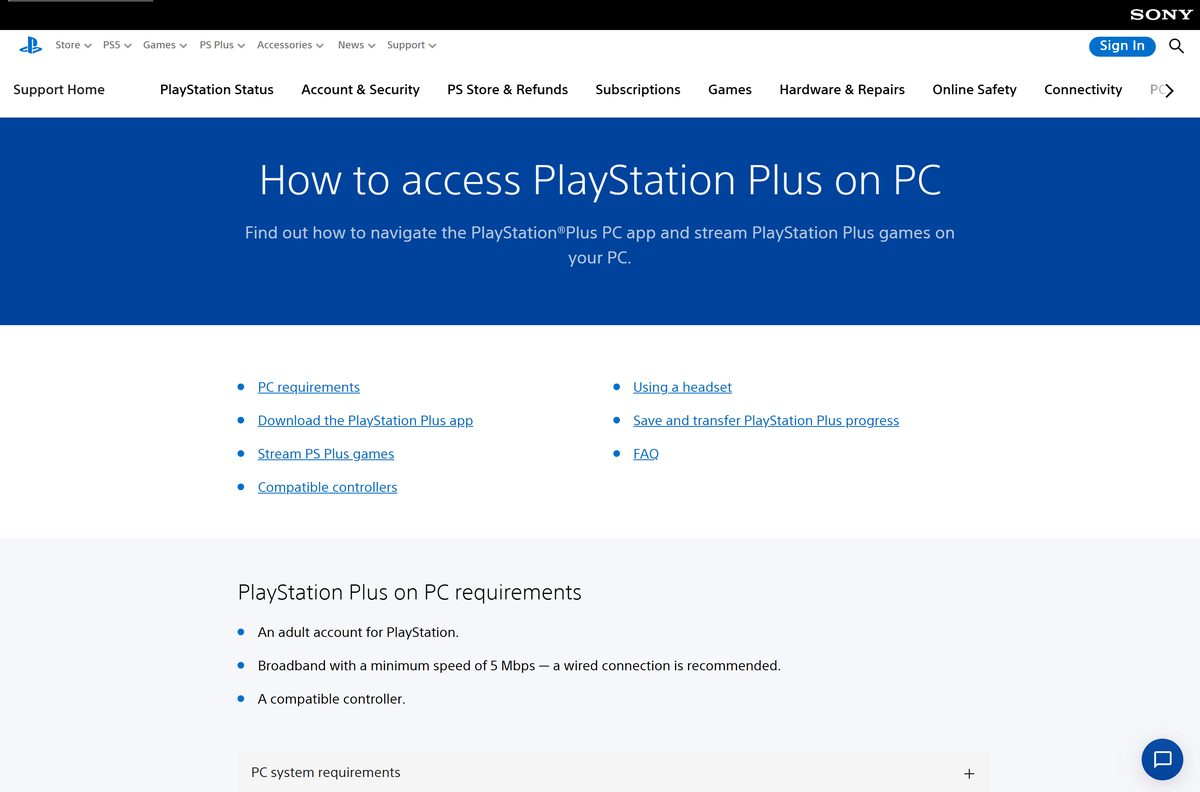
Every route needs an adult account for PlayStation. The PC app also needs a controller: you can browse with a keyboard and mouse, but you cannot play with one.
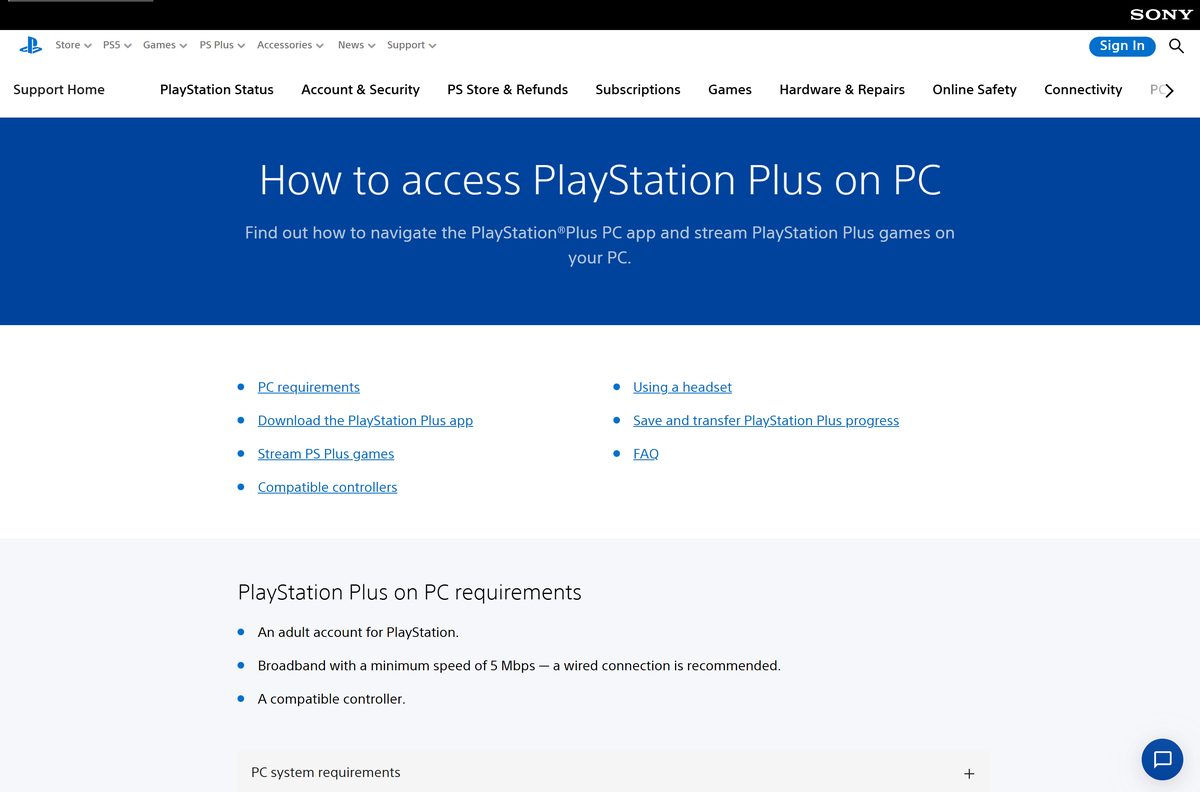
Download the PlayStation Plus app from the official PlayStation page
Sony serves the installer from its own download host, linked from the support guide. The current file is PlayStationPlus-12.7.0.exe at 110.3 MB.
- PlayStation Plus app for PC — 110.3 MB · Sony’s download host, always the current build
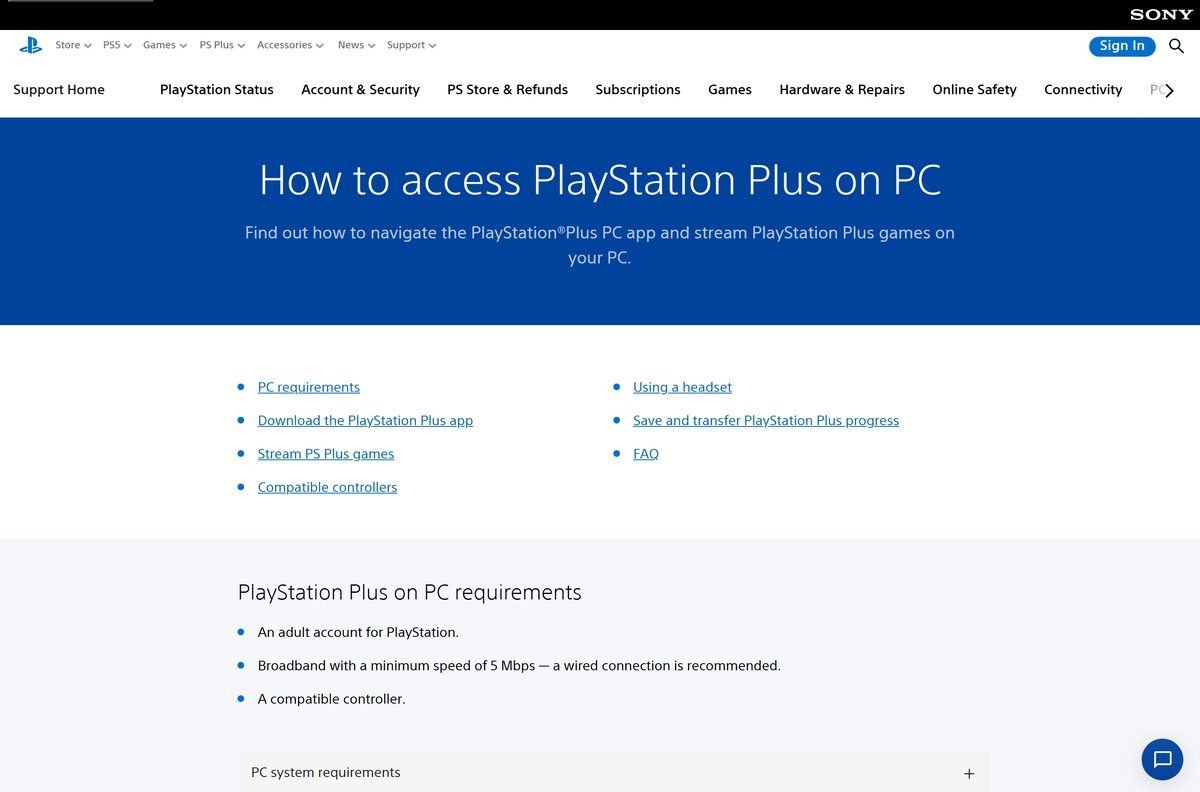
- How to access PlayStation Plus on PC — requirements, setup and the same download button
- Membership plans and prices — Essential, Extra and Premium
- PlayStation Store — buy a membership in a browser on Windows or Mac
- PlayStation gaming on PC — account, trophies and controller support on a PC
Skip mirrored copies on download portals. The link above serves the build Sony ships today.
How to install PlayStation Plus on Windows 11 and 10
The installer places the app and the controller drivers it needs. Plug in a DUALSHOCK 4 before you start a game, not before you install.
- Open the PlayStation Plus app download and save the file.
- Run PlayStationPlus-12.7.0.exe from your Downloads folder.
- Select Yes when Windows asks for permission.
- Install any drivers by following the onscreen prompts.
- Start the app and select Sign In, or create an account if you do not have one.
- Connect a DUALSHOCK 4 controller to the PC with a USB cable.
- Select a membership plan if you have not signed up yet.
- Select a game to start streaming.
An adult account for PlayStation is required. A child account cannot stream.
Which PlayStation Plus option do you need on a Mac?
There is no macOS build of the PlayStation Plus app. Sony’s requirement list names Windows only, so a Mac takes one of the routes below.
| What you want to do on a Mac | What to use | What it needs |
|---|---|---|
| Play your own PS5 or PS4 games | PS Remote Play for Mac | A console at home, signed in to the same account |
| Buy, renew or change a membership | PlayStation Store in a browser | Any Mac browser |
| Cancel or turn off auto-renewal | Cancel PlayStation Plus | Account Management in a browser |
| Stream catalog games with no console | Windows PC only | Cloud streaming runs in the Windows app |
The setup for the Mac app is covered in full in the PS Remote Play download guide.
Is PlayStation Plus free?
The app is a free download. The service behind it is not.
No. PlayStation Plus is a paid membership, and the cheapest way in is Essential at $10.99 a month or $79.99 a year. The PC app installs at no cost and lets you browse, but a game only starts once a membership covers it, and cloud streaming on a PC is a Premium benefit at $19.99 a month or $159.99 a year. Any site offering a free PlayStation Plus code generator or a lifetime membership is a scam; Sony sells memberships through the PlayStation Store and retail cards only.
What each PlayStation Plus plan costs and covers
Three plans, one account. Only the top plan reaches the PC app.
| Plan | 1 month | 3 months | 12 months | Cloud streaming on a PC |
|---|---|---|---|---|
| Essential | $10.99 | $27.99 | $79.99 | No |
| Extra | $16.99 | $43.99 | $134.99 | No |
| Premium | $19.99 | $54.99 | $159.99 | Yes |
Essential covers online multiplayer, monthly games and cloud saves. Extra adds the game catalog. Premium adds classics, game trials, cloud streaming and the Sony Pictures catalog.
Essential, Extra or Premium: which should a PC player buy?
The answer turns on whether you own a console.
Buy Premium if the PC is your only PlayStation, because it is the single plan that unlocks streaming inside the app. Essential and Extra deliver their benefits on a PS5 or PS4, so on a computer they leave the app with nothing to launch. If you already own a console and just want your own games on the PC screen, skip the membership question entirely and use PS Remote Play, which is free.
How to check your membership and update the PlayStation Plus app
The app carries no manual update button. Reinstalling over the top pulls the current build, and the membership itself is managed in a browser.
- Open the official download link and check the file name that arrives.
- Compare it with PlayStationPlus-12.7.0.exe, the build Sony serves now.
- Run the newer file over your existing installation if the number is higher.
- Sign in to Account Management at playstation.com to check the membership.
- Select Subscription in the left menu.
- Read the next payment date next to your plan.
- Select Cancel Subscription to stop auto-renewal, or Reactivate Subscription to keep it.
Access continues to the end of the paid period after a cancellation. Monthly games, cloud saves and online multiplayer stop after that date.
Check the PlayStation Plus PC requirements before you download
Sony publishes a minimum and a recommended specification. The floors are low, because the game runs on Sony’s hardware and the app only decodes video.
| Field | Value |
|---|---|
| Software | PlayStation Plus app for PC |
| Developer | Sony Interactive Entertainment |
| Latest version | 12.7.0 |
| Download size | 110.3 MB |
| Licence | Paid membership; the app is a free download |
| Operating system | Windows 8.1 or Windows 10, as listed by Sony |
| Processor (minimum) | Core i3 2.0 GHz |
| Processor (recommended) | 3.5 GHz Intel Core i3 or 3.8 GHz AMD A10 or faster |
| Memory | 2 GB of RAM |
| Storage | 300 MB of available storage |
| Other hardware | Sound card and a USB port |
| Account | An adult account for PlayStation |
| Network | 5 Mbps minimum, 15 Mbps for 1080p, wired recommended |
| Controllers | DUALSHOCK 4; some XInput controllers work without a guarantee |
| macOS | No Mac version of the app |
| Official download source | playstation.com |
| Last verified | 2026-09-22 |
Sony has not added Windows 11 to that list. Nothing in the specification rules a Windows 11 machine out, since every one of those floors sits far below the Windows 11 minimum.
Fix PlayStation Plus not installing or streaming on Windows
Most failures are the controller, the account type or the connection. Work through the symptom that matches.
The installer will not finish
The driver step needs permission and free space.
- Right-click the setup file and select Run as administrator.
- Select Yes at the Windows permission prompt.
- Accept every driver prompt the installer raises.
- Free up space if the drive holds less than 300 MB.
- Download the file again if setup stops partway.
Games will not start, only the store appears
Streaming is a Premium benefit and needs a controller.
- Connect a DUALSHOCK 4 controller with a USB cable.
- Sign in with the account that holds the membership.
- Open the plan list in the app and confirm it shows Premium.
- Upgrade the plan if it shows Essential or Extra.
- Sign in with an adult account if the current one is a child account.
The picture stutters, blurs or drops out
The stream needs sustained bandwidth, not peak speed.
- Connect the PC to the router with an Ethernet cable.
- Test the line and confirm it holds at least 5 Mbps.
- Aim for 15 Mbps or more before expecting 1080p.
- Stop other downloads and video streams on the network.
- Move the PC off a congested 2.4GHz Wi-Fi band if a cable is impossible.
No sound in your headset
Audio never routes through the controller on a PC.
- Plug the headset into the PC, not into the controller.
- Open Settings > System > Sound in Windows.
- Set the headset as the output device.
- Use Discord or another app for voice, since party chat is unavailable here.
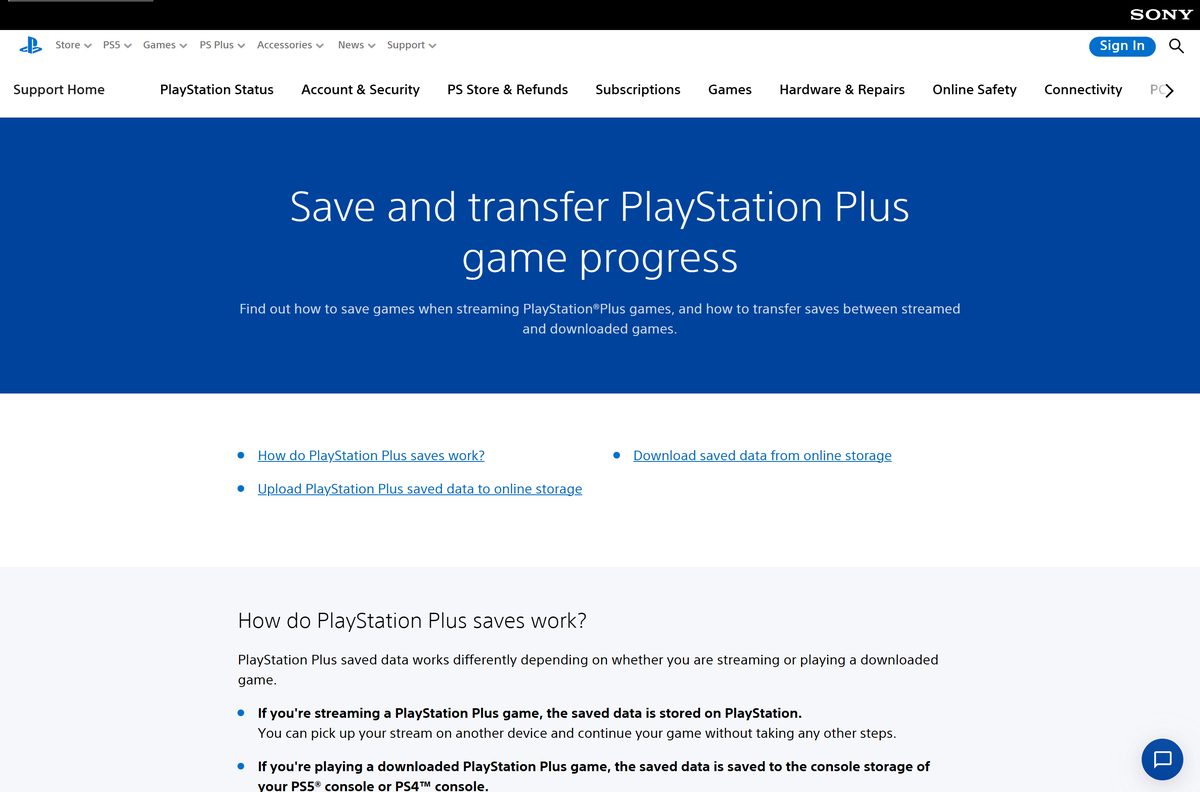
Your progress is missing after switching to a console
Streamed saves sit in a separate storage area.
- Press the PS button in the app.
- Select Application Saved Data Management.
- Select Saved Data in Game Streaming Storage, then Copy to Online Storage.
- On the console, copy that data back down from online storage.
- Reverse the path with Saved Data in Online Storage > Copy to Game Streaming Storage to return to the PC.
How to uninstall the PlayStation Plus app
Removing the app leaves the membership untouched. Cancel the subscription separately if you want the billing to stop.
- Close the app and unplug the controller.
- Open Settings > Apps > Installed apps on Windows 11, or Settings > Apps > Apps & features on Windows 10.
- Find PlayStation Plus in the list.
- Select the three dots, then Uninstall, and confirm.
- Restart the PC to clear the controller drivers from memory.
- Open the cancellation guide to stop the billing as well.
Streamed saves stay on Sony’s servers, so a reinstall picks the games up where you left them.
PlayStation Plus alternatives for playing PlayStation games on a PC
A membership is not the only way to get PlayStation games onto a computer.
| Option | What it gives you | Cost |
|---|---|---|
| PS Remote Play | Your own PS5 or PS4 streamed to a Windows PC or a Mac | Free, console required |
| PlayStation Studios games on PC | Ported titles bought on Steam or the Epic Games Store, played offline | Per game |
| Console game catalog | Catalog titles downloaded to a PS5 or PS4 instead of streamed | Extra or Premium |
| PlayStation Store | Buying single games outright, with no monthly charge | Per game |
Sign in with a PlayStation account inside ported games to sync trophies. Press Shift + F1 during play to open the trophy list.
Frequently asked questions
Is PlayStation Plus free to download?
The PC app is free to download and install. The membership behind it is paid: Essential starts at $10.99 a month, and streaming games inside the app requires Premium at $19.99 a month or $159.99 a year.
Where is the official PlayStation Plus download page?
Sony’s support guide at playstation.com links the installer directly, and the download host is download-psplus.playstation.com. That link always serves the current build, so there is no version page to hunt through.
Does the PlayStation Plus app work on Windows 11?
Sony lists Windows 8.1 or Windows 10 and has not updated that list for Windows 11. Nothing in the specification excludes a newer PC, because the Core i3, 2 GB of RAM and 300 MB storage floors sit below any Windows 11 machine.
How big is the PlayStation Plus download?
The Windows installer is 110.3 MB. Sony asks for 300 MB of free storage for the installed app, which covers the program files and the controller drivers the setup adds.
Is there a PlayStation Plus offline installer?
The Windows download is one complete setup file, so you can copy it to another PC and run it there. Playing needs a live connection regardless, since the games run on Sony’s servers rather than on your hardware.
Is there a PlayStation Plus app for Mac?
No. Sony publishes the app for Windows only. On a Mac, use PS Remote Play to reach your own PS5 or PS4, and manage the membership through the PlayStation Store or Account Management in a browser.
Is the PlayStation Plus app 64-bit or ARM64?
Sony offers a single Windows installer and lists no separate 32-bit, 64-bit or ARM64 download. The requirement page names a Core i3 processor and no architecture, so one file covers every supported PC.
Is the PlayStation Plus app safe to download?
Yes, when you take it from playstation.com or the download-psplus.playstation.com link on that page. Avoid portals and code-generator sites; Sony sells memberships only through the PlayStation Store and retail cards.
What is the latest version of the PlayStation Plus PC app?
Sony currently serves PlayStationPlus-12.7.0.exe from its official download link. The support page shows no version number of its own, so the file name is the reliable way to check what you have.
Why won’t PlayStation Plus install on my PC?
The two usual causes are a blocked driver step and a full drive. Run the setup file as administrator, accept each driver prompt, and free enough space to clear the 300 MB requirement.
Do you need a controller to use PlayStation Plus on a PC?
Yes, to play. A keyboard and mouse can browse the app, but games need a DUALSHOCK 4 connected by USB. Some third-party XInput controllers work, though Sony does not guarantee full compatibility.
Does PlayStation Plus on PC support voice chat and multiplayer?
Online multiplayer works exactly as it does on a console. Party chat is unavailable in the PC app, and local multiplayer in supported games is capped at two players.