Turn on Xbox Game Bar in Settings > Gaming > Game Bar, open a game, and press Windows + G to bring up the overlay.
The same steps work on Windows 10, where the page is called Xbox Game Bar. This covers capturing, the widgets, settings, and fixes for when Game Bar will not open or record.
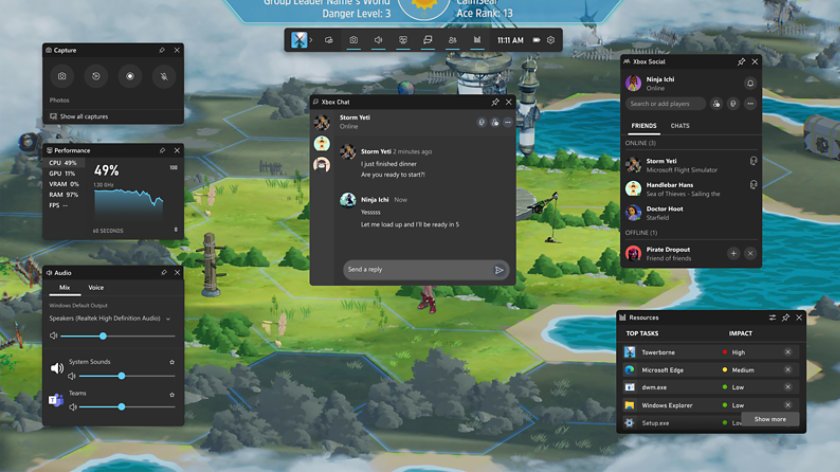
The fastest way to enable and open Xbox Game Bar
Game Bar is built into Windows 11 and Windows 10, so there is nothing to install first.
- Select Start, then Settings.
- Go to Gaming > Game Bar (Gaming > Xbox Game Bar on Windows 10).
- Turn on the Game Bar switch at the top of the page.
- Open the game or app you want to capture.
- Press Windows + G to open Game Bar over it.
- If Game Bar asks, select Enable gaming features for this app to record gameplay.
A connected Xbox controller opens Game Bar too: press the Xbox button during play.
Game Bar or another tool: which one fits what you want to capture
Game Bar is built around one game or app window at a time.
| What you want | Use this | Why |
|---|---|---|
| A clip of gameplay with game audio | Game Bar, Windows + Alt + R | Records the active game with its sound and saves an MP4 |
| The moment that just happened | Game Bar, Windows + Alt + G | Saves recent play, but only with background recording turned on |
| A screenshot of a game | Game Bar, Windows + Alt + Print Screen | Saves a PNG to the same Captures folder as clips |
| A region of the desktop or File Explorer | Snipping Tool, Record mode | Game Bar capture is built for game and app windows |
| Capture across two monitors | Snipping Tool | Game Bar supports one monitor at a time |
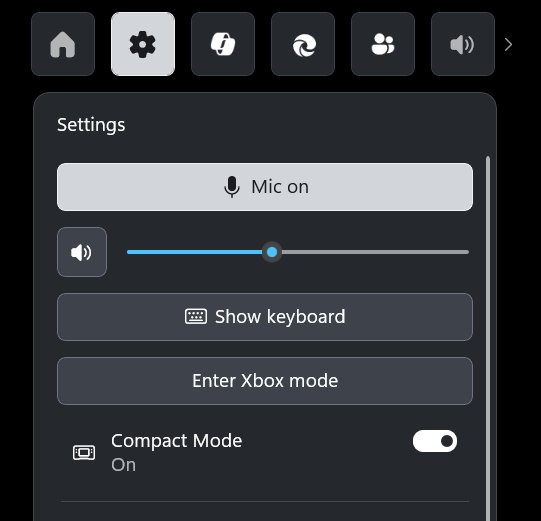
| Play on a handheld or with a controller | Game Bar Compact Mode or Xbox mode | Both are laid out for controller navigation on small screens |
Check that Game Bar is installed and your PC can record
Screenshots work on every Windows 10 and Windows 11 PC. Video clips need a supported graphics encoder.
To confirm Game Bar is installed, go to Settings > Apps > Installed apps and look for Game Bar. If it is missing, get it from the Microsoft Store listing, or use the Xbox Game Bar download options for every PC.
| Requirement | Needed for | Where to check |
|---|---|---|
| Windows 10 22H2 or newer | Some Game Bar and Xbox app features | Settings > System > About > Windows specifications > Version |
| Intel Quick Sync H.264, NVIDIA NVENC or AMD VCE encoder | Recording video clips | Device Manager > Display adapters, then the card maker's site |
| Xbox app for Windows, signed in with a Microsoft account | Xbox Social, chat, parties and Looking for Group | Open the Xbox Social widget and select Sign in |
| Media Feature Pack | Game Bar on Windows N editions | Microsoft's Media Feature Pack list for N editions |
| Game Bar 3.34.11002.0 or later | The FPS counter in the Performance widget | Update Game Bar from Microsoft Store |
| Windows 11 24H2 or later | Xbox mode full-screen experience | Settings > Gaming > Xbox mode |
How to take a screenshot with Game Bar
Screenshots save as PNG files in Videos > Captures, named after the game or app plus the date and time.
- Open the game or app and press Windows + G.
- Select Widget menu > Capture if it is not showing.
- Select Take screenshot (the camera icon).
- To skip the overlay, press Windows + Alt + Print Screen instead.
- Open Widget menu > Gallery to see the screenshot.
How to record video with Game Bar, with or without your microphone
Clips save as MP4 files in Videos > Captures. In full-screen games the shortcuts still work, and the screen flashes when recording starts and stops.
- Open the game and press Windows + G.
- In the Capture widget, select the microphone icon to turn your mic on or off.
- Select Start recording (the circle icon), or press Windows + Alt + R.
- Press Windows + Alt + M at any point to toggle the microphone during the clip.
- Select Stop recording (the square icon), or press Windows + Alt + R again.
- Select See my captures or Show all captures to review and trim the clip.
How to save the last 30 seconds of gameplay
Background recording is off by default. Once on, it holds the most recent moments so Windows + Alt + G can save them after the fact.
- Go to Settings > Gaming > Captures.
- Turn on Record what happened.
- Choose how much recent play to keep from the duration list.
- Start your game.
- Press Windows + Alt + G right after the moment you want to keep.
- Alternatively, open Windows + G > Widget menu > Capture and select Record last….
How to check FPS, CPU and GPU load with the Performance widget
The Performance widget shows CPU, GPU, RAM, VRAM and FPS over your game. The FPS tab graphs the last 60 seconds, so dips are easy to spot.
- Press Windows + G and select Widget menu > Performance.
- Choose the FPS tab.
- Select Request access and follow the prompts.
- Restart your PC so the FPS counter can read frame data.
- Open the widget again and select the Pin icon to keep it on screen while you play.
- Select the mouse icon in the top bar to turn on click-through, so clicks pass to the game.
How to balance game and chat volume with the Audio widget
The Audio widget has two parts. Mix sets the output device and per-app volume, and Voice sets the microphone used for Game Bar chat.
- Press Windows + G and select Widget menu > Audio.
- On Mix, choose your speakers or headset as the output device.
- Drag each running app's slider to set its volume against the game.
- On Voice, pick the microphone and chat output, then speak to test the level meter.
How to chat, party and find players with Xbox Social
Xbox Social needs the Xbox app for Windows installed and a Microsoft account signed in to Game Bar.
- Press Windows + G, select Widget menu > Xbox Social, then select Sign in.
- Choose the Friends tab.
- Double-click a friend's gamertag to start a chat, or right-click to invite them to a game.
- In a chat, select Invite to party to turn it into a voice or text party.
- To add people to a group chat, select Add someone, choose friends, then press Done.
- To find players, open Widget menu > Looking for Group and select I'm interested on a post.
Where to change shortcuts, recording quality, audio and the captures folder
Paths starting with Gaming are in Windows Settings; paths starting with Windows + G are inside Game Bar. Capture settings in both places stay in sync.
| Change | Where | Options |
|---|---|---|
| Customize keyboard shortcuts | Windows + G > Settings > More settings > Shortcuts | Enter a new combination, then press Save |
| Frame rate and video quality | Gaming > Captures | Quality sets both resolution and bitrate |
| Maximum clip length | Gaming > Captures | A clip saves automatically when it reaches this length |
| Recorded audio | Gaming > Captures | Turn audio on, include system and mic audio, set bitrate and levels |
| Audio to record | Windows + G > Settings > More settings > Widgets > Captures | Game only, All (mic, music, system sounds) or None (mic only) |
| Capture the mouse cursor | Gaming > Captures | On or off |
| Captures folder | File Explorer | Move the Captures folder anywhere; Windows keeps saving there |
| Mark an app as a game | Windows + G > Settings > More settings > General | Remember this is a game |
| Theme, animations and widget list | Windows + G > Settings > More settings | Personalization and Widgets |
| Compact Mode for handhelds | Windows + G > Settings | Compact Mode toggle |
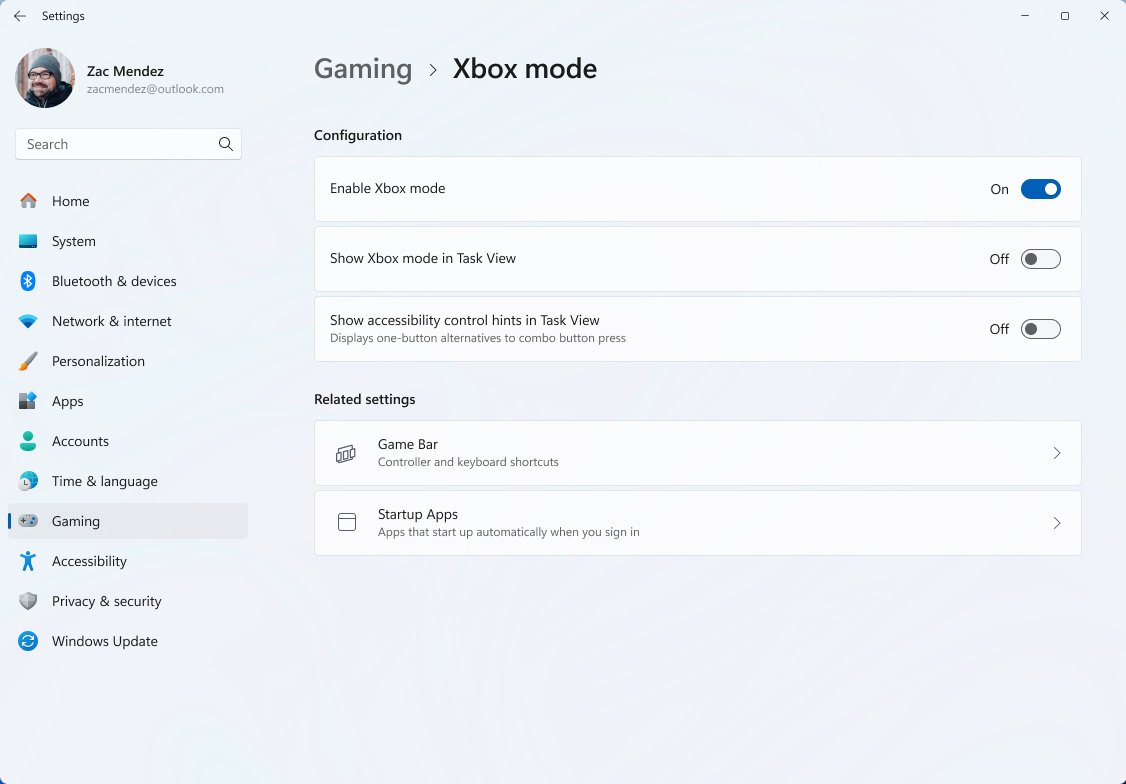
| Xbox mode | Gaming > Xbox mode (Windows 11 24H2 or later) | Enable Xbox mode; Windows + F11 enters and exits |
How to check Game Bar is working
- Press Windows + G in a game. The Home Bar and your widgets should appear over the game.
- Press Windows + Alt + Print Screen, then open Widget menu > Gallery. The new screenshot should be at the top.
- Go to Settings > Gaming > Captures and select Open folder. The PNG or MP4 file should carry the game name, date and time.
What each part of the Game Bar interface does
The Home Bar across the top holds the Widget menu, Settings and favourites. Select a widget's star to add it.
| Widget or control | What it does |
|---|---|
| Widget menu | Lists every widget; most can be moved, resized or pinned |
| Mouse click-through | Sends clicks through pinned widgets to the game |
| Capture and Gallery | Take screenshots and clips, then browse, copy and share them |
| Audio and Performance | Volume mixing, chat mic, and live CPU, GPU, RAM and FPS |
| Resources | Rates running apps by impact; select X to end one |
| Xbox Social, Chat and Looking for Group | Friends, parties, game invites and finding players |
| Achievements and Spotify | Game progress, and music from a linked Spotify account |
| Widget Store | Add widgets from Microsoft and other developers |
Best Game Bar setup for most people, with the privacy and performance trade-offs
The best setup for most people records on demand, keeps audio at Game only, and pins widgets only while needed.
| Setting | Recommended for most people | Trade-off |
|---|---|---|
| Record what happened | Off, unless you often miss moments | Background recording uses PC resources and can lower game performance |
| Audio to record | Game only | All captures your mic, music and system sounds, including notifications |
| Microphone during clips | Off; toggle with Windows + Alt + M when needed | A live mic records room noise and conversations |
| Frame rate and video quality | Lower settings on older PCs | Higher quality and frame rate make the PC work harder |
| FPS counter access | Grant only if you want FPS readings | Needs a one-time permission prompt and a restart |
| Pinned widgets | Pin Performance while tuning, then unpin | Pinned widgets stay over every game until removed |
How to turn Game Bar off again
- Go to Settings > Gaming > Captures and turn off Record what happened.
- Go to Settings > Gaming > Game Bar (Xbox Game Bar on Windows 10).
- Turn off the Game Bar switch at the top of the page.
- Press Windows + G to confirm the overlay no longer opens.
Fix Game Bar when it will not open, record or save
Windows + G does nothing
Game Bar is off or out of date, the game runs full-screen exclusive, or something blocks the Windows key.
- Go to Settings > Gaming > Game Bar and make sure the switch is on.
- Go to Settings > Windows Update and select Check for updates.
- Open Microsoft Store, select Library, then Check for updates to update Game Bar.
- In a full-screen game, the overlay stays hidden but Windows + Alt + R still records. Press Windows + G once and wait for two screen flashes first.
- If the game blocks keys, switch it to a borderless window and try again.
- If your keyboard lacks a Windows key, set a custom shortcut in Settings > Gaming > Game Bar.
"Gaming features aren't available" or the record button is greyed out
Game Bar does not treat the current window as a game, and it does not record the desktop or File Explorer.
- Click inside the game or app window so it has focus.
- Press Windows + G.
- Select Enable gaming features for this app to record gameplay if it appears.
- Otherwise open Settings > More settings > General and tick Remember this is a game.
- To record the desktop itself, use Snipping Tool's Record mode instead.
"Sorry, this PC doesn't meet the hardware requirements for recording clips"
The graphics driver is outdated or the card lacks an Intel Quick Sync H.264, NVIDIA NVENC or AMD VCE encoder.
- Close the game.
- Select Start, type
device manager, and open Device Manager. - Expand Display adapters.
- Right-click each video card and select Update driver.
- On a PC with two graphics cards, play on the monitor connected to the card that supports capture.
Recording worked once or twice, then stopped
A previous recording did not end cleanly and the broadcast server is stuck.
- Close the game.
- Open Task Manager from taskbar search and select More details if shown.
- Select Broadcast bar server (bcastdvr.exe) and select End task.
- Restart the game and record again.
Captures are missing, blank or black
The Captures folder was moved, the game disables recording, or protected content was on screen.
- Go to Settings > Gaming > Captures and select Open folder to find the current location.
- Open Windows + G > Widget menu > Gallery to list every capture Game Bar knows about.
- Close any protected video content before taking a screenshot.
- If only one game gives blank clips, that game blocks recording.
Recordings have no sound or no microphone
Audio capture is off, set to the wrong source, or Game Bar is using a different device.
- Go to Settings > Gaming > Captures and turn on audio recording.
- In Windows + G > Settings > More settings > Widgets > Captures, set Audio to record to All if you want your mic.
- Open the Audio widget and confirm your headset under input and output.
Widgets or Xbox Social are missing
The widget is hidden from the menu, or the Xbox app is not installed and signed in.
- Open Windows + G > Settings > More settings > Widgets and turn the widget back on.
- Install the Xbox app for Windows from Microsoft Store.
- Open the Xbox Social widget and select Sign in with your Microsoft account.
Game Bar still crashes or will not start: repair, reset or reinstall it
The Game Bar app files or settings are damaged.
- Go to Settings > Apps > Installed apps (Apps & features on Windows 10).
- Select the More icon next to Game Bar, then Advanced options.
- Select Repair and test Windows + G.
- If it still fails, select Reset on the same page.
- If Game Bar is gone entirely, reinstall it from its Microsoft Store listing.
- On a Windows N edition, install the Media Feature Pack first.
Frequently asked questions
How do you turn on Xbox Game Bar?
Go to Settings > Gaming > Game Bar and turn on the switch at the top. On Windows 10 the page is Settings > Gaming > Xbox Game Bar. Then press Windows + G in a game to open the overlay.
How do you enable Xbox on a PC?
Xbox features on a PC come through Game Bar and the Xbox app. Turn on the built-in Game Bar in Settings > Gaming, then install the Xbox app from Microsoft Store and sign in for friends and parties.
How do you enable the Xbox app?
Install the Xbox app for Windows from Microsoft Store and sign in with your Microsoft account. Game Bar needs it for Xbox Social, chat and Looking for Group. Screenshots and clip recording work without it.
How do you enable Xbox services and Xbox Live in Game Bar?
Sign in to Game Bar with a Microsoft account. Press Windows + G, open Widget menu > Xbox Social, select Sign in and follow the prompts. The Xbox app for Windows must be installed for the social features to work.
How do you get to Xbox settings on Windows?
Press Windows + G and select the Settings icon in Game Bar's top bar, then More settings. System-level options such as capture quality and background recording are in Windows Settings > Gaming > Captures.
How do you enable Xbox mode on a PC?
Go to Start > Settings > Gaming > Xbox mode and turn on Enable Xbox mode. It needs Windows 11 version 24H2 or later in a supported market. Press Windows + F11 to enter or leave Xbox mode.
How do you use Xbox on this computer?
Press Windows + G, or the Xbox button on a controller, while a game is running. Pick a widget from the Widget menu: Capture records clips, Performance shows FPS, and Xbox Social handles friends.
What is the use of Xbox Game Bar?
Xbox Game Bar is an overlay for capturing and managing games without leaving them. It records clips and screenshots, shows FPS and CPU or GPU load, mixes game and chat audio, and connects you to Xbox friends.



How to Screenshot on Windows 11: A Step-by-Step Guide - Techdows
[…] Game Bar is built for games and full-screen apps, where the snipping overlay can interrupt play. It saves captures as files rather than to the clipboard. […]
How to Update DirectX In Windows 10/11 - Techdows
[…] DirectX team says to check DirectX 12 Ultimate by pressing Windows + G to open Xbox Game Bar, opening its settings, and looking under Gaming […]