A Windows process is a running program, and most .exe names you see in Task Manager belong to Windows itself, a driver package or an app you installed.
This page explains the common ones, shows how to check whether a process is genuine, and covers how to cut background processes without breaking Windows.
At a glance
To identify an unknown process, find its file name and the file it runs from. Those two facts settle most questions about it.
- Press Ctrl + Shift + Esc to open Task Manager.
- On the Processes tab, note the friendly name and how much CPU, memory or disk it uses.
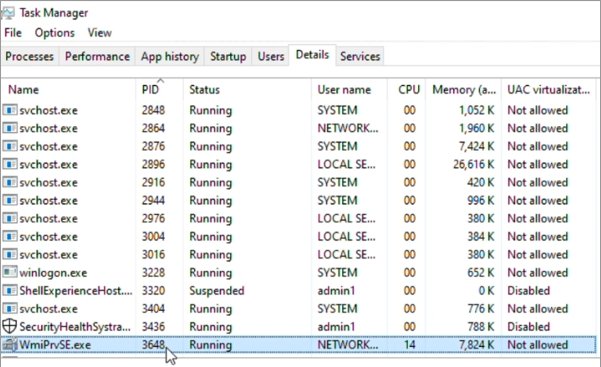
- Open the Details tab to see the real .exe name, such as
svchost.exeorMsMpEng.exe. - Look up that name in the process table below.
- If the name is unknown or the file sits outside its usual folder, check its signature and scan it with Microsoft Defender.
Ending a process with End task only stops it until the next start. A process that keeps coming back is started by a service, a scheduled task or a startup entry.
Windows processes list: what each .exe is and how to fix high usage
Each row names the process, what it belongs to, how to confirm it is the real file, and where to go when it uses too much CPU, memory or disk.
| Process | What it is | Safe? How to confirm | High usage or problem |
|---|---|---|---|
| WmiPrvSE.exe | WMI Provider Host; Windows loads WMI providers in it, and several copies can run under different accounts | Signed by Microsoft | Find the app sending the queries; the WMI Provider Host process explained |
| conhost.exe | Windows Console Host, which runs command-line windows | Signed by Microsoft | Close the console app it serves; more on the Console Host (conhost.exe) |
| mmc.exe | Microsoft Management Console, the host for snap-ins such as Services and Event Viewer | Signed by Microsoft | Close the open snap-in; see what starts the Microsoft Management Console process |
| msedge.exe | Microsoft Edge, one process per tab, extension and helper | Runs from Edge's own folder | Close the heavy tab or extension with these msedge.exe CPU and disk fixes |
| msedgewebview2.exe | Edge WebView2, used by apps that show web content | Signed by Microsoft | Restart or update the app behind it with the WebView2 memory fix |
| dllhost.exe (COM Surrogate) | Runs COM components such as thumbnail handlers outside Explorer | Signed by Microsoft | Check the file it was opening; read up on COM Surrogate in Windows 11 |
| TextInputHost.exe | Microsoft Text Input Application behind typing tools | Signed by Microsoft | Restart it, or learn more about the Microsoft Text Input Application |
| Vmmem / VmmemWSL | Memory and CPU used by WSL 2 or Hyper-V virtual machines | Created by Windows virtualization | Run wsl --shutdown or cap memory to fix Vmmem memory use |
| java.exe (OpenJDK Platform binary) | A Java runtime started by a Java app | Signed by the Java vendor | Find the app and cap its heap with these OpenJDK Platform binary fixes |
| mscorsvw.exe | .NET Framework process linked to native image compilation, which runs when the PC is idle | Signed by Microsoft | Let it finish; background on the mscorsvw.exe .NET process |
| NahimicService.exe | Service of the Nahimic audio software that some PC makers preinstall | Signed by the audio vendor | Update or remove the audio app; details on the NahimicService.exe audio process |
| AvLaunch.exe | Startup launcher installed by a third-party antivirus product | Signed by the antivirus vendor | Remove it with the vendor uninstaller; the AvLaunch.exe antivirus launcher explained |
| gameinputredistservice.exe | Part of the runtime for Microsoft's GameInput input API | Signed by Microsoft | Repair or reinstall the GameInput Redist Service |
| cmd.exe | Windows Command Processor behind Command Prompt | Signed by Microsoft; check what launched it | Close the script or window; more on the cmd.exe Windows Command Processor |
| mstsc.exe | Remote Desktop Connection client | Signed by Microsoft | Close the session; check unexpected use of the mstsc.exe Remote Desktop client |
| certutil.exe | Built-in certificate utility | Signed by Microsoft; unexpected runs deserve a scan | Find the script calling it; commands for the Certutil.exe certificate tool |
System, System interrupts and Memory Compression
These three entries have no normal .exe file you can open, so treat them differently from app processes.
| Entry | What it represents | What to do about high usage |
|---|---|---|
| System | The Windows kernel and drivers | Update drivers and Windows; do not try to end it |
| System interrupts | Time the CPU spends answering hardware interrupts | Unplug devices one at a time and update their drivers |
| Memory Compression | Memory Windows compresses instead of writing it to disk | Close apps you are not using; it shrinks when memory is free |
Service Host (svchost.exe): find the service inside
Each Service Host copy runs one or more Windows services, so the useful question is which service is busy. You can list the services inside svchost.exe from Task Manager or the command line.
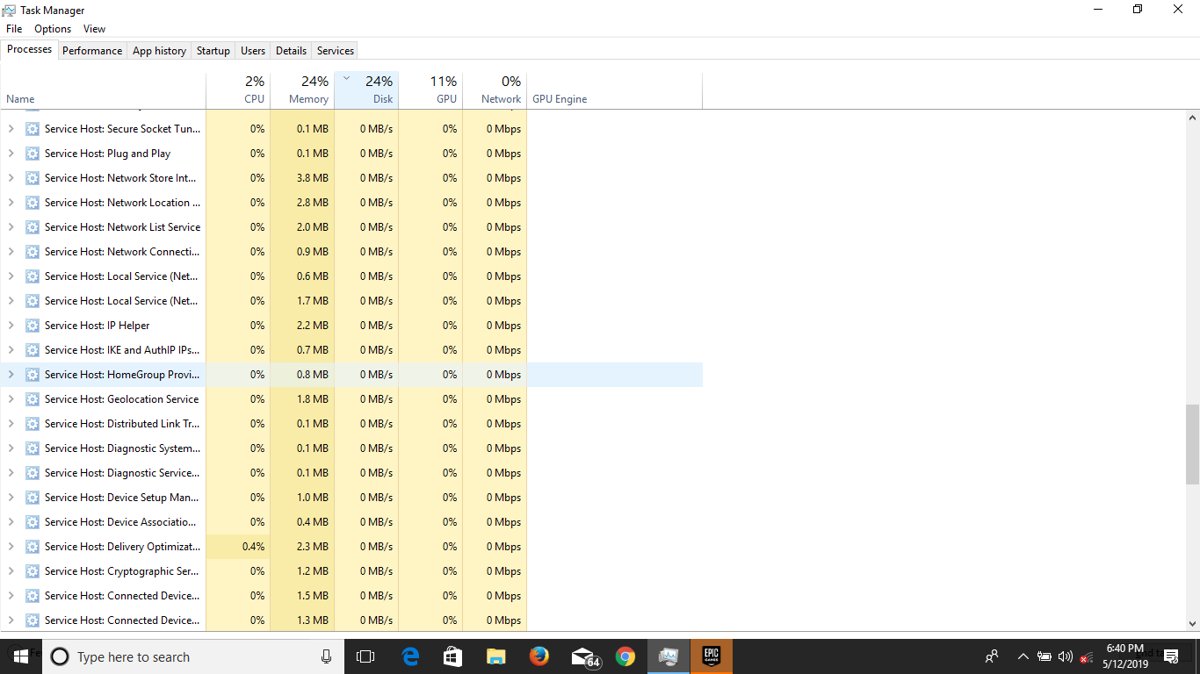
- Open Task Manager and expand a Service Host entry on the Processes tab to see the service it runs.
- Note the PID of a busy
svchost.exeon the Details tab. - Open Command Prompt and run
tasklist /svc /fi "imagename eq svchost.exe". - Match the PID to the service names in the Services column.
- Look the service up before you change anything about it.
The /svc switch lists every service in each process without truncation. Filters and exports are in this tasklist.exe command reference.
What is the Service Host process?
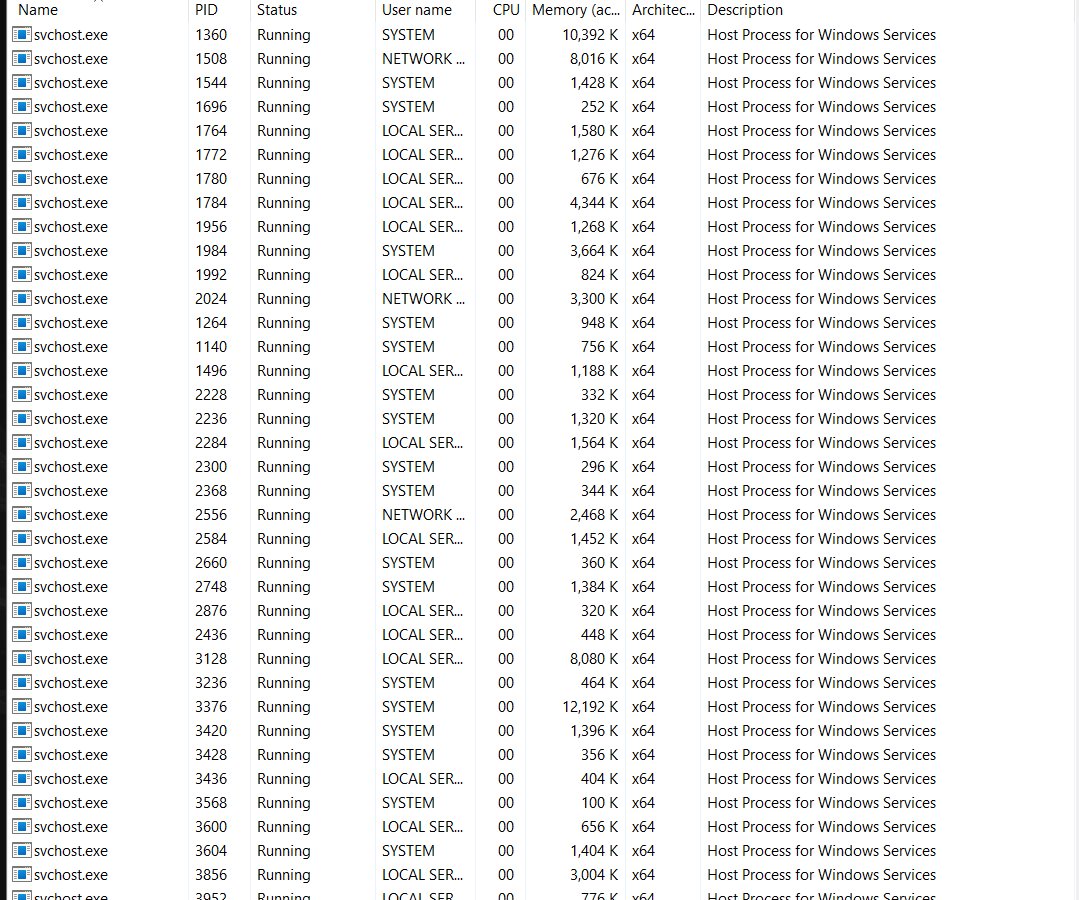
Service Host (svchost.exe) is a shared-service process that loads Windows services from DLL files. Services with matching security needs share a host group, and each group runs in its own instance so a problem in one does not take down the others.
| Question | Answer |
|---|---|
| What is svchost.exe? | The shell Windows uses to run services that are built as DLLs |
| Which software use svchost.exe? | Windows services such as networking, Windows Update, the firewall and audio; the -k group name on its command line shows which group |
| What does svchost.exe normally look like? | Many copies, each tied to a service or group, running under accounts such as Local System, Local Service or Network Service |
| Host groups | Local Service, Local Service No Network, Local Service Network Restricted, Local System, Local System Network Restricted, Network Service |
| Is it safe to end? | Ending one stops every service inside it; stop the single service instead |
Why are there so many Service Host processes running?
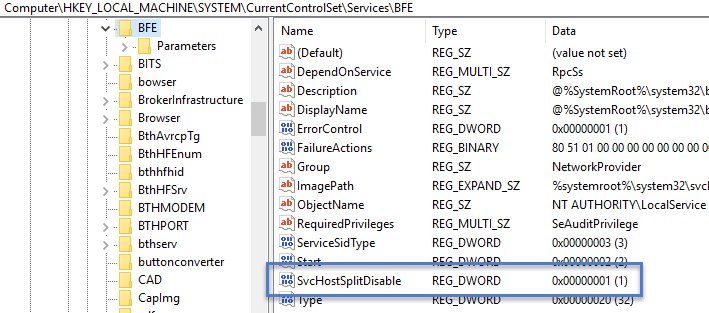
From Windows 10 version 1703, services that used to share one host run in separate svchost.exe processes on PCs with more than 3.5 GB of RAM. Some pairs still share a host, such as the Base Filtering Engine and Windows Firewall.
| Installed RAM | How services are hosted | Typical svchost.exe count Microsoft gives |
|---|---|---|
| 3.5 GB or less | Grouped into shared hosts | About 17 to 21 |
| More than 3.5 GB | Most services split into their own host | About 67 to 74 |
Splitting uses a little more memory, but Task Manager can then show exactly which service uses which resources. A high count is normal and is not a sign of infection.
Runtime Broker, Windows Explorer and Desktop Window Manager
These three sit behind the desktop you see, so they are always running on a signed-in PC.
| Process | What it does | When usage is a problem |
|---|---|---|
| RuntimeBroker.exe | Manages permissions for Microsoft Store apps and normally uses a few megabytes | Above 15% of memory, an app is likely the cause; end it and restart to calm Runtime Broker and its CPU use |
| explorer.exe | Windows Explorer: the taskbar, Start, desktop and File Explorer windows | Restart it from Task Manager when the taskbar freezes |
| dwm.exe | Desktop Window Manager composes every window on screen and draws visual effects | Update the graphics driver; more on Desktop Window Manager (dwm.exe) |
Desktop Window Manager is the answer to which Windows process manages the desktop GUI. Explorer handles the shell around it.
csrss, wininit, winlogon and taskhostw
Microsoft lists csrss.exe, wininit.exe and winlogon.exe among the critical system processes. Leave them running, and check the file location if a copy looks wrong.
| Process | Role | What to check |
|---|---|---|
| csrss.exe | Client Server Runtime process; Microsoft lists it as a critical system process | Check the file location; a copy in an odd folder is suspect, as the guide to the Client Server Runtime process explains |
| wininit.exe | Windows initialization process; Microsoft lists it as a critical system process | Check the file location and signature |
| winlogon.exe | Performs interactive logon for a logon session | Check the file location and signature |
| taskhostw.exe | Built-in Windows host process for tasks | Check the file location and signature |
Busy for a reason: Defender, updates, search and Store apps
Several processes run hard for a while and then calm down. Give them time first, then use the fix in the last column.
| Process | Why it gets busy | Next step |
|---|---|---|
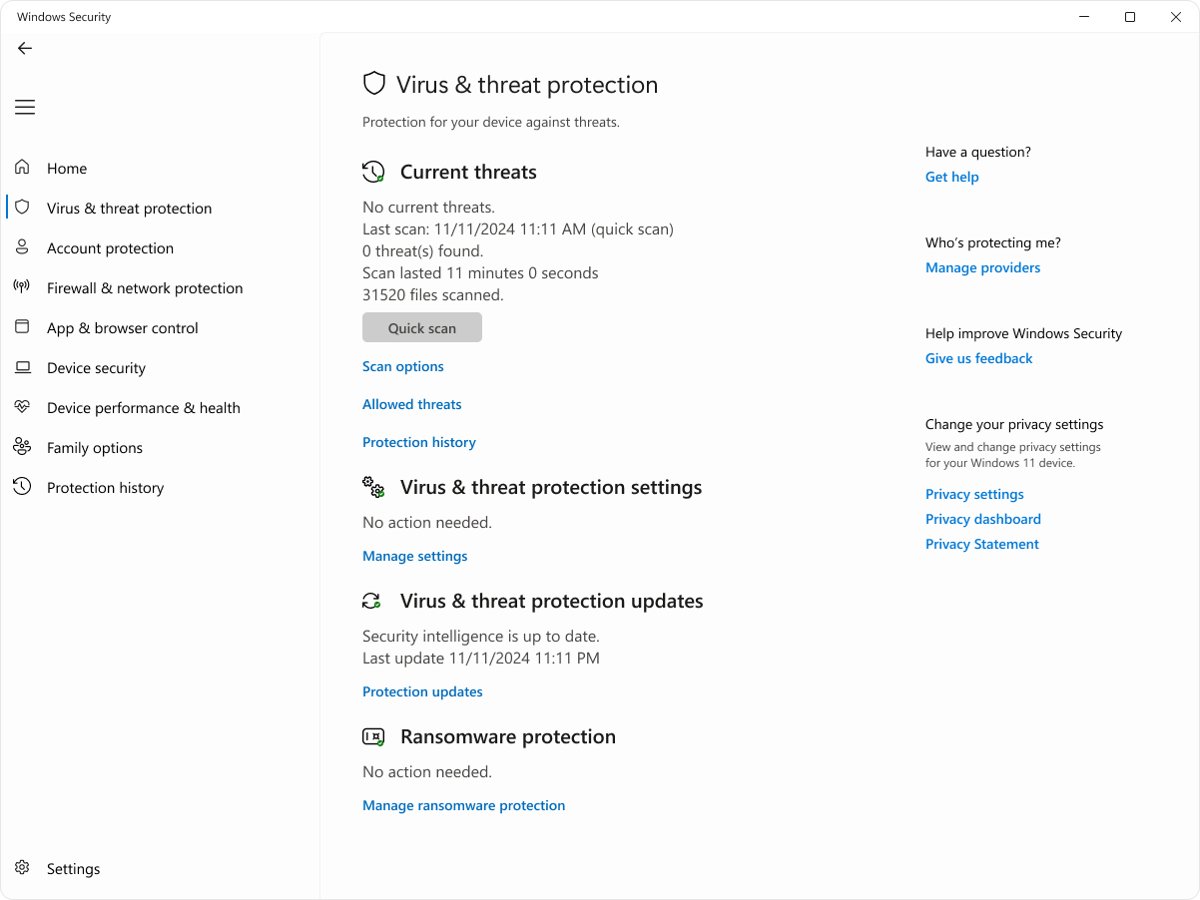
| MsMpEng.exe (Antimalware Service Executable) | Microsoft Defender Antivirus scanning files | Learn why the Antimalware Service Executable runs |
| MsMpEng.exe during long scans | Full or scheduled scans | Move scans and fix MsMpEng.exe high CPU without turning protection off |
| Microsoft Defender Antivirus service | The service named WinDefend that runs MsMpEng.exe | Confirm the WinDefend service is running |
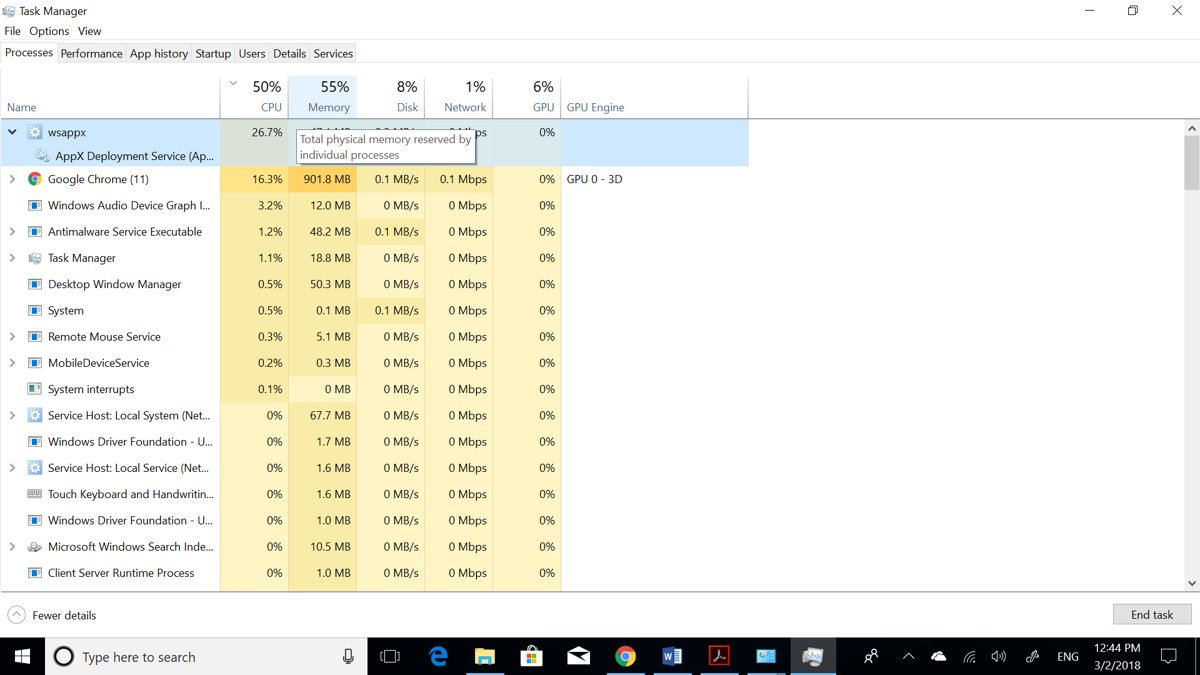
| wsappx | Microsoft Store app installs and updates | Finish updates with these wsappx high CPU fixes |
| CompatTelRunner.exe | Microsoft Compatibility Telemetry collecting diagnostic data | Limit diagnostic data with the Compatibility Telemetry CPU fix |
| sppsvc.exe | Software Protection Platform checking the Windows licence | Restart the service and fix activation with the sppsvc high CPU fix |
| WerFault.exe | Windows Error Reporting collecting a crash report | Find the crashing app; read about the WerFault.exe error reporting process |
| SearchHost.exe / SearchIndexer.exe | Windows Search indexing new files | Wait for indexing to finish after large copies |
Spotting a fake system process
Malware often borrows a system name such as svchost.exe. Is svchost.exe a virus or legitimate? The name alone never answers that; the file path and signature do.
- In Task Manager, open Details and note the PID of the suspect process.
- Open PowerShell as administrator and run
Get-Process -Id <PID> -FileVersionInfoto see the full file path. - Check that a Windows process runs from the Windows folder and a third-party one from its vendor's Program Files folder.
- Run
Get-AuthenticodeSignatureon that path and confirm the status is Valid and the signer is the expected company. - In File Explorer, right-click the file, select Show more options > Scan with Microsoft Defender.
- Treat a misspelled name, a file in your user folder or Temp, or a blank signature as suspect.
The same checks answer whether the Service Host process is a virus. The genuine one is signed by Microsoft; a copy that fails these checks is not.
Check a process signature with PowerShell
Get-AuthenticodeSignature reads the Authenticode signature of a file. If the file is not signed, the signer fields come back blank.
Get-AuthenticodeSignature -FilePath "C:\Windows\System32\svchost.exe"Replace the path with the one Get-Process -FileVersionInfo showed. The output lists the signer certificate and a Status value.
You should see: Status reads Valid and the signer certificate names the company that should own the file.
If svchost.exe is malware: how to remove it safely
To remove an svchost.exe virus, let Microsoft Defender delete the fake file. Never delete a svchost.exe by hand, because the real file is needed to start Windows services.
- Open Windows Security > Virus & threat protection > Scan options.
- Select Full scan and Scan now.
- If the threat returns, select Microsoft Defender Antivirus (offline scan) and Scan now; the PC restarts and scans before Windows loads.
- After the restart, open Windows Security > Protection history to see what was removed.
- Change passwords from a clean device if the malware was active for a while.
Why is svchost.exe using high CPU, RAM, or disk?
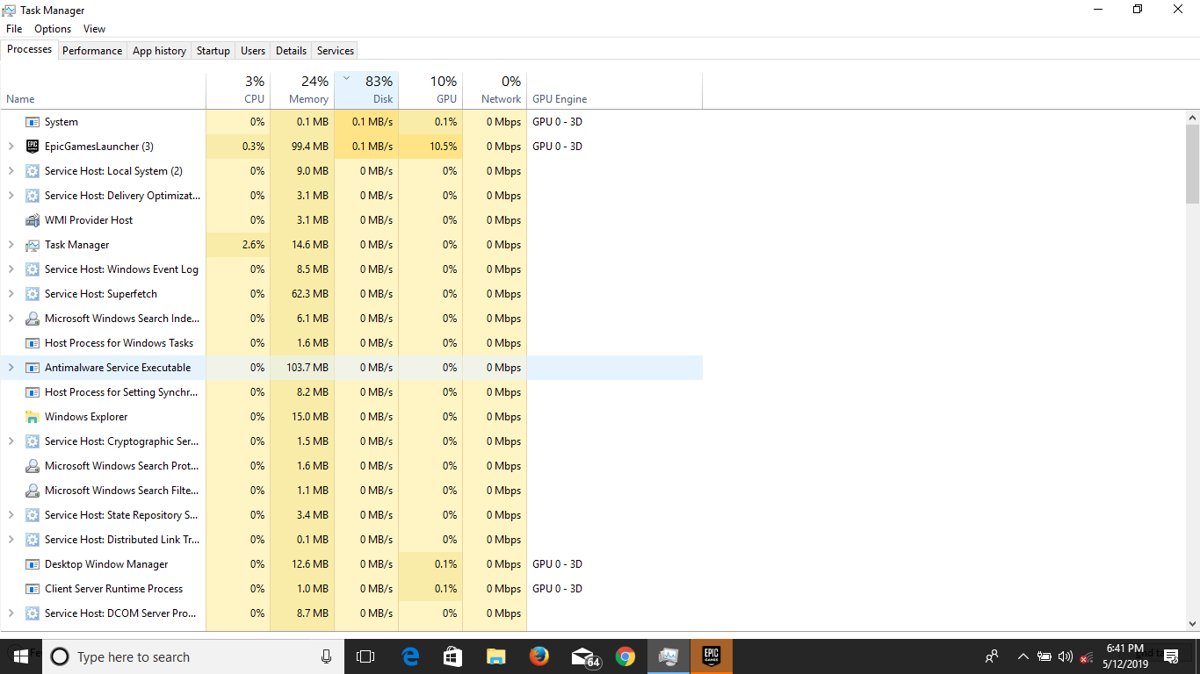
Why is svchost.exe using so much memory? Almost always one service inside it is busy. Find the service first, then fix that service.
| Busy service inside svchost.exe | Usual reason | What to do |
|---|---|---|
| Windows Update or Delivery Optimization | Downloading or installing updates | Let updates finish, then restart |
| SysMain | Preloading apps into memory | Wait; check disk health if disk stays at 100% with these 100% disk usage fixes |
| netsvcs group with high network use | Updates, sync or a service downloading data | Use the PID with tasklist /svc to name the service |
| Memory climbing with nothing open | A leaking service or many background apps | Trace it with this high RAM usage guide |
| Windows Audio or Bluetooth | A driver or device loop | Update the device driver and restart |
How to shut down an svchost.exe service
Stop the single service, not the whole Service Host. Ending a svchost.exe in Task Manager stops every service it holds.
- Press Win + R, type
services.mscand press Enter. - Find the service name you matched with
tasklist /svc. - Right-click it and select Stop.
- To keep it from starting, open Properties and change Startup type to Manual, not Disabled, unless you know nothing needs it.
- Restart and confirm Windows features still work.
Why do background processes appear?
Why does Windows have so many processes? Every service, startup app, tray icon and Store app can add its own process, and many apps run more than one.
| Source | Example | Where to control it |
|---|---|---|
| Windows services | svchost.exe copies, WinDefend | Services console |
| Startup apps | Chat, cloud storage and launcher apps | Settings > Apps > Startup |
| Store apps running in the background | Mail, weather and media apps | Manage background activity for the app |
| Browsers | One msedge.exe per tab and extension | Close tabs and extensions |
| Driver software | Audio, graphics and touchpad helpers | The vendor's app or its uninstaller |
| Scheduled tasks | Updaters and maintenance | Task Scheduler |
Background processes you should never kill
Which Windows processes can I end? App processes, yes. The ones below keep Windows running, and ending a critical one stops Windows with a blue screen.
| Do not end | Why |
|---|---|
| smss.exe, csrss.exe, wininit.exe, services.exe | Critical system processes; if one ends, Windows stops with a CRITICAL_PROCESS_DIED blue screen |
| winlogon.exe | Performs interactive sign-in; also a critical system process |
| lsass.exe | Validates sign-ins and enforces local security policies |
| svchost.exe as a whole | Holds many services at once; stop one service instead |
| dwm.exe | Performs desktop composition, so every window reaches the screen through it |
| MsMpEng.exe | Your antivirus protection |
How to stop background processes in Windows 11/10
Too many background processes in Windows 11 usually come from apps allowed to run when you are not using them. Windows 11 lets you limit each app.
- Select Start > Settings > System > Power & battery > Battery usage.
- Find the app, open its More options menu and select Manage background activity.
- Under Let this app run in the background, select Never or Power optimized (recommended).
- Keep at least one app on Always if you want the device to stay connected for updates.
- To close an app process now, select it in Task Manager and select End task.
This is how to fix too many background processes on Windows without touching system services.
How to prevent the recurrence of too many background processes
Startup apps are the main reason the process count climbs again after a restart.
- Select Start > Settings > Apps > Startup.
- Turn Off every app you do not need at sign-in.
- Or right-click Start, select Task Manager and open Startup apps.
- Select an app and choose Disable.
- Uninstall apps you no longer use from Settings > Apps > Installed apps.
An entry with no name and no publisher is usually a leftover; you can identify the unnamed Program startup entry before removing it.
What Windows processes can I disable?
Disable apps, not Windows. For services, set Manual rather than Disabled when you are unsure, so Windows can still start them when a feature needs them.
| Service or process | Your situation | What to do |
|---|---|---|
| Windows Mobile Hotspot Service | You never share your connection | Leave it on Manual, its default; it only shares a cellular data connection |
| Program Compatibility Assistant Service | You run no older programs | Leave it as is; it detects known compatibility problems in programs you run |
| Telemetry and Windows Error Reporting | You want less diagnostic activity | Set diagnostic data to required only in Privacy & security; fix crashes rather than blocking WerFault.exe |
| Windows Update Delivery Optimization | Uploads to other PCs bother you | Turn off downloads from other PCs in Windows Update Delivery Optimization settings |
| SysMain | Disk stays at 100% for long periods | Test with the service stopped, then decide |
| Bluetooth Support Service | You use no Bluetooth devices | Leave it on Manual; first learn what the Bluetooth Support Service does |
| General third-party app services that go unused | An updater for an app you no longer use | Uninstall the app, which removes its service |
How to see processes on Windows: Task Manager, tasklist and Process Explorer
Task Manager answers most questions. The Sysinternals tools from Microsoft go deeper when a process hides what it is doing.
| Tool | What it shows | Start it |
|---|---|---|
| Task Manager | Apps, background processes, Windows processes, startup apps and services | Ctrl + Shift + Esc, or one of these Task Manager shortcuts |
| tasklist | Every process with PID, memory and hosted services | tasklist /svc in Command Prompt |
| Get-Process | Processes with file path and version | Get-Process -FileVersionInfo in PowerShell |
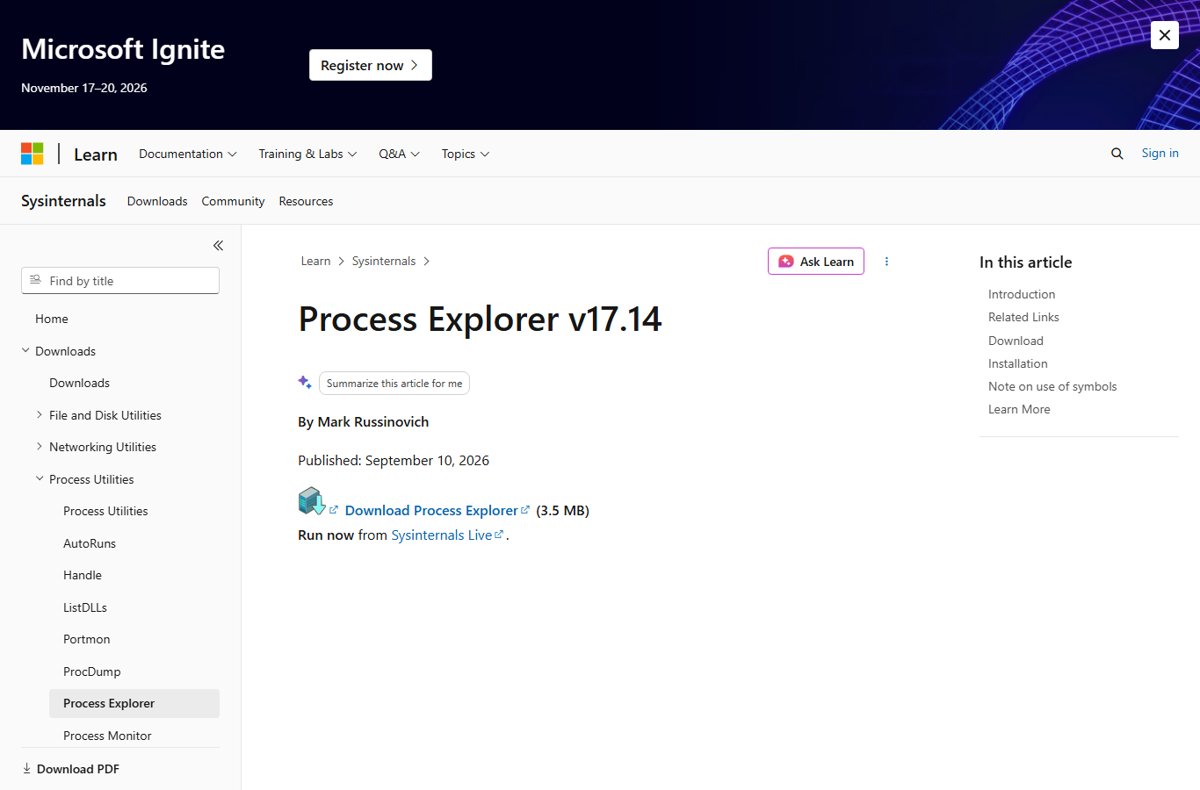
| Process Explorer | Handles and DLLs each process has open, with the owning account | Run procexp.exe; you can open Process Explorer from Sysinternals Live |
| Process Explorer files | The free Sysinternals package from Microsoft | Get the Process Explorer download for x64, ARM64 or x86 |
| Process Monitor | File, registry, process and network activity in real time | Capture a Process Monitor trace with filters |
How to check a process is genuine and the fix worked
- Reopen Task Manager after a restart and sort the CPU, Memory and Disk columns.
- Confirm the process you fixed no longer sits at the top for minutes at a time.
- Run
Get-AuthenticodeSignatureon its path again and confirm the status still reads Valid. - Open Windows Security > Protection history and check nothing new was found.
- Check Settings > Apps > Startup to confirm disabled apps stayed off.
Fix Windows process problems by symptom
Why so many background processes in Windows 11?
Startup apps, background-allowed apps and split Service Host copies all add entries.
- Turn off startup apps in Settings > Apps > Startup.
- Set apps to Never under Manage background activity.
- Ignore the svchost.exe count; on PCs with more than 3.5 GB RAM it is high by design.
svchost.exe netsvcs -p high network usage
A service in the netsvcs group, often updates, is downloading.
- Note the PID on the Details tab.
- Run
tasklist /svc /fi "PID eq <PID>"to name the service. - Let Windows Update finish, then restart.
WerFault.exe pops up or keeps running
An app keeps crashing and Windows Error Reporting collects each crash.
- Update or reinstall the app named in the error.
- Run
DISM /Online /Cleanup-Image /RestoreHealthand thensfc /scannowas administrator. - Use these steps to fix WerFault.exe errors when the crash is in Windows itself.
A process uses CPU and its file is outside the Windows folder
It may be malware using a system name.
- Check the signature with
Get-AuthenticodeSignature. - Right-click the file and select Scan with Microsoft Defender.
- Run Microsoft Defender Antivirus (offline scan) if the file cannot be removed.
FAQ: Windows processes and svchost.exe (Service Host)
What is a process in Windows?
A process is a running instance of a program, with its own memory and one or more threads. Each .exe you start becomes a process, and Windows services run inside processes such as svchost.exe. Task Manager lists them all with their CPU, memory and disk use.
How many Windows processes is normal?
There is no fixed number. On a PC with more than 3.5 GB of RAM, Microsoft gives about 67 to 74 svchost.exe instances alone, against about 17 to 21 on smaller PCs. A count in the low hundreds is common once apps are open.
Why do I have so many Windows host processes?
Since Windows 10 version 1703, PCs with more than 3.5 GB of RAM run most services in their own svchost.exe instead of sharing one. That makes failures easier to isolate and lets Task Manager show which service uses what. It is expected, not a fault.
How do I see system processes in Windows?
Open Task Manager with Ctrl + Shift + Esc. The Processes tab groups Windows processes separately, and the Details tab lists every .exe with its PID and account. In Command Prompt, tasklist /svc shows each process with the services inside it.
How do I stop background processes in Windows 11?
Open Settings > System > Power & battery > Battery usage, open an app's More options menu and select Manage background activity, then choose Never. Turn off startup apps in Settings > Apps > Startup so they do not return at sign-in.
Which Windows processes can I end?
You can end app processes such as a browser, a chat app or an updater without harm. Do not end System, csrss.exe, wininit.exe, winlogon.exe, services.exe or lsass.exe, and stop a single service rather than ending a whole svchost.exe.
Is svchost.exe a virus?
No, the genuine svchost.exe is a Microsoft file that hosts Windows services. Malware sometimes copies the name. Check the file path with Get-Process -FileVersionInfo and the signature with Get-AuthenticodeSignature, and scan anything doubtful with Microsoft Defender.
What Windows process manages the desktop GUI?
Desktop Window Manager (dwm.exe) composes the windows you see and draws the visual effects. Windows Explorer (explorer.exe) provides the taskbar, Start and the desktop shell around it. Both should always be running on a signed-in PC.
Speed up your Windows PC and axe background processes
Identify a process by its .exe name and file path, cut startup and background apps, and fix the one busy service instead of ending system processes. Is there anything for you to do with all this information? Usually only that: most processes are Windows doing its job, and a genuine one is signed and runs from its proper folder.