WerFault.exe is the Windows Error Reporting process, and it starts when an app crashes, stops responding, or Windows recovers from a blue screen.
This guide explains what triggers it, how to find the app that is really failing, how to fix high CPU and repeated pop-ups, how to confirm the file is genuine, and when turning error reporting off makes sense.
The fastest way to stop WerFault.exe from coming back
WerFault.exe is rarely the problem itself. It is the messenger that Windows launches after another program fails, so the lasting fix is to repair that program.
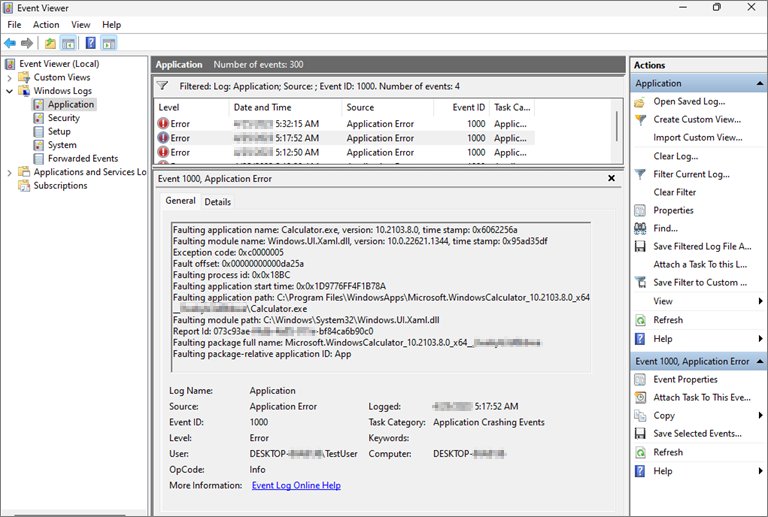
- Read the error dialog that WerFault.exe shows. It names the program that stopped working.
- If the dialog closed too fast, press Win + R, type
eventvwr.mscand press Enter. - Expand Windows Logs and select Application.
- Find the newest Error entry with the source Application Error and Event ID 1000.
- Note the Faulting application name and Faulting module name in the event details.
- Update, repair or reinstall that application from its publisher.
- Select Start > Settings > Windows Update > Check for updates, install everything offered, and restart.
What Is WerFault.exe?
Microsoft describes Windows Error Reporting (WER) as an event-based feedback system that gathers information about hardware and software problems, reports it to Microsoft, and returns any available solution. WerFault.exe is the process that does this work on your PC.
| Question | Answer |
|---|---|
| Full name | Windows Error Reporting (WER) fault reporting process |
| Part of Windows? | Yes. Windows has reported crashes, hangs and kernel faults by default since Windows Vista, including Windows 10 and Windows 11. |
| Background service | Windows Error Reporting Service (service name WerSvc), startup type Manual |
| What it collects | App name, app version, faulting module, module version and error code, plus a minidump or heap dump when needed |
| Where reports go | Microsoft's Watson servers, only with your consent when consent is required |
| What comes back | A known solution, a request for more data, or a note that the problem is being investigated |
| Local crash dumps | Off by default. When an admin turns on LocalDumps, files go to %LOCALAPPDATA%\CrashDumps (10 files maximum by default). |
| Kernel live reports | Stored in %systemroot%\LiveKernelReports by default |
Why WerFault.exe Runs on Windows
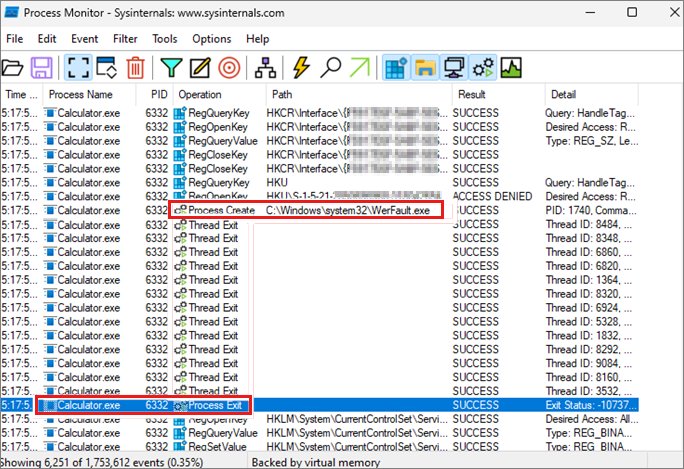
Windows invokes WerFault.exe the moment an app reaches a state it cannot recover from and calls the default error handler. Seeing it in Task Manager means something just failed, not that WerFault.exe is misbehaving.
| Trigger | What happens | What you see |
|---|---|---|
| An app crashes | WER collects crash data, builds a report and asks for consent if needed | A dialog saying the program stopped working, or nothing if the app runs in the background |
| An app stops responding | Windows treats an app as unresponsive after it ignores Windows messages for five seconds while you interact with it | A "not responding" dialog offering to close or wait |
| Windows restarts after a blue screen | Windows writes the crash dump from the page file to C:\Windows\MEMORY.DMP during boot and after sign-in |
WerFault.exe busy in Task Manager for several minutes after the restart |
| An app files its own report | Apps can use the WER API to report non-crash problems such as performance issues | Usually nothing visible |
| Microsoft asks for more data | WER gathers extra files for a known problem and asks permission first | A second prompt to send additional information |
Common WerFault.exe Problems and What Causes Them
Each symptom points to a different cause. Match yours to a row, then use the fix listed in the troubleshooting section below.
| Symptom | Usual cause | Where to start |
|---|---|---|
| High CPU usage from WerFault.exe | It is compressing a dump or a report after a crash, or one app keeps crashing in a loop | Find the crashing app in Event Viewer |
| High memory usage | A large dump is being written, often after a blue screen or a crash of a memory-heavy app | Wait for the dump to finish, then fix the crash |
| Repeated pop-ups and crash dialogs | A startup app or background service crashes every time it launches | Update or remove that app, or clean-boot to isolate it |
| "WerFault.exe – Application Error" dialog | The reporting process itself failed, often because Windows system files are damaged | Run SFC and DISM |
| Crashes, freezes, and startup loops | A driver, new hardware or a failing update causes repeated stop errors | Follow Microsoft's stop-code checklist |
| WerFault.exe runs from an odd folder or is unsigned | Malware using a trusted name | Check the signature and run a Microsoft Defender Offline scan |
Find the app that is actually crashing
Event ID 1000 in the Application log is the crash record. Repeated 1000 and 1001 events for the same program confirm a crash loop.
- Press Win + R, type
eventvwr.mscand press Enter. - Expand Windows Logs and select Application.
- In the right pane, select Filter Current Log.
- Type
1000in the All Event IDs box and select OK. - Open the newest event and read Faulting application name, Faulting module name and Exception code.
- Check whether the same application appears again and again. That program is the one to update, repair or remove.
A
M
i
c
r
o
s
o
f
t
m
o
d
u
l
e
s
u
c
h
a
s
n
t
d
l
l
.
d
l
l
,
k
e
r
n
e
l
3
2
.
d
l
l
o
r
k
e
r
n
e
l
b
a
s
e
.
d
l
l
o
f
t
e
n
s
h
o
w
s
u
p
a
s
t
h
e
f
a
u
l
t
i
n
g
m
o
d
u
l
e
.
M
i
c
r
o
s
o
f
t
n
o
t
e
s
t
h
e
s
e
a
r
e
u
s
u
a
l
l
y
v
i
c
t
i
m
s
o
f
c
o
r
r
u
p
t
i
o
n
c
a
u
s
e
d
b
y
a
n
o
t
h
e
r
m
o
d
u
l
e
,
s
o
f
o
c
u
s
o
n
t
h
e
f
a
u
l
t
i
n
g
a
p
p
l
i
c
a
t
i
o
n
f
i
r
s
t
.
Repair damaged Windows files with SFC and DISM
Use this when WerFault.exe itself shows an application error, or when crashes hit several built-in Windows apps at once. Both tools need an administrator Command Prompt or Terminal.
DISM /Online /Cleanup-Image /RestoreHealth
sfc /scannow
DISM repairs the Windows component store that SFC copies good files from. SFC then scans every protected system file and repairs the damaged ones it finds. Run DISM /Online /Cleanup-Image /CheckHealth first if you only want a quick health report.
You should see: DISM finishes with the operation completed successfully, and SFC reports that it found no integrity violations or that it repaired the corrupt files. Restart the PC afterwards.
How to check the fix worked
- Use the PC normally for a day, including opening the app that used to crash.
- Open Event Viewer > Windows Logs > Application and filter for Event ID 1000 again.
- Confirm no new events list the application you fixed.
- Press Ctrl + Shift + Esc and check that WerFault.exe no longer appears under Processes during normal use.
- If you ran SFC, run
sfc /scannowa second time and confirm it finds no new problems.
How to Check Whether WerFault.exe Is Malware
The genuine file is a Microsoft-signed part of Windows. Malware can copy the name, so check the running file's location and signature rather than the name alone.
- While WerFault.exe is running, right-click Start and open Terminal or Windows PowerShell (the 64-bit version).
- Run
Get-Process -Name WerFault -FileVersionInfoand note the path in the FileName column. - Confirm the path sits inside your Windows folder. A copy in Downloads, AppData, Temp or a program folder is not the Windows component.
- Run
Get-AuthenticodeSignature -FilePath "<path from step 2>"and confirm Status shows Valid and the signer is Microsoft. - If the path or signature looks wrong, open Windows Security > Virus & threat protection > Scan options.
- Select Microsoft Defender Offline scan and then Scan now. Save your work first: the scan takes about 15 minutes and restarts the PC.
- After Windows restarts, check Protection history for anything it found and removed.
I
f
B
i
t
L
o
c
k
e
r
p
r
o
t
e
c
t
s
y
o
u
r
s
y
s
t
e
m
d
r
i
v
e
,
s
u
s
p
e
n
d
i
t
b
e
f
o
r
e
t
h
e
o
f
f
l
i
n
e
s
c
a
n
,
o
r
W
i
n
d
o
w
s
a
s
k
s
f
o
r
t
h
e
r
e
c
o
v
e
r
y
k
e
y
w
h
e
n
i
t
r
e
s
t
a
r
t
s
.
I
f
m
a
l
w
a
r
e
d
e
l
e
t
e
d
o
r
r
e
p
l
a
c
e
d
t
h
e
r
e
a
l
f
i
l
e
,
t
h
e
S
F
C
a
n
d
D
I
S
M
c
o
m
m
a
n
d
s
a
b
o
v
e
r
e
s
t
o
r
e
i
t
.
How to Fix High CPU, Memory Usage, or Repeated Error Pop-Ups
High CPU usage
WerFault.exe is packaging a crash report, or an app is crashing over and over.
- Wait five to ten minutes. A single report finishes and the process exits on its own.
- If the CPU load returns, find the crashing app with Event ID 1000 in Event Viewer.
- Update or reinstall that app, or uninstall it if you no longer need it.
- Run Windows Update and restart.
High memory usage
A large memory dump is being written, most often right after a blue screen.
- Leave the PC idle until WerFault.exe disappears from Task Manager.
- Check free space on drive C:. Microsoft recommends keeping 10% to 15% free so Windows can write swap and dump files.
- If blue screens repeat, follow the stop-code steps under Crashes, freezes, and startup loops below.
Repeated pop-ups and crash dialogs
A startup app or background service crashes every time it launches.
- Read the program name in the dialog, or in the latest Event ID 1000 entry.
- Press Ctrl + Shift + Esc, open the Startup apps page (the Startup tab on Windows 10), right-click that program and select Disable.
- Restart and confirm the pop-ups stop.
- Install the publisher's latest version, then turn the startup entry back on if you need it.
"WerFault.exe – Application Error" when an app crashes
The reporting process itself cannot run, usually because system files are damaged.
- Open Terminal (Admin) from the Start button's right-click menu.
- Run
DISM /Online /Cleanup-Image /RestoreHealthand wait for it to finish. - Run
sfc /scannowand restart. - Check the file signature with the malware steps above if the error continues.
Crashes, freezes, and startup loops
A driver, new hardware or a recent change is causing repeated stop errors.
- Disconnect any hardware you added just before the problem started.
- Start the PC in safe mode if it will not reach the desktop.
- Right-click Start > Device Manager, look for a device marked with !, right-click it and select Update driver.
- Install the latest updates from Settings > Windows Update.
- If nothing helps, restore Windows from a system restore point.
When to Disable Windows Error Reporting
Turning off error reporting does not fix a crash and adds no security. The crashing app keeps crashing, and Windows loses the chance to fetch a known solution. Microsoft's own service guidance lists the Windows Error Reporting Service as Do not disable, because the same data helps developers find crash and security bugs.
| Your situation | What to do | Why |
|---|---|---|
| WerFault.exe uses CPU or memory | Keep WER on and fix the crashing app | The load is a symptom of the crash, not of reporting |
| The dialogs are the only annoyance | Set DontShowUI to 1 under the WER registry key |
Hides the WER interface while reports still work |
| An organization sends reports to its own server | Configure corporate reporting through Group Policy | IT reviews reports before anything reaches Microsoft |
| A policy or privacy rule forbids sending crash data | Enable the Disable Windows Error Reporting policy | Stops reporting in a supported, reversible way |
| A developer needs local crash dumps | Turn on LocalDumps instead | Local dumps work even when WER reporting is off |
How to turn Windows Error Reporting off safely
Use the policy route so the change is easy to reverse. Do not delete WerFault.exe or disable the service by hand; the policy is the supported switch.
- Press Win + R, type
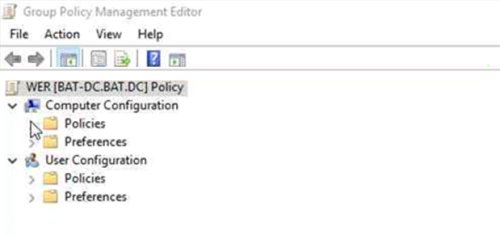
gpedit.mscand press Enter. - Go to Computer Configuration > Administrative Templates > Windows Components > Windows Error Reporting.
- Double-click Disable Windows Error Reporting.
- Select Enabled, then Apply and OK.
- Restart the PC.
O
n
a
n
e
d
i
t
i
o
n
w
i
t
h
o
u
t
t
h
e
L
o
c
a
l
G
r
o
u
p
P
o
l
i
c
y
E
d
i
t
o
r
,
t
h
e
e
q
u
i
v
a
l
e
n
t
s
e
t
t
i
n
g
i
s
t
h
e
`
D
i
s
a
b
l
e
d
`
D
W
O
R
D
s
e
t
t
o
1
u
n
d
e
r
`
H
K
E
Y
_
L
O
C
A
L
_
M
A
C
H
I
N
E
\
S
o
f
t
w
a
r
e
\
M
i
c
r
o
s
o
f
t
\
W
i
n
d
o
w
s
\
W
i
n
d
o
w
s
E
r
r
o
r
R
e
p
o
r
t
i
n
g
`
.
B
a
c
k
u
p
t
h
e
r
e
g
i
s
t
r
y
b
e
f
o
r
e
e
d
i
t
i
n
g
i
t
.
How to turn Windows Error Reporting back on
- Open
gpedit.mscand return to Windows Components > Windows Error Reporting. - Set Disable Windows Error Reporting to Disabled or Not Configured.
- Go to System > Internet Communication Management > Internet Communication Settings.
- Set Turn off Windows Error Reporting to Disabled or Not Configured.
- If you used the registry instead, set
Disabledback to 0, then restart.
Frequently Asked Questions
What is the WerFault.exe application error?
It means the Windows Error Reporting process failed while trying to report another app's crash. Damaged Windows system files are the common reason. Run DISM with /RestoreHealth and then sfc /scannow from an administrator terminal, restart, and check the file's signature if the error returns.
Is WerFault.exe a virus?
No. The genuine WerFault.exe is a Microsoft-signed Windows Error Reporting component. A copy outside the Windows folder, or one without a valid Microsoft signature, is suspicious. Check it with Get-AuthenticodeSignature and run a Microsoft Defender Offline scan if the signature is not Valid.
Why does WerFault.exe crash?
WerFault.exe crashes when it cannot finish a report, usually because Windows system files or the component store are damaged. Repair them with DISM /Online /Cleanup-Image /RestoreHealth followed by sfc /scannow. Also fix the app that triggered the report, since that crash started the chain.
Why does WerFault.exe keep popping up on my PC?
A program keeps crashing, and WerFault.exe reports each crash. Find that program in Event Viewer under Windows Logs > Application, Event ID 1000, then update, repair or uninstall it. Disabling a crashing startup app in Task Manager stops the pop-ups until you fix it.
How do I fix WerFault.exe using high CPU or memory?
Wait a few minutes first, because WerFault.exe exits once a report or dump is written. If the load keeps returning, an app is crash-looping. Identify it with Event ID 1000, update or remove it, install Windows updates, and keep 10% to 15% of drive C: free.
Can I end WerFault.exe in Task Manager?
Yes. Ending the task cancels the report in progress and does no harm to Windows. It does not fix anything, though. WerFault.exe starts again at the next crash, so find and fix the app that is failing.
How do I disable WerFault.exe?
Enable the Disable Windows Error Reporting policy under Computer Configuration > Administrative Templates > Windows Components > Windows Error Reporting in gpedit.msc, then restart. Do not delete the file. Disabling stops reporting but not the crashes behind it, and Microsoft advises keeping the service enabled.
Should I disable Windows Error Reporting to stop WerFault.exe?
Usually not. Disabling hides the symptom while the crashing app keeps failing, and Windows can no longer fetch known solutions. Disable it only when a policy forbids sending crash data. If only the dialogs bother you, the DontShowUI setting hides them while reporting continues.
Is WerFault.exe on Windows 11 different from Windows 10?
No. Both versions use the same Windows Error Reporting process and the same fixes. Windows 11 adds a Task Manager option, Create live memory dump file, on the Processes and Details tabs, which is useful when a support engineer asks for a dump of a hung app.
Bottom Line
Leave WerFault.exe and Windows Error Reporting running, and fix the app named in Event ID 1000 instead. WerFault.exe only works when something else has already failed, so its CPU use and pop-ups stop once that app or driver is repaired. Disabling reporting removes the messenger, adds no protection, and leaves the real fault in place.





Getting Started with WinDBG on Windows 10: A Step-by-Step Guide - Techdows
[…] dumps come from Windows Error Reporting, ProcDump or Task Manager. You also need symbols for the app itself; ask the vendor if it is […]
How to fix WerFault.exe error in Windows 11 - Techdows
[…] WerFault.exe is part of Windows Error Reporting (WER), the built-in feature that records app crashes, hangs and kernel faults, reports them to Microsoft and offers any available solution. For a deeper look at the process itself, see what WerFault.exe is and why it runs. […]