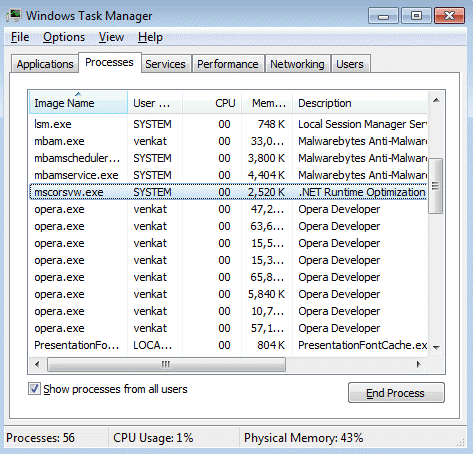
After installing the Microsoft .NET framework on your computer, you may notice the mscorsvw.exe process running in the background in the Task Manager. Sometimes, this process consumes up to 100 percent of CPU and slows down your system, let’s take a look at what is this process? And, how to disable it from running on Windows 10.
[lwptoc]
What is mscorsvw.exe?
Mscorsvw.exe is .NET Framework Optimization Service and is used to precompile .Net framework assemblies in the background. It sets your machine to launch apps faster.
Developers build their apps on the .NET framework. NET Framework comes with a technology called Native Image Generator (NGEN) that makes these apps launch faster. Frequently, it works in the background to optimize your system.
As we said above, this service works now and then.
This may consume high CPU usage and more resources and as a result system slowdown happens
This mostly happens when your .NET Framework on Windows gets updated via Windows Update.
Microsoft has improved Mscorsvw aka .NET optimization Service to work in silent mode in version Windows 8 or higher.
You can speed up the running of mscorsvw, so that it completes operation with 6 CPU cores than when it runs with one CPU core.
You can use the .NET Framework Optimization Speedup script to inform .NET Framework Optimization Service to speed up.
A quick way to Stop mscorsvw.exe from high CPU usage on Windows 10 or Windows 7
If you’re using Windows 7 or Windows 10, you already have PowerShell installed on your computer.
- Open Windows PowerShell and run it as an administrator
- Type this command and press enter
Get-ExecutionPolicy - After this, set the Execution policy to remote signed
Set-ExecutionPolicy RemoteSigned - Press [A] to say Yes to all to proceed.
- While Powershell is open, download this file and save it to a desktop or any other location
- Right-click on it and select ‘Run with Powershell’.
You should be running this script file under the remotesigned or Undersigned PowerShell execution policy. For that, follow the steps given above.
You should expect the above-provided PowerShell Script file to complete the .NET framework Optimization quickly as it uses 6 CPU cores.
If you have a system with slower hardware, stick to running the commands mentioned below.
Microsoft .NET Framework 4.5.2 Released (Offline Installer link inside)
Whatever the reason if you found that process annoying, let me tell you we can shut down the mscorsvw.exe process quickly.
Disable Mscorsvw.exe on Windows 10 or Windows 8/7 using Command Prompt
1. On Windows XP:
Navigate to C:\WINDOWS\Microsoft.NET\Framework\v2.0.50727 in Windows Explorer (assuming you’ve .NET 2.0 or .NET 3.5 installed)
On Windows 7,
you need to navigate to ‘C:\Windows\Microsoft.NET\Framework\v4.0.30319’ (assuming you’ve the above .NET 4 version installed on your computer)

For 64-bit, this is the path: ‘C:\Windows\Microsoft.NET\Framework64\v4.0.30319’
Cleanup or Completely Remove .NET Framework 4.5 with .NET Framework Cleanup Tool
2. Open the command prompt by typing cmd in the run box (use Win key+R ) and press enter.
3. Type cd/ and press Enter.
4. Now, we need to specify the above-mentioned path in command and type ngen.exe executequeueditems and press enter as shown below without quotes.
XP: “C:\WINDOWS\Microsoft.NET\Framework\v2.0.50727>ngen.exe executequeueditems”
32-bit Windows 7 : “C:\Windows\Microsoft.NET\Framework\v4.0.30319\ngen.exe executeQueuedItems ”
64-bit: “C:\Windows\Microsoft.NET\Framework64\v4.0.30319\ngen.exe executeQueuedItems”
32-bit Windows 8/8.1 : C:\Windows\Microsoft.NET\Framework\v4.0.30319\ngen.exe executeQueuedItems
schTasks /run /Tn “\Microsoft\Windows\.NET Framework\.NET Framework NGEN v4.0.30319”
64-bit: C:\Windows\Microsoft.NET\Framework64\v4.0.30319\ngen.exe executeQueuedItems
schTasks /run /Tn “\Microsoft\Windows\.NET Framework\.NET Framework NGEN v4.0.30319 64”

Microsoft .NET Framework Repair Tool [Updated]
5. Now wait for the process to precompile all the assemblies, after a couple of minutes it will be completed.
6. Restart your computer.
Tip: If you’re finding it difficult to type or enter the .NET framework path in the command prompt window, do this: browse to the .NET directory path you’ve to type in Explorer, hold the shift button, on the right-click menu select ‘open command window here, check this link for the screenshot.


