COM Surrogate in Windows 11 is dllhost.exe, a legitimate Windows process that loads COM components stored in DLL files into a separate process, so a crash in that component does not take down the program that asked for it.
This guide explains what it does, how to confirm the copy on your PC is genuine, whether you can stop or remove it, and how to fix crashes or high CPU use.
Check that COM Surrogate on your PC is genuine
Seeing one or more COM Surrogate entries in Task Manager is normal. The quickest useful check is its file location.
- Press Ctrl + Shift + Esc to open Task Manager.
- On the Processes page, find COM Surrogate.
- Right-click it and select Open file location.
- Confirm File Explorer opens
C:\Windows\System32withdllhost.exeselected. - If it opens any other folder, run a full scan in Windows Security straight away.
Understanding COM Surrogate
| Fact | Details |
|---|---|
| Display name | COM Surrogate |
| File name | dllhost.exe |
| Genuine location | C:\Windows\System32 |
| Started by | The DCOM Service Control Manager (rpcss.exe), when a program asks for a COM object that should run out of process |
| Part of | Component Object Model (COM), a core Windows technology since long before Windows 11 |
| Same in Windows 10? | Yes; Windows 10 and Windows 11 use the same process |
The Role of COM Surrogate in Windows 11
COM lets developers write a component as a DLL and still run it in its own process. COM Surrogate is the standard host process Windows supplies for that.
| Benefit | What it means for you |
|---|---|
| Fault isolation | If a buggy component crashes, COM Surrogate fails instead of File Explorer or your app |
| Several clients at once | One host can serve requests from more than one program |
| Protection from untrusted code | Programs can use a component's services without loading its code into themselves |
| Remote use | A DLL component can serve clients on other computers in a network |
| Thumbnails and previews | Shell handlers, including thumbnail handlers, run in a separate process by default, which is why COM Surrogate often appears while you browse photo and video folders |
How COM Surrogate Works
| Stage | What happens |
|---|---|
| 1. Request | A program asks COM for an object and requests it as a local server |
| 2. Registry check | COM finds an AppID for the class with a DllSurrogate value and an InprocServer32 DLL |
| 3. Launch | COM starts dllhost.exe and loads the DLL into it in the same step |
| 4. Threading | Each loaded component runs in the threading model registered for it |
| 5. Calls | Proxy and stub pairs pass calls between your program and the surrogate |
| 6. Cleanup | When nothing is using the objects, COM unloads the DLL and ends the process |
That cleanup is why COM Surrogate entries appear and disappear in Task Manager as you work.
Configuring COM Surrogate
Home users have nothing to configure. These settings matter only to developers and admins registering their own COM DLL servers.
| Setting | Where | Effect |
|---|---|---|
DllSurrogate (REG_SZ), empty |
HKEY_LOCAL_MACHINE\SOFTWARE\Classes\AppID\{AppID} |
Runs the DLL in the system-supplied surrogate, dllhost.exe |
DllSurrogate set to a path |
Same key | Runs the DLL in a custom surrogate instead |
RunAs |
Same AppID key | Loads one shared instance for all clients under the named identity |
RemoteServerName |
Client AppID key | Activates the surrogate on a remote server; ignored if DllSurrogate is also set |
DisableProcessIsolation = 1 |
Thumbnail handler registration | Opts a thumbnail handler out of running in a separate process |
A class that registers LocalServer32, LocalServer or LocalService always launches that EXE in preference to the surrogate.
How to stop COM Surrogate in Windows 11
You can end it, but Windows starts it again the next time a program needs a surrogate-hosted component. Ending it can interrupt thumbnail generation or the program that was using it.
- Save your work in open programs.
- Press Ctrl + Shift + Esc to open Task Manager.
- Right-click COM Surrogate on the Processes page.
- Select End task.
- If it returns straight away and uses heavy CPU again, follow the fixes below rather than ending it repeatedly.
Addressing Common Issues with COM Surrogate
"COM Surrogate has stopped working"
A component loaded into the surrogate, often a third-party media or thumbnail handler, crashed. Fault isolation kept File Explorer running.
- Note which folder or file type you opened when the error appeared.
- Update or uninstall the program that added handlers for that file type, such as a codec pack or media tool.
- Restart the PC and open the same folder again.
High CPU or memory use from COM Surrogate
A component is processing many files, such as thumbnails for a large photo or video folder, or is stuck.
- Wait a few minutes for the folder's thumbnails to finish.
- If usage stays high, end the task in Task Manager.
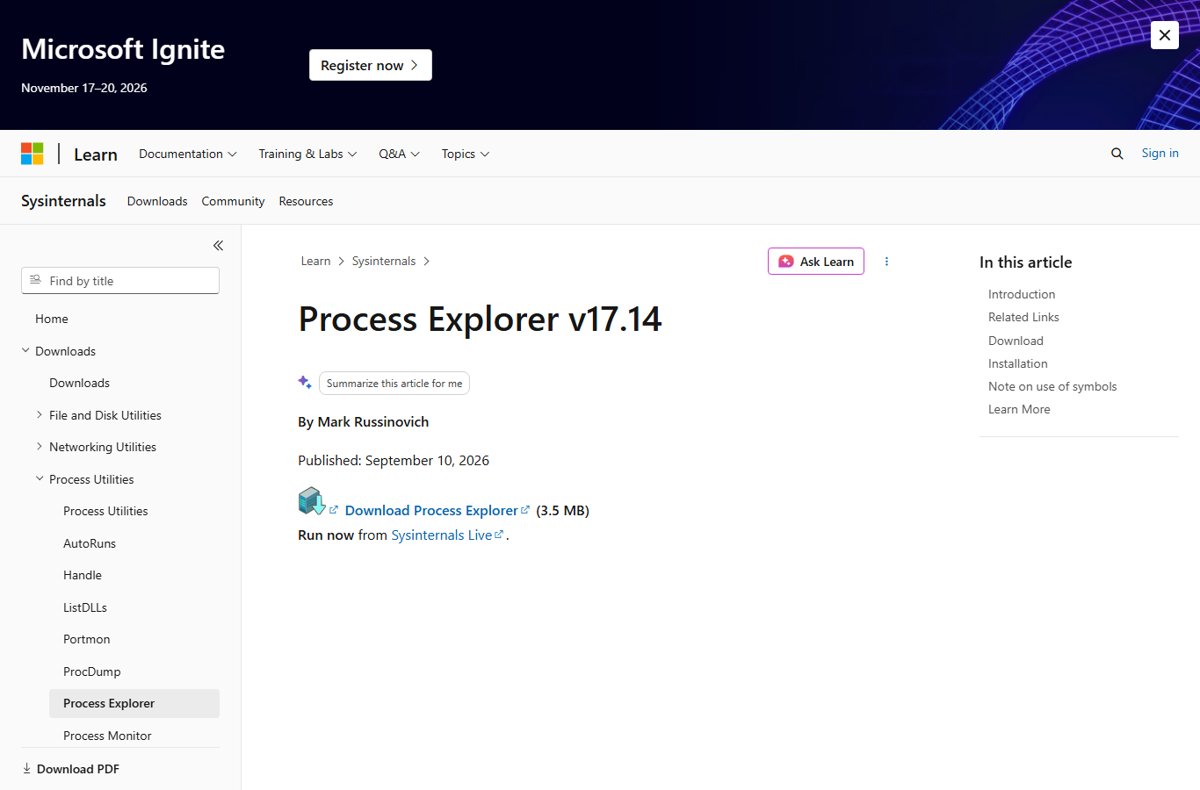
- Use Microsoft's Process Explorer from Sysinternals to see which DLLs are loaded in that dllhost.exe, then update or remove the program that owns the DLL.
A file cannot be deleted because COM Surrogate has it open
A handler is still reading the file to build its preview.
- Close the File Explorer window showing the file.
- End COM Surrogate in Task Manager.
- Delete the file again.
dllhost.exe is damaged or keeps failing
A protected Windows system file is corrupt.
- Select Start, type
cmd, right-click Command Prompt and select Run as administrator. - Run
sfc /scannow. - Restart when the scan finishes and repairs any files.
Security Concerns Related to COM Surrogate
COM Surrogate is not a virus. Because the name is familiar, malware can copy it, so judge the process by its location and behaviour.
| Warning sign | What to do |
|---|---|
| dllhost.exe outside C:\Windows\System32 | Run a full scan in Windows Security |
| Constant high CPU with no folders open | Check its loaded DLLs with Process Explorer and scan the PC |
| A misspelled name such as dIIhost.exe | Treat it as malware and scan |
| Advice to delete dllhost.exe | Ignore it; it is a protected system file and Windows needs it |
A component running in the surrogate gets the surrogate's security context, which is part of why Windows isolates untrusted handlers there.
Frequently asked questions
What is COM Surrogate in Windows 11?
COM Surrogate is dllhost.exe, the Windows host process that runs COM components from DLL files in their own process. It isolates failures, so if a component such as a thumbnail handler crashes, File Explorer or your app keeps running.
What is COM Surrogate in Windows 10?
It is the same process as in Windows 11: dllhost.exe in C:\Windows\System32. Windows 10 uses it to host COM components out of process, including shell handlers that create thumbnails and previews.
What is COM Surrogate on Windows generally?
It is the system-supplied surrogate process of the Component Object Model. The DCOM Service Control Manager starts dllhost.exe, loads the requested DLL into it, and unloads it when no program needs the object any more.
How do I stop COM Surrogate in Windows 11?
Open Task Manager with Ctrl + Shift + Esc, right-click COM Surrogate and select End task. Windows starts it again when a program needs it, so fix the component causing problems if it keeps using heavy resources.
How do I remove COM Surrogate from Windows 11?
You should not remove it. dllhost.exe is a protected Windows system file that many features depend on. Remove or update the third-party program whose component misbehaves inside it instead.
Is COM Surrogate a virus?
No. The genuine COM Surrogate is dllhost.exe in C:\Windows\System32. A file with that name anywhere else, or a lookalike name, may be malware, so run a full Windows Security scan.
Why are there several COM Surrogate processes?
Each surrogate-hosted component, or group of components, can run in its own dllhost.exe instance. Several entries usually mean several programs or shell handlers are using COM at the same time.