WinDefend is the service name of the Microsoft Defender Antivirus Service, the main antivirus service in Windows 10, Windows 11 and Windows Server, and Microsoft says it must always be running.
This guide shows how to check WinDefend, what its process and related services are, what happens when it stops, and how it behaves when another antivirus is installed.
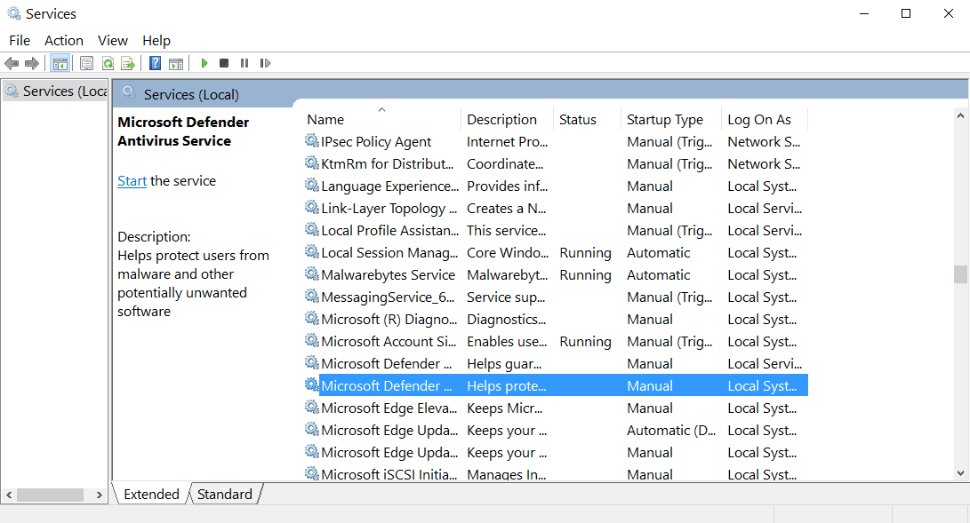
How to check the WinDefend service is running
Run either command below. Both query the service by its short name, WinDefend.
Get-Service -Name windefendRun it in PowerShell to show the WinDefend service and its current status. In Command Prompt, sc query Windefend returns the same information.
You should see: The Status column shows Running. If it shows Stopped, Microsoft Defender Antivirus is not scanning files on this device.
What is the Microsoft Defender Antivirus (WinDefend) Windows service?
WinDefend is the main Microsoft Defender Antivirus service. Its process, MsMpEng.exe, scans files, removes threats and applies security intelligence updates.
Task Manager shows the same service under three different names, which is why it is easy to miss.
| Where you look | What WinDefend is called there |
|---|---|
| Task Manager Processes tab | Antimalware Service Executable |
| Task Manager Details tab | MsMpEng.exe |
| Task Manager Services tab | Microsoft Defender Antivirus |
Service short name (PowerShell, sc) |
WinDefend |
| Program file on Windows Server | C:\Program Files\Windows Defender\MsMpEng.exe |
| Updated platform folder | %ProgramData%\Microsoft\Windows Defender\Platform\<platform version> |
Monthly platform updates install newer copies of the antivirus platform under %ProgramData%. If that folder does not exist, the files run from %ProgramFiles%\Windows Defender.
Microsoft Defender Antivirus services that work with WinDefend
| Service or tool | Short name or file | What it does |
|---|---|---|
| Microsoft Defender Antivirus | WinDefend, MsMpEng.exe | The main antivirus service |
| Microsoft Defender Core Service | MdCoreSvc, MpDefenderCoreService.exe | Improves the stability and performance of Microsoft Defender Antivirus |
| Microsoft Defender Antivirus Network Inspection Service | WdNisSvc, NisSrv.exe | Network real-time inspection |
| Command-line utility | MpCmdRun.exe | Runs scans and updates from the command line |
| Windows Update | Wuauserv | Delivers security intelligence and engine updates |
| Windows Firewall | MpsSvc | Microsoft recommends keeping it enabled alongside Defender |
| Windows Error Reporting | Wersvc | Sends error reports back to Microsoft |
Microsoft lists WinDefend, Windows Update, Windows Firewall and Windows Error Reporting as the services to keep running. If any of them stops, start it and set it to start automatically.
Check Microsoft Defender's running mode with Get-MpComputerStatus
A running WinDefend service can still be in passive mode. Get-MpComputerStatus shows which mode Defender is actually in.
- Select Start, type PowerShell and open Windows PowerShell.
- Type
Get-MpComputerStatusand press Enter. - Find the AMRunningMode row in the results.
- Read Normal as active mode, where Defender is your primary antivirus.
- Read Passive mode or SxS Passive Mode as Defender running alongside another antivirus product.
- Check that AMServiceEnabled, AntivirusEnabled and RealTimeProtectionEnabled show True.
Check which antivirus is protecting you in Windows Security
- Select Start, type Security and open Windows Security.
- Select Virus & threat protection.
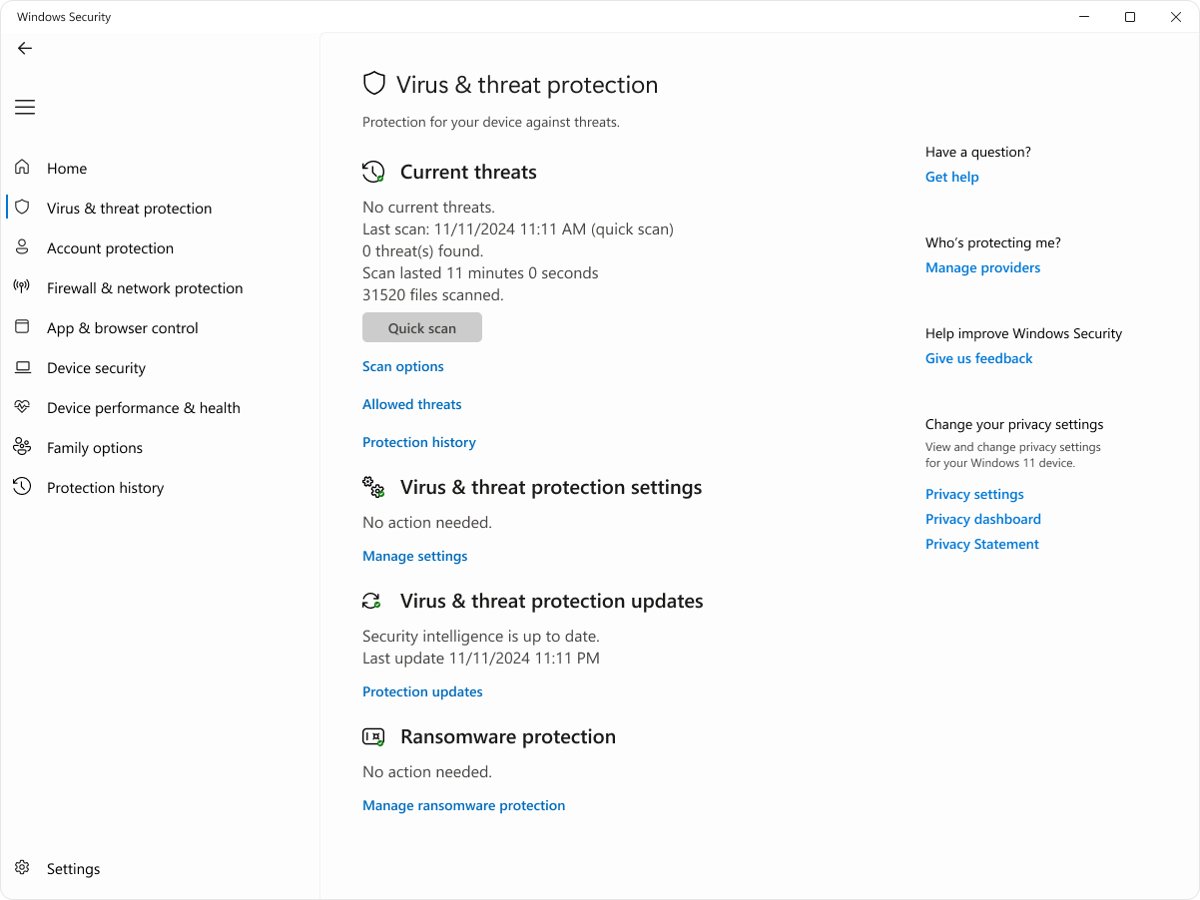
- Under Who's protecting me?, choose Manage Providers.
- Read the antivirus name listed on the security providers page.
If another product is listed as your antivirus, WinDefend on Windows 10 and Windows 11 switches to disabled mode automatically, so a stopped or idle Defender is expected.
WinDefend with another antivirus: active, passive and disabled mode
Whether WinDefend actively protects you depends on your Windows version, your primary antivirus and whether the device is onboarded to Microsoft Defender for Endpoint.
| Your setup | Microsoft Defender Antivirus state | What it means |
|---|---|---|
| Windows 10 or 11, Defender is the only antivirus | Active mode | Files are scanned and threats are removed |
| Windows 10 or 11, another antivirus installed | Disabled mode, automatically | Files are not scanned by Defender |
| Windows 11 with Smart App Control on or in evaluation, another antivirus installed | Passive mode | Defender may run in passive mode instead of staying disabled |
| Onboarded to Defender for Endpoint, another antivirus is primary | Passive mode | Files are scanned and threats reported, but Defender does not remediate them |
| Windows Server 2016 or later, another antivirus installed | Stays active until set manually | Servers do not switch to passive mode on their own |
What happens if I stop WinDefend?
When Microsoft Defender Antivirus is disabled, files are not scanned and threats are not remediated. Microsoft says the WinDefend service must always be running for that reason.
| Situation | Result |
|---|---|
| Defender is your only antivirus and WinDefend stops | No real-time scanning or threat removal on the device |
| Tamper protection is on | Tamper protection protects the Defender service and its features, keeps real-time protection on and blocks registry changes to Defender settings |
| You turn off real-time protection in Windows Security | It turns on again automatically after a short delay |
| Group Policy tries to change a protected setting | The change can appear to succeed but tamper protection blocks it |
| Another antivirus is your primary product | Windows 10 and 11 already keep Defender in disabled mode, so nothing changes |
Event Viewer records these changes, so you can see when scanning stopped and why.
Is it OK to disable the Defender service?
No. Leave WinDefend running unless another antivirus product is protecting the device, and let Windows handle the switch to disabled or passive mode for you. Microsoft does not recommend disabling or uninstalling Microsoft Defender Antivirus, because a disabled Defender scans no files. Windows 10 and 11 already move Defender into disabled mode when another antivirus registers, so there is nothing to gain by forcing Defender off.
On Windows 10 and 11, the way Windows itself stops the Microsoft Defender Antivirus service for good is a second antivirus: once one registers, Defender moves to disabled mode. Tamper protection blocks registry and Group Policy changes that try to switch it off permanently, and real-time protection turned off temporarily in Windows Security comes back on by itself.
On Windows Server, Microsoft's own guidance differs: a server that runs a non-Microsoft antivirus and is not onboarded to Defender for Endpoint should have Defender set to passive or removed, to avoid conflicts between two antivirus products.
Antimalware Service Executable is the WinDefend process, so the same answer applies when it slows the PC down. Disabling the Windows Defender service or using End task in Task Manager is not among the fixes Microsoft lists for high CPU use. Its performance guidance points to scheduled scan settings, exclusions and the performance analyzer, covered in the next sections.
Why does Antimalware Service Executable use so much CPU, disk and memory?
MsMpEng.exe works hardest when it has a lot to scan. Real-time protection checks files when they are opened and closed and whenever you browse to a folder, and scheduled scans add their own load on top.
| Cause | Why it raises resource use |
|---|---|
| Scheduled scans | A daily quick scan runs at about 2:00 AM by default, or at the time set on the PC; a scan that runs while you work competes for CPU and disk |
| Scan after a security intelligence update | Defender scans after an update by default, so a scan can run outside your schedule |
| Unsigned programs | Every unsigned .exe or .dll you launch gets a real-time scan |
| Complex files and obfuscated scripts | HTA and CHM files used as databases, archives and obfuscated scripts take more work to extract and check |
| Large files on synced or network folders | An .iso or .vhdx in a profile redirected to OneDrive or a network share takes longer to scan because of network latency |
| Another security product | Two security tools scanning the same files conflict unless each excludes the other |
A full scan can take hours or days on a large drive, which is why Microsoft recommends a quick scan for scheduled scans.
How to minimize the high CPU and disk usage from Antimalware Service Executable
Work down this list in order. The safe fixes come first, and none of them leaves the PC without real-time protection.
| Fix | Where to do it | What it changes |
|---|---|---|
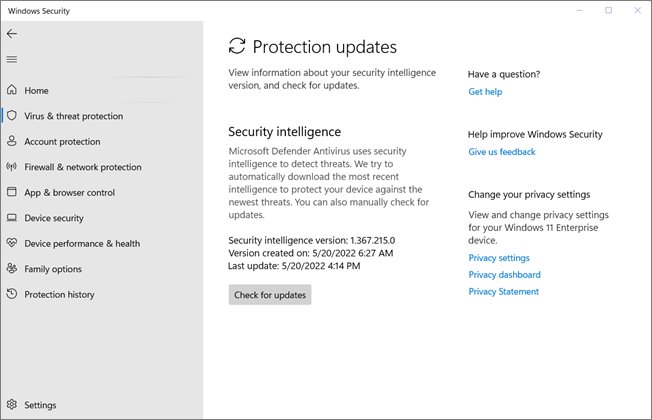
| Update Windows and Windows Defender | Settings > Windows Update > Check for updates, then Windows Security > Virus & threat protection > Protection updates > Check for updates | Installs the latest platform, engine and security intelligence |
| Check for malware | Virus & threat protection > Quick scan, or Scan options > Microsoft Defender Antivirus (offline scan) | Rules out malware that keeps Defender busy; the offline scan restarts the PC and scans before Windows loads |
| Adjust the scan schedule | PowerShell Set-MpPreference (next section) |
Moves scheduled scans to a time you are not using the PC |
| Lower scan CPU use and priority | Set-MpPreference -ScanAvgCPULoadFactor 30 -EnableLowCpuPriority $true |
Caps the average CPU a scan uses (default 50) and lowers scheduled scan thread priority from 9 to 8 |
| Add exclusions for trusted high-usage files | Virus & threat protection settings > Add or remove exclusions | Stops real-time scanning of one file, folder, file type or process |
| Perform a clean boot | msconfig > Services > Hide all Microsoft services > Disable all, then disable startup apps in Task Manager |
Shows whether another app or service is triggering the scans |
| Find the files Defender spends time on | New-MpPerformanceRecording -RecordTo C:\temp\defender.etl in an elevated PowerShell window |
Records which paths, files, extensions and processes take the most scan time |
Read the recording with Get-MpPerformanceReport -Path C:\temp\defender.etl -TopFiles 3 -TopScansPerFile 10. The performance analyzer needs platform version 4.18.2108.7 or later.
The Automatic sample submission toggle under Manage settings works with cloud-delivered protection to send suspicious files to Microsoft for checking. Turning it off is a privacy choice, not one of the CPU fixes Microsoft lists, and Microsoft alerts you before sending a requested file that contains personal information.
After a clean boot, return to a normal startup by turning the Microsoft services and startup apps back on in System Configuration and Task Manager.
Adjust Windows Defender scan schedule
Scheduled quick scans run daily at 2:00 AM by default. If your PC sleeps then, move the scan to a time when it is on but lightly used, such as lunch.
Set-MpPreference -ScanScheduleQuickScanTime 12:30:00 -ScanScheduleOffset 0 -RandomizeScheduleTaskTimes $false -ScanOnlyIfIdleEnabled $falseRun it in PowerShell as administrator. It sets the daily quick scan to 12:30 PM, removes the default 120-minute delay and stops the start time from being randomised by up to 30 minutes.
You should see: Run Get-MpPreference and check that ScanScheduleQuickScanTime shows 12:30:00.
Leave -ScanOnlyIfIdleEnabled at its default of $true if you would rather Defender wait until the PC is not in use. For a weekly full scan, use -ScanParameters FullScan -ScanScheduleDay Wednesday -ScanScheduleTime 12:30:00, although Microsoft generally does not recommend scheduling full scans.
Missed scheduled scans do not pile up by default: catch-up quick and full scans are off unless you turn them on.
Add exclusions for high-usage files or folders
An exclusion stops Defender from scanning one trusted item in real time. Excluded items can still contain threats, so exclude only files you know and only as narrowly as possible.
- Open Windows Security > Virus & threat protection.
- Under Virus & threat protection settings, select Manage settings.
- Under Exclusions, select Add or remove exclusions.
- Choose File, Folder, File type or Process, then pick the item using its full path.
- Check the exclusion from an elevated Command Prompt with
MpCmdRun.exe -CheckExclusion -Path <path>, run from the Defender platform folder.
Exclusions apply only to real-time scanning; scheduled and on-demand scans still check the item. A process exclusion skips the files that process opens, not the process itself.
Never exclude whole drives such as C:\, C:\Users, Temp folders, program folders, or file types such as .exe, .dll, .ps1 and .zip. Instead of guessing, adding MsMpEng.exe or Defender's own folders as an exclusion, use the performance analyzer to find the files that actually take the scan time and exclude those.
What to do if Microsoft Defender is blocking apps
A familiar app shows App is blocked when it saves to Documents or another protected folder
Controlled folder access lets only trusted apps change files in protected folders, and it blocks apps it does not recognise.
- Note the path of the blocked app shown in the notification.
- Select the notification, then select Add an allowed app.
- Browse to the program and add it.
- To manage the list later, open Windows Security > Virus & threat protection > Manage ransomware protection > Allow an app through Controlled folder access.
A program or download you trust was quarantined as a threat
Microsoft Defender Antivirus identified the file as a threat and quarantined it before it could run.
- Open Windows Security and select Protection history to see what was quarantined.
- Scan the file again with Virus & threat protection > Scan options > Custom scan if you are unsure about it.
- Only if you are certain the file is safe, add a File or Folder exclusion under Virus & threat protection settings > Manage settings > Add or remove exclusions.
- If you allowed a threat by mistake, open Allowed threats, select it and select Don't allow so Windows Security acts on it again.
Add only apps you trust: any app you allow through Controlled folder access can change files in the protected folders, and an excluded file is no longer checked by real-time scanning.
Turn Microsoft Defender real-time protection back on
- Open Windows Security and go to Virus & threat protection.
- In the Virus & threat protection settings section, select Manage settings.
- Slide the Real-time protection toggle to On.
If the toggle is unavailable, your organization manages real-time protection. After you turn it on, you can run a Microsoft Defender full scan to check the device.
Reinstall or reactivate Microsoft Defender Antivirus on Windows Server
On Windows Server 2016 and later, Defender is installed and enabled by default. Reinstall it from an elevated PowerShell session if it was removed.
Install-WindowsFeature -Name Windows-DefenderInstalls or reinstalls Microsoft Defender Antivirus on Windows Server 2016 and later. On Windows Server 2016, Install-WindowsFeature -Name Windows-Defender-GUI adds the user interface.
You should see: After the server restarts, Get-Service -Name windefend reports the service as Running.
If Defender stays in passive mode after you uninstall another antivirus, set the ForceDefenderPassiveMode DWORD to 0 under HKEY_LOCAL_MACHINE\SOFTWARE\Policies\Microsoft\Windows Advanced Threat Protection, then restart the server.
How to confirm WinDefend is protecting the device
- Press Windows logo key + R, type
eventvwr.mscand select OK. - Go to Applications and Services Logs > Microsoft > Windows > Windows Defender > Operational.
- Look for Event ID 5000, which means real-time protection is enabled.
- Treat Event ID 5001, 5010 or 5012 as a sign that real-time protection or scanning was turned off.
- Check Event ID 5007 for configuration changes you did not make, since Microsoft notes they can be the result of malware.
Event ID 5013 means tamper protection blocked a change to Microsoft Defender Antivirus. Keep Defender current too: you can manually update Microsoft Defender Antivirus when automatic updates lag.
Fix WinDefend when Defender is not running
Another antivirus package is installed and WinDefend is idle
Windows 10 and 11 put Defender into disabled mode automatically while another antivirus is primary.
- Open Windows Security > Virus & threat protection > Manage Providers and confirm the other product is listed.
- Leave Defender as it is while the other antivirus stays installed and up to date.
- Uninstall the other product if you want Defender back as your primary antivirus, then restart.
Defender is the only antivirus but WinDefend stays stopped on Windows Server
Some server versions, such as Windows Server 2016, can stay in passive mode or disabled after a non-Microsoft antivirus is uninstalled.
- Run
Get-Service -Name windefendandGet-MpComputerStatusto confirm the state. - Set
ForceDefenderPassiveModeto 0 underHKEY_LOCAL_MACHINE\SOFTWARE\Policies\Microsoft\Windows Advanced Threat Protection. - Restart the server and check the service again.
- Run
Install-WindowsFeature -Name Windows-Defenderif the feature was removed.
Windows Security shows Threat service has stopped. Restart it now.
The Defender service or its drivers failed to start. The Windows Defender Operational log usually shows Event 5007 (configuration changed) and Event 5001 (real-time protection disabled). The resolution is to check the services, then reset and re-enable the Defender platform.
- In an elevated PowerShell window, run
Get-Service WinDefend, WdBoot, WdFilter, WdNisSvc, WdNisDrv, SecurityHealthService, wscsvc | Format-Table -Auto DisplayName, Name, StartType, Status. WinDefend should be Automatic and Running; WdBoot is normally Stopped after boot. - Run the Microsoft Safety Scanner to rule out malware, and uninstall any non-Microsoft antivirus if Defender is meant to be your primary antivirus.
- In an elevated Command Prompt, change to the newest folder under
%ProgramData%\Microsoft\Windows Defender\Platform\, then runMpCmdRun.exe -RemoveDefinitions -AllandMpCmdRun.exe -ResetPlatform. - Run
MpCmdRun.exe -WdEnableto re-enable Defender, thenMpCmdRun.exe -SignatureUpdate -MMPCto download fresh security intelligence. - Confirm tamper protection is on in Virus & threat protection settings, then run Windows Update.
The Real-time protection toggle is unavailable
Your organization manages real-time protection through policy.
- Ask your IT administrator to confirm the policy that controls real-time protection.
- Check the Windows Defender > Operational log in Event Viewer for Event ID 5013 or 5007 to see whether a change was blocked or made.
WinDefend service FAQ
What is WinDefend?
WinDefend is the service name of the Microsoft Defender Antivirus Service. It runs MsMpEng.exe, shows as Antimalware Service Executable in Task Manager, and is the main Defender antivirus service in Windows 10, Windows 11 and Windows Server.
Is MsMpEng.exe the same as WinDefend?
Yes. MsMpEng.exe is the program file the WinDefend service runs. Task Manager lists it as MsMpEng.exe on the Details tab, Antimalware Service Executable on the Processes tab, and Microsoft Defender Antivirus on the Services tab.
What happens if I stop WinDefend?
If WinDefend stops while Defender is your only antivirus, files are no longer scanned and threats are not removed. Tamper protection keeps real-time protection on and protects the service, and real-time protection switched off in Windows Security turns itself back on after a short delay.
Is it OK to disable the Defender service?
No, not on a PC where Defender is the only antivirus. Microsoft does not recommend disabling or uninstalling Microsoft Defender Antivirus. When you install another antivirus on Windows 10 or 11, Defender switches to disabled mode by itself.
Can WinDefend run alongside another antivirus?
Yes, in passive mode on devices onboarded to Microsoft Defender for Endpoint, and on Windows 11 when Smart App Control is on or in evaluation. In passive mode Defender scans and reports threats but does not remediate them.
How do I check whether WinDefend is running?
Run Get-Service -Name windefend in PowerShell or sc query Windefend in Command Prompt. For the protection mode, run Get-MpComputerStatus and read AMRunningMode, where Normal means Defender is active.
What is WdNisSvc?
WdNisSvc is the Microsoft Defender Antivirus Network Inspection Service, which runs NisSrv.exe. It provides network real-time inspection and works alongside WinDefend, the main antivirus service.


![8 best music players for Windows 11 [2026 updated]](https://techdows.com/wp-content/uploads/2026/10/8-best-music-players-for-Windows-11-2026-updated-600x338.jpg)