NahimicService.exe is the background service for Nahimic, the SteelSeries audio driver and app that PC makers such as MSI and Lenovo build into select computers.
This guide covers what the process does, why it appears on PCs whose owners never installed it, how to confirm the file is genuine, what its CPU and memory use means, and the known conflicts with Teams and Office.
How to find NahimicService.exe in Task Manager
The quickest check takes under a minute and works the same way on Windows 11 and Windows 10.
- Press Ctrl + Shift + Esc to open Task Manager.
- Select the Details tab.
- Select the Name column header to sort the list, then find NahimicService.exe.
- Note the CPU and Memory figures in its row.
- Right-click NahimicService.exe and select Open file location to see which folder the file runs from.
A file that opens inside a protected system or program folder, on a PC that shipped with Nahimic audio, is the expected result. The legitimacy check further down confirms it with the digital signature.
What is NahimicService.exe?
SteelSeries describes Nahimic as a premium audio driver and app built into select PCs. It is a free preinstalled app on partner computers, while SteelSeries Sonar is the separate download for everyone else.
| Item | Detail |
|---|---|
| Product | SteelSeries Nahimic audio software |
| What it is | An audio driver plus a control app that adds sound effects and microphone processing |
| Who ships it | SteelSeries lists MSI, Lenovo, Huawei, Honor, ASRock and other brands as compatible computers |
| How you get it | Preinstalled by the PC maker on supported models, not sold as a standalone app |
| Related files Microsoft names | NahimicOSD.dll, Nahimic2OSD.dll, AudioDevProps2.dll and NahimicVRDevProps.dll |
| App exclusion list | BlackApps.dat in the %PROGRAMDATA% folder, which lists programs Nahimic leaves alone |
| Similar names in Task Manager | nahimicsvc32.exe, nahimicsvc64.exe and nahimic3.exe carry the same brand, so check them the same way as NahimicService.exe |
What Nahimic service does on your PC
NahimicService.exe is the background part of the Nahimic feature set. The features below are the ones SteelSeries lists for Nahimic, and they explain why the process stays active while sound plays.
| Nahimic feature | What it changes |
|---|---|
| Audio profiles | Separate presets for gaming, movies, music and communication |
| 10-band equalizer | Adjusts voices, bass and treble for each profile |
| Surround sound (virtual headset mode) | Recreates 7.1 surround on stereo headsets and on a laptop's built-in speakers |
| Volume stabilizer | Evens out spikes and dips between dialogue, music and effects |
| Microphone profiles | Keeps separate microphone settings for games and conference calls |
| Noise cancellation | Static noise suppression, echo removal and lateral sound cancellation on the microphone |
| Voice stabilizer | Steadies microphone levels for chat and calls |
All of these work on live audio, so the service has real processing to do whenever a game, call or video is playing.
Why is Nahimic on my computer if I never installed it?
Nahimic arrives with the hardware, not through anything you downloaded. Two routes explain almost every case.
| Route | How Nahimic gets there |
|---|---|
| Preinstalled by the PC maker | SteelSeries supplies Nahimic as a free preinstalled app on selected partner PCs, so it is part of the factory software image |
| Driver packages | Windows driver packages can carry a software component that installs extra apps and Win32 services alongside a device driver, and Windows Update can deliver those packages |
| Microsoft Store | Microsoft directed users with the Office crash issue to get the latest NahimicOSD driver from the Microsoft Store |
Microsoft's driver documentation also notes that a software component is not needed for basic device functionality and can be uninstalled separately from the parent device. That is why removing it does not, by design, take your sound card with it.
Is NahimicService.exe safe or a virus?
The genuine NahimicService.exe is OEM audio software from SteelSeries, and Microsoft's own support articles refer to Nahimic by name as a third-party audio driver, not as malware.
Any process name can be copied, though, so the file's location and signature decide it for your PC.
Treat NahimicService.exe as safe when your PC came with Nahimic audio, the file sits in a protected system or program folder, and it carries a valid digital signature. A copy in Downloads, Temp or a user AppData folder, or one with no valid signature, does not match how OEM audio software is installed and should be scanned with Microsoft Defender before you do anything else.
How to check whether the NahimicService.exe file is legitimate
Three checks settle it: the folder, the signature and a malware scan.
- In Task Manager, open the Details tab, right-click NahimicService.exe and select Open file location.
- In File Explorer, confirm the folder is a protected system or program folder, not Downloads, Temp or a folder under your user profile.
- Right-click the highlighted file, select Properties and open the Digital Signatures tab.
- Select the signature in the list, then select Details and confirm the dialog reports the signature as OK.
- Close the dialog, right-click the file, select Show more options, then select Scan with Microsoft Defender.
- Optionally, open PowerShell and run
Get-AuthenticodeSignature -FilePath "<full path to NahimicService.exe>". A Status of Valid confirms an intact signature.
Compare the result with your installed software too. A Nahimic process on a PC with no Nahimic app and no supported audio hardware deserves the same Defender scan.
Check the Nahimic service status in PowerShell
PowerShell lists every Windows service whose display name contains Nahimic, with its current status.
Get-Service -DisplayName "*Nahimic*"Get-Service returns installed services, and the wildcard in -DisplayName matches any service with Nahimic anywhere in its display name. In PowerShell 7, pipe the result to Format-List Name, Status, StartupType, BinaryPathName to see the start type and the executable path as well.
You should see: A row with a Status of Running means the Nahimic service is active. No output means no service with Nahimic in its display name is installed.
The Services console is an MMC snap-in, so it shows up as mmc.exe in Task Manager while you have it open.
NahimicService.exe high CPU and memory usage
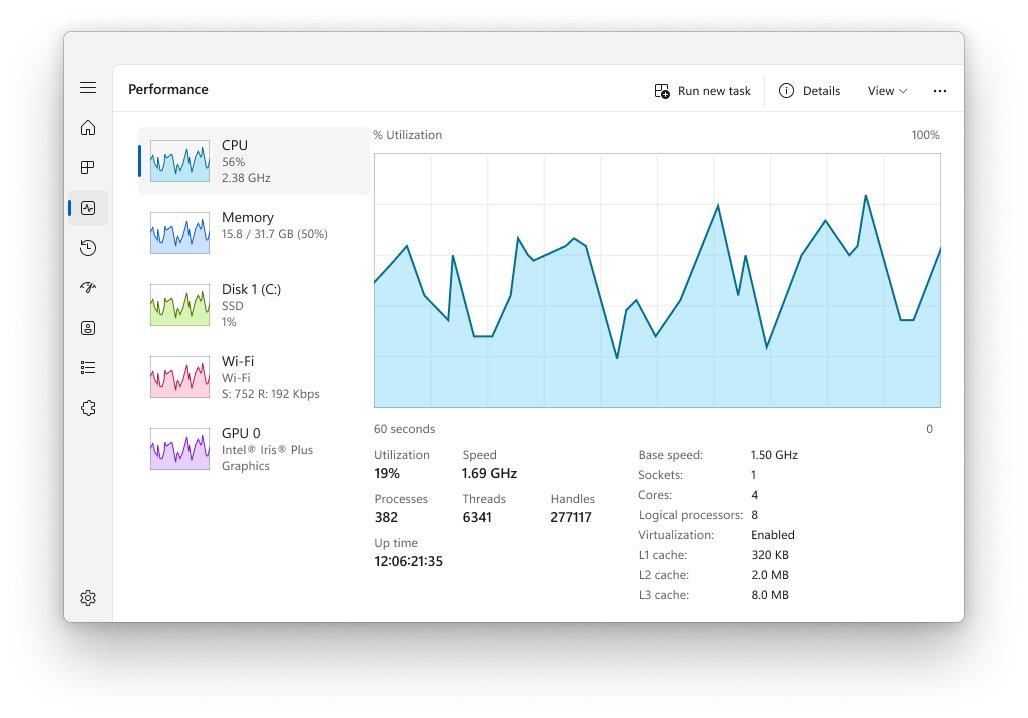
Equalizers, virtual surround and microphone noise cancellation all process sound in real time. Some CPU use while audio plays is the feature working, not a fault.
Background services that do useful work, like WMI Provider Host, are judged the same way: by whether the load matches what the PC is doing.
| What Task Manager shows | What it means | What to do |
|---|---|---|
| Low CPU and steady memory while idle | Normal background behaviour | Nothing |
| CPU rises while a game, call or video plays | Nahimic is applying effects to live audio | Turn off effects you do not use in the Nahimic app |
| High CPU with no audio playing for minutes | The service is stuck or out of date | Restart the PC, then install audio driver updates through Windows Update |
| Memory keeps climbing over hours | Not expected for an audio service | Update the Nahimic app and audio driver, then check whether the climb returns |
| High CPU from a copy outside system folders | Possible impostor using the Nahimic name | Run the legitimacy check and a Microsoft Defender scan |
How to disable or remove Nahimic service safely
Pick the lightest option that solves your problem. The step-by-step routes for each are in the guide to disable or uninstall Nahimic Service, which also covers stopping it from coming back.
| Your goal | Option | What happens |
|---|---|---|
| Stop the app opening at sign-in | Task Manager, Startup apps tab, select the Nahimic entry, then Disable | Nahimic stays installed but no longer launches when you sign in |
| Stop the background service | Set the Nahimic service Startup type to Disabled in the Services console | Effects stop working until you set it back |
| Remove Nahimic entirely | Uninstall the Nahimic app and its driver component | The extra processing goes, and the basic audio driver should keep working |
| Bring Nahimic back later | Use the Restore Nahimic 3 link on SteelSeries' Nahimic download page | Restores the Nahimic app on supported PCs |
Common problems linked to NahimicService.exe
Microsoft Teams shows no video in meetings
Microsoft documents a conflict between the new Teams app and the Nahimic audio driver.
- Exit the Teams desktop app.
- Search the
%PROGRAMDATA%folder in File Explorer for BlackApps.dat, the Nahimic exclusion list. - Open BlackApps.dat in Notepad. If it will not open, give your account Full control on the file's Security tab first.
- Add
ms-teams.exeandmsedgewebview2.exeon their own lines. - Save the file and restart Teams.
Office apps crash or show errors
Microsoft linked Office errors and crashes in Microsoft 365, Office 2021, 2019 and 2016 to the NahimicOSD audio driver.
- Open the Microsoft Store.
- Get the latest NahimicOSD driver update, as Microsoft's fix directs.
- Restart the PC and open the Office app again.
NahimicService.exe uses too much CPU or memory
Active sound effects, or an outdated Nahimic build, keep the service busy.
- Open the Nahimic app and turn off surround, the equalizer or microphone effects you do not use.
- Select Start > Settings > Windows Update, then select Check for updates and install any audio driver updates.
- Restart the PC.
- If the load stays high, disable the Nahimic entry on Task Manager's Startup apps tab and compare.
Nahimic comes back after you remove it
Driver packages can reinstall their software components when the audio driver is updated.
- Check Startup apps and the Services console to see which Nahimic part returned.
- Disable that part instead of uninstalling it again.
- Use the reinstall-prevention steps in the Nahimic removal walkthrough if you need it gone for good.
No sound after removing Nahimic
The audio device driver was removed or damaged along with the Nahimic component.
- Select Start, type Device Manager and select it.
- Expand Sound, video and game controllers.
- Right-click your audio device and select Uninstall device, then confirm.
- Restart the PC. Windows reinstalls the audio driver automatically.
NahimicService.exe FAQ
What is Nahimic service?
Nahimic service is the background process for SteelSeries Nahimic, an audio driver and app preinstalled on select PCs from brands such as MSI, Lenovo, Huawei, Honor and ASRock. It powers the equalizer, virtual surround, volume stabilizer and microphone noise cancellation.
What is Nahimic service in Task Manager?
In Task Manager it appears as NahimicService.exe on the Details tab. It is the service that keeps Nahimic sound and microphone effects running. Right-click it and select Open file location to confirm it runs from a protected system or program folder.
What is Nahimic on my computer?
Nahimic is audio enhancement software that your PC maker installed at the factory or delivered with its audio driver. SteelSeries supplies it free to partner PC makers, so finding it on a gaming laptop or desktop you never configured is normal.
Is NahimicService.exe malware?
No, the genuine file is SteelSeries audio software, and Microsoft names Nahimic as a third-party audio driver in its support articles. A copy in Downloads, Temp or AppData, or one without a valid digital signature, should be scanned with Microsoft Defender.
Where should the real NahimicService.exe file be located?
Neither SteelSeries nor Microsoft publishes one fixed path. Use Open file location in Task Manager: a protected system or program folder plus a valid digital signature points to the genuine file, while a user folder such as AppData or Temp is a warning sign.
Can I disable NahimicService.exe without breaking my sound?
Usually yes. Nahimic adds effects on top of the audio driver, so disabling it removes surround, equalizer and microphone processing while basic sound keeps working. If sound stops, reinstall the audio device from Device Manager and restart.
How to disable Nahimic service?
Open the Services console, double-click the Nahimic service, set Startup type to Disabled, select Stop and then OK. To stop only the app from opening at sign-in, disable the Nahimic entry on Task Manager's Startup apps tab instead.
How to uninstall or delete Nahimic service?
Uninstall the Nahimic app from your installed apps list, then remove its driver component so the service goes with it. Deleting NahimicService.exe by hand is not a clean removal, because the service entry and driver package stay behind and can restore it.
Will uninstalling Nahimic remove my audio driver?
It should not, because Windows treats driver add-on software components as separate from the device driver they extend. If sound stops after removal, uninstall the audio device in Device Manager and restart so Windows reinstalls the driver.
Bottom line: should you keep NahimicService.exe running?
Keep NahimicService.exe if you use Nahimic surround, the equalizer or microphone noise cancellation, and disable it if you never open the app or it conflicts with Teams or Office. The genuine service is signed OEM audio software that only costs CPU while it processes sound, so the only real reasons to stop it are a documented conflict, unexplained load, or a copy that fails the location and signature check.