MMC.exe is the Microsoft Management Console, and it is running because a Windows administrative tool is open inside it.
This guide shows how to identify which snap-in started it, where the file belongs, what its command-line switches do, and how to fix crashes and policy blocks.
Why MMC.exe is running on your PC
Microsoft Management Console is a host program, not a tool in itself. Microsoft describes it as the console you use to create, save and open administrative tools that manage the hardware, software and network components of Windows.
The tool hosted inside it is called a snap-in. So mmc.exe appears in Task Manager whenever a console such as Services, Event Viewer or Certificates is open.
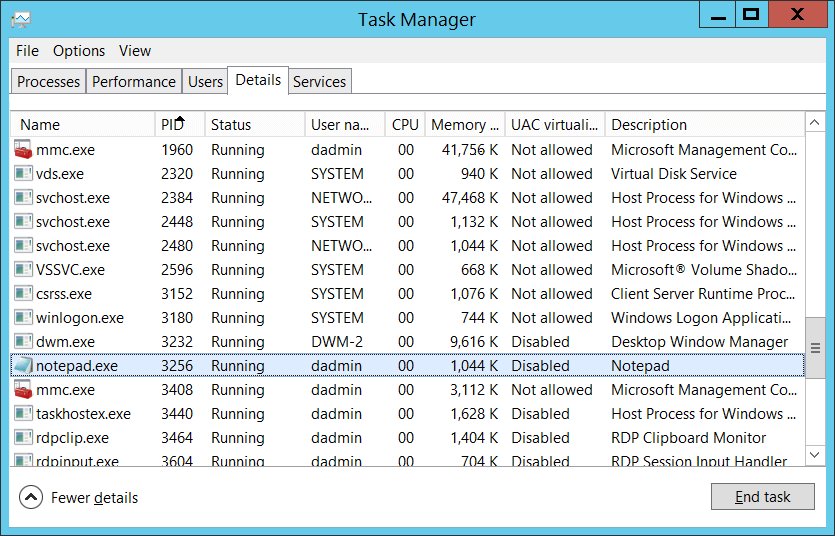
- Press Ctrl + Alt + Del and select Task Manager.
- Open the Details tab.
- Find mmc.exe in the Name column.
- Right-click mmc.exe and select Open file location.
- Check that File Explorer lands in the Windows system folder,
C:\Windows\System32.
Microsoft's own debugging guidance points a debugger at Mmc.exe in the Windows system directory, so that folder is where the genuine file belongs. Windows runs other host processes of this kind, such as the one covered in What is Browser_Broker.exe process in Windows 10?
Which way should you start MMC?
| Your situation | Use this | Why |
|---|---|---|
| You know the console file name | Enter it in the search box on the taskbar, for example services.msc |
Opens that one snap-in straight away |
| You want several snap-ins in one window | Run mmc, then add snap-ins from the File menu |
Builds a console you can save and reuse |
| You need to edit a saved console | mmc <path>\<filename>.msc /a |
Author mode allows snap-ins to be added or removed |
| A snap-in is 32-bit only on 64-bit Windows | mmc /32 |
Opens the 32-bit version of MMC |
| You are managing another machine | Open a snap-in, then select Connect to another computer | Points the same snap-in at a remote computer |
Build a custom console with the snap-ins you need
- Select Run from the Start menu, then enter
mmc. - On the File menu, select Add/Remove Snap In.
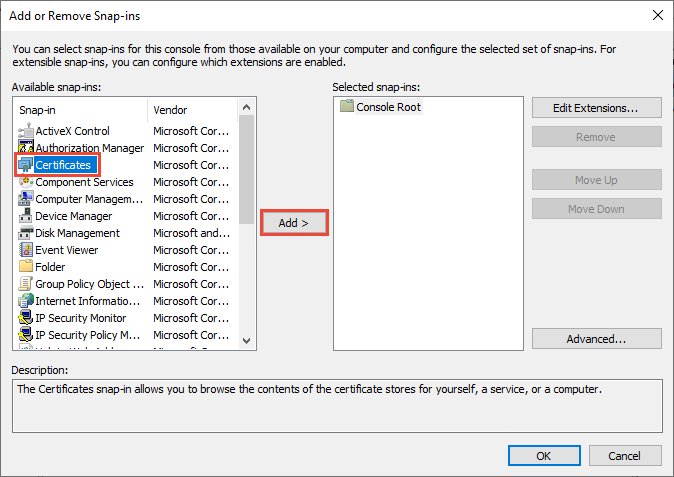
- Pick a tool in the Available snap-ins list and select Add.
- Answer the snap-in's wizard pages, such as choosing Computer account or My user account, then select Finish.
- Select OK in the Add or Remove Snap-ins window.
- On the File menu, select Save As and save the console as an .msc file.
The saved file reopens with the same snap-ins loaded. Microsoft suggests pointing shortcuts at it with an environment variable such as %systemroot% rather than a fixed drive path, so the shortcut survives on a different computer.
Run MMC with administrator rights
Some snap-ins show only what the signed-in account can see. The Certificates snap-in, for example, manages certificates for your own user account unless you are an administrator on the device.
- Type
mmcin the search box on the taskbar. - Right-click mmc in the results and select Run as administrator.
- Confirm the prompt asking whether to allow the app to make changes to your device.
- Add the snap-in you need from the File menu.
Microsoft's MMC article names the runas command as the way to create a custom MMC under different credentials.
MMC.exe command-line options
mmc <path>\<filename>.msc [/a] [/64] [/32]<path>\<filename>.msc opens a saved console and needs the complete path and file name; leave it out and MMC opens a new, empty console. /a opens the console in author mode whatever its default mode is, without changing that default. /64 opens the 64-bit version of MMC for 64-bit snap-ins, and /32 opens the 32-bit version for snap-ins that exist only in 32-bit form.
You should see: The console window opens with the snap-in loaded, and mmc.exe is listed on the Details tab of Task Manager.
The same command works from the Run box, a Command Prompt window, a shortcut, or a batch file.
Where MMC.exe and its console files live
| File | How to reach it | What it is |
|---|---|---|
mmc.exe |
The Windows system directory, C:\Windows\System32 |
The console host itself |
| Saved console files (.msc) | Anywhere on disk; system consoles ship under the Windows system folder | A stored set of snap-ins that MMC opens |
services.msc |
Enter the name in the search box on the taskbar | The Services console |
eventvwr.msc |
Press Windows logo key + R, type the name, press Enter | Event Viewer |
wf.msc |
Select Start, type the name, press Enter | Windows Firewall with Advanced Security |
certmgr.msc and certlm.msc |
Select Run from the Start menu, then enter the name | Certificate Manager for the current user, and for the local device |
SQLServerManager17.msc |
C:\Windows\SysWOW64\SQLServerManager17.msc |
SQL Server Configuration Manager for SQL Server 2025 |
How to check it worked
- Look at the left pane of the new window: a loaded console shows Console Root with the snap-in beneath it.
- Expand the snap-in node to confirm it returns data rather than an error.
- Press Ctrl + Alt + Del, select Task Manager, and open the Details tab.
- Confirm mmc.exe is listed, and note its PID.
- Close the console window, then check the Details tab again to see whether that entry has gone.
What MMC.exe actually does
| Fact | Detail |
|---|---|
| Full name | Microsoft Management Console |
| Role | Creates, saves and opens administrative tools called consoles |
| Snap-in | A tool hosted in MMC; the console gives several of them one interface |
| Supported systems | Microsoft states MMC runs on all client operating systems that are currently supported |
| Console file | An .msc file that reopens a chosen set of snap-ins |
| Author mode | Lets you add or remove snap-ins and save the result |
| Custom tools | You can build a console holding only the snap-ins you need and give it to other users |
| Remote use | A snap-in can be pointed at another computer with Connect to another computer |
Which Windows tools run inside MMC.exe
Several tools that look like separate programs are snap-ins with no executable of their own. SQL Server Configuration Manager is the clearest case: Microsoft notes it may not appear as an application in newer versions of Windows because it is a snap-in, not a stand-alone program.
| Snap-in | What it manages | Note |
|---|---|---|
| Services | Windows services | See Get a list of Services Running on your computer |
| Event Viewer | Windows logs, including the Application log | Opens with eventvwr.msc |
| Certificates | Local computer, current user and service account certificate stores | Added from Available snap-ins |
| Windows Firewall with Advanced Security | Inbound and outbound firewall rules | Opens with wf.msc |
| Disk Management | Drives, partitions and volumes | Needs the Virtual Disk Service running on a remote target |
| Task Scheduler | Scheduled tasks | Remote use needs its own firewall rule groups |
| Group Policy Management Console | Group Policy objects | Installed with Remote Server Administration Tools |
| DNS Manager and the DHCP console | DNS and DHCP servers | Also part of Remote Server Administration Tools |
| SQL Server Configuration Manager | SQL Server services and network protocols | Runs from SQLServerManager<version>.msc |
What MMC.exe means in a security log
Event 4688 is written by the Audit Process Creation subcategory every time a new process starts. An entry naming mmc.exe records that someone opened a management console.
| Field in event 4688 | What it tells you |
|---|---|
| New Process Name | The full path and name of the new executable, which for a genuine console reads C:\Windows\System32\mmc.exe |
| Creator Process Name | The full path of the process that launched it, for example C:\Windows\explorer.exe |
| Creator Subject and Target Subject | The account that requested the process, and the target account when the two differ |
| Token Elevation Type %%1937 | Type 2, an elevated token: the console was started with Run as administrator |
| Token Elevation Type %%1938 | Type 3, a limited token: started without administrative privilege |
| Mandatory Label | The integrity level assigned to the new process |
| Process Command Line | Empty by default, so the .msc file name does not appear unless command line auditing is on |
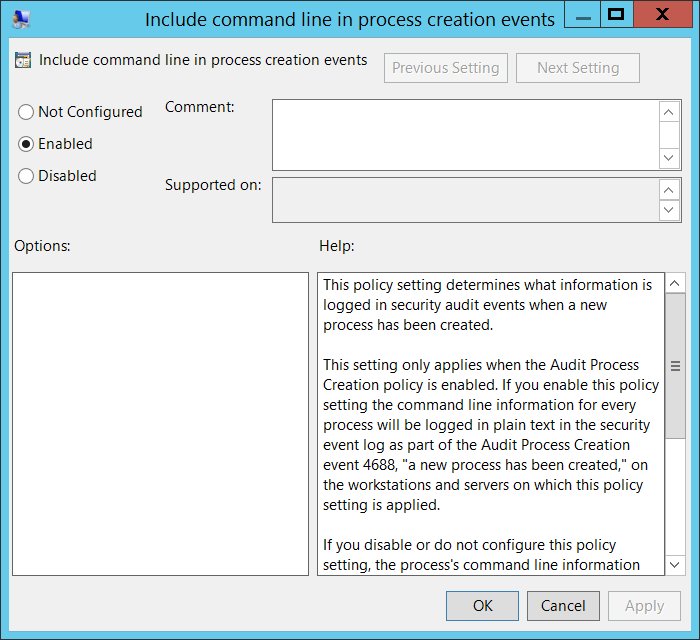
To capture which console was opened, enable Administrative Templates\System\Audit Process Creation\Include command line in process creation events. Microsoft also suggests watching for a New Process Name that sits outside a standard folder such as System32 or Program Files.
Fix MMC.exe when it crashes, is blocked, or will not connect
MMC.exe crashes, or the console closes on its own
Damaged system files or a damaged component store stop the snap-in loading.
- Press Windows logo key + R, type
eventvwr.msc, and press Enter. - Expand Windows Logs, select the Application log, and look for Event ID 1000 at the time of the crash.
- Type
cmdin the Search box, right-click Command Prompt and select Run as administrator. - Run
DISM.exe /Online /Cleanup-image /Restorehealthand wait for it to finish. - Run
sfc /scannowand leave the window open until verification reaches 100 percent. - Restart the computer and open the console again.
MMC.exe is blocked by your administrator
The user policy Restrict the user from entering author mode is enabled, which stops MMC opening a blank console window from the Start menu or a command prompt.
- Press Windows logo key + R, type
regedit, and press Enter. - Go to
HKEY_CURRENT_USER\Software\Policies\Microsoft\MMCand look for the valueRestrictAuthorMode. - Open an existing user-mode console instead, such as
services.msc, which the policy still permits. - Ask whoever manages the device to review the setting at User Configuration > Windows Components > Microsoft Management Console.
A snap-in is missing from Add or Remove Snap-ins
Restrict users to the explicitly permitted list of snap-ins is enabled, so every snap-in is prohibited except those permitted one by one.
- Press Windows logo key + R, type
regedit, and press Enter. - Go to
HKEY_CURRENT_USER\Software\Policies\Microsoft\MMCand look for the valueRestrictToPermittedSnapins. - Open a console file that uses the missing snap-in: it opens, but the prohibited snap-in is absent.
- Ask the administrator to enable the matching entry under Restricted/Permitted snap-ins, because enabling the parent setting alone leaves no snap-ins usable.
MMC cannot connect to another computer
The remote computer's firewall does not allow the rule group that the snap-in needs.
- Open an elevated PowerShell window on the remote computer.
- Run
Enable-NetFirewallRule -DisplayGroup "Windows Remote Management"to allow all MMC snap-ins to connect. - Enable a single group instead where that is enough, such as Remote Event Log Management for Event Viewer or Remote Service Management for Services.
- For Disk Management, start the Virtual Disk Service on the remote computer as well.
- On your own machine, right-click the snap-in, select Connect to another computer, type the computer name, and select OK.
A 32-bit snap-in will not load on 64-bit Windows
MMC opened its 64-bit version, which cannot host a snap-in that exists only in 32-bit form.
- Select Run from the Start menu and enter
mmc /32. - Add the snap-in from the File menu.
- Use
mmc /64instead when the snap-in has a 64-bit version.
What to know before you end the MMC.exe process
Close the console window rather than ending mmc.exe in Task Manager. The process only hosts the snap-in, so ending it shuts the administrative tool and discards any console layout you have not saved to an .msc file. Processes added by third-party software are a different matter, as What is DbxSvc.exe and how to Close it? shows.
Frequently asked questions
What is mmc.exe used for?
MMC.exe hosts administrative tools called snap-ins. Microsoft describes it as the console you use to create, save and open tools that manage the hardware, software and network components of Windows, including Services, Event Viewer and Certificates.
Where is mmc.exe located?
Mmc.exe sits in the Windows system directory, which is C:\Windows\System32 on a standard installation. Microsoft's debugging guidance points a debugger at Mmc.exe in that folder. A copy running from any other location is not the Windows console host.
How do I run mmc.exe?
Select Run from the Start menu and enter mmc to open an empty console, then add snap-ins from the File menu. To open a saved console instead, run mmc followed by the complete path and file name of the .msc file.
What is Microsoft MMC?
Microsoft Management Console is the framework that runs several management snap-ins behind one interface. It runs on all client operating systems that Microsoft currently supports, and it lets you build custom consoles holding only the tools you need.
What is mmc.exe in a security log?
In event 4688, mmc.exe as the New Process Name means a management console was opened. The Creator Process Name shows what launched it, and the Token Elevation Type shows whether it ran elevated. The command line is empty unless command line auditing is enabled.
Why does mmc.exe crash?
A crash usually points at damaged system files or a damaged component store rather than at MMC itself. Check the Application log in Event Viewer for Event ID 1000 at the time of the crash, then run DISM with the Restorehealth option followed by sfc /scannow.
What are the mmc.exe command line options?
The syntax is mmc <path>\<filename>.msc [/a] [/64] [/32]. The /a switch opens a saved console in author mode, /64 opens the 64-bit version of MMC, and /32 opens the 32-bit version for snap-ins that exist only in 32-bit form.
Why is mmc.exe blocked by my administrator?
A user policy named Restrict the user from entering author mode stops MMC opening a blank console from the Start menu or a command prompt. Saved user-mode consoles still open. The setting lives under User Configuration, Windows Components, Microsoft Management Console.
Do I need to run mmc.exe as administrator?
Only for tasks that need administrative rights. Without them, the Certificates snap-in manages certificates for your own user account alone. Right-click mmc in the search results and select Run as administrator when a snap-in must reach machine-wide settings.
Is mmc.exe in Windows 11 the same as in Windows 10?
Yes. The same console host and the same command-line switches apply. The MMC snap-in restriction policies are documented for Windows 11 version 21H2 and later, and for Windows 10 version 2004 and later with update KB5005101 installed.





Nahimicservice.exe: what it is, what it does, and how to handle it - Techdows
[…] Services console is an MMC snap-in, so it shows up as mmc.exe in Task Manager while you have it […]
Certmgr.msc or Certificate Manager in Windows 11/10 - Techdows
[…] is a saved Microsoft Management Console file that loads the Certificates snap-in pointed at the current user's certificate […]